Shutdown via CMD: An overview of windows shutdown commands

How one shuts down their PC via the Windows user interface is known by every Windows user. The user interface, however, only provides users with limited options. Less known is the fact that computers can be shut down in highly variable and very different ways by entering specific shutdown commands in the prompt. As an operating system shell, this enables an interaction between the user and Windows.
- Free website protection with SSL Wildcard included
- Free private registration for greater privacy
- Free Domain Connect for easy DNS setup
Windows shutdown via command: explanation and advantages
The Windows command prompt is a powerful tool from the old days of MS-DOS which today still accepts countless commands for special purposes. Behind the designation there is ultimately an executable program: the cmd.exe, which provides a line for the command input (the actual prompt). For shutting down your computer, another program addresses the command line tool: the “shutdown.exe”, for example, shuts off the computer immediately after the program is called up, restarts it or logs off the current user.
The advantages of command-based control are obvious: through Windows shutdown commands, you save yourself mouse clicks and don’t have to surf through menus. Detours across the Windows user interface are avoided. Should one issue a shutdown command, the computer can be shut down directly and quickly.
Other advantages include flexibility and adaptability. One can select from various shutdown options and as a result proceed in a number of various ways. A fine adjustment of the desired mode occurs through the addition of further control parameters. Each mode is intended for a specific use case. Due to their adaptability, shutdown routines play an important role in the administrative field. This means that geographically-remote PC and servers are remotely time-controlled via manual command entries. Also, special shutdown scripts are used for the automation of routines that are at times relatively easy to prepare.
Below, we will show you where one enters CMD commands and the specific syntax that one must observe. Furthermore, we will provide info on several shutdown options.
The first step: call up the command prompt for shutdown commands
If one would like to use cmd.exe for entering Windows shutdown commands, two methods are available depending on your preferences for operating the computer:
- Call-up via mouse click and entry of “cmd”
- Call-up via keyboard combination and entry of “cmd”
Call-up of the command prompt via mouse click and search for “cmd“
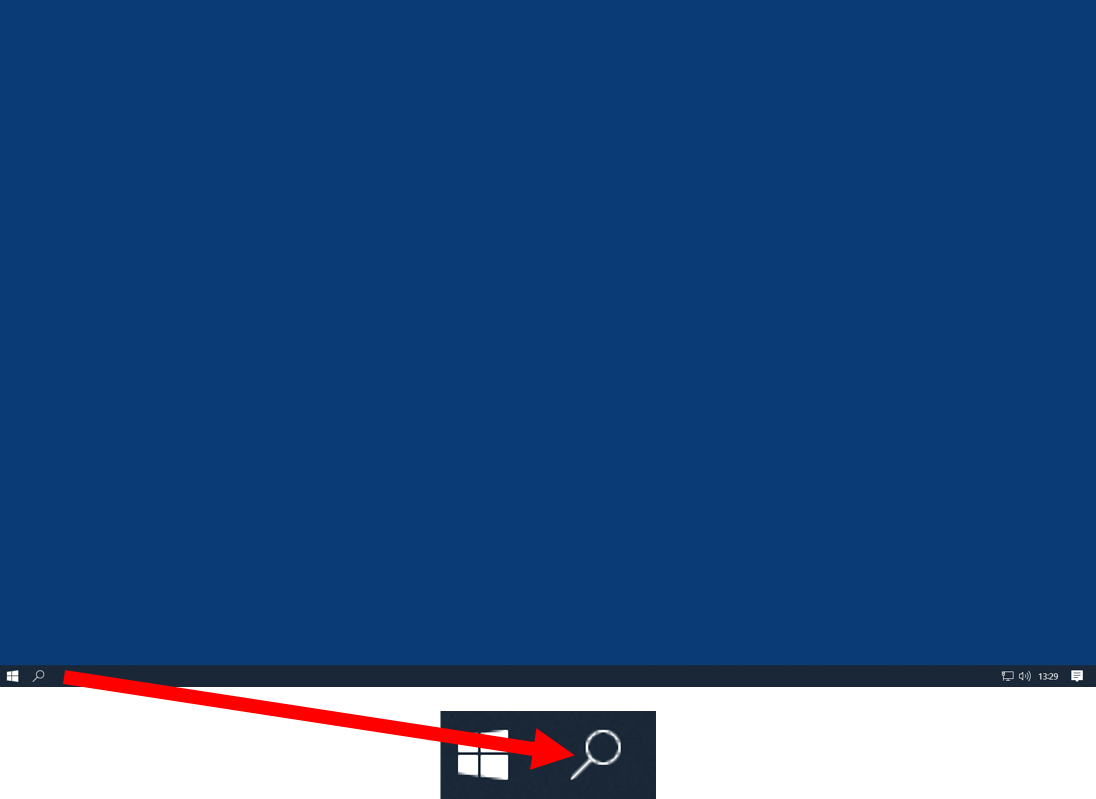
- Click on the search field in the Windows task bar at the lower-left screen margin:
- Enter the “cmd” letter sequence into the search entry field:
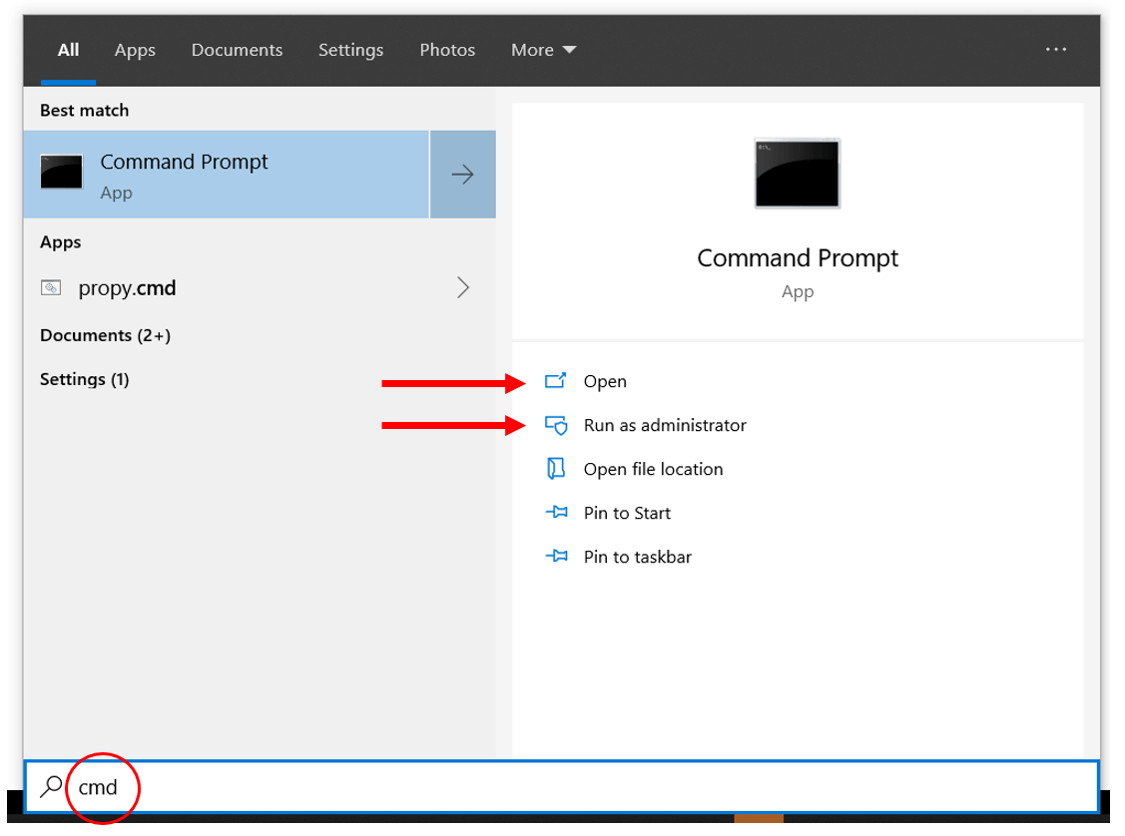
- Press the enter key or click on “Open” with the mouse.
As you can see in the screenshot, there are various options. You can launch the prompt with restricted privileges or “Run as Administrator”. In the latter case, the cmd.exe operates with extended access rights. However, one requirement is that administrator rights in the active user account must be expressly permitted.
For a shutdown command, the default mode is normally sufficient. The administrator mode is recommended if desired commands cannot be run in the normal mode. In doing so, however, one should always bear in mind that through the use of administrator rights, programs receive extensive authorizations. Should these become infected with viruses, for example, damage to the system can occur.
Call-up via keyboard combination and entry of “cmd”
Anyone who prefers to use key combinations with their operating system can also activate the prompt with this method:
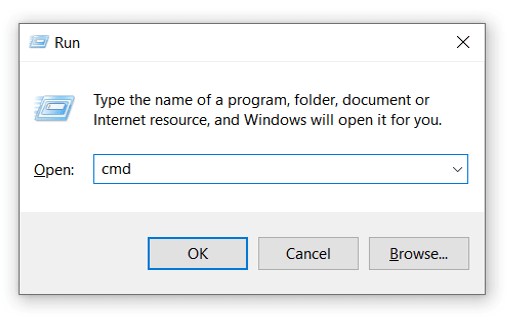
- Pressing the [Windows] + [R] keys at the same time (the Windows key can be found on most keyboards and is indicated by the Windows “flag” symbol).
- Entering the “cmd” letter sequence in the opening search entry field, then pressing the enter key or clicking on “OK”:
Shutdown via CMD entry: this is how the command lines work
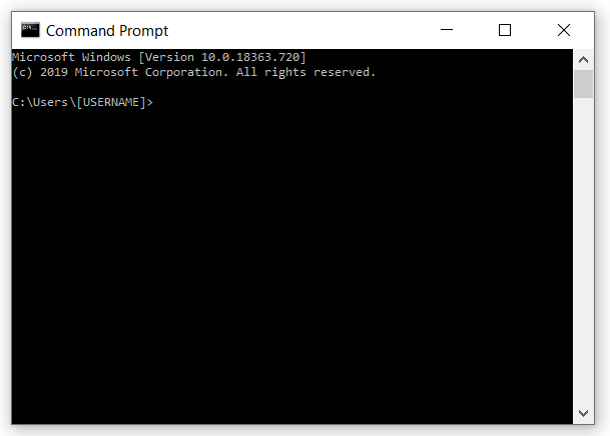
Both call-up methods cause Windows to open the command prompt in a separate window through which you can now define the desired shutdown command:
The Windows command line can process numerous shutdown codes. To this end, the exact designations and control parameters must be entered in accordance with the appropriate (command) syntax. The standard syntax is the following:
shutdown /ParameterShutdown commands, thus, combine the basic “shutdown” command and additional control parameters. The latter decide whether a system should be, for example, shut down (/s) or restarted (/r). In doing so, the combination of several parameters is always possible.
The most important commands for shutdowns via CMD
Below you obtain a tabular overview of the most important Windows shutdown command that can be run using the command prompt.
The command prompt in Windows 10 supports copy and paste. You can copy the commands from this article (key combination: [Ctrl] + [C]) and then place them in the entry window via paste (key combination: [Ctrl] + [V]). Because the running program could be closed without your requesting it – resulting in the loss of your data – you should first close any important programs and back up your data.
| shutdown /s | Shut down PC immediately |
| shutdown /a | Abort shutdown |
| shutdown /r | Restart computer |
| shutdown /l | Log off current user |
| shutdown /f | Force shutdown: forces the running application to close (the user receives no advance warning) |
These commands function immediately. In other words, without any further formulation. Sophisticated shutdown procedures require a more comprehensive syntax. Some examples:
| shutdown /s /t 20 | Shuts down local PC in 20 seconds (time specification with “/t-Parameter” is freely selectable) |
| shutdown /r /m \\Computername | Restarts a remote PC (preparation may be required: assignment of access rights for remote control, change of Firewall settings) |
| shutdown /r /m \\Computername /c “comment” | Restarts a remotely-operated PC (the text behind the “/c-Parameter” appears in a blue text box on the screen of the addressed target PC) |
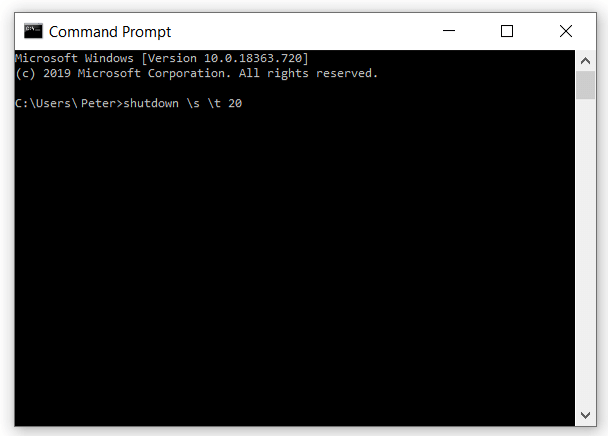
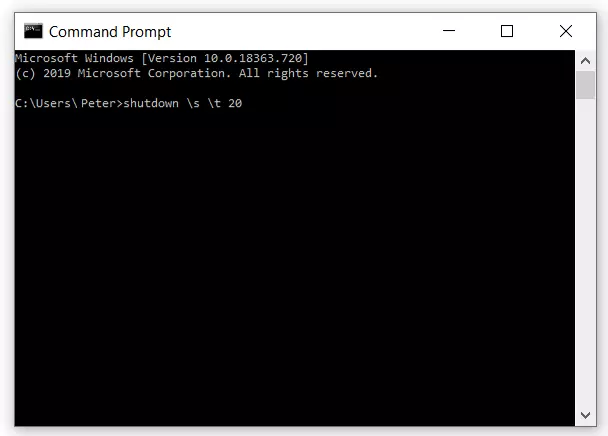
Example: Restart the local PC after 20 seconds
The local PC is shut down by an active user account in 20 seconds. The user account has the designation “Peter”:
Example: the forced restart of a remote PC after one minute
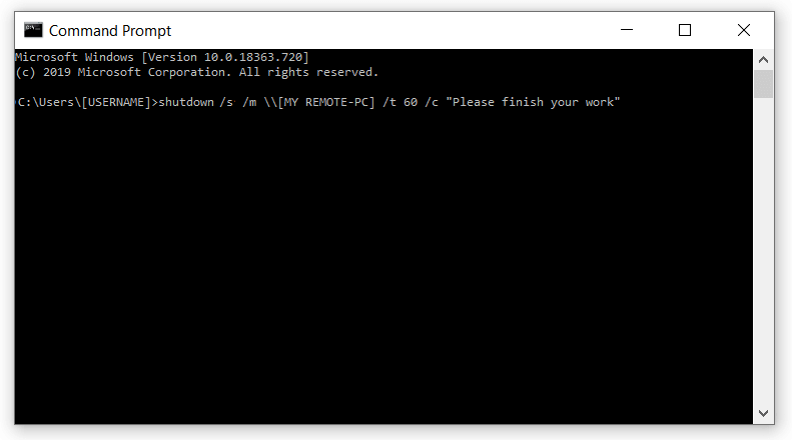
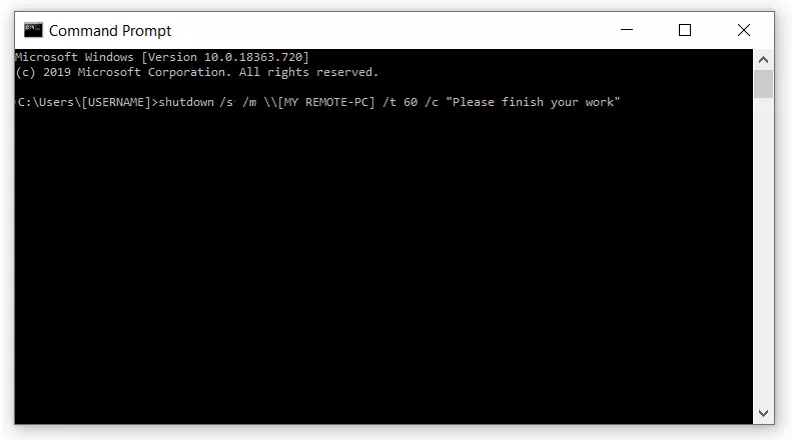
A remote computer [MY REMOTE PC] is supposed to be shutdown remotely after 60 seconds. In the countdown phase of the shutdown, a text box with the comment “Please finish your work” is supposed to be shown. The following syntax implements the task:
shutdown /s /m \\[MY REMOTE PC] /t 60 /c "Please finish your work"When formulating the syntax, the selected placeholder [MY REMOTE PC] should be completely (including square brackets) using one’s own data. With the comment, the quotation marks shown above must be placed at the front and back.
If the command is successfully run, this standard Windows display appears on the screen of the remotely-operated PC, accompanied by the desired comment: “Please finish your work”:


Ambitious users of Windows shutdown commands can define highly complex procedures for very specific purposes. The Windows command prompt lists the fundamental syntax building blocks for this if one enters “shutdown/?” (without quotation marks) in the command line.
Additional shutdown options
It is not mandatory that you rely on the command prompt in order to shut down Windows in different ways. Shutdown routines can also be initiated via a script (batch file) which immediately runs the desired commands without a CMD call-up. One can easily create these types of files with the Windows Text Editor notepad, save them as a *.bat file and launch them via mouse click.
Example file name: Shut off_PC.bat
@echo off
shutdown /s /t 20
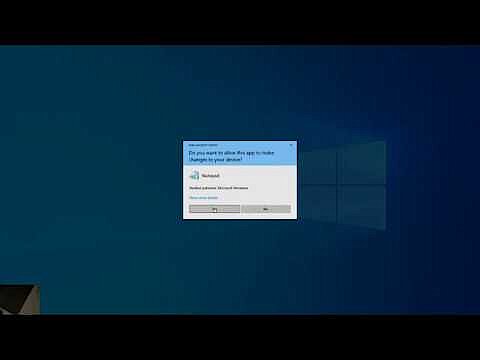
When creating and testing batch files, there are a few things to keep in mind. In this video the necessary preparations are thoroughly demonstrated:
 To display this video, third-party cookies are required. You can access and change your cookie settings here.
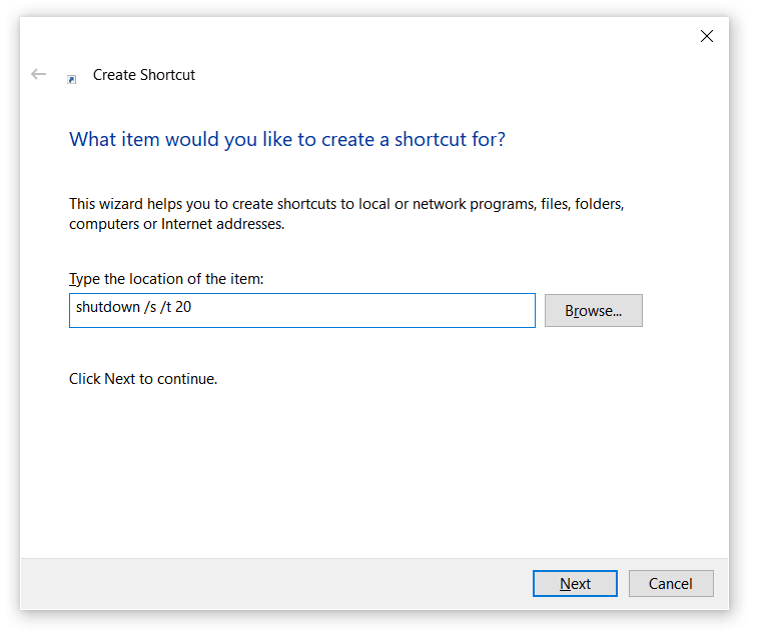
 Another option for initiating a shutdown in the shortest way possible is the Windows shortcut. After right-clicking on the Windows Desktop, a menu opens, then click “New” followed by “Shortcut”.
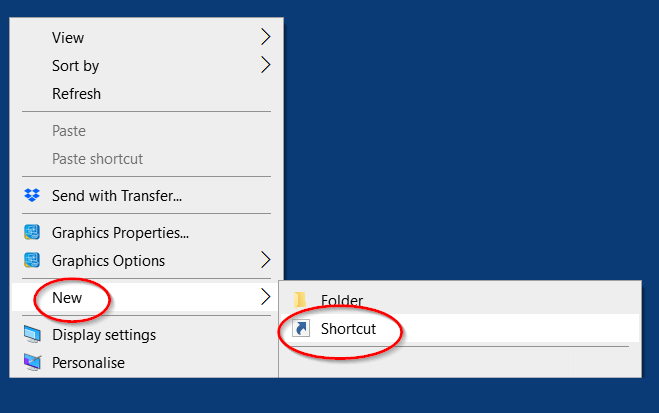
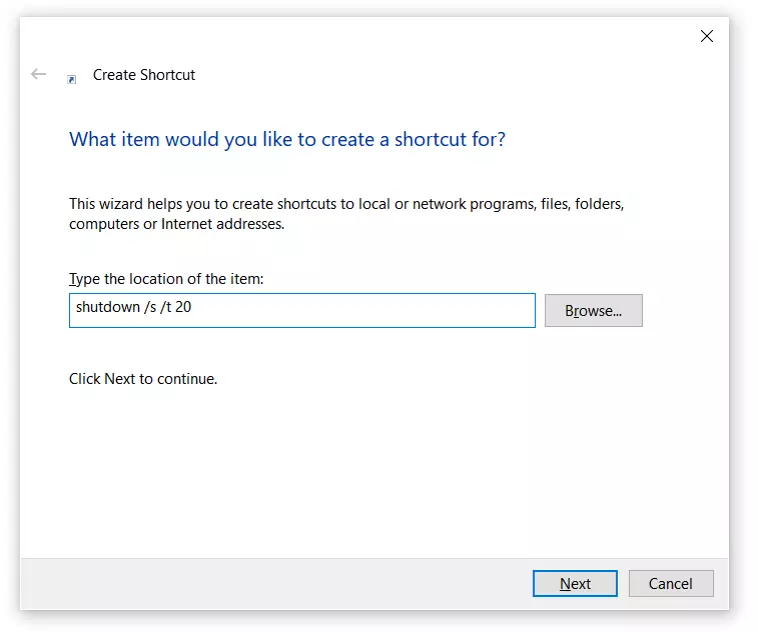
The opening entry window can also handle code. A shutdown shortcut on the desktop is quickly produced:
- enter “shutdown /s /t 20” (without quotation marks)
- click on “Next”
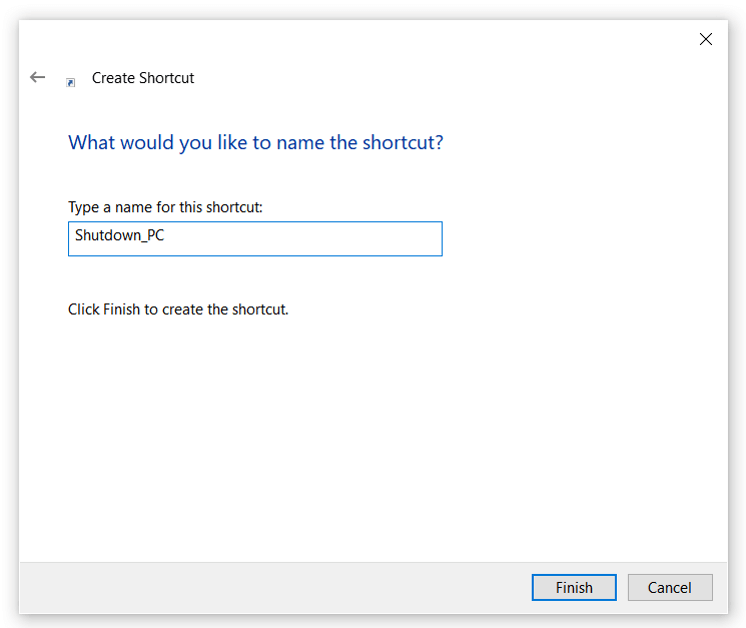
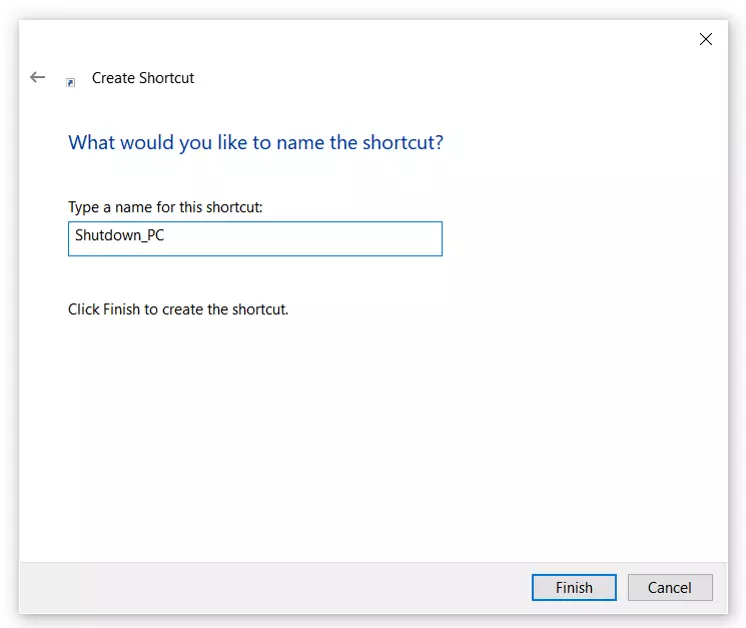
- assign a meaningful name
- end the process with “Finish”
A click on the shortcut then shuts down the PC with a 20-second delay.