

How to fix the USB device not recognized error

Even in times of cloud storage, USB sticks continue to be the standard choice for many computer users. When files need to be quickly copied from one device to another or backups are required, many users still use these practical storage devices. That’s because, unlike ubiquitous online storage, USB sticks do not depend on an internet connection. Plus, there are fewer concerns about data privacy: after all, if the stick is stored securely, no hacker will be able to access the data.
But what if you need files that are saved on a stick and the USB drive is not recognised or displayed? We’ll explore the most common causes to this problem and what solutions are the most effective on Windows and macOS.
- Free website protection with SSL Wildcard included
- Free private registration for greater privacy
- Free Domain Connect for easy DNS setup
Why Isn’t the USB stick displayed? The most common sources of error and possible solutions for macOS and Windows
As is so often the case when using different hardware components, lots of causes may be to blame when your USB drive isn’t recognised. For instance, the error may be due to the stick itself as well as the reading device you’ve connected the external data medium to.
Consequently, there is no universally valid solution to this problem. You need to know a range of methods for checking and solving the issue. Trying these methods one after the other will help you resolve the error. The most common scenarios in which a USB drive is not recognised are summarized for you in the following sections, each accompanied by a strategy to fix the issue.
Scenario 1: The USB port is faulty
If your USB drive isn’t showing up, you might initially think that the external storage medium is defective. However, it’s more often the case that the device you’re connecting the stick to is damaged – specifically the USB port that provides the interface between the removable stick and your computer. If the chosen USB connection no longer works, even a functioning USB stick and its contents will naturally not be recognised.
So, before moving on to the more complex error and solution scenarios, we recommend that you first check whether your USB stick is possibly suffering from the problem of a faulty USB port. To this end, simply try out one or more different connections. If the stick is then recognised, you can be sure that the first port you tried no longer works!
Scenario 2: The USB controller lacks the right or updated driver
All USB connections are managed by the target device using the USB controller. In turn, this requires updated drivers to recognise various devices like the mouse, keyboard, and USB sticks. If these drivers are not up to date and the connected USB stick is not shown, you may be able to solve the problem by installing the drivers manually.
Solution for Windows users:
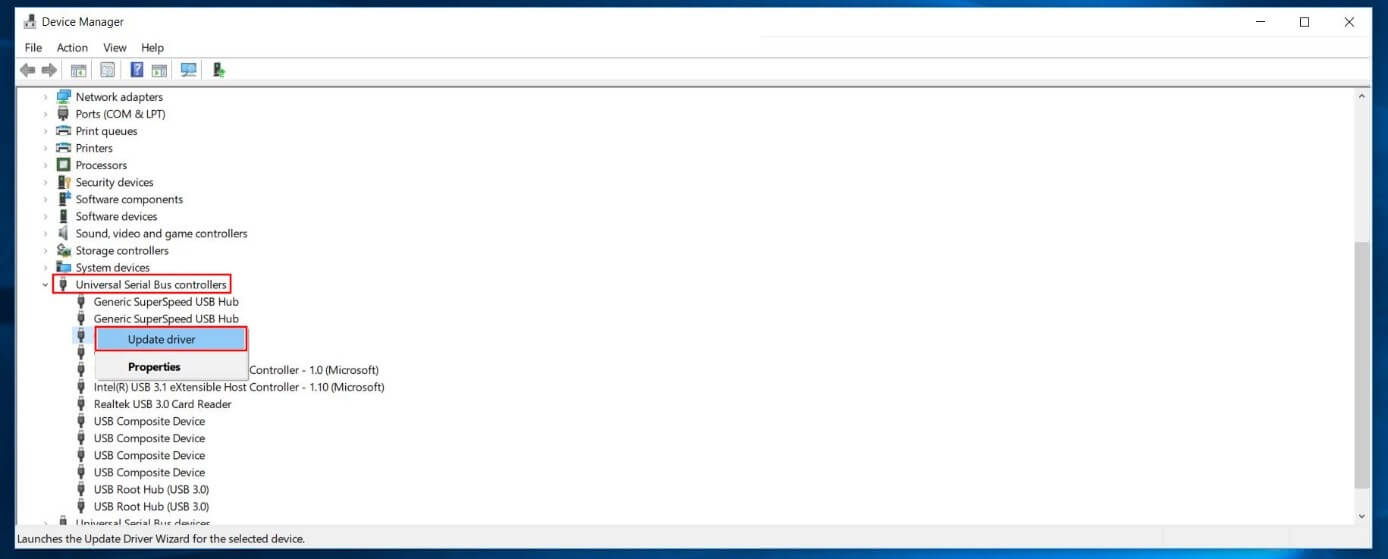
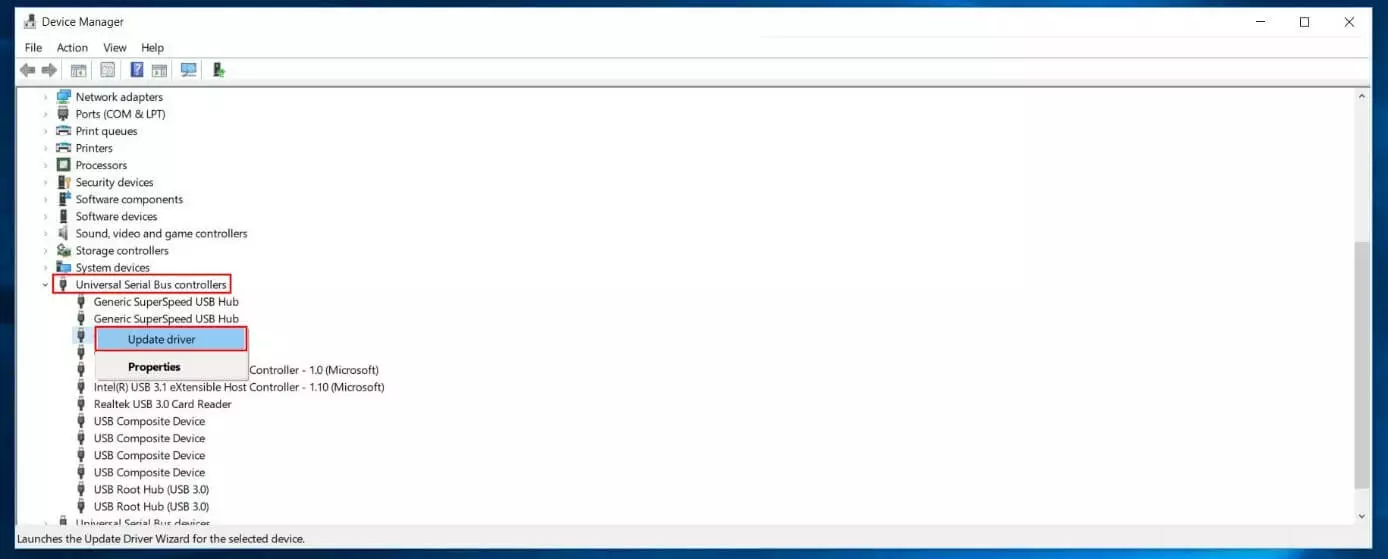
On Windows, you can update the USB drivers via the “Device Manager.” To do so, take the following steps:
- Press the key combination [Windows] + [R].
- Type “devmgmt.msc” in the execution dialogue and confirm via “OK.”
- Open the “USB Controller” section by double-clicking and select the faulty USB stick using the right mouse button (often indicated by a red exclamation mark).
- Click on “Update Driver” and choose “Automatically search for updated driver software.”
Solution for Mac users:
macOS does not feature a device manager like in Windows. Regular driver updates are automatically pulled, installed, and updated for internal hardware as well as external devices such as USB sticks. However, if you manage Mac updates manually or there were issues with previous automatic updates, it’s also possible that important drivers may be missing, resulting in a USB stick not being recognised.
So, check whether any important updates are available and run them to resolve the issue:
- Open the Apple menu via the apple icon.
- Select the menu item “System Settings.”
- Click on “Software Update” and then “Update Now” if updates are indeed available.
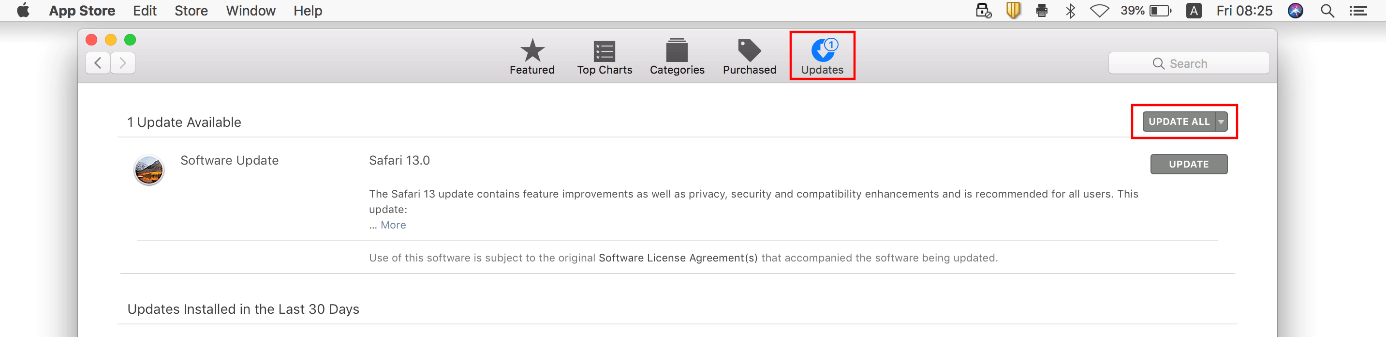
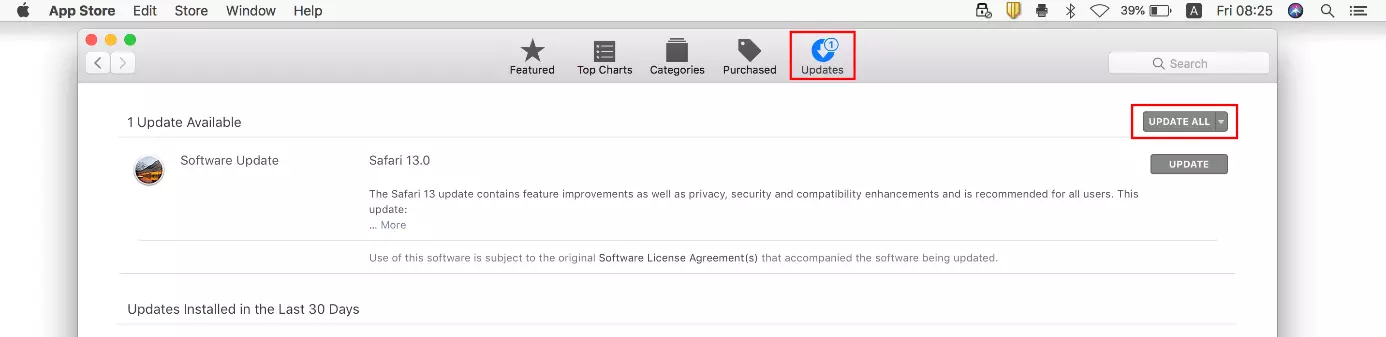
- In older macOS versions (until High Sierra), the approach only differs marginally: Select the “App Store” option in the Apple menu and then go to the “Updates” area.
- macOS will then automatically look for software updates. If updates are available, you can install them via “Update All.”
Scenario 3: USB settings of the operating system are incorrect
Another frequent cause for a USB stick failing to display can be incorrect settings in the operating system. In Windows systems, for example, the connected USB stick may automatically be assigned to a drive letter that is already permanently allocated. As a consequence, the stick will not be shown by the system.
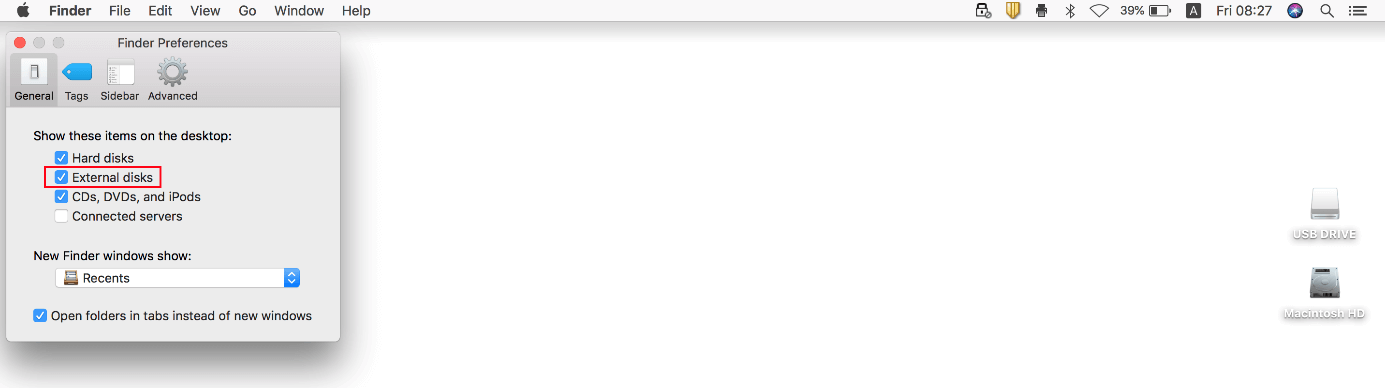
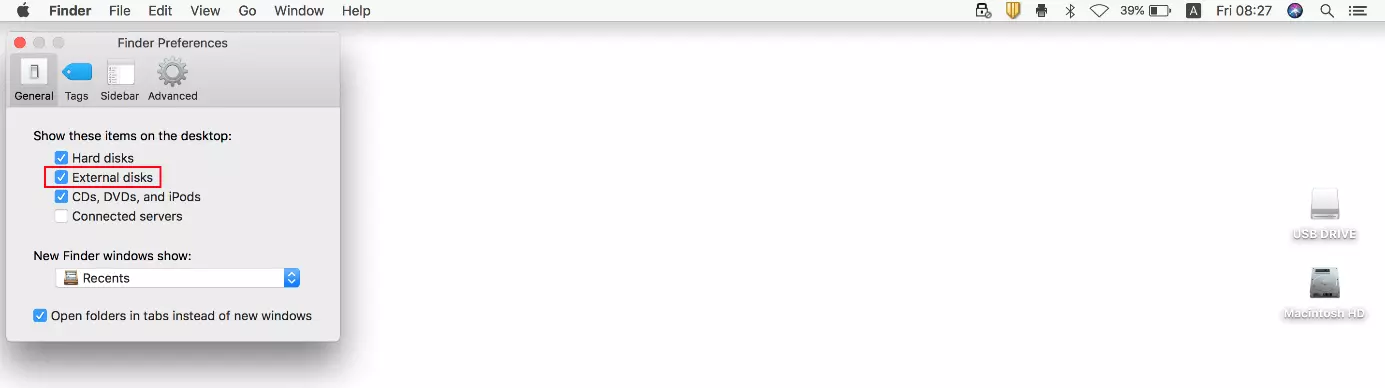
With Mac computers, incorrect configurations for the “Finder” file manager may especially result in a USB drive not showing up: External storage media can generally be hidden in the settings so that they neither appear on the desktop nor in the sidebar of the window.
Solution for Windows users:
If you think your USB drive isn’t recognised because there are complications with a drive letter being used twice, the disk review is the right tool for investigating the issue. Start the program via “Computer Management” by following these steps:
- Use the key combination [Windows] + [R] or start the “Execute” dialogue via the Windows start menu.
- Type in “compmgmt.msc” and confirm your entry by clicking on “OK.”
- Select the “Disk Management” menu item in the left window (under “Storage”).
In the central window, you’ll now find a list of the connected internal and external storage media. Highlight the USB stick here using the right mouse button and select “Change drive letter and path” in the menu that opens:
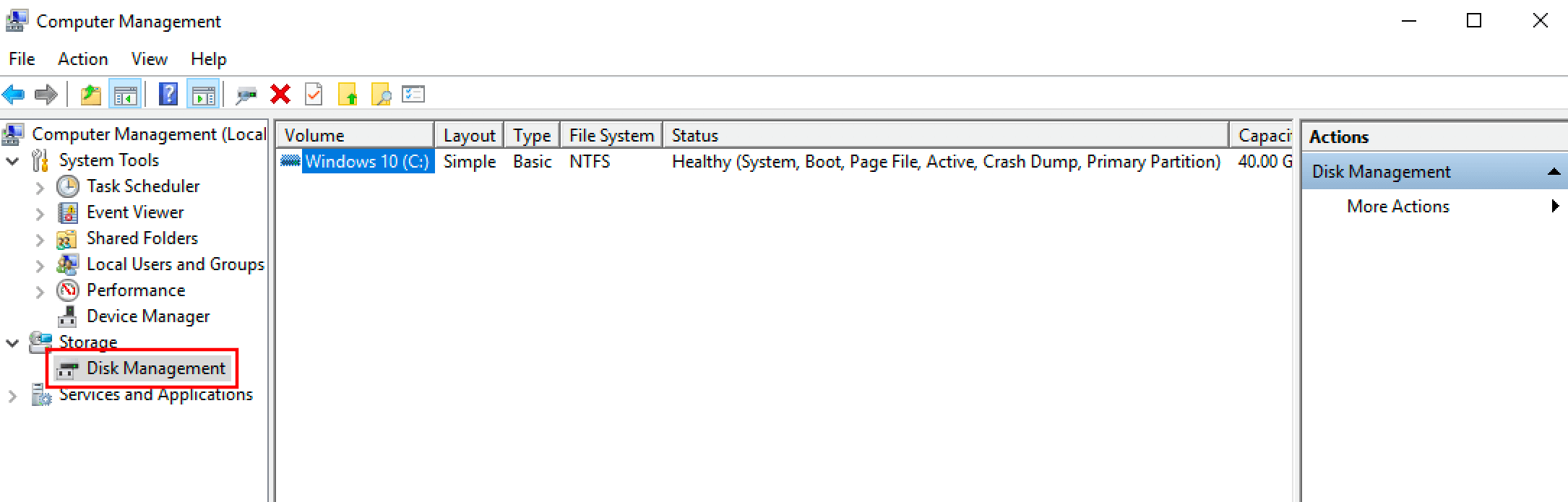
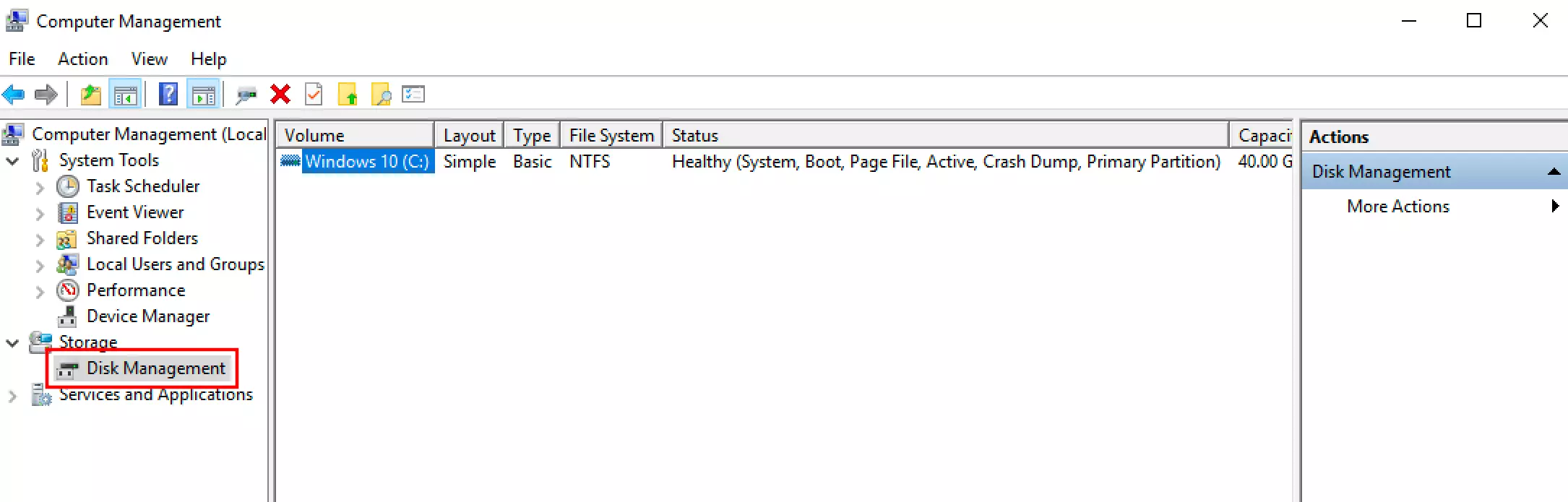
In the next window, first click on “Change” before entering the new letter of your choice under “Allocate following drive letter.” Save your changes by pressing the “OK” button.
Solution for Mac users:
You can easily find out whether the configuration of the macOS file manager is responsible for your USB stick not being recognised by going to the “Finder” settings and checking the corresponding entries. Finder is automatically active as the central manager when the system is started, which is why you can find the tab with the same name at the top of the menu bar as standard. Click on it and select the option “Preferences”:
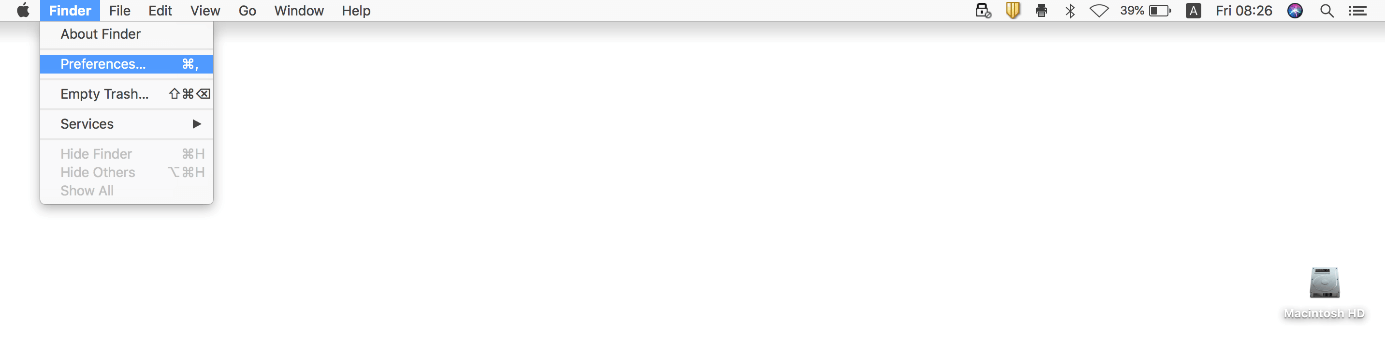
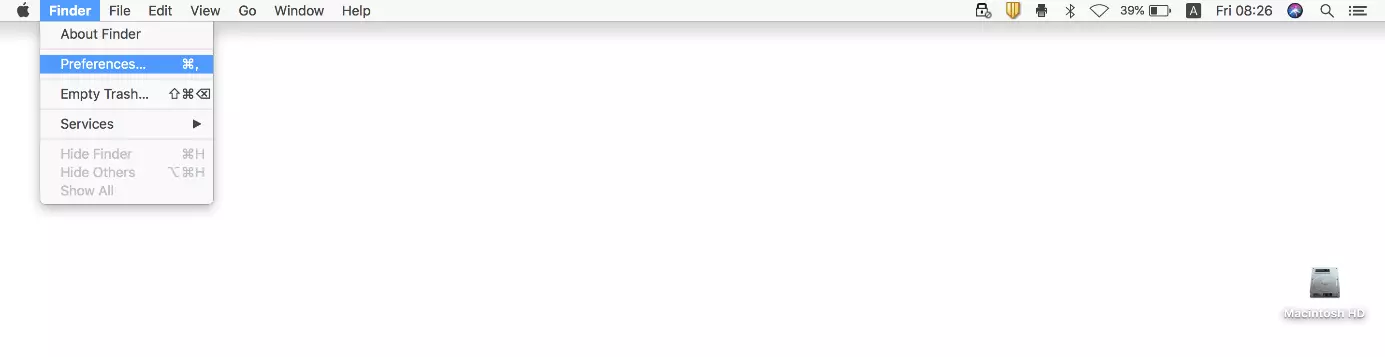
In the “General” tab, you’ll now see whether external storage media are displayed on the desktop as standard. In this case, there will be a checkmark for “External disks” (including USB sticks). Next, switch over to the “Sidebar” tab to check the entry there. A checkmark also needs to be placed for “External disks” here for USB drives to appear in the side bar of the file explorer.
Scenario 4: The operating system does not support the USB stick file system
Like all storage media, a USB stick needs to have its own file system so that it can be used to store files. The operating system of the device with which the stick is connected has to support this file system in order to access the stick (reading and writing access). If this support is not available, it’s highly likely that the USB drive will not be recognised or its content will not be able to be opened.
While Mac computers only partially support the Microsoft format NTFS (New Technology File System) if at all, for example, Windows systems without additional software are not compatible with the Apple format HFS+ (Hierarchical File System) or its successor APFS (Apple File System). In either case, the solution is to plug the USB stick into another device that offers the necessary support. There you can temporarily store the files locally and then reformat the stick. Once the right, new file system is configured, you can store the files on the USB stick again and try to connect with the target device again.
Read our in-depth article on how you can format a USB stick with Windows or how USB formatting on Macs works.
Scenario 5: The USB stick is broken
Finally, you’ll also naturally have to consider the possibility that your USB stick is simply not recognised because it’s broken. In less severe cases, this may concern a loose connection that can be offset by carefully plugging in the stick. But if the hardware of the data storage is fundamentally damaged, you’ll essentially have no option other than to send off the stick for repairs or at least have a specialist recover the files. However, these kinds of services usually come at a high cost. So, this step is only worthwhile if the files on the USB stick are really important to you.