

Changing your keyboard language in Windows 10: switching between languages step by step

Sometimes special characters are required when writing text, especially if the text is written in a foreign language. For example, some languages may use characters that are not included in your currently selected keyboard layout. In this case, the characters must then be integrated into the document using the tedious Insert Special Characters option called the “Character Map”. This can be quite inconvenient and time consuming, especially with longer texts. It is much easier to change the keyboard language in Windows 10.
- Free website protection with SSL Wildcard included
- Free private registration for greater privacy
- Free Domain Connect for easy DNS setup
Windows 10 makes changing your keyboard layout easy
Naturally, you can only change your Windows 10 keyboard language if the respective language is installed. Depending on which country you bought your Windows version in, the local language may sometimes be the only one installed. If you want to use other languages, you will need to install them manually. Language packs are available for download from Microsoft.
Installing keyboard languages in Windows 10
Windows 10 does not have every keyboard language preinstalled. If you need a new keyboard language, you can easily add it by following the steps below.
- Open Windows Settings. To do this, click on the Windows icon and then select the gear icon from the Start menu. The gear icon is located in the bar that appears above the Windows icon on the far left of the screen.
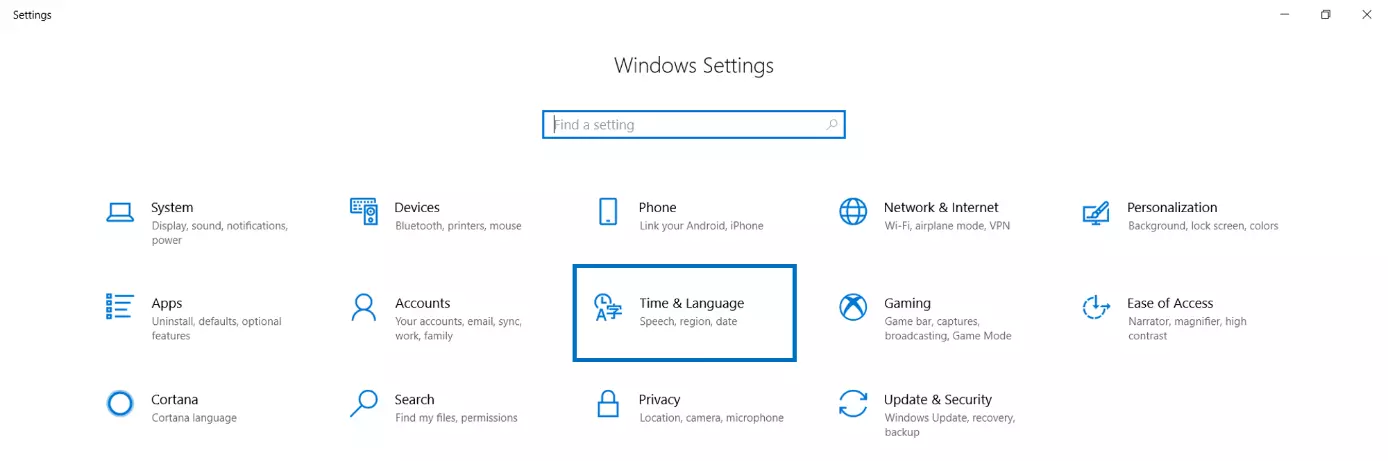
- Then, you need to select the Time & Language option.
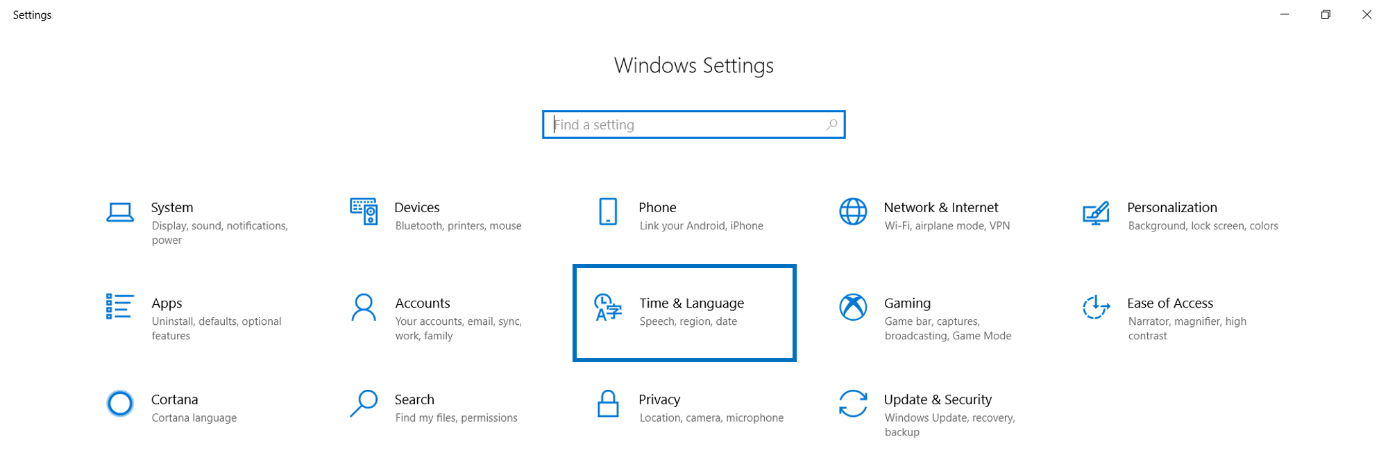
- In the menu on the left-hand side, click “Language”. Then, select the default language in the menu on the right under the heading “Preferred languages”.
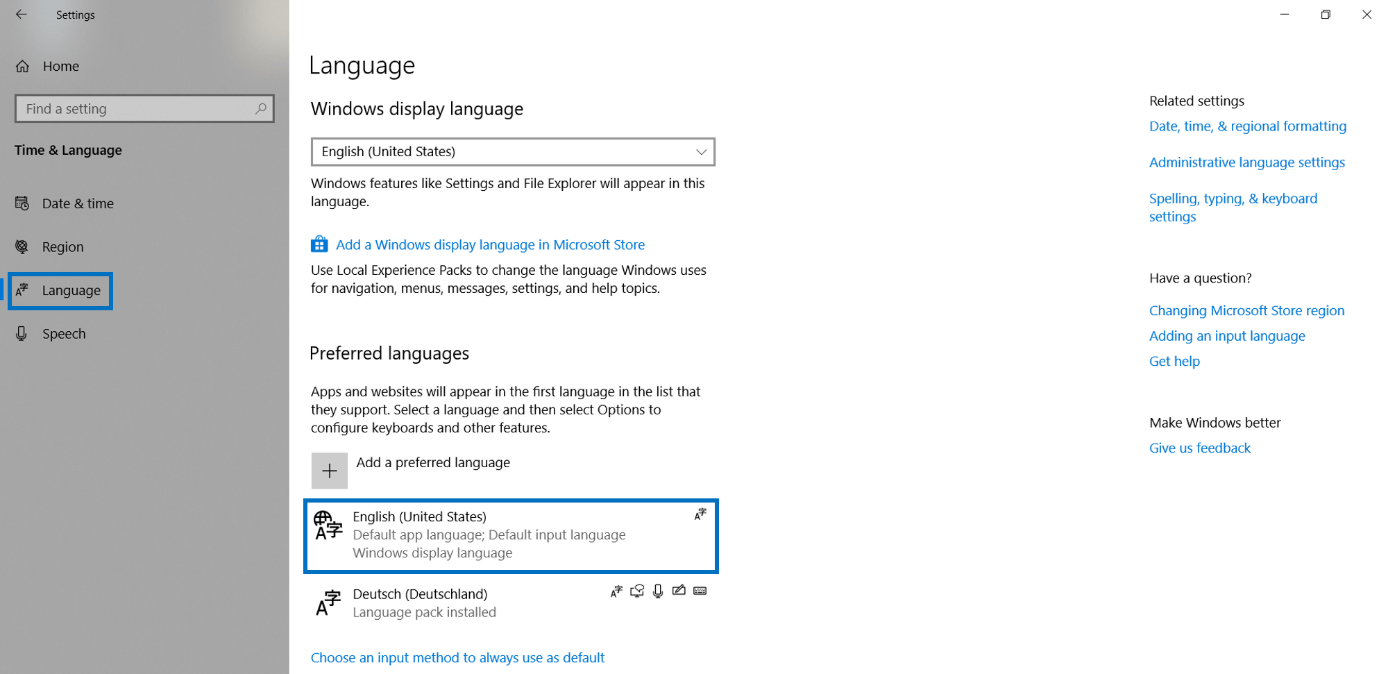
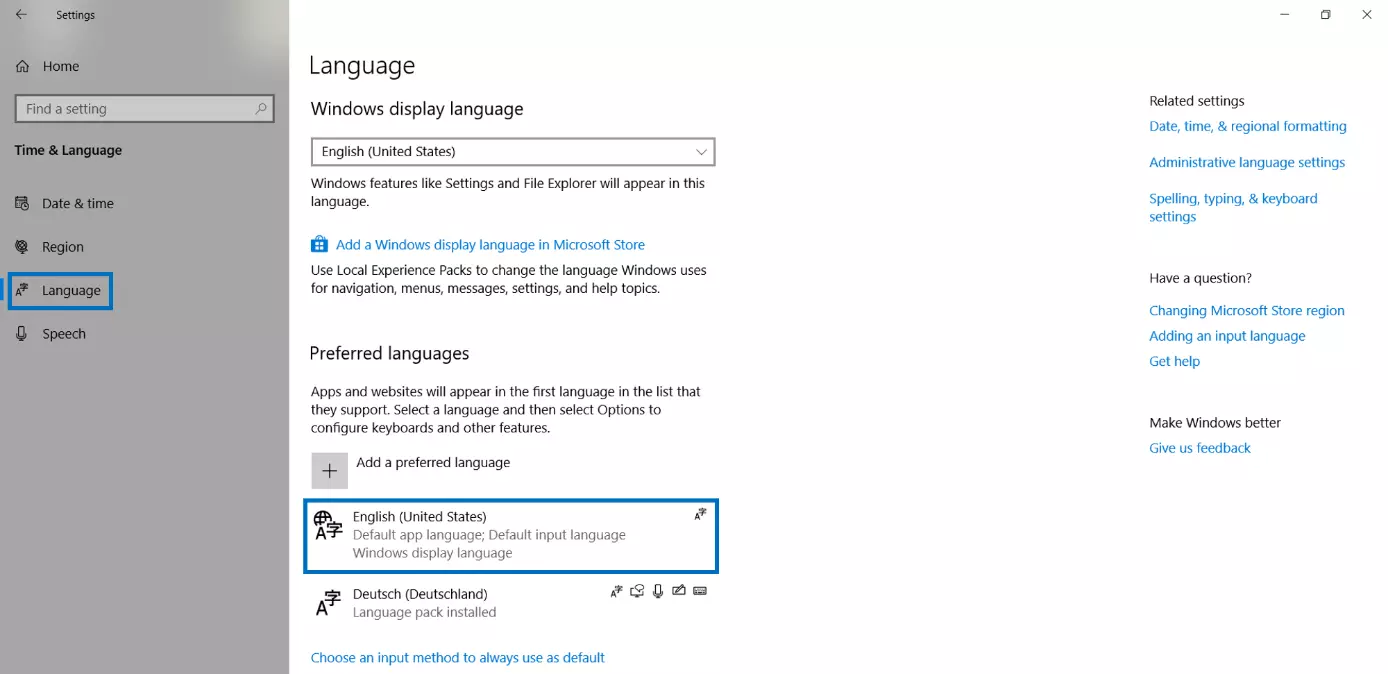
- Now, click options.
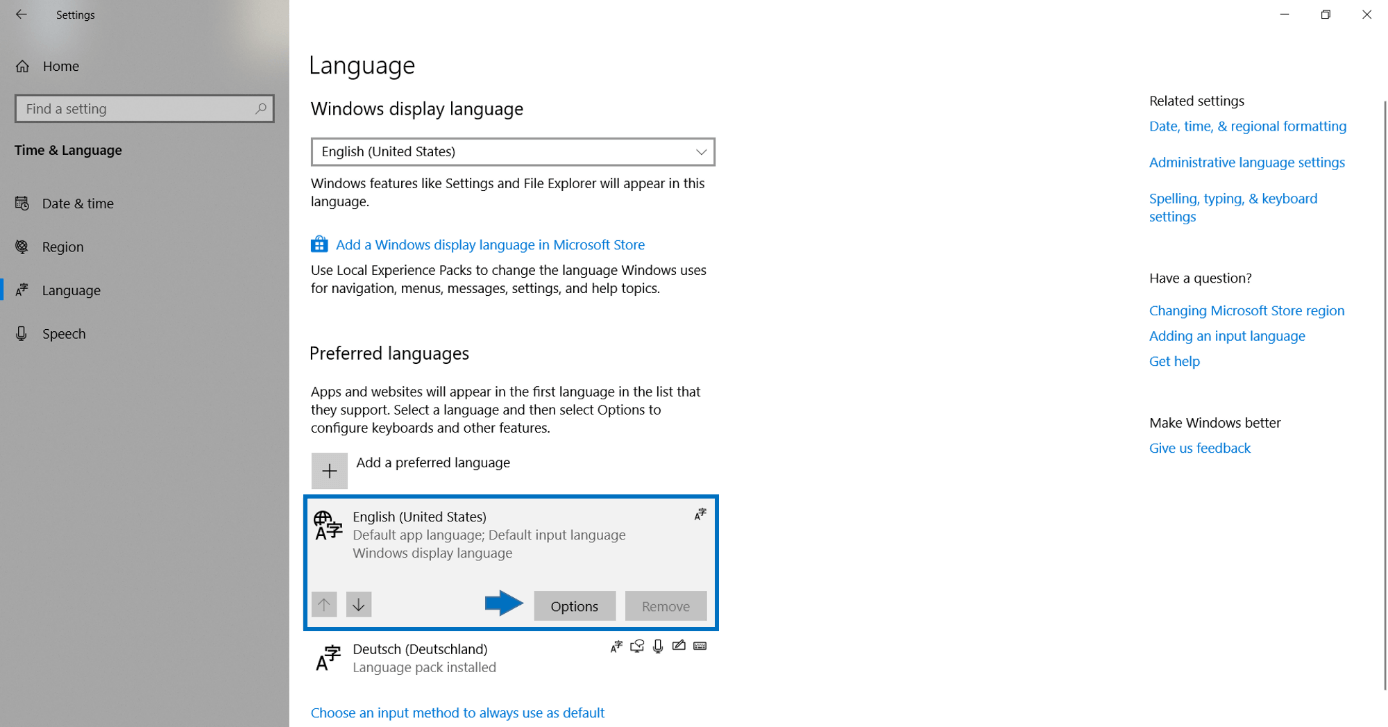
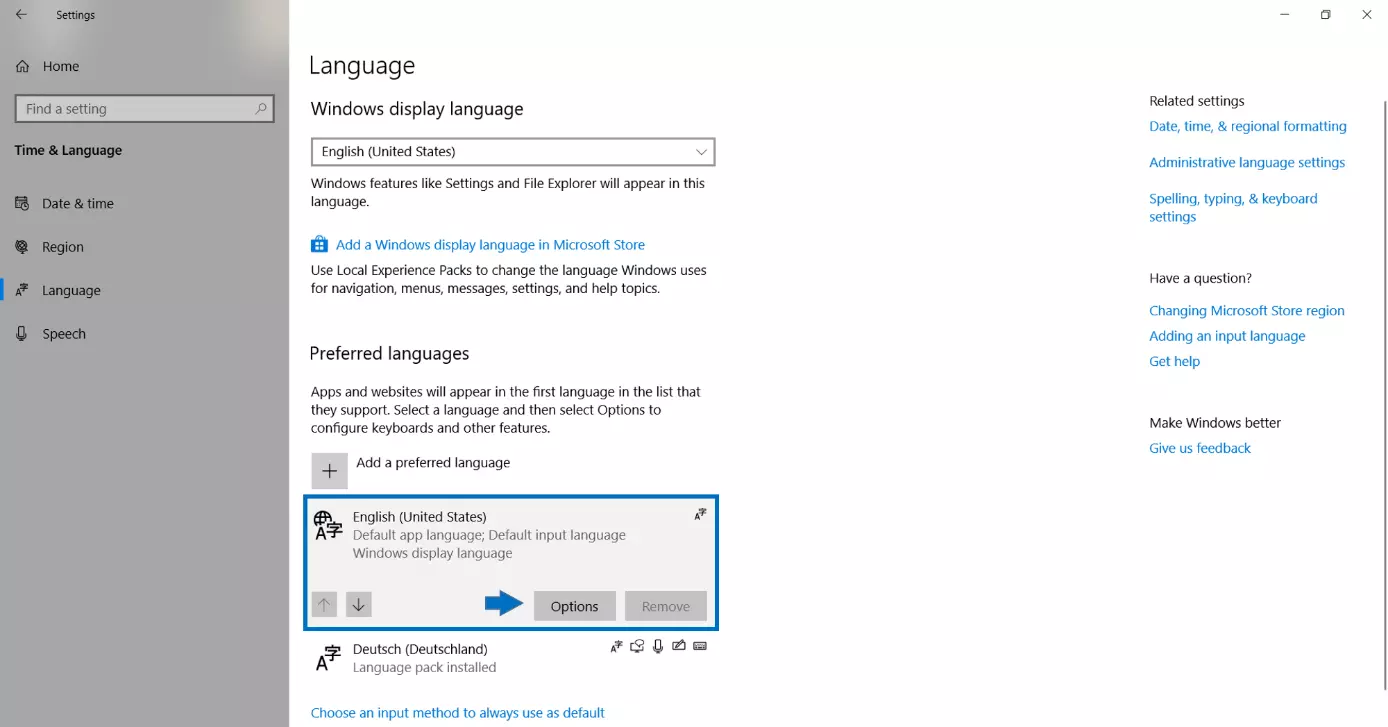
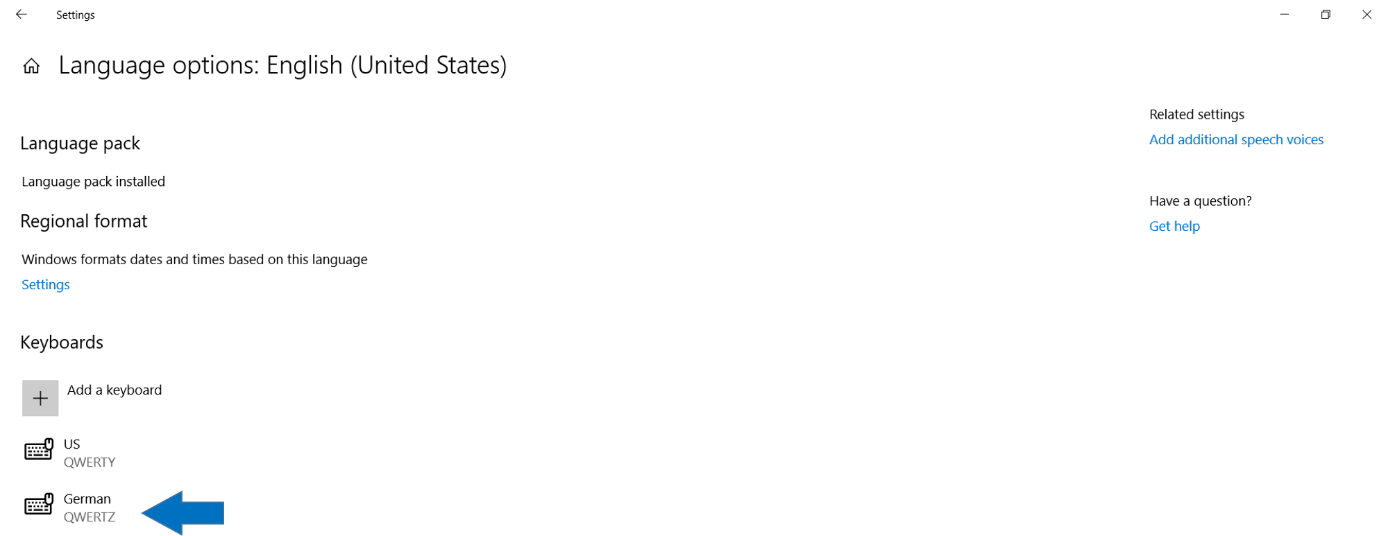
- All keyboards installed so far will appear under the heading “Keyboards”. You can add additional keyboards using “Add a keyboard”.
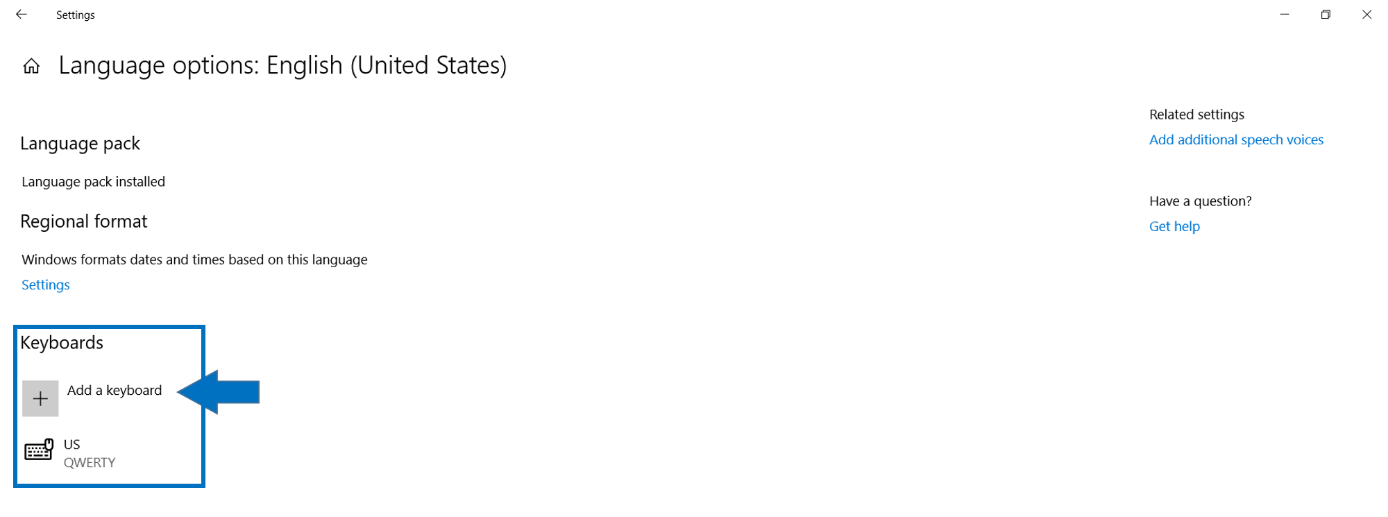
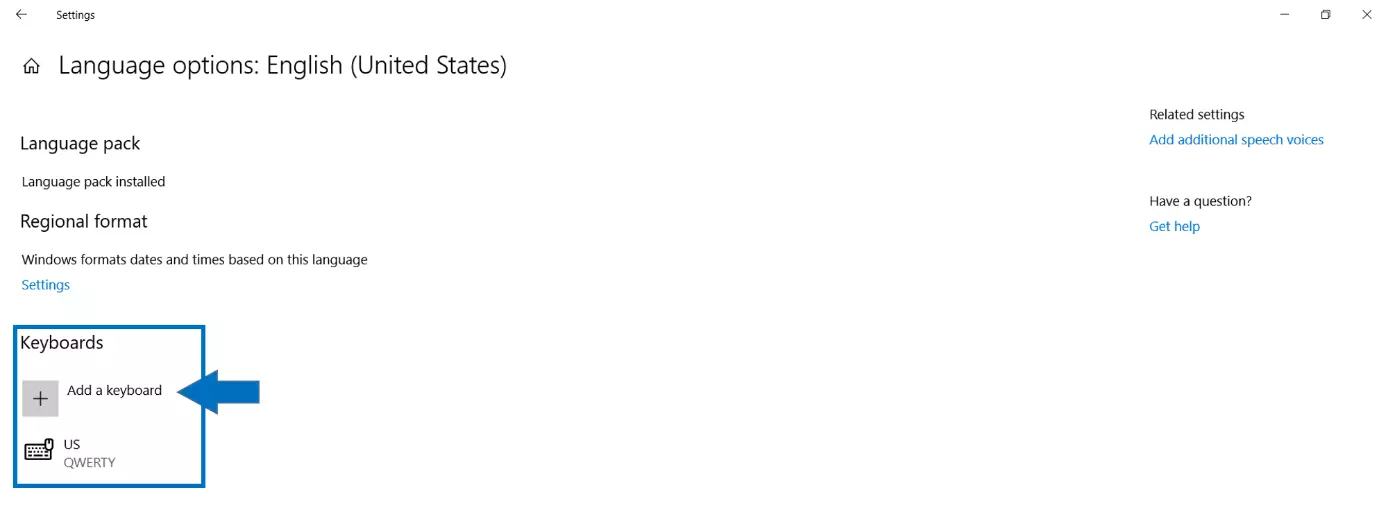
- When you click on “Add a keyboard”, another dialogue window will open. In this window, scroll to your desired language and click on it.
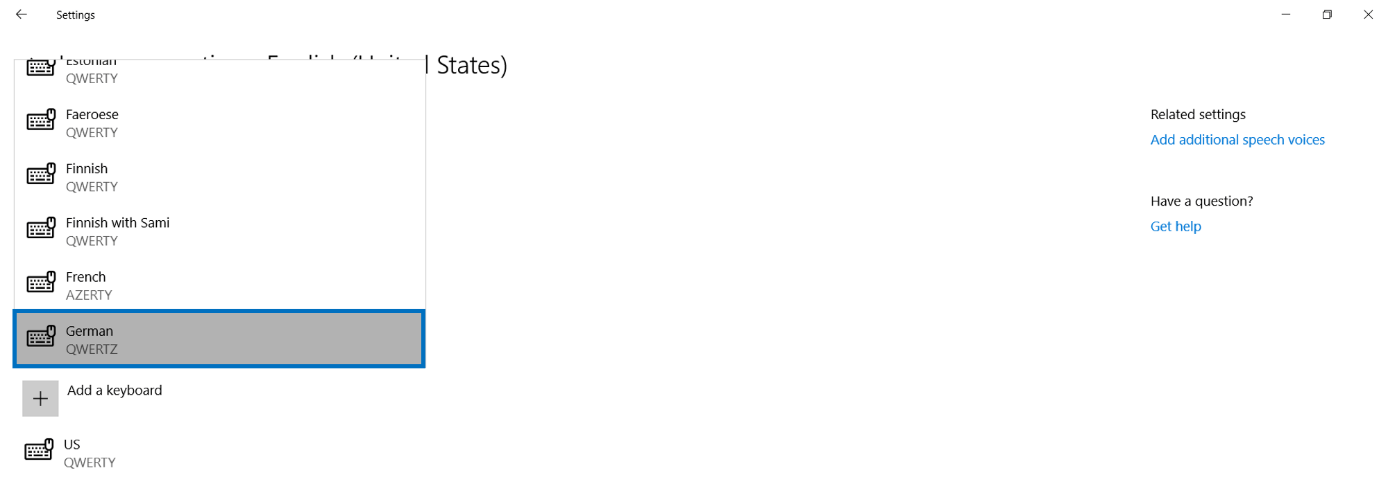
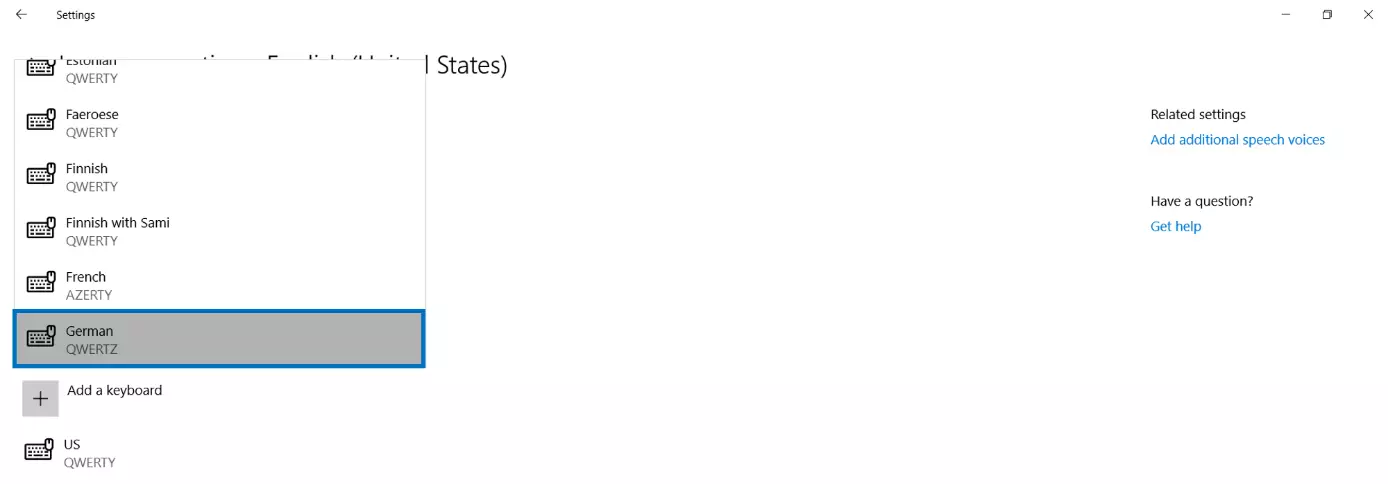
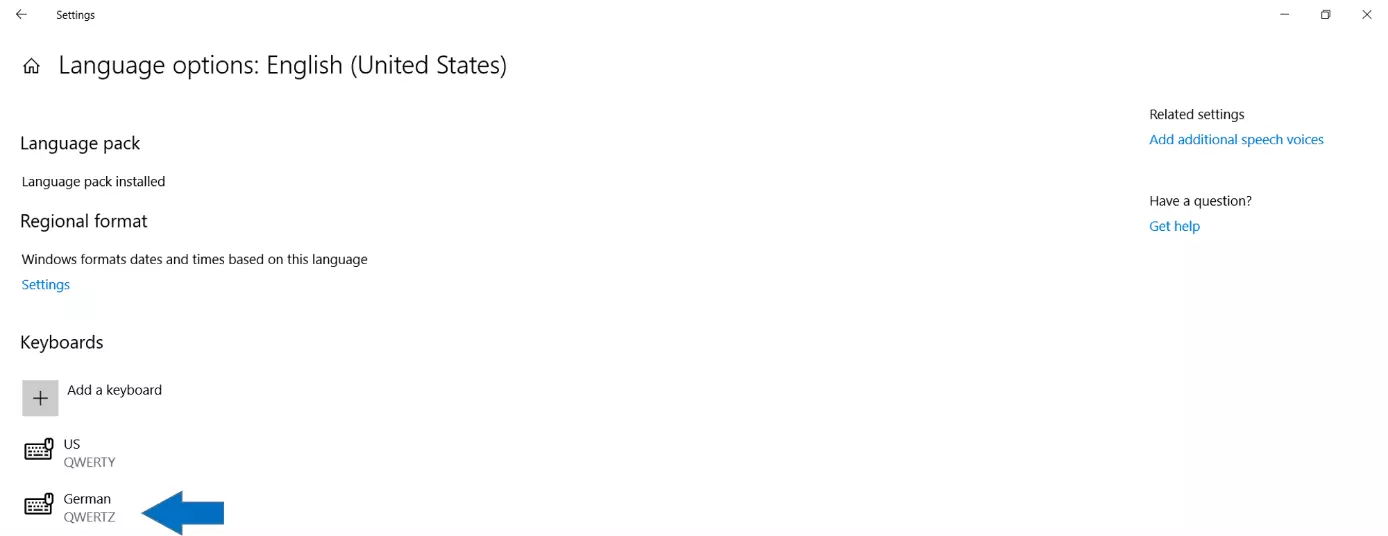
- The new option is now included in your list of keyboards. Now, if you want to change your Windows 10 keyboard layout, you can easily select the language.
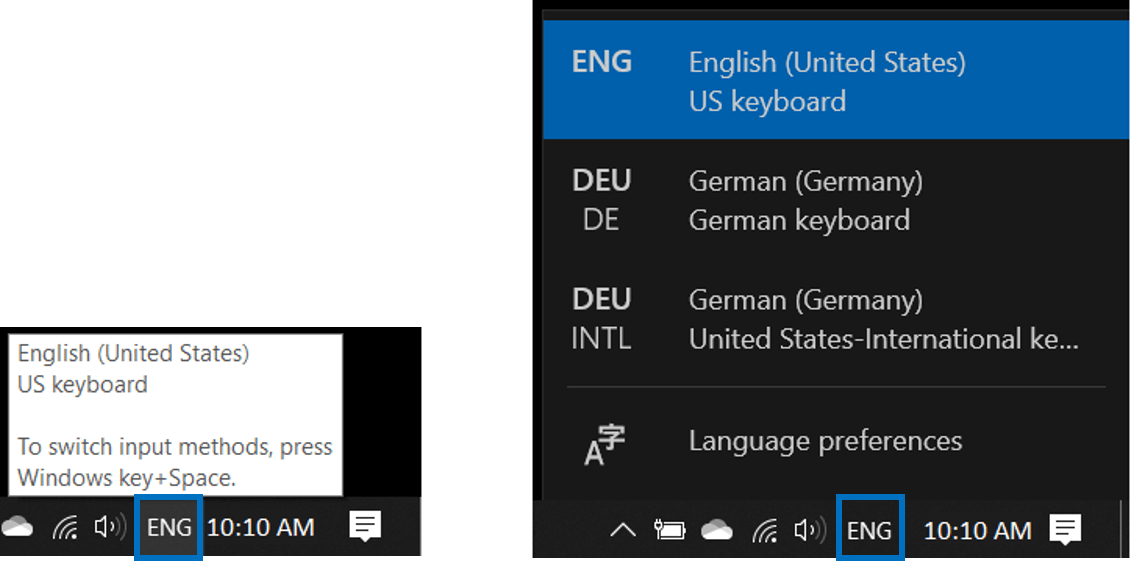
In the taskbar, the abbreviation for the currently used keyboard is displayed next to the time. For example, if the English keyboard is currently selected, it will say “ENG”. If you click on this abbreviation, a window will appear with a list of all the available keyboard layouts. The last item on the list is the “Language preferences”. If you click this, you will automatically be taken to the Windows language settings menu.
If you also want to install additional language features, you can add another preferred language after step three instead of just installing the keyboard. To do this, select “Add a preferred language” in the “Language” menu.
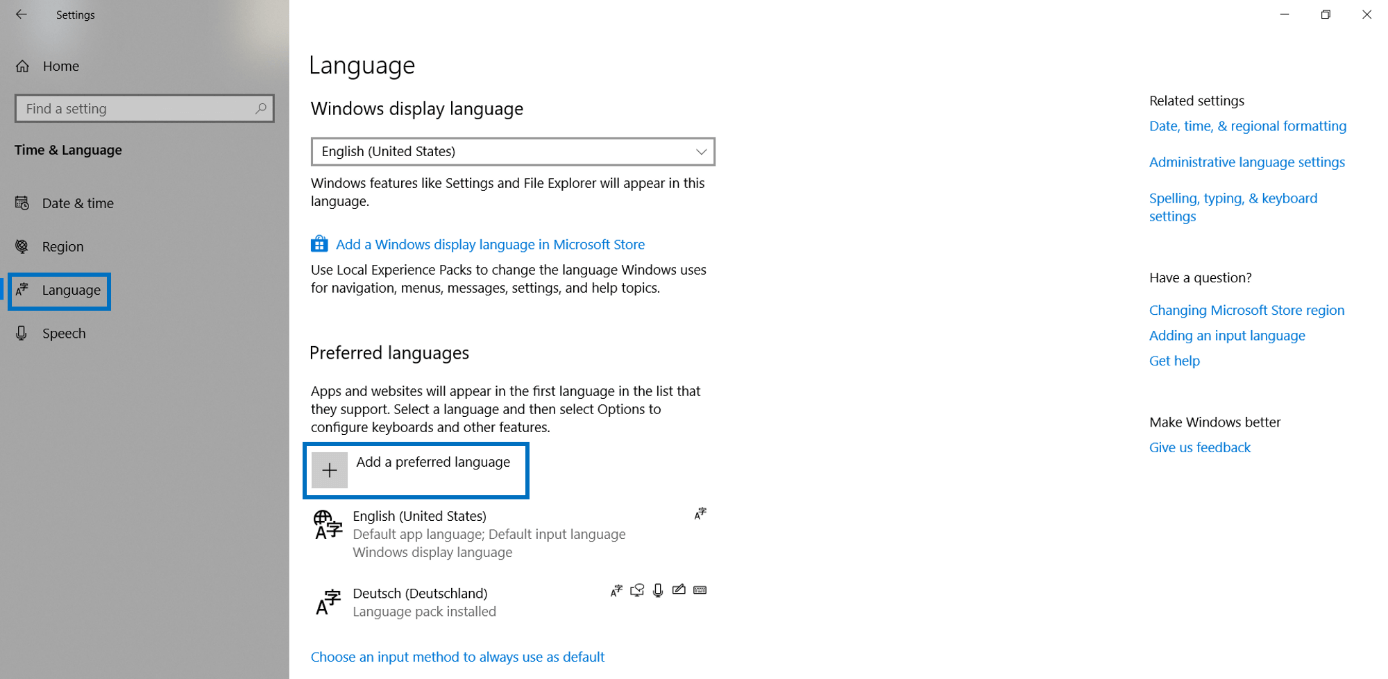
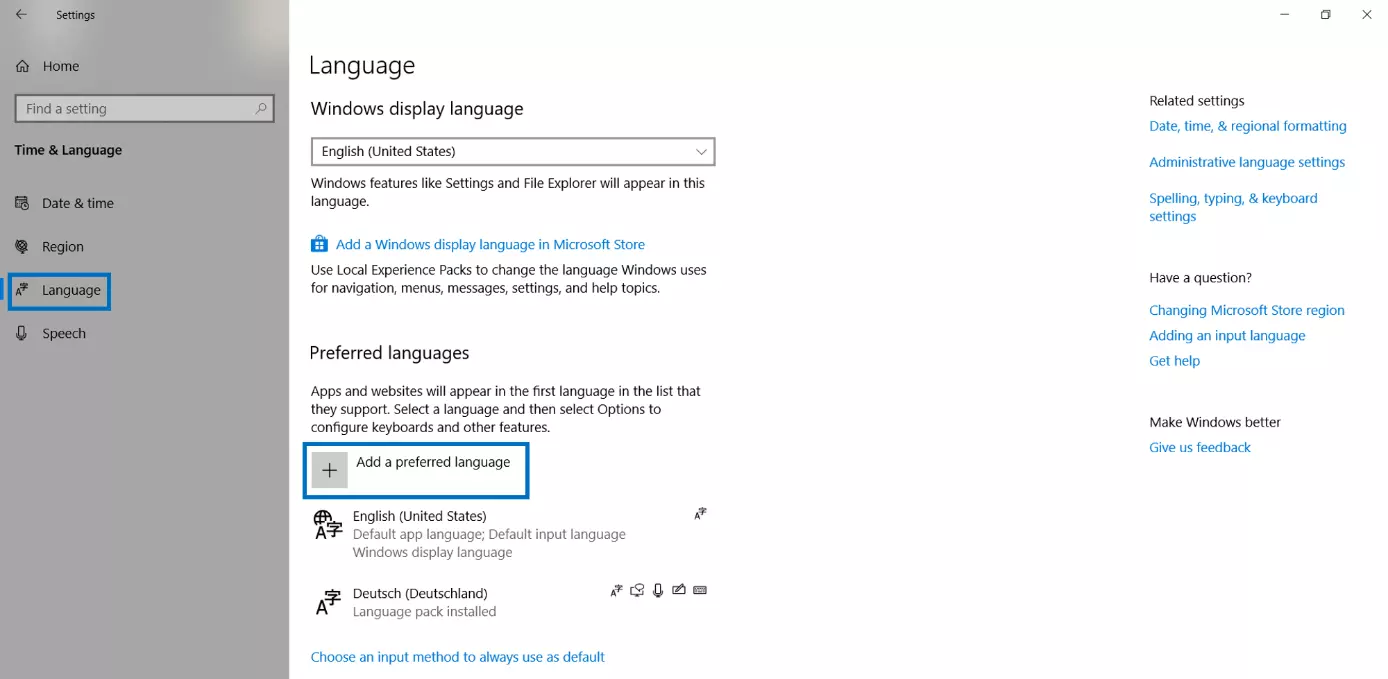
Select your desired language and click “Next”.
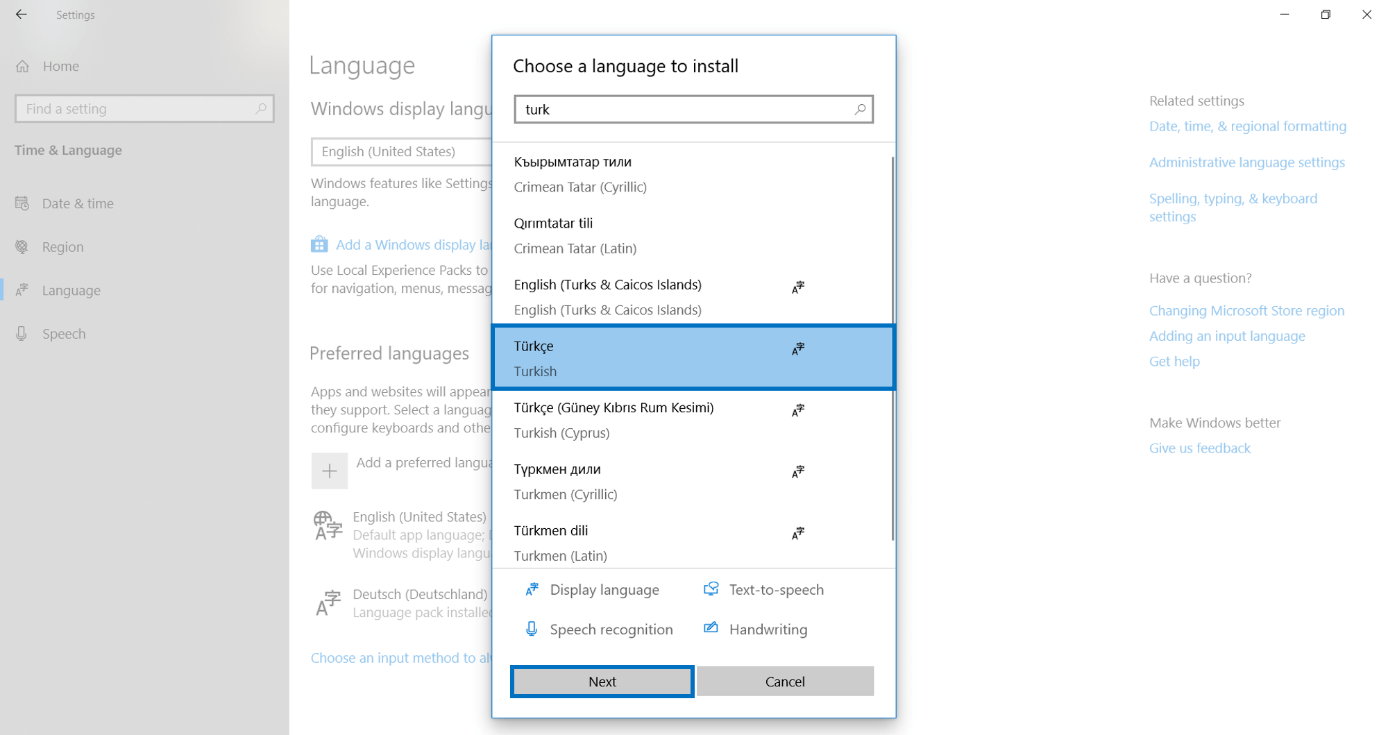
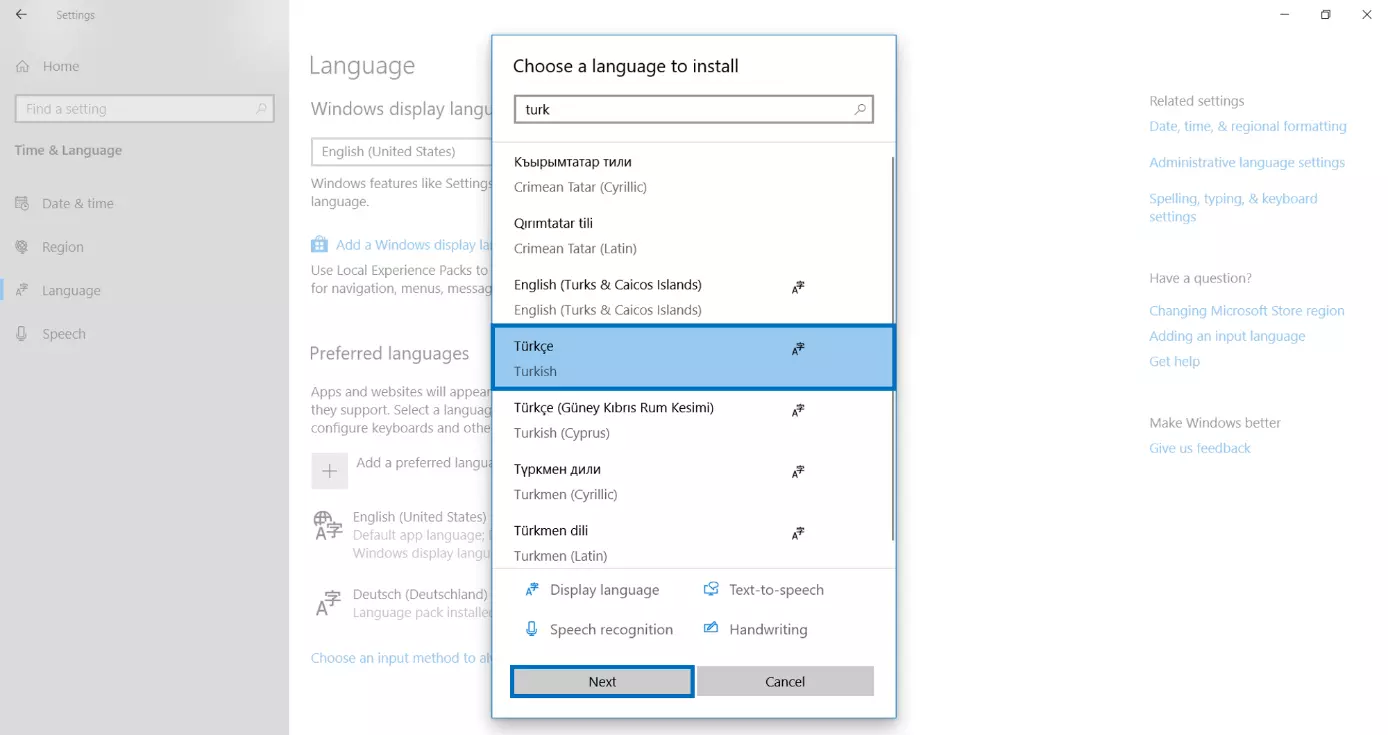
You can also set the corresponding language as the display language.
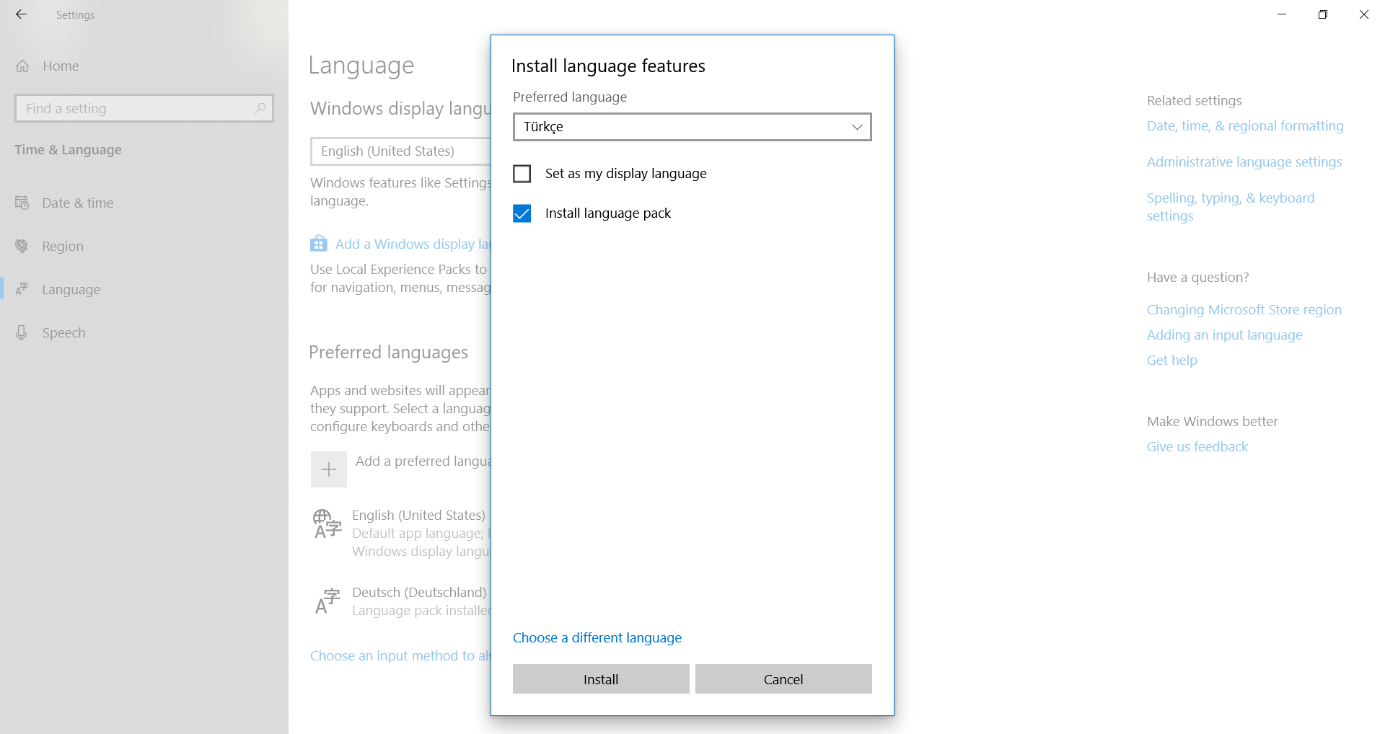
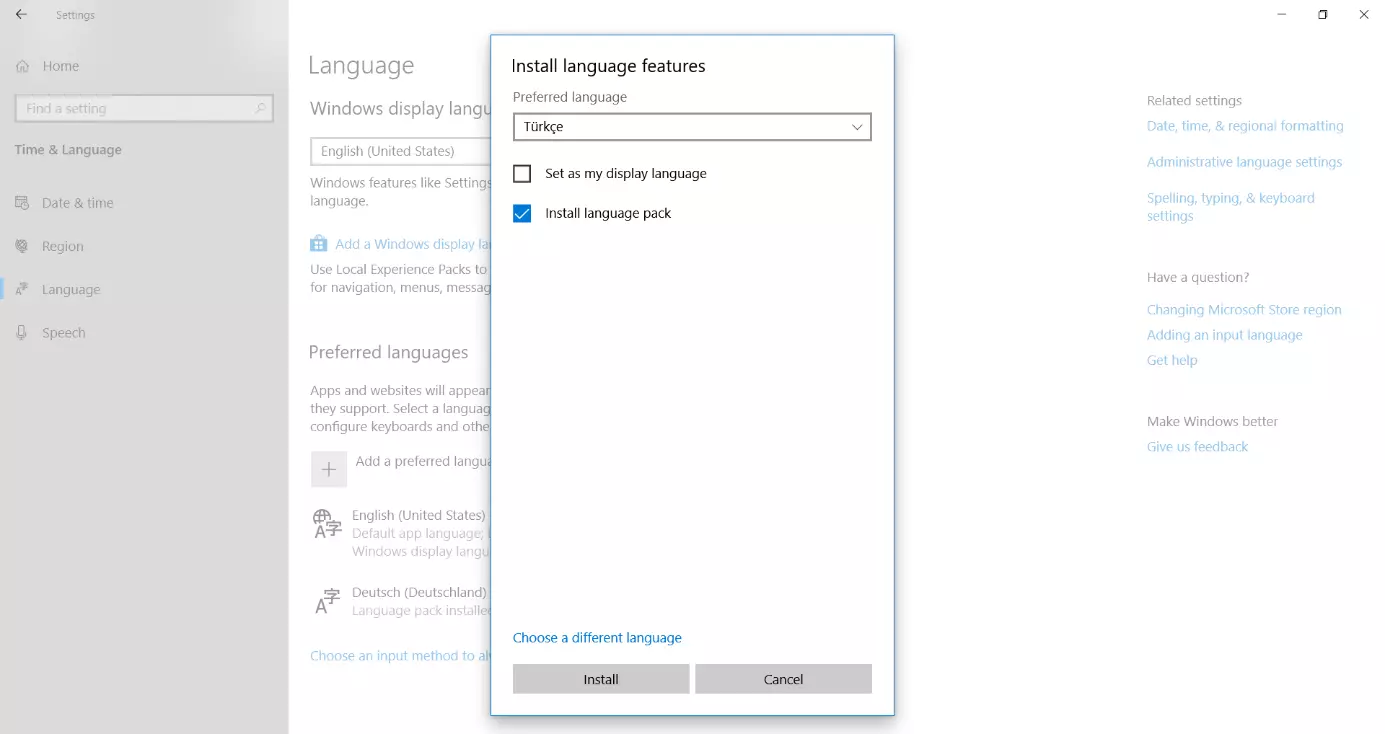
Note: Changing the display language changes the system language. This means that all menus, options and descriptions will be displayed in the new language. For example, if you select English as the display language, Windows 10 will interact with you in English. However, if you just select the keyboard or language pack without checking “Set as my display language”, only your keyboard layout will change.
It is also possible to change your keyboard layout in Word. Go to the “Language” option located under the “Review” section to access the language preferences. From there you can select the keyboard layout from the installed proofing languages. The current version of Word is part of Microsoft 365 which is available with a setup service from IONOS.
Changing the keyboard layout in Windows 10
When you have more than one layout installed, you can easily change the keyboard language. Windows 10 provides multiple ways to do this.
Using the taskbar to change the keyboard layout in Windows 10
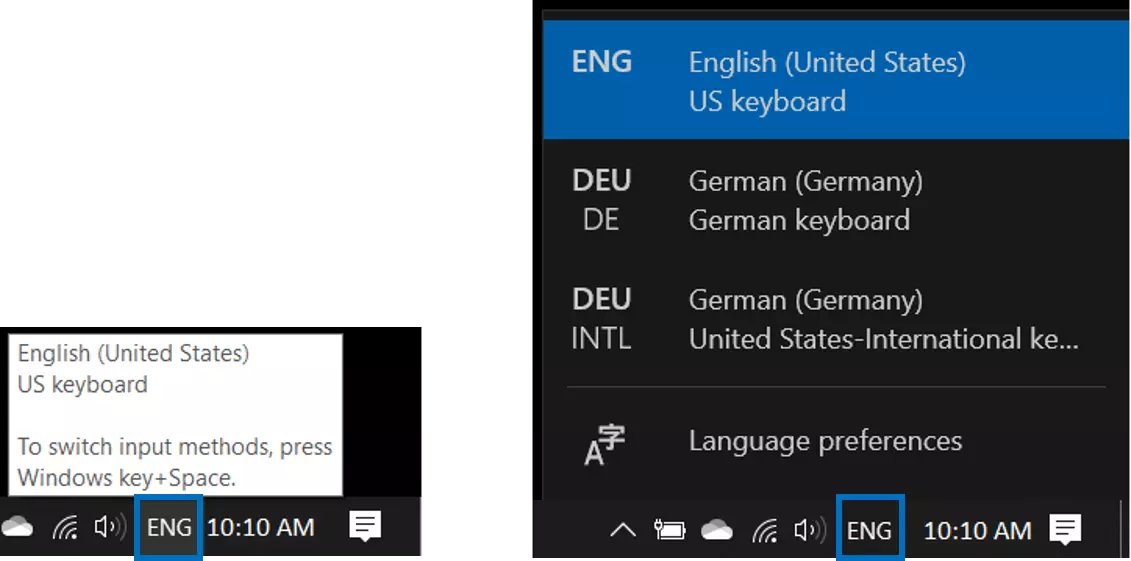
Using the button with the language abbreviation located in the information area of the taskbar next to the time, you can change the keyboard in Windows 10 with just two clicks. For example, “ENG” stands for the English keyboard. If you hover your mouse over the language abbreviation, additional information about the currently active keyboard will be displayed. If you left-click on it, a list of all the available keyboards will be displayed. You can set your desired keyboard language with a single click. Each entry has two lines. The top line contains the display language, while the bottom line is the keyboard layout.
Changing your keyboard language in Windows 10 using keyboard shortcuts
There are several shortcuts which can be used to change your keyboard. If you hover your mouse over the language option in the taskbar, you will see a keyboard shortcut. However, there are generally three ways to switch between keyboard languages at lightning speed using shortcuts.
Windows key + spacebar: This is the new Windows 10 keyboard shortcut for changing between keyboard layouts. It should always work if there is more than one keyboard installed. Hold down the Windows key and then press the spacebar. You can choose between the different keyboard languages displayed by repeatedly pressing the spacebar.
ALT + SHIFT: This is the classic keyboard shortcut for changing keyboards. However, in some versions of Windows 10, this shortcut will now only give you information about which keyboard is currently active.
CTRL + SHIFT: This shortcut is an alternative to ALT + SHIFT.
If you have changed your keyboard layout, the keys may no longer correspond to the characters on your keyboard. A good example of this is the placement of the Z and Y keys on the German and English keyboards. In the German keyboard layout, the Z key is located in the middle of the top row of letters, while that is the location of the Y key on the English keyboard. This can lead to typos when entering passwords.
In additional articles, we will show you how to change the keyboard language in Windows 8 and how to change the keyboard language in Windows 7.