How to set up an Assetto Corsa Competizione server

You can create your own Assetto Corsa Competizione server with the Steam library and JSON configuration files in the server directory of the game. To provide the best possible availability and performance, it’s best to rent the hosting hardware from a professional provider.
Assetto Corsa Competizione: rent a server or host on your own?
If you want to compete online with other players in Assetto Corsa Competizione, the public lobbies offer lots of options. However, the game’s dedicated server application is recommended for tailored playing sessions with friends. It is possible to run it on your personal computer as long as it has enough power to run the game at the same time. However, when you shut down your computer, the server will shut down too. Keep in mind though that the internet connection in many households is often too unstable to offer a smooth gaming experience for a game server.
By outsourcing computing power for your Assetto Corsa Competizione server, you can ensure that you always have a quality gaming experience. Using a hosting provider gives you access to powerful hardware that is regularly maintained, allows your server to be online continuously and offers high-performance broadband capacities.
With a rented server, you can do more than just host your own ACC competitions. Depending on the service package you have, you may also be able to run multiple applications at the same time, allowing you to host other game servers or a TeamSpeak server.
What are the system requirements for an Assetto Corsa Competizione server?
The hardware you need to create and host an Assetto Corsa Competizione server depends on the number of players that will be using the server at the same time. If you use a lot of mods, you’ll need to plan for additional resources as well. The minimum requirements for a basic ACC server are as follows:
- CPU (Processor): AMD or Intel from 2.4 gigahertz, strong single-core power preferred
- RAM (Memory): 4 gigabytes of RAM for up to 4 players, more RAM as the number of players increases
- Hard disk space: 10 gigabytes for dedicated server application, mods etc.
Typically, Microsoft’s Windows server operating systems are used for ACC servers. Native support for Linux distributions is not offered by Assetto Corsa Competizione’s server application. With Ubuntu, the installation and setup only work with the additional software program Wine.
Keep in mind that you’ll need to plan for additional resources depending on the operating system you choose. For example, if you want to use Windows Server 2022, you’ll need:
- 1.4-GHz-Processor (64-Bit)
- 512 MB or 2 GB memory (without or with graphical user interface)
- 32 or 36 GB hard disk space (without or with graphical user interface)
What game server options are available at IONOS?
At IONOS, you have the choice between three different types of servers. The options vary in terms of computing power, pricing model and range of services.
- vServer (VPS): IONOS vServer or Virtual Private Server (VPS) grants access to dedicated resources that are fully virtualised. Packages provide a set amount of resources for a fixed monthly price.
- Cloud Server: IONOS’ cloud servers also use fully virtualised hardware resources, but in this model, you have the flexibility to scale performance as needed. Billing is done on a per-minute basis.
- Dedicated Server: with IONOS’ dedicated servers, you rent a fixed hardware setup with high single-core power that is exclusively reserved for you. With this model, billing is also done on a per-minute basis.
dedicated server from IONOS is the perfect foundation for an Assetto Corsa Competizione server. It can also serve as a hardware base for many applications and services, too.
3 Assetto Corsa Competizione server scenarios and suitable IONOS hosting solutions
Your gaming setup determines how much computing power you’ll need to host your own ACC server. In the following table, we have listed three different scenarios along with a suitable IONOS server option for each one.
| Assetto Corsa Competizione Server Scenario | Recommended IONOS Server |
|---|---|
| Up to 4 players, server permanently online | VPS M |
| 5-8 players, server permanently online | VPS XL |
| > 9 players, one or more servers permanently online | Dedicated Server AR6-32 SSD |
Rent a cloud server and benefit from the flexible possibilities of scalable server infrastructure. If you want to make your server available via an easy-to-remember address (instead of IP), you can also register a domain name.
How to set up an Assetto Corsa Competizione server: a step-by-step guide
Once you have chosen a server, you can make your dream of having your own ACC server a reality. Installation and setup are simple thanks to the official dedicated server tool. In the following tutorial, we’ll create an Assetto Corsa Competizione server using an IONOS server (vServer, Cloud Server, Dedicated Server). We’ll use Windows Server 2022 as the operating system.
Step 1: create a remote connection to the server
To access your rented hardware, establish a remote connection to the server. To set up the required remote desktop connection, you need the IP address as well as the individual login data for the server. IONOS customers can set up the connection conveniently via the Customer Centre:
- Log in with your individual ID on the official login page in the IONOS Customer Centre.
- After successful login, click on the Server & Cloud section.
- Select the infrastructure that you want to create your Assetto Corsa Competizione server on.
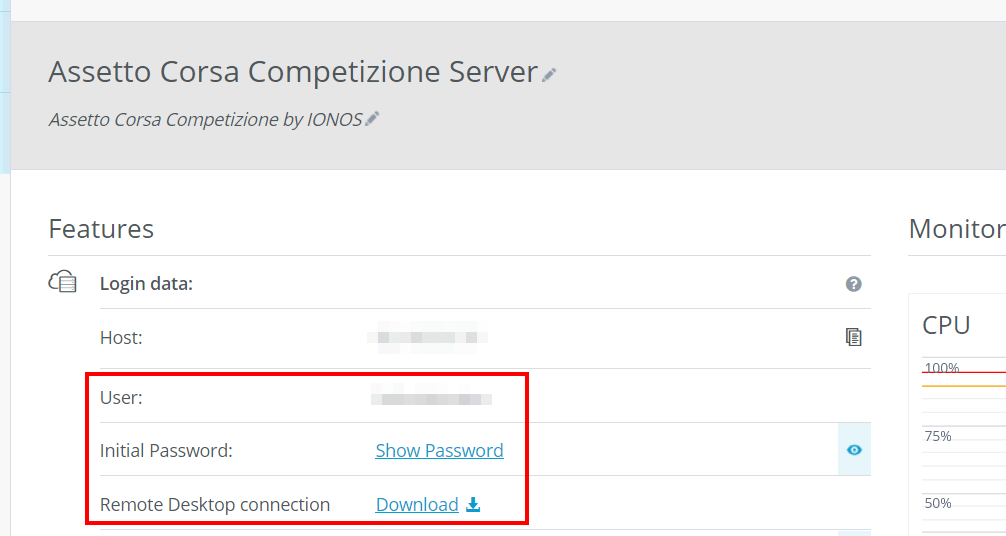
- Under Access data, you’ll find all the important data for remote access to your server. For a quick setup, click on the download link next to the Remote Desktop Connection entry.
- Run the downloaded .rdp file and keep the suggested option Open with Remote Desktop Connection.
- Click the Connect button.
- Enter the unique login credentials for the server, which you can find in the login data (user and initial password) in the customer centre.
The first time you connect, you’ll receive a security message. To continue, you need to confirm that the server certificate is valid.
Step 2: install ACC Dedicated Server via Steam Client
Once the remote connection to the server is established, you can start the installation of the gaming server. You can get the dedicated server application for Assetto Corsa Competizione directly from the Steam library after purchasing the game. Install the Steam client on your rented server and then proceed as follows:
- Launch the Steam client and log in with the user account that you purchased Assetto Corsa Competizione with.
- Click on the Library tab to open the library.
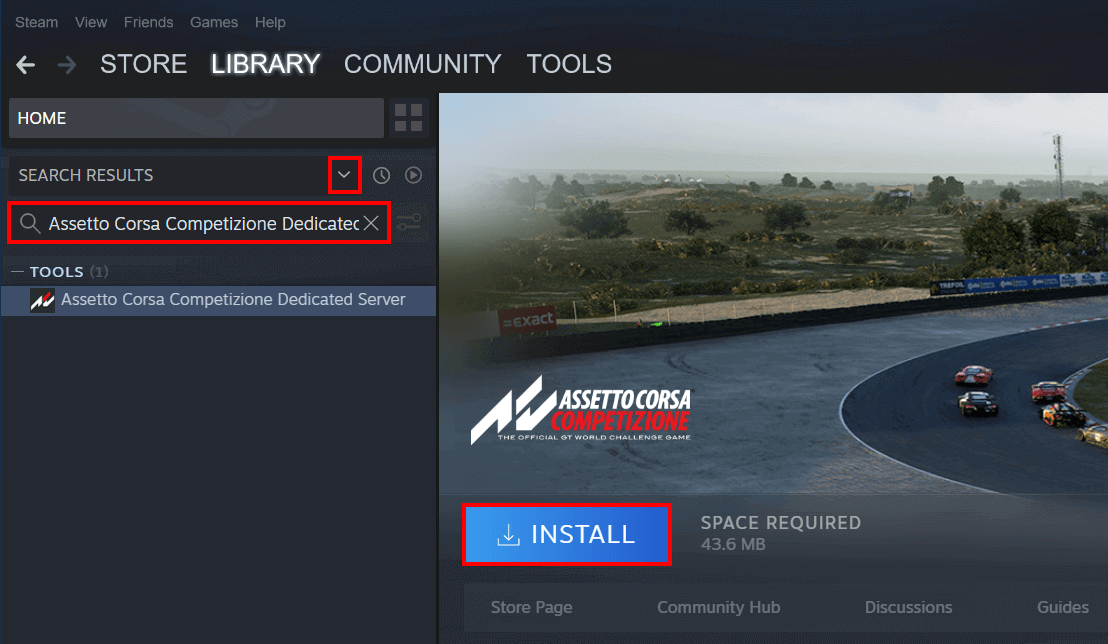
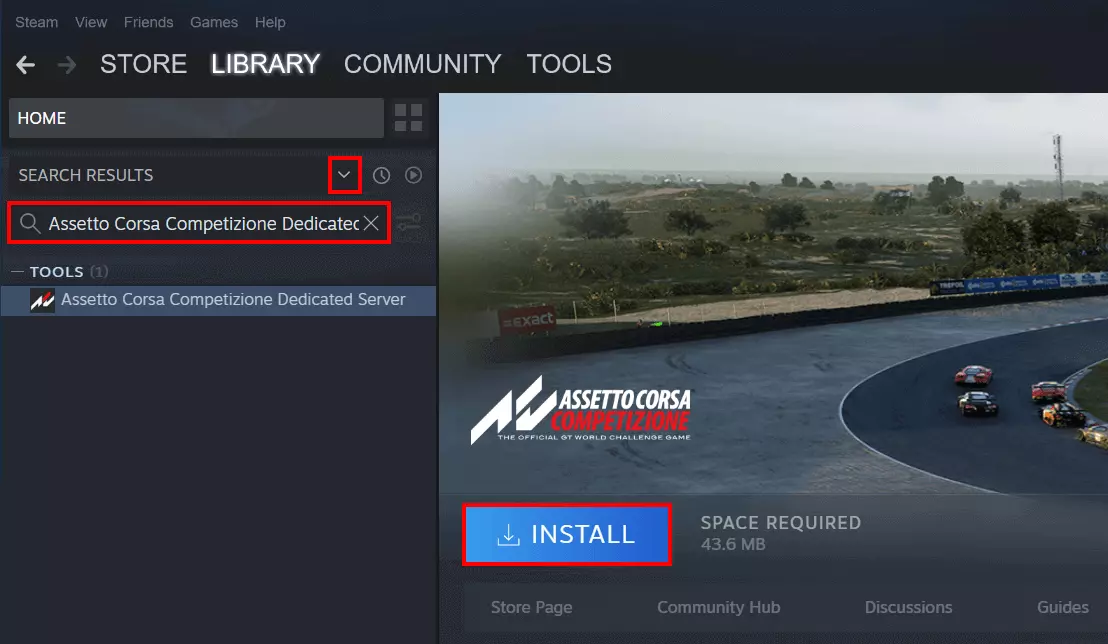
- Open the drop-down menu (arrow-down icon) in the left menu bar.
- Place a check mark next to the Tools entry.
- Enter ‘Assetto Corsa Competizione dedicated server’ in the search box.
- Click the corresponding result
- Press Install to install the ACC server application.
Step 3: configure the server
After you create the Assetto Corsa Competizione server via the Steam client, you will find the related files in the following directory:
…\Steam\steamapps\common\Assetto Corsa Competizione Dedicated Server\The server\cfg subdirectory contains the four JSON documents for configuring your ACC server:
• assistRules.json: in this document, set which ‘helps’ should be allowed. Changes to this file are optional.
• configuration.json: in configuration.json, you can make changes to the network settings.
• event.json: the event.json file sets the timing of the race weekend and the weather conditions.
• settings.json: in the settings file, you can set all the important settings like the server name, a password for joining, and the maximum number of participants.
First, open settings.json and add the following entries for a basic server setup without rating requirements (add a suitable server name and passwords for your server):
{
 "serverName": "ACC Server by IONOS",
 "adminPassword": "admin123",
 "trackMedalsRequirement": -1,
 "safetyRatingRequirement": -1,
 "racecraftRatingRequirement": -1,
 "password": "test123",
 "maxCarSlots": 10,
 "spectatorPassword": "spec123",
 "configVersion": 1
}
Then open event.json and copy the following markup into the file to create a race weekend for the Monza circuit. This includes a 120-minute practice session and qualifying laps followed by a short 20-minute race:
{
 "track": "monza_2019",
 "preRaceWaitingTimeSeconds": 80,
 "sessionOverTimeSeconds": 120,
 "ambientTemp": 22,
 "cloudLevel": 0.1,
 "rain": 0.0,
 "weatherRandomness": 0,
 "sessions": [
  {
   "hourOfDay": 6,
   "dayOfWeekend": 2,
   "timeMultiplier": 1,
   "sessionType": "P",
   "sessionDurationMinutes": 120
  },
  {
   "hourOfDay": 12,
   "dayOfWeekend": 2,
   "timeMultiplier": 1,
   "sessionType": "Q",
   "sessionDurationMinutes": 120
  },
  {
   "hourOfDay": 18,
   "dayOfWeekend": 3,
   "timeMultiplier": 2,
   "sessionType": "R",
   "sessionDurationMinutes": 20
  }
 ],
 "configVersion": 1
}
Of course, you can also customise the configuration for your Assetto Corsa Competizione server and the hosted races. In the server’s directory, you’ll find a detailed listing of the different options you have for this in the PDF document ServerAdminHandbook.pdf.
Step 4: open server ports
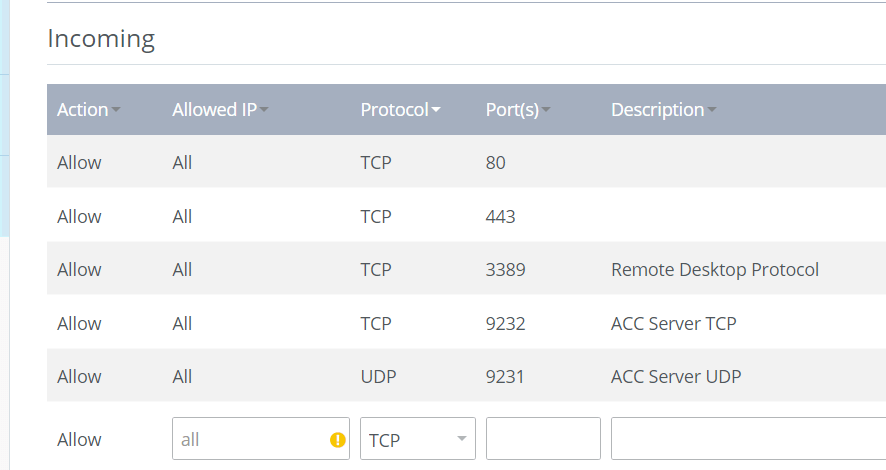
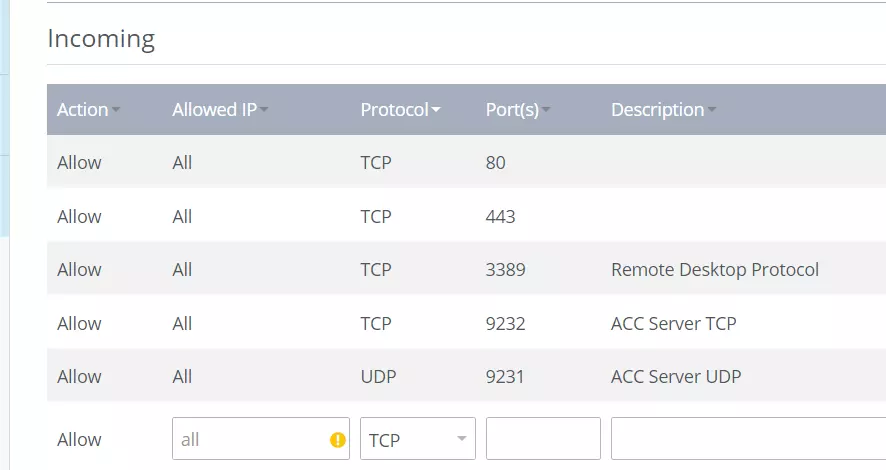
For your ACC server to be available online, UDP port 9231 and TCP port 9232 must be enabled. Alternatively, you can define other ports in the configuration.json file for communication with the server.
As an IONOS customer, you can easily enable server ports via the firewall settings in the Customer Centre. To do this, complete the following steps:
- Log in to the IONOS customer centre.
- Go to the Server & Cloud menu.
- Select your rented server hardware.
- In the left side menu, click Network and then Firewall Policies.
- Under Inbound, add the rules for UDP port 9231 and TCP port 9232.
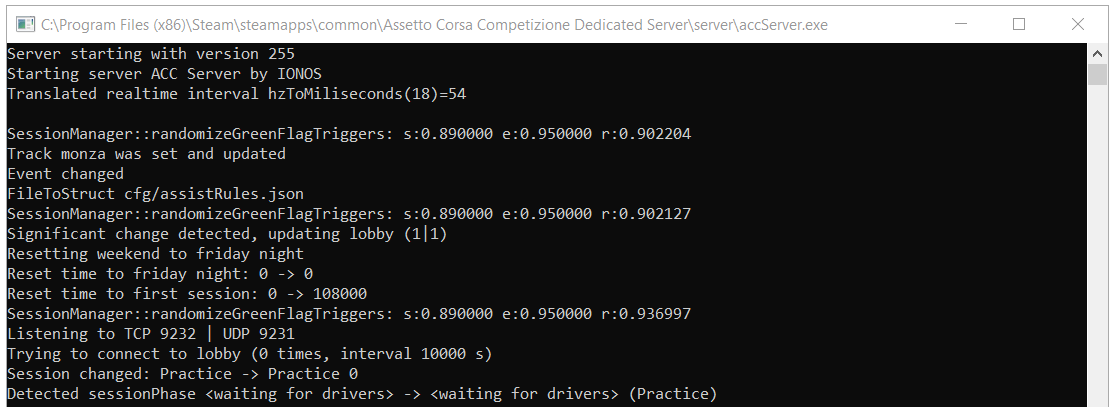
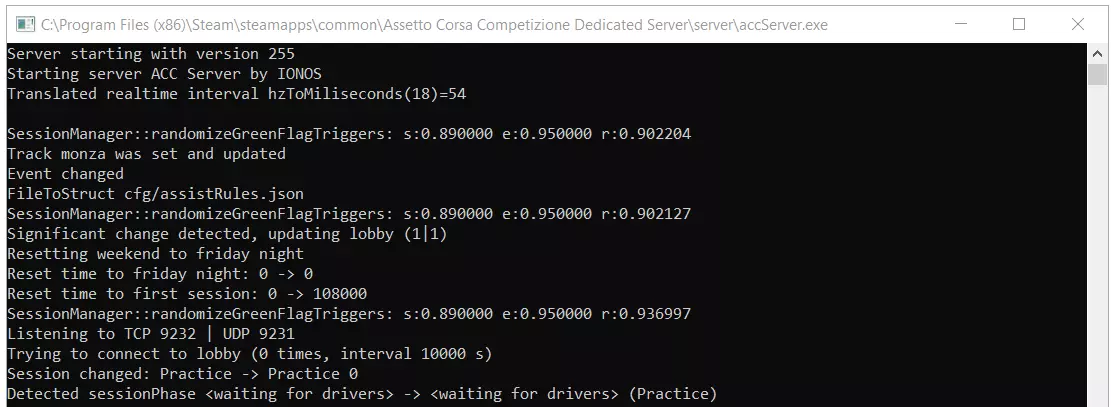
Step 5: start the Assetto Corsa Competizione server
Step 6: connect to the ACC Server
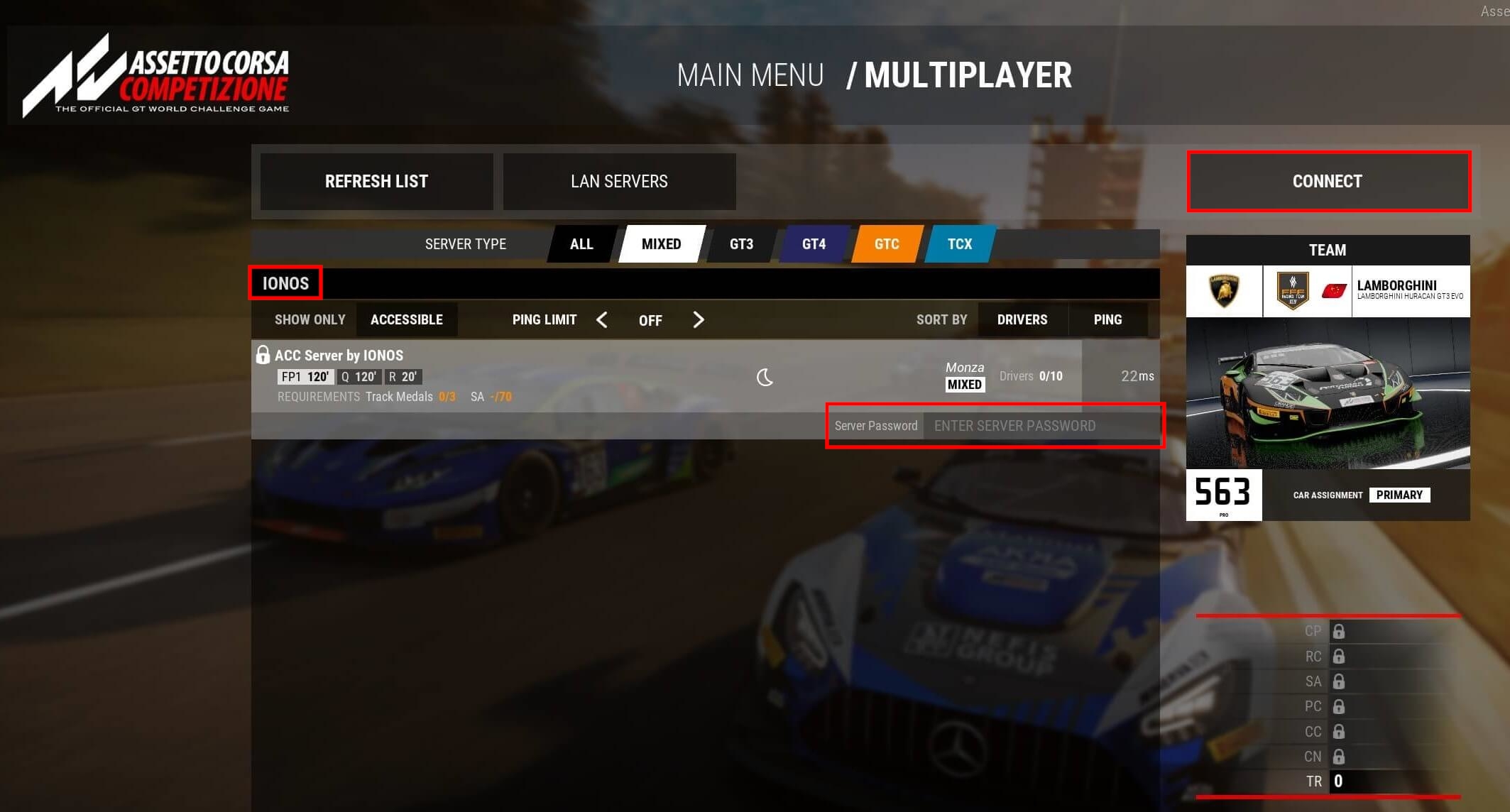
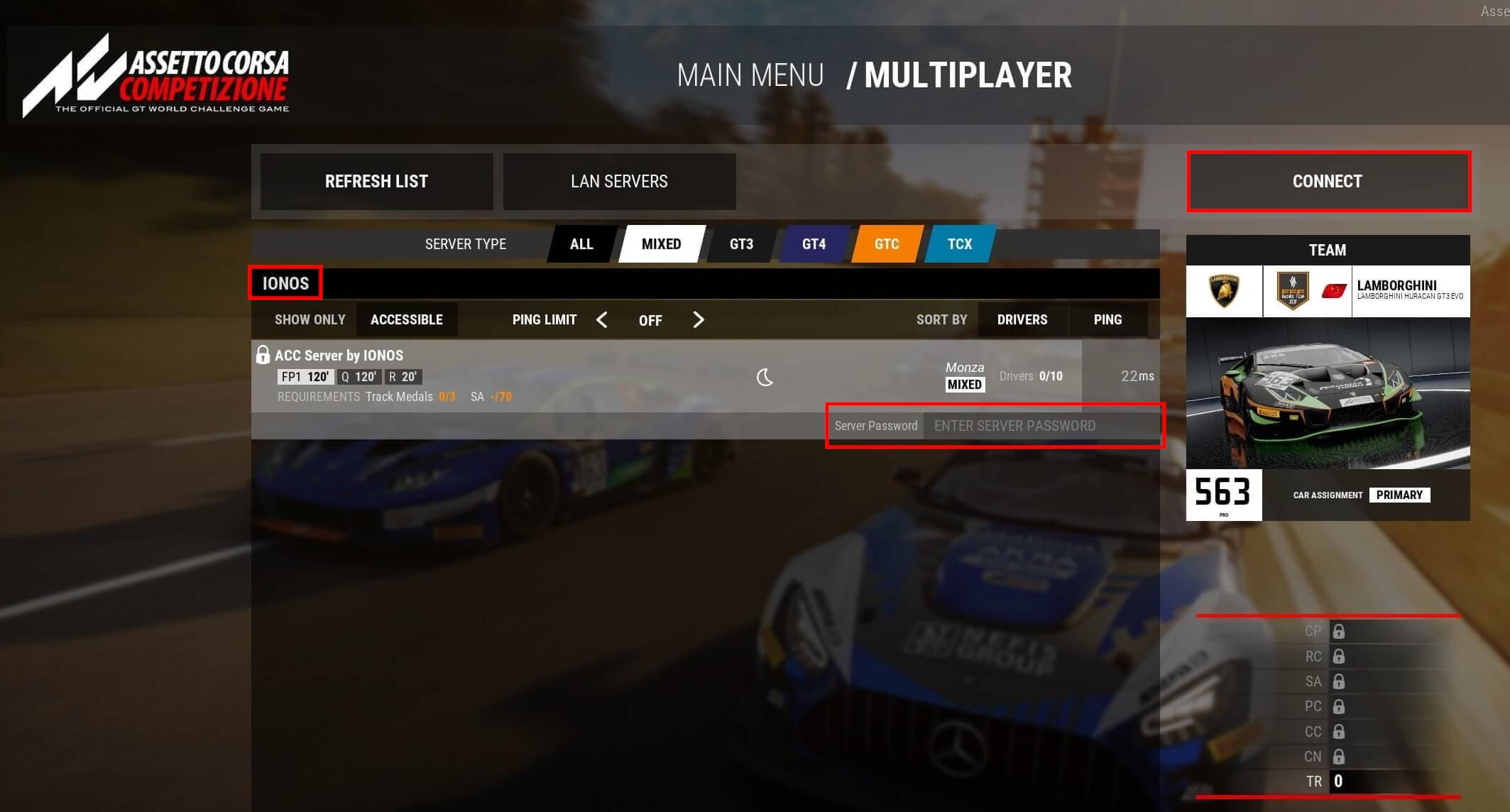
So that you and your fellow drivers can connect to the server and compete in configured races, start Assetto Corsa Competizione on your computer. Then complete these steps:
- Select Multiplayer.
- Click on the Server list button.
- Use the search function to search for your ACC server.
- Type the server password in the corresponding field and press Connect.
After this short setup, start the game on your Assetto Corsa Competizione server.