

What’s the Client Server Runtime Process csrss.exe

Modern operating systems are complex entities. In 1982, when Microsoft launched MS-DOS, the precursor to today’s Windows, it consisted of seven files with a total size of approximately 400 kilobytes. At start-up, all you saw was a command line with a blinking cursor waiting for commands.
Today, when you boot up a Windows operating system, countless executables are loaded into the memory. Several dozen processes and services are already running before you can even log on to the system. One of these critical system programs is called csrss.exe. In this article, we’ll take a closer look at the functions of this program.
What is csrss.exe?
“csrss” is an abbreviation for the Client Server Runtime Subsystem program. In older versions of Windows, the application was available as a server for handling graphical user interfaces. In the meantime, this sensitive area has been moved to the core of the operating system (kernel). However, csrss.exe continues to function as a server and performs essential tasks in the system. For example, the process is responsible for launching and terminating many other system processes. In addition, it manages the command line, which is now only one of many programs in the operating system. Because of these important tasks, csrss.exe is classified as a critical process.
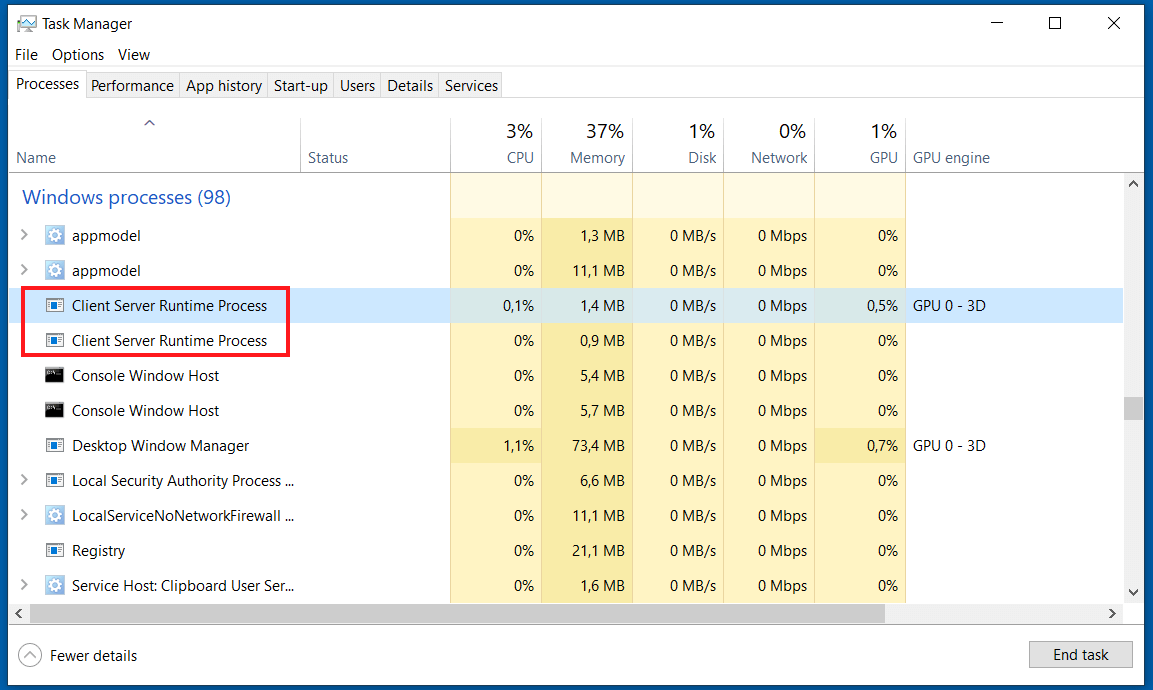
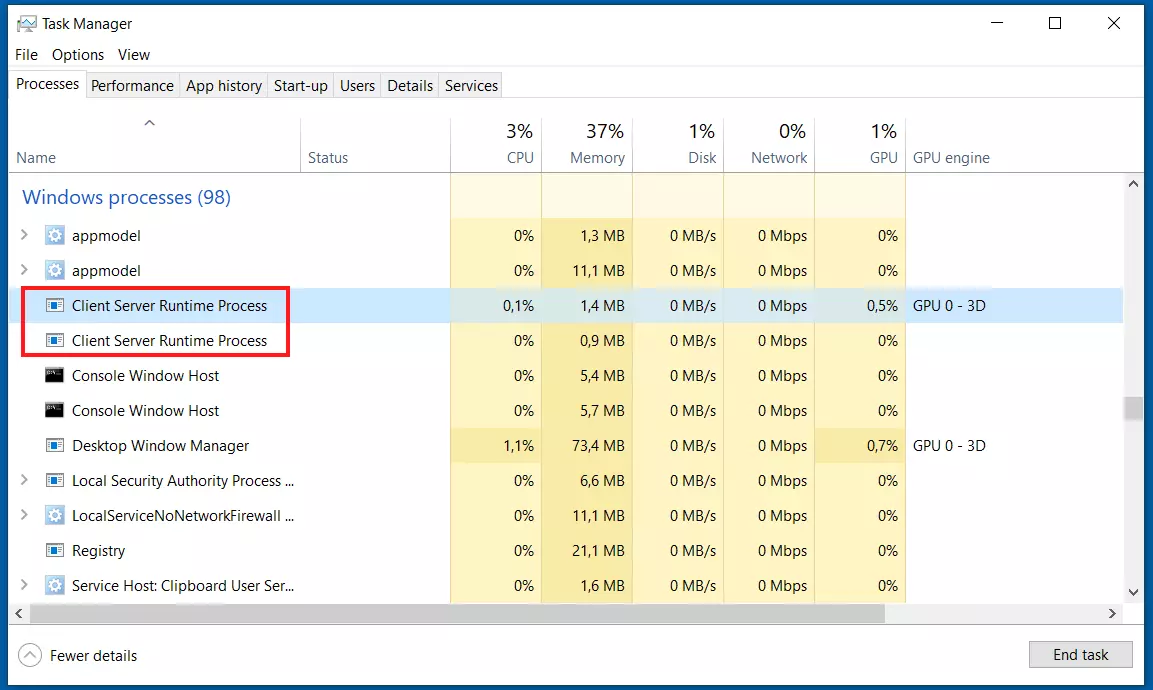
The Client Server Runtime Subsystem runs once per session, although there are always two sessions running after Windows boots up: one “0” session for all services and one session for user processes. This means that at least two instances of csrss.exe are always running.
You can view active sessions by entering “query SESSION” in the command line. The individual IDs of the sessions are also displayed there. This way you can check whether the number of csrss.exe processes matches the number of sessions in the Task Manager.
Was does csrss.exe do?
Each csrss.exe process loads multiple DLLs (dynamic libraries) such as basesrv.dll, winsrv.dll, or csrsv.dll. They provide the following functions, among others:
- Starting and stopping processes
- Starting and stopping threads
- Providing the console window (command line)
- Shutting down the system
These functions can be invoked and used by other programs and processes with the help of csrss.exe, further illustrating how essential the process is. If csrss.exe does not run properly or will not terminate, important functions of the operating system will suddenly become unavailable. Even processes that are already active will stop working once the system can no longer start threads.
How to check the current status of csrss.exe
There are several ways to examine the csrss.exe process more closely. The most convenient way is to use the built-in Task Manager. You can open it using the keyboard shortcut Ctrl + Shift + Esc or by typing “Task Manager” in the Windows search box. The Task Manager features multiple tabs with information about CPU utilisation, active processes, and services.
In Windows 10, you can find csrss.exe in the “Processes” tab of the Task Manager under Client Server Runtime Process. In previous versions, it was listed under its application name (“csrss.exe”) in the Task Manager. You can right-click the process and choose from several options. The following are useful for inspecting the process:
- Open file location: Opens a File Explorer window with the location of csrss.exe. This file location must always be “Windows\System32\.” If not, this is not the correct process.
- Go to details: You can view the process ID, see whether the process is running and find out which user is running it. For csrss.exe, the user should always be SYSTEM because it’s a system process.
- Properties: You can display details about application on the “Details” tab. You can open the certificate on the “Digital Signatures” tab. The issuer of the csrss.exe certificate must always be Microsoft.
One well-established alternative for scanning system processes like csrss.exe is to use programs by Windows insider Mark Russinovich. His Sysinternals Suite contains a wealth of useful software, including the Process Explorer program, which allows you to display active processes hierarchically. In addition, the software includes a direct link to the platform Virustotal.com, where you can submit processes for a quick check.
Can csrss.exe be terminated or removed?
Many people on Internet forums ask whether processes like csrss.exe can be terminated or whether the software can be removed. Though possible, terminating csrss.exe would cause the system to shut down immediately. For that reason alone, you should avoid doing this. The process cannot be terminated in the Task Manager without administrator privileges.
If the process causes problems, such as a high CPU load, it’s better to find out which components may be responsible. You should also check whether you’re dealing with a “real” csrss process.
Completely deleting the csrss.exe application from the system folder would cause the system to stop running.
If you suspect that the csrss.exe file is a virus
Since the csrss.exe process is always active, it stands out when you monitor running processes. In addition, the process’s cryptic name entices malware developers to program similar sounding applications such as “crss.exe” or “cssrs.exe” and inject them into poorly protected systems. Unlike malware programs with foreign names, these applications can be easily overlooked or confused with the legitimate file if you don’t examine them carefully enough.
Always make sure the software has the correct spelling and file location. The csrss.exe application in the system folder .\Windows\System32\ is very likely not malware. That said, if you still suspect that the file is a virus, we recommend reinstalling your system since malware would render your entire system unsafe.
csrss.exe is one of the most important system processes in Windows. At least two instances of the program are always running on your computer. Since it performs essential tasks such as starting and ending processes, it’s considered a critical process that may not be terminated. If the process runs from the system directory .\Windows\System32\, you can usually rule it out as the source of malicious processes.