

FS19 server: How to host your Farming Simulator 19 Server

Tilling fields, breeding cattle, driving tractors: What sounds like work to some, equals pure joy for fans of the Farming Simulator. The game impresses with its attention to detail, its versatility, and its slow pace. Players of Farming Simulator enjoy the slow nature of the video game and can leave everyday life behind during long trips with the combine harvester. However, this doesn’t mean you have to go at it alone, because Farming Simulator 2019 (FS19) can also be played online. However, to do this you’ll need access to a gaming server.
However, you can also set up a farming simulator 19 server yourself. It’s not particularly expensive, nor does it require extensive technical know-how. If you follow our instructions, you can start farming on your own server in no time, and even invite your friends to help. While in multiplayer mode, you either work together on a farm and share the work, or you compete against your friends and see whose farm is more successful.
- KVM based dev servers for developers
- Scalable to enterprise cloud level
- Pay-as-you-go, per-minute billing
What is the FS19 server?
Before we start, we have to answer the most important question: What is a server? In the gaming context, a server refers to a host that is connected to the Internet, runs the corresponding gaming software, and can be accessed by multiple users simultaneously. In principle, a gaming server is a PC that has been configured so that several people can play at the same time. The players themselves also have the game running on their PC (or Mac, console, etc.).
Therefore, a gaming server is usually not run from home, although that would be possible – the hardware just has to be powerful enough. Instead, you can rent a server from experts. This ensures that the hardware is set up correctly – and, above all, that it is properly maintained. A server also requires a lot of electricity and generates a lot of heat. Hosting providers can usually provide intelligent, environmentally-friendly systems that are as energy-efficient as possible.
Another important thing about servers is that they must be accessible around the clock. This requires a stable Internet connection. Beyond this, a secure IP address must also be in place. Usually, this isn’t set up as standard in people’s homes. Many providers regularly assign a new IP address to the Internet access. This cannot happen with a professional server.
All this also applies to an FS19 server. A map is started on the host, on which several people can then play together. At the same time, all the players don’t always have to be online at the same time. The server is running around the clock, and you and your friends can play independently of the time or you can arrange to work on the farm together. Since a farming simulator 19 server is secured with a password, you as the operator can also decide who is allowed to play.
Requirements for a Farming Simulator 19 server
Farming Simulator 2019 impresses with very good graphics and a big gaming world to get lost in. However, this comes with relatively high hardware requirements. This is true for the home PC as well as for the server. While you can only keep your own PC up to date with effort, this is less difficult with servers. That’s because these can often be booked with exact specifications and are also designed for high loads.
That’s why you should make sure that the server at least meets these hardware requirements:
- Processor: 2.4 GHz (AMD or Intel-CPU)
- Working memory: 2 GB RAM
- Hard disk memory: 6 GB
The amount of hard disk space you need depends on how many DLCs you want to install. DLCs (‘downloadable content’ = content that is additionally available for download) can sometimes be very extensive and require a correspondingly large amount of free storage space. You should plan on up to 25 GB. In addition, you should pick between either HDD or SSD. A server with SSD storage space has the advantage that loading times can be significantly cut thanks to the modern technology. Backups can also be created a lot faster with SSD storage.
On the other hand, you don’t need to worry about graphics and sound cards with an FS19 server. Since the gaming server does not really have to display the game, these requirements are not necessary. The location of the server might be more interesting in terms of hardware. If all the players live in the UK, for example, it is recommended to book a server from the UK as well. In general, the connection to the data centre should be as short as possible to secure a smooth gaming experience.
Unfortunately, those who play Farming Simulator via PlayStation 4 or Xbox One cannot set up their own server on the network. But luckily there’s still the option to use the internal multiplayer mode to play together with others.
Besides the hardware, there are also a few requirements for the software. On the one hand, there is the operating system of the server. Windows is recommended here. You can either choose the versions Windows 7, 8 or 10, which are also commonly used by home users, or you can opt for the server versions. Only the 64-bit architecture is important. In principle, you can also use a Linux server. However, this additionally requires the WINE runtime environment.
On the other hand, it also depends on the right version of the game. The Steam platform, for example, is very popular among gamers, through which games can also be purchased digitally. However, this version of Farming Simulator is not suitable if you want to create a farming simulator 19 server with it. Therefore, it’s best you get your hands on the version that you can purchase on the official website of the manufacturer, Giant. The normal game already has the server software included. There is no special server version of FS19. Moreover, you have to choose the Windows version accordingly. Unfortunately, you can’t set up a server with the Mac version of the game.
To have a FS19 server you must also acquire the appropriate license. Even if you’ve already purchased the game, you’ll need to buy it again for that server, because otherwise you’ll not be able to play. A license key can only ever appear once online. The same applies to DLCs. These need to be purchased for the server as well as for the client at home.
Game server rental with IONOS for the FS19 server
IONOS is an expert when it comes to server queries. Whether a simple file server or a complex IaaS-structure, there are a host of different models available. For the FS19 server, IONOS also has various products to offer:
- Dedicated server: your own hardware with full control.
- Cloud server: secure server environment with shared hardware.
- VPS hosting: with VMware virtualisation on dedicated SSD.
With a dedicated server, the hardware is reserved exclusively for you. While with the other models you work with a self-contained system on shared hardware, with a dedicated server no one else is able to access the same device.
However, this doesn’t mean that cloud servers or vServers are insecure: With these, the hardware is distributed flexibly, but the booked servers are still self-contained thanks to virtualisation. Here, too, no third party can simply access the data.
So which IONOS offer should you choose? That is above all also a question of price. The advantage: All IONOS server packages can be easily scaled. In addition, you can also find configurations for smaller projects that are correspondingly inexpensive. However, the pricing models differ: While the costs for a vServer are charged monthly, the dedicated server and cloud server are billed by the minute. If you switch off the FS19 server with these two offers, there are no further costs.
To meet the minimum requirements of the Farming Simulator 19 server, the following server packages should be considered, for example:
| Processor | Working memory | Hard disk space | |
|---|---|---|---|
| Cloud Server L | 2 vCores | 4 GB | 80 GB SSD |
| VPS L | 2 vCores | 4 GB | 120 GB SSD |
Even with the simplest configuration, a dedicated server will already be far too complex for a small FS19 server. However, it can be worthwhile to award the booked server more resources. Then you can also work on farms together with many players. These server offers could be considered for this purpose, for example:
| Processor | Working memory | Hard disk space | |
|---|---|---|---|
| Dedicated Server L-16 | 4 Cores | 16 GB | 480 GB SSD |
| Cloud Server XL | 4 vCores | 8 GB | 120 GB SSD |
| VPS XXL | 6 vCores | 12 GB | 240 GB SSD |
Try out your VPS for 30 days. If you're not satisfied, we'll fully reimburse you.
Setting up a FS19 server – step by step
Once you’ve decided on a server, it’s time to start with its installation and configuration. Thanks to a dedicated application that is designed to help you with the server operations, it’s not that difficult to actually set up a FS19 server. If you’re new to the tech world, however, it’s best you stick to the step-by-step instructions, to avoid getting frustrated and annoyed and giving up altogether.
In these instructions we are using the Cloud Server L von IONOS. If you’re using another hosting provider then you will have to adapt the individual steps accordingly.
Step 1: Buy the gaming licence
To set up a Farming Simulator 19 dedicated server you’ll have to purchase the game again, since every licence can only be online once at any given time. To do this, go to the official order page of the producer GIANT and select the digital Windows version. Make sure not to buy the game via a third-party provider such as Steam or the Epic Game Store, since this can lead to errors while setting up the server.
Step 2: Connect to the server
To connect to the IONOS server, you’ll first have to log in to the customer area. Here you’ll find a menu tab titled ‘Server & Cloud’, which acts as a control panel for your server. To be able to work on the cloud server, you’ll also need remote desktop software. In Windows, this software is already installed as standard.
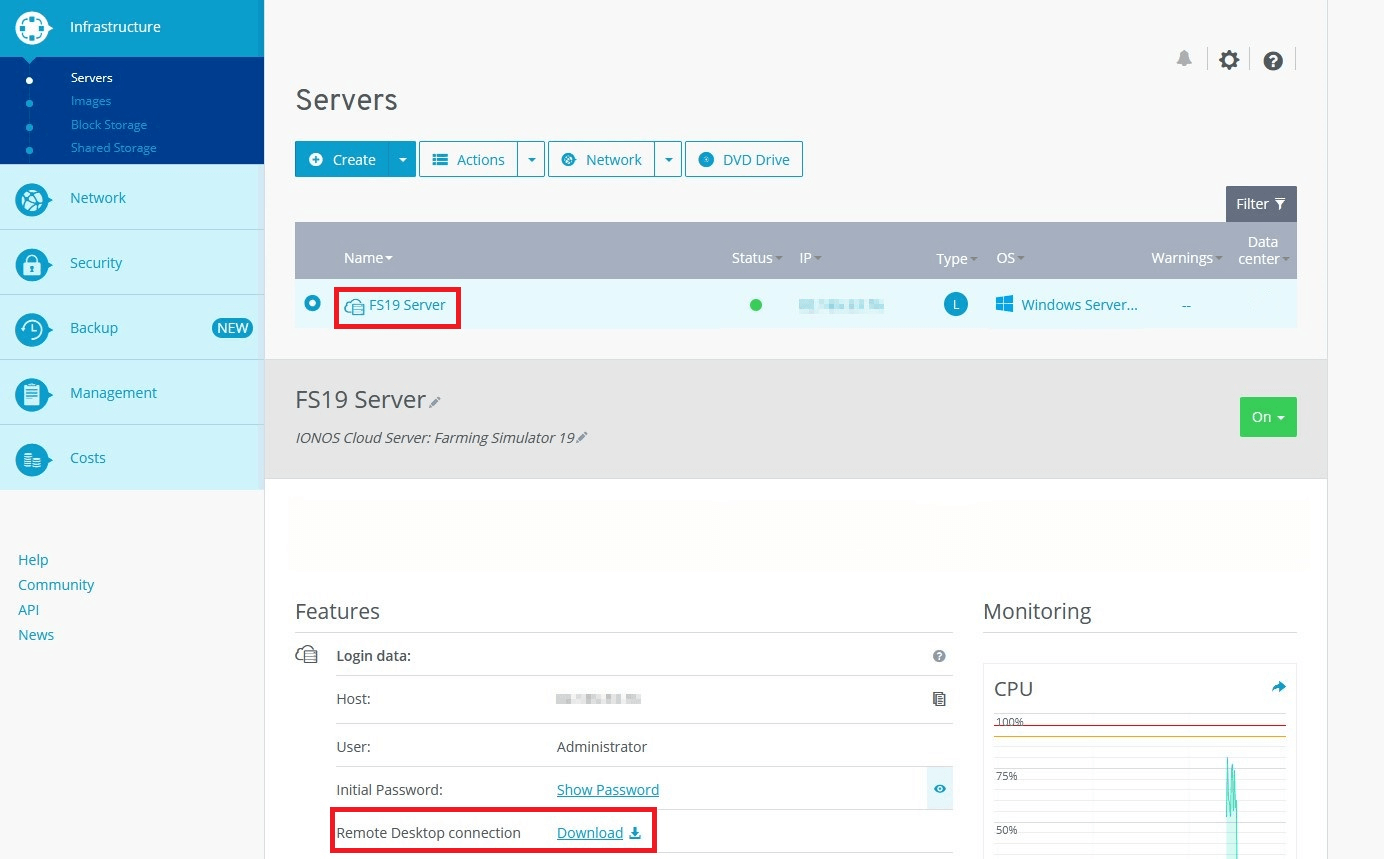
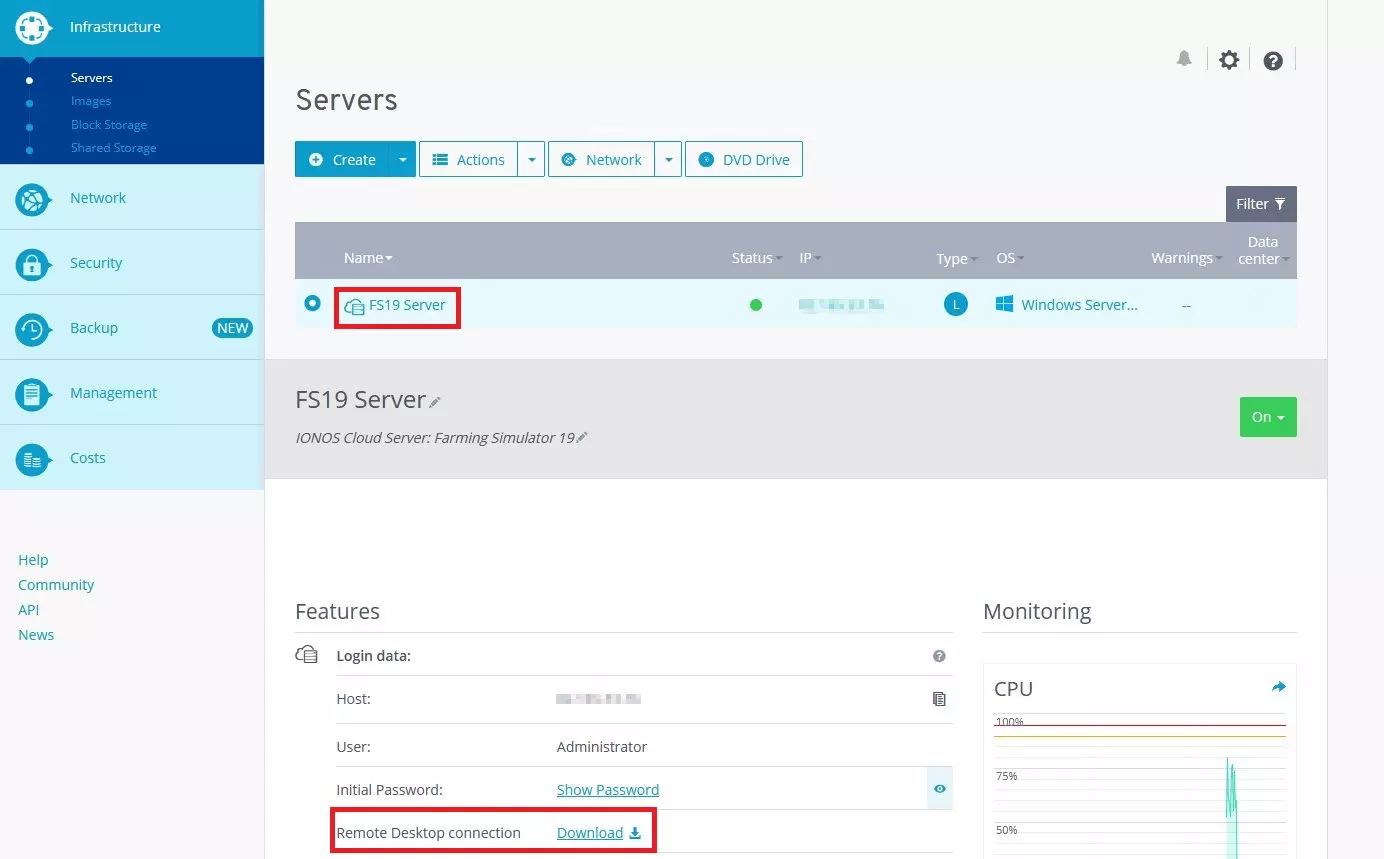
In the server features section of the control panel, you’ll find the item ‘Remote Desktop connection’ including a download link. Behind the hyperlink is a file with all the important details that the Windows tool needs to connect to the server. You can either execute the file directly or download it first and then start it with a double click. Afterwards, you still have to enter the server password, which you can also see via the control panel.
Before you connect to the server, make sure that the server is also activated. The activation occurs directly in the control panel by clicking on the corresponding button.
Eventually Windows will show you a security message. You can simply confirm the message. Following this, the connection should be established. You will now see a new Windows desktop. This is the operating system on your server. If you want to discontinue the connection, you can do so by clicking on X in the toolbar at the top of the screen. Here you can also reduce the size of the window and work on both your PC/laptop and the server at the same time.
When you close a remote connection the server does not shut down. All other applications will continue to run, which means you can log in again at any time.
Step 3: Download and install Farming Simulator
After purchasing the game, you will receive an email containing a product key and the download link. Open your email inbox via the server, for example via the browser, and follow the link to the download. This way, you’ll have the required files directly on the server and won’t have to perform a cumbersome data transfer.
After you have downloaded the Windows file, start installing the game. If you’re using the custom mode during the installation, you have the option to specify an installation path. Since you will have to change to this directory after the setup, you should choose a path that is as easy to reach as possible at this point.
Now you have to start the game in normal mode before being able to enter your product key. To do this, start the FarmingSimulator19.exe file. Possibly a shortcut was also created on your server desktop during the installation, with which you can start the game.
After you have entered the product key, you will probably see an error message:
Error: Could not init 3D system.
Shader Model 3.0 is required.
You are asked to install the latest video drivers at the same time. You can decline the message because the server itself does not need to display graphics. Following this the program will again close.
Step 4: Unlock port
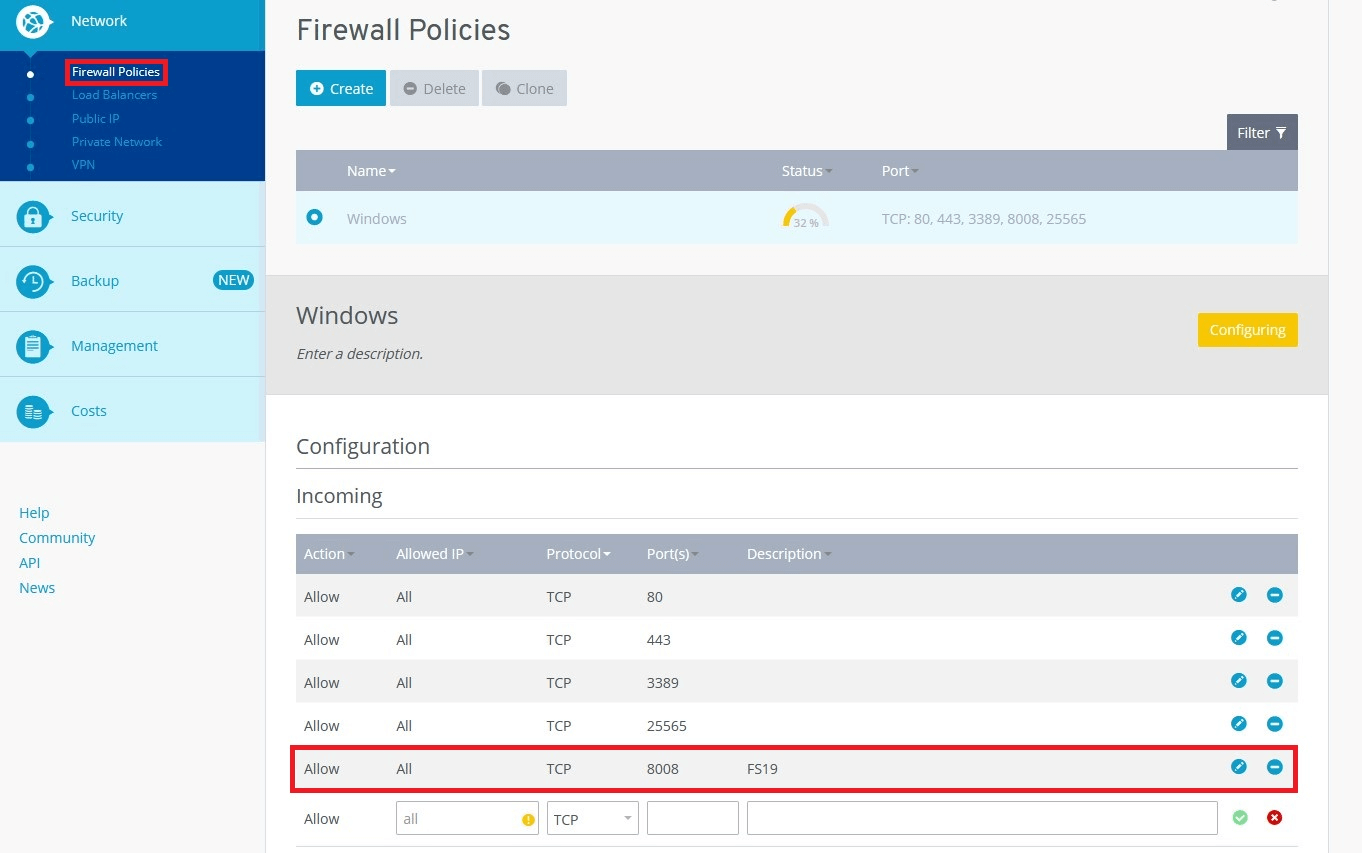
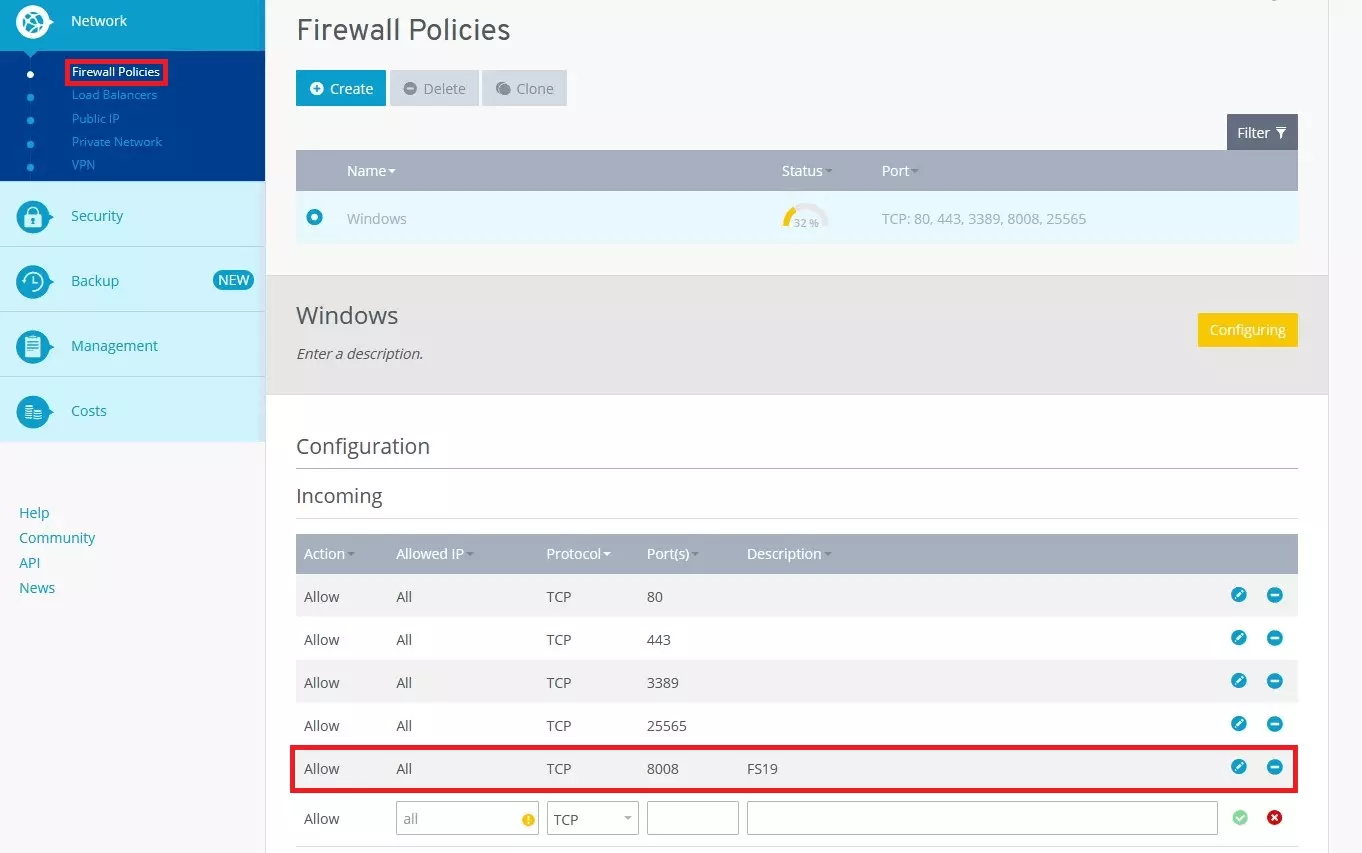
To be able to access the FS19 server from another computer, you have to release the corresponding port. This is done via the control panel of IONOS. In the left navigation bar, open the menu item ‘Network’ and then ‘Firewall Policies’. Here you will find a list where you must unlock port 8080 for all IPs and with the TCP protocol. For example, enter ‘FS19 server’ as the description so that you can still assign the port in the distant future.
Step 5: Start and configure the FS19 server
Now it’s time to start the FS19 server. To do this, double click on dedicatedServer.exe. A window with a command line will open; you don’t have to do anything here. To make further changes, open the browser and provide access to the web interface of your Farming Simulator 19 server by specifying your IP address and port 8080.
http://[YOUR IP ADDRESS]:8080/Now, this no longer has to be done via your server environment. Since the FS19 server has been launched and you’ve released the port, you can also access the web interface via your computer.
GIANT also offers apps for smartphones for managing a server. Using the mobile applications, which are available free of charge for both Android and iOS, you can not only define server settings but can also keep an eye on all players on a live map.
On the website, you will now need to enter a username and password. This information can be found in the dedicatedServer.xml file, which is located on your server in the game’s directory. The file can be opened and edited with a simple text editor like the one provided by Windows.
<initial_admin></initial_admin>
    <username>admin</username>
<passphrase>password</passphrase>To increase security measures, you can also make changes to the data. To do this, simply type a different username and a new password in the two corresponding places and save the file.
The data can now be adapted to a web GUI and in doing so become part of the administrative area. The first thing you should do here is change the passwords – both for the administrator access and for the game itself. The latter is relevant for your fellow players because this password must be entered when entering the server. Also, give your FS19 server a name so that your fellow players can better identify it. Other interesting options:
- Map: Would you rather play in Ravenport or in Felsbrunn?
- Career mode: In which gaming mode do you and the other players want to start?
- Slots: How many other players are there?
- Matchmaking: In which region should your server appear?
- Language: Which language should be used in the game?
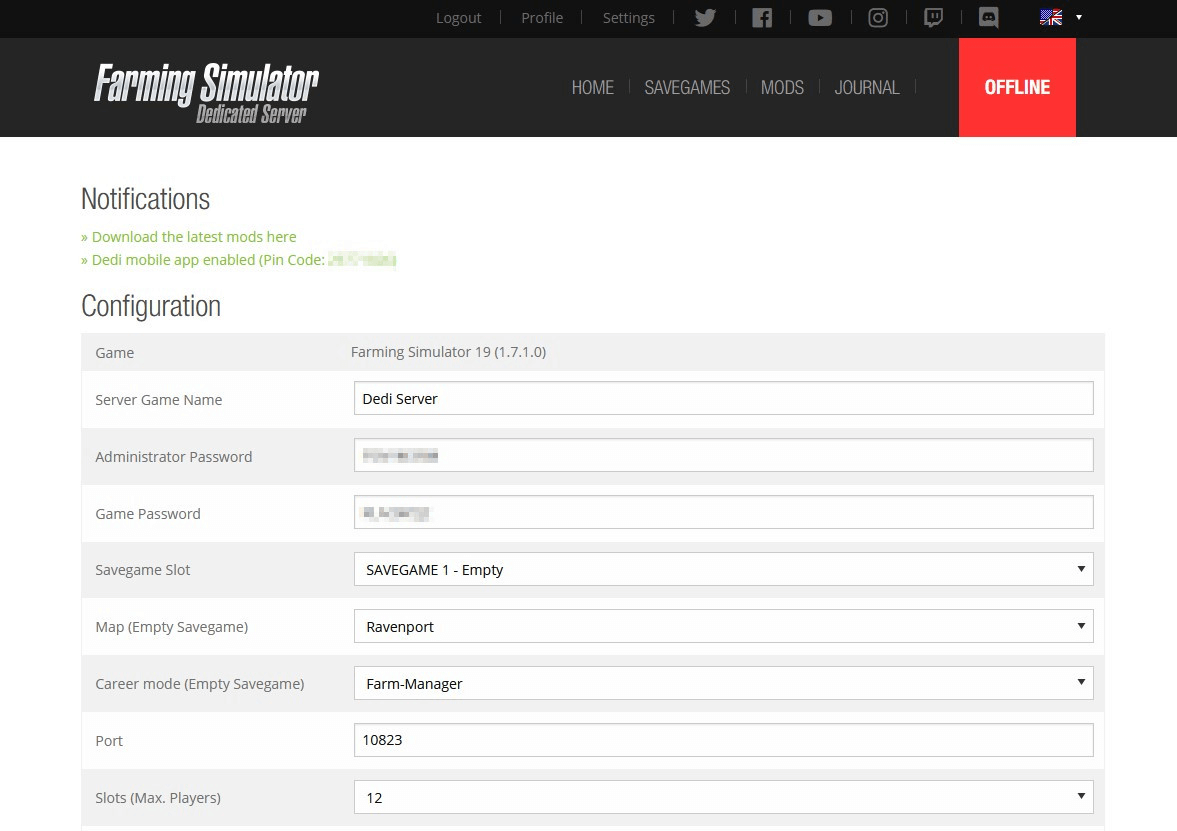
Once you’ve set everything up, it’s time to activate the server. To do this, scroll to the very bottom and click on the start button. You should now be able to see which resources are currently being used and how many players are currently on the server.
Use the admin area also to install mods. With these extensions you’re able to add new vehicle models, activate new kinds of buildings or gain access to additional gaming options.
Step 6: Start playing on the Farming Simulator 19 server
For you and your teammates to now be able to connect via your own FS19 server, first start the game. Then go to the multiplayer area in the start menu. Here, you must set the correct region so that the server can be found. The other players should then find it in the list under the name you gave the server in the web GUI. Now you only have to enter the password (this is also something you set previously), and the multiplayer fun can begin.
Step 7: Stop the server
To stop your FS19 server, and to also no longer make it accessible to other players, you have three options:
- Web GUI: Use the stop button in the web interface to quit the server.
- End server application: The file dedicatedServer.exe can be stopped in the server environment by clicking on the window and then holding down the keys [Ctrl] + [C] at the same time.
- End server completely: The IONOS cloud server can also be completely shut down via the control panel.
Some gaming servers are perfectly suited to play together with friends while maintaining control over the game settings and teammates. This is not only the case with Farming Simulator. If you have a dedicated CS:GO server or a Minecraft server, you’re sure to also have a lot of fun in multiplayer mode.
Make a statement with your own .gg domain and let the games begin. Register your own .gg domain now with IONOS.