

How to check your Linux version: easy ways to view the distribution and version number

When most people think of Linux, an open source operating system that serves as an alternative to Microsoft and Apple comes to mind. But unlike these market leaders that offer commercial operating systems, there is no single Linux operating system.
Instead, there is a whole series of free, open-source operating systems (referred to as 'distributions') that are built based on the Linux kernel. This means that Linux merely serves as the basis for potential operating systems, which are then built from the kernel and other programming elements. While Microsoft and Apple release closed-source, proprietary software products, the Linux kernel is open-source code that any member of the Linux community can use or modify to make their own applications and operating systems.
Since there exist countless Linux versions, it’s of utmost importance to know which version you’re running, especially when you run into technical problems, have questions, or want to do an update. Luckily, it’s very easy to find out. Keep reading for instructions on how to check your Linux version.
- Free website protection with SSL Wildcard included
- Free private registration for greater privacy
- Free Domain Connect for easy DNS setup
Linux version: what do the distribution and version number mean?
As of June 2020, there are now over 500 unique Linux distributions. The best-known are Ubuntu, Debian, Fedora, SUSE, Manjaro, and Linux Mint.
The family tree for Ubuntu alone contains over 65 software applications built on the basis of Ubuntu. The current distribution was released in 2020 with the version number 20.04. The first version of Ubuntu came out in 2004 and was based on the Debian operating system.
The various Linux distributions can be roughly divided into three basic family trees as well as countless other smaller branches and independent versions. For example, the entire Ubuntu family is based on Debian, the distribution Fedora is based on Red Hat Linux, and SUSE used Slackware.
Even though they’re all based on the Linux kernel, the various distributions serve as their own operating systems with different GNU toolchains and graphic interfaces. In order to find your way in the busy Linux landscape, it’s important to know which version of the Linux kernel and which distribution you’re using.
Checking the Linux version in the terminal
Whether you’re using Linux privately or professionally, it’s always important to know which Linux version and distribution you’re working with. That way you’ll know which package manager you’ll need for downloading new tools and updates, and which Linux forum you should turn to when you have questions or experience problems.
If you’re looking for details about your Linux version, there are two words which will be of particular significance:
- The version number of the distribution
- The version of the Linux kernel
To find out these two values, you’ll need to use Linux commands. In general, when working in Linux, user input is entered into so-called 'shells', which are interfaces between systems and users. Shells run using a graphic terminal that processes the commands in the relevant programming language. This will serve as your starting point in checking your Linux version.
Step 1: Distribution version number
cat /etc/*releaseThe asterisk in the code ensures that the command will apply to all distributions and shows you the installed version. The data that you see now may look a bit messy, with some lines appearing twice or several ending in 'release'. The most important line here is 'PRETTY_NAME=', which contains the name of the distribution and version number that you’re currently using.
Another command that works on all distributions without the need for a special tool is the following:
cat /etc/os-releaseIf you only need the name and version number of your current distribution, the following command will suffice:
lsb_release -dIn the following example, you can see that Ubuntu 20.04 LTS is currently running:
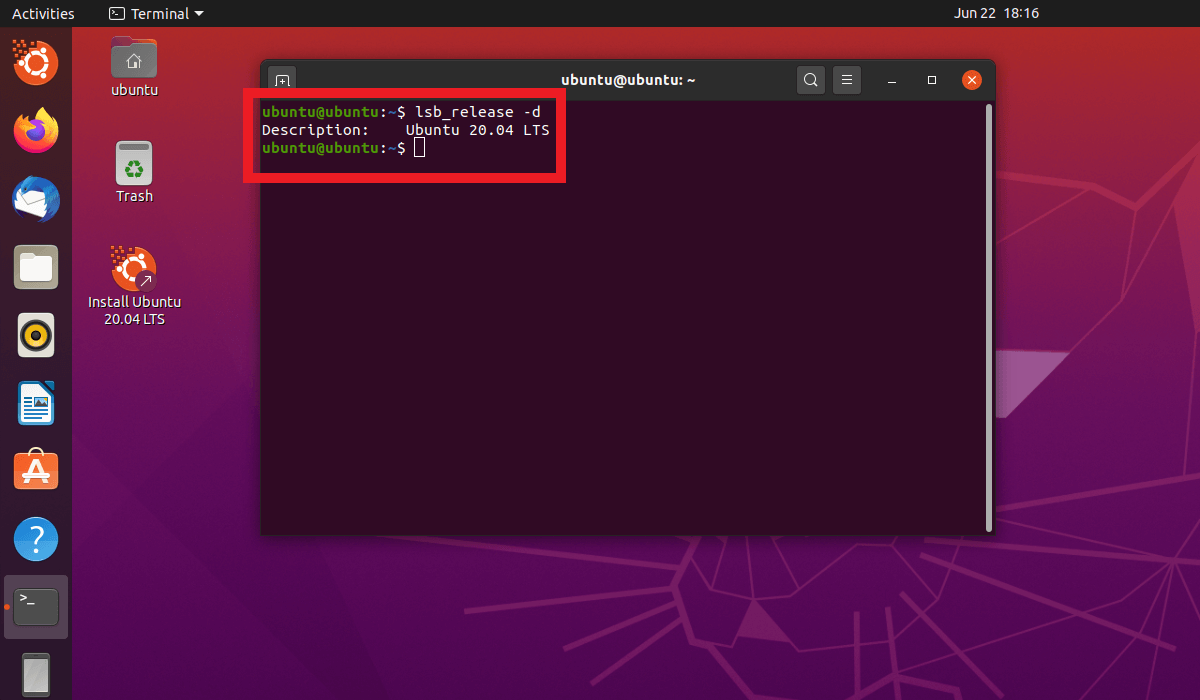
The following command lists more comprehensive information about the version:
lsb_release -a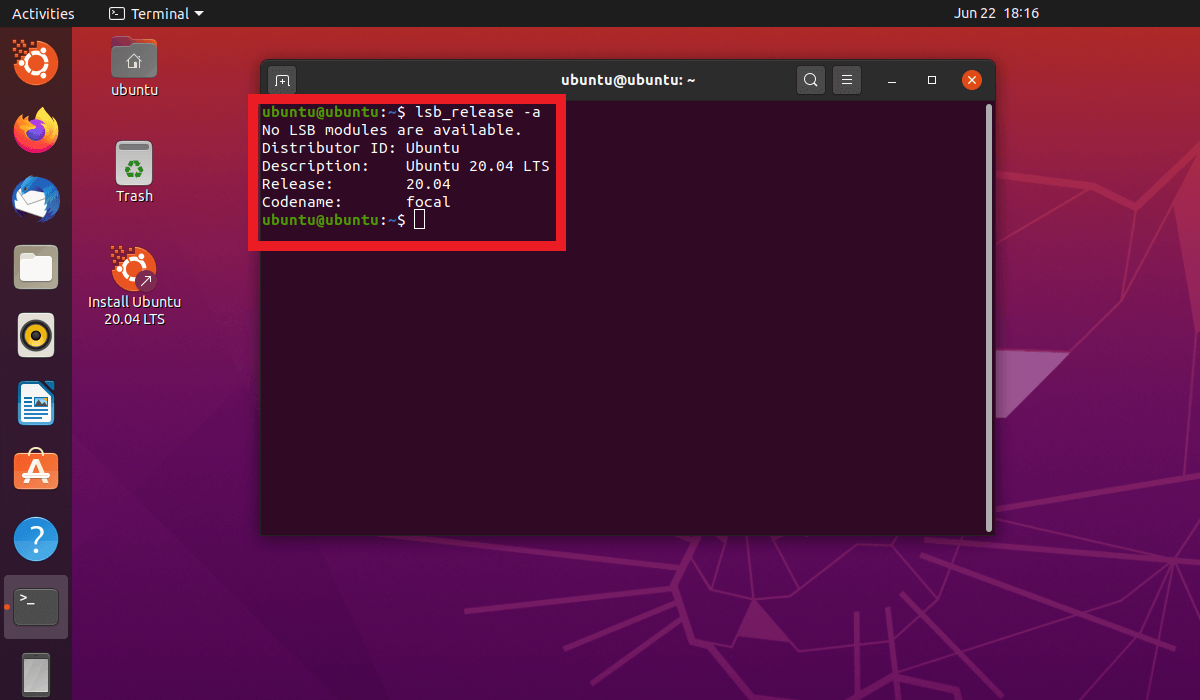
This command should work on every Linux distribution, as long as you’ve installed the lsb-release package or it’s part of your Ubuntu version. If you haven’t already installed it, you can easily do so with the following command for Debian and Ubuntu:
apt-get -y install lsb-coreStep 2: Linux kernel version number
If you’d like to know which version of the Linux kernel you’re using, type the following command into the terminal and press enter:
uname -r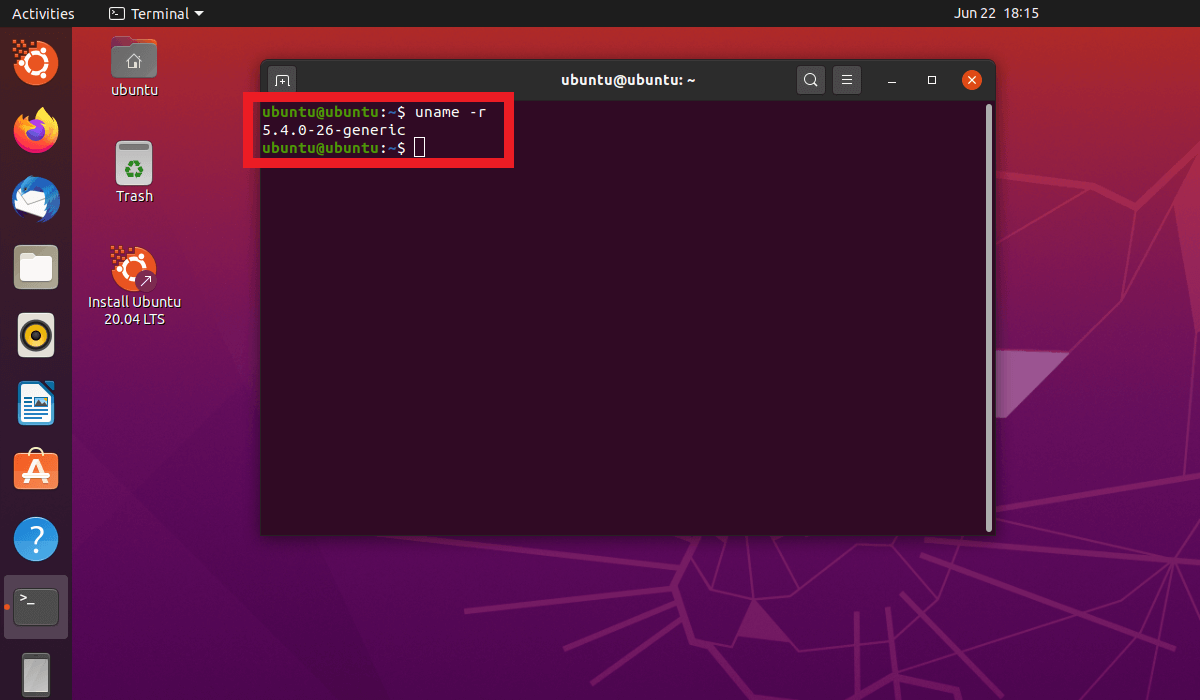
You’ll now see which Linux kernel you’re using. In the above example, the Linux kernel is 5.4.0-26.
If you’d like to see more information (about computer architecture for example), you can enter the following command:
uname -a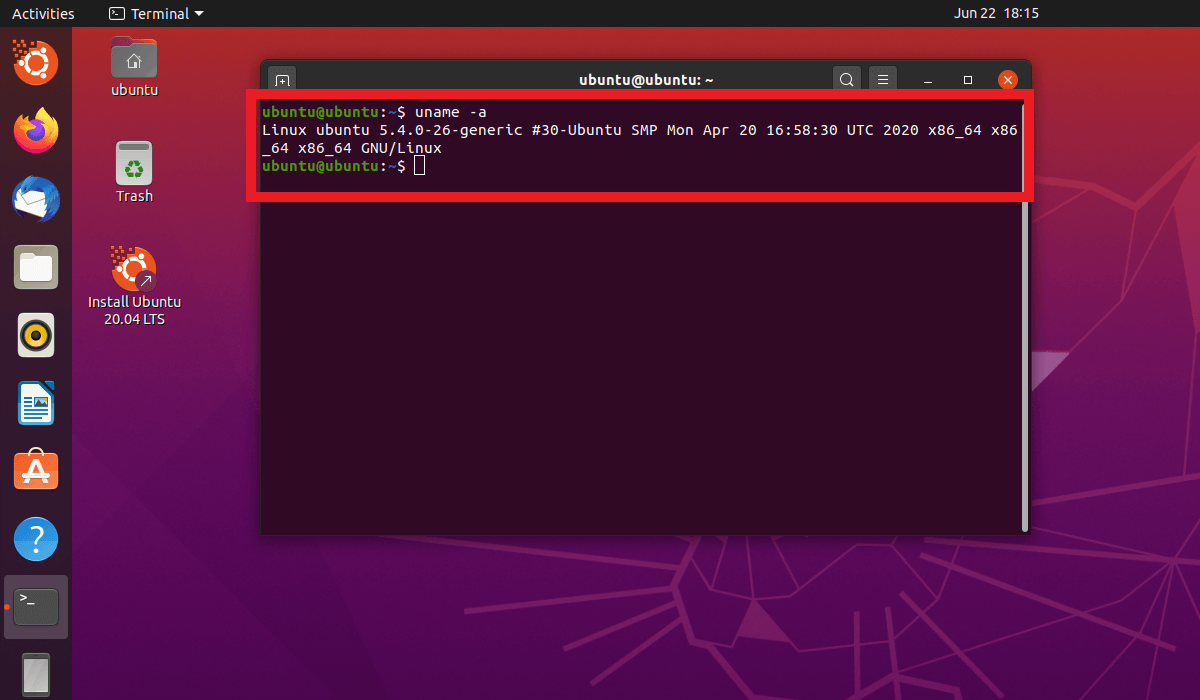
Step 3: View everything at once with Inxi
With the tool Inxi, you can easily view all the information about your hardware, host, Linux kernel, desktop environment, and distribution. To install the program in Debian/Ubuntu, enter the following command into the terminal:
apt-get -y install inxiOnce installed, you can view the above-mentioned data with this simple command:
Inxi -Sz