

How to install and host a HumanitZ server

A dedicated HumanitZ server is the perfect solution for individual adventures in the open, zombie-ridden game world. The software can be installed in just a few steps, as soon as you have the right hardware.
What are the requirements for a HumanitZ server?
In principle, you can host a HumanitZ dedicated server on your private computer. However, it’s advisable to outsource hosting for two reasons. On the one hand, you benefit from the provider’s first-class internet connection, which is far superior compared to standard home connections. On the other hand, you protect your own hardware and can leave your server running permanently without your personal device having to be left switched on around the clock.
The requirements for the underlying hardware depend primarily on the number of players who are connected to the HumanitZ server at the same time, regardless of the hosting variant selected. In any case, you should anticipate the following minimum requirements to get started:
- Processor: min. 2.4 GHz (2 cores)
- Working memory: 2-3 GB RAM
- Hard disk storage: 10 GB
In addition, performance for the operating system used — the HumanitZ server application is available for Linux and Windows — must be planned for. If you opt for the Microsoft Windows Server 2022 system, for example, you will need an additional 1.4 GHz processor, 2 GB of RAM and 36 gigabytes of hard disk space (512 MB and 32 GB without graphical user interface).
Renting hardware to host your HumanitZ server provides the added benefit of allowing you to install and run other applications simultaneously. Check out our dedicated article to discover other games with dedicated servers that also offer exciting multiplayer experiences!
How to host a HumanitZ dedicated server incl. options from IONOS
Powerful hardware for your own game server is available from various hosting providers. Among others, IONOS offers three different types of servers, with a guaranteed broadband connection of up to 1 Gbit/s, which are well suited for hosting a HumanitZ server:
- Cloud server: A cloud server from IONOS gives you maximum flexibility. You get access to virtualised cloud hardware that can be scaled as required at any time. You are billed by the minute, so you only pay for active use.
- vServer/VPS: The vServers from IONOS use a fixed host’s virtualised resources. Unlike a cloud server, you rent a fixed setup here. There’s a flat monthly rate so costs don’t depend on how often you use the server.
- Dedicated server: A dedicated server from IONOS gives you access to high-performance enterprise hardware that is reserved exclusively for you. Thanks to per-minute billing, you only pay at the end of the month for the performance you actually use.
Try out your VPS for 30 days. If you're not satisfied, we'll fully reimburse you.
3 HumanitZ server scenarios and the right IONOS package
Do you need a little more help finding the right server package for your purposes? In the table below, we’ve listed three possible scenarios for a HumanitZ dedicated server and assigned the most suitable server from IONOS in each case (using Windows as an example).
| HumanitZ server scenario | Suitable IONOS server with Windows |
|---|---|
| 2-4 people; server permanently online | VPS Windows M |
| 5-16 people; server permanently online | VPS Windows L |
| Up to 24 people; server permanently online | Dedicated Server AR6-32 SSD |
If you opt for a cloud server or VPS package with high computing power or even a dedicated server, you can not only run a busy HumanitZ server, but also other server applications such as a Mumble server or other voice solutions in parallel.
How to create a HumanitZ server for Windows step-by-step
In the following sections, we’ve summarised the installation and setup process for a HumanitZ dedicated server. As an example, we use a hosting option from IONOS (Cloud Server, vServer, Dedicated Server) with Windows Server 2022 as the operating system.
To be able to run the server application, the Microsoft Visual C++ and DirectX runtimes must be installed. The latter cannot be obtained on Windows Server 2022 via the web installer — the installation files have to be downloaded manually.
Step 1: Establish a remote connection to the server
To communicate with your rented server, you first need remote access, which you can establish in Windows using the ‘Remote Desktop Connection’ tool. As an IONOS customer, you will find all the login details in your web-based customer account:
- Log in to your IONOS customer account via the login page.
- Go to the Server & Cloud section.
- Select your rented server.
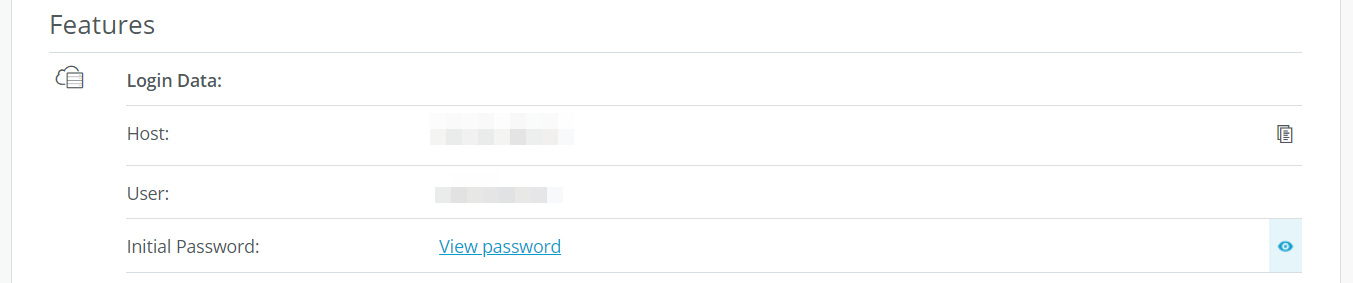
- Under Features, you’ll find the IP address of your server and your login data (User and Initial password). Copy or make a note of this information.
- Open the Remote Desktop Connection application and start the connection setup by entering the information you’ve made a note of.
- Classify the certificate as trustworthy.
A detailed explanation of how to connect to Windows Server via remote desktop can be found in the IONOS Help Centre.
Step 2: Install SteamCMD
The easiest way to get the server application for HumanitZ is to use the Steam command line client SteamCMD. Use the tool to connect to the public servers of the gaming platform and then use the appropriate command to start downloading the corresponding files. Install SteamCMD on your rented server as follows:
- Download the installation package for Windows using the following SteamCMD download link.
- Unzip the ZIP file into a directory of your choice, e.g.,
C:\SteamCMD. - Double-click the unzipped file to install SteamCMD.
Step 3: Install the HumanitZ server app
Start the installed command line client by double-clicking the file steamcmd.exe. As soon as the tool is ready for use, you will see the input line Steam>.
The first step is to connect to the public Steam servers. To download the software for the HumanitZ dedicated server, simply use the anonymous login:
login anonymousNext, create an individual directory to install the HumanitZ server:
force_install_dir C:\humanitz-serverFinally, use the command app_update in combination with the SteamDB ID 2728330 (HumanitZ server) to download and install the ‘HZ_SERVER’ application:
app_update 2728330 validate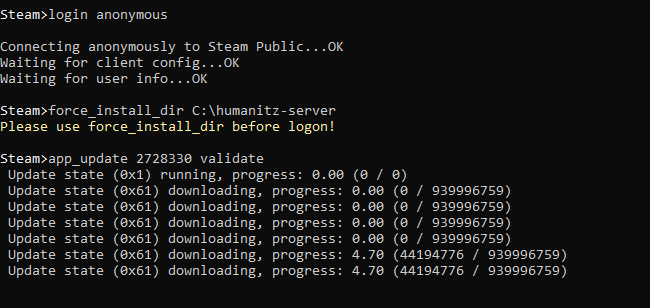
After installation, exit SteamCMD with the quit command.
You can use the command app_update 2728330 to update your HumanitZ server at any time later.
Step 4: Configure the HumanitZ server
After installing the server, you can define the desired settings for your game session. Open the configuration file GameServerSettings.ini, which can be found in the subfolder .\TSSGame, with any text editor.
In the first lines, you’ll find the ‘Host Settings’, where you can specify the name of your server, assign a password and define the maximum number of players, among other things. This is followed by the ‘World Settings’, i.e., the general setting options for the game world such as difficulty level, number of zombies or starting season.
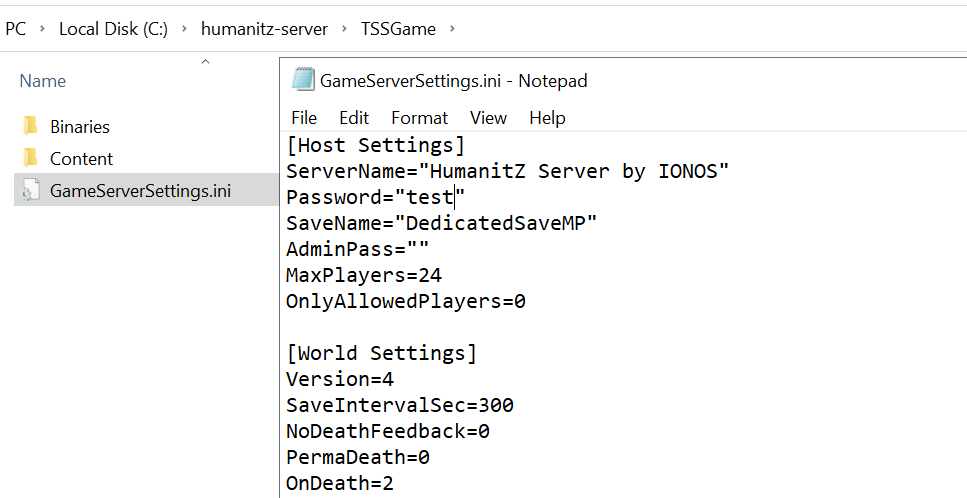
Save and close the file as soon as you have finished customising the configuration.
The HumanitZ development team has published a list of configuration parameters (including a brief explanation), as well as a list of available console commands during the game in the following Steam Community post.
Step 5: Open ports
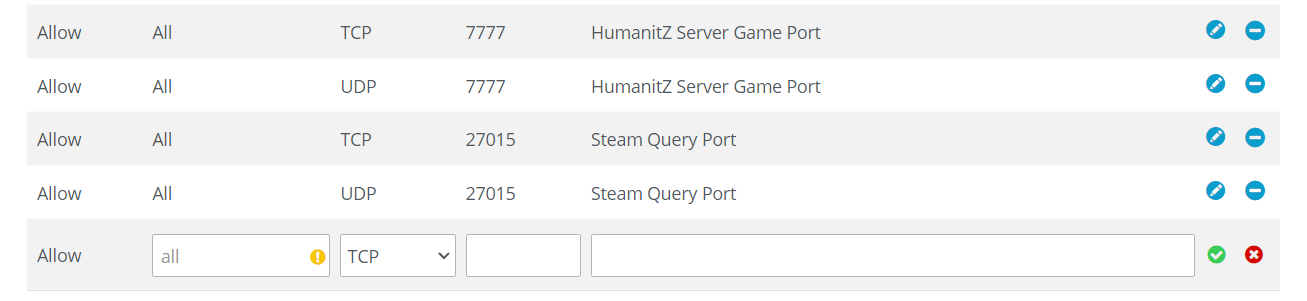
In order for your server to be accessible online and also appear in the server listing, for example, you must enable the corresponding ports in the firewall settings. In the case of HumanitZ, these are the TCP/UDP ports 7777 (game port) and 27015 (Steam query port). To enable the ports, go to your IONOS customer account again:
- Go to the login page and log in with your details.
- Select the Server & Cloud section and then choose your server.
- Click on the Network option in the menu on the left-hand side.
- Access the Firewall policies submenu.
- Under ‘Incoming’, add the rules for the TCP/UDP ports with the numbers 7777 and 27015, one after the other.
Step 6: Start the server
In the next step, you can finally start your HumanitZ server. The easiest way to do this is with a simple start script that you create directly in the server directory. Here, you give the instruction that the TSSGameServer.exe should be executed and the progress should be presented in a command prompt window. You can also specify the previously opened ports. Our script entitled start.bat looks like this:
start TSSGameServer.exe -log -port=7777 queryport=27015Double-click on the script to start the server application. The message Session created! indicates that the start was successful.
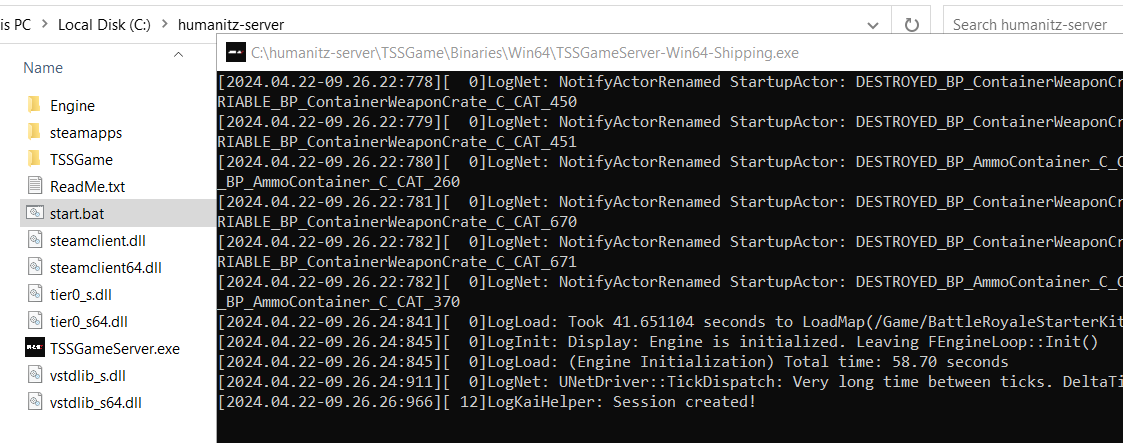
Step 7: Connect to the HumanitZ server you have created
You can now connect to your dedicated server at any time. To do this, start the zombie game as usual via Steam and then carry out the following steps:
- Click on Multiplayer.
- Create the desired game character.
- Use the search function on the right-hand side of the screen to search for your server. Make sure that the appropriate filters such as ‘Dedicated’ or ‘Password’ are switched on or off.
- Alternatively, enter the IP address of your server including the
:27015port and click on Connect by IP.
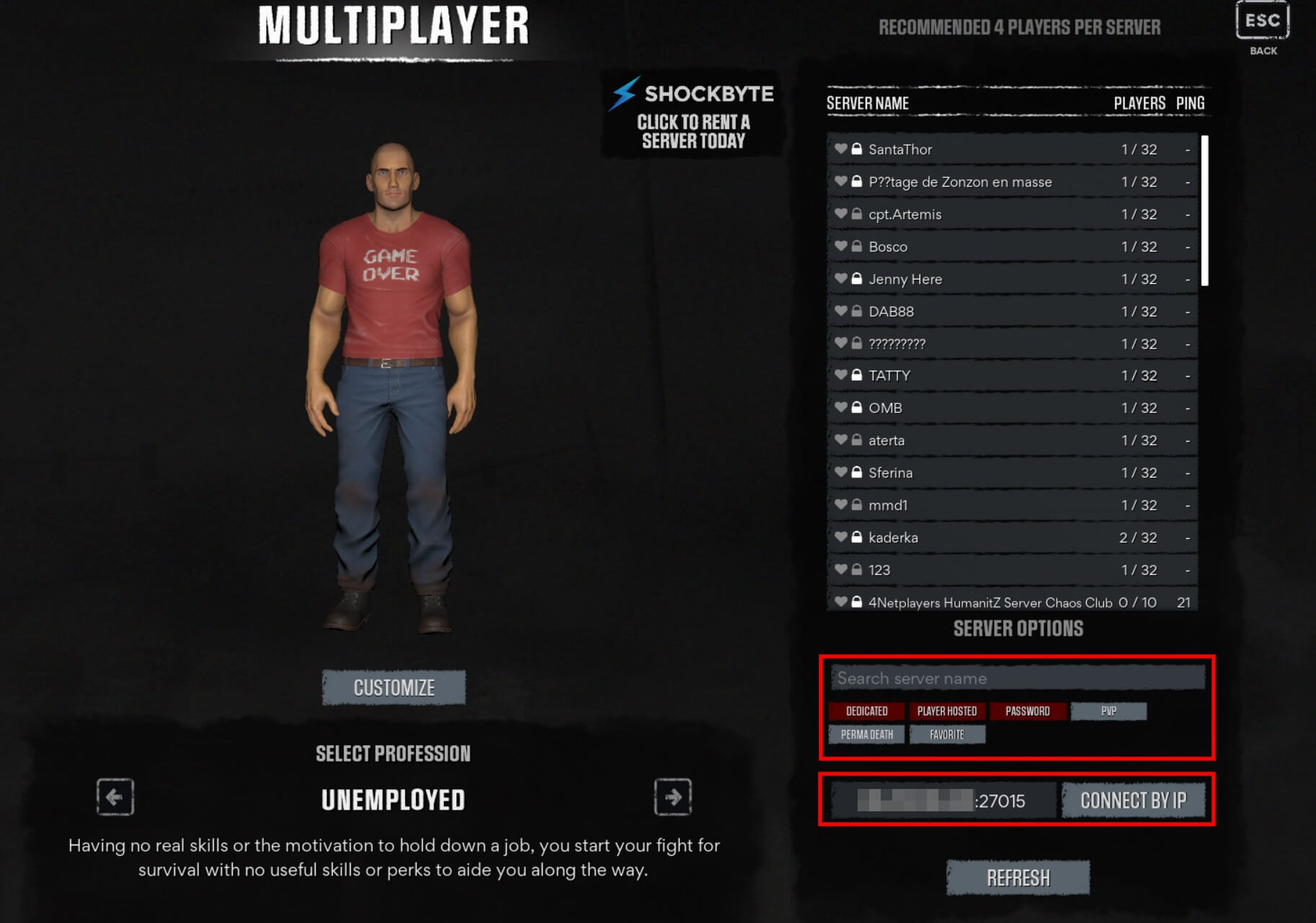
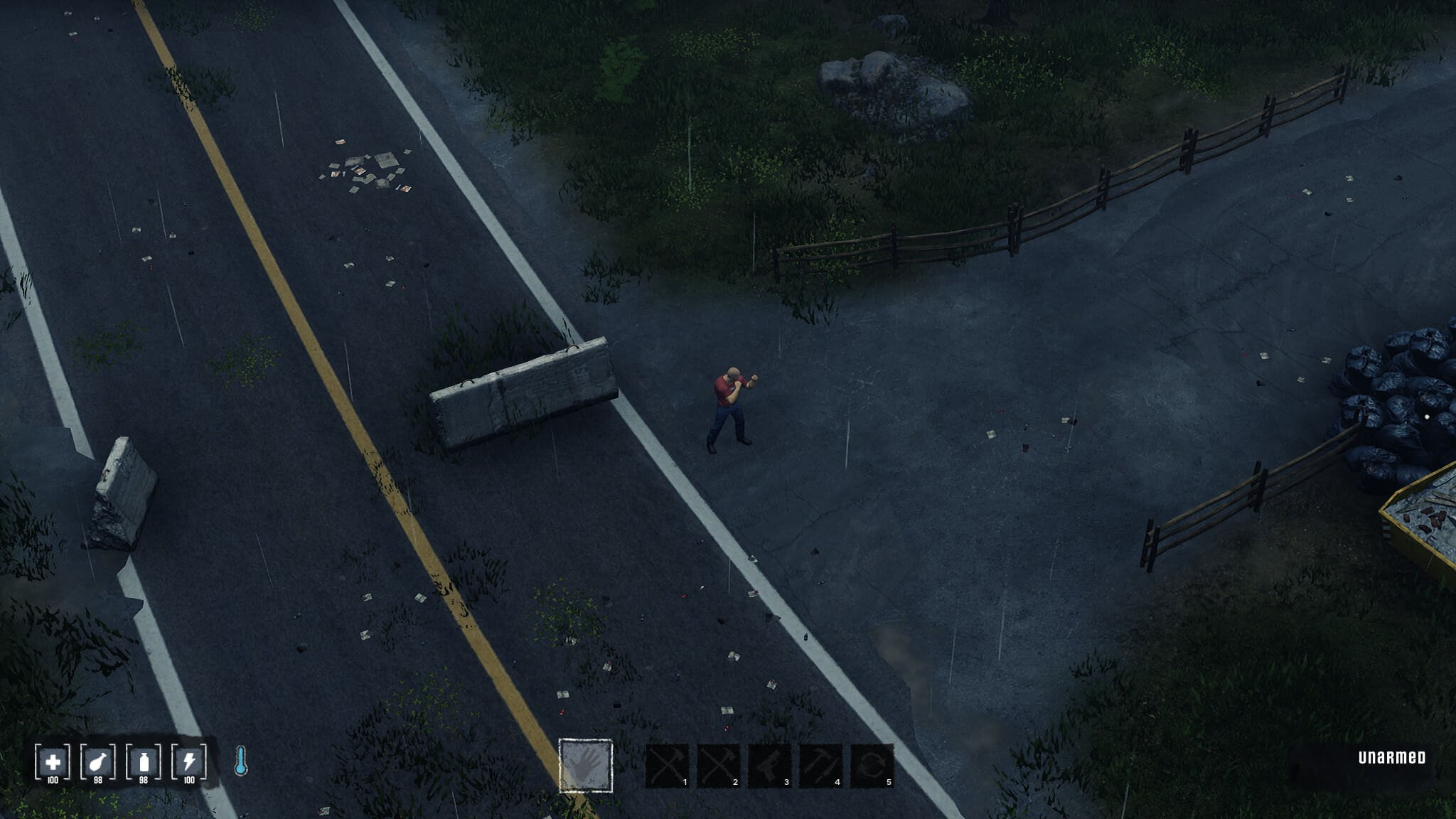
Once you have selected your starting point, your dedicated multiplayer experience can begin!
You not only want your own server, but you also want it to be accessible via an individual address? With an own domain such as your own .gg domain, you can replace the impractical IP address with a meaningful server name. This not only simplifies connections to your server but can also establish it as a fixed brand.