

What is a DNS server?
A DNS server (also known as a nameserver) is special server software that uses a DNS database to answer queries about the Domain Name System. Since DNS servers are usually located on dedicated hosts, the computers that host the corresponding programs are also called DNS servers.
- Faster domain resolution to keep you online longer
- Added protection against outages and downtime
- UK-based name servers
- No domain transfer needed
Thanks to DNS, internet users can enter a domain, i.e. a memorable name, in the browser’s address bar. Every domain on the internet has at least one IP address, which computers require to communicate on the network. A DNS server knows the combinations of domains and IP addresses or knows which other DNS server to forward the request to. So when a website is accessed, a request is first made to one or more DNS servers in order to finally be connected to the website. This makes DNS servers core elements of a functioning internet.
Different types of DNS servers
A distinction is made between authoritative and non-authoritative DNS servers when it comes to DNS operation.
- Authoritative DNS servers store secured domain information about a specific zone of the domain name space in their DNS database. The DNS is structured in such a way that there is at least one authoritative nameserver for each zone. Systems like these are usually implemented as a server cluster, where identical zone data is stored on a master system and several slaves. In this case, they are referred to as primary and secondary nameservers. This type of redundancy increases the reliability and availability of an authoritative nameserver.
- Non-authoritative DNS servers use a nameserver’s DNS information not from their own zone file, but from a second or third hand one. A situation like this occurs when a nameserver cannot answer a query due to its own data stock and obtains the information from another nameserver (recursion). This DNS data is temporarily stored in local memory (caching) and delivered when new queries are made. However, since the entries in the actual zone file may have changed in the meantime, DNS information from non-authoritative nameservers is unsecure.
How do DNS servers resolve a DNS request?
Resolving a DNS request to the correct IP address is done step by step:
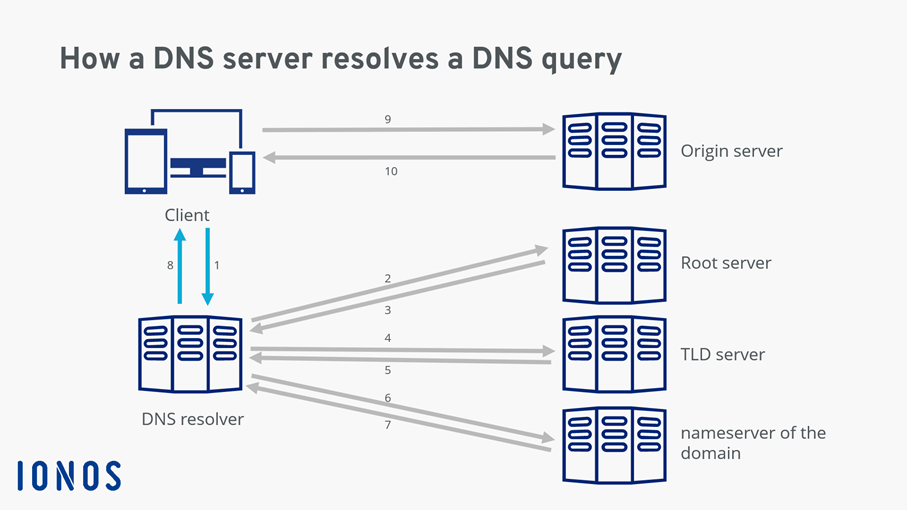
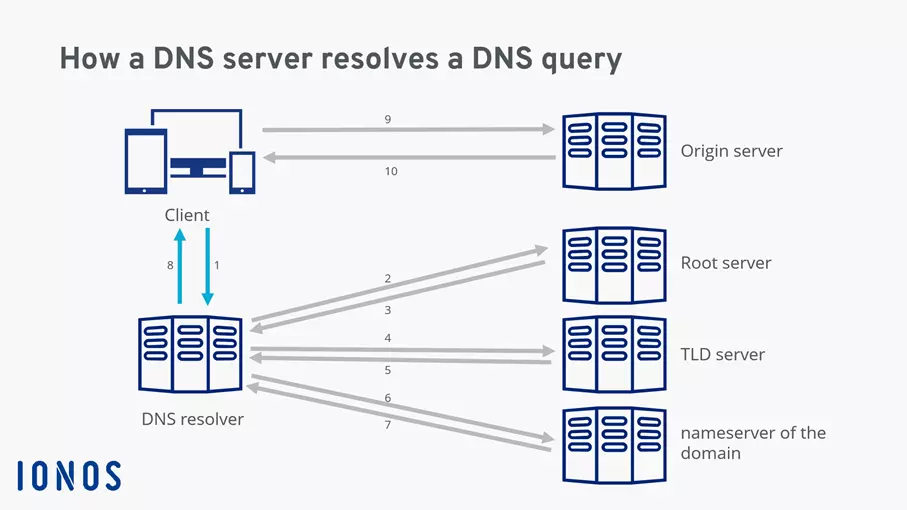
- The client where the domain name or URL was accessed first sends a request to the DNS resolver.
- The DNS resolver forwards the request directly to a root server.
- The root server is an authoritative nameserver. It responds to the DNS resolver with the address of a server for the respective top-level domain.
- The DNS resolver then sends a request to the TLD server containing the DNS records associated with its top-level domain.
- In response, the DNS resolver receives the IP address of the authoritative DNS server of the domain being searched for.
- The DNS resolver queries the authoritative DNS server for the IP address of the origin server hosting the website.
- The DNS resolver obtains the origin server’s IP address from the authoritative DNS server.
- The DNS resolver forwards the IP address to the client.
- The client can now interact with the requested website’s origin server via the IP address.
- The origin server sends the data of the requested website to the client.
What happens if a DNS server fails?
If a DNS server is not responding or fails altogether, the name resolution process cannot be completed properly. This leads to interruptions in operation. Since DNS server failure is always a possibility, it makes sense that your DNS infrastructure is as failsafe as possible.
To do this, you can run two nameservers for the same DNS zone. One of these servers is labeled as the primary server, and the other as the secondary server. Clients should have both servers set so that if a server fails, the other DNS server can take over.
An overview of trusted public DNS servers
There are many different public DNS servers that you can use for free. In some cases, a higher surfing speed can be achieved by switching to a high-performance DNS server. However, not every server solution is faster than your internet provider’s standardised DNS settings. It makes sense to compare the speeds before you make the switch.
Our table gives you an overview of the ten most popular public DNS servers:
| DNS server | Primary address | Secondary address | Security | Features |
| Cloudflare | 1.1.1.1 | 1.0.0.1 | - Protection against DNS spoofing - Logs are deleted within 24 hours | - High speed - Over 200 server locations worldwide |
| CyberGhost | 10.101.0.243 | 38.132.106.139 | - No encrypted connection | - Access to internet content without country restrictions - High speed |
| Google Public DNS | 8.8.8.8 | 8.8.4.4 | - Implements DNSSEC standard - IP address is deleted after 48 hours | - No request limits - No registration required |
| Quad9 | 9.9.9.9 | 149.112.112.112 | - Protection against malware, spyware and phishing - Doesn’t save identifying data | - Over 145 server locations - Extra focus on security |
| DNS.Watch | 84.200.69.80 | 84.200.70.40 | - Personal data isn’t logged - No integrated malware protection | - High speed - Funded by donations - Uncensored access to the internet |
| OpenDNS | 208.67.222.222 | 208.67.220.220 | - Collects and discloses non-identifying data | - Option to set individual filters - FamilyShield DNS server blocks all adult content |
| AdGuard DNS | 94.140.14.14 | 94.140.15.15 | - Blocks malware and advertising - Collects personal data for internal purposes | - Automatically blocks advertising - Option to block adult content |
| Comodo DNS | 8.26.56.26 | 8.20.247.20 | - Spyware and malware are blocked automatically - Collects personal data | - High safety standards - High speed |
| UncensoredDNS | 91.239.100.100 | 89.233.43.71 | - No logging and saving of personal data | - High speed in Europe - Uncensored internet access |
| CleanBrowsing DNS | Depends on the desired filter | Depends on the desired filter | - No tracking or logging of data | - Choice between different modes - Enables blocking of adult content, among other things |
If you now want to change your DNS server, you should first work out whether you want the switch to apply to all devices in your network or only for individual computers. For the latter, you can simply set up a new DNS server in the Windows settings. If you want all devices to use a different DNS server, it makes sense to perform the change at the router. Whether it involves individual PCs or your entire network, it’s imperative that you choose a secure DNS server to ensure you are best protected against DNS attacks like DNS hijacking.