

RAM (Random Access Memory)

The term ‘random access memory’ (short: RAM) often pops up when purchasing a computer, tablet or smartphone. Even with the latest generation of smart TVs, the amount of RAM is an important factor that plays into the device’s overall performance. Because whether you’re streaming movies, surfing the internet, or writing emails – every activity requires the device to load data that is temporarily stored. To make sure that the communication between individual components is quick, computer manufacturers use random access memory. But what exactly is RAM?
What is RAM and what does it do?
Simply put: The random access memory (RAM) is the ‘working memory’ of technical devices which include computer technology. As in the human brain, the working memory is a short-term memory in which the operating system of a device temporarily stores all data of running programs and processes. RAM serves as a computer’s short-term memory, so to speak, and supplies the processor with the data it needs to calculate the processes and programs that are being executed.
Even intermediate versions of, for example, an Excel table are stored in the RAM memory and can be called up by the processor at any time. How fast the computer works depends largely on the read and write speed, as well as the data transfer rate and storage capacity of the RAM. If the random access memory is busy, you may see a spinning wheel or similar visual displays. In this case, the computer indicates that it is working but has not yet completely retrieved the required data from the RAM.
If your computer’s memory has reached its limit, then its performance will suffer and it will be much slower. This can be frustrating. In this case, it can be worth clearing your random access memory, which refers to deleting data on your RAM that is no longer being used.
RAM: functionality explained with a diagram
As previously mentioned, RAM functions as a memory interface between the processor (CPU) and the hard disk or another input or output medium. The internal memory of the processor and the access speed to the hard disk are usually too small to process the amount of data with sufficient speed. For this reason, the computer stores data and program code in the main memory.
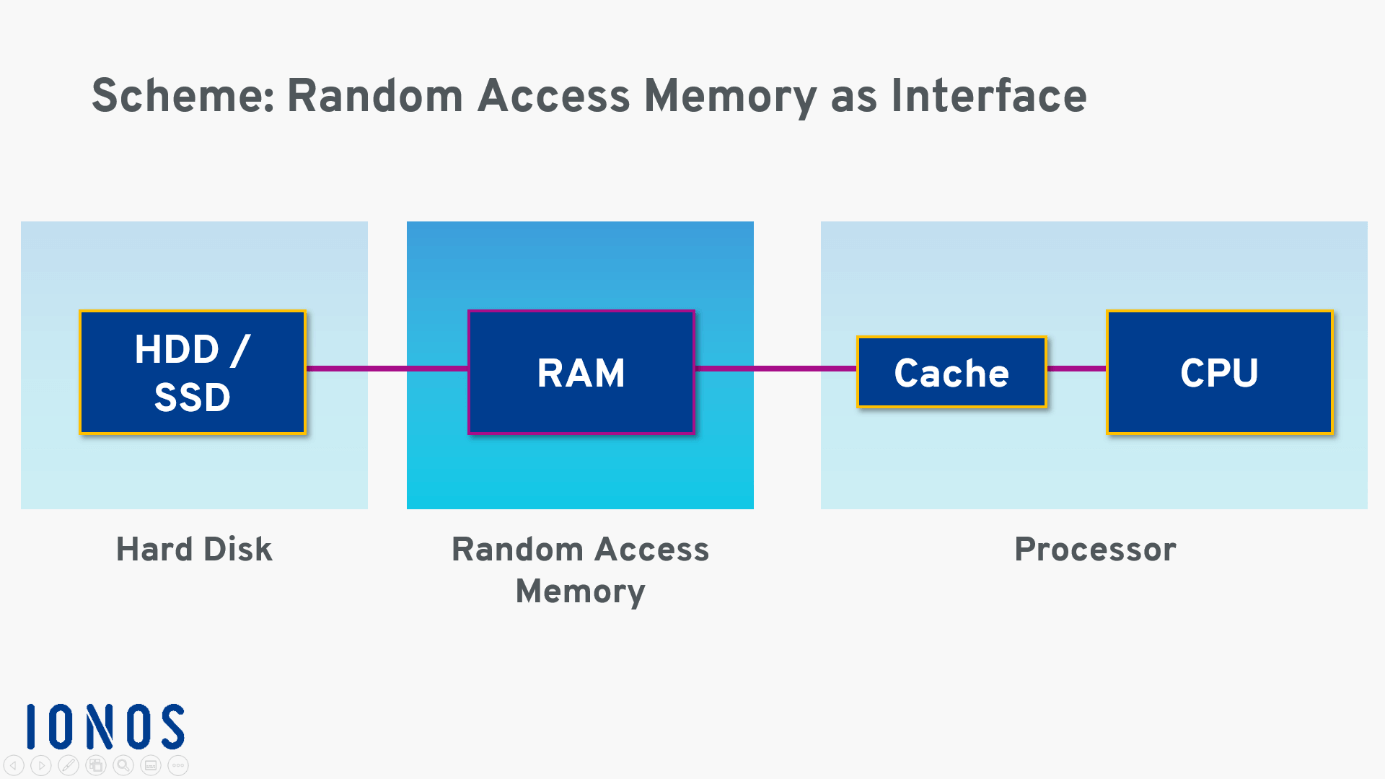
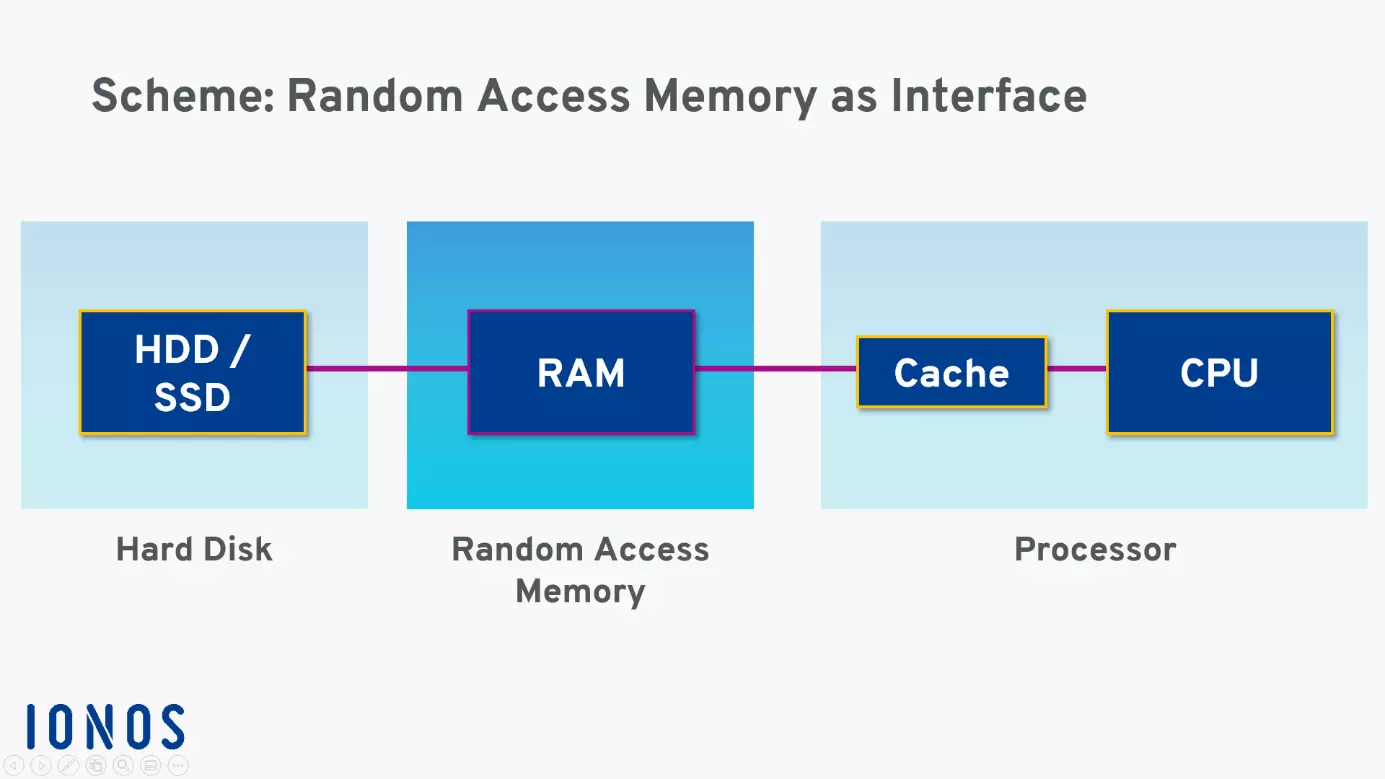
The diagram above illustrates the function of working memory. It is best explained using the example of an Excel spreadsheet. If you open an Excel spreadsheet that’s stored on the hard disk, the program – in this case Excel – copies the data into the RAM memory. The processor now accesses this data and processes it. In the process, the RAM sends the data to the processor via so-called ‘data buses’. This is quicker via the RAM, as the read and write access is much faster than when accessing the hard disk. As soon as you have finished your Excel work and clicked on ‘Save’, the computer stores the data from the RAM on your hard disk or another storage medium.
Data that you use especially frequently when working on the computer is temporarily stored by the working memory in the cache. The cache is a small part of the RAM that is directly connected to the processor. This ensures particularly fast access. If your working behaviour changes, the working memory automatically replaces data that is used less frequently with the data that is used more frequently.
Random access memory only serves as a temporary buffer. As soon as you switch off your machine, the computer automatically deletes all data stored in RAM. Therefore, always remember to save changes and files to the hard disk before switching off. If necessary, you can also empty the RAM yourself – our instructions will show you how.
How much RAM do I need?
The more RAM a computer has, the faster it will run. But naturally it’s not only the performance that increases: devices with more powerful random access memory are also more expensive. That’s why you should check in advance how much RAM you actually need. In turn, this depends on the kind of work you do and how many programs are running at the same time.
For a tablet that is only being used to surf the internet, for example, 2 GB of RAM are more than enough. If you’re buying a computer for professional use, for example to power more complex tasks like video editing or game development, then an investment into 8 GB or 16 GB or RAM is well worth it.
As a rough guide, you can stick to the following values:
- 4 GB RAM: If you are using your device primarily to surf the internet, to send email, or to work with Office applications, then 4 GB of RAM are sufficient.
- 8 GB RAM: 8 GB of random access memory are ideal if you use your computer a lot and like to have several programs running at the same time. Most current games or extravagant applications will also be covered with this amount of working memory.
- 16 GB RAM: 16 gigabytes RAM is suitable for intensive gaming and compute-intensive tasks like video editing and programming.
If you already know which programs you’re using before purchasing the device, then it is recommended to follow the minimum requirements of these applications.
For smartphone users, 2 to 4 GB of RAM is usually sufficient. This amount of memory is usually already integrated in cheaper Android mobile phones. Apple equips its smartphones, such as the current iPhone XR, with 3 GB of RAM. There are also smartphones with 8 GB RAM, although these can be assigned to the high-end segment.
What types of RAM are there?
RAM has been around since the dawn of computing. Over the course of time, scientists have repeatedly developed new types of RAM that consume less energy and at the same time have a higher capacity and speed. Already in the late 1990s and early 2000s, you could choose between static RAM (SRAM), dynamic RAM (DRAM), and synchronous static RAM (SDRAM).
Today, ‘DDR’ type RAM is typically installed in PCs, while professional workstations and servers are predominantly based on ‘ECC RAM’.
In addition, a distinction is made between buffered and registered RAM, as well as DIMM, SO-DIMM and NV-DIMM.
DDR and ECC RAM: the difference
‘DDR’ stands for ‘Double Data Rate’. And that’s exactly what DDR RAM is all about. The speed at which the buses exchange data between RAM and processor can be doubled. Currently, DDR5 with up to 50 GB/s is already in the starting blocks, whereby the number at the end always indicates the respective generation – in this case, the ‘5’ stands for the fifth generation of DDR memory.
‘ECC-RAM’ in turn stands for ‘Error Correction Code’. If the RAM detects errors in the data, it corrects them independently. While non-ECC memories always have an even number of chips, an ECC RAM is equipped with one additional chip per eight memory modules. This additional chip performs the error detection. As mentioned above, this type of memory is used almost exclusively in servers and professional workstations. For example, banking systems use ‘ECC-RAM’ to ensure that the amount of money arrives at the right destination.
The difference between unbuffered and registered RAM
While with unbuffered RAM (unregistered, UDIMM) the chipset of the mainboard selects the correct memory locations for the requested data, with registered RAM (RDIMM) the same is done by two register chips installed on the module. This type of RAM therefore carries out the allocation independently and in doing so relieves the chipset of the mainboard.
Registered RAM is often found in the server environment. Unbuffered RAM, on the other hand, is more suitable for devices with little RAM. If the working memory is larger and also the number of RAM modules, the load on the chipset of the mainboard increases, as each RAM module requires the same number of address lines.
What are DIMM, SO-DIMM and NV-DIMM?
DIMM stands for ‘dual inline memory module’. This means that the golden contacts on the underside of the RAM module are capable of transmitting different signals and thereby enable a faster exchange between the random access memory and the processor. Unlike the SIMM (single inline memory module), the front and back sides are not electrically conductively connected.
The following types of DIMMs can be installed in computer devices:
- UDIMMs: This refers to the already mentioned unbuffered RAM.
- RDIMMs: registered RAMs
- SO-DIMMs: This random access memory is suited for notebooks and smaller computers due to its smaller building blocks and its reduced energy use. The ‘SO’ in the name stands for ‘small outline’.
- NV-DIMMs: These are special RAMs – if you disconnect your device from the power supply, the data remains saved in the working memory and will be available to you again after turning the power back on. ‘NV’ stands for ‘non-volatile’.