PowerShell

The importance of system administrators in companies should not be underestimated because only by having a reliable and continuously functioning IT infrastructure can a company achieve maximum economic efficiency. Depending on the size of the organisation, this requires the monitoring and control of dozens, if not hundreds, of computers simultaneously. A mammoth task that can only be mastered by trained specialists with a deep insight into intrasystem connections.
If a problem occurs on several computers simultaneously, or a new security solution needs to be loaded onto the entire network as quickly as possible, it would be neither time-efficient nor economical for an administrator to have to find each individual device and always repeat the same steps. Windows PowerShell makes it possible to speed up a process like this immensely and automate routine tasks as much as possible. This simplifies the work of the system administrator considerably. You can find out what else the software can do in our article.
What is Windows PowerShell?
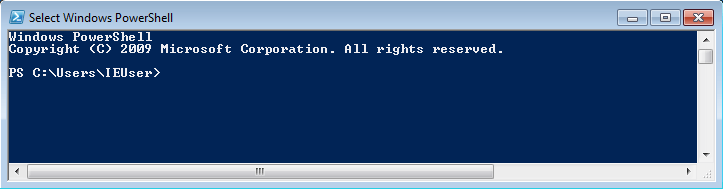
As the name suggests, Windows PowerShell is a shell. In information technology, this is an interface between a computer and its user. In computer science, the term refers to the visible user interface via which you can interact with the computer’s intrasystem functions.
Shells are usually command-oriented and are controlled exclusively by keyboard and text input. They are an alternative to graphical user interfaces (GUI) that are primarily navigated using the mouse – such as Windows Explorer. Since shells also provide access to significantly more and subjacent PC functions and components, they are preferred by many IT professionals and system administrators.
Why does Windows PowerShell exist?
Until recently, the “command.com” command line and the “cmd.exe” prompt were the default shells on DOS and Windows operating systems. They allow advanced computer users to open console applications, troubleshoot problems, or navigate a PC’s drives. For example, the command netstat makes it possible to receive basic information on all network activities. However, “command.com” and “cmd.exe” have always stood out due to two problems: Not all system components are accessible through them and their script languages are considered to be limited in their functionality. Therefore, for quite some time they weren’t considered as fully developed as the current Linux and Unix shells.
As a result, Microsoft developers had been planning to remove these restrictions since the 1990s. In the course of time, they developed different shells, which sometimes helped, but sometimes made things worse. Monad, which was first introduced in 2003 and renamed PowerShell three years later, proved to be particularly groundbreaking.
Microsoft’s “Common Engineering Criteria”, which has required all of the company’s server products to support PowerShell since 2009, has advanced to become the central management and automation solution in Windows. From Windows 2008 onwards, it came as standard with the operating system. It is also available as an open source framework to download for earlier Windows versions.
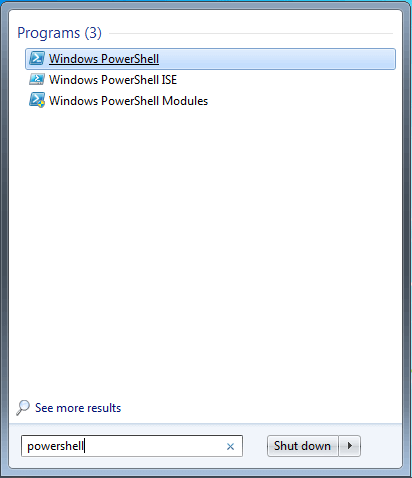
In 2016, the decision was made to offer the shell independently of the platform. Microsoft’s intention: PowerShell should become a universal tool for system administrators outside of Windows i.e. on Linux and macOS. Since then, the shell has spread more and more, and is constantly receiving new supporters. To summarise, PowerShell is the long overdue successor of the command prompt.
What is the difference between PowerShell and the command prompt?
What exactly sets the new Microsoft framework apart from the familiar command prompt? To put it simply: PowerShell has all the features of cmd.exe, can do a lot of it much better, and also performs other tasks that were previously unthinkable with Windows.
PowerShell basically provides the same range of commands as cmd.exe. With sufficient knowledge of the common standard commands, PowerShell can be used in the same way as the command prompt. However, it also enables access to subjacent Windows internals that were previously not accessible with cmd.exe. e.g. the Windows Registry and the Windows Management Instrumentation (WMI). The command line of Windows PowerShell also follows the clear logic of a consistent command structure and syntax and makes more sense than cmd.exe in this respect.
Another feature that makes Windows PowerShell stand out: Unlike the command prompt and Unix-like systems, the program works completely object-based instead of issuing the results of commands in text form (strings). Each object has both properties and methods that define how it can be used. This is how the Windows process object represents properties such as process names and IDs, and methods for pausing and terminating processes.
Because the results of commands are always issued as .NET objects, pipelining in PowerShell enables you to perform much more complex tasks than cmd.exe. This works by using the output of one object in the pipe as input for the next object. For example, large and complex amounts of data can be filtered by file extensions and formatted as a clear list.
Windows PowerShell is not just a command line, it also acts as a rich and powerful scripting environment. In it, you can write your own commands or combine several commands into complex scripts to simplify system management tasks. Remoting also makes it possible to run scripts on any number of systems simultaneously, regardless of their location, and thereby manage, set up, record, and repair them.
This variety of options and features also reveals what Windows PowerShell’s primary target group is: IT professionals and system administrators who have a deep understanding of shells and are willing to familiarise themselves with Windows PowerShell for increased efficiency. Users who mainly work with Windows’ graphical user interface and only use the command prompt sporadically, however, will notice that PowerShell does not offer any particular added value, especially since it takes a while to get used to the framework.
Here’s a quick summary of the advantages and disadvantages of Windows PowerShell compared to the command prompt:
| What’s right with PowerShell? | What’s wrong with PowerShell? |
|---|---|
| ✓ All commands available from the command prompt | ✗ Complex and steep learning curve |
| ✓ Access to subjacent Windows internals like the Registry and WMI | ✗ Targeted primarily at IT professionals and system administrators |
| ✓ More efficient operation thanks to consistent command structure and syntax | ✗ No increased benefit for GUI users who rarely use the command prompt |
| ✓ Complete object orientation enables more complex tasks to be executed through pipelining | ✗ Familiarisation required |
| ✓ Comprehensive scripting environment enables efficient automation of processes | |
| ✓ Location-independent administration of multiple systems via remoting. |
How does Windows PowerShell work?
PowerShell basically consists of two components, namely the PowerShell Engine and the PowerShell scripting language. Both can be used separately or together to get the maximum functionality out of the program.
The PowerShell engine
PowerShell’s command-line interpreter (CLI) gives the user access to internal operating system functions via keyboard entries. The program’s commands are called “cmdlets” (pronounced “commandlets”). According to a consistent syntax, they are always composed of a verb and a noun in the singular form e.g. “stop process” or “sort object”. Parameters are specified in a cmdlet according to the – Parameter [value] formula, for example:
Get-EventLog System Newest 3 (to access the three most recent entries in the system event log)In PowerShell, it’s normal to enter commands with capital letters, but lower case works well too.
The more than 100 core cmdlets also include frequently used standard commands from the command prompt, which are available as “aliases”, among other things, to help users get started with the new shell. For example, the cd command intended to change a directory has the equivalent “set location”, which performs exactly the same function. To view all pre-built aliases, use the “Get-Alias” cmdlet. You can also use the Set-Alias cmdlet to create your own aliases. For example, you can use the following pipeline to assign the alias “ed” to the command “notepad” (for the Notepad program), so that fewer keystrokes are required to execute the program:
Set-Alias ed notepad (to open Notepad with the ed command)
Set-Alias scr1 C:\Users\IEUser\Desktop\script1.ps1 (to start a script with the abbreviation scr1)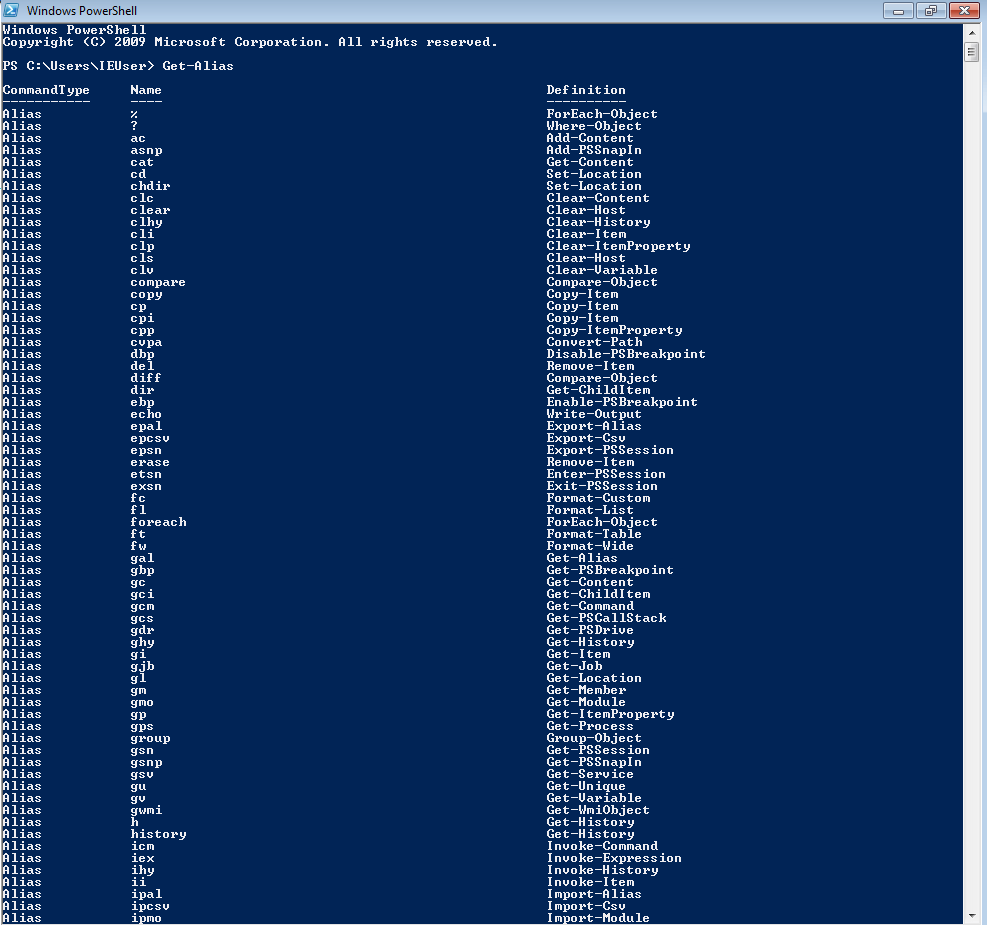
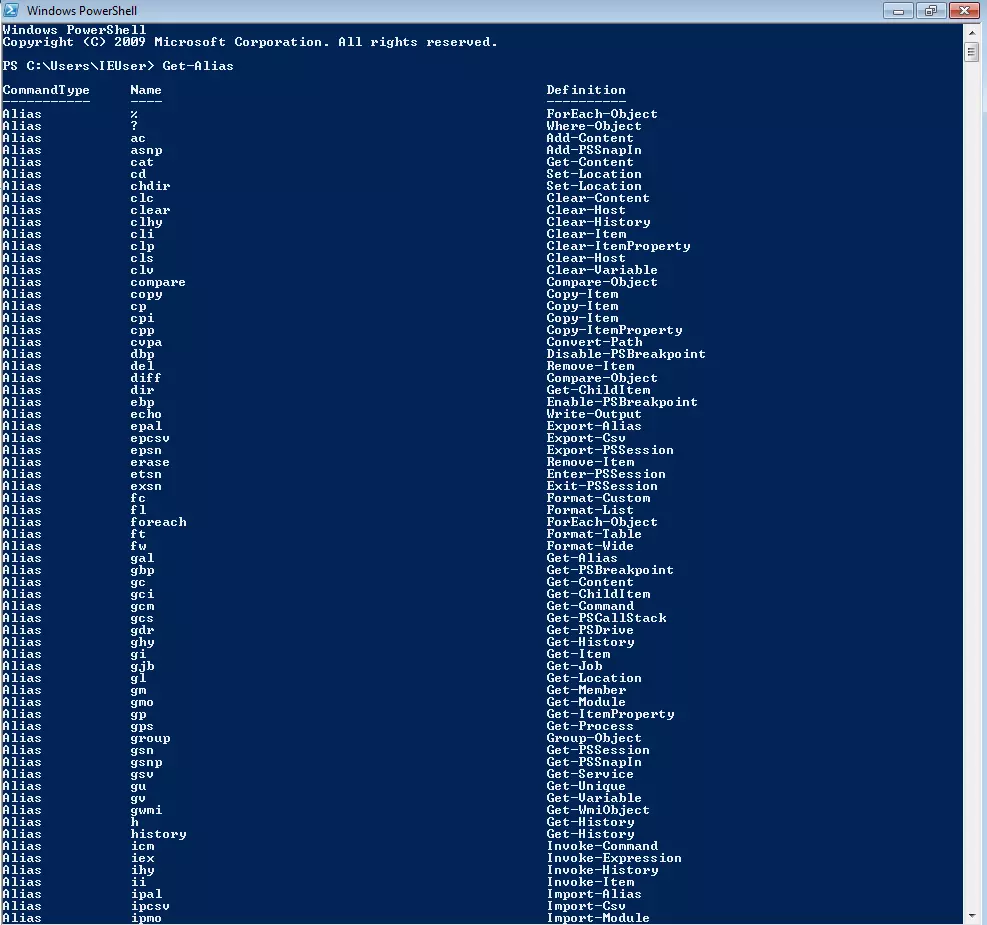
The following table contains some examples of frequently used cmdlets and their related aliases:
| Alias | Cmdlet | Function |
|---|---|---|
| cd | Set-Location | Change current directory |
| dir | Get-ChildItem | List all items in a folder |
| gi | Get-Item | Access a specific element |
| ps | Get-Process | List all processes |
| gsv | Get-Service | List all installed services |
| gm | Get-Member | Show all properties and methods of an object |
| clear | Clear-Host | Empty the PowerShell host |
PowerShell’s strict and easy-to-understand command structure allows you to work more efficiently than in the command prompt. To save even more time, you can use the [Tab] key to automatically complete half-written cmdlets. In many cases, the program even recognises incompletely typed commands.
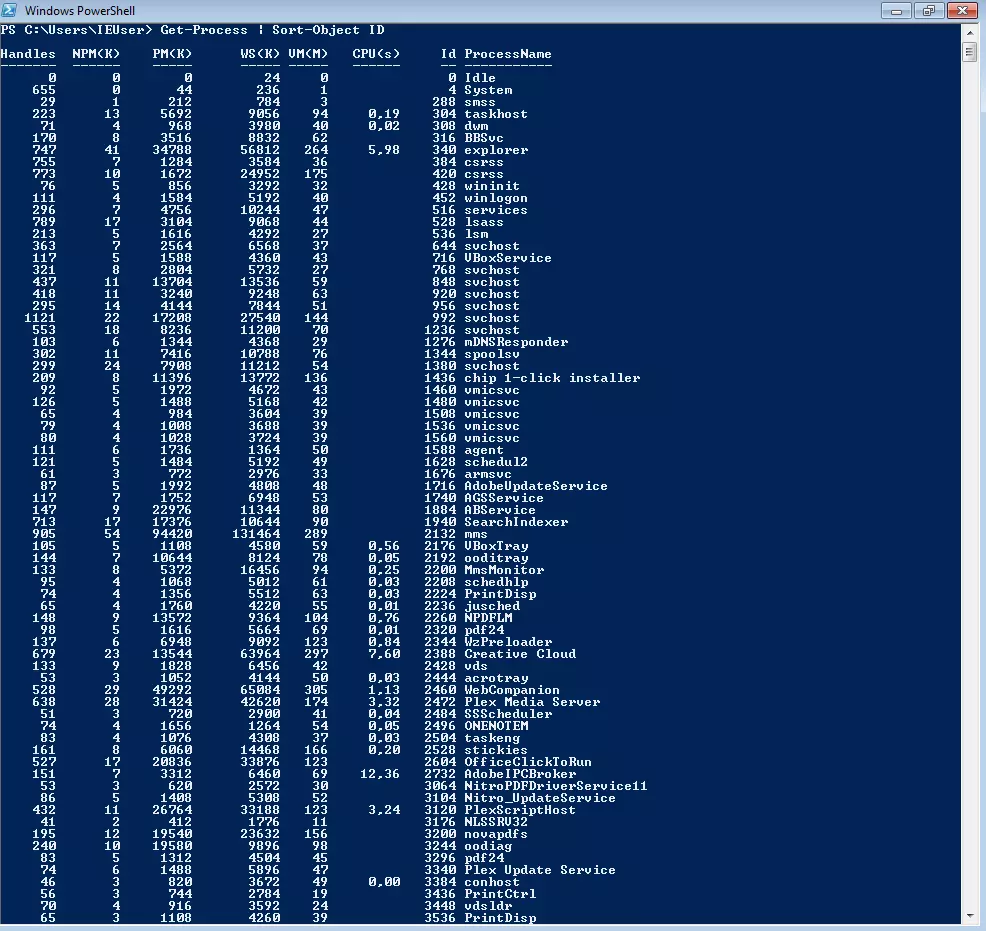
Cmdlets can be executed individually or pipelined together so that the output of an object can be read and reused by the following object. To add two cmdlets to the same pipeline, simply use the “|” icon. This way you can, for example, list all available processes and at the same time sort them by their ID:
Get-Process | Sort-Object ID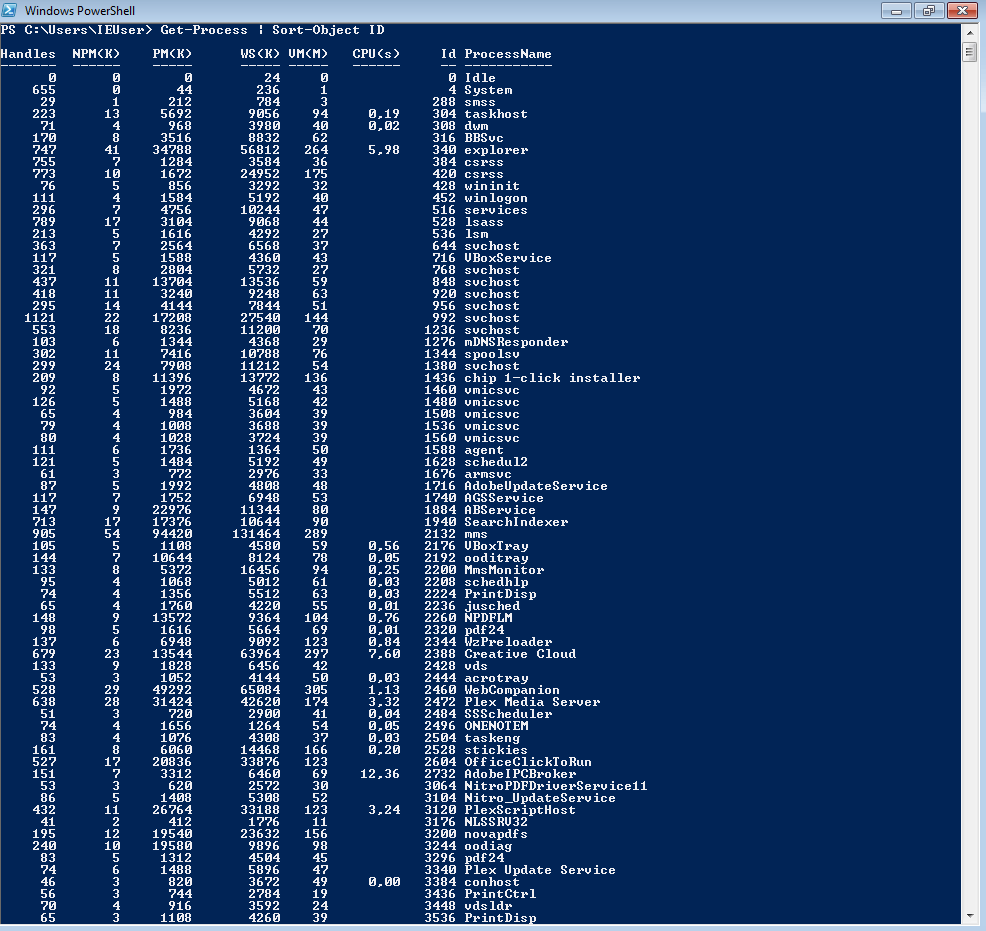
Variables are defined with the $ symbol. As usual, they can be used to store outputs so that they can be accessed again at a later point during pipelining. PowerShell is even able to store the results of multiple pipelined commands at once, for example:
$a = (Get-Process | Sort-Object ID)The PowerShell scripting language
Much of PowerShell’s scripting language may seem familiar to C# and other scripting languages. Not only can you use it to write your own cmdlets (and share them with other users if necessary), you can also package multiple commands in sequence in a script file with the .ps1 format to extend the functionality of the shell. Numerous application examples are conceivable: from the execution of simple routine tasks to the almost complete automation of monitoring and control processes. Scripts always contain an application description and are executed with the prefix “.” followed by the complete file path. An example:
.C:\Users\IEUser\Desktop\script1.ps1What are typical PowerShell applications?
With sufficient practice and expertise, PowerShell can make many system management tasks much more efficient. In the following paragraph, we explain four typical application examples.
Directory organisation: Renaming multiple files at once
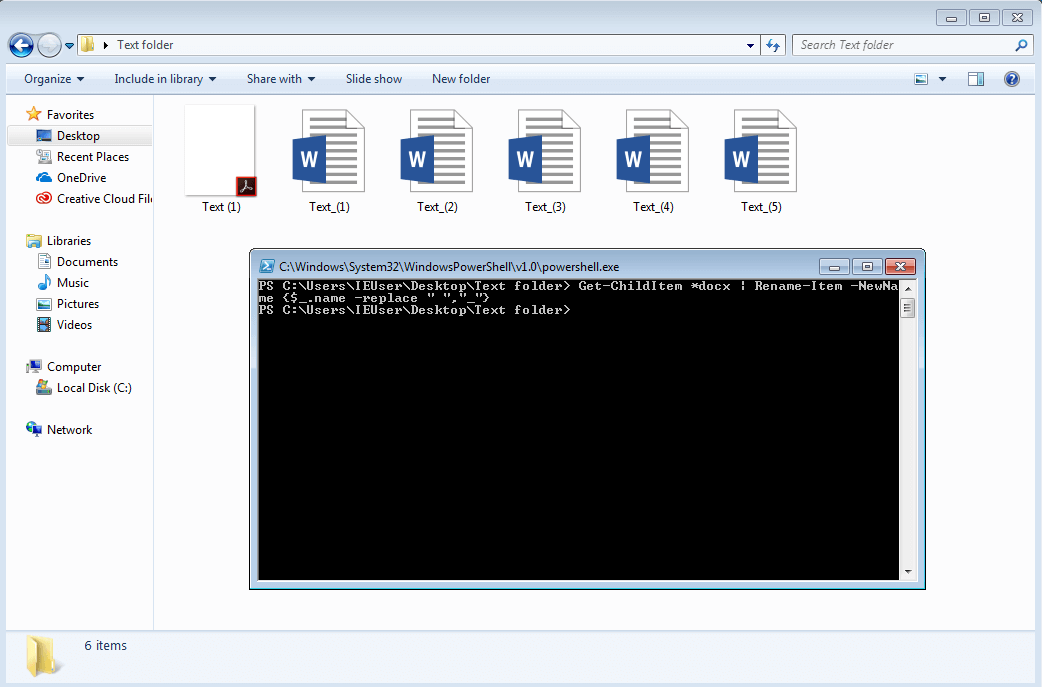
If, hypothetically, you need to rename about 1,000 documents of the “Text (1).docx”, “Text (2).docx” etc. scheme so that the spaces in the file name are replaced by underscores: It would not be advisable to change each document individually. Instead, you would probably use cmd.exe or – even better – an external tool. Pipelining in PowerShell allows even more flexibility when renaming large amounts of data.
To do this, first go to the directory in which the documents are located. This can easily be done using the “Set-Location” cmdlet in combination with the full file path. Here is an example:
Set-Location C:\Users\IEUser\Desktop\Text folder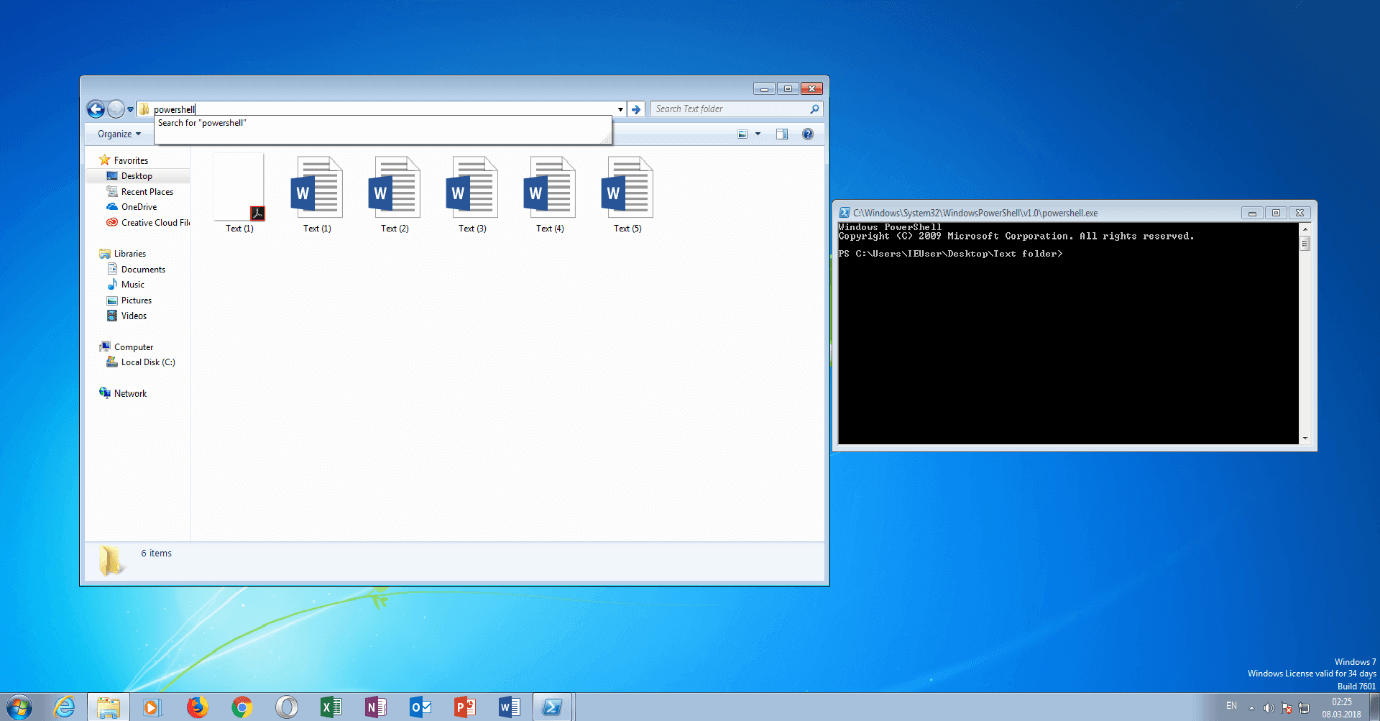
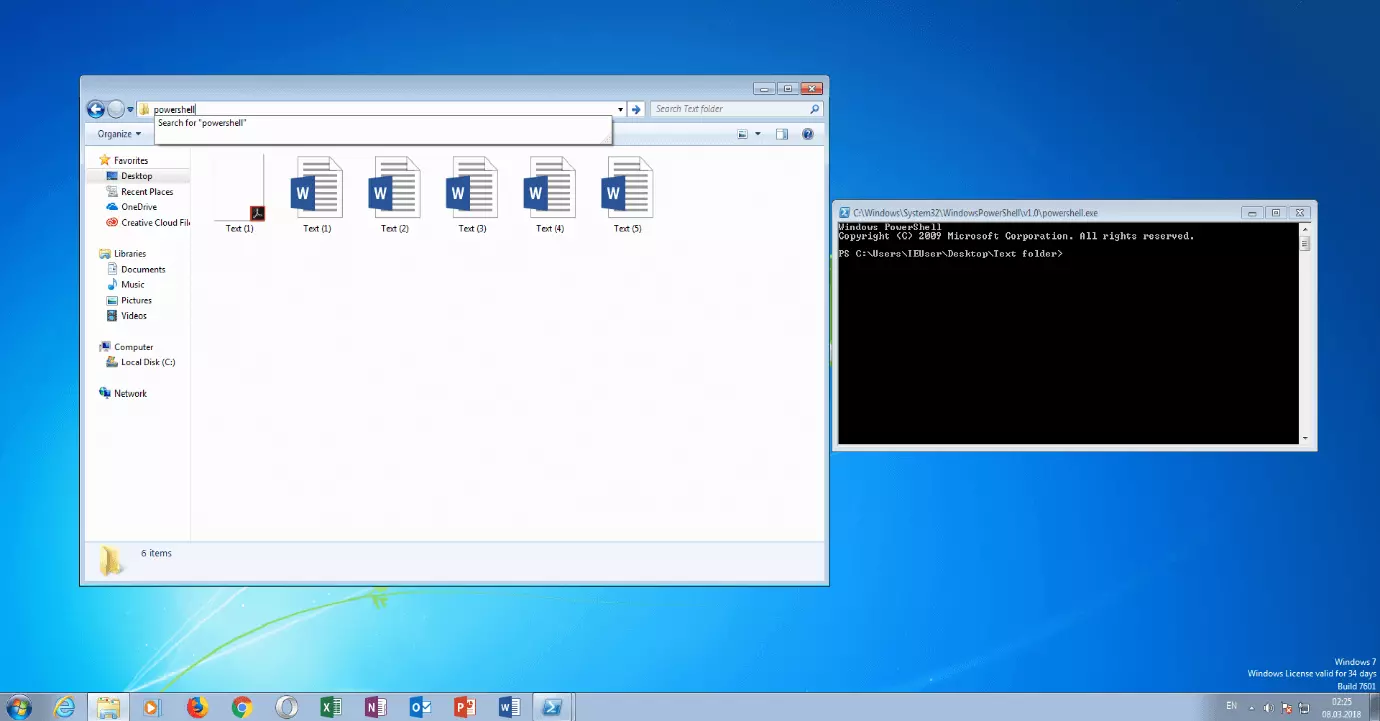
Alternatively, you can navigate the directory using Windows Explorer: Simply click in the path list and enter “powershell” to open the PowerShell window for the directory. You can change the name of the selected document with the following cmdlet:
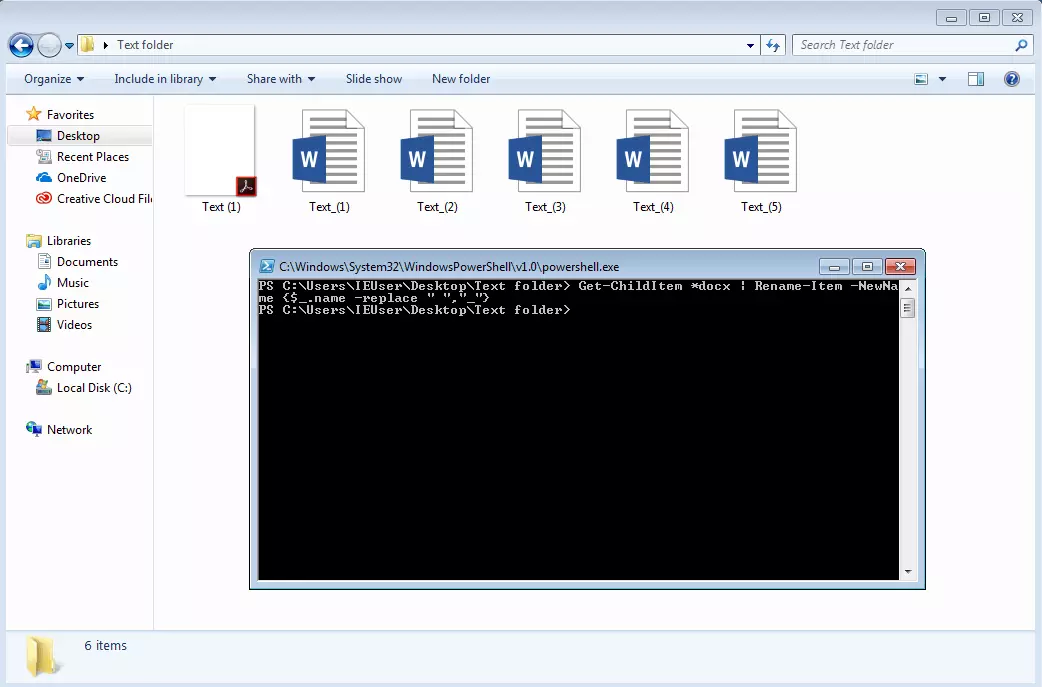
Get-ChildItem *docx | Rename-Item -NewName {$_.name -replace " ","_"}Explanation: “Get-ChildItem” lists all files in the directory. The “*docx” addition only filters out Word documents with the corresponding format – PDF documents in the folder would also not be taken into account. Use the “|” item to add another command to the pipeline, “Rename-Item”, which signals that something should be renamed. “–NewName” specifies the new name using a script block that works with the “$_.name” variable that represents the current object. And “.name” is the property with the file name. Finally, use the “–replace” parameter to specify that all spaces should be converted to underscores.
Data acquisition: Checking running services on a PC
Before implementing a new security solution on the network, you should check which services are already installed on a particular PC. The basic tool is the “Get-Service” cmdlet, which lists all services. You can also use the filter functions in PowerShell to display only a partial amount of the results – for example, all running services. This works with the following cmdlet:
Get-Service | Where-Object {$_.status -eq "running"}The output of “Get-Service” is forwarded to the “Where-Object” by the pipeline. “Where-Object” filters all services by their status (represented by the variable “$_.status” and the parameter -eq "running") and lists the running services. If necessary, you can also sort the prefiltered list by display name by adding another cmdlet to the pipeline:
Get-Service | Where-Object {$_.status -eq "running"} | Sort-Object DisplayName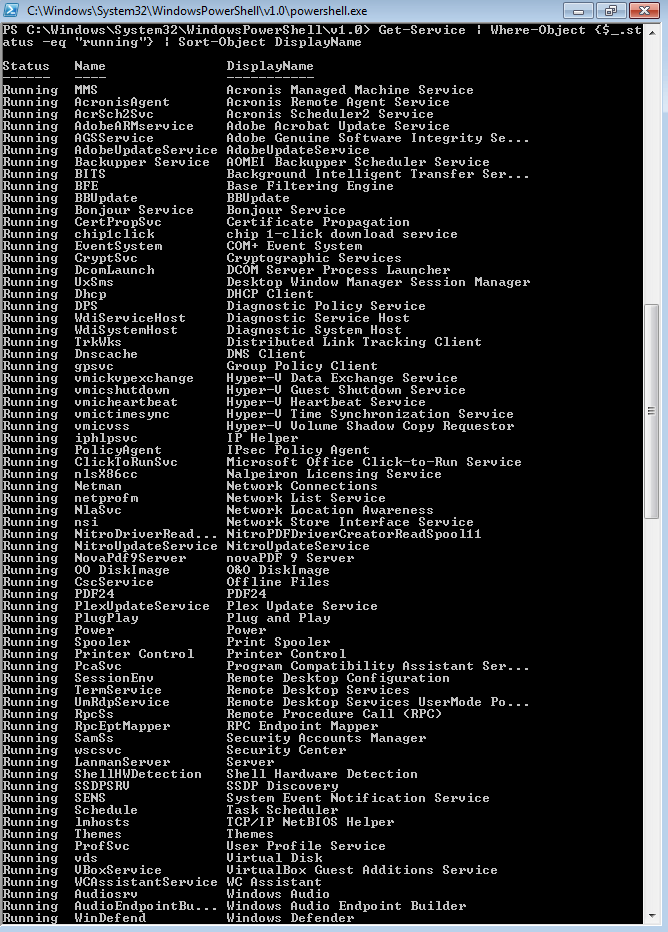
With the pipeline addition “more”, you can also restructure the long service list so that you can scroll through it page by page.
Troubleshooting: Searching event log for system errors
Event logs provide system administrators with information about error messages in applications, in the operating system, or in the security functions of a device. Use the “Get-EventLog” command to view and manage these logs. For example, if you want to take a look at the error messages in the “System” event display, enter the following:
Get-EventLog System | Where-Object {$_.entryType -Match "Error"}If PowerShell outputs too many results, you can use the “Newest 100” parameter to restrict the list to the 100 most recent system log entries that are then filtered for errors:
Get-EventLog System -Newest 100 | Where-Object {$_.entryType -Match "Error"}You can get detailed information about individual error messages if you forward the output of this pipeline to the “Format-List” cmdlet:
Get-EventLog System -Newest 100 | Where-Object {$_.entryType -Match "Error"} | Format-List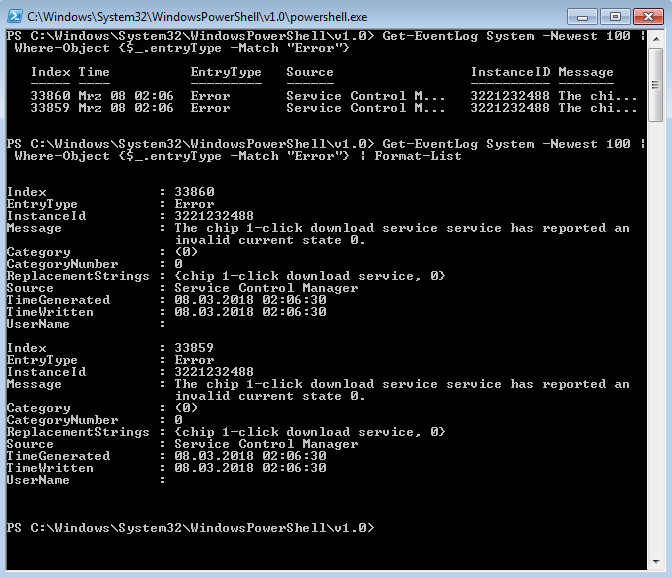
Remote management: Controlling services on remote computers
Windows Management Instrumentation (WMI) provides access to almost all settings and functions of Windows computers, making it the most important tool for process automation and remote management of digital workstations. You can also apply the associated “Get-WmiObject” cmdlet to remote computers, so you can also use the Windows PowerShell as a system management tool. For example, if you need information of the Win32_BIOS class on a computer in the network (represented by the parameter “–Computername”), the following command will help you:
Get-WmiObject Win32_Bios -ComputernameAlternatively, you can work with the parameter “–Class” followed by the complete path of the class:
Get-WmiObject -Rechnername -Class Win32_ServiceYou can now access the internal system settings of the third-party computer remotely. The following example shows how to retrieve the methods of the Windows Update Client service to find out which cmdlets can be used to start, stop, and restart it:
Get-WmiObject -Computername -Class Win32_Service -Filter "Name='wuauserv'"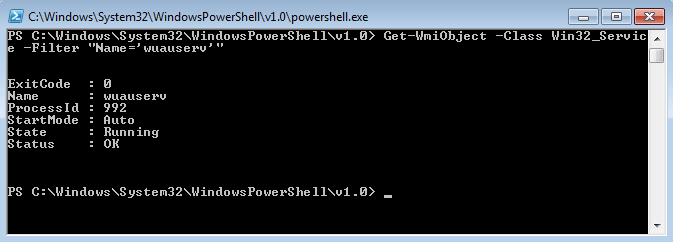
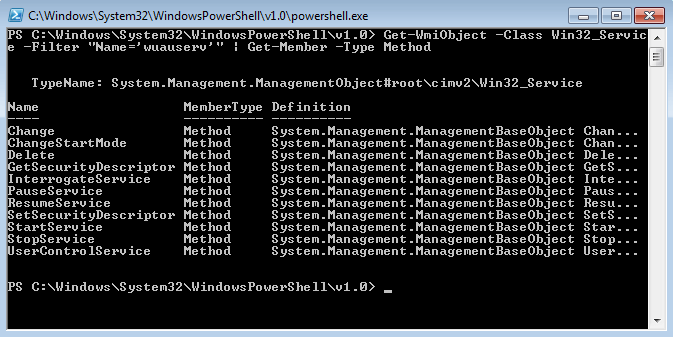
As you can see, the “Get-WmiObject –Computername” first locates the desired host and then selects the “Win32_Service” class using the “–Class” parameter. The Windows Update Client with the abbreviation “wuauserv” is then filtered out of the existing services. The well-known “Get-Member” cmdlet and the “-Type Method” parameter give you an overview of all methods for “wuauserv” that enable you to fully control the client remotely:
Get-WmiObject -Computername -Class Win32_Service -Filter "Name='wuauserv'" | Get-Member -Type Method