

Creating a batch file: How to write your own .bat file

cmd.exe, also known as a Command Prompt, is one of oldest software components in Windows. For decades, this command-line processor has been used to make direct changes to Microsoft operating systems. Batch files (also known as .bat files) are closely associated with Command Prompt. These files contain native commands that cmd.exe uses to process a sequence of commands. We’ll explain the unique features of these useful scripts and show you how to create, save, and run batch files yourself.
- Free website protection with SSL Wildcard included
- Free private registration for greater privacy
- Free Domain Connect for easy DNS setup
What is a batch or .bat file?
A batch file (also known as a .bat file or batch script) is a text file that the Windows cmd.exe command line processor executes as a batch job. Command Prompt assumes both the role of interpreter and runtime environment. Put simply, a batch file is a computer program or script containing data or tasks that are processed sequentially by Command Prompt.
The term “batch processing” comes from the early days of data processing, when interactive processing was not yet possible. Back then, data sets were usually stored on punched cards that were processed one card at a time in batches. In modern computer operating systems, the term came into widespread use with MS-DOS (1981) and refers to the batch files we’re discussing in this tutorial.
Batch files allow you to use and run ordinary CMD commands with cmd.exe as the interpreter and runtime environment. You can also use comments, labels, variables, conditions, and queries when writing a batch file. To convert text files to batch files, you have to use the .bat extension in newer Microsoft systems. The .cmd extension was common in Windows NT and OS/2.
In 2006, Microsoft released PowerShell, another framework that allows you to program and execute batch files. It was made open-source and cross-platform in 2016 and uses the MIT license. PowerShell provides an alternative command line interpreter and its own scripting language called PowerShell Scripting Language.
Creating a batch file: Step-by-step tutorial
Creating your own batch files is useful for automating the execution of recurring command sequences. These sequences might include login processes or what is known as TSR programs (Terminate and Stay Resident) that you want to run continuously as background processes. In the following sections, we’ll explain the tools you need to create batch files and show you how to create, save, and run your own batch files.
Step 1: Select and open your editor
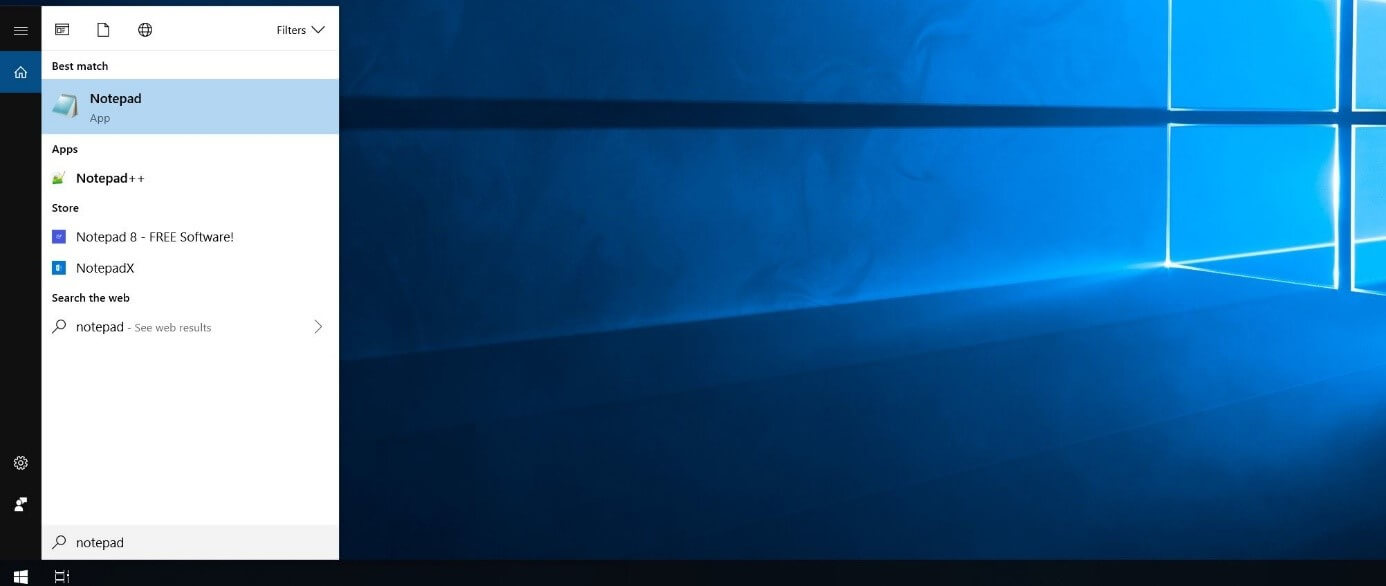
As mentioned earlier, text documents are a good starting point for batch scripts. To write your own batch file, all you need is an ordinary text editor. You don’t really need features like syntax highlighting, so the Notepad application included with Windows is perfect. To open it, simply type “Notepad” in the Windows search bar and click on the Notepad icon in the search results:
Step 2: Familiarise yourself with batch commands
You don’t have to learn complicated programming language to create batch files. But you do need to know common system commands and understand how they work in batch files. That’s why you should familiarise yourself with some commands before writing your first script. Here are the most important commands to learn:
- ECHO: Turns on the on-screen text display for executed commands
- @ECHO OFF: Turns off the on-screen text display for executed commands
- START: Runs a file with its default associated application
- REM: Indicates a comment line
- MKDIR/RMDIR: Creates or deletes a directory
- DEL: Deletes selected file(s)
- COPY: Copies selected file(s)
- TITLE: Sets the title of the CMD window
For a complete list of the most important commands, see our comprehensive article on batch commands.
Step 3: Create and save a batch file
An easy introduction to the art of creating batch files is to write a simple script that creates multiple directories on a selected disk on your computer. For example, if you create and run a batch file with the following input, it will create two directories named “Example1” and “Example2” on drive C:
MKDIR C:\Example1
MKDIR C:\Example2
Simply copy the two lines into an empty Notepad document, as shown in the following screenshot:


To save these batch instructions or the script, click File and choose Save As... Specify the save location and enter a name for the script with the extension .bat in the File Name field:


Step 4: Run the new batch script
After you create and save the batch file, you have two options to run it: Either run the script in the familiar Windows Explorer environment or open Command Prompt and run it using a command-line command.
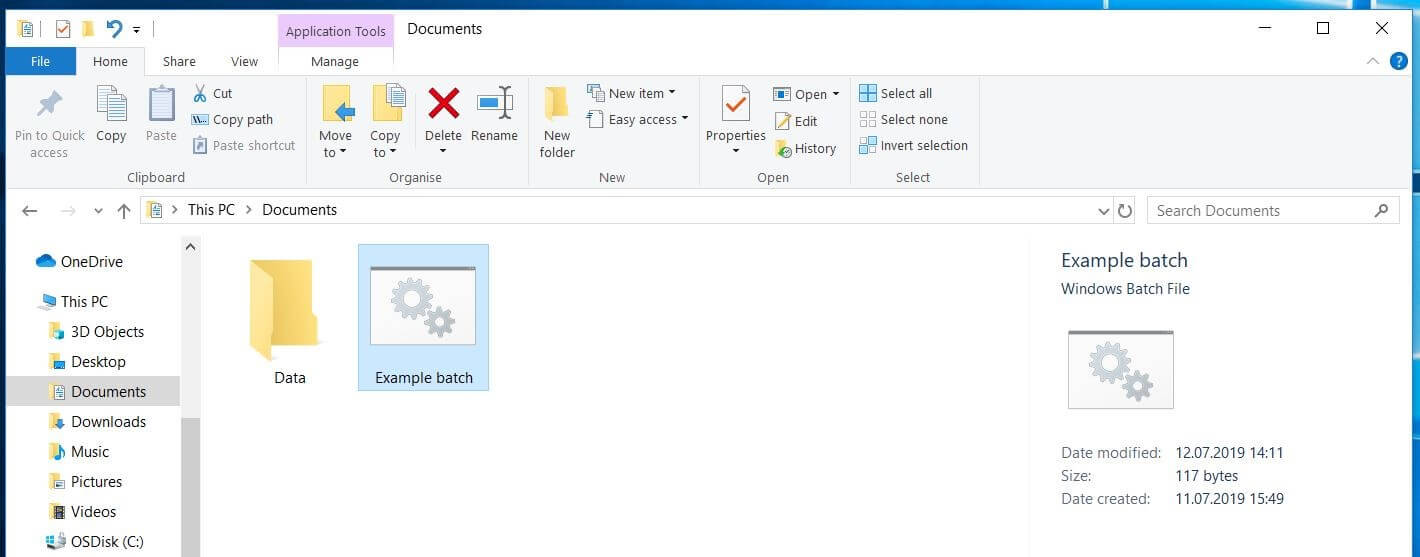
The first option is simpler and easier for beginners because all you have to do is go to the directory where the batch file is located and double-click to run it.
If a batch script contains commands that require administrator privileges to execute, you have to run the script as an administrator. In this case, right-click to select the batch file and then choose “Run as administrator.”
If you want to open the batch file from the command line instead, do the following:
- Go to the Windows search bar and type cmd.
- Click Command Prompt to open the command line in the standard way. If you need administrator privileges to run it, right-click Command Prompt and then choose Run as Administrator.
- Use the “Change directory” command (cd) to go to the directory where the batch file is located.
- Type the name of the batch script (including the file extension) and press Enter.


Step 5: Editing batch files retrospectively
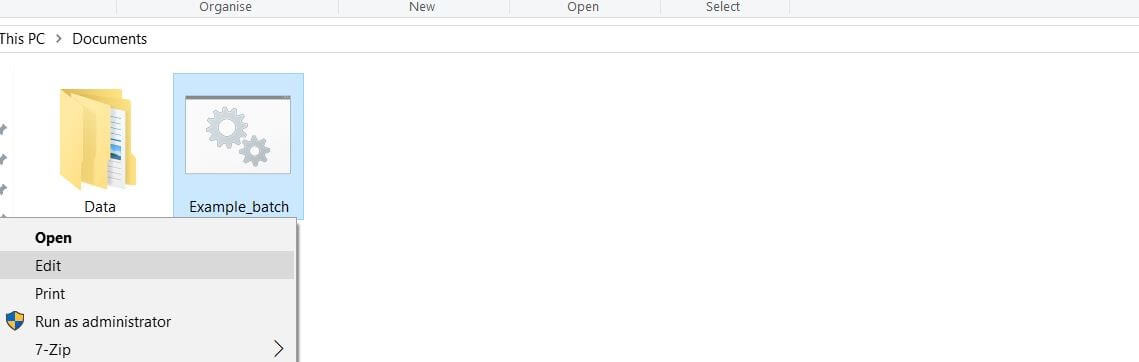
You can customise a batch script at any time, for example if you want to add or remove commands or modify directories. To do this, simply go to the folder containing the command line script and right-click it. Then choose Edit:
- Write perfect emails with optional AI features
- Includes domain, spam filter and email forwarding
- Best of all, it's ad-free
Examples of more frequently used and complex batch scripts
With the above step-by-step guide, you can create a wide variety of batch files with an unlimited number of different commands. However, scripts that you can use more frequently are definitely more useful in the long run. We’ll conclude with two examples of batch files with long-term value to illustrate the possibilities of batch processing with Windows Command Prompt.
Batch script with simple backup mechanism
The following example shows how useful batch files can be for creating regular back-ups of any directory:
XCOPY C:\Outgoing directory C:\Back-up-directory /m /e /y

When you create and run a batch file containing the line shown above, use the “xCOPY” command to copy the contents from the “source folder” to the “back-up folder.” You’ll need to adjust the directories containing these two folders accordingly. The three parameters at the end have the following effect:
- /m: Ensures that only updated files are copied so that files that have already been backed up don’t have to be copied again during further back-up operations.
- /e: Indicates that the back-up includes all subdirectories in the specified directory.
- /y: Suppresses prompting to confirm that you want to overwrite an existing destination file that was changed since the last backup.
Batch file with complex backup function
The above backup program allows you to copy the source files from the source folder to the destination folder. You can also create a batch file that distributes source data to multiple destination folders, in which case you can use the file type as a selection criterion. To do this, you need a for loop, which allows a command to run repeatedly with a variable argument:
cd C:\Outgoing directory
FOR %%f IN (*.doc *.txt) DO XCOPY C:\Outgoing directory"%%f" C:\Back-up-directory\Texte /m /y
FOR %%f IN (*.jpg *.png *.bmp) DO XCOPY C:\Outgoing directory "%%f" C:\Back-up-directory\images /m /y

The batch code shown above ensures that:
- all files in the source directory with the .doc and .txt extensions are moved to the “Text” back-up folder.
- all files in the source directory with the .jpg, .png and .bmp extensions are moved to the “Images” backup folder.
- only updated files are copied.
- the confirmation prompt is always suppressed.
This script only works if file names have declared extensions, otherwise matching documents won’t be found during batch processing, even if they actually have the right format.