

How to use Cygwin in Windows

The Cygwin environment uses Linux applications and Linux commands on Windows. An emulation layer and numerous tools are included.
- Free website protection with SSL Wildcard included
- Free private registration for greater privacy
- Free Domain Connect for easy DNS setup
What is Cygwin?
The two operating systems Windows and Linux are competitors in many respects. Users often swear by their chosen system. Therefore, they only work with its corresponding programs and have little to no contact with the other system. However, it may be necessary to use the other system’s applications, which can cause major problems to arise.
Operating systems interact with software differently, which is why Linux programs are not compatible with Windows and vice versa. Cygwin provides a solution. The runtime environment ensures that Linux programs can also be used in Windows.
Cygwin allows programs designed for Linux or Unix to be portioned which allows them to work on Windows. Cygwin acts only as an intermediate layer. Its counterpart Wine provides Windows binaries directly for Linux. Programs cannot be used directly, but they are be recompiled and adapted for the Windows environment.
How does Cygwin work?
The dynamic link library called cygwin.dll is the heart of Cygwin. It provides the required program interfaces. The environment has several other tools, most of which have been ported from Unix and provide users with graphical components similar to Unix. Packages for Bash, SSH and others can be unpacked and used with a graphical installation manager. The Win32 API is used with it. Cygwin comes with a 64-bit version by default, but a 32-bit version is also available. The environment can be installed with a simple exe file.
What advantages does Cygwin offer?
Installing Cygwin offers users several advantages. Firstly, according to Cygwin, this solution offers a Linux experience in a Windows environment. Therefore, users don’t have to miss out on Linux programs on their Windows computer. Installing an additional Linux operating system is no longer necessary, which is also an advantage for developers. The Unix shell would not be available for Windows without Cygwin. The X server also makes it possible to open a local xterm. Lastly, Cygwin is also compatible with some older Windows systems and can be used as an alternative to WSL environments.
Where is Cygwin available?
Cygwin is available from the official website for free. You can decide whether you want to download Cygwin in a 64-bit version or use the 32-bit version instead. However, the 64-bit version would be more suitable in most cases. The provider also recommends this version.
Cygwin installation
There are a few things to consider when installing Cygwin. We’ll guide you through the installation step by step. There is an extensive FAQ and a User's Guide on the official website (see above) if you have any further questions or need help. You can also find updates on the website. You can begin installing Cygwin after you have downloaded the appropriate exe file.
- Open the Cygwin installation file by double clicking it.
- Some prompts and warnings will automatically open. Click away these messages if you’re sure you want to install Cygwin.
- The setup program will start. Click on `Next´.
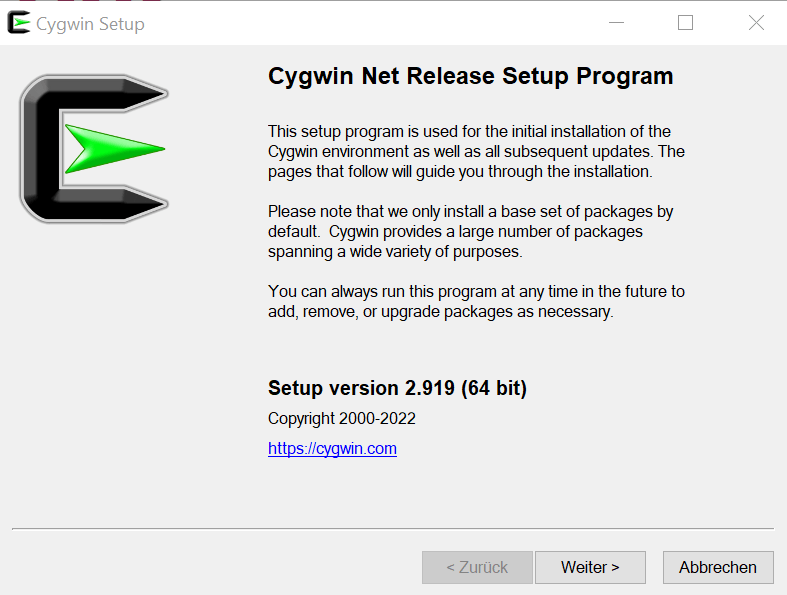
- Select your download source for Cygwin. You can choose between downloading from the internet, downloading without installing directly afterwards, and installing from a local source. The download with installation from the internet preset is generally the best choice. Confirm this again with `Next´.
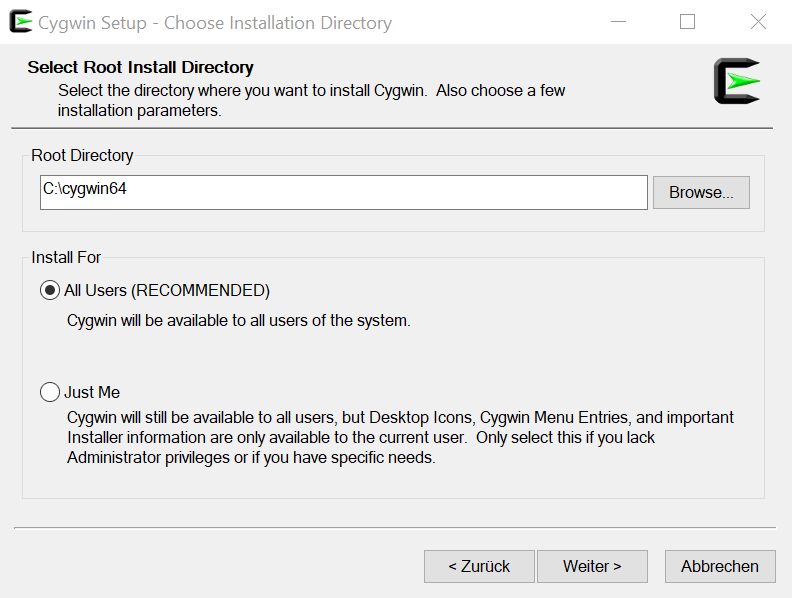
- You must then select the root directory and specify whether Cygwin can be used by all users or only by you. The first option is recommended in this case. Select this option and click `Next´.
- Choose local package directory. Download package files are stored in the directory. The default option is ‘Downloads’. However, you can also specify a different location and confirm by clicking ‘Next’.
- You will then be prompted to choose your internet connection. You can keep the default setting and use your system’s proxy settings if you wish. Your alternatives are a direct connection or a custom connection. Confirm your choice by clicking ‘Next’.
- Now specify the mirror (alternative download server) which the Cygwin download should be carried out from. You can choose from the list or add your own mirror.
- Select which packages you would like to install. Cygwin offers a large selection of different programs and categories, most of which you probably won’t need at first. A few programs will be installed by default, but you can add more packages if you wish. You can download other options at a later time. Browse the list, select the programs you need, and then click “Next”.
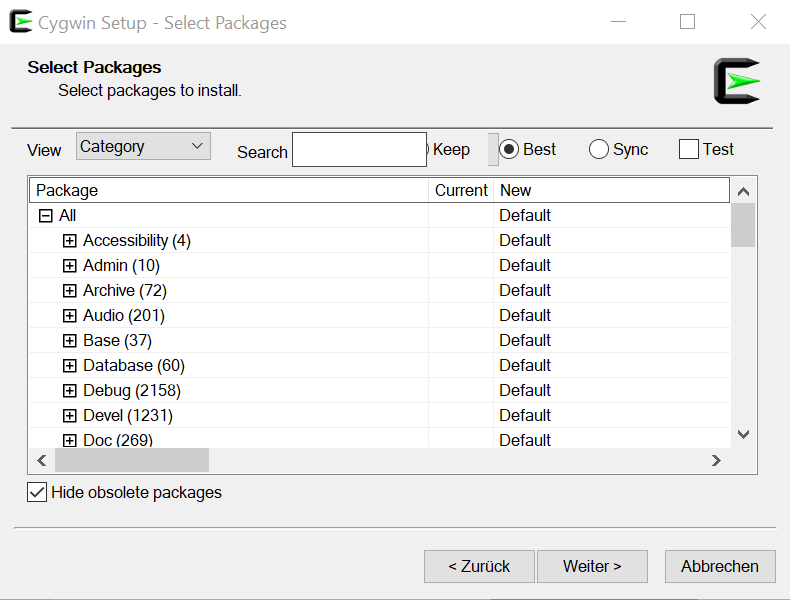
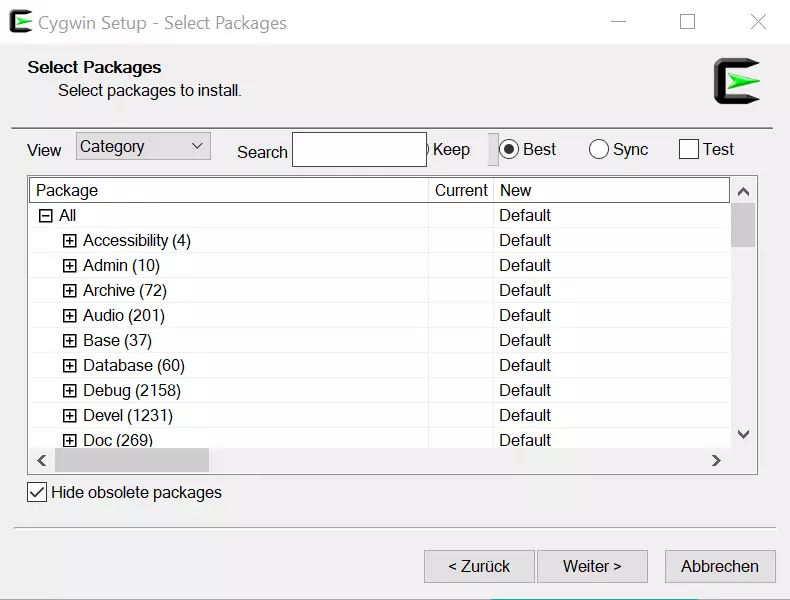
- The system will list all selected packages clearly. Check your selection carefully. Confirm that all the information is correct by clicking `Next´. Click `Back´ to return to the previous step if you notice an error and change the list accordingly.
- The Cygwin download will begin. The time needed will depend on your connection and the package sizes.
- The Cygwin installation will be carried out automatically. You do not have to do anything.
- The system will ask if you want to create icons in the Start menu and on the desktop. Make your choice and click `Finish´. The installation will be complete after this step, and you can start using Cygwin.
Alternatives to Cygwin
Cygwin is a good solution if you want to use Linux programs on your Windows computer. It is also a good option if you want to create a Linux server. The environment is extensive and offers numerous options. However, there are also some good alternatives to Cygwin available. Cygwin is the best-known solution, but other tools have some worthwhile options to offer also, particularly their smaller scope or easier use.
GoW
GoW (GNU on Windows) is specifically designed as a lean alternative to Cygwin. GoW was designed by Brent Matzelle. It is only 10 MB, which is one tenth of Cygwin’s required size. This alternative offers over 130 Unix tools for a Windows desktop. It also sways users with a comparatively simple and intuitive approach. GoW is subject to the MIT license and is freely available.
Scoop
Scoop is a good choice if you’re looking for a handy package manager for Windows. It supports Windows applications and selected Unix programs. It is less extensive compared to Cygwin. However, it is a good alternative if you only need the Linux basics. The tool is specifically aimed at users who have switched from Linux to Windows.
MSYS2
A well-known and popular alternative to Cygwin is MSYS2. The software distribution translates Unix source code into native Windows binaries, includes the package manager Pacman, a Bash shell and numerous Unix programs. However, MSYS2 is not compatible with older Windows versions.
Windows Subsystem for Linux
While Cygwin works with Windows 10 and older Windows versions, Windows Subsystem for Linux (WSL) only runs on Windows 10. Microsoft developed this alternative to Cygwin in 2016. A more advanced version has become available in the meantime from WSL2. However, you can download an image of Ubuntu if you are using a new Windows version. This includes Linux applications for Windows.
So, is Cygwin worth it?
Cygwin takes the pressure off the Linux vs. Windows operating system duel. The POSIX emulation allows you to run Linux programs in Windows and it is a very reliable and useful tool. Cygwin makes daily work significantly easier if you use both systems.
- Store, share and edit data easily
- ISO-certified European data centres
- Highly secure and GDPR compliant