

Getting started with cURL in Windows

The abbreviation cURL stands for “Client for URLs” or “Curl URL Request Library”. It is a command-line program with the corresponding library for data transfers between computers in a network. The cURL software was developed by the programmer Daniel Stenberg. His original goal was to provide users of a chat program with data on currency-exchange rates which was retrieved from various websites. Thanks to its MIT free-software license, cURL can be used freely and has found its way into many operating systems – including Windows 10 which has been using cURL since the 1803 update published in April 2018. “Everything curl” is a highly comprehensive guide and provides information about what this tool can do for developers. In the following sections, you will find some practical examples of what cURL for Windows can do. You can try some of them out for yourself right now.
What exactly is cURL for Windows?
As with other operating systems, cURL for Windows consists of the executable file curl.exe and the library libcurl, which is an API written in the programming language C that implements cURL’s many functions. The commands are executed in the Windows command prompt window (i.e. the command line). There is a defined command syntax for this purpose:
C:\Users\user>curl [options …] <url>In this example, <url></url> is the address of the website you want to interact with. The [options …] are used to define the instructions for performing operations such as page requests, downloads, uploads, posts, handling forms, and more. Many of the options have two ways to write them:
- one with a minus sign and letters
- the other with two minus signs and a command word
For example, to use the GET method as an option, you can do so with either “-G” or “--get”.
Checking the availability and version of cURL
First check whether your Windows version has cURL and then which version. To do so, open the command prompt window by typing “cmd” in the Windows search function. Enter the following:
C:\Users\user>curl --versionThis will retrieve information about the available cURL version in your Windows 10 operating system.
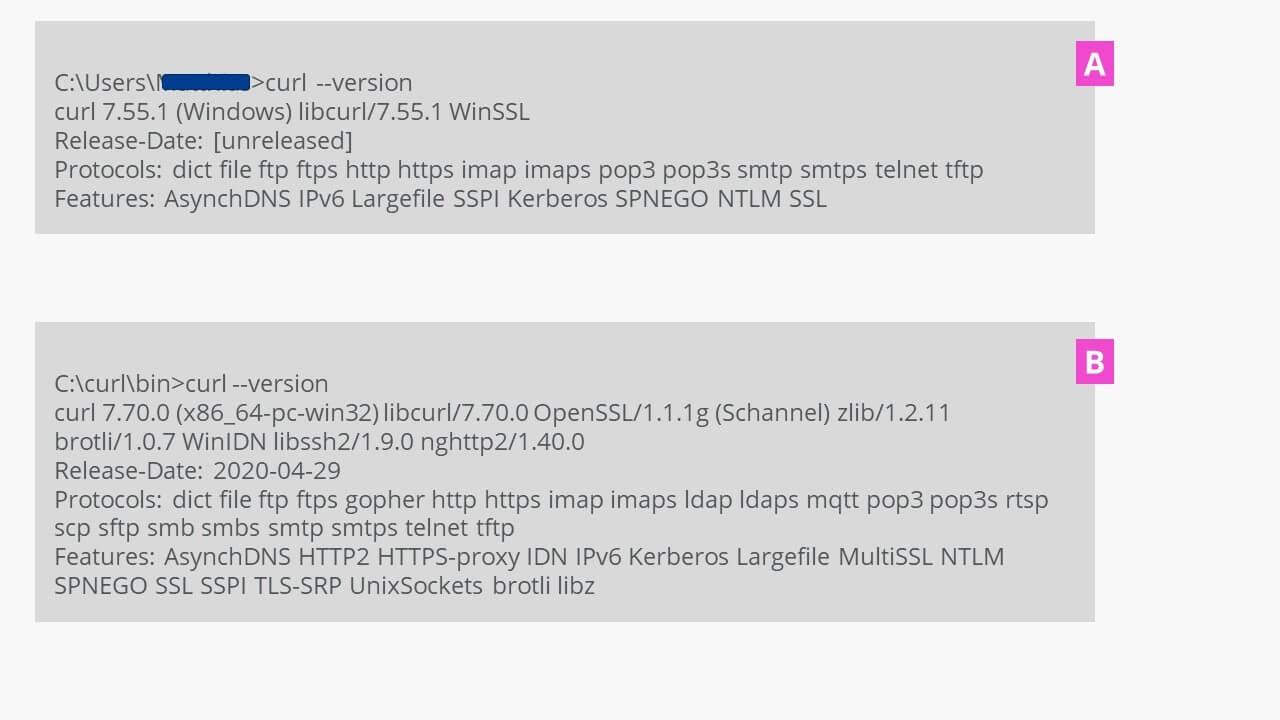
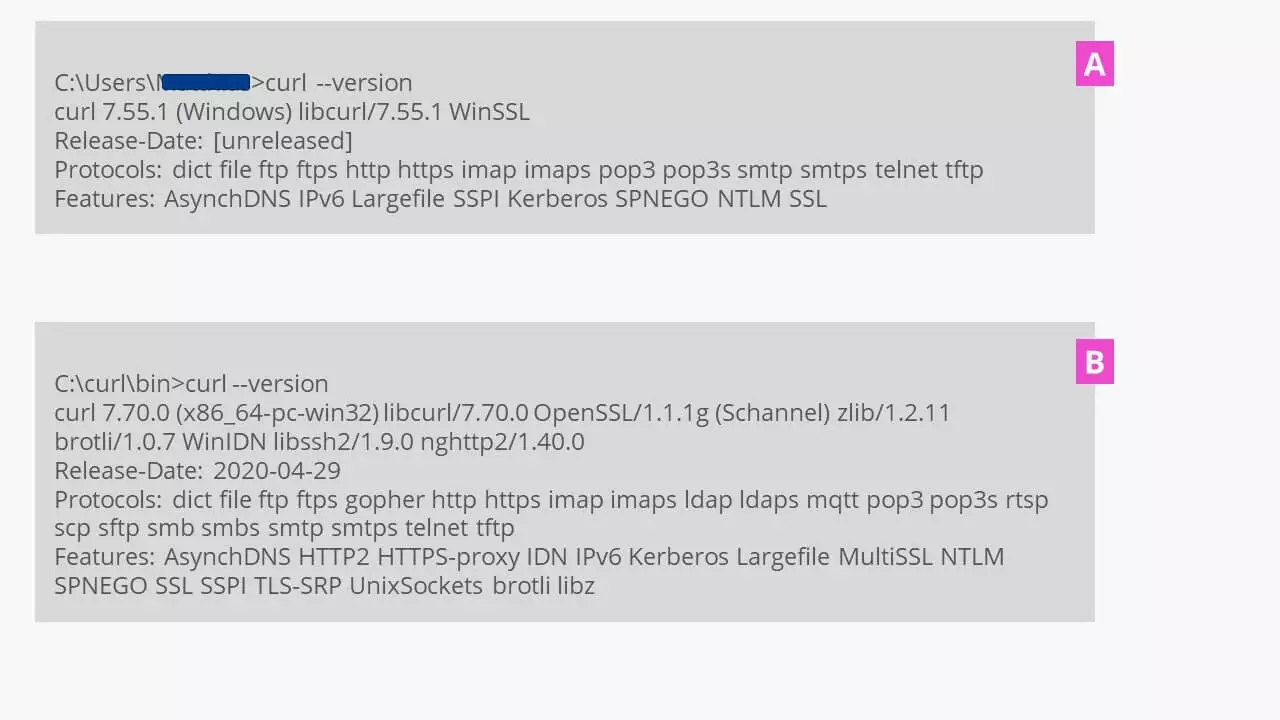
As cURL has been further developed, the number of usable protocols has steadily increased. You can see this in the following comparison in the table below of the two retrieved versions shown in the image above:
| 7.55.1 (August 2017) | 7.70.0 (April 2020) |
|---|---|
| dict | dict |
| file | file |
| ftp | ftp |
| ftps | ftps |
| – | gopher |
| http | http |
| https | https |
| imap | imap |
| imaps | imaps |
| – | ldap |
| – | ldaps |
| – | mqtt |
| pop3 | pop3 |
| pop3s | pop3s |
| – | rtsp |
| – | scp |
| – | sftp |
| – | smb |
| – | smbs |
| smtp | smtp |
| smtps | smtps |
| telnet | telnet |
| tftp | tftp |
The options for data transfer in a variety of networks were thus also expanded.
Installing the current version of cURL
The cURL version installed with Windows is stored in the system as a path that can be reached by both the current user and the administrator. If you want to be able to use all of cURL’s available protocols, you will need to have the current version of cURL for Windows installed. The easiest way to do this is to download the current available version as a ZIP file from the developer’s website. There you will also find information about any changes made (i.e. a changelog). Unzip the file in the File Explorer into a directory (e.g. with the name “curl”). You can also place this directory on your system’s hard drive (e.g. C:\curl\). Copy all the files and directories from your unzipped downloaded cURL file to this new directory. The executable file curl.exe is located in the subdirectory \bin, which also contains the certificate file curl-ca-bundle.crt. This file is required to use the SFTP and HTTPS protocol, for instance.
Then, open the Windows command prompt window and enter the following:
# Jump up two directory levels
C:\Users\user>cd..
C:\Users>cd..
# Jump to the specified directory
C:\cd curl\bin
C:\curl\bin>
Here, you can use all the available functions in cURL for Windows, which are used here in further demonstrations. To test this, all you have to do is access the version as described above. The method described here for updating cURL works for Windows 7, 8, and 10. You can also integrate the current version of cURL into your system. To do so, you need to create a system path and find (!) and deactivate the old version.
cURL in practice – with simple examples
To use cURL for Windows, enter text commands in the command prompt window. For a quick overview, enter the following command:
C:\curl\bin>curl --helpYou can access detailed information in the manual with the following command:
C:\curl\bin>curl --manualYou should save both outputs that appear in the command prompt window by copying and pasting them as a TXT file in a separate folder. This will allow you to easily access the commands by using the search function in the document and keep the command prompt window free.
Use a text editor in Windows. You can use it to note the commands for cURL, check them, and then copy them into the command prompt window. This will save you from having to repeatedly (and frustratingly) retype commands when typos creep in. You can also use it to save your own sets of commands for future actions, such as with your login information.
This can be done even faster with the following:
C:\curl\bin >curl --help | clipThe CMD command “clip” preceded by a vertical bar immediately copies the current output in the command prompt window to the Windows Clipboard so that you only have to press [Ctrl] + [V] to paste the contents into an empty editor document and then save it.
Saving information about a website locally
If you need to save information about a website in a local file, this can be done with a simple cURL routine. The file containing the information should be named infos.html and saved on the local computer in the same directory as the cURL installation. In Windows, cURL uses the option “-o” (lowercase o, not zero) for this purpose.
curl -o infos.html https://www.n-tv.de/This request generates a file larger than 700 kilobytes containing the specific status of the N-TV news channel’s website at the time of the request.
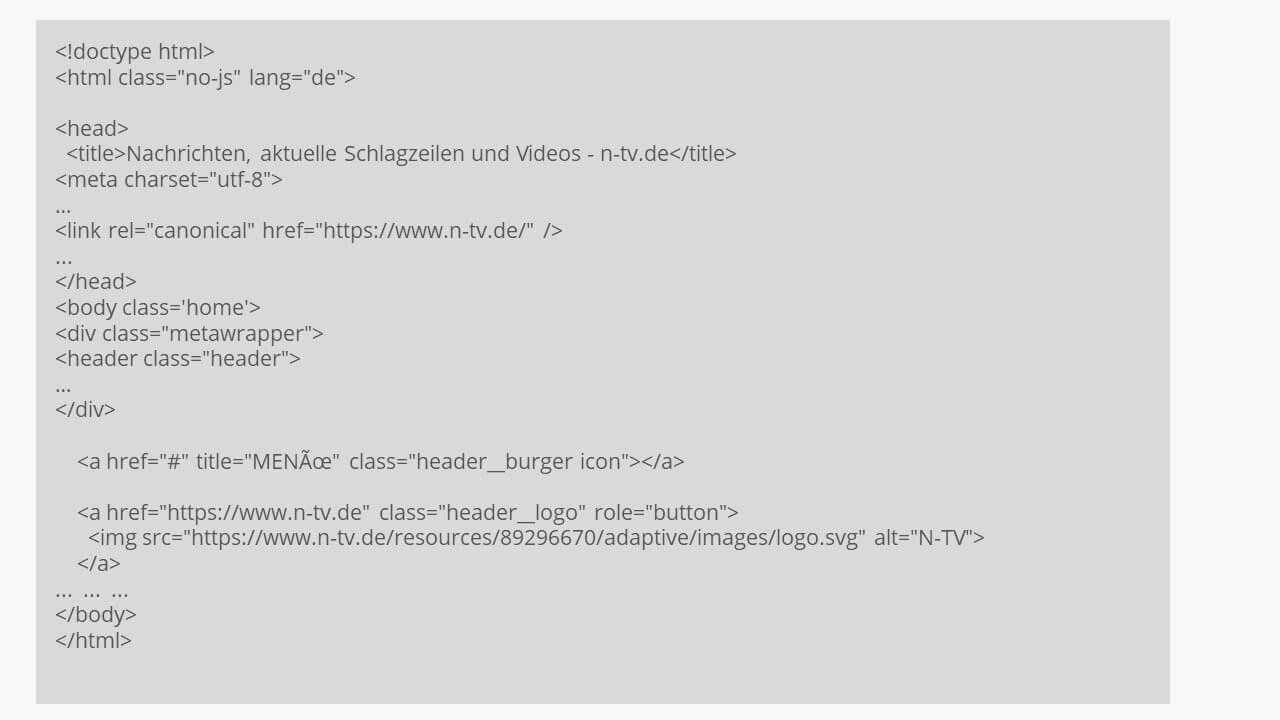
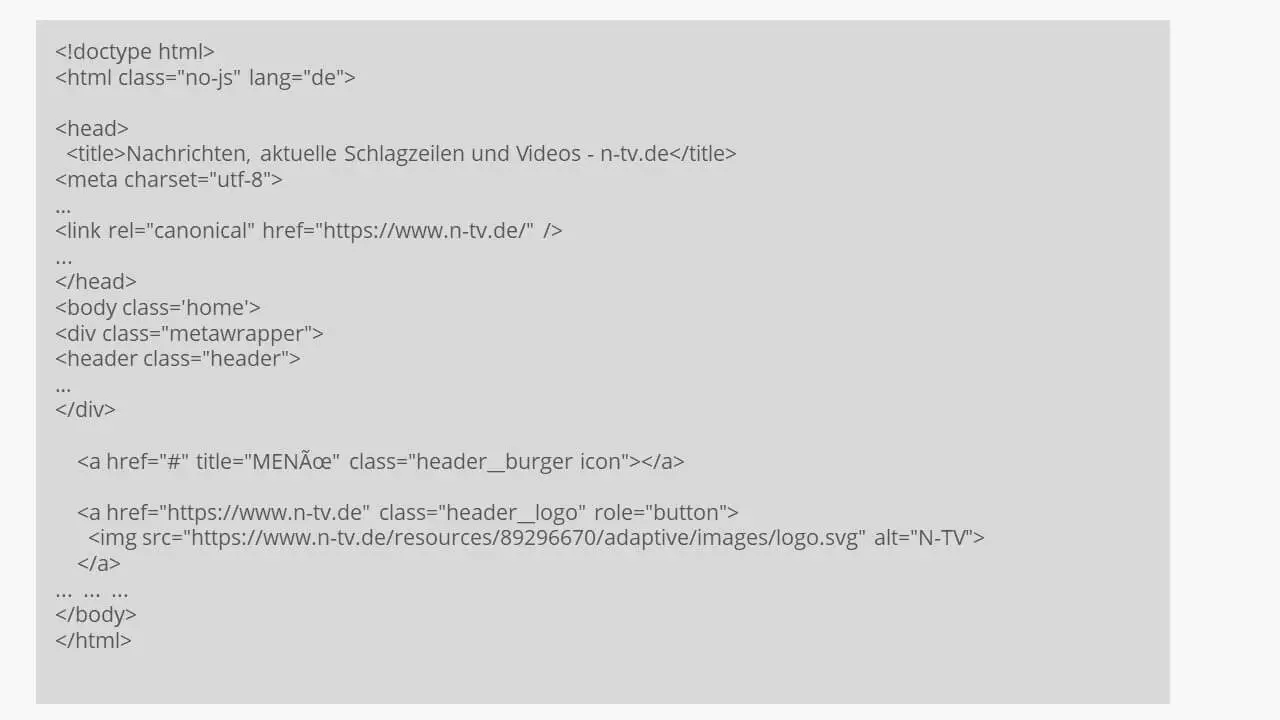
When you request this file from local data storage in a browser, the website will be displayed in its saved state.
It works the same way with a single file from a web server. The file ref.pdf shall be renamed references.pdf after being downloaded:
curl -o references.pdf https://mywebsite.tld/ref.pdf
or
curl --output references.pdf https://mywebsite.tld/ref.pdfDisplaying a website header
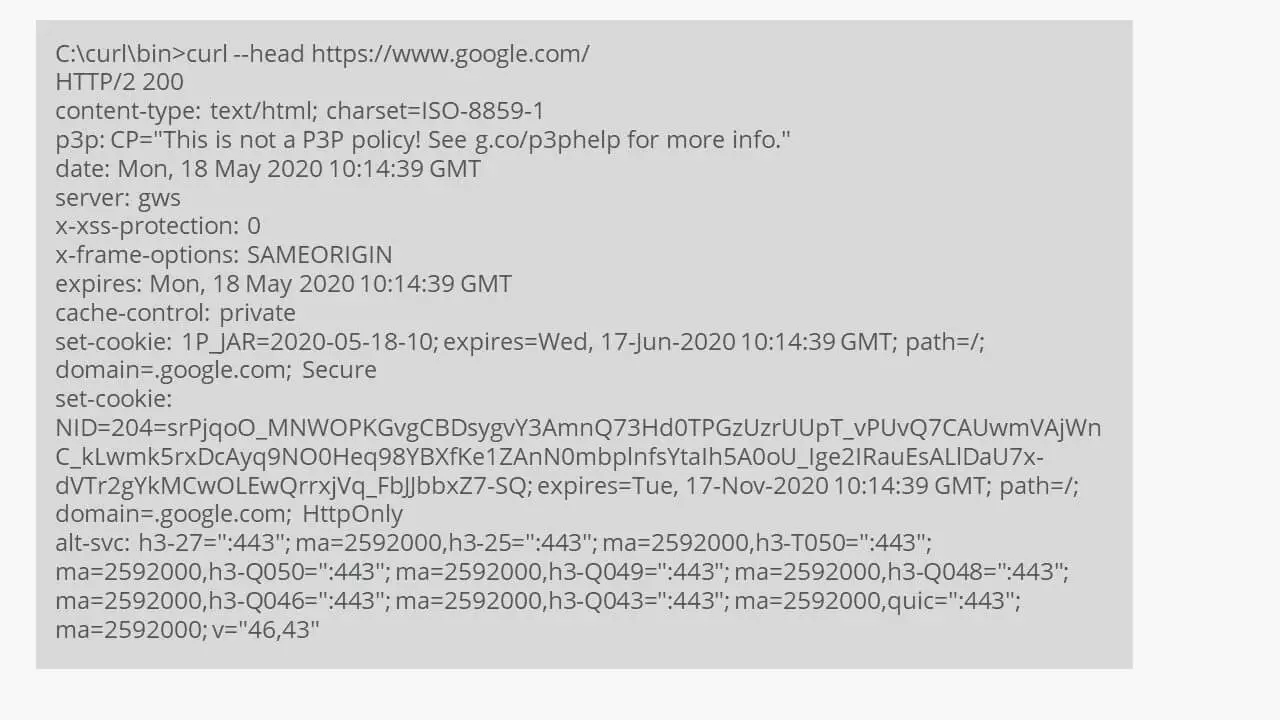
To display the content of a website header, which is enclosed in the HTML tags <head>…</head>, you use an option before the requested website address (I = uppercase i):
curl --head https://google.com
# or
curl -I https://google.com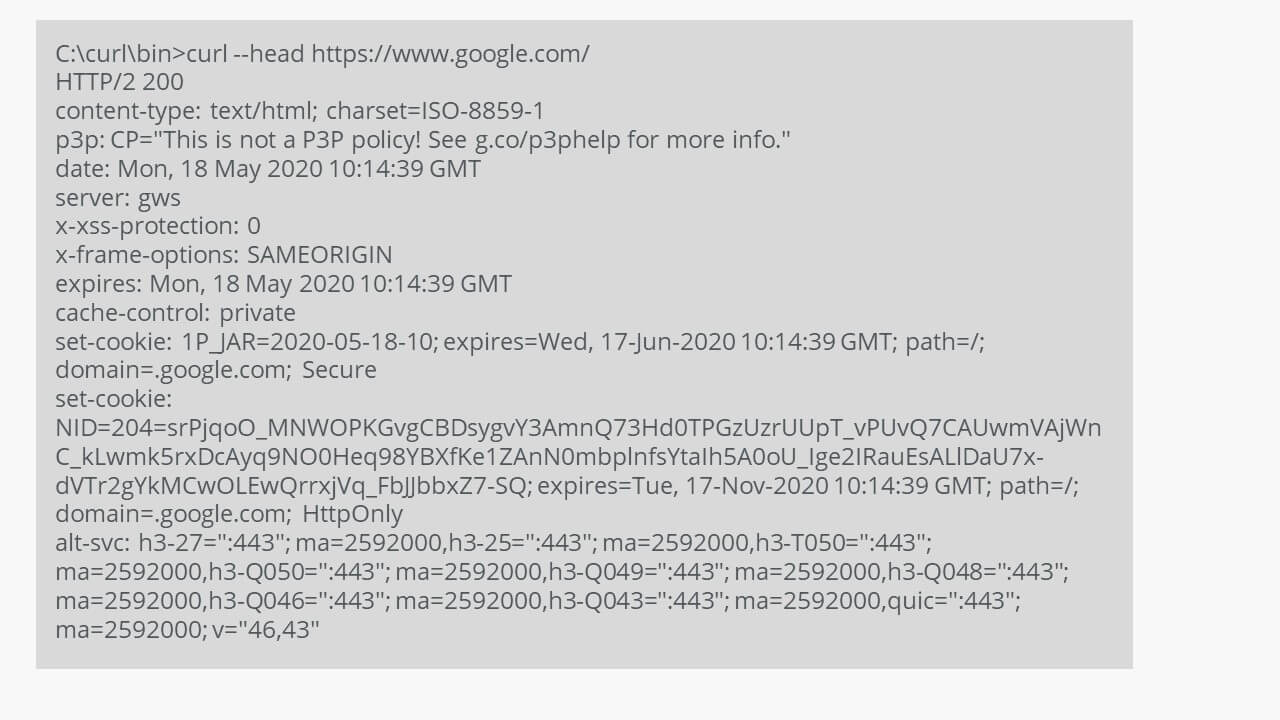
Displaying more detailed information
To display even more information in the output via cURL, you can add the option “-v” or “--verbose”. This option provides information about the IPv6 address used, the port, any certificates and much more.
curl -I https://google.com -v
# or
curl --head https://google.com --verbose
Uploading data via the SFTP protocol
In this situation, the cURL command is a bit more complex since user identifications for login and verification have to be transferred to the server when using SFTP. So, let us get to it:
curl -k sftp://the-example-ftp-server:22 --user user:password -T examplefile.pdfYou can track the progress of the upload in the Windows command prompt window. The uploaded file should now be located in the root directory of your FTP server. If you mistyped the command, cURL for Windows will respond with this short message: “curl: (67) Authentication failure”. If you try to perform this transfer with the older cURL version 7.55.1, it will display this message: “curl: (1) Protocol “sftp” not supported or disabled in libcurl”.
Downloading via the SFTP protocol and cURL
With the current version of cURL, downloads are just as easy to perform without a special FTP client, provided that the file to be downloaded is on the FTP server:
curl -k sftp://the-example-ftp-server:22 --user user:password -o examplefile.pdfcURL has grown into a powerful tool. Be careful when cURLing on your own server environment. Using a backup and Windows restore media, you can be on the safe side in case something does go wrong.
cURLing the weather forecast
Requesting the local weather forecast in this way demonstrates that it is possible to present information in a more appealing (and useful) way with ASCII characters:
curl http://wttr.in/LOCATION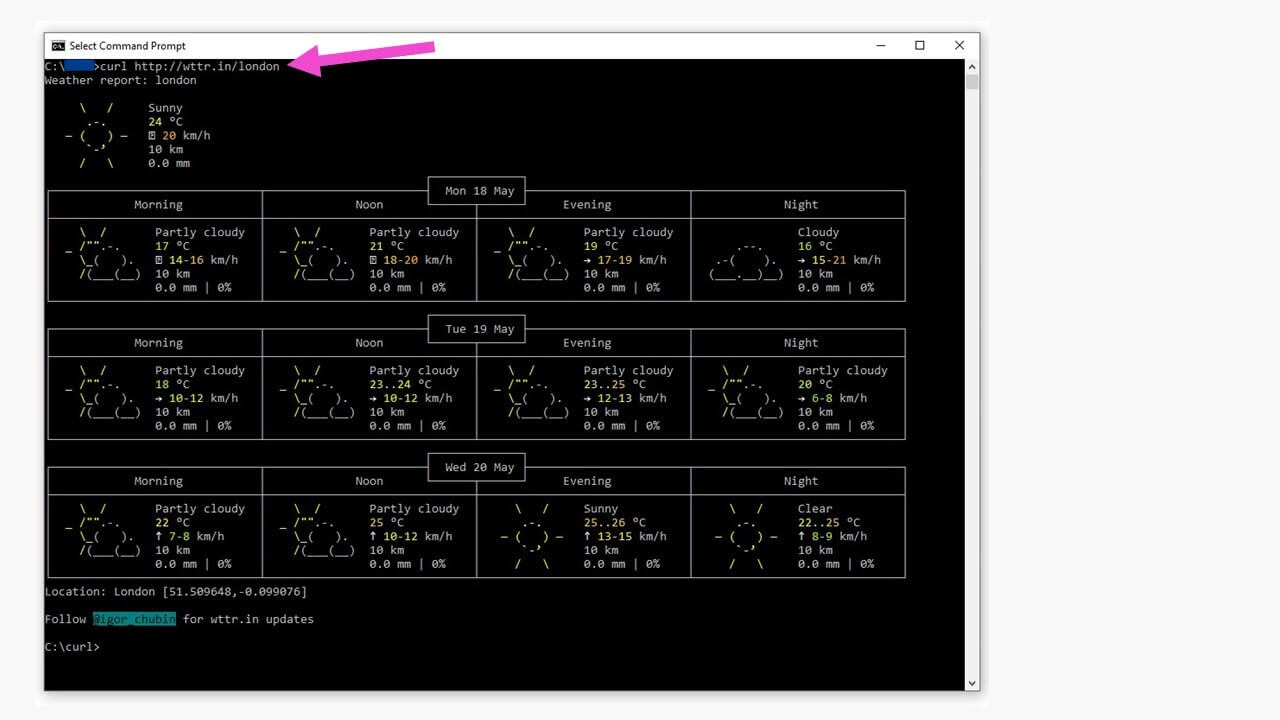
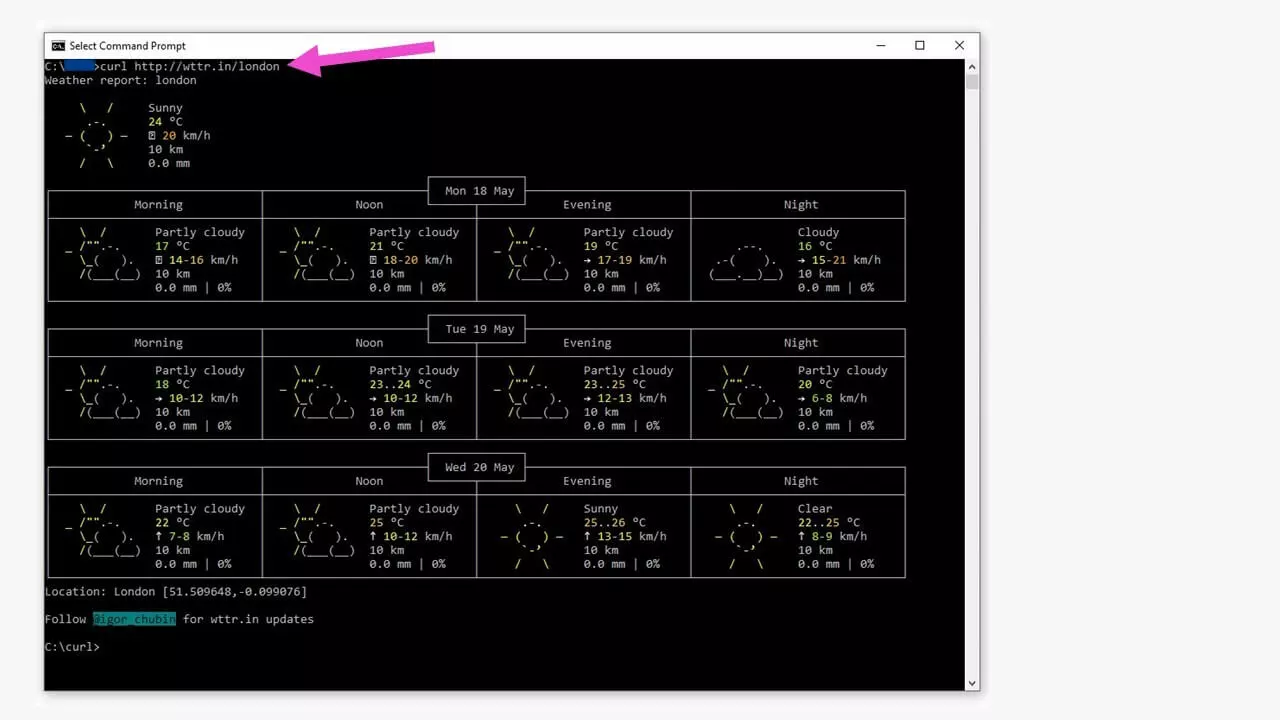
This can be done for any location.
cURL and PHP – a good pairing
To be able to work with cURL in practical everyday programming, cURL is also available in PHP. Check your web server with the following PHP request:
<?php
phpinfo();
?>
Save this code as a file named phpinfo.php, and move it to the root directory of your web server. When you request this file in your browser with ´https://mywebsite.tld/phpinfo.php´, you will be presented with all the information about the options available in your PHP version, including the availability of cURL.
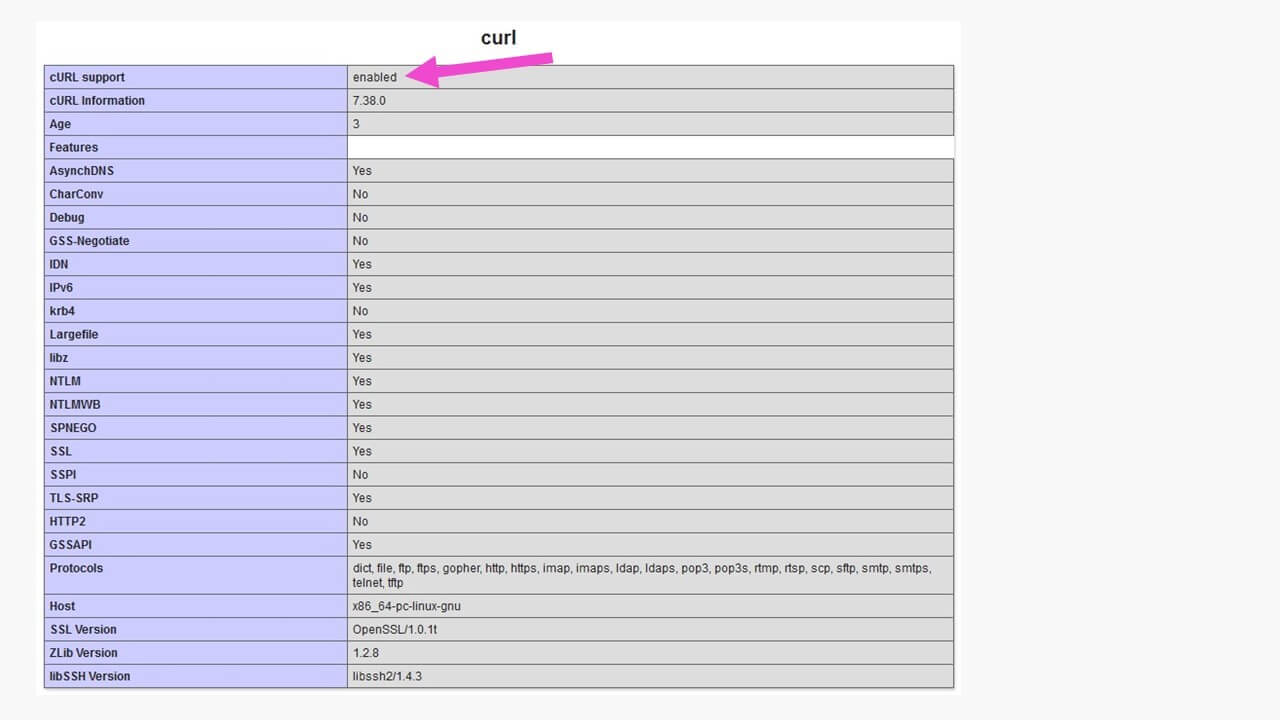
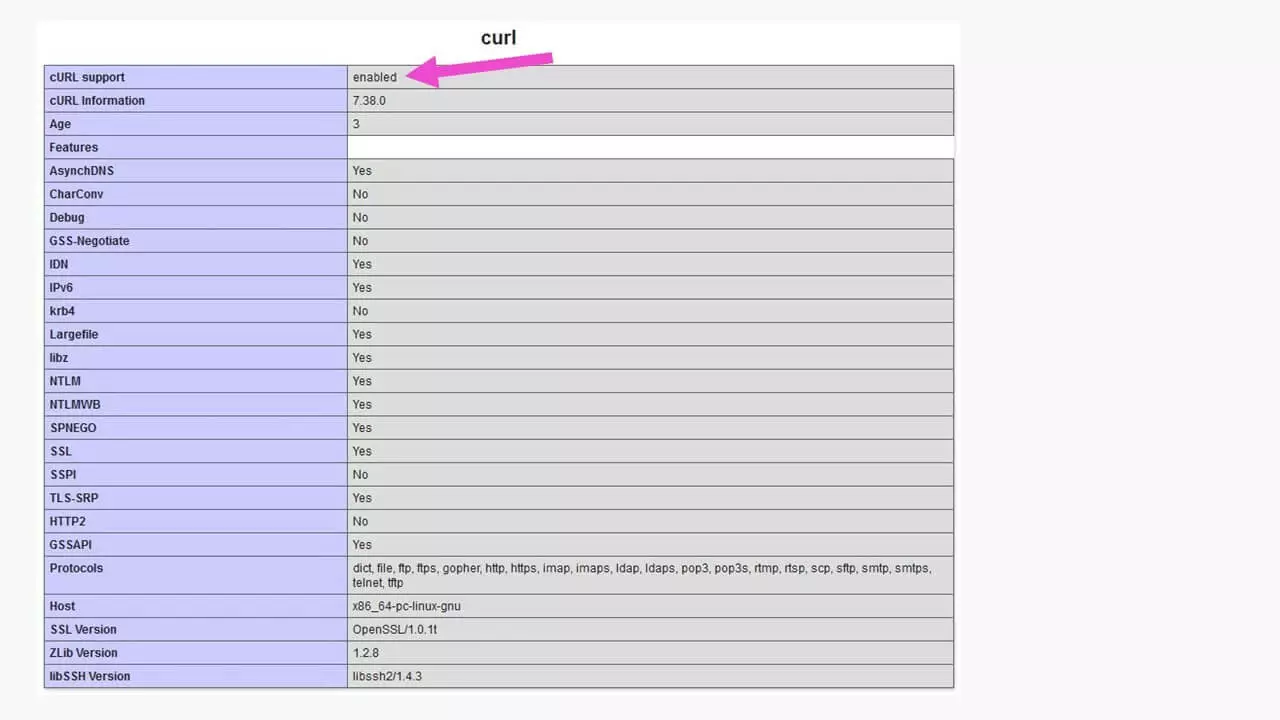
To request a website with additional information, all you need are a few lines of PHP code. Here is an example requesting the German Microsoft website:
<?php
$site = curl_init(); //initialize the cURL handler
curl_setopt($site, CURLOPT_URL, "https://www.microsoft.com/de-de/"); //place the URL
curl_setopt($site,CURLOPT_RETURNTRANSFER,true); // set the optional parameters
curl_setopt($site,CURLOPT_HEADER, true); // display header; omit with „false“
$result=curl_exec($site); // execute the actual cURL
curl_close($site);
echo $result;
?>
Save this code as a file (e.g. under the name curlinfo.php) in the root directory of your web server.
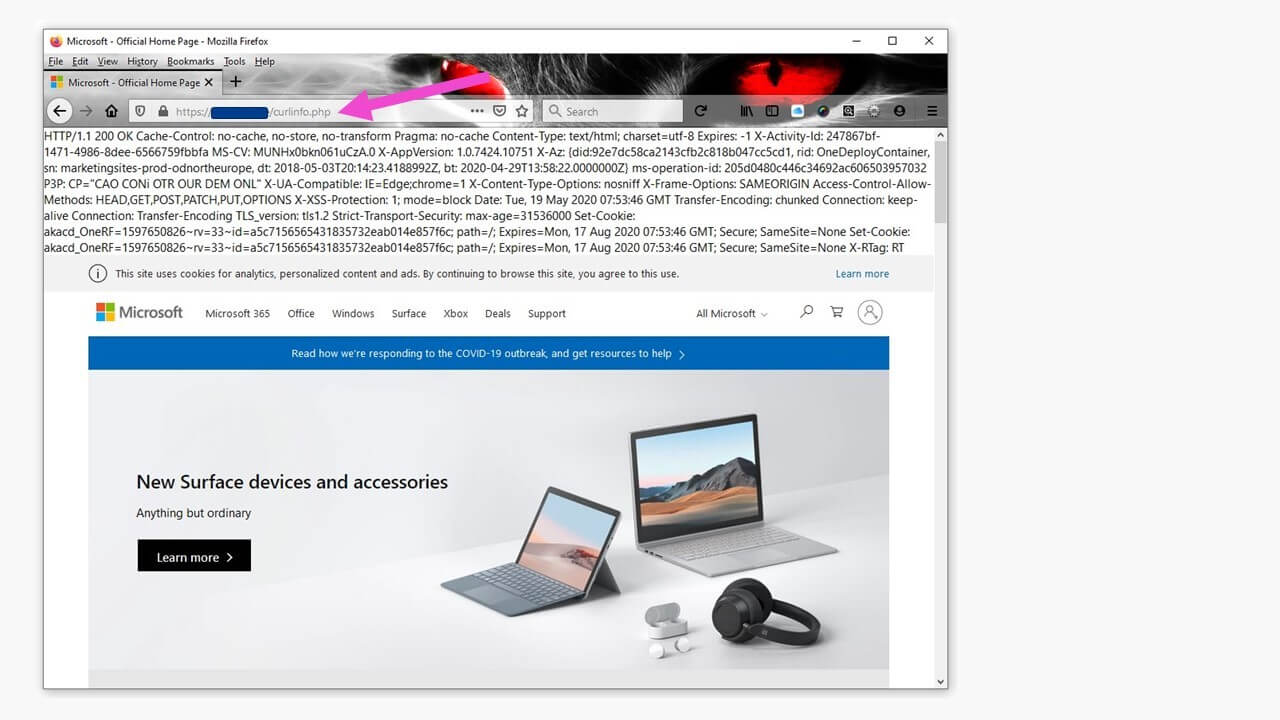
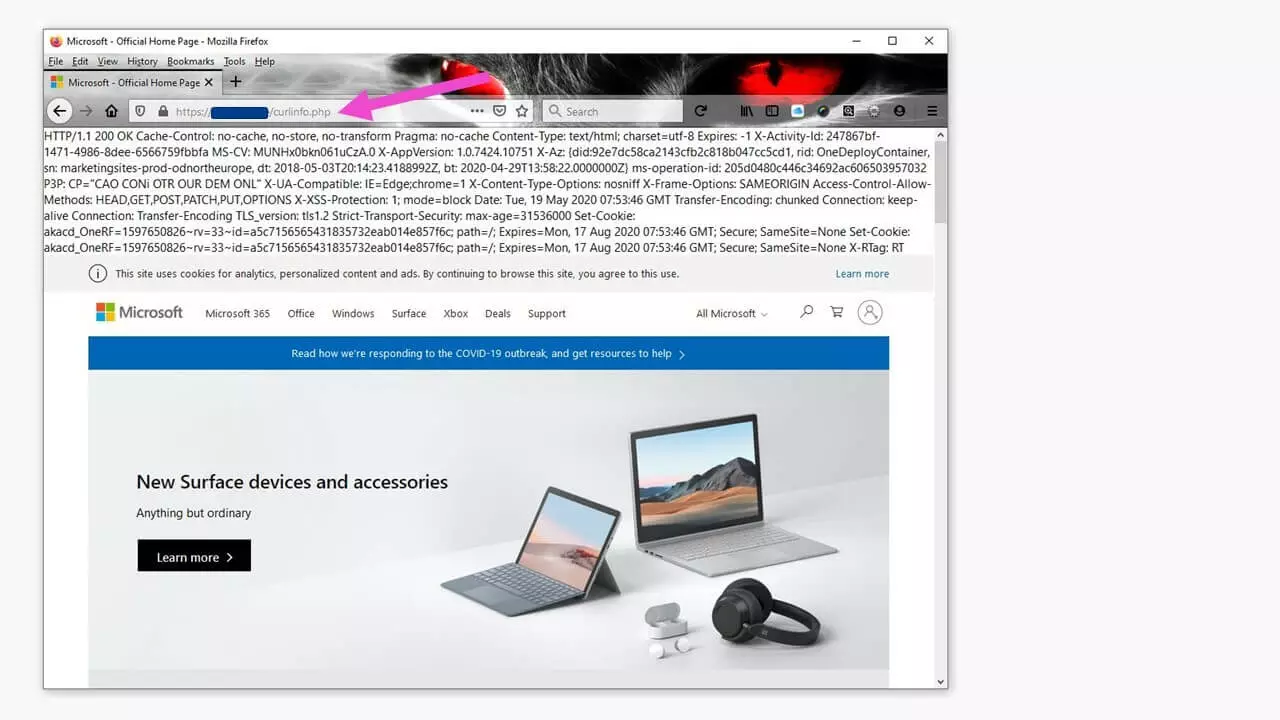
Since the file only contains pure PHP code, the header information is displayed in the browser’s own font (i.e. unformatted). This kind of routine is the first step in embedding data from other websites into your own with PHP and cURL.
PowerShell vs. the command prompt
Another powerful development tool has been implemented in Windows 10: it is called the PowerShell. It can be identified by the letters “PS” in front of the Windows path after opening it via the Windows icon with a right-click. The Windows PowerShell is intended to replace the command prompt (known as the “Console”) and provides even more comprehensive options for managing websites and servers. However, only some cURL commands can be used in the PowerShell. The rest must be “translated”.
The “translator” is built in and is enabled in the PowerShell with “Get-Alias” plus the cURL command.
PS C:\WINDOWS\system32> Get-Alias curl
# generates the output
CommandType	Name	Version	Source
-----------	----	-------	------
Alias	curl -> Invoke-WebRequest
This will tell you which PowerShell command can be used to cURL a website:
PS C:\WINDOWS\system32> Invoke-WebRequest https://google.com/Reviewer

Christian Heldmaier
Christian Heldmaier is an experienced online marketing and SEO specialist from Karlsruhe. He has been working as an SEO Manager at IONOS since July 2020.