

Netsh – how to manage networks with Netsh commands

Anyone who works with Windows network configurations will sooner or later come across the Network Shell (Netsh). The term refers to an interface between users and the operating system, which enables the administration and configuration of local, and remote network settings.
The range of applications includes settings for the Windows firewall and LAN/WLAN management as well as IP and server configuration. Moreover, networked infrastructure can also be protected from external attack. Using the command line tool, it’s also possible to diagnose problems and carry out repairs in the network. A big advantage of Netsh is that network-related administration tasks can be performed quickly and conveniently, and can be automated with scripts.
Netsh commands: starting the command prompt
It’s necessary to access the command line in order to use Netsh. There, you can open the “Run” menu as follows:
- Press the key combination [Windows] + [R]
- Enter “cmd” in the entry field (1)
- Click the “OK” button (2)
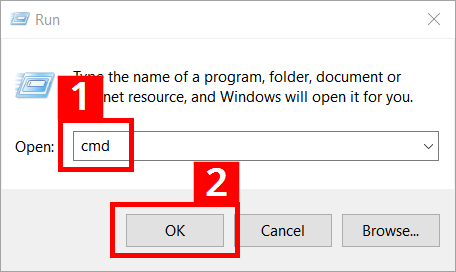
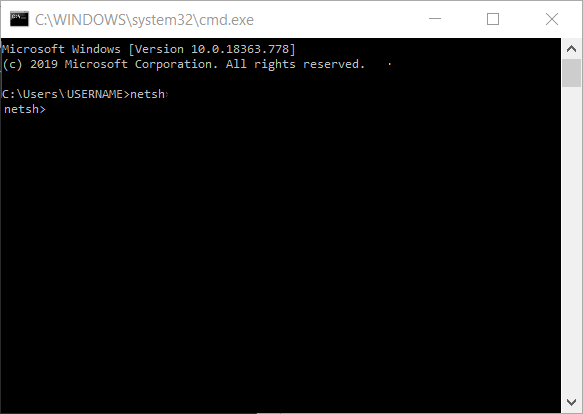
The command prompt will then launch. The service program will open after you enter “netsh” and confirm with [Enter].
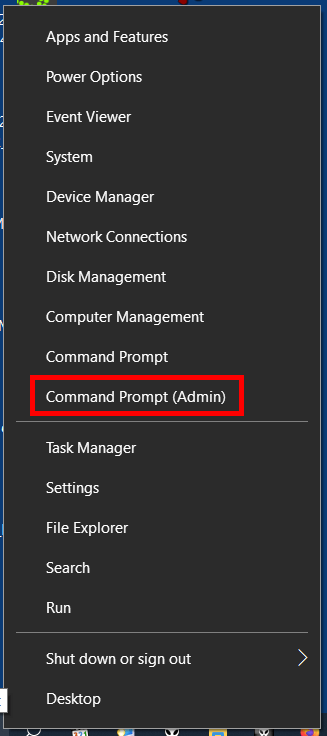
If Netsh commands and scripts aren’t run or if more fundamental interventions in the network configuration are planned, you’ll need to start Network Shell with administrator rights. These steps are required on Windows 10:
- Right-click on the Windows symbol on the left side of the task bar or press the key combination [Windows] + [X].
- Choose the entry “Command Prompt (Admin)” in the context menu that appears:
Netsh includes the program file netsh.exe located in the Windows system folder (%windir%\system32). Directly opening the file streamlines the Netsh command entry procedure. You can enter the path C:\Windows\System32\netsh.exe into the address line of Windows Explorer and press [Enter]. You can then enter Netsh commands straight away in the entry window that appears.
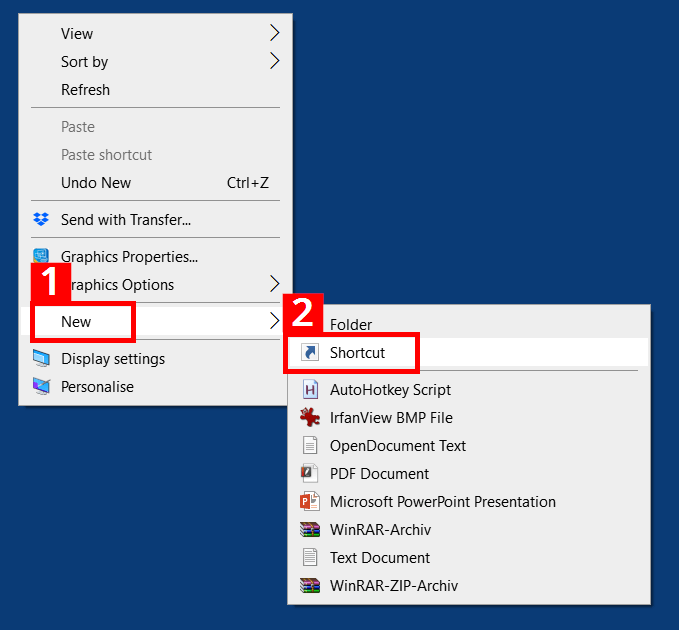
Launching the file is even faster by using a shortcut. Once created, a simple mouse click will be enough to launch the command entry:
- Right-click on the Windows desktop. Click on the menu entry “New” (1) and then click on “Shortcut” in the next context menu (2):
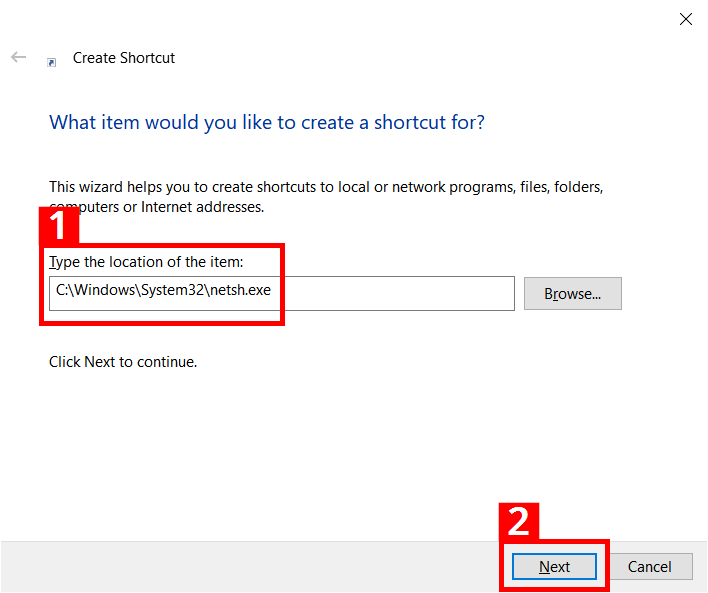
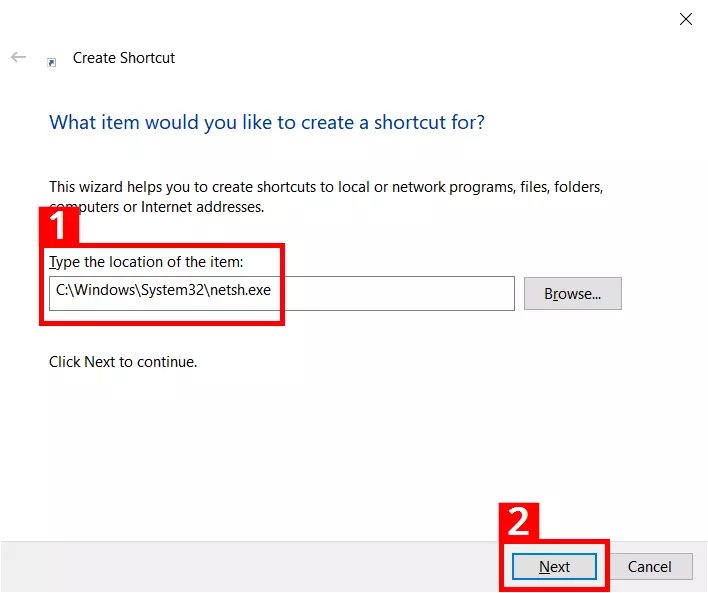
- In the shortcut assistant, enter the path C:\Windows\System32\netsh.exe (1) and click on “Next” (2):
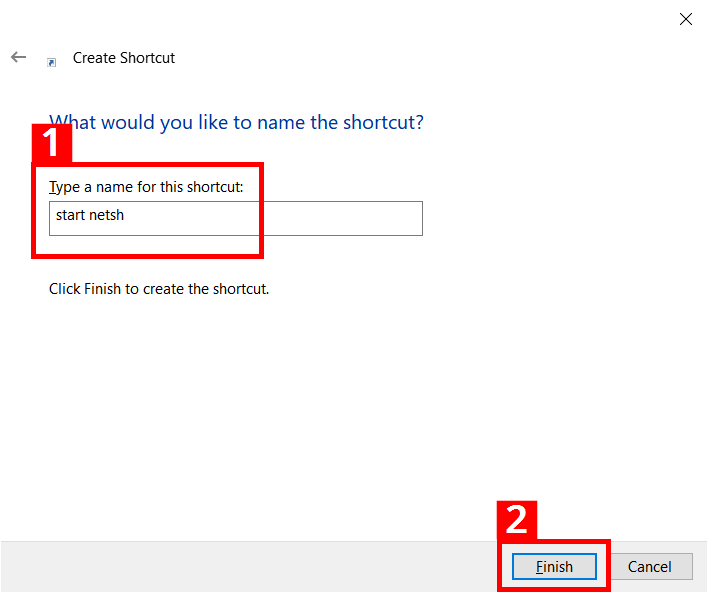
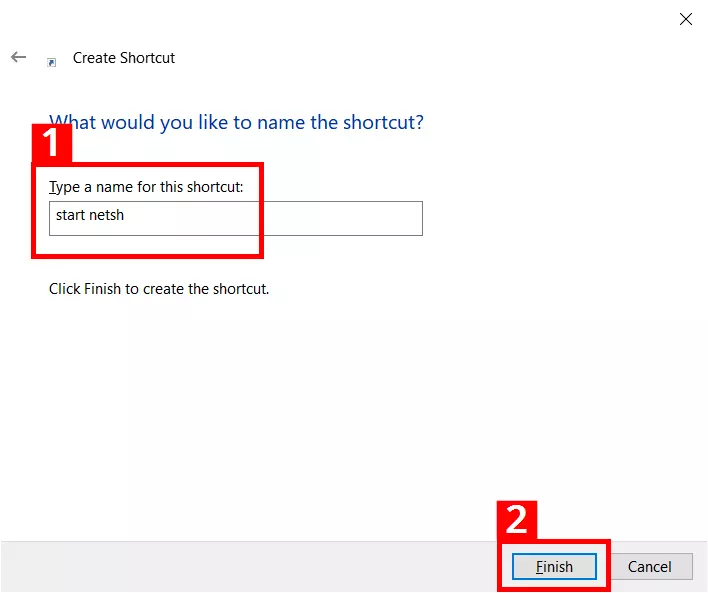
- You should give the shortcut a suitable name (1); the shortcut will then be placed on the desktop after clicking “Finish” (2):
How Netsh works
The service program Netsh provides an extensive command syntax. If you want to complete certain tasks, you’ll need to familiarise yourself with the specific structure of the Network Shell. The structure of the service program is based on contexts that represent various administration levels. Each context encompasses a certain network functionality (e.g. IP, LAN and firewall configuration). The program uses the files of the Dynamic-Link Library (DLL) for context-bound interaction with other Windows components. For instance, Netsh utilises Dhcpmon.dll to change and manage DHCP settings.
To use a context, it’s necessary to switch to it in the command prompt of Windows. For example, the “LAN administration” context is accessed as follows:
- After opening the command prompt, enter “netsh” and confirm with [Enter].
- Then enter “lan” and confirm with [Enter].
- The command prompt will now show the context change: netsh lan>
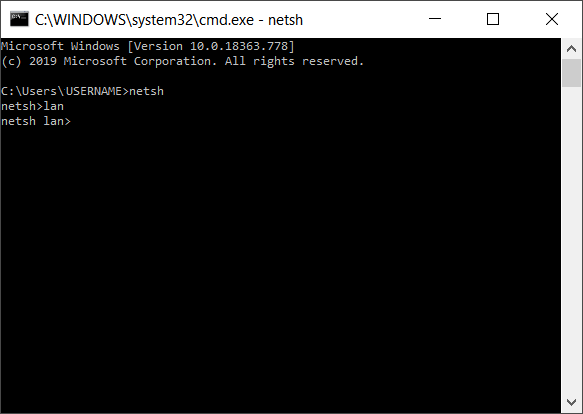
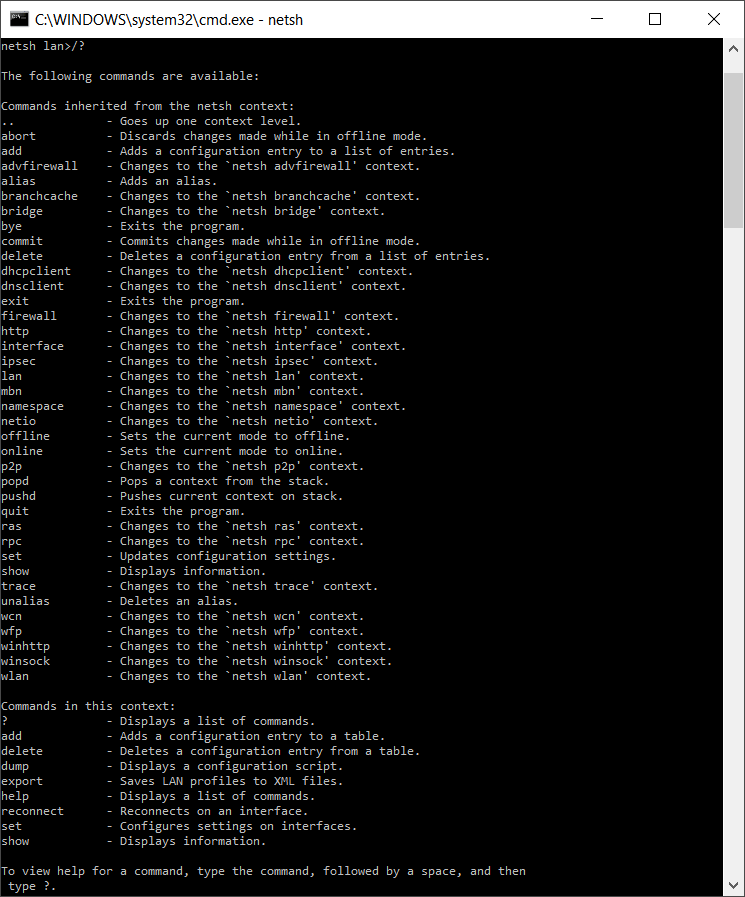
After changing to the “LAN” context, a number of context-specific and cross-context commands will be available. The context-specific commands include “set” (which configures settings at interfaces). An example for a general and cross-context Netsh command is the help command “/?”, which lists the available sub-contexts and commands in each section. Entering it in the “LAN” section will produce the following list of context-specific and cross-context commands:
For instance, if you switch to the firewall context, the associated command reference will look like this:
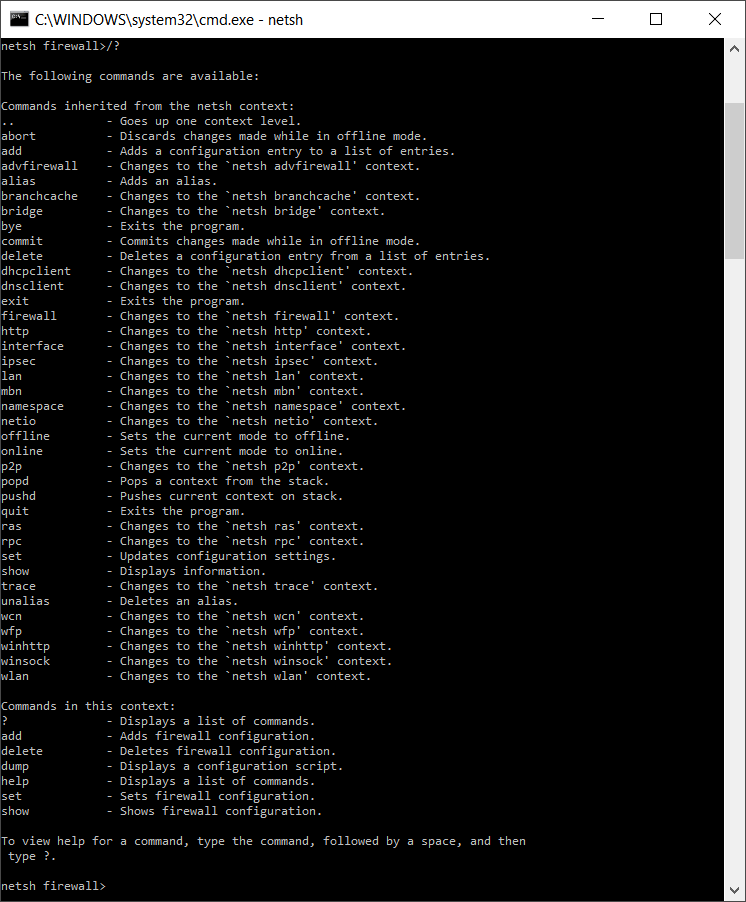
Besides the context-bound structure, there are other special points to consider when using the program. Netsh can either be used in a non-interactive or interactive mode. In the non-interactive mode, for example, important network settings are exported to a text file and reimported for subsequent recovery.
In the interactive mode, direct requests can be initiated. If you enter “netsh interface ip show address”, the current IP address of the computer will be displayed. The interactive mode can be used online or offline. The online model directly implements operations, while the offline mode saves actions and runs them later. The saved actions are activated at the desired time via the Netsh command “commit”.
Netsh commands and their contexts
We’ve summarised the main Netsh commands with a short explanation of the contexts in the table below. In the case of general, cross-context commands, additional explanations are not necessary (right-hand column). Depending on the operating system version and the role in the network (client or server), the available commands may vary in some instances. The command entry on a computer with a Windows Server 2016 data centre is as follows:
| Command | Implementation | Netsh context managed |
|---|---|---|
| .. | Switches to a context level higher | |
| ? | Displays a list of commands | |
| abort | Discards changes made in offline mode | |
| add | Adds a configuration entry to the list | |
| advfirewall | Switches to the “netsh advfirewall” context | Firewall (policies and configuration) |
| alias | Adds an alias | |
| branchcache | Switches to the “netsh branchcache” context | Branch cache settings |
| bridge | Switches to the “netsh bridge” context | Network bridge |
| bye | Ends the program | |
| commit | Applies changes made in offline mode | |
| delete | Deletes a configuration entry from the list of entries | |
| dhcpclient | Switches to the “netsh dhcpclient” context | DHCP client |
| dnsclient | Switches to the “netsh dnsclient” context | DNS client settings |
| dump | Displays a configuration script | |
| exec | Runs a script file | |
| exit | Ends the program | |
| firewall | Switches to the “netsh firewall” context | Firewall (policies and configuration) |
| help | Displays a list of commands | |
| http | Switches to the “netsh http” context | HTTP server driver (http.sys) |
| interface | Switches to the “netsh interface” context | IP configuration (v4, v6) |
| ipsec | Switches to the “netsh ipsec” context | IPSEC policies |
| ipsecdosprotection | Switches to the “netsh ipsecdosprotection” context | Protection against IPSEC denial-of-service attacks |
| lan | Switches to the “netsh lan” context | Wired network interfaces |
| namespace | Switches to the “netsh namespace” context | DNS client policies |
| netio | Switches to the “netsh netio” context | Commitment filters |
| offline | Sets the current mode to offline | |
| online | Sets the current mode to online | |
| popd | Switches to the context saved via pushd in the stack | |
| pushd | Applies the current context to the stack | |
| quit | Ends the program | |
| ras | Switches to the “netsh ras” context | Remote-access server |
| rpc | Switches to the “netsh rpc” context | RPC service configuration |
| set | Updates the configuration settings | |
| show | Displays information | |
| trace | Switches to the “netsh trace” context | |
| unalias | Deletes an alias name | |
| wfp | Switches to the “netsh wfp” context | Windows filtering platform |
| winhttp | Switches to the “netsh winhttp” context | Proxy and tracing settings of the Windows HTTP client |
| winsock | Switches to the “netsh winsock” context | Winsock configuration |
| wlan | Switches to the “netsh wlan” context | Wireless network interfaces |
Syntax parameters for Netsh – what do they mean?
To implement specific actions and tasks, Netsh commands can be given optional parameters. The syntax scheme for the combination of Netsh commands and parameters is as follows:
netsh [-a AliasFile] [-c Context] [-r RemoteComputer] [-u [DomainName\]UserName] [-p Password | *] [command | -f ScriptFile]The following parameters are all optional, so they can be added and used where needed.
| -a | Return to Netsh command prompt after running the alias file |
|---|---|
| AliasFile | Specifies the name of the text file that contains at least one Netsh command |
| -c | Switches to the specified Netsh context |
| Context | Placeholder for the context to be entered (e.g. WLAN) |
| -r | Causes the command to be run on a remote computer; the remote registration service must be executed there. |
| RemoteComputer | Name of the remote computer that is configured |
| -u | Indicates that the Netsh command is run under a user account |
| DomainName\ | Designates the user account domain (the standard value is the local domain if no special domain is specified) |
| UserName | Name of the user account |
| -p | A password can be entered for the user account |
| Password | Specifies the password for the user account that is stated with -u UserName |
| NetshCommand | Netsh command to be run |
| -f | Ends Netsh after running the script file |
| ScriptFile | Script to be run |
Resetting the TCP/IP Stack with Netsh
A common use for Netsh commands is to reset the TCP/IP stack, which provides for the exchange of data packages in networks. In the event of network and internet issues, this measure can help to remove defective or incorrectly configured TCP/IP protocols for example. The following repair command executes a reset and re-installs TCP/IPv4:
netsh int ip resetA protocol file can also be created that logs the changes made:
netsh int ip reset c:\tcpipreset.txtAfter running the reset, the computer will need to be restarted.
Netsh commands can also be used in batch files (*.bat) to automate routine tasks. Find out more in our guide “Removing Batch Files”.
Importing and exporting network settings
Netsh allows you to export current network settings into a plain text file. In case of network problems, a functioning and error-free configuration can then be quickly restored.
In the first step (export), the network configuration is read out, written into a text file (netcnfig.txt)), and saved in the example directory “Network Configuration” on the C:\ drive. Before the first export, you’ll need to manually create the “Network Configuration” folder on the destination drive (Netsh does not perform this step automatically). Then, switch to the command prompt and enter the code below:
netsh -c interface dump>c:\Network Configuration\netcnfig.txtThe following command entry is required for subsequently importing the settings:
netsh -f c:\Network Configuration\netcnfig.txtWindows 10 also supports copy and paste in the command prompt. You can simply copy the command syntax from this article and insert it into the entry window.
IP configuration with Netsh
A prevalent use case for Netsh is changing IP settings. If a computer in the network doesn’t contain a static IP address but an automatically assigned one, the Dynamic Host Configuration Protocol (DHCP) is used. This communication protocol automatically assigns IP addresses to clients in a network, and other required configuration data. This process takes multiple steps:
In the first step, the current settings and names of the available network adapters are requested:
netsh interface ipv4 show interface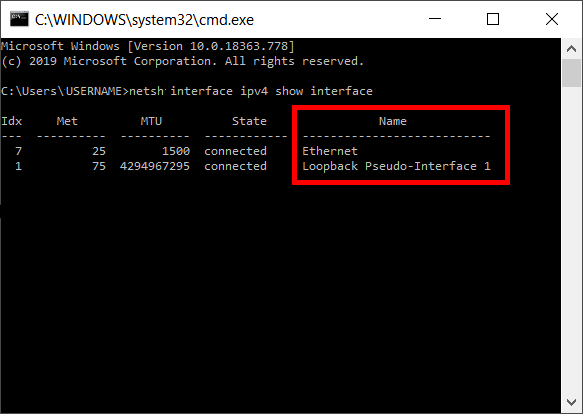
Now a certain LAN adapter (in this case: Ethernet) is determined as the addressee for the IP assignment via DHCP.
netsh interface ipv4 set address name="Ethernet" source=dhcpNext, DHCP applies the dynamic administration for network settings that relate to the Ethernet adapter.
Activating and deactivating Windows firewall
If you wish to activate or deactivate the Windows firewall, all you need is a simple Netsh command syntax. A firewall is activated as follows:
netsh firewall set opmode enableFirewall deactivation requires the following command:
netsh firewall set opmode disableIn some contexts, Windows will recommend alternatives to network administration with Netsh. Here, Windows PowerShell is often suggested and you can find an introduction to it in our Digital Guide.