

netstat commands for Windows, Linux, and Mac at a glance

If you want to obtain information about the network status using netstat commands, you only need to access the command line tool of your operating system in order to do this. In Windows, Linux, and macOS, the procedure required for this differs, as does the application of some netstat commands in the respective operating system.
Ask, create and research with the European alternative to ChatGPT. Robust security and unlimited chats give you peace of mind.
How to use the netstat network tool?
In all common operating systems, both netstat and a corresponding command line tool for running the network service are available by default. In Windows systems you use the well-established command prompt, in Linux distributions and on Mac devices you use the terminal.
Access netstat in Windows
First use the Windows key + [R] key combination. Use this shortcut to access the ‘Run’ tool. Now type ‘cmd’ and confirm the entry via ‘OK’ to start the command prompt.
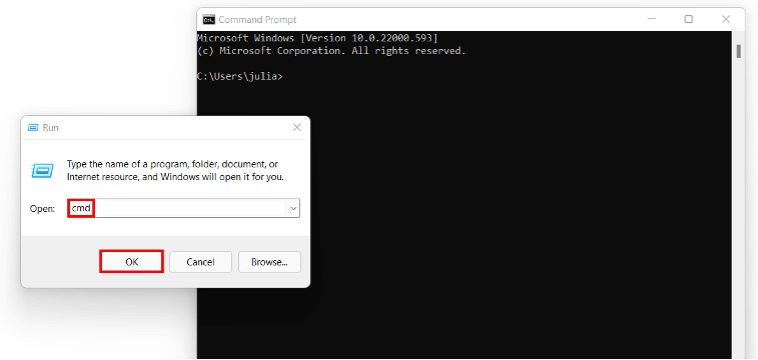
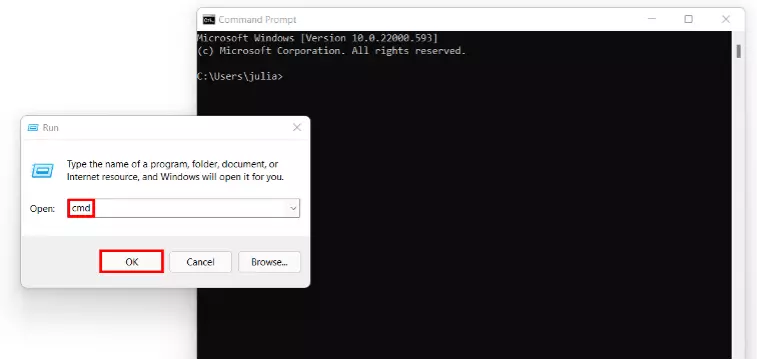
You can then type any netstat command directly into the command prompt and confirm with the Enter key.
Access netstat in Linux
As a Linux user, you enter netstat commands in the terminal. In the popular distribution Ubuntu, there is a factory-assigned key combination to access netstat:
[Ctrl] + [Alt] +[T]netstat is pre-installed up to Ubuntu 16.04 as part of the net-tools package. In newer versions of the Linux distribution, you first have to install the package. To do this, execute the following command: ‘sudo apt-get install net-tools’.
Other distributions like Debian do not have a shortcut by default. However, you can easily search for and launch the command line tool using the search function in the ‘Show applications’ menu (also works in Ubuntu). To do this, simply type ‘terminal’.
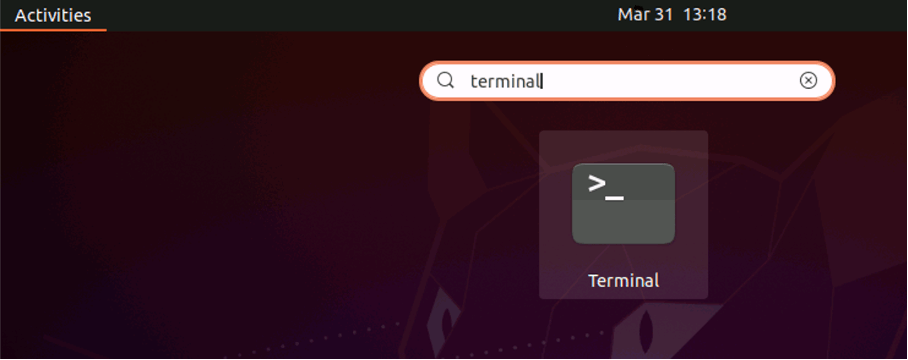

Once the terminal is open, you can execute the desired netstat commands.
Activate netstat in macOS
The terminal is also the command line tool of choice on Mac devices when it comes to executing netstat commands. You have two convenient options for accessing it: The Spotlight Search and the ‘Utilities’ menu.
Using Spotlight search works as follows:
- Open the Spotlight Search by clicking on the magnifying glass icon in the menu bar or using the key combination [Cmd] + [Space].
- Enter ‘Terminal’ in the search field.
- Start the tool by double-clicking on the corresponding search result.
Via the Utilities menu, start the terminal as follows:
- Switch to your desktop.
- Click on the ‘Go to’ item in the menu bar.
- Select ‘Utilities’.
- Open the terminal by double-clicking on the corresponding entry.
These useful netstat commands are available for Windows, Linux, and Mac
Many netstat commands are applicable across systems, since syntax and required parameters do not differ. Here and there, however, there are differences in the commands in Windows, Linux, and macOS. In the following tables we have listed all the important netstat commands for the individual systems.
netstat commands for Windows
| [OPTION] | Command | Description | |
|---|---|---|---|
| netstat | List of all active connections | ||
| info | netstat info | Starts the netstat overview menu | |
| -a | netstat -a | Lists the open sockets in addition to active connections | |
| -b | netstat -b | Displays the executable file involved in creating a connection or listening port (listener) (requires administrator privileges) | |
| -e | netstat -e | Ethernet statistics (bytes received and sent, data packets, etc.) | |
| -f | netstat -f | Returns the ((fully-qualified domain name (FQDN) | domains/domainverwaltung/fqdn-fully-qualified-domain-name/)) of remote addresses |
| -i | netstat -i | Shows how long a ((TCP | server/knowhow/tcp-vorgestellt/)) connection has spent in its current state |
| -n | netstat -n | Displays addresses and port numbers numerically | |
| -o | netstat -o | Presents connections with the associated process ID in each case | |
| -p protocol | netstat -p TCP | Shows the connections for the specified protocol, in this case TCP; also possible: ((UDP | server/knowhow/udp-user-datagram-protocol/)), TCPv6, or UDPv6 |
| -q | netstat -q | Lists all connections: all listening TCP sockets/ports and all open TCP ports that are not listening | |
| -r | netstat -r | Shows the contents of the routing table | |
| -s | netstat -s | Gets statistics about the main network protocols; default: IP, IPv6, ((ICMP | server/knowhow/was-ist-das-icmp-protokoll-und-wie-funktioniert-es/)), ICMPv6, TCP, TCPv6, UDP, UDPv6 |
| -t | netstat -t | Shows the offload status (TCP offload to relieve the main processor) of active connections | |
| -x | netstat -x | Informs about all connections, listeners, and shared endpoints for NetworkDirect | |
| -y | netstat -y | Shows the TCP connection templates of all active connections | |
| Interval | netstat -p 10 | Displays the respective statistics again after a selected number of seconds (here 10); can be combined as desired (here with -p), [CTRL] + [C] terminates the interval display |
netstat commands for Linux
| [OPTION] | Command | Description | |
|---|---|---|---|
| netstat | List of all active connections | ||
| -h, --help | netstat -h | Accesses the netstat overview menu | |
| -r, --route | netstat -r | Shows routing table | |
| -i, --interfaces | netstat -i | Displays information about the network interfaces | |
| -g, --groups | netstat -g | Presents information about the interfaces’ membership in ((multicast | server/knowhow/multicast/)) groups |
| -s, --statistics | netstat -s | Detailed network statistics, divided by protocols (IP, TCP, UDP, ICMP, MPTCP) | |
| -M, --masaquerade | netstat -M | Listing of all currently masked IP connections; only available if IP masking is supported by the system | |
| -v, --verbose | netstat -v | More detailed output; among other things, the netstat command outputs which address families are not configured in the system core | |
| -W, --wide | netstat -W | Prevents IP addresses from being truncated (‘IP trunking’; removing the last character block) | |
| -n, numeric | netstat -n | Outputs numeric addresses instead of resolving the host name | |
| --numeric-hosts | netstat --numeric-hosts | Host names are not resolved | |
| --numeric-ports | netstat --numeric-ports | Port names are not resolved | |
| --numeric-users | netstat --numeric-users | User names are not resolved | |
| -N, --symbolic | netstat -N | Resolves hardware names | |
| -e, --extend | netstat -e | Displays extended information, for example the user that the socket belongs to | |
| -p, --programs | netstat -p | Presents process ID and program name of the respective socket (requires administrator privileges) | |
| -o, --timers | netstat -o | Shows information about timers for packet sending timeouts | |
| -c, --continuous | netstat -c | Ensures that the desired netstat display is continuously updated | |
| -l, --listening | netstat -l | Displays open network sockets/ports | |
| -a, --all | netstat -a | netstat command to show all sockets (connected and disconnected) | |
| -F, --fib | netstat -F | Shows forwarding table (also called Forwarding Information Base, FIB for short) | |
| -C, --cache | netstat -C | Presents the routing cache | |
| -Z, --context | netstat -Z | Displays the ((SELinux | server/security/was-ist-selinux/)) security context for sockets |
| -t, --tcp | netstat -t | Displays only TCP sockets | |
| -u, --udp | netstat -u | Displays UDP sockets only | |
| -U, --udplite | netstat -U | Displays UDP-Lite sockets only | |
| -s, --sctp | netstat -s | Shows only ((SCTP | server/knowhow/sctp-stream-control-transmission-protocol/)) sockets |
| -w, --raw | netstat -w | Displays only RAW sockets | |
| -x, --unix | Nnetstat -x | Displays only UNIX sockets |
netstat commands for Mac
| [OPTION] | Command | Description |
|---|---|---|
| -A | netstat -A | In combination with the standard display; shows the addresses of all protocol control blocks connected to sockets |
| -a | netstat -a | In combination with the standard display; shows the status of all sockets |
| -b | netstat -b | In combination with the interface display; presents number of incoming and outgoing bytes |
| -c Queue | netstat -c Queue | In combination with the queue display -q; displays information only for the queue specified in the netstat command |
| -d | netstat -d | In combination with the interface display; informs about the number of dropped packets |
| -f address family | netstat -f inet | Limits statistics or reports on address control blocks to hits with the specified address family (here: inet or IPv4); other options: inet6, unix |
| -g | netstat -g | Presents information about the interfaces’ membership in multicast groups |
| -I Interface | netstat -I Interface | (capital i) Displays information exclusively for the specified interface |
| -i | netstat -i | Displays all available, automatically configured interfaces |
| -L | netstat -L | Displays the size of the different queues; number 1: rejected connections, number 2: rejected incomplete connections, number 3: maximum number of connections in queue |
| -l | netstat -l | (small L) Presentation of the complete IPV6 address |
| -m | netstat -m | Statistics recorded by memory management routines |
| -n | netstat -n | Numerical display of network addresses |
| -p protocol | netstat -p TCP | Displays statistics only for the specified protocol (here: TCP); a list of available protocols can be found in the /etc/protocols directory |
| -q | netstat -q | Displays the queue statistics of the network interface |
| -r | netstat -r | Presents the network routing tables |
| -R | netstat -R | Gives information about the reachability |
| -s | netstat -s | Summarises the information for each protocol separately; if this option is repeated, counters with a status of ‘0’ are not considered again |
| -v | netstat -v | More detailed report; among other things, the process ID for each open port is now displayed as well |
| -W | netstat -W | Prevents IP addresses from being truncated (‘IP trunking’; removing the last character block) |
| -w waiting time | netstat -w 30 | Reprints network interface or protocol statistics at intervals of ‘X’ seconds (here: 30) |
| -x | netstat -x | Presents extended link layer reachability information in addition to what is displayed via -R |
netstat commands: Example
With the help of the individual parameters from the above tables you can check the status of the active connections and open or closed ports and interfaces in detail. Of course, you can also combine different netstat commands directly with each other, as in the following cross-system example:
netstat -anBy combining the -a and -n parameters, you automatically get the status of all active and inactive sockets, with all addresses rendered in numeric form.
A more detailed overview of the basics and syntax of netstat is provided in our article ‘Introduction to netstat’.
Reviewer

Christian Heldmaier
Christian Heldmaier is an experienced online marketing and SEO specialist from Karlsruhe. He has been working as an SEO Manager at IONOS since July 2020.