

What are the advantages of breadcrumb navigation?

Breadcrumb navigation is an important element of user guidance on websites and apps. It helps users identify their current location within the site structure and quickly navigate back to higher-level pages.
What is breadcrumb navigation?
Who doesn’t remember the classic Grimm fairy tale ‘Hansel and Gretel’? Two siblings, abandoned in a forest, leave a trail of breadcrumbs behind them to find their way back home. The children end up in the clutches of a man-eating witch but manage to escape and find their way out of the woods. So what does this dark tale have to do with web design? It’s simple: the World Wide Web—especially complex websites—can feel like a vast, dark forest. When navigating large online stores or sprawling web portals, users can sometimes feel just as lost and wish they had breadcrumbs to help them easily find their way back to higher-level pages.
Breadcrumb navigation is a secondary navigation element, which is used to support the usual menus found at the top of a website. It provides better orientation for users in a number of ways. On the one hand, breadcrumb navigation allows the user to always see where they are on the website, and on the other hand, it also typically indicates which path leads to higher-level areas. ‘Breadcrumb trails’ represent the individual stations logically, successively, and usually hierarchically. Users move from the homepage via the category pages to the concrete content. The breadcrumb trail offers links to all these stations. This allows users to understand the structure of the website and go back with just one click.
- Choose the right software
- Plan your blog with our checklist
- Share your ideas with the world
Types of breadcrumb navigation
As such, breadcrumbs on websites fulfil the same function as the breadcrumbs in the fairytale – with the crucial difference that the breadcrumbs cannot be picked away by birds, which is what happens to Hansel and Gretel in the story. There are various representations of breadcrumb navigation: arrow symbols or the greater than sign (>) are widespread, act as a separator, and represent the hierarchy of the website. Arrow-shaped graphic buttons are also commonly used. This typically results in a path that follows a structure similar to the following:
Home > Category > Current Position
On particularly complex pages, users often navigate through multiple categories and subcategories between the homepage and their current location. In such cases, breadcrumb navigation is referred to as a location breadcrumb because it represents both the starting point and the hierarchical path leading to the current page. A less common alternative is the path breadcrumb, which reflects the actual sequence of clicks a user has taken—regardless of the site’s structure. This can be confusing on complex websites, as the path may appear erratic or inconsistent. A path breadcrumb maps the user’s browsing behavior across the site, even if it involves jumping between unrelated sections. This type of breadcrumb might look like the following:
Home > Category 1 > Home > Category 3 > Category 2 > Home
A third variant are category- or attribute-based breadcrumbs. These are often found in the e-commerce sector, particularly online shops. They show the user which category the currently open page belongs to, and its attributes. At the same time, it collects meta-information. For example, a pair of jeans is a category of trousers, but it can also have the attributes ‘blue’ and ‘size 32’:
Home > Clothing > Menswear > Trousers > Jeans > Blue > Size 32
There are three main types of breadcrumbs: location, path, and category or attribute breadcrumbs. Location breadcrumbs show the user’s current position within the website’s hierarchy, while path breadcrumbs reflect the specific navigation path the user has taken to reach the current page. Attribute breadcrumbs, on the other hand, highlight the selected categories and filter options.
Breadcrumb navigation and usability
At this point, some people might be asking themselves what breadcrumb navigation is really useful for. After all, there are already menu bars that we navigate through. Every current browser also has buttons for scrolling back and forth. These aspects make it possible to navigate a site, but in some cases they can be cumbersome and complicated.
One of the key principles of good user experience design is: the fewer clicks users need, the better the experience. This rule is especially important when it comes to navigation. Few things are more frustrating than having to constantly hit the browser’s back button or navigate through the main menu from scratch. Breadcrumbs help solve this issue by always showing users exactly where they are on the website. Compared to a single navigation menu, a breadcrumb trail makes the site’s hierarchy and structure much clearer and easier to follow.
Even if users land on a target page via an external or internal link—without clicking through from the homepage—they can instantly see where they are by glancing at the breadcrumb navigation. It also encourages users to explore the site further and reduces the risk of them bouncing. The parent category is just one click away, and there’s no need to start a new search thanks to the breadcrumb trail. This feature also helps retain users who arrived on a subpage through external websites or search engines.
Breadcrumb navigation from an SEO perspective
What’s good for users is also good for search engines. This core principle of online marketing applies to breadcrumb navigation as well. Google now often displays breadcrumbs in its search results (SERPs) instead of long, cluttered URLs—though since 2025, this no longer applies to mobile devices in order to maintain clarity on smaller screens. Clearly, search engines view breadcrumbs as a positive signal. Even before clicking on a result, users can see what to expect and which category the page belongs to.


Looking at the labels of individual breadcrumbs, the second major SEO benefit becomes clear: breadcrumb navigation offers the perfect opportunity to create natural internal links enriched with relevant keywords.
A logically structured web design with breadcrumbs not only makes navigation easier for users, but also helps search engine crawlers understand the structure and relevance of a website. Crawlers follow internal links and index the pages they find. Ideally, this results in a better ranking for the site. For users, improved navigation can lead to longer time spent on the site—and both session duration and bounce rate are important ranking factors for search engines.
The dos and don’ts of using breadcrumbs properly
Breadcrumb navigation can improve the usability and even search engine ranking – provided it is properly integrated, sensibly placed and offers added value. In the following examples, we outline the dos and don’ts of breadcrumbing using examples:
Breadcrumbs must offer added value
There are only a few cases where breadcrumb navigation can actually cause confusion—one of them is when it serves no real purpose. Websites with a shallow structure and only one or a few pages don’t need breadcrumbs. In such cases, navigation is handled through the main menu or the page header. In contrast, the breadcrumb navigation on the Adidas website is a good example of how this feature can be both useful and add real value.
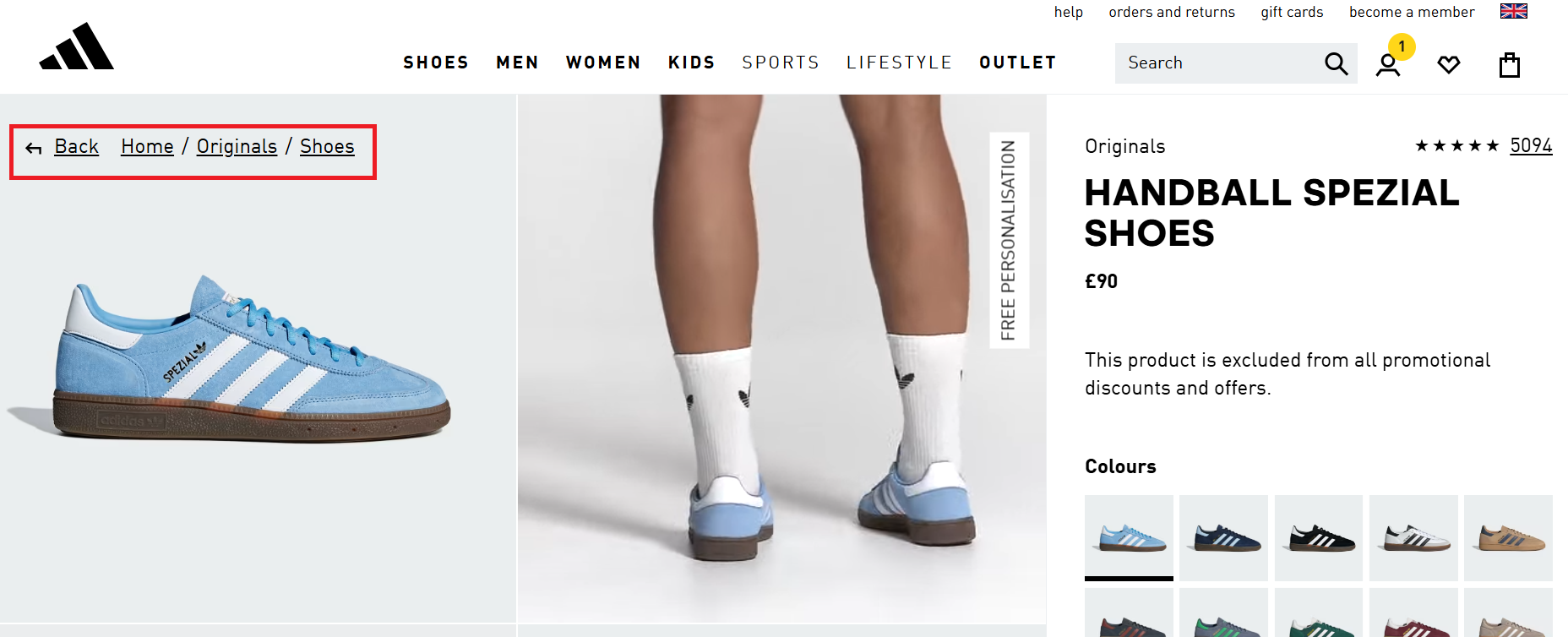
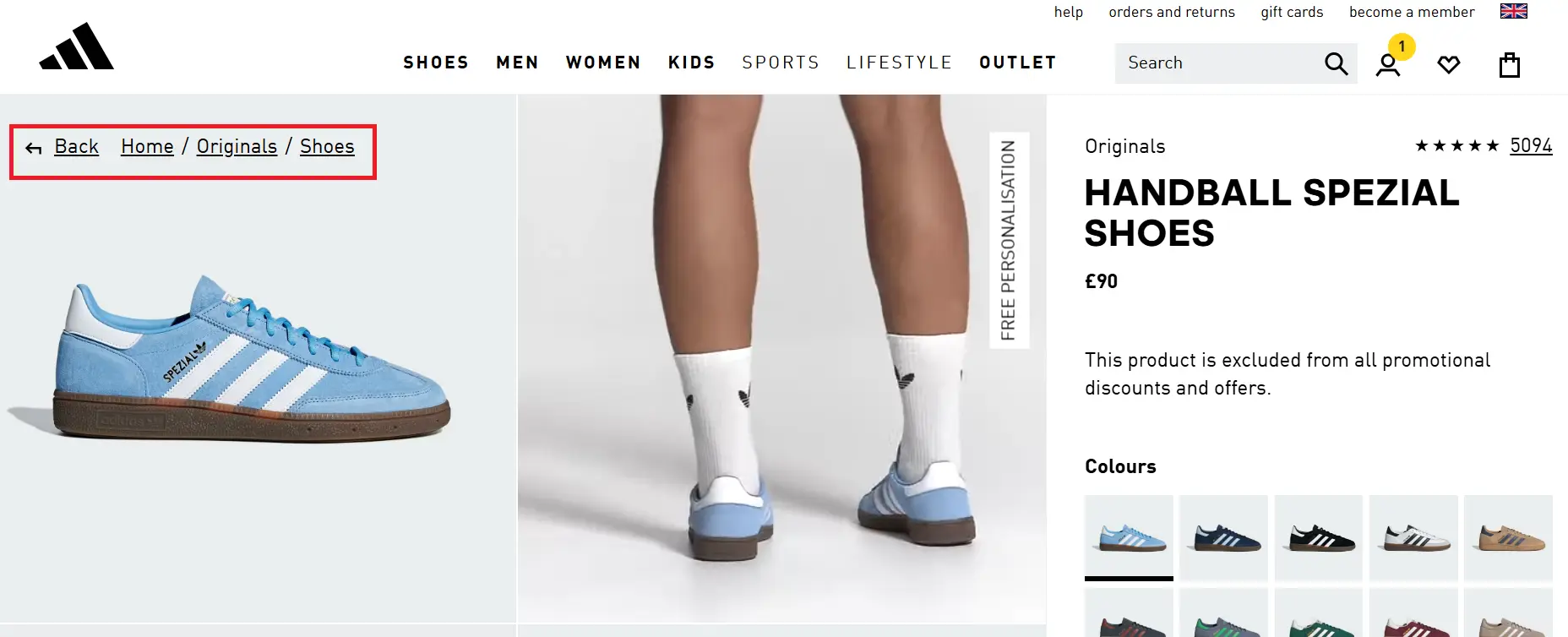
In the Adidas online store, breadcrumb navigation is a valuable addition because the more complex the search queries, the more important it is for users to easily reset their search. It also ensures that users always know where they are on the site and which filters are currently active.
Breadcrumbs must be logical and should not be confusing
Websites that offer too many navigation options risk overwhelming their users. Redundancy is especially problematic. While breadcrumbs are generally subtle and integrate well into most designs, they don’t provide any real value if they simply duplicate the function of the main navigation menu. Double doesn’t always mean better. But it’s a different story in this positive example. On the Envato Tuts+ website, real value is added, and the breadcrumb trail is subtly and clearly integrated. The breadcrumb navigation is completely logical, easy to follow, and fits seamlessly into the overall site design.


Less well-designed solutions confuse users with completely illogical breadcrumb trails. In some, for instance, only the homepage appears in the path—there is no parent category. The trail simply reflects the current page. The clickable link is equally pointless, as it redirects to the page the user is already on. Without context, this position indicator offers little added value and may even cause more confusion by linking to the current page.
Breadcrumbs also shouldn’t be too long, as they can clutter the interface, overwhelm users, and reduce clarity—especially on mobile devices. Only key levels should be shown to avoid redundancy and minimise cognitive load. Overly detailed trails can also harm usability and SEO. Ideally, breadcrumbs should be concise, relevant, and limited to 3–4 levels, with the current page shown as plain text.


Breadcrumb navigation supports the primary navigation, it does not replace it
Breadcrumb navigation should only be used as a support and supplement to the main navigation. They should be kept small, so as not to distract from the actual content. It should not overshadow the primary navigation tool, and it should only serve as fine-level navigation and fast-paced orientation. Only in rare cases—such as on the Tesco website, where breadcrumbs function as a visual divider—does a more extensive breadcrumb setup enhance usability.
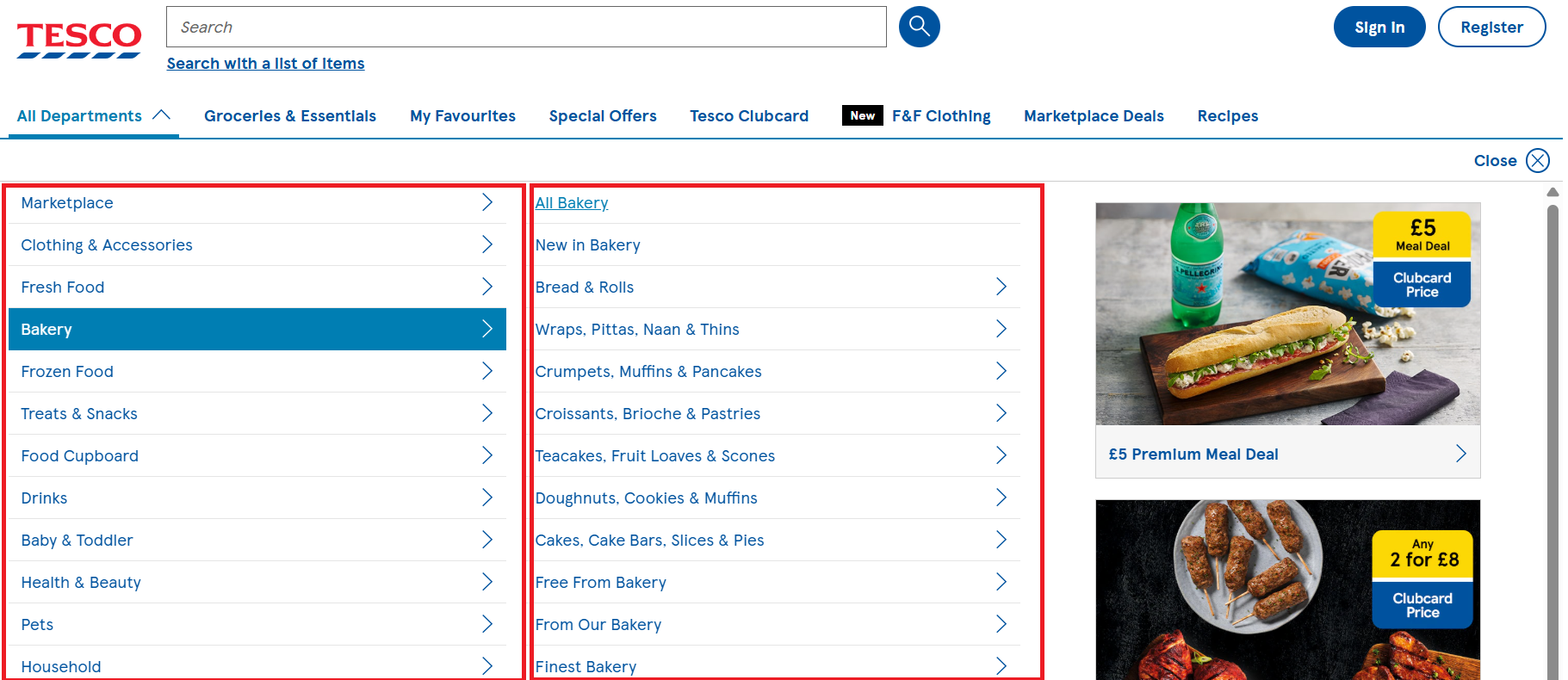
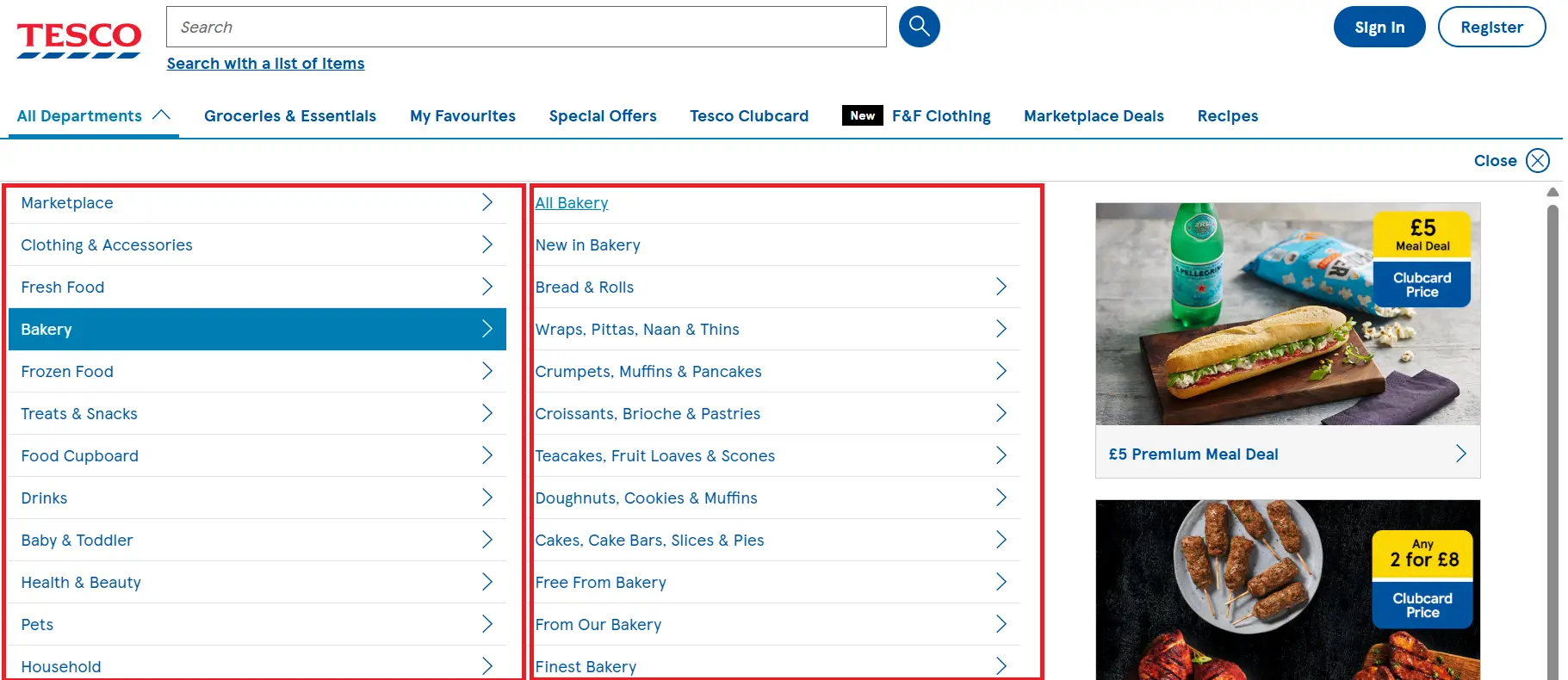
Critics of breadcrumb navigation might argue that, in cases like this, it reflects poor web design and highlights the site’s lack of clarity. However, a closer look at the Tesco screenshot quickly reveals how cumbersome navigation would be without breadcrumbs. The online platform features options across a wide range of categories that users can browse through. Its structure runs deep, starting from the homepage and branching out into various subcategories. Breadcrumb navigation helps users stay oriented within these layers. It also speeds up selection and allows for quick jumping between categories.
How can breadcrumbs be implemented?
There are several ways to create breadcrumbs, depending on your needs and the CMS you’re using. One of the simplest methods is to build breadcrumbs using HTML. You can then customise their appearance with CSS. The following code example demonstrates how to implement breadcrumbs with HTML:
<nav aria-label="Breadcrumb">
    <ol>
        <li><a href="/index.html">Home</a></li>
        <li><a href="/ebene1.html">Level 1</a></li>
        <li aria-current="page">Subitem of Level 1</li>
    </ol>
</nav>In the code example above, the location of the current position is the only missing aspect for a logical, location-based navigation system. No further hyperlink is required, since you are already at this location.
The aria-label attribute is a feature from the ARIA specification (Accessible Rich Internet Applications) and is used to provide screen readers with additional descriptions for an element, helping to improve accessibility.
To make breadcrumbs more search engine friendly, you can optionally use microdata, RDFa or JSON-LD. When breadcrumbs are semantically marked up in the source code this way, search engine crawlers can read them — making it possible to display them as rich snippets in the SERPs.
In addition to implementation via HTML and CSS, there are several other ways to add breadcrumbs. The simplest option is often through content management systems (CMS), where implementation is typically quick and only takes a few clicks in the backend. For CMSs that don’t offer built-in solutions, suitable plugins are usually available. With PHP or JavaScript, it’s also possible to integrate breadcrumb navigation into dynamic websites.
- Get online faster with AI tools
- Fast-track growth with AI marketing
- Save time, maximise results