

The best Photoshop alternatives

Adobe Photoshop is a photo editing software that comes as part of the Adobe Creative Cloud (previously known as the Adobe Creative Suite). This collection of graphic and design programmes, available for MacOS and Windows, is incredibly popular worldwide – but it’s not cheap. The collection’s centrepiece, Photoshop, boasts one of the most impressive ranges of functions in design programmes, so it’s no surprise that it remains the industry standard despite its high price. But there are alternatives to Photoshop that offer similar features for a much more affordable price.
Why bother with Photoshop alternatives?
Although there are few programmes that can get close to the quality that Adobe Photoshop offers, the price of the software often comes into discussion. Adobe has kept the price for its suite pretty consistent over the years, while offering more limited packages at cheaper prices to attract non-professional users to its photo editing software. But when you consider that there are a number of free-to-use photo editing programmes, Photoshop is undoubtedly expensive. And the stress of integrating Photoshop into the Creative Cloud, as well as the associated subscription costs for software usage, can be enough to put off many private users. Similarly, the fact that Photoshop is designed for professional use and can be difficult to get to grips with is a deterrent for many beginners. Photoshop files are also very large, and the programme’s numerous special functions add to the high demands that the software places on hardware. All this means that self-employed photographers or web designers often opt to purchase the Photoshop Lite package, or try out a cheaper alternative to Photoshop.
Which Photoshop alternatives are there?
Photoshop is without doubt the most complete photo editing programme, and its recognisable branding means that it’s considered the first stop for anyone looking to touch up their photos and images. In fact, ‘to photoshop’ has since become a common verb used to describe any digital editing of images – regardless of whether the ‘photoshopping’ was actually carried out on Photoshop or not. So if you’re looking to photoshop your images using a good Photoshop alternative, here are a list of some of the top competitors who still offer the functions you can’t do without.
GIMP
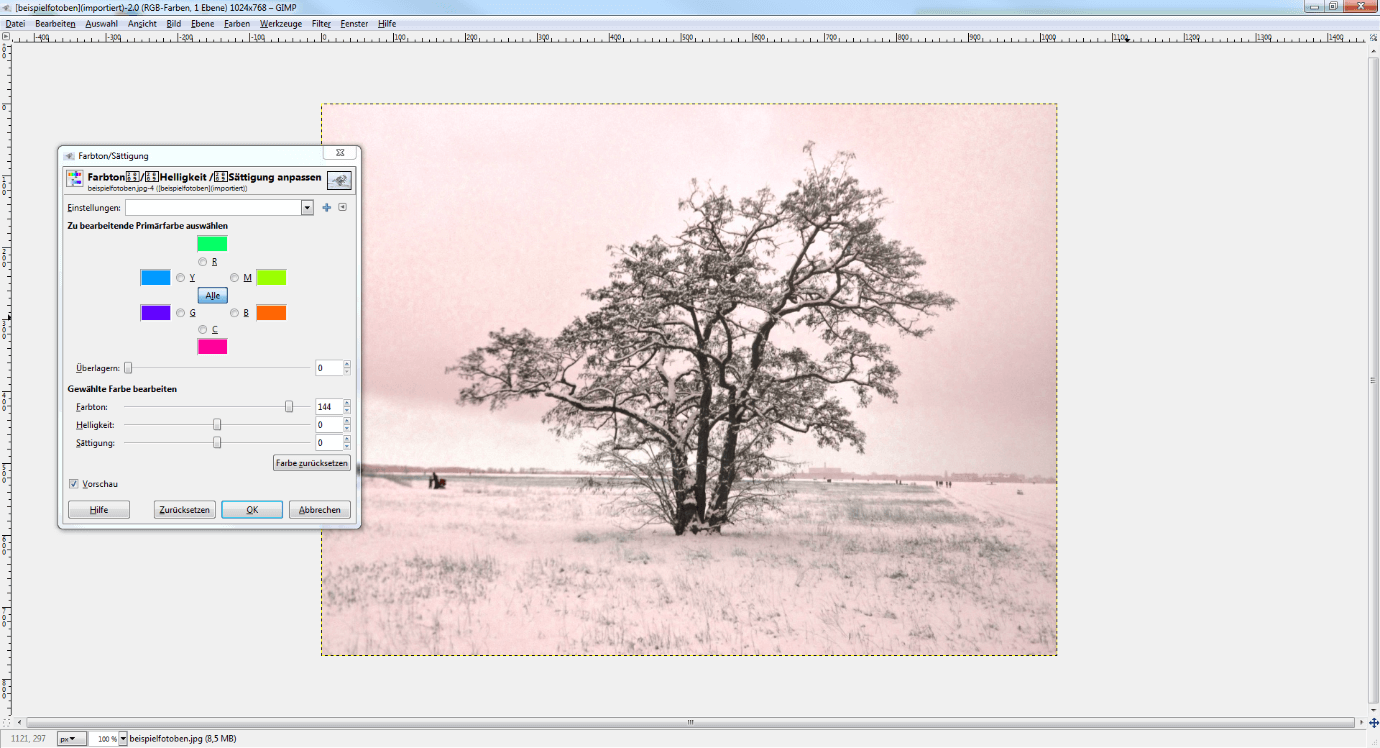
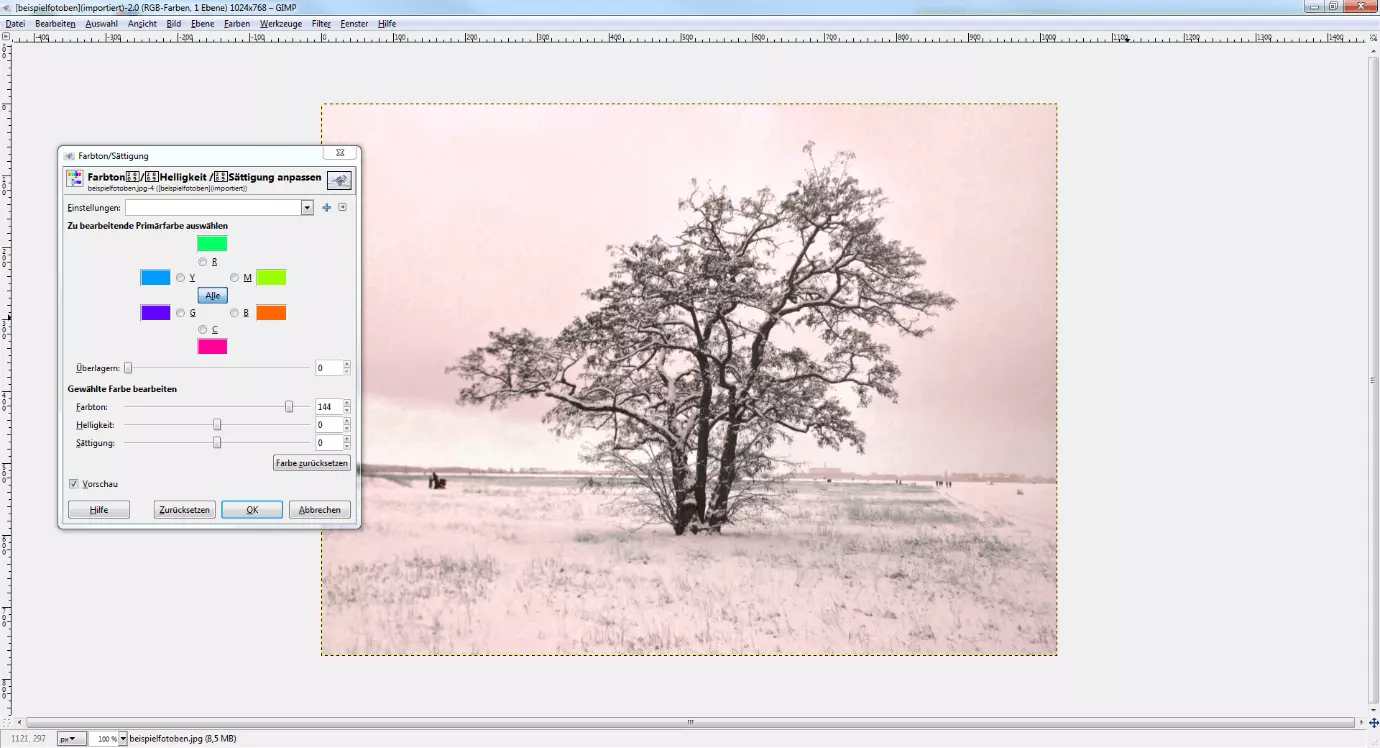
The GNU Image Manipulation Program, known as GIMP for short, is an open source application that can be used for editing photos and images. GIMP is, of course, compatible with Windows and MacOS, but unlike Photoshop, GIMP also works with Linux. All necessary files for installation can be found on the producer’s website gimp.org. Thanks to the free software code and the plugin system, GIMP is an application without limits – which has led to a constant increase in the range of functions over the years. If you’re using the software as a beginner, you won’t find any limitations to GIMP compared to Photoshop, and you’ll also be able to access a wide range of user forums and tutorials. All the essential functions for photo editing can be found through the various toolbars, dialogue windows, and menus; you can also customize the interface to suit your needs and requirements. The performance spectrum for GIMP is more than satisfactory – especially considering the fact that this image processing software is a free alternative to Photoshop. You can access tools for automatic or manual correction, numerous filters and frames, and many more. GIMP can also be used to rotate and crop images/photos as desired, adjust colour and contrast, or add effects, like blur or sepia. And don’t worry if you go wrong – the ‘undo’ function allows you to return to previous versions of the file instantly. For more complex tasks, users have the option to work with multiple layers. But one difference between GIMP and Photoshop is that the open source image editing software is destructive: The original doesn’t remain as a background level as it does in Photoshop – instead, it’s a direct component of the editing process. The disadvantage then, is that each working step will mean a significantly higher loss of pixels than on Adobe’s software, and that lower levels of the image editing process will be less noticeable in the final result as more levels are added. GIMP is also known to crash – and doesn’t react brilliantly to these crashes. Indeed, one thing the programme lacks is an intermediate memory cache function. But a constant problem that’s plagued previous GIMP versions, the maximum colour depth of 8 bits per colour channel, should be a thing of the past with the latest GIMP version: Now, all GIMP designs are now supported with 32 bit.
| Advantages | Disadvantages |
|---|---|
| ✓ Similar performance to Photoshop | ✗ Complex to use |
| ✓ Numerous plugins available | ✗ Requires intensive tutorials/training |
| ✓ Large community | ✗ Only limited processing of PSD possible |
| ✓ Multi-layered work possible | |
| ✓ Images can be stored as PDFs | |
| ✓ Plugins for use in CMYK available |
Paint.NET
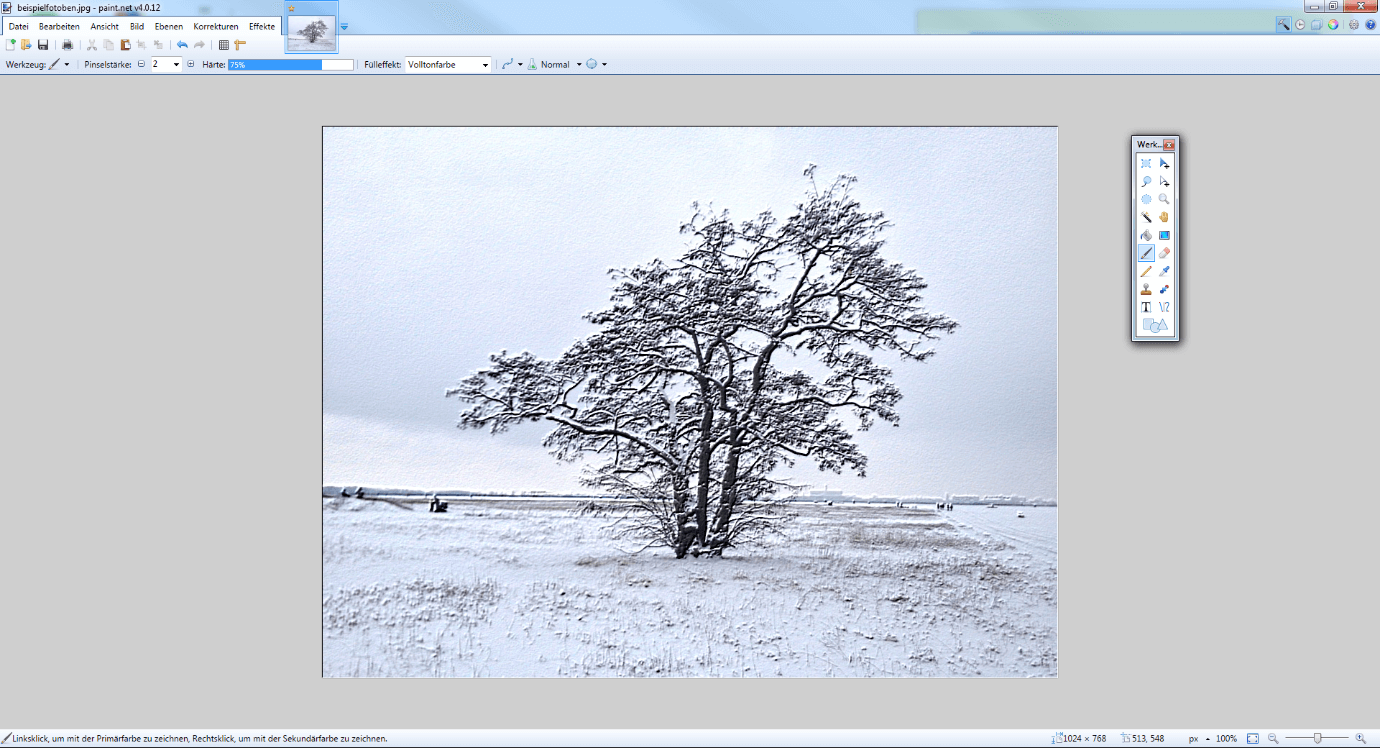
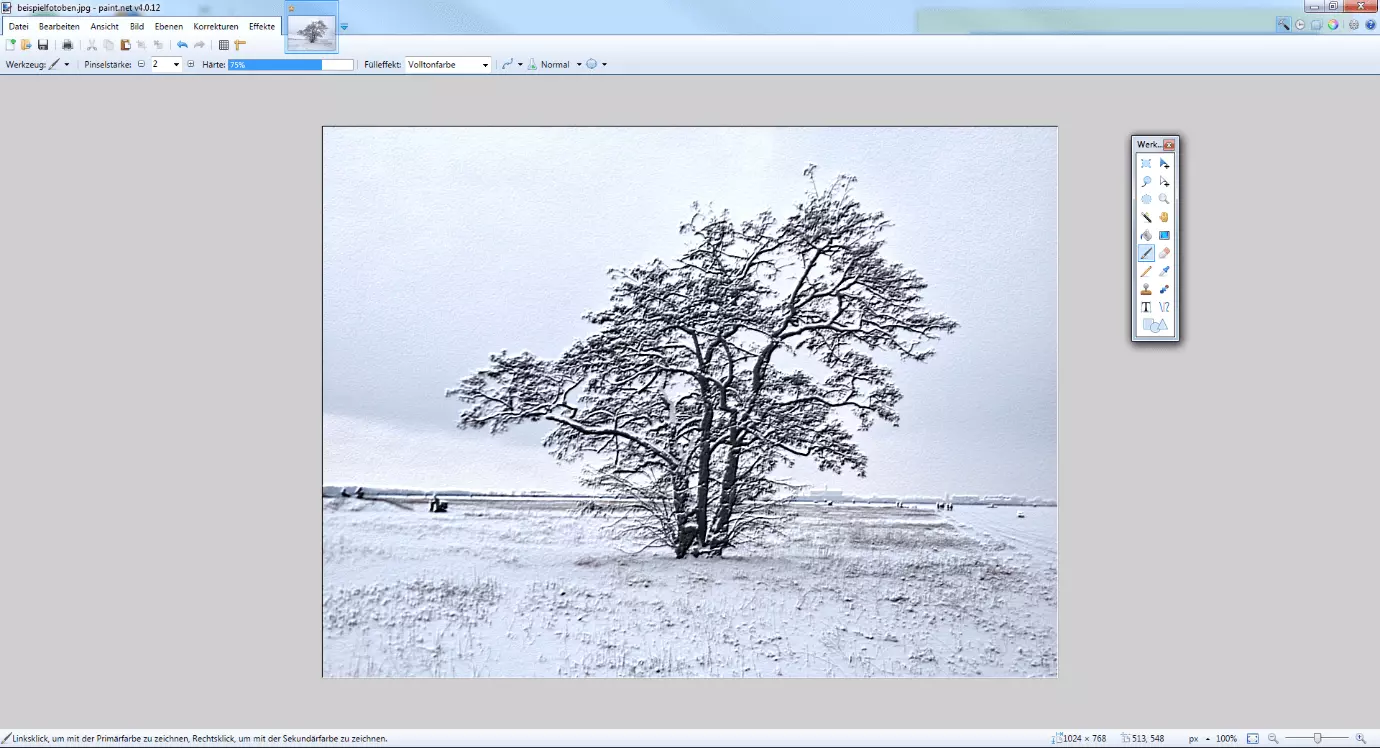
The freeware (previously open source) software Paint.NET was originally programmed by students and has since been developed by its current owners Microsoft. To use the latest version of Paint.NET, you’ll need the Windows 7 operating system – unfortunately the photo editing software isn’t compatible with other systems like macOS or Linux. The menus are inspired by Photoshop, but have been adapted for clarity and usability purposes. The list of tools on the left-hand side includes many famous tools, like lasso, brush, geometric objects, or the magic wand. All in all, there are only a few less than Adobe Photoshop offers. Paint.NET offers a diverse range of options for editing images and photos: cropping, colour and contrast changes, and many special effects are readily available. There are also more than 32 different filters available for quick fixes like eliminating red eye or transforming a standard photo into a magnificent oil painting. Accidental changes are collected in versions as a history and can be easily undone with the ‘undo’ function. And unlike Photoshop, this software history isn’t limited to the last 1000 changes – it stores unlimited versions of your edits. Paint.NET also allows you to edit images in different levels, but, like GIMP, the program is destructive, meaning that every change alters the original image. Edited files can be exported in 8 different formats: PDN, BMP, PNG, GIF, JPEG, TIFF, TGA, and DDS – the only key file type missing is PDF. One downside is the tool portfolio, particularly in comparison to GIMP or Pixlr Editor. The basic installation of Paint.NET only offers a modest selection of tools and effects. But thanks to the active, programing-friendly community, this basic package can be extended with many plugins. Some of these offer useful effects, while others enable the opening of other file types, like Photoshop files (PSD). There’s even a CMYK filter plugin. The freeware, and all available extensions, are available on the official homepage getpaint.net for download.
| Advantages | Disadvantages |
|---|---|
| ✓ Active community with many plugins to extend functionality | ✗ Only available for Windows |
| ✓ Multi-layered editing | ✗ Limited range of functions in the basic installation |
| ✓ Manual resolution definition | ✗ No PDF file export possible |
| ✓ 8 different file formats |
Photoscape
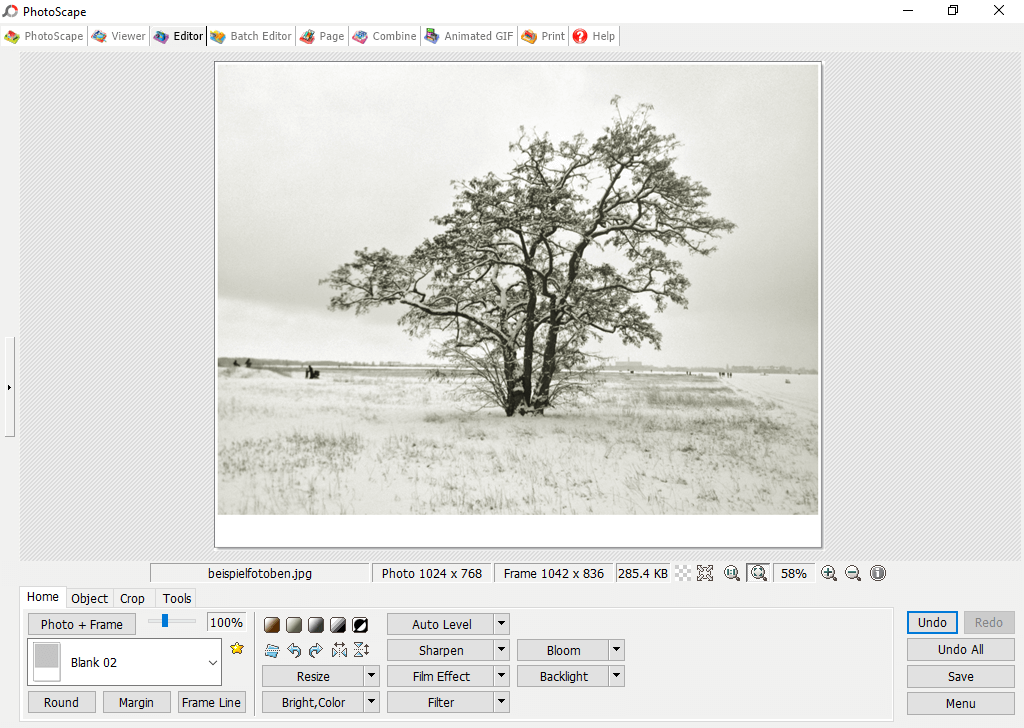
One practical tool for managing, viewing, and processing digital photos is Photoscape. This graphics programme ties with GIMP for the most popular free alternative to Photoshop, and is most commonly used by amateur photographers. Its simplicity of use and a solid range of functions for private and semi-professional users are its winning functions. Photoscape offers numerous basic functions to help you edit and retouch photos. You can crop and reshape images, add different effects, paste other objects in, and correct brightness, contrast, and colour. There’s also a useful function that allows you to crop, rename, or correct several photos at once with batch processing. Creating posters, collages, or animated GIFs is quite straightforward, too. Photoscape allows you to convert RAW files to JPEG, and also supports RAM and PNG formats. The various print layouts for portraits, business cards, passport photos, and more, are also practical and easy to use.
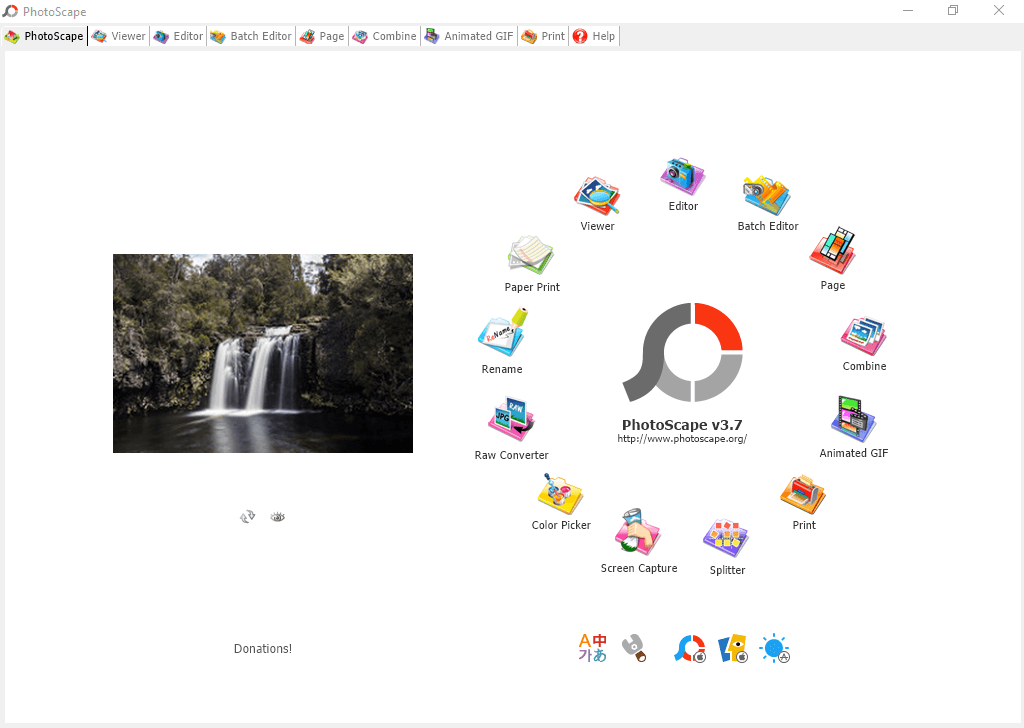
The Photoscape project team have made their tool available to download for free, financing the development through free donations. The small and streamlined free version is available for macOS and Windows. Admittedly, Photoscape isn’t the quickest tool on the market, and professional users will quickly realise they’ve maxed-out the limits of what they can achieve with the programme. Additionally, while the interface is clear and easy to navigate, the presentation isn’t exactly modern and innovative. But for day-to-day use, this simple image processing software is a good option and an attractive alternative to Adobe Photoshop for private users.
| Advantages | Disadvantages |
|---|---|
| ✓ Many functions for everyday edits | ✗ Low performance |
| ✓ Easy to understand and navigate | ✗ Fairly unattractive interface |
| ✗ Adware in the installer | |
| ✗ Multi-layered editing not possible |
Pixlr Editor & Express
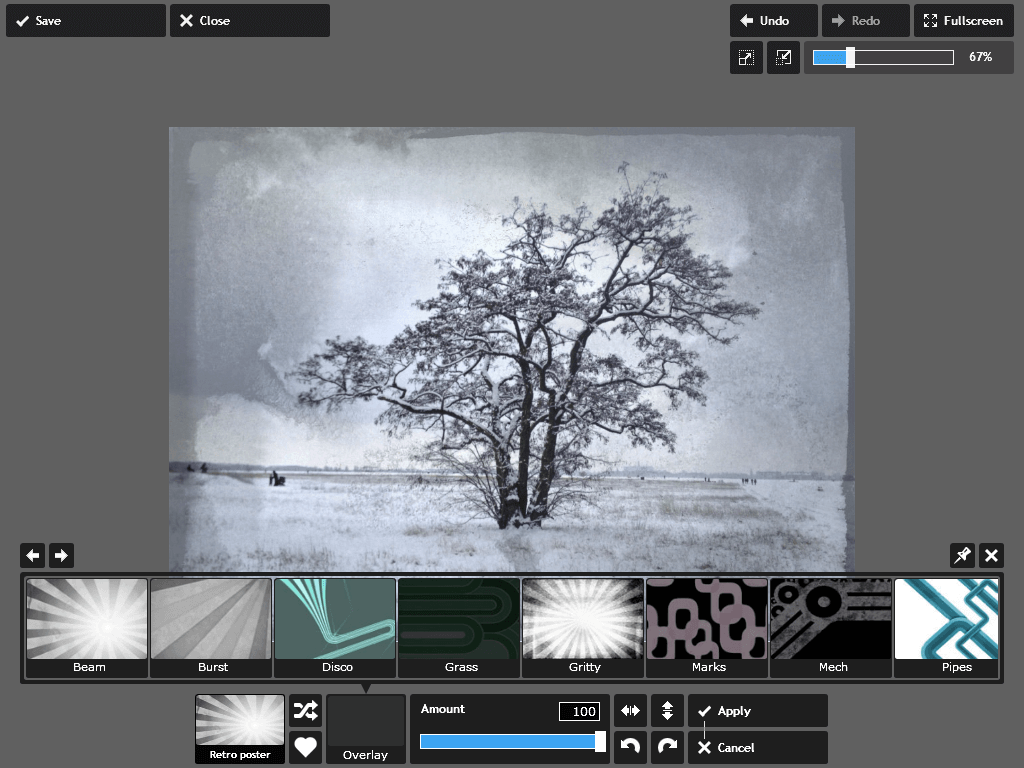
The website for Pixlr offers two tools for different application purposes: Pixlr Editor and Pixlr Express. Both tools are available as web apps and desktop versions (for Windows and macOS), as well as mobile apps for iOS and Android. The web version allows quick, web-based edits of images – without installing any software or even registering. You can simply upload an image into the browser and edit it directly from there. Pixlr’s main focus is its online service, which is tailored to users who plan on using their new edits online. The tool automatically prints processed images at a resolution of 96 dpi – the ideal size for image material optimised for online display.
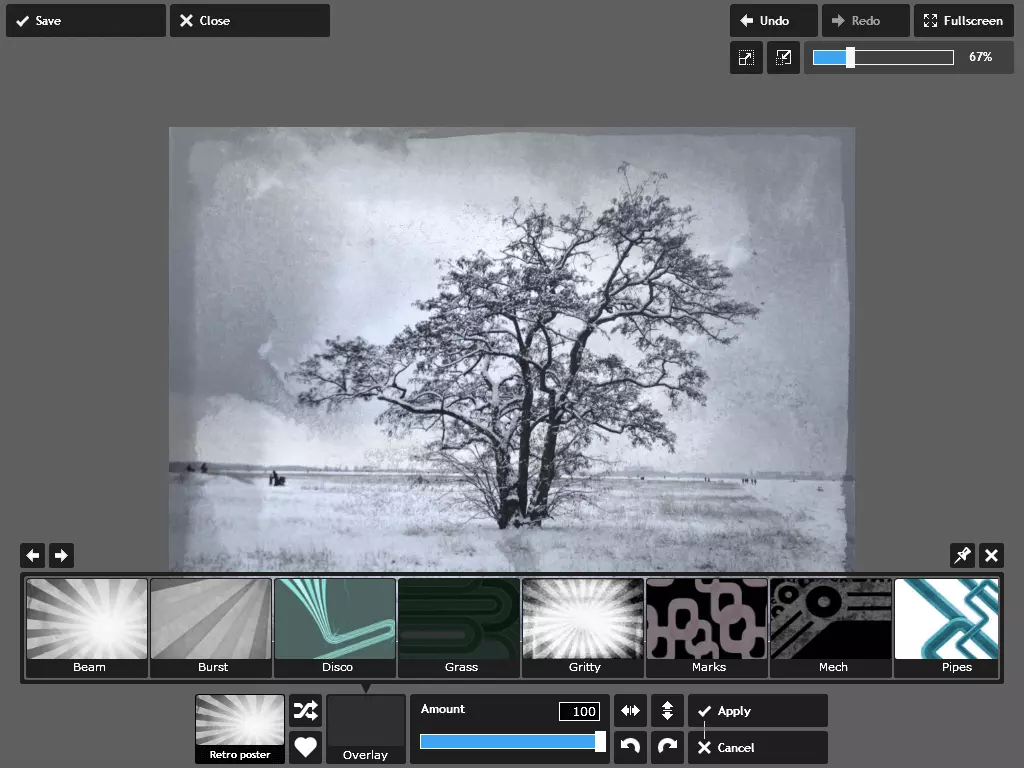
Pixlr Express enables you to create quick but varied image edits. The tool is easy to use and offers a great selection of effects and tools to help you create stunning overlays, frames, and many other features. But the drawback is that you can only save your files in JPEG format.
If you’re looking to do more advanced edits and require a greater range of functions, then the Pixlr Editor goes a step further, and might be a better match. Along with the standard filters and editing options, like brushes, selection tools, and correction tools, the Pixlr Editor offers almost everything that Photoshop lovers desire: Retouching images, working in layers, using gradient curves, separating images, correcting colour (both for the image and in tonally) – no problem. A total of more than 25 professional image processing features are available on the editor.
But there are of course limits to web tools. The standard resolution offered isn’t ideal for everyone, and you can’t work in a CMYK colour space. When it comes to formats, you can choose between JPEG, PNG, TIFF, BMP, and Pixlr’s own PXD format.
The Pixlr Editor isn’t a fully blown, like-for-like Photoshop alternative, but it’s certainly a good image editing programme that can be particularly useful for hobbyists or beginners. There are also many good tutorials and help pages online to help you to get to grips with the software quickly and easily.
If you want to get an idea of what you can achieve with Pixlr, there are endless examples on the web page ‘Made with Pixlr’.
| Advantages | Disadvantages |
|---|---|
| ✓ Web-based, available as a mobile app or on desktop | ✗ Can only store files in image formats |
| ✓ Simple, straightforward editing with Pixlr Express | ✗ No CMYK mode |
| ✓ Wider range of tools on the Pixlr Editor | ✗ Automatic 96 dpi resolution |
| ✓ Multi-layered work and gradient curves available on the editor | |
| ✓ Full-screen mode |
PicMonkey
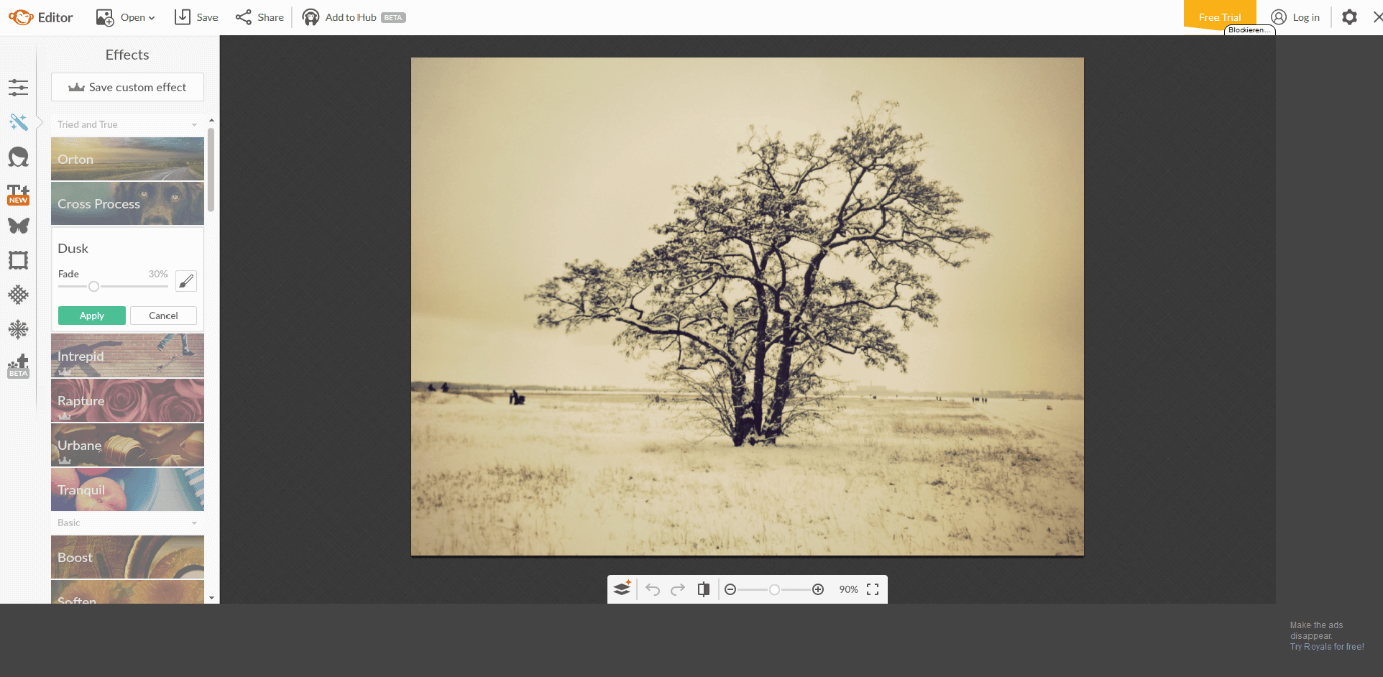
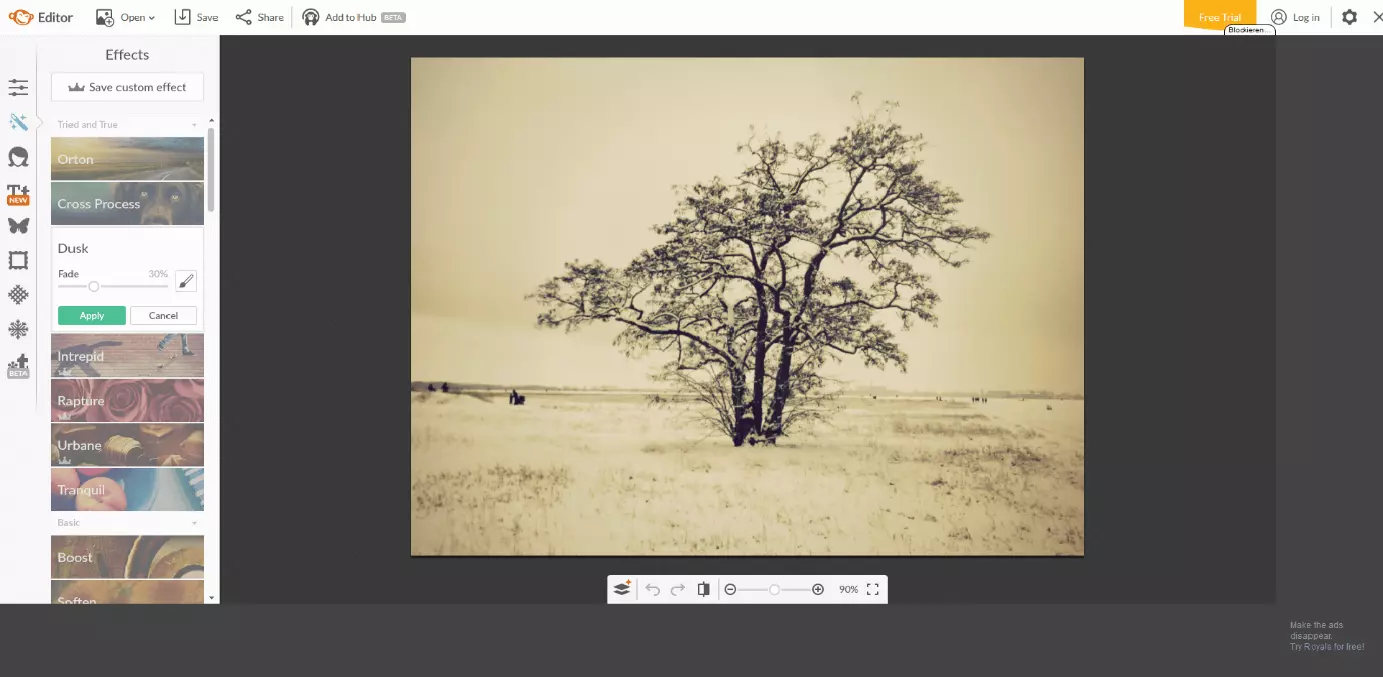
PicMonkey is a purely web-based tool. And just like Pixlr, that means that neither installation nor registration are required for use. PicMonkey isn’t really a professional alternative to Photoshop, but it’s certainly a good replacement for anyone who wants to play around with editing and get creative with filters and effects. Users can take advantage of a huge selection of predefined filters, the parameters of which are usually customizable. But the free basic version is unfortunately quite limited in its range of functions. All the important basic functions are there, like cropping, size adjustment, colour correction, and more. But the options for retouching are noticeably restricted compared to the paid version, with many of the key effects, overlays, and frames missing from the portfolio. One benefit of PicMonkey is that you get the option of many image settings in the browser tool – a feature that isn’t possible in Pixlr Express, for example. But, while you can define the resolution and size of your image, you only have the choice of three different quality settings. The performance of the PicMonkey tool isn’t 100% convincing, with glitches here and there delaying overall user experience. But to counter this, PicMonkey’s photo editor does score positively with its many effects and textures available, particularly in its fee-based format. The special touch-up tools are a highlight, with enjoyable extras, like adding realistic beards to faces and more. In addition to the editing and touch-up functions, users can create their own designs with the help of different templates, and create collages as well. PicMonkey is available as a web app and as a mobile app for iOS and Android.
| Advantages | Disadvantages |
|---|---|
| ✓ No installation necessary | ✗ Basic version with very limited range of functions |
| ✓ Creative and fun effects | ✗ No CMYK editor |
| ✓ Intuitive use, no tutorials necessary | ✗ Files only exportable as PNG or JPEG |
The best Photoshop alternatives: an overview
Adobe Photoshop remains the most popular program for photo editing, and it’s unlikely that any of these alternatives will change that any time soon. After all, many years of experience and a great development department mean that this image processing software just keeps improving and raising the bar for the chasing pack. Virtually all the tools, filters, and even the interfaces used by many of the competitors listed above are most likely to have been invented by Photoshop. So why do people look to Photoshop alternatives at all? The answer to this usually lies in the price: Adobe’s flagship software and market innovatinGoogle Workspace comes at a very high expense. So, if you just want to touch up your vacation photos, and you have a good eye for detail, then one of these free image processing programmes can give you similar results.
| Name | Type | Compatible with | Supported data files | CMYK editor | Multi-layer editing | PDF files | Price model |
|---|---|---|---|---|---|---|---|
| GIMP | Open source application, download & installation required | Windows, macOS, Linux | Over 30 different options | Yes | Yes | Yes | Free |
| Paint.net | Freeware, download & installation required | Windows | 8 different options, including PDN, PNG, GIF, and JPEG | With plugin | Yes | No | Free |
| Photoscape | Freeware, download & installation required | Windows, macOS | JPEG, RAM, PNG, GIF | No | No | No | Free |
| Pixlr Editor & Express | Available as a web-based tool, mobile app, and a desktop download | Works in all browsers, app available for Android and iOS, desktop version available for Windows and macOS | JPEG, PNG, TIFF, BMP und das Pixlr-eigene Format PXD | No | Yes | No | Free |
| PicMonkey | Web-based tool, mobile app | Independent (works in browser) | PNG, JPEG | No | No | No | Free basic version, extensive fee-based full version |