

Alt key: basics and important key combinations
In addition to letters and numbers, keyboards contain keys without symbols assigned to them. These keys have different functions, which you can use by combining them with others. Providing access to special characters or commands that otherwise can only be reached via detour, the right key combinations can simplify many computer tasks significantly.
In this article, we’ll introduce you to the Alt key, which has no function in itself. However, if you press it in combination with other keys, you can execute a wide range of different commands. The following is an overview of the most common key combinations with the Alt key.
What is the Alt key?
“Alt” is an abbreviation for the word “alternate.” This is already a hint: If you press this key simultaneously with another key, the operating system ignores the basic function of the other key and lets you access an alternative command instead.
On all keyboards, the Alt key is located in the bottom row, directly to the left of the space bar. In addition, English-language keyboards have a second Alt key (one to the left and one to the right of the space bar) to support ten-finger typing.
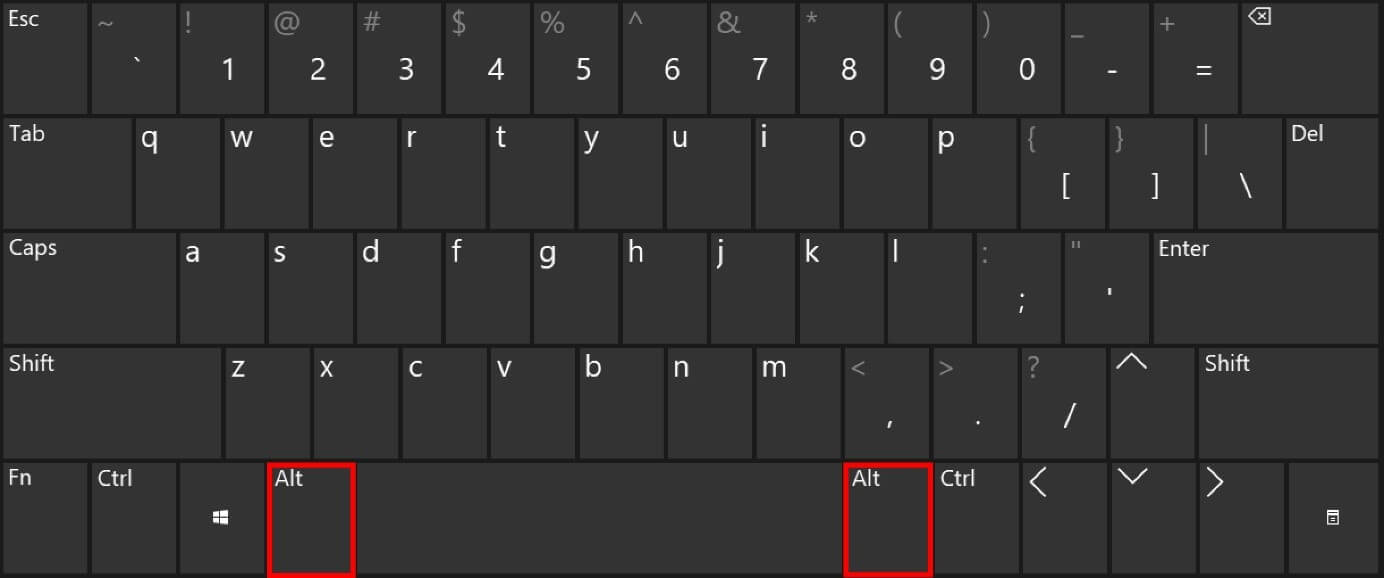
On Mac keyboards, the Alt key often shares a key with “Option” – find out more on this in our article on the Alt key on Macs.
How the Alt key works
The Alt key itself has no assigned functions. Only if you use Alt in combination with other keys will you execute a command in the operating system. Exceptions include special applications or computer games. The same applies to the Control key Ctrl and the Alt Gr key, which also only work in combination with other keys.
The difference between the two Alt keys
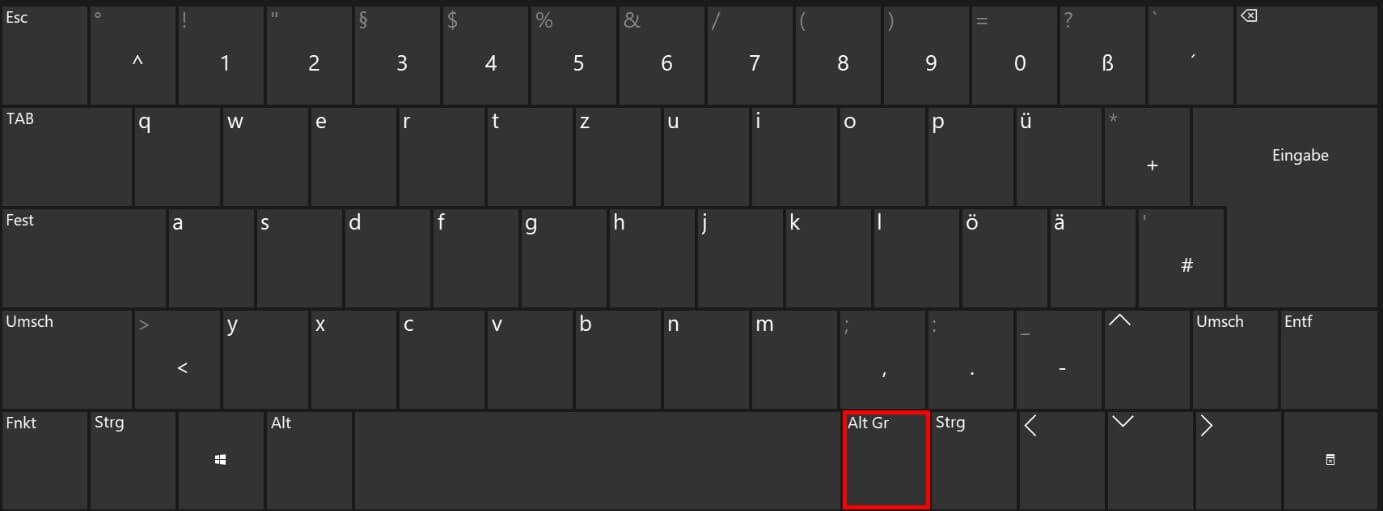
Although their names are the same, the two keys Alt keys allow you to execute different functions. If you use key combinations with the left Alt key, you can execute various commands as listed below. In languages like German, which tends to use more letters and symbols than other languages, some keys are assigned up to three symbols or actions. The right Alt key (located to the right of the space bar), dubbed the Alt Gr key on European keyboards, allows you to access the third assignment of keys in combination with the Control key.
Important keyboard shortcuts with the Alt key
To execute commands with the Alt key, press it simultaneously with another key or several other keys at the same time. What happens depends on whether and which program is active or whether you want to execute Windows operating system commands.
Windows operating system commands
The Alt key provides quick access to multiple commands in the Windows operating system. The following table provides an overview of the most common key combinations.
| Key combination | Command |
|---|---|
| [Ctrl] + [Alt] | The alternative to [Alt Gr]; especially handy when you don’t have the Alt Gr key on your keyboard |
| [Ctrl] + [Alt] + [Del] | Open dialogue with various options (change user, shutdown etc.) |
| [Alt] + [Shift] | Change input language and switch between installed language packs |
| [Windows] + [Alt] + [Enter] | Open Media Center (only available up to Windows 8) |
| [Windows] + [Alt] + [1]/[2]/etc. | Open the jump list of a program in the task bar |
| [Alt] + [Space] | Open system menu of an active window |
| [Alt] + [Print] | Copy screenshot of an active window onto clipboard |
Different key combinations with the Alt key let you easily switch between open programs.
| Key combination | Command |
|---|---|
| [Alt] + [Esc] | Switch between open windows without thumbnails |
| [Alt] + [Tab] | Switch between open windows from left to right in a thumbnail |
| [Alt] + [Tab] + [Shift] | Switch between open windows from right to left in a thumbnail |
Execute commands in application programs (for example: Microsoft Word)
You can also use the Alt key within applications installed on your operating system, such as Word. If you use certain functions frequently, it is helpful to use the following key combinations to improve your workflow.
| Key combination | Command |
|---|---|
| [Alt] + [Ctrl] + [S] | Share document window or stop sharing window |
| [Alt] + [M] | Activate search field |
| [Alt] + [Ctrl] + [I] | Open print preview |
| [Alt] + [1]/[2]/etc. | Switch format style to Heading 1/2/etc. |
There is also a key combination with the Alt key to access the tabs in your document. After you access a menu section in this way, Word then displays a letter combination for each function. Type it to select the option you want. Alternatively, use the Tab key to navigate to the desired option and press Enter to confirm your selection.
| Key combination | Command |
|---|---|
| [Alt] + [H] | Open “Home” tab |
| [Alt] + [R] | Open the “Review” tab |
| [Alt] + [N] | Open the “Insert” tab |
| [Alt] + [S] | Open the “References” tab |
| [Alt] + [P] | Open the “Layout” tab |
| [Alt] + [F] | Open the “File” page to use backstage view |
| [Alt] + [G] | Open the “Design” tab |
| [Alt] + [Q] | Open the “Tell me” or “Search” field |
Reviewer

Julia Hertler
With over 18 years of experience in content marketing, Julia Hertler has deep expertise in digital communications. For the past 10 years, she has specialised in the areas of domains and hosting at the IONOS Digital Guide, making complex technical topics easy to understand.