

Change the PHP version on a Plesk server

Learn how to change the PHP version for a server with Plesk. This tutorial includes instructions on how to find the PHP version your Plesk server is using, change to a different PHP version, and install a different PHP version if necessary.
For any server with Plesk, applications like PHP should always be upgraded and managed through the Plesk interface. Follow the instructions in this tutorial to learn how to update PHP, or switch to a different version of PHP than the one you are currently using.
Requirements
- A server with Plesk (any operating system) and PHP installed.
PHP is installed and running on a Standard Linux installation by default. If your server was created with a Minimal installation, you will need to install and configure PHP before you proceed.
This tutorial uses the Power User view. You can change the Plesk view by clicking Change View at the bottom of the column on the left.
Check the current PHP version
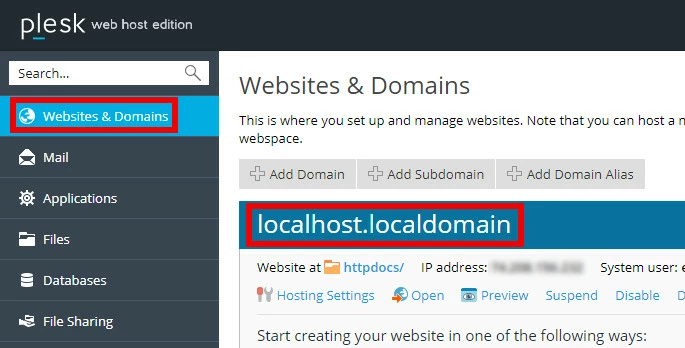
To view the current version of PHP being used by the domain, click Websites and Domains then find the domain you want to check.
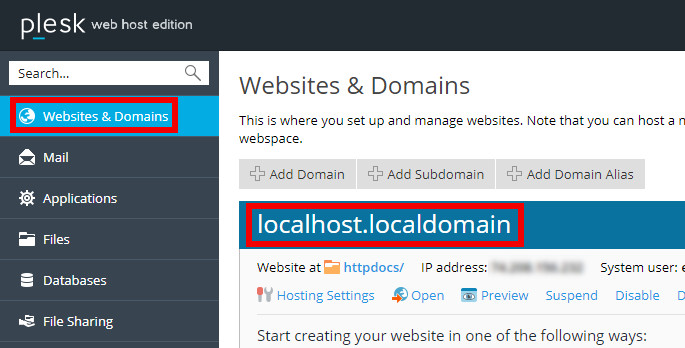
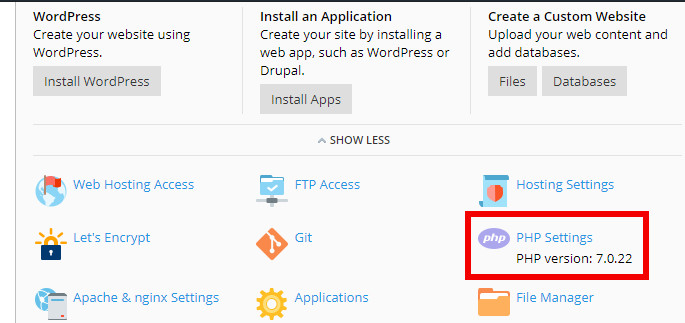
The PHP version is shown in the domain's details.
- 1 Gbit/s bandwidth & unlimited traffic
- Minimum 99.99% uptime & ISO-certified data centres
- 24/7 premium support with a personal consultant
Change the PHP version
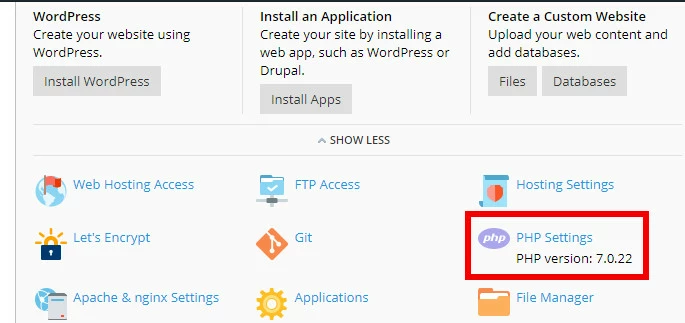
Click on PHP Settings for the domain you wish to change.
This will take you to the PHP Settings page for the domain. Click the drop-down menu to see which PHP versions are available.
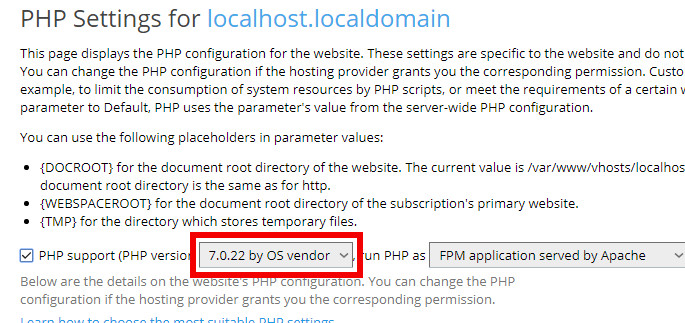
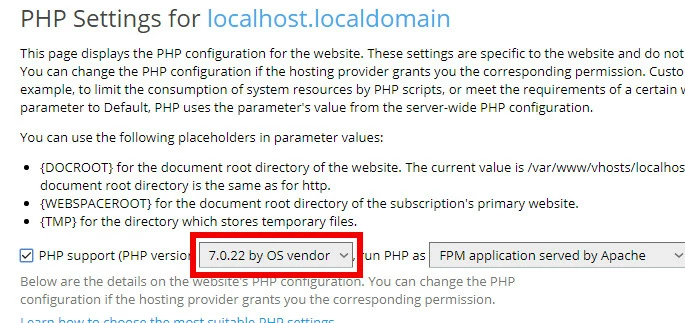
In this case, the server has PHP versions 7.0.22, 5.6.30, 7.0.19, and 7.1.5 available.
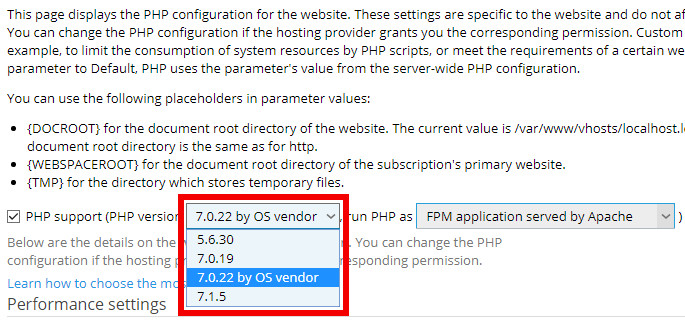
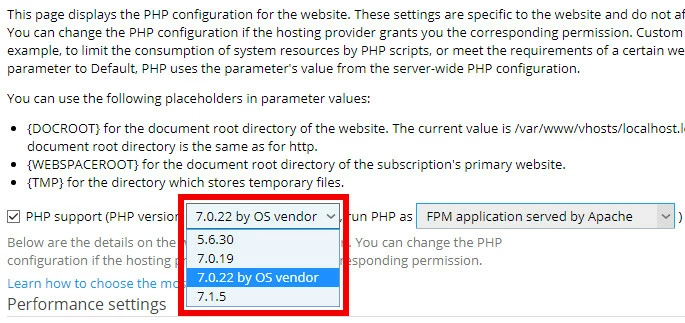
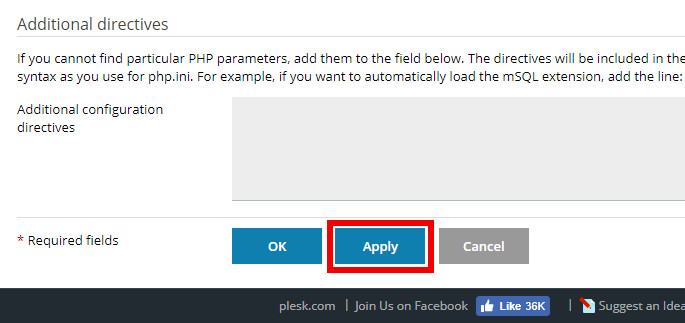
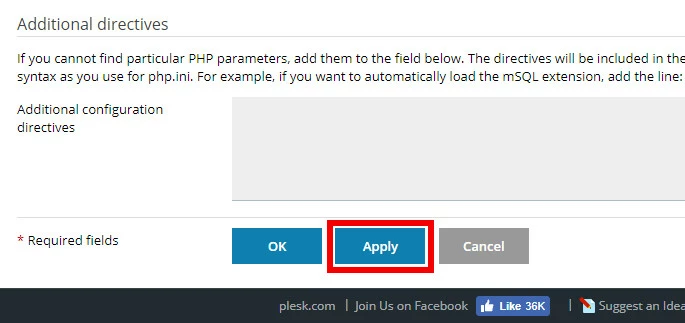
If the PHP version you want is listed on the drop-down menu, select it. Then scroll to the bottom of the page and click Apply to save the change.
If the PHP version you want is not listed, follow the instructions in the next section to install it.
Install a different PHP version
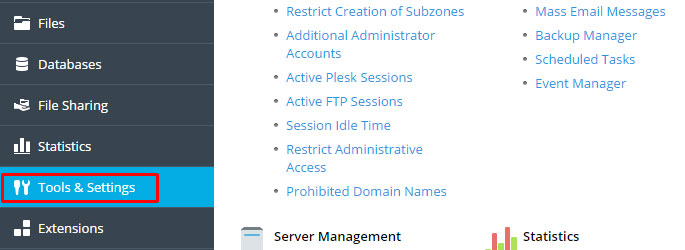
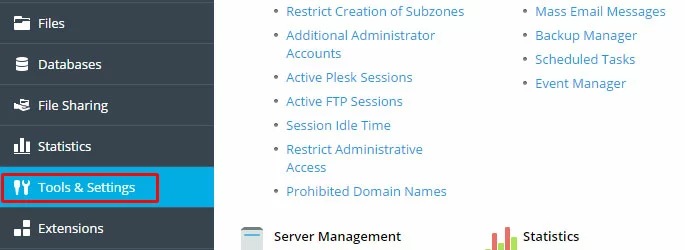
To change the PHP version, go to Tools and Settings.
Click Plesk > Updates and Upgrades.
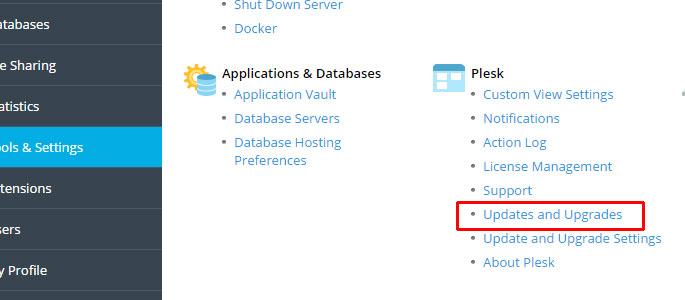
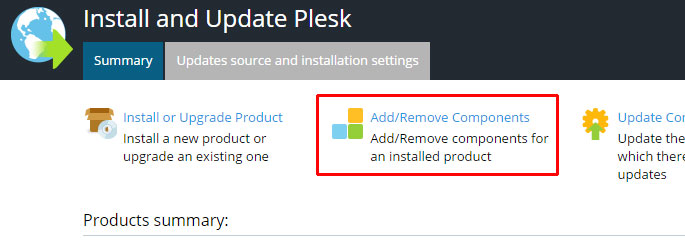
Click Add/Remove Components.
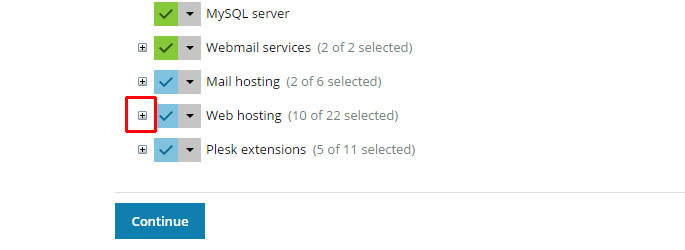
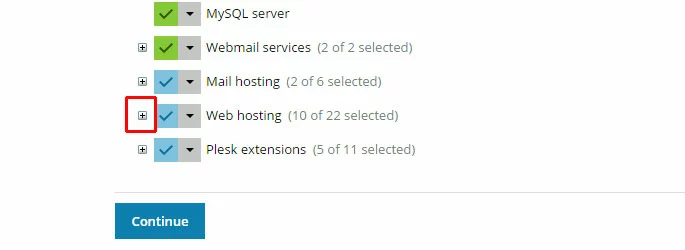
Click to expand the + Web Hosting menu.
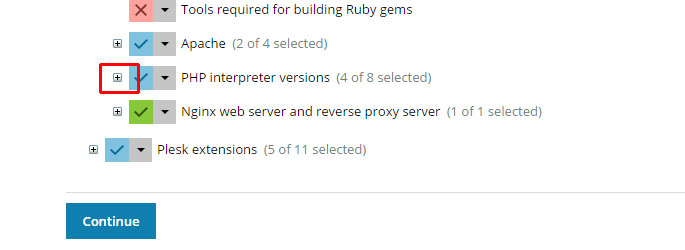
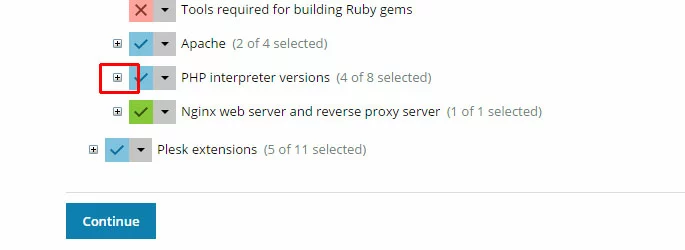
Click to expand the + PHP interpreter versions menu.
Choose the PHP version you wish to install. For this example we will upgrade to version PHP 5.5.
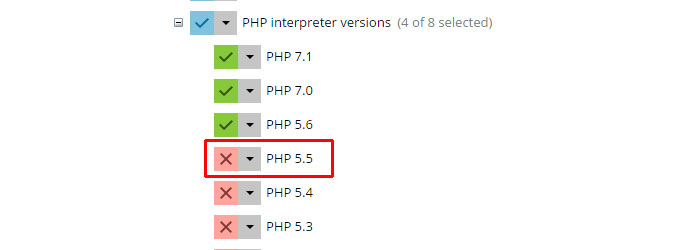
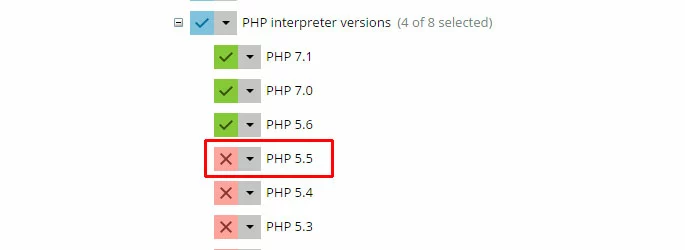
Click the drop-down menu, then click Install to select this version.
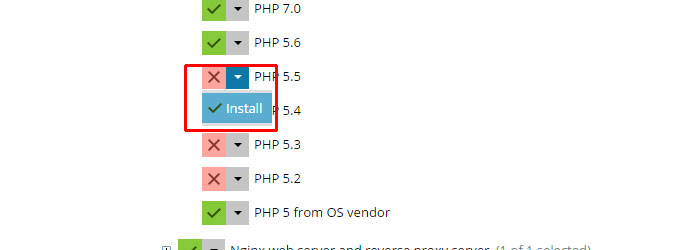
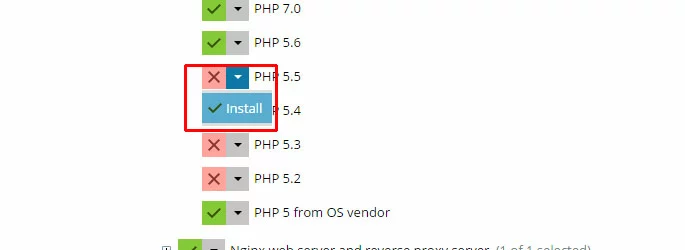
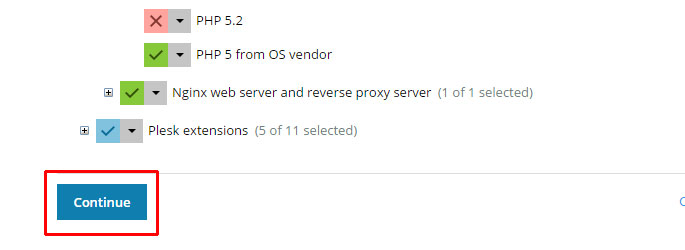
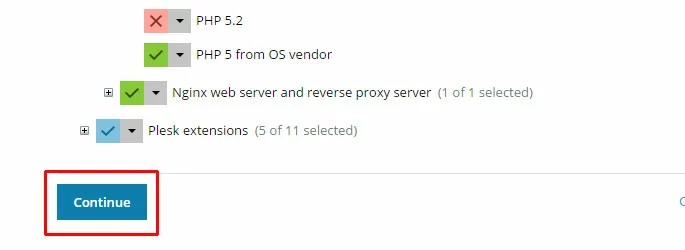
Now that the version has been added to the install list, scroll down and click Continue.
Plesk will begin installing the new version. This process can take a while, depending on the size and number of packages to be installed/upgraded.
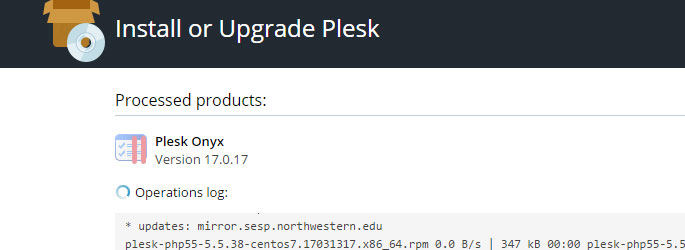
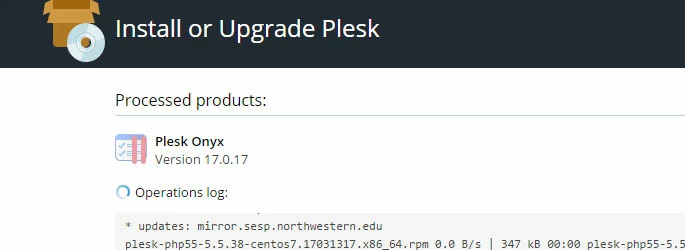
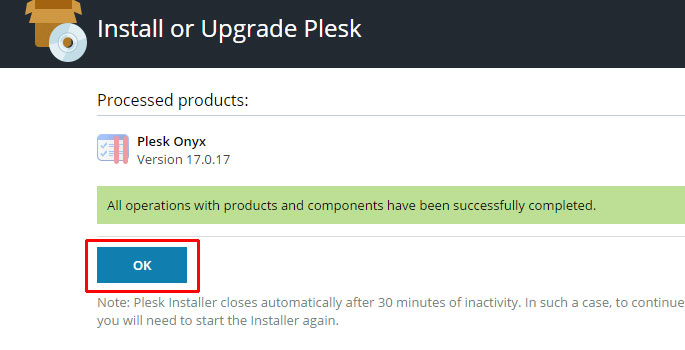
When the install process is complete, click OK.
- Enterprise hardware
- Configurable hardware equipment
- ISO-certified data centres