

Fn key: How to enable or disable the Fn button
Generally, most laptop users will be familiar with the Fn key because it is primarily found on smaller keyboards. Functioning as a space-saving option on smaller devices, the key is used in combination with others to access their alternative assignments. By having multiple assignments for single keys, laptop makers can design devices that are more compact without losing common functions. Here, you’ll learn which commands can be performed using the Fn key and how to enable and disable the key.
Ask, create and research with the European alternative to ChatGPT. Robust security and unlimited chats give you peace of mind.
Functions and use of the Fn key
The function key can be identified by the abbreviation “Fn” on computer keyboards. Its function is similar to that of the Shift key and Alt Gr key which provide access to second and third assignments on keyboards. The Fn key also provides access to second assignments, but it is mainly found on laptop keyboards. Using multiple assignments for single keys allows numerous functions to be available without the need for additional physical keys.
The Control key [Ctrl] is another key that only has a function when it is combined with other keys. For more information, see our dedicated article on the Ctrl key.
The Fn key is located in the bottom row near the Ctrl key. The exact location of the key may vary depending on the manufacturer and model of the keyboard.
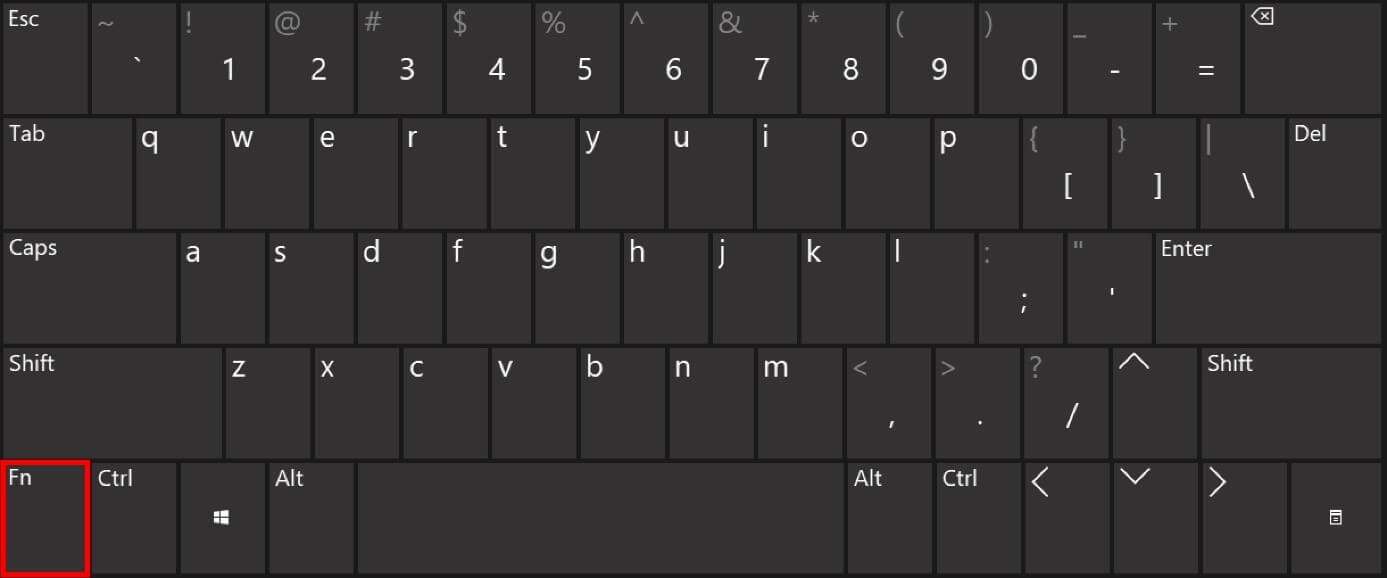
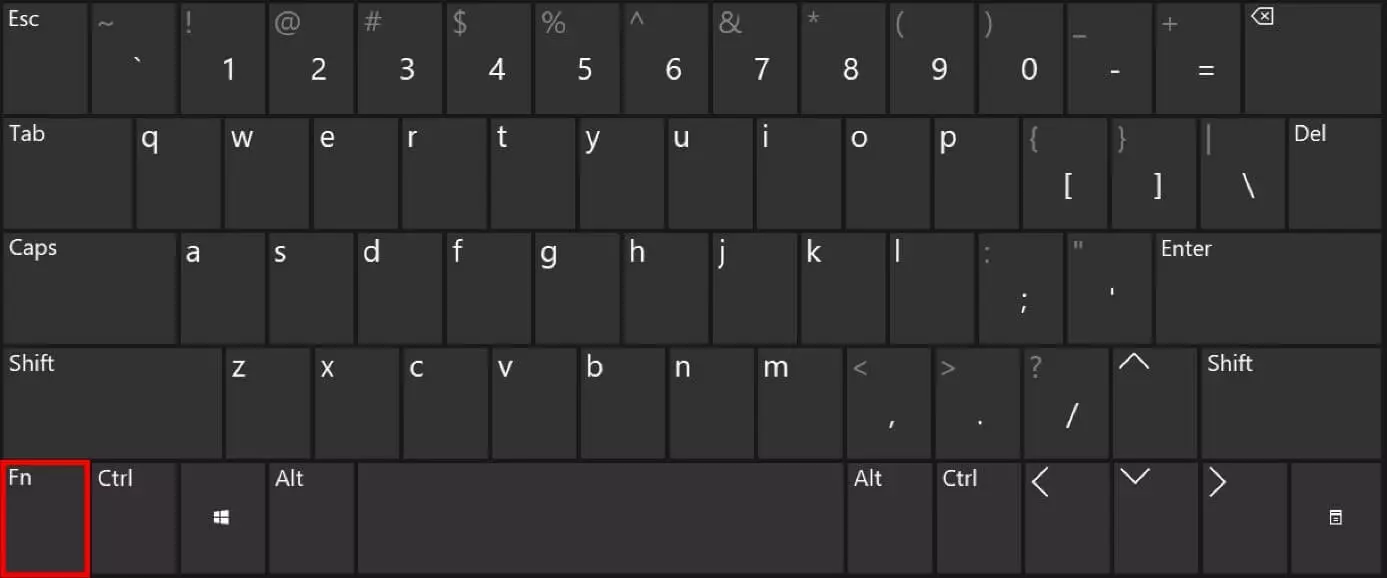
Overview of the Fn key’s functions
When the Fn key is enabled, the function of some keys will change accordingly. The second assignments available on your keyboard vary depending on the manufacturer and model. The following is an overview of the most common functions:
Numeric keypad: A numeric keypad allows you to enter numbers quickly and easily. However, most small laptop keyboards do not have one. Using the Fn key, you can activate keys on the right side of the keyboard that have been assigned both letters and numbers and use this as a numeric keypad.
System settings: Using the second assignments of the F keys, you can access a variety of frequently used functions without having to modify the system settings menu. Frequently used functions are usually indicated by a symbol on the corresponding key. Available commands vary depending on your device’s manufacturer and model. The most common functions include the following:
- Adjusting screen brightness
- Turning the screen on and off
- Adjusting the volume
- Activating standby mode
- Enabling and disabling the touchpad
- Controlling external monitors
- Turning the microphone on and off
- Turning the camera on and off
- Switching WLAN on and off
Navigation: If your keyboard has a numeric keypad, you can also use its second assignments to navigate through documents. The following are the functions indicated on the keys:
- Home: Jump to the beginning of the document
- End: Jump to the end of the document
- PgUp or PgDn: Jump one page up or down in the document
- ↑ or ↓: Jump one line up or down in the document
- ← or →: Move one character to the left or right in the document
Enabling and disabling the Fn key
By combining the Fn key with other keys, you can access their additional functions. If you are planning on using the second assignments of keys for an extended period of time, it is recommended to enable the Fn key. This will eliminate the need to press multiple keys at the same time. This option comes in handy when you need to use the optional numeric keypad. For many laptop models, the F keys are enabled in the default settings. However, the second assignments of keys for common system settings are used far more frequently. It is also recommended that the Fn key be enabled in that case.
The exact procedure for enabling or disabling the Fn key will vary depending on the manufacturer and model of your keyboard or laptop. The following is a list of common keyboard shortcuts. You can easily figure out which combination enables or disables your Fn key via trial and error.
| Key or key combination |
|---|
| [Num] |
| [Num] + [F11] |
| [Ctrl] + [Shift] + [Num] |
| [Fn] + [Num] |
| [Shift] + [Num] |
| [Shift] + [NumScroll] |
If you have the [NumLock] key, you can use it to enable and disable the numeric keypad on your keyboard. If it is disabled, you will access the second assignments of the keys, even without using the Fn button. If your keyboard does not have the [NumLock] key, use the following shortcuts to enable or disable the Fn key.
| Key or key combination | Note |
|---|---|
| [Fn Lock] | |
| [Fn Lock] + [Esc] | Only works when there is a lock displayed on the Escape key |
| [Fn] + [F11] | |
| [Fn] + [Insert] | |
| [Insert] + [F11] | |
| [Ctrl] + [Shift] + [Insert] | |
| [Fn] + [Shift] | Only works when a small Fn↓ is displayed on the Shift key. The keys must be pressed in this order |
Did you accidentally enable the Fn key? This will become quickly apparent if you press keys and the desired result is not produced. To return to your normal keyboard layout, disable the Fn key using the keyboard shortcuts listed above.
Reviewer

Julia Hertler
With over 18 years of experience in content marketing, Julia Hertler has deep expertise in digital communications. For the past 10 years, she has specialised in the areas of domains and hosting at the IONOS Digital Guide, making complex technical topics easy to understand.