

Git Tutorial for Beginners

Collaborative development of software projects not only happens within companies. Within the open-source sector, several hundred to thousands of volunteers (depending on project size) are involved in maintaining, optimising, developing or modifying a program. These kinds of projects would be virtually unworkable without a suitable system for recording and managing the numerous changes submitted by different developers.
One of the most popular solutions to version management is the licence-free tool Git. It’s easy to learn and free of charge. In this tutorial, we explain the most important Git basics you need to get started with the version management program.
- Free website protection with SSL Wildcard included
- Free private registration for greater privacy
- Free Domain Connect for easy DNS setup
What is Git?
Git is a distributed version control system developed by Linux creator Linus Thorvalds in 2005 and released under the free GNU-GPLv2 licence. What’s special about the tool is that, although a central repository exists for each project, all involved users download a local working copy of this directory onto their own working devices. Each of these copies represents a complete backup of the repository, rendering a continuous network connection unnecessary and enabling offline working. Moreover, the copies can be used to restore each project in the event the main repository fails or becomes damaged. Implemented changes can be exchanged with all other project participants at any time and – where relevant – included in the repository.
One of the best-known alternatives to Git is the tool Subversion which is also an open-source program. It’s better known as SVN and, unlike Git, utilises a central management system. Read this article "Git vs. SVN – Comparing Version Management Tools“ to learn what commonalities these tools share and how they differ.
How to install Git on your device
Anyone who wishes to learn software management with Git should first familiarise themselves with the software and its user interface. Git is available for Windows, Unix/Linux and macOS, however, the various versions differ slightly in terms of their use. After installing the respective version, you can control the tool platform-independently using the command line or a graphical user interface.
In order to use the commands shown in this Git tutorial, Windows users should run the version management system via Git-Bash - the Unix-style shell contained in the installation. Alternatively, the software can be controlled via command line or the Windows terminal. But the parametre structure of the commands works a little differently there (for example, with double quotes instead of single quotation marks).
 To display this video, third-party cookies are required. You can access and change your cookie settings here.
 Binary installation files, guides for packet manager installations (Unix systems) and turn-key portable editions for the individual systems are available on the official website of the Git project. Simply download the required packet or use the suitable packet in your packet management and then follow the installation wizard instructions. The installation step is unnecessary in case of a portable edition, of course.
In the download section of git-scm.com, the Git community provides a range of alternative graphical interfaces for the version manager. Among other things, you’ll also find Git clients for Android and iOS here, which enable you to use the open-source tool on your mobile device.
Git Tutorial: steps for learning how to use Git
Once Git is installed on your system, you can use the version management system to manage your projects. As with any software, you’ll first need to learn the basic functions and commands to get the most out of the application. As part of our complete Git tutorial for beginners, we’ll explain the most important steps for setting up Git and the necessary command line instructions, allowing you to establish and manage your own repository with ease.
Experts at the German Association for Cybersecurity (Deutsche Gesellschaft für Cybersicherheit) noticed that a misconfiguration of Git or more accurately the repository’s version administration system meant that .git directories were publicly accessible via browser. This is possible whenever a Git repository is located in the web root of a server. It should be avoided at all costs. Users should thus never save their Git directories inside the web root. Alternatively, they should configure their web server in a way that makes the .git directory inaccessible to others. More information on Git vulnerabilities and security issues can be found on the Perforce website. An older blog entry by Internetwache.org also provides solutions how to fix the Git security issue.
Creating or cloning a Git repository
The Git repository is the central directory of a managed project and therefore the main hub for all participants. It’s where the complete version management is controlled. Your first step in Git will be to create a central repository – or clone one (in the form of a working copy), if you’re joining a collaborative development project already managed using Git.
If you want to configure version management or install the tools to learn how to work with Git, you’ll need to create a new repository. To do so, switch to the desired local repository on your device via “cd” (change directory):
cd individual directory path- Loading 3x faster for happier customers
- Rock-solid 99.99% uptime and advanced protection
- Only at IONOS: up to 500 GB included
Now execute the following command to generate a .git repository:
git init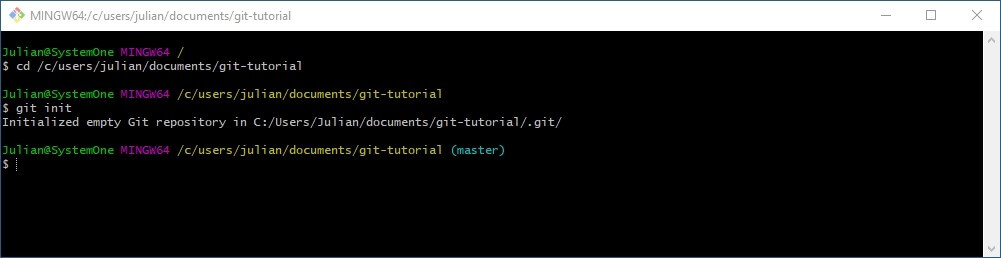
If the Git repository for your project already exists, you’ll just need the web or network address for this repository in order to generate a working copy on your computer using the “git clone” command:
git clone https://one-test.website/git-repositoryChecking repository status and adding new files for version control
The efficient organisation of the working repository is among the most important pillars of Git. It allows you to propose your own changes and additions to a project that can be adopted as “commits”, and obtain information about the adjustments made by other users. You can check the current status of your working copy by running the following command:
git statusIn the case of a newly created repository or an absolute match between the central repository and the working copy, you’ll receive a message that there are no new changes to the project (“No commits yet”). In addition, Git will say that you haven’t currently submitted any changes for the next commit (“nothing to commit”).


To add a new file for version management or submit a revised file for the next commit, apply the “git add” command to the file (it must be contained in the working repository). In our Git guide, we add a text document called “Test” as an example:
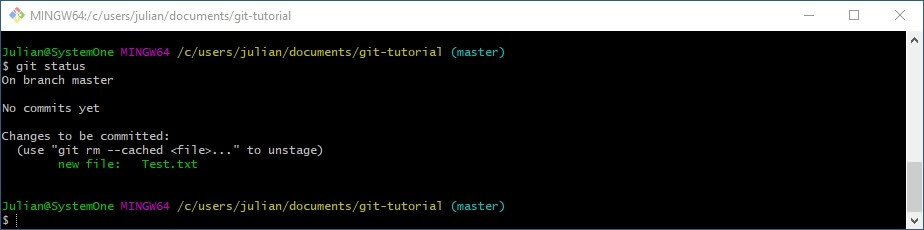
git add Test.txtIf you check the repository status again, the example document will be shown as a potential candidate for the next official update to the project (“Changes to be committed”):
Confirming changes via commit and including them in the HEAD
All changes that you submit for version management (as described in the previous section) always need to be confirmed via Commit in order to be included in the HEAD. The HEAD is a type of index that refers to the last effective commit in your current Git working environment (also known as “branch”). The command for this step is shown below:
git commitAlways check before entering the command whether all changes intended for the commit are marked accordingly (using “git add”). Otherwise, they’ll be ignored – even if they’re found in the repository of the working copy.
After running the command, Git automatically starts the editor you entered as the standard selection during installation or the editor designated as default by the version management tool. You can now enter an individual comment for the planned commit; the rows included and separated by a semicolon are not shown later. Once you close the editor, Git will create the commit:


As you can see in the screenshot, after running “git commit” you’ll receive a summary regarding the commit. In the preceding square brackets, you’ll find the name of the branch (“master” in this case, since our working repository is also the central repository), in which the changes have been adopted, as well as the SHA-1 checksum of the commit (“c0fdc90” here). This is followed by the freely chosen comment (“test” in our example) and specific information about the changes made.
Revising or reversing generated commits
If you adopt changes in the form of a commit, you can subsequently revise or even remove the content at any time. A typical case in which adjustments are necessary is, for example, if you have generated the commit too soon and forgotten important files or changes. In this instance, you’ll need to provide the new or adjusted files retroactively using “git add” and repeat the entry into the central repository. To do this, add the option --amend to the standard command:
git commit --amendHowever, if you want to withdraw the most recent commit, you can use the following Git command:
git reset --soft HEAD~1This command reverses the commit last included in the HEAD. The files it contains are then reset back to the status: “Planned changes for the next commit”. To delete the files entirely, enter the command below instead:
git reset --hard HEAD~1Viewing commit history
Learning how to manage projects with Git is worthwhile because of its basic versioning features. One of the big advantages of the open-source system is that you can view which changes were last made to the repository. The Git command for this is:
git logThe “git log” command lists the generated commits in reverse chronological order, whereby the SHA-1 checksum, the author (name and email address) as well as the date of the commit are shown as standard. What’s more, the individual message can also be seen, providing you and other users with key information to quickly classify each of the changes. In our Git guide, we previously generated a single commit with the message “Test”. This is displayed by the command like this:


The log command can also be modified by various parametres. Some useful options are shown in the table below:
| Option for the “git log” command | Description |
|---|---|
| -p | shows the changes contained in a commit |
| -2 | only lists the last two commits |
| --stat | adds a small statistic to each entry, showing which files were changed and how many lines were added or removed |
| --pretty | changes the format of the output, with various formats available; --pretty=online is one possible format, for example, which lists all commits in a single line |
| --abbrev-commit | only shows the first characters of a SHA-1 checksum |
| --relative-date | shows the data of a change in a relative format (e.g. “two weeks ago”) |
Including commits into the central repository
So far, we’ve shown you how to save changes as a commit in the HEAD of the local repository. For the commit to be included in the central repository, however, the following command needs to be entered:
git push origin masterAfter inputting this command, Git automatically adopts all generated commits, which previously existed only in the working copy, into the central repository. This repository is also referred to as the “master”. If you replace this name in the listed code with the name of another branch, the files will be sent there instead.
Tagging: creating, deleting and listing tags in Git
Like many other version management systems, Git also offers a tagging feature that allows selected points in the history of a repository to be marked as important. These tags are typically used to label the releases of a software program (like version 1.0, 2.0, etc.) so that they remain easy to access even for larger projects. Git supports two types of tags:
- “Annotated” tags are saved as independent objects in the database, including their own checksum, tagging message, date, name, and email address of the tag author as well as an optional GNU Privacy Guard signature (GPG signature).
- “Lightweight” tags act like branches, only serving as a reference to a commit. This type is suitable when you only need temporary tags or don’t want to save the extended information.
You can create annotated tags in Git by using the “git tag -a” command on the respective commit. If you also add the “-m” parametre as a suffix, you can compose the desired tagging message directly in the command line (between straight quotation marks). In this Git guide, we generated the “Test” commit which we can also link with a tag including the message “example tag”:
git tag -a Test -m "example tag"If you add the “-m” parametre when creating the tag, Git will automatically open the editor so that you can enter the desired tagging message there.
The approach for lightweight tags is similar. However, you only need to use the basic command “git tag” on the relevant commit – without any further parametres. This command would appear as follows for our Git tutorial example:
git tag TestAs soon as tags exist for your repository, you can also display them with the “git tag” command and the optional “-l” or “--list” parametres:
git tag
git tag -l
git tag --list

To delete a tag from the local working repository, apply the command chain “git tag -d” to it. We can delete our tag for “Test” as follows:
git tag -d TestTags have to be manually adapted into the central repository. To do so, both the tag name and the command “git push origin” are required. Instead of the tag name, you can also add the parametre “--tags” which carries all generated tags over to the repository.
git push origin --tagsCreating, managing and deleting branches
The branches used in this Git tutorial are essentially the individual working versions of the central repository, which itself is classified as a branch – called “master”. With these branches, Git offers the perfect foundation for developing features and functions in isolation and combining them at a later date. This process is also known as “merging”.
It’s quite easy to create a new branch: You only need the instruction “git branch” which you then supplement with the desired name of the branch. To create an example branch called “test_branch”, you’d enter the command below:
git branch test_branchAfter that, you can switch to this branch at any time using “git checkout”:
git checkout test_branch

If you want to merge branches, you can use the “git merge” command. First, enter the “checkout” command to switch to the repository that is to integrate the other branch and then execute the merge command including the name of the branch to be merged. For example, our working version “test_branch” can be merged into the central repository as follows:
git checkout master
git merge test_branch
Once you’ve merged the branches and therefore no longer need a certain branch, you can simply delete it. To this end, add the command “git brand -d” to the branch no longer needed. Our Git tutorial example “test_branch” can be removed by running the command below:
git branch -d test_branchThe only requirement for the deletion process is that you need to be in a different branch. We, therefore, switched to the central repository before executing the command – as you can see in this screenshot:


In our Digital Guide, you will also find information on "Git Branch: How to rename a local and remote branch".
- KVM based dev servers for developers
- Scalable to enterprise cloud level
- Pay-as-you-go, per-minute billing