

How to style tables in HTML

HTML table styling refers to the visual design of tables on websites. To style tables, you can use CSS instructions. These can be included directly in the HTML document or referenced through an external CSS file.
How does HTML table styling work?
Modern web design utilises the power of CSS to customise the appearance of HTML tables. With CSS, you can easily modify the appearance of tabular content elements. For instance, you can assign background colours to table cells or define the thickness of borders. When styling an HTML table, you have three different methods for applying CSS code at your disposal:
- Embedding in the
<head>section: You can include CSS styles using the HTML tag<style>in the head section of the HTML document. - External CSS file: Another option is to use a separate CSS file. You can link to it from the HTML document using the
<link>tag in the<head>section. - Inline CSS: You can also apply table styling in HTML by using the
styleattribute in the table element. However, this is only advisable in specific cases where code reusability and maintenance ease are not a concern.
You can learn more about how to embed CSS in HTML in our Digital Guide.
What options are there for styling HTML tables?
There are numerous CSS properties you can use to improve the appearance and user experience of tables in web documents. For example, you can modify basic table properties using the following CSS instructions:
width: Sets the width of the table or individual columnsborder: Defines the width, style and colour of the borderborder-collapse: Controls whether cell borders are combined (collapse) or separate (separate)border-spacing: Determines the space between cells whenborder-collapse: separateis used
Below, we’ve summarised some of the most important options for styling tables in HTML and organised them by category.
Cell spacing and text alignment
| CSS property | Description |
|---|---|
padding
|
Adds space inside the cells |
margin
|
Adds space around the entire table |
text-align
|
Defines the horizontal alignment of text within the cells (left, center, right)
|
vertical-align
|
Defines the vertical alignment of the cell content (top, middle, bottom)
|
Colours and background image
| CSS property | Description |
|---|---|
background-color
|
Sets the background colour of cells, rows or the entire table |
color
|
Sets the text colour |
background-image
|
Specifies a background image for cells or the entire table |
Fonts and font size
| CSS property | Description |
|---|---|
font-family
|
Defines the font |
font-size
|
Sets the font size |
font-weight
|
Sets the font weight (e.g., bold for bold text)
|
text-transform
|
Controls the capitalisation of text (uppercase, lowercase, capitalize)
|
Table borders
| CSS property | Description |
|---|---|
border-style
|
Defines the style of the border (solid, dashed, dotted)
|
border-width
|
Sets the thickness of the border |
border-color
|
Specifies the colour of the table border |
How to style HTML tables (with examples)
Lastly, we’ll illustrate the syntax and functionality of the three HTML table styling methods mentioned above with practical examples. We’ll also briefly discuss the advantages and disadvantages of each method.
Styling HTML tables in the <head> section
Styling tables with CSS in the head section is especially practical for small projects and quick changes. You don’t need an additional style sheet, and you can use IDs to specify which tables the styles should be applied to. However, these styles only apply to the corresponding web page, which makes reusability and maintenance tedious.
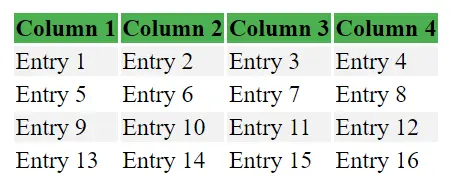
You can embed the CSS code in the head section using a <style> element. In the following example, we’re going to set the table header to have a green background, while the other rows will alternate between light grey and white:
<html>
<head>
    <style>
        table {
        thead th {
            background-color: #4CAF50; / *Green for table header* /
        }
        tbody tr:nth-child(odd) {
            background-color: #f2f2f2; / *Light grey for odd rows* /
        }
        tbody tr:nth-child(even) {
            background-color: #ffffff; / *White for even rows* /
        }
    </style>
</head>
<body>
    <table>
        <thead>
            <tr>
                <th>Column 1</th>
                <th>Column 2</th>
                <th>Column 3</th>
                <th>Column 4</th>
            </tr>
        </thead>
        <tbody>
            <tr>
                <td>Entry 1</td>
                <td>Entry 2</td>
                <td>Entry 3</td>
                <td>Entry 4</td>
            </tr>
            <tr>
                <td>Entry 5</td>
                <td>Entry 6</td>
                <td>Entry 7</td>
                <td>Entry 8</td>
            </tr>
            <tr>
                <td>Entry 9</td>
                <td>Entry 10</td>
                <td>Entry 11</td>
                <td>Entry 12</td>
            </tr>
            <tr>
                <td>Entry 13</td>
                <td>Entry 14</td>
                <td>Entry 15</td>
                <td>Entry 16</td>
            </tr>
        </tbody>
    </table>
</body>
</html>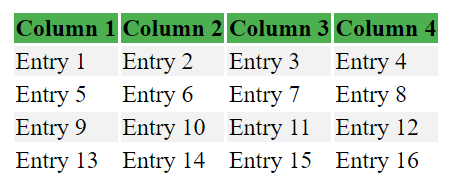
Styling HTML tables with CSS
Styling HTML tables through an external CSS sheet is the best way to separate content from design. Additionally, the styles are easy to reuse for other pages. Since browsers can cache the CSS file, it also helps optimise loading times. This method may, however, be too elaborate for smaller web projects.
The previous example can be implemented in two steps: First, create a CSS file named styles.css and save it in the same directory as the webpage. Add the following code:
thead th {
    background-color: #4CAF50; / *Green for table header* /
}
tbody tr:nth-child(odd) {
    background-color: #f2f2f2; / *Light grey for odd rows* /
}
tbody tr:nth-child(even) {
    background-color: #ffffff; / *White for even rows* /
}Next, link the file in the header using a <link> element. The table code remains unchanged:
<html>
<head>
        <link rel="stylesheet" type="text/css" href="styles.css">
</head>
<body>
    <table>
        <thead>
            <tr>
                <th>Column 1</th>
                <th>Column 2</th>
                <th>Column 3</th>
                <th>Column 4</th>
            </tr>
        </thead>
        <tbody>
            <tr>
                <td>Entry 1</td>
                <td>Entry 2</td>
                <td>Entry 3</td>
                <td>Entry 4</td>
            </tr>
        </tbody>
    </table>
</body>
</html>Styling HTML tables inline
Inline CSS is useful when you want to make specific changes to an individual table element. It’s ideal for small, one-time projects or tests where reusability isn’t important. However, for more sustainable coding scenarios, it’s best to use one of the other embedding methods.
To apply inline styling, simply include the styles directly in the relevant table elements. For our example from above, the code would look like this:
<body>
    <table>
        <thead>
            <tr>
                <th style="background-color: #4CAF50;">Column 1</th>
                <th style="background-color: #4CAF50;">Column 2</th>
                <th style="background-color: #4CAF50;">Column 3</th>
                <th style="background-color: #4CAF50;">Column 4</th>
            </tr>
        </thead>
        <tbody>
            <tr style="background-color: #f2f2f2;">
                <td>Entry 1</td>
                <td>Entry 2</td>
                <td>Entry 3</td>
                <td>Entry 4</td>
            </tr>
            <tr>
                <td>Entry 5</td>
                <td>Entry 6</td>
                <td>Entry 7</td>
                <td>Entry 8</td>
            </tr>
            <tr style="background-color: #f2f2f2;">
                <td>Entry 9</td>
                <td>Entry 10</td>
                <td>Entry 11</td>
                <td>Entry 12</td>
            </tr>
            <tr>
                <td>Entry 13</td>
                <td>Entry 14</td>
                <td>Entry 15</td>
                <td>Entry 16</td>
            </tr>
        </tbody>
    </table>
</body>