

Microsoft Edge: Import Favourites – How It Works

Windows 10 offers Microsoft users a whole host of changes as well as new features and programs. Besides the new virtual voice assistant Cortana, these include the browser Edge—the official successor to the well-known, but no longer actively developed Internet Explorer.
To make the transition to Edge easier, Microsoft has equipped its new client with an import function for bookmarks. This enables you to integrate and access your saved favourites—no matter if you previously used Internet Explorer or alternatives like Chrome or Firefox. This article explains how exactly you can import your favourites to Microsoft Edge.
Importing Favourites in Microsoft Edge: Quick Guide (Including Shortcut)
Unlike the export feature, Edge has allowed users to import bookmarks since its official release in 2015. Integrating favourites from other browsers or Edge installations on other devices therefore works with any Edge version installed on your system. Only the names of some buttons differ slightly.
The fastest way to import favourites to Microsoft Edge is as follows:
- Launch Edge.
- Open the “Favourites” menu by clicking the star icon (with three horizontal lines) or using the key combination [Ctrl] + [i].
- Go to the “Settings” menu by clicking on the cog symbol.
- Click on the “Import or export” button—or “Import from another browser” for older versions—in the “Import favourites and other info” section.
- Mark the browser you’d like to import bookmarks from into Edge and then click “Import”.
- Alternatively, you can also click “Import from file” and enter the storage location of a previously exported bookmark HTML file and integrate it by pressing “Open”.
More information on how to save favourites from Edge can be found in our extensive guide on exporting bookmarks in Microsoft Edge.
Step-by-Step Tutorial: How to Import Favourites to Edge
The above guide has already shown that you generally have two ways to import favourites to Microsoft Edge. You can either integrate them from a previously generated bookmark HTML file or synchronise your saved favourite websites without using this kind of document. Generally, the latter option also automatically transfers additional browser data such as search history, cookies, and passwords. However, it requires the respective browser to support this feature and have it installed. We explain both solutions for importing bookmarks in the following sections.
Regardless of which import option you take, first start by going to the “Favourites” menu that also provides access to the reading list, personal downloads, and search history; for this reason, it’s also called the “Hub”. To do so, simply click on the icon that features a half star with three horizontal lines:


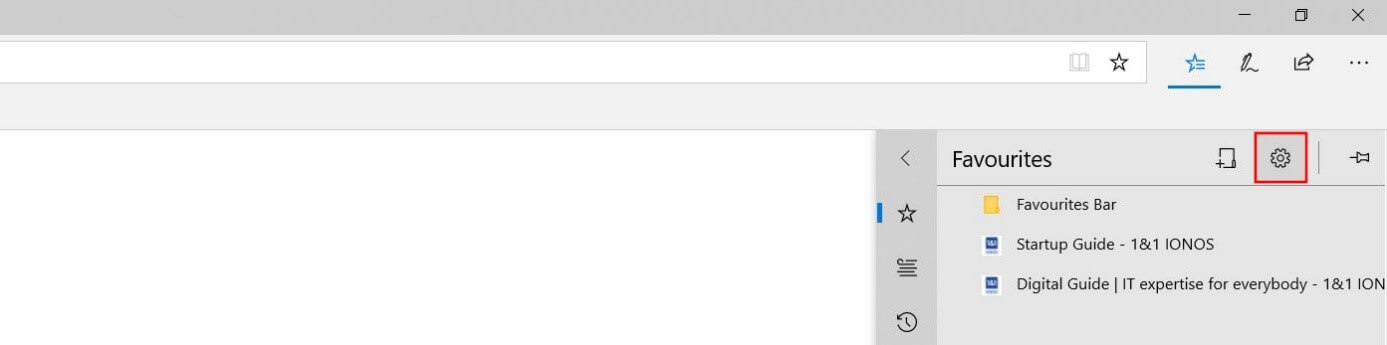
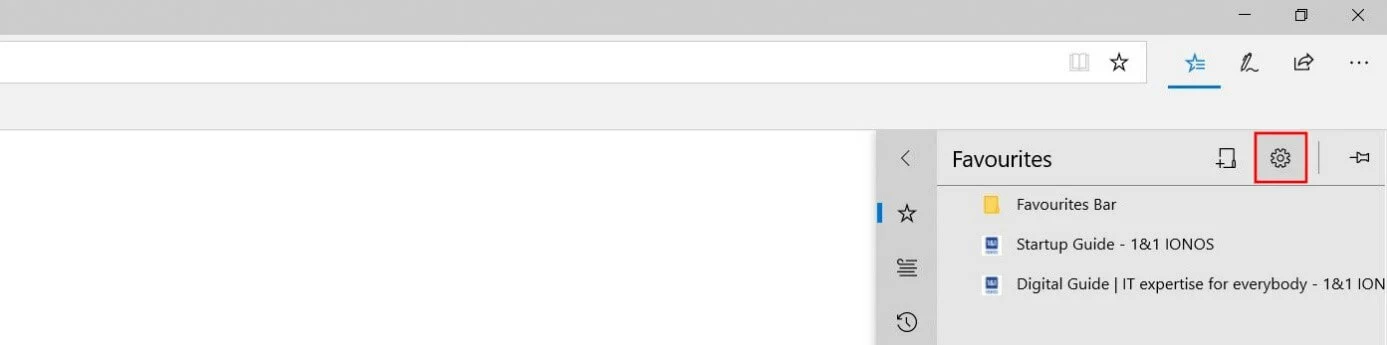
In the “Favourites” menu, open the settings by clicking on the cog symbol:
In the menu that opens, you’ll find the button “Import or export” under “Import favourites and other info” in addition to a range of general settings:
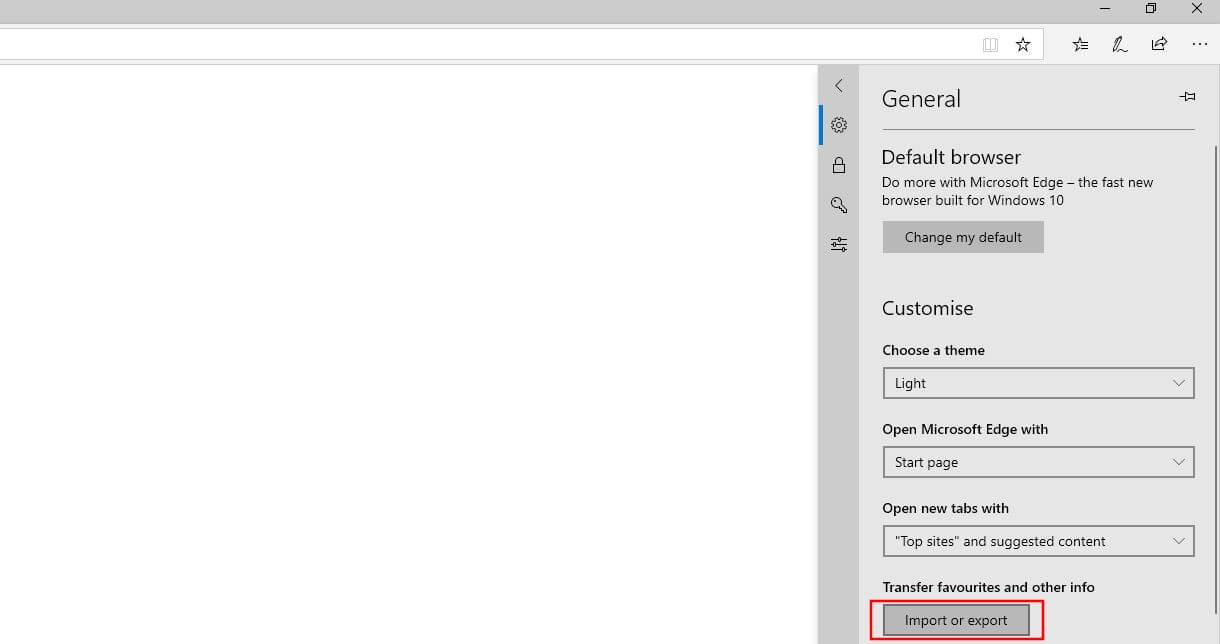
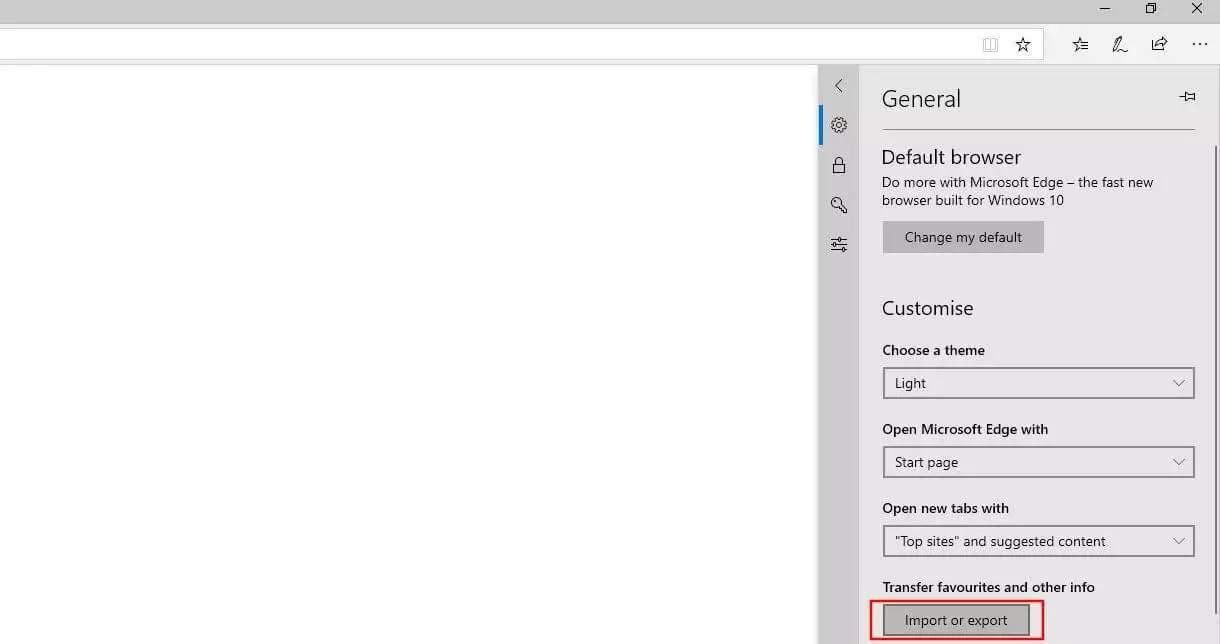
In older Edge versions, the name of this button (shown in the screenshot) is called “Import from another browser”.
The browser will then open another menu window which gives you the two options mentioned earlier for importing favourites to Edge:
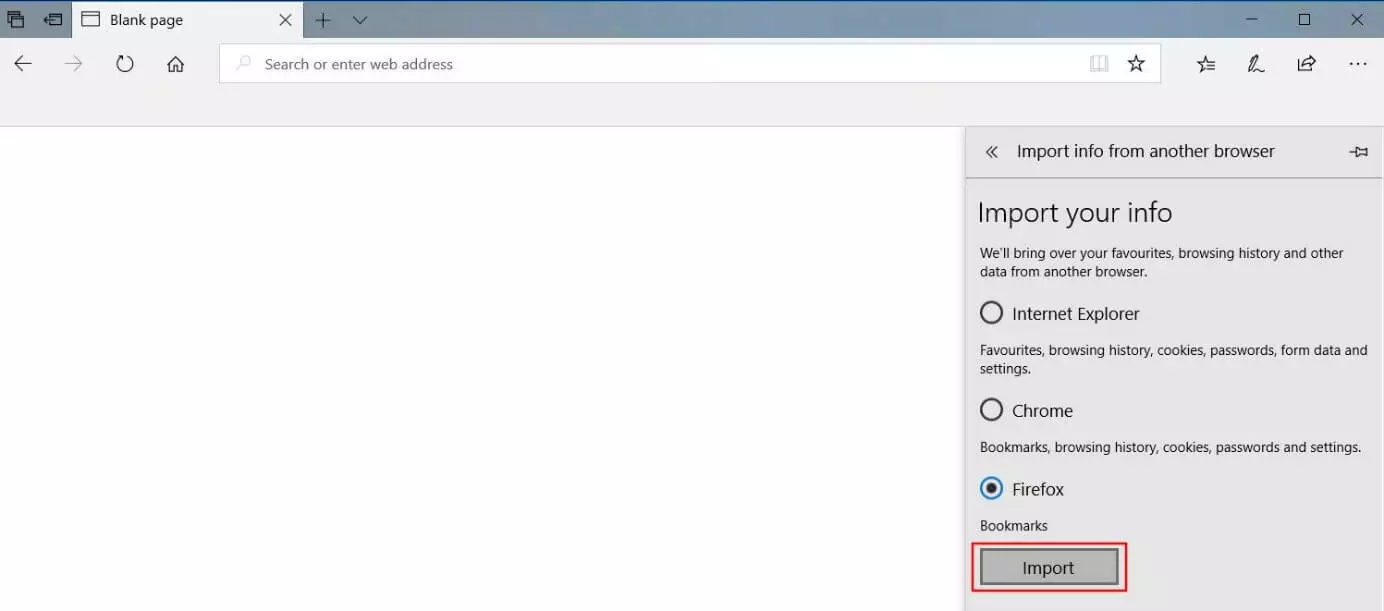
Under “Import your info”, the application will list all the browsers you have installed whose bookmarks (as well as other data like search history and cookies, depending on the browser) can be transferred by syncing. Select the browser you wish to import from and then click on “Import”:
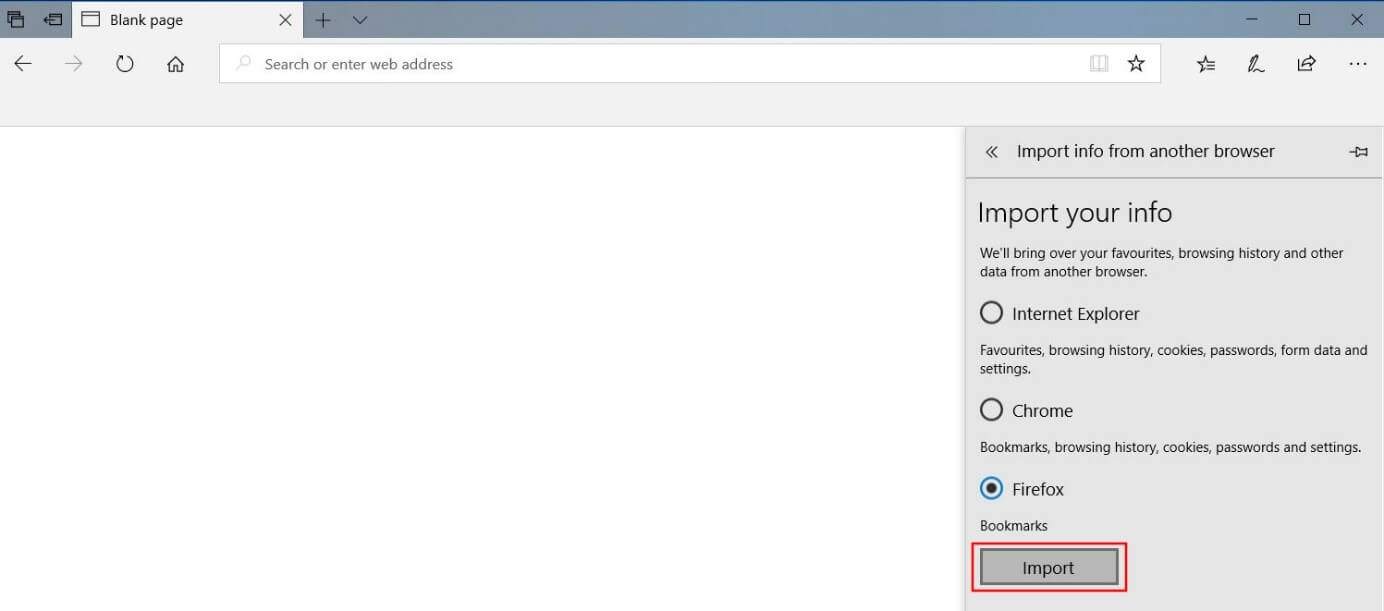
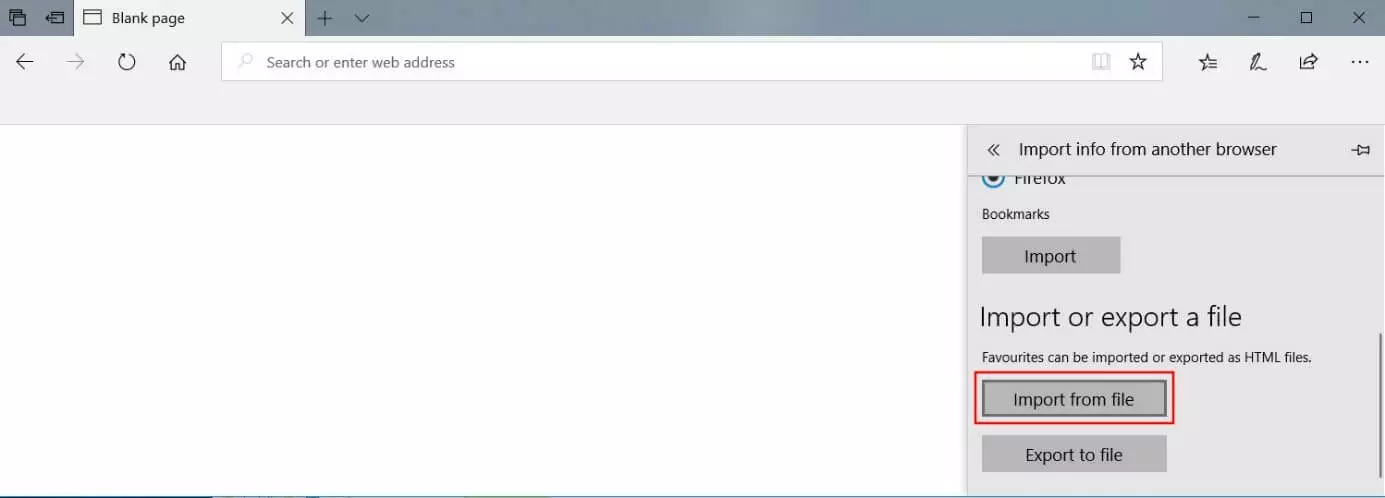
If the browser from which you want to import your bookmarks into Edge isn’t listed, or if you’re importing from a HTML file, click on the “Import from file” button instead; this can be found under the heading “Import or export a file”:
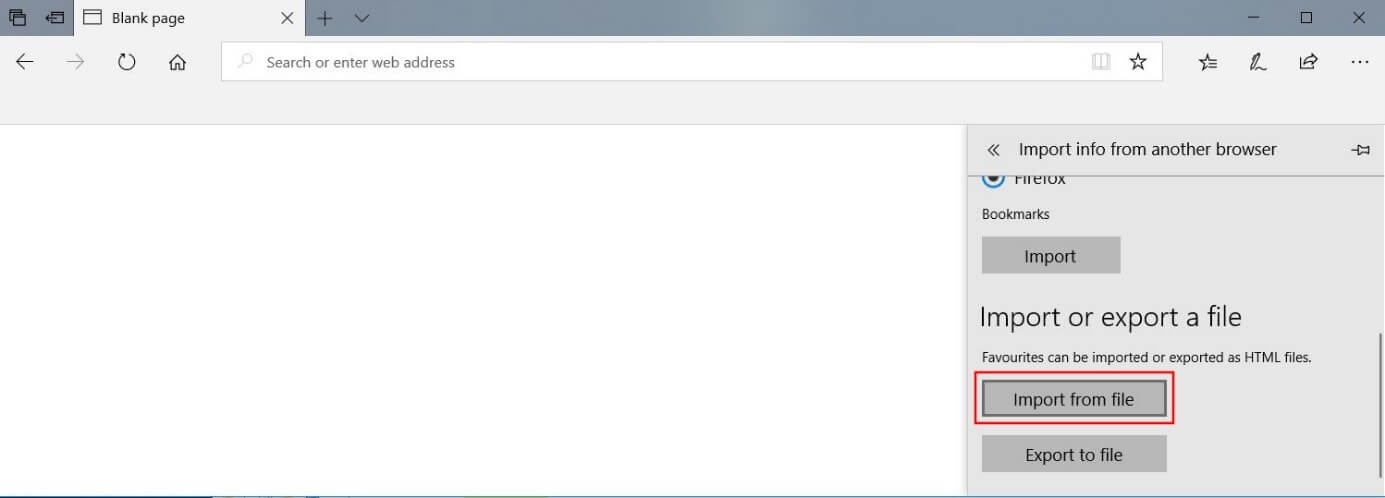
Navigate to where the HTML file is stored, select it with a left click (in our case, a Chrome HTML document), and then click on “Open” to complete the process:
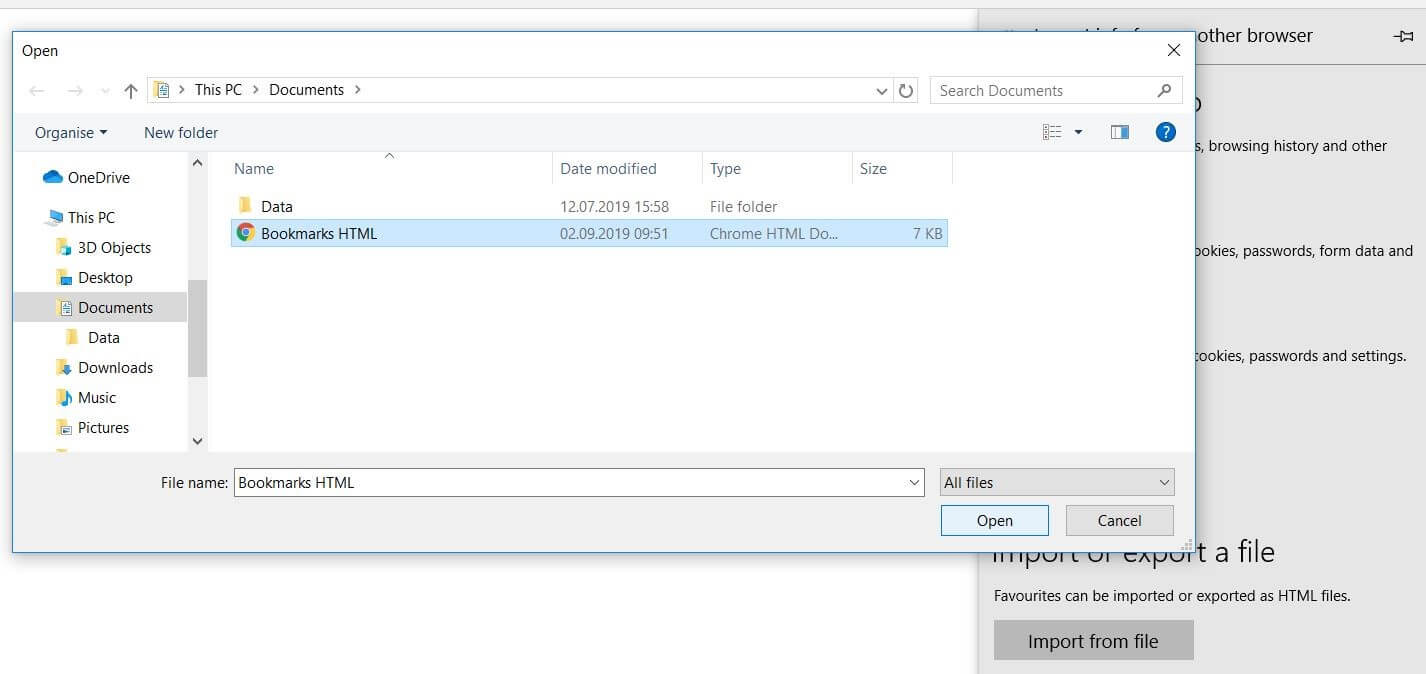
Edge will now import your favourites and automatically add them to the bookmark/favourite manager in their own folder. You can also sort the new bookmarks into an order of your choosing in your collection, in any way you wish.
 To display this video, third-party cookies are required. You can access and change your cookie settings here.