

Installing add-ons in Firefox, Chrome, and more

Whether to block advertisements, to translate web content, or to boost productivity – add-ons can give you useful extensions for your browser, saving you time and improving the online experience. We’ll show you how to install an add-on in Firefox, Chrome, Edge, and Safari in just a few clicks.
Firefox: installing add-ons
Depending on which browser you’re using as standard, the process will differ in terms of installing an add-on. If you’re using Mozilla Firefox then you can continue as follows:
- Click on the burger menu (☰) in the top-right corner of your Firefox browser and select the menu item ‘Add-ons’ to reach the add-ons manager.
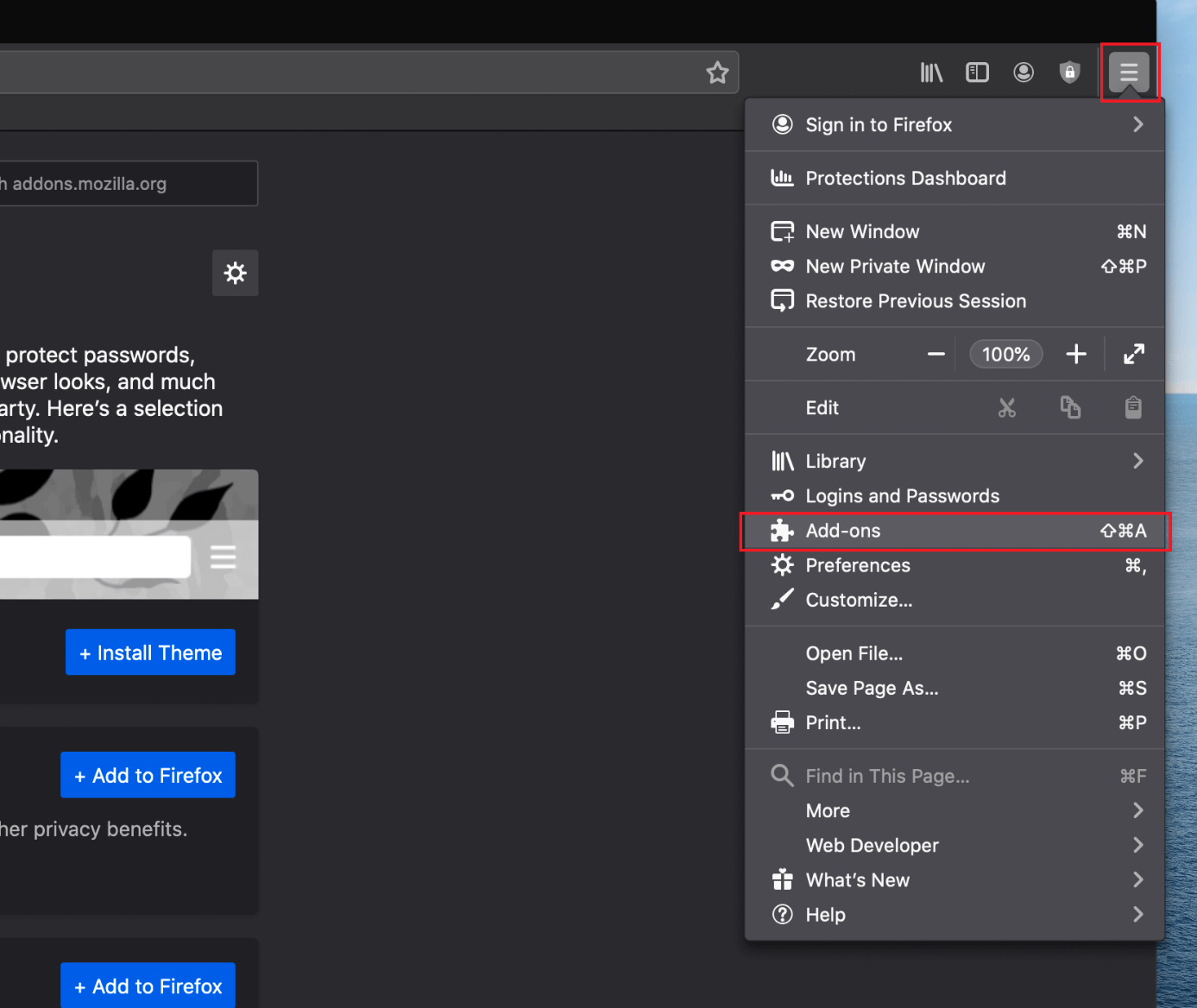
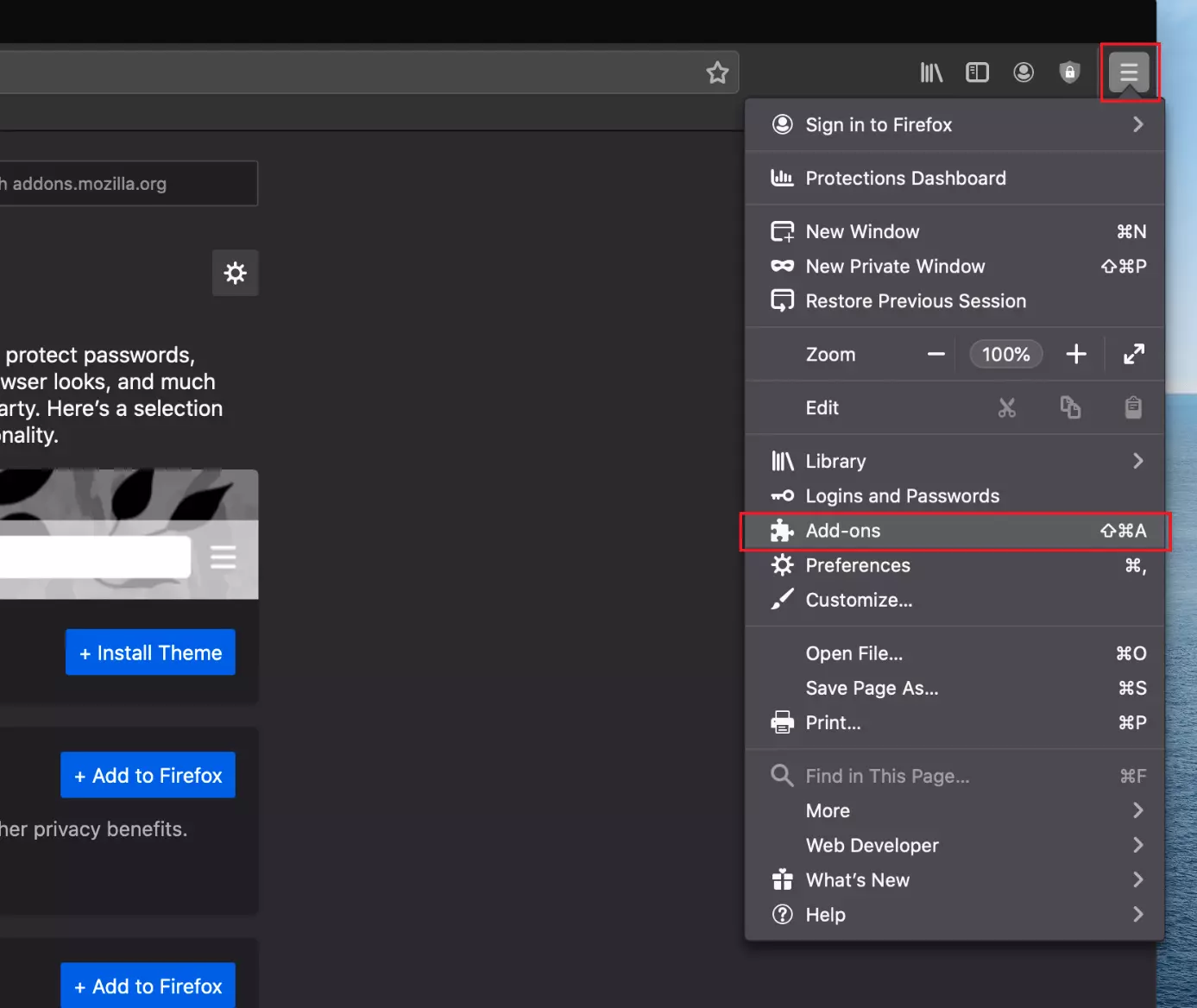
Use the key combination Ctrl + Shift + A to reach the Firefox add-ons manager, where you can manage and look up new extensions. If you’re using a Mac, you can use the command key in place of the control key.
- Use the search function to look up the add-on you want to install.
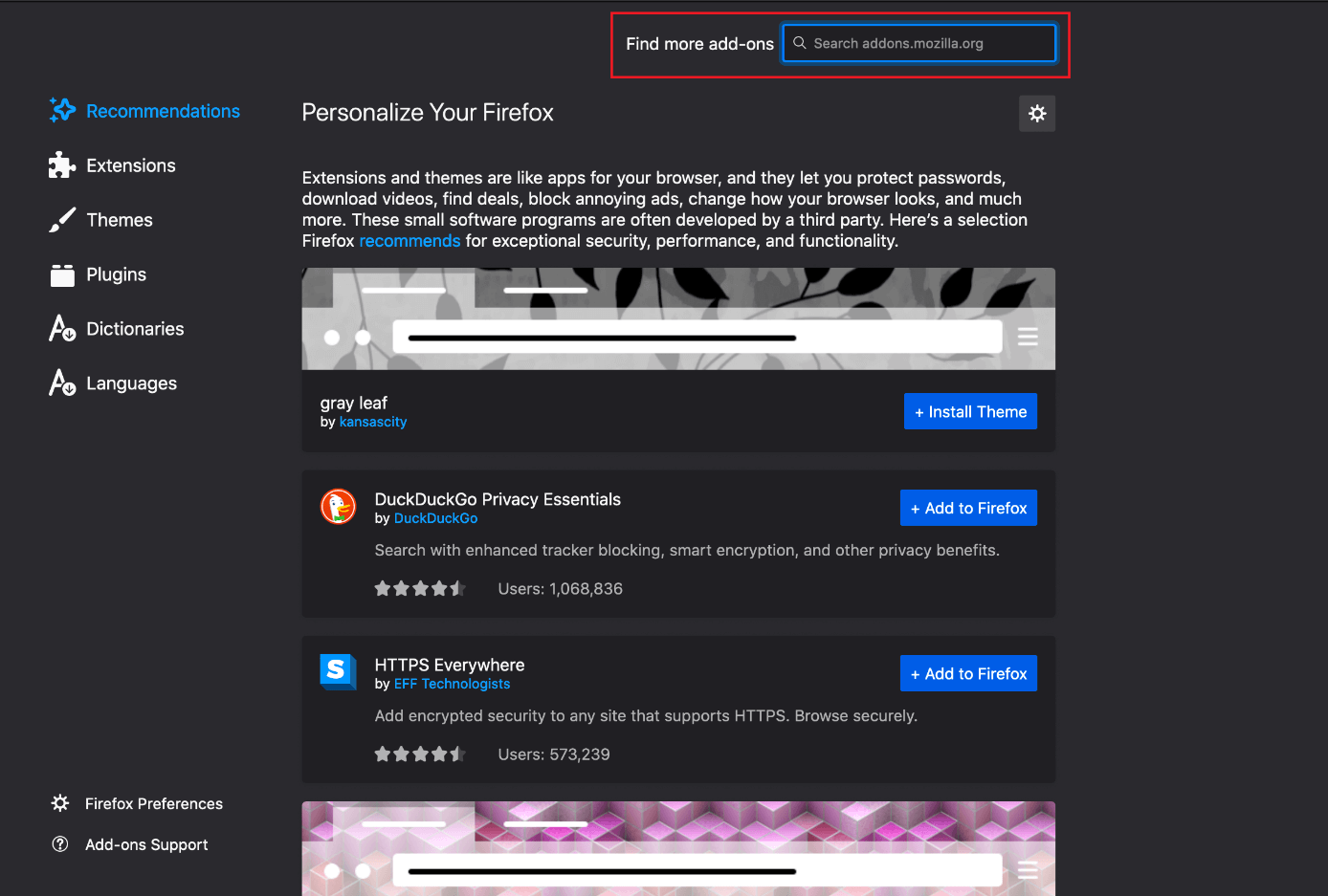

- Search results will now appear. Click on the add-on you’re interested in to find out more, and use the button ‘+ Add to Firefox’ to install the Firefox add-ons.


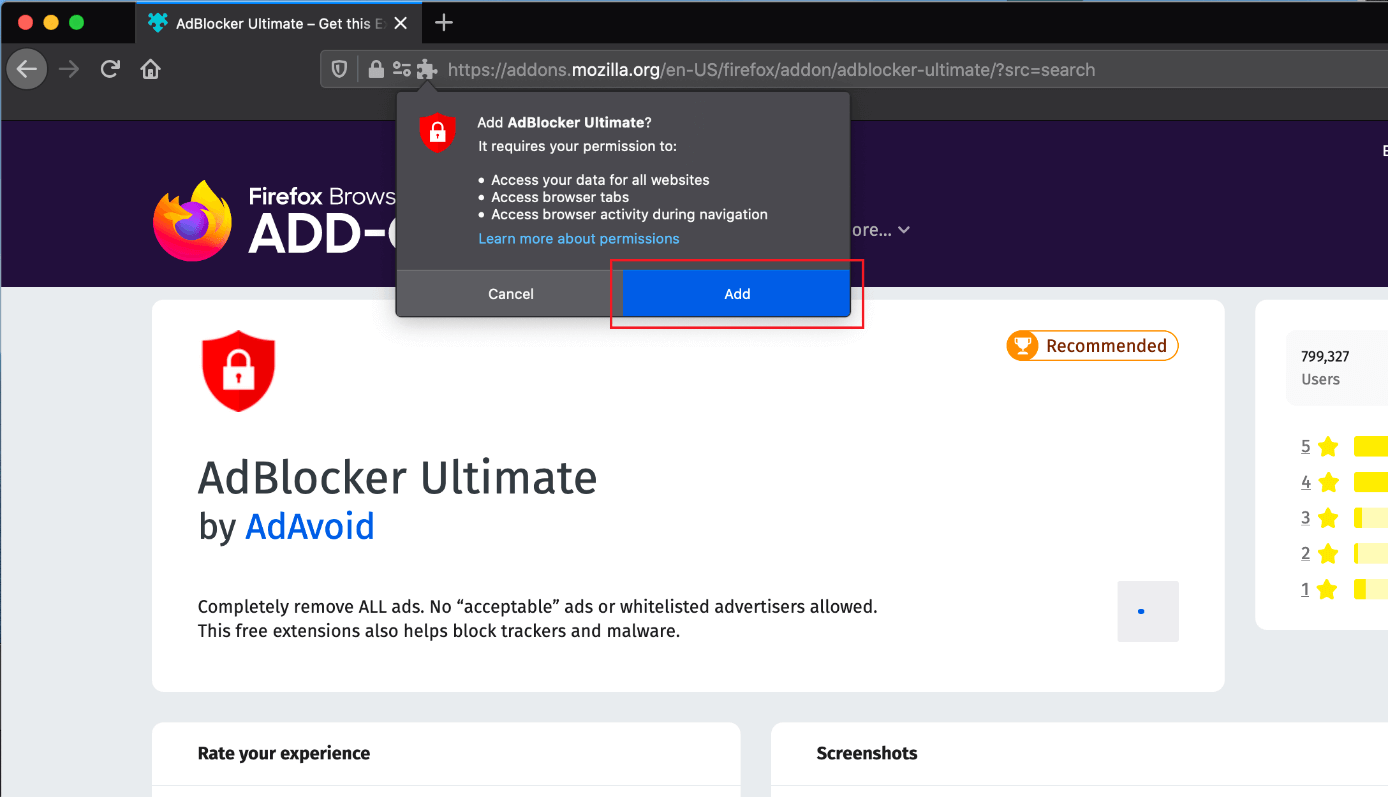
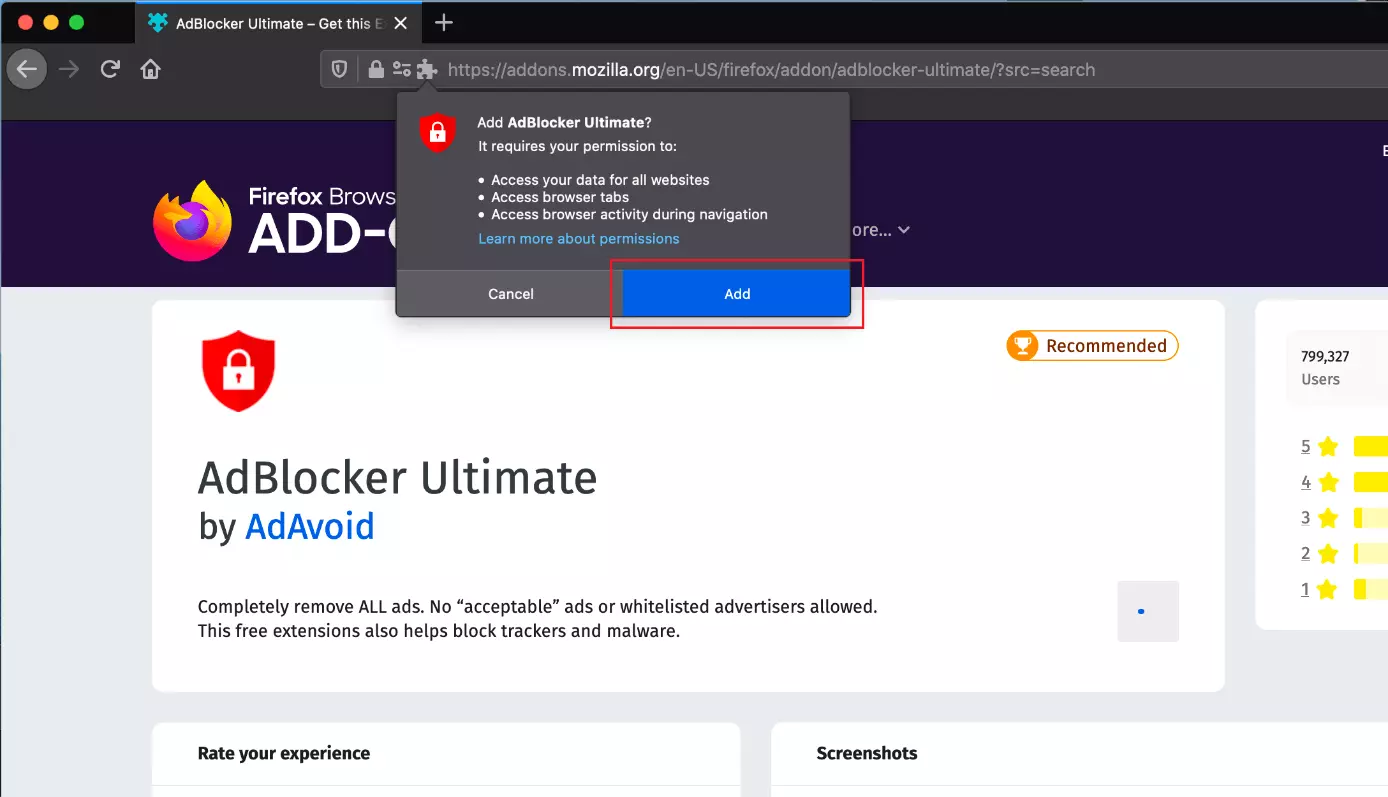
- To finish, confirm the installation by clicking on the “Add” button in the pop-up window.
If you’d rather delete or deactivate the add-on at a later stage, click on the burger menu again (☰) to open the add-ons manager. By switching the bar to the left or right, you can deactivate the add-on or activate it again. If you want to completely delete an add-on, click on the three dots and select ‘Delete’.
Chrome: installing add-ons
In the browser developed by Google you also have the option to install add-ons quickly and simply. To do so, just follow the steps below:
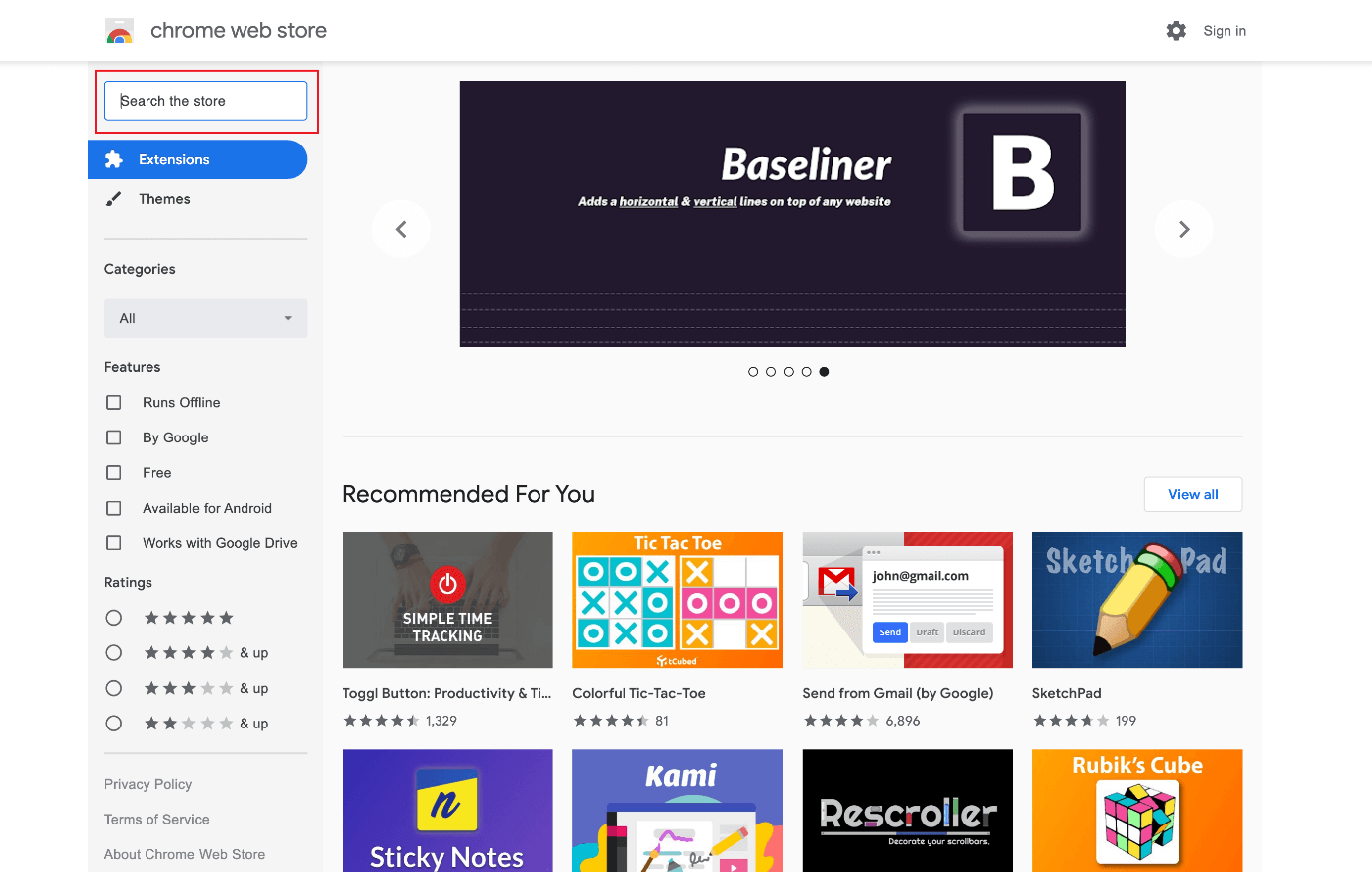
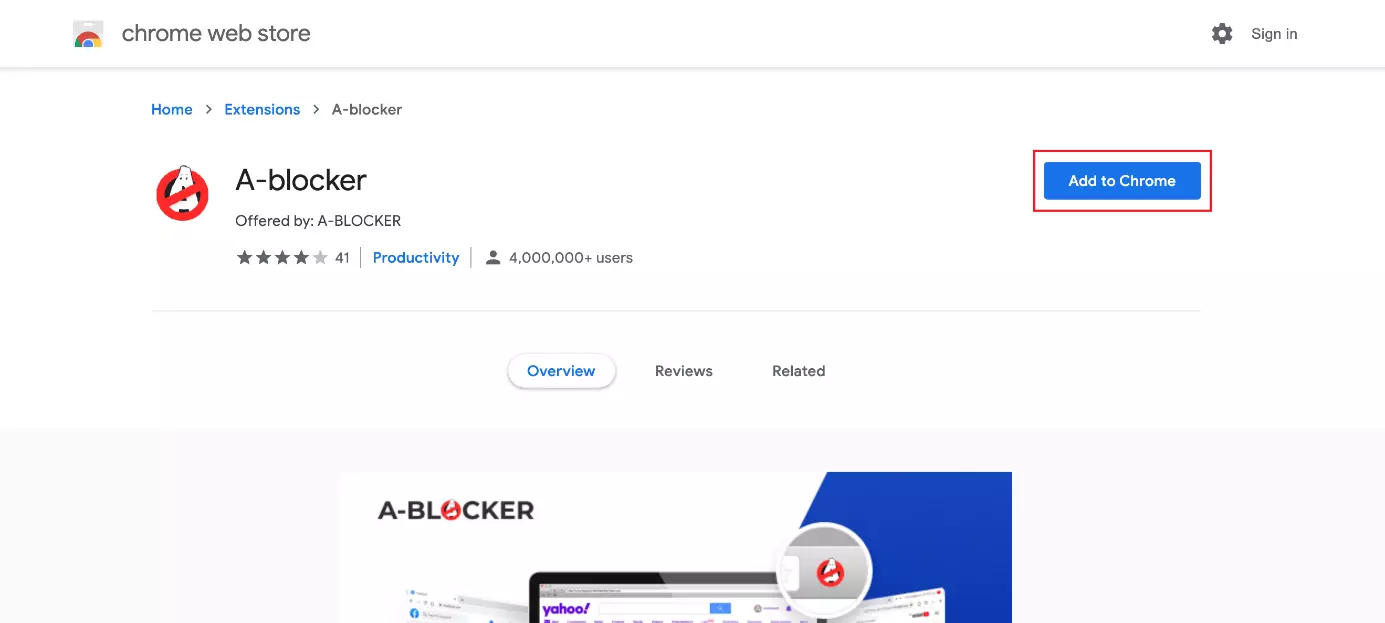
- Open up the URL of the Chrome Web Store. Here, you’ll find all available add-ons for Google Chrome. Select the add-on you’d like to install or use the search function in the top left to find it if it’s difficult to locate.
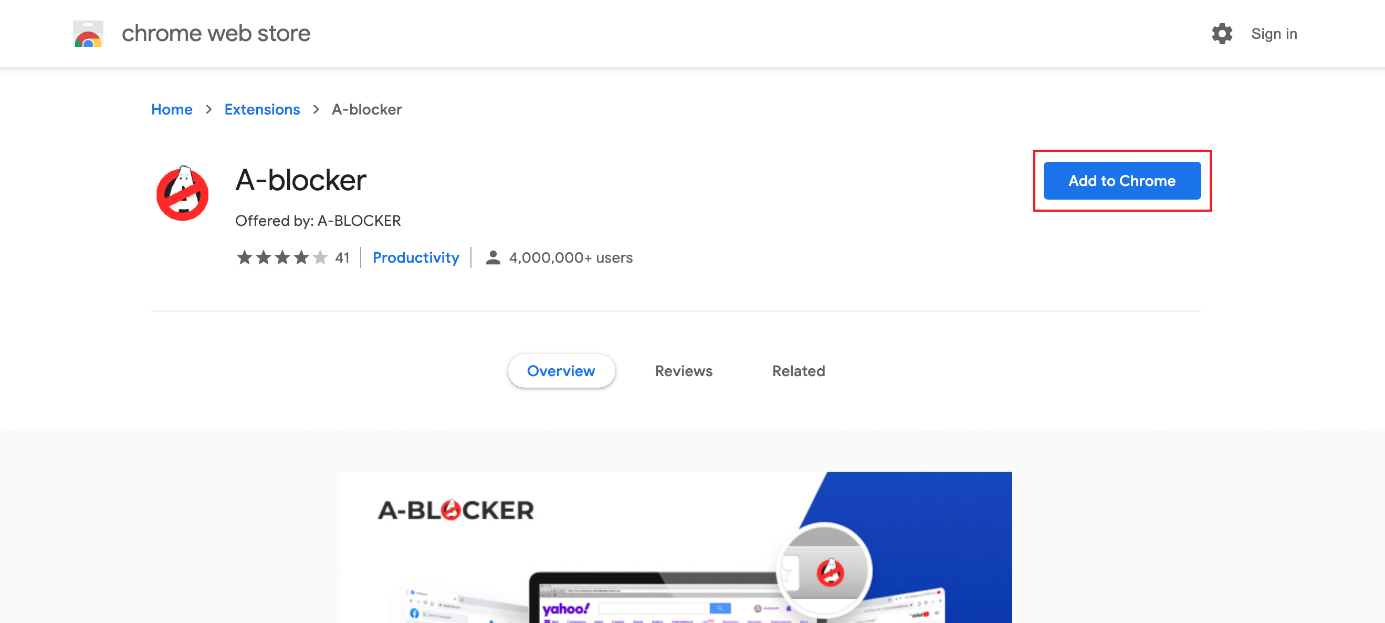
- In the search results, click on the add-on to reach its dedicated landing page and find out more about it. Here, you can click on the ‘Add to Chrome’ button to install the Chrome add-on.
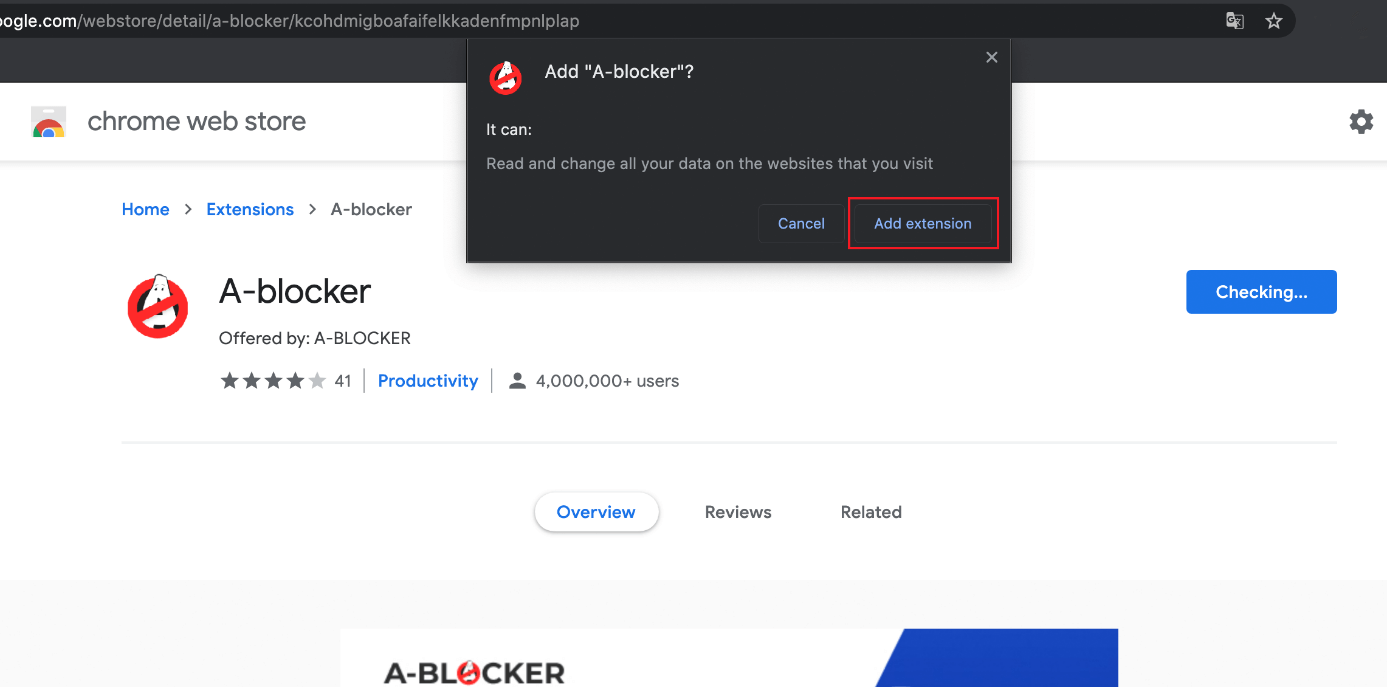
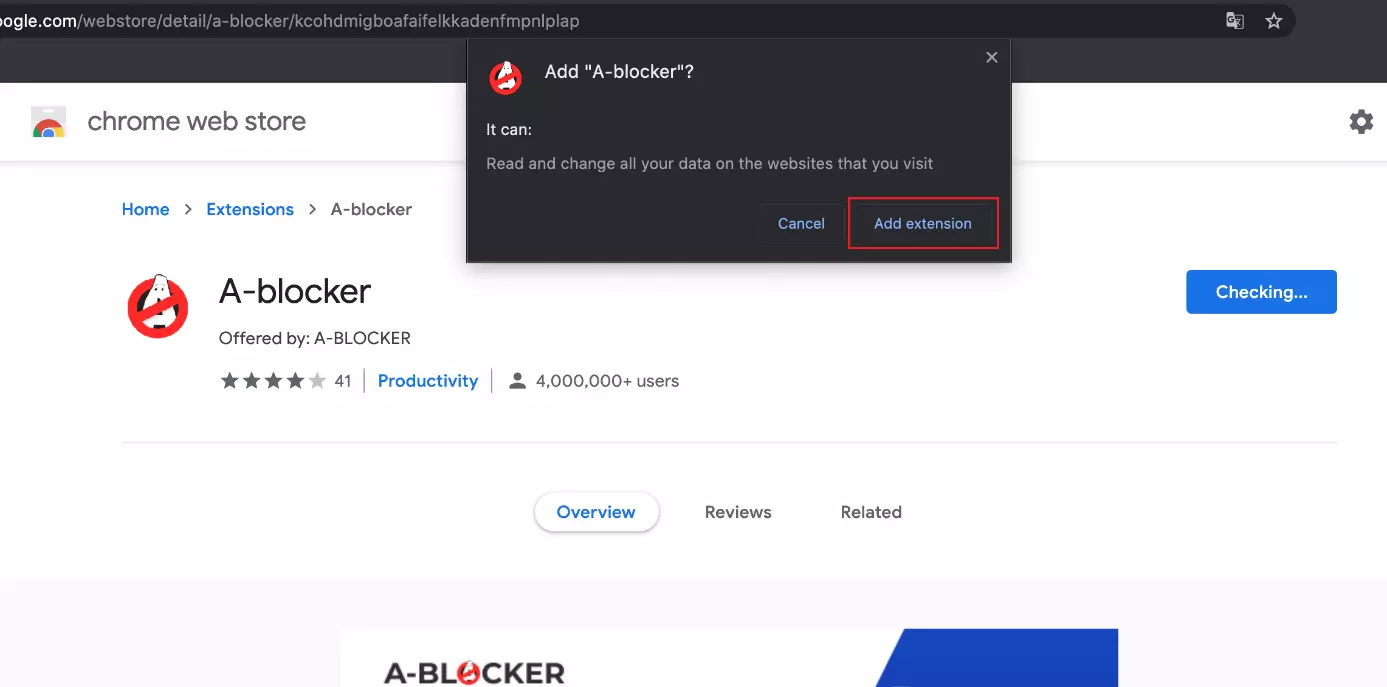
- Confirm the installation by selecting ‘Add extension’ in the pop-up window.
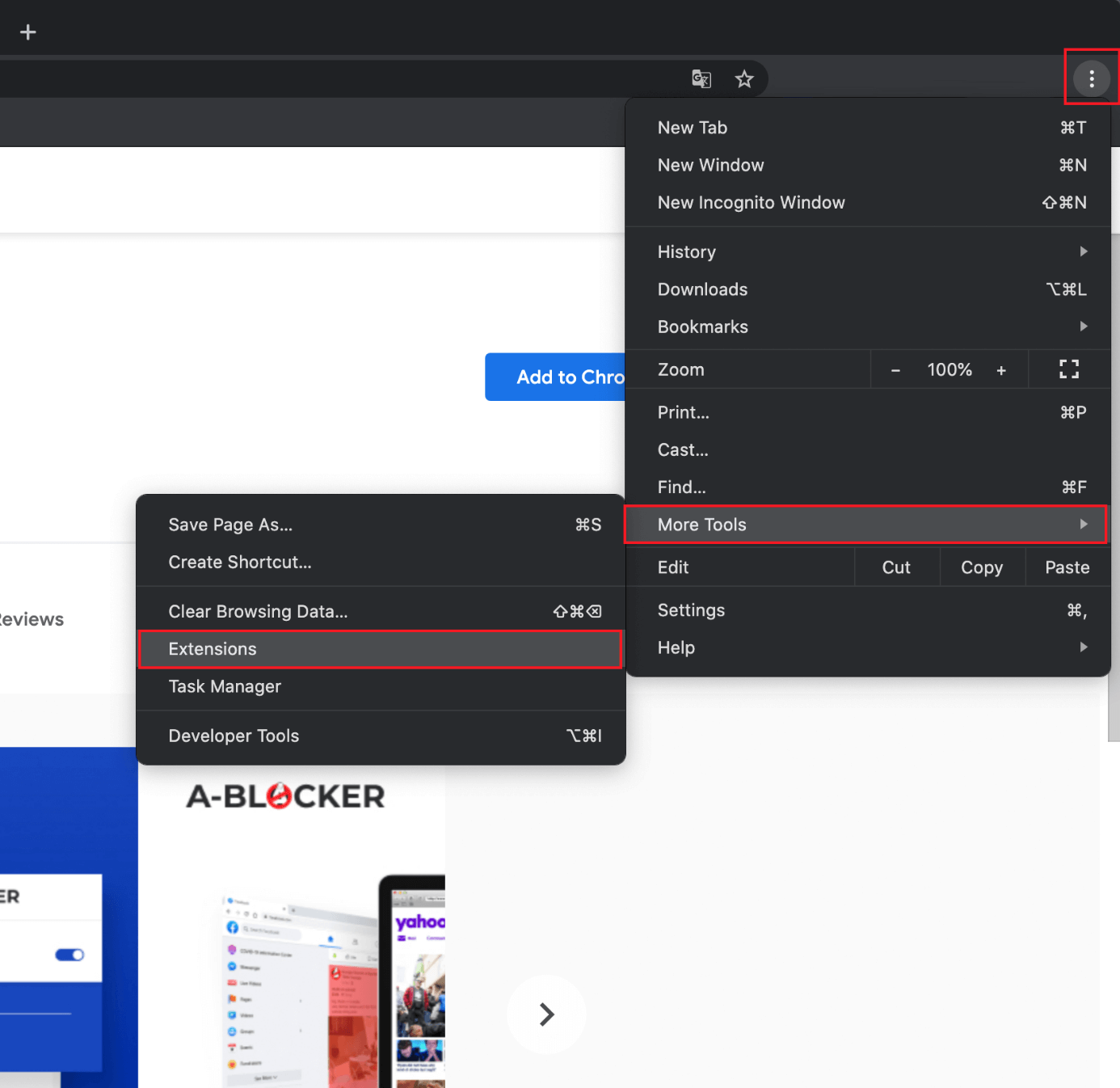
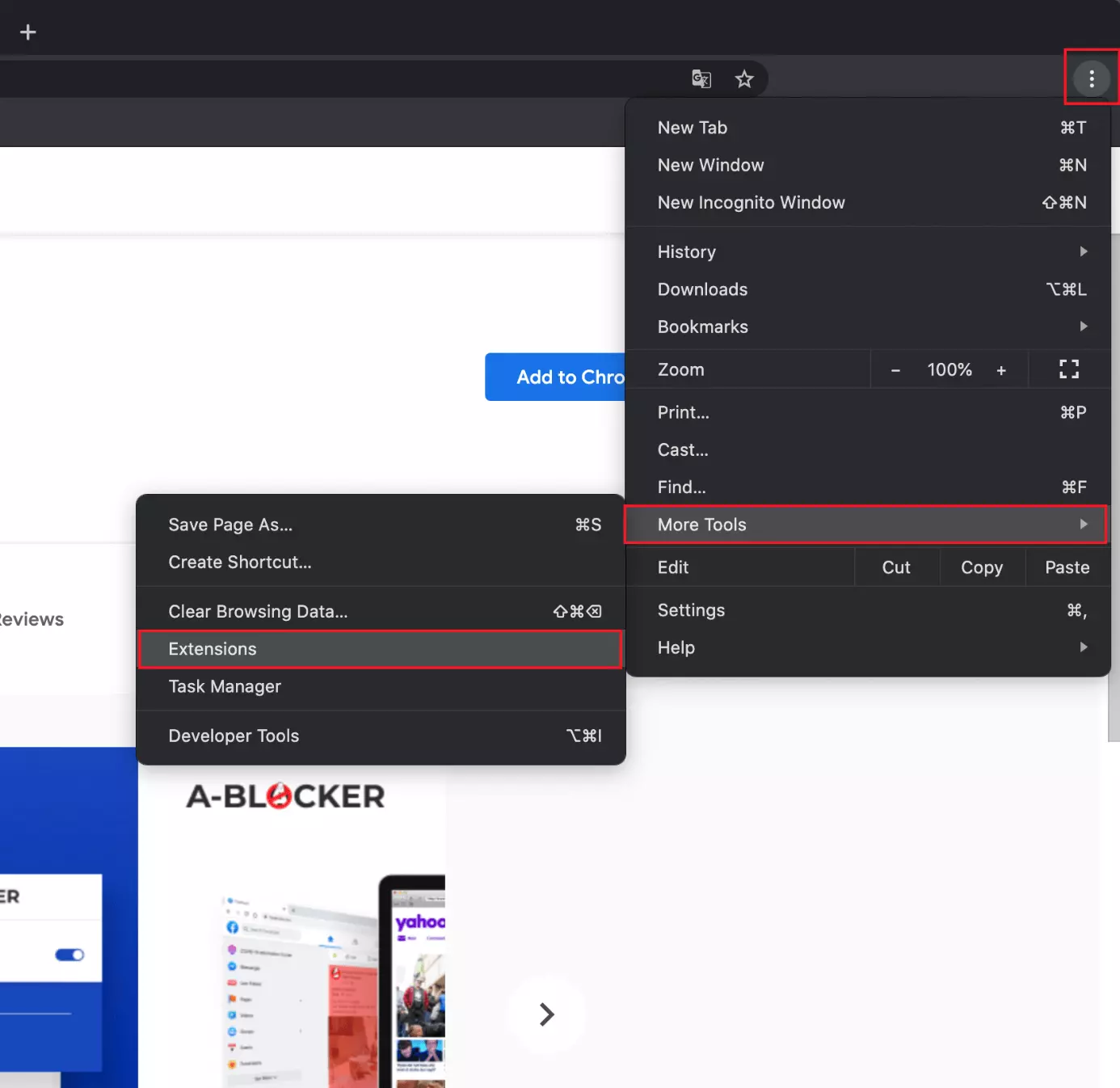
To manage your Chrome add-ons, click on the three vertical dots and select ‘More Tools’ and then ‘Extensions’. Here, you have the option to deactivate an add-on by way of the toggle switch or to delete an add-on by clicking on the ‘Remove’ button.
Installing add-ons in Microsoft Edge
In 2015, Microsoft Edge replaced Internet Explorer as the new standard browser with the introduction of Windows 10. In our short guide, we’ll show you how to install add-ons in the Microsoft-developed browser:
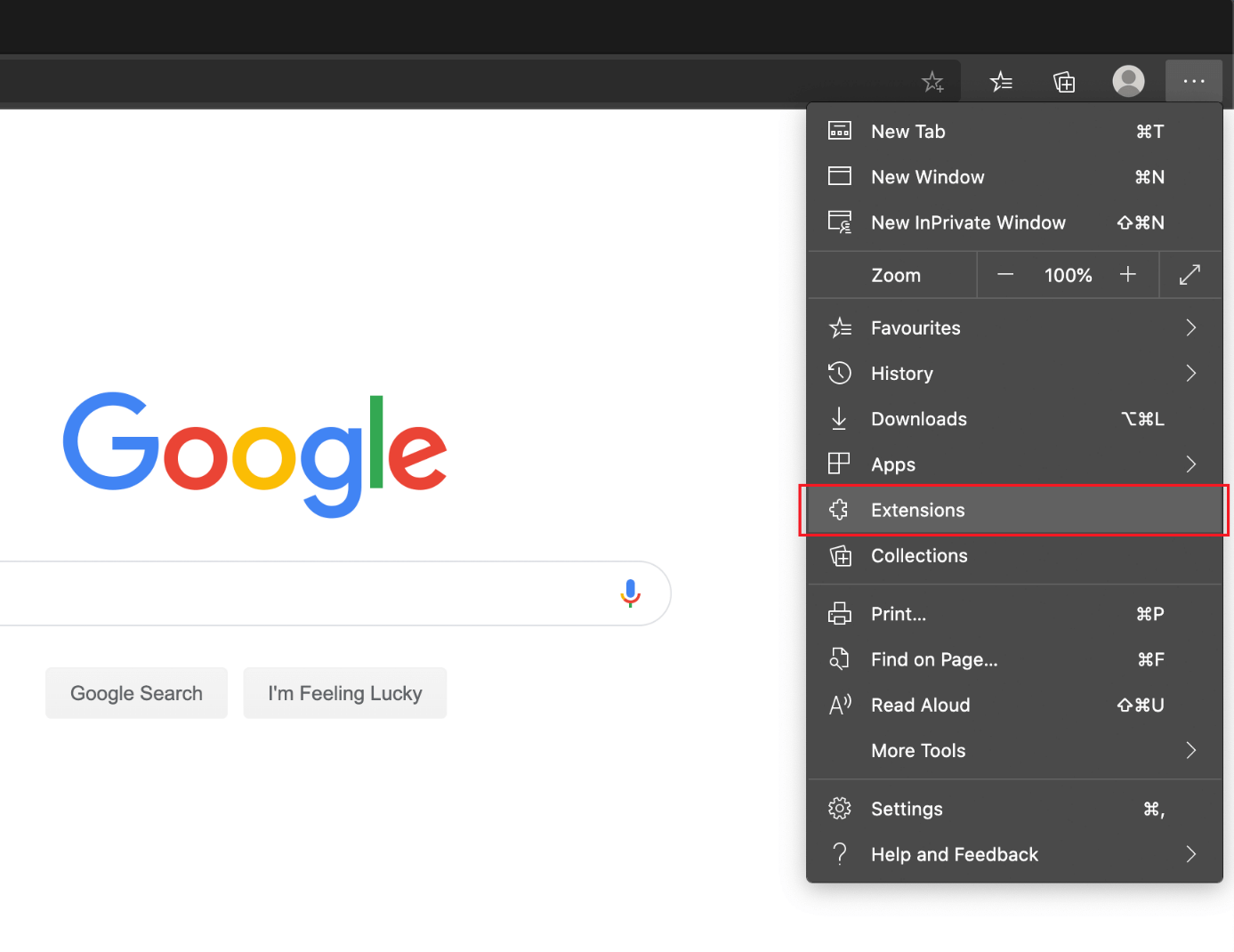
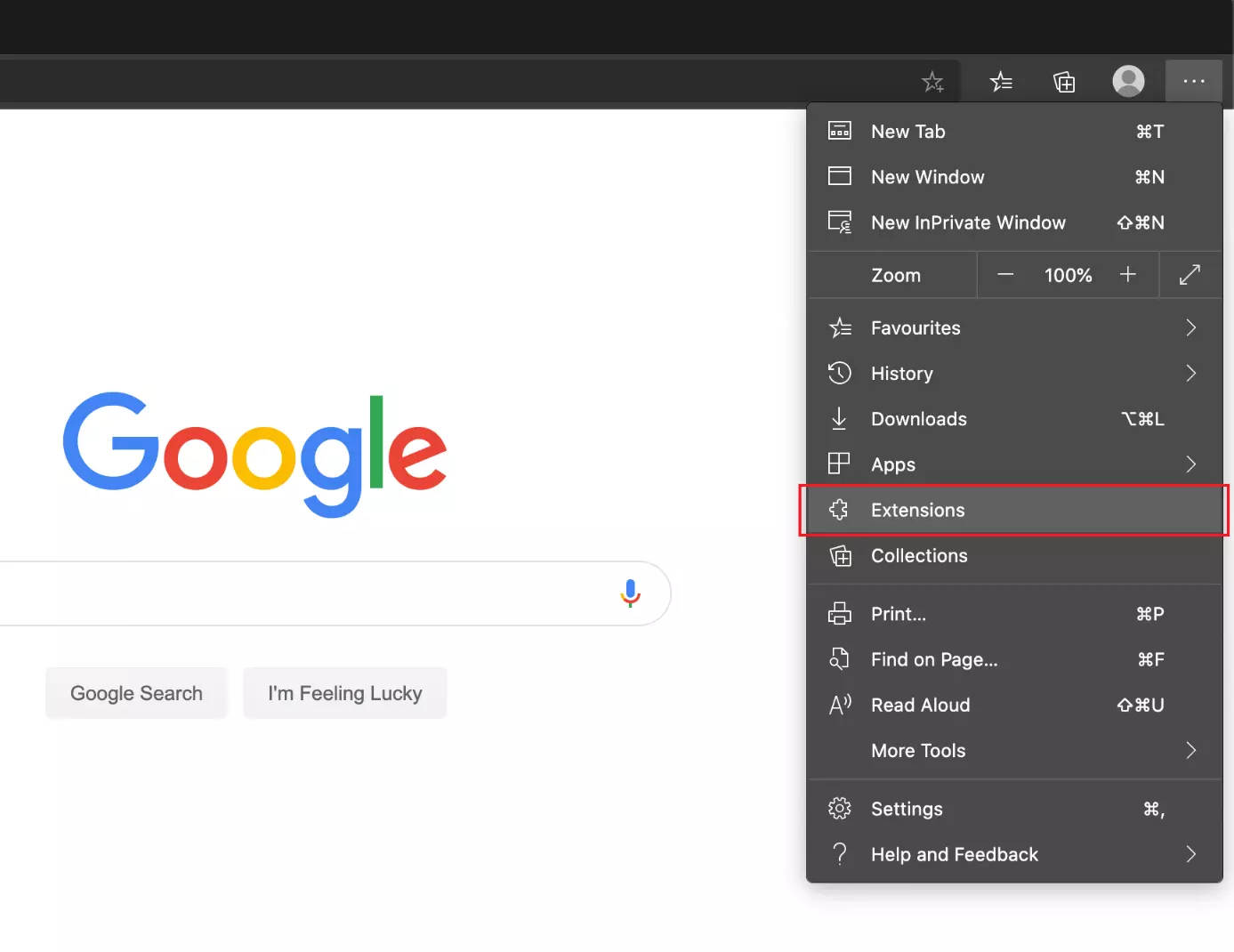
- In Edge, click on the three horizontal dots in the top right corner of the screen, and select the option ‘Extensions’.
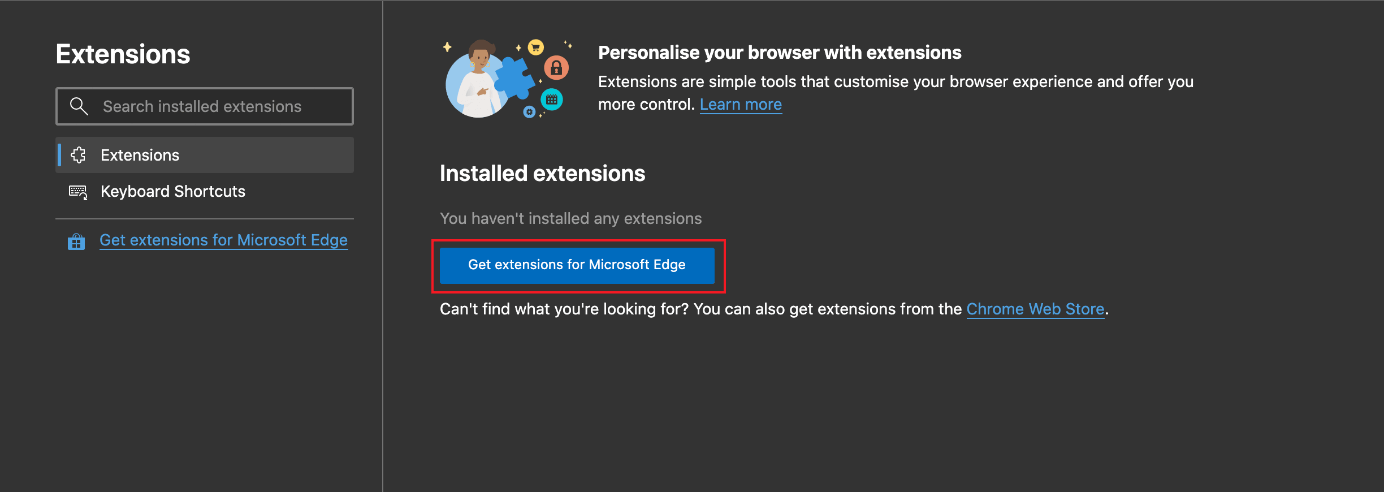
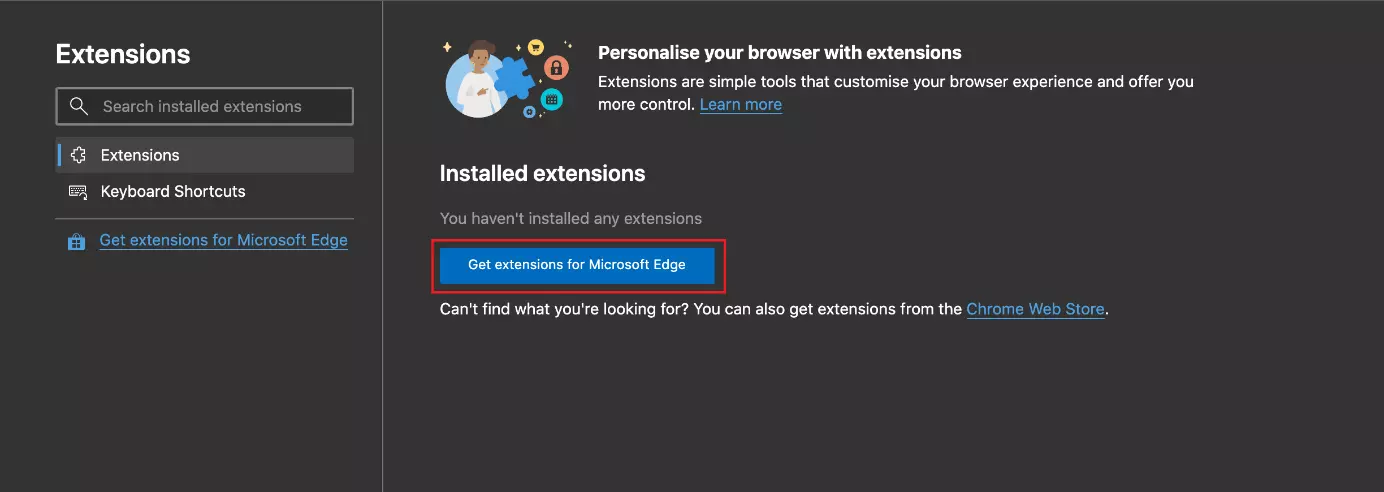
- The Edge add-ons manager will now open. To access the add-ons store, select the option ‘Get extensions for Microsoft Edge’ by clicking on it.
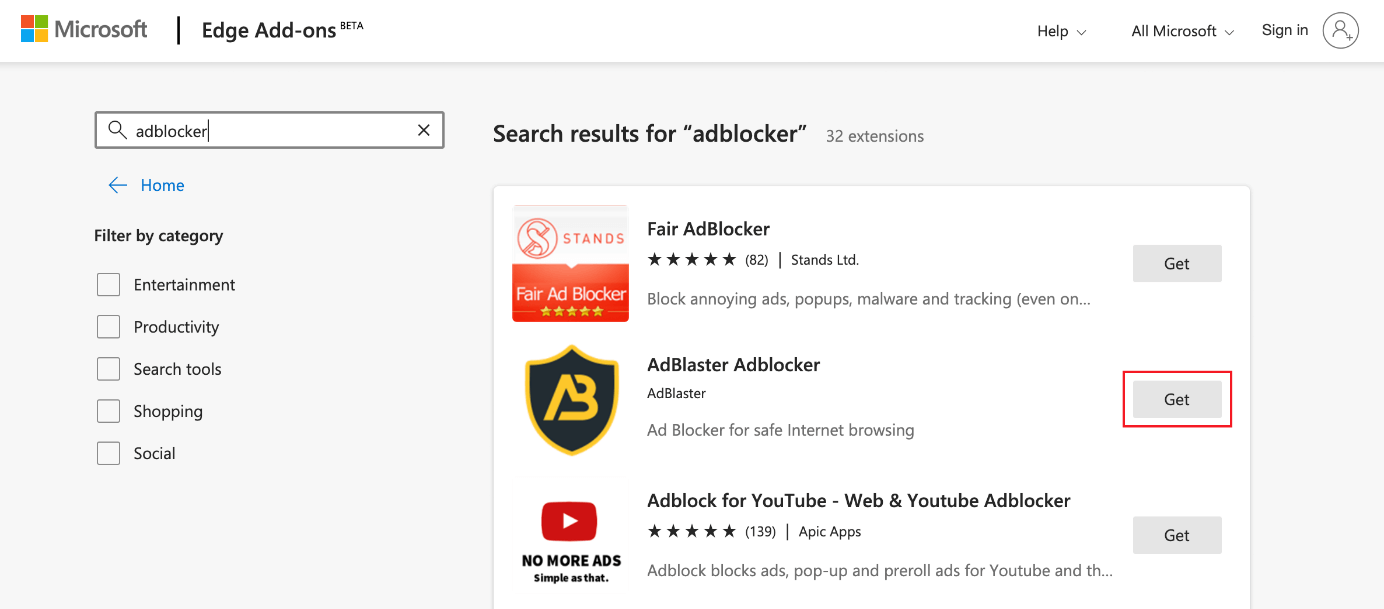
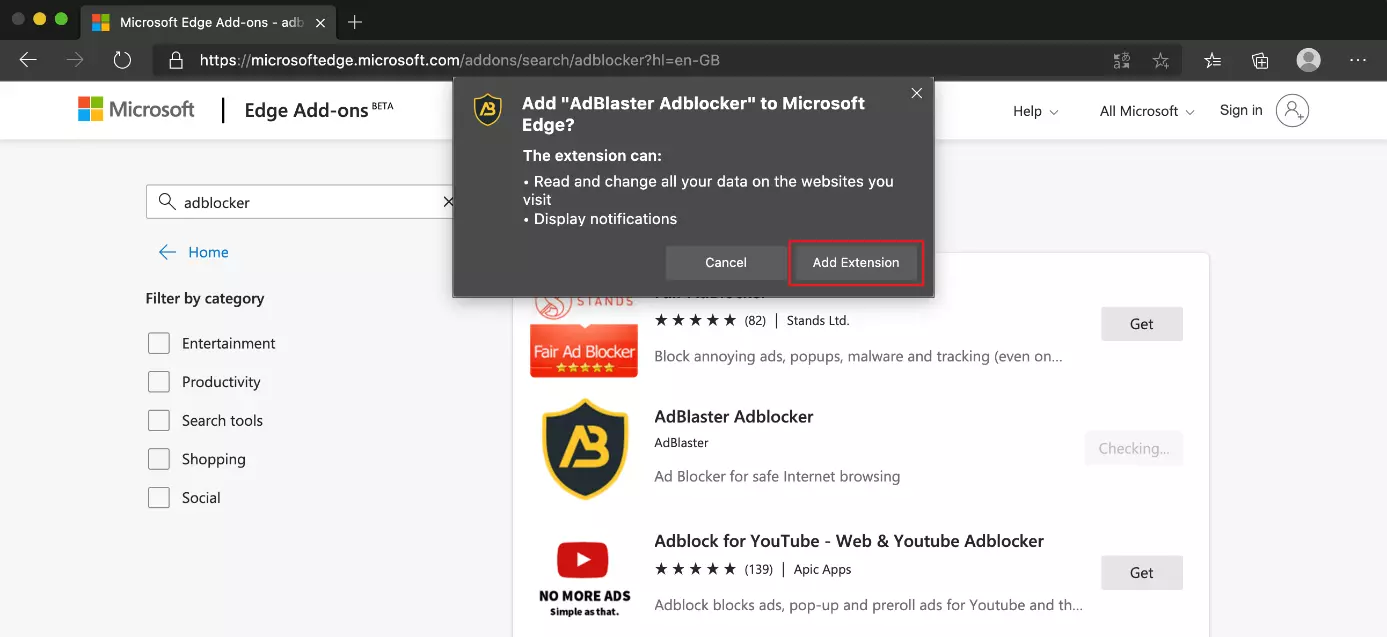
- Use the search function to navigate the add-ons store and find extensions in no time at all. To do this, simply enter the search query into the search bar and press the Enter key.
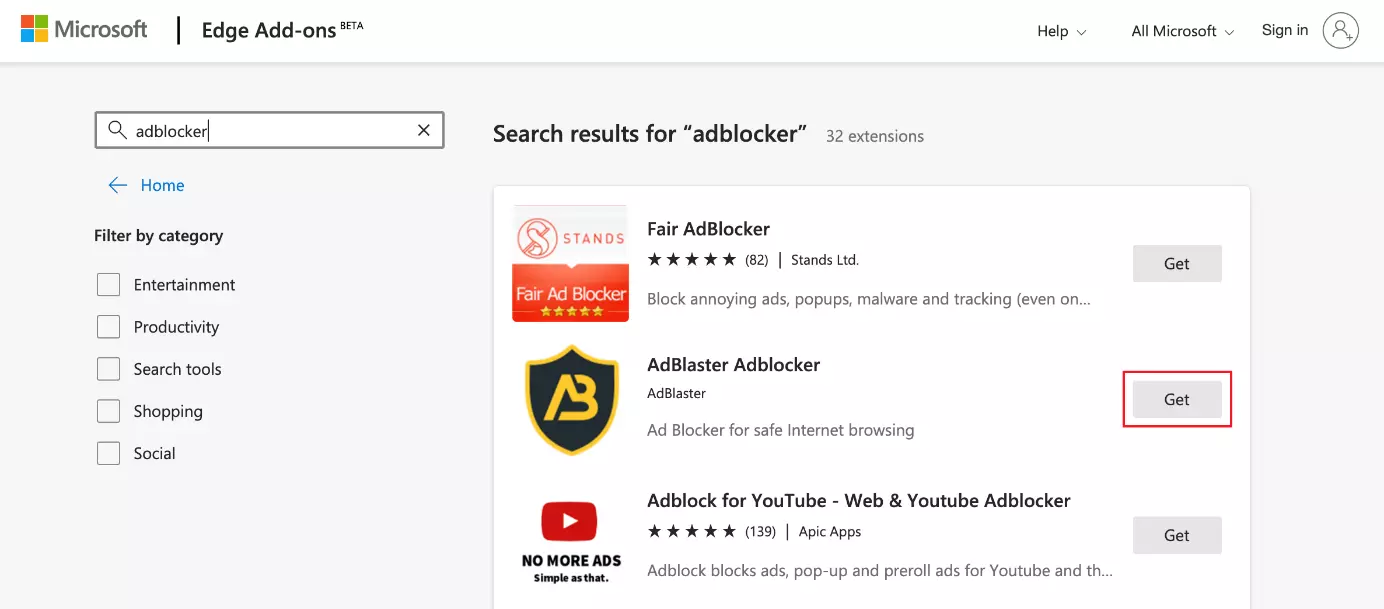
- In the search results, click on the button ‘Get’ next to the add-on you’d like to install.
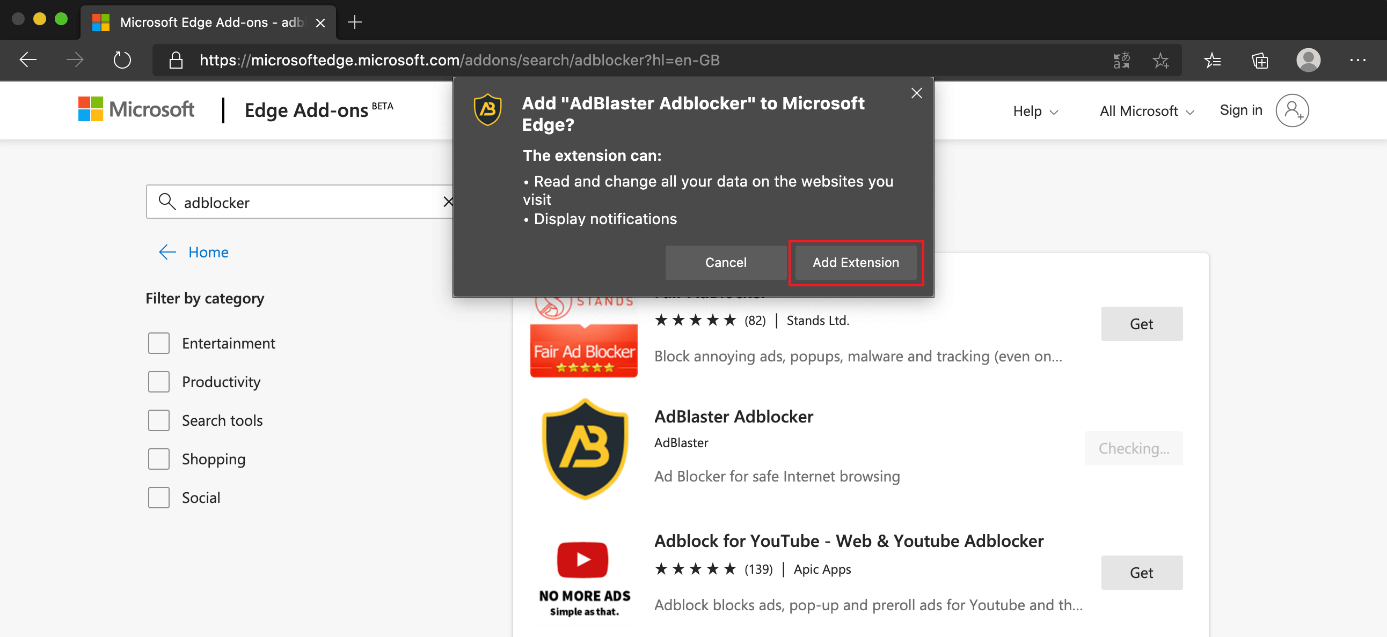
- To make sure Edge successfully completes an installation, select ‘Add Extension’ in the pop-up window.
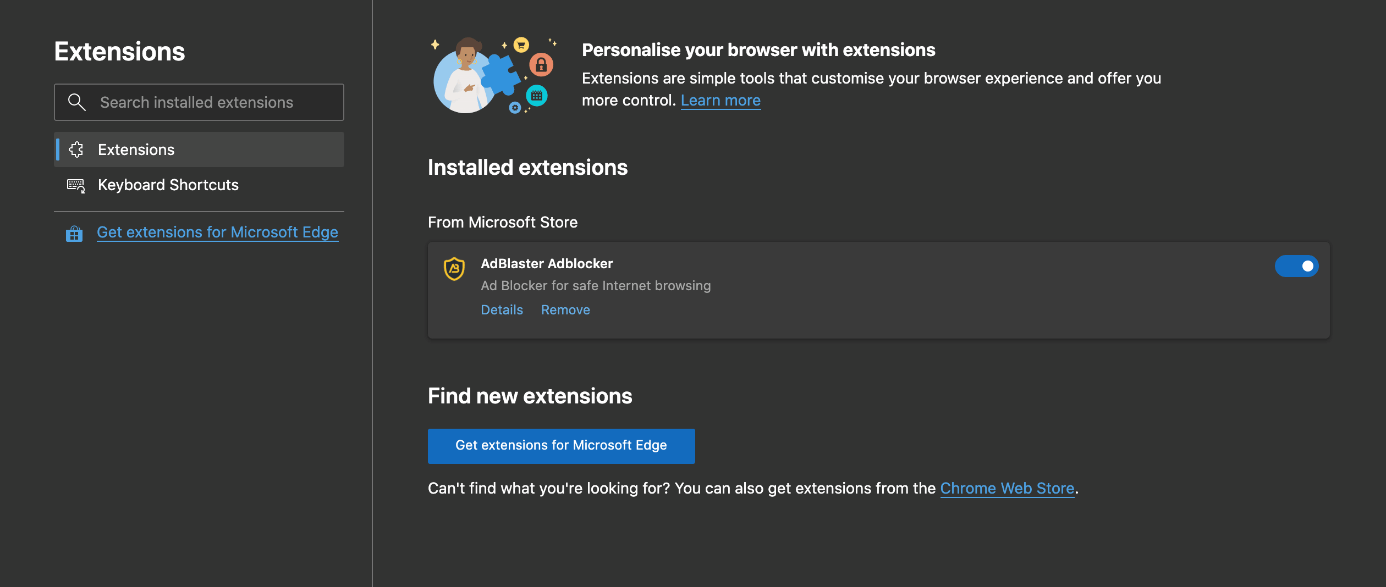
Installed add-ons can be found in the Edge menu just below the headline ‘Installed extensions’. Here, you also have the option to remove an add-on by selecting ‘Remove’ just below the add-on.
Install add-ons in Safari
Apple’s very own browser was first presented by Steve Jobs at the 2003 Macworld. While it previously also ran on Windows systems, today Safari is uniquely suited to macOS and iOS, and is incredibly popular among Apple users. In comparison to other browsers, the selection of extensions isn’t managed in the browser but via the App Store. We’ll explain how to install an add-on in Safari, step by step:
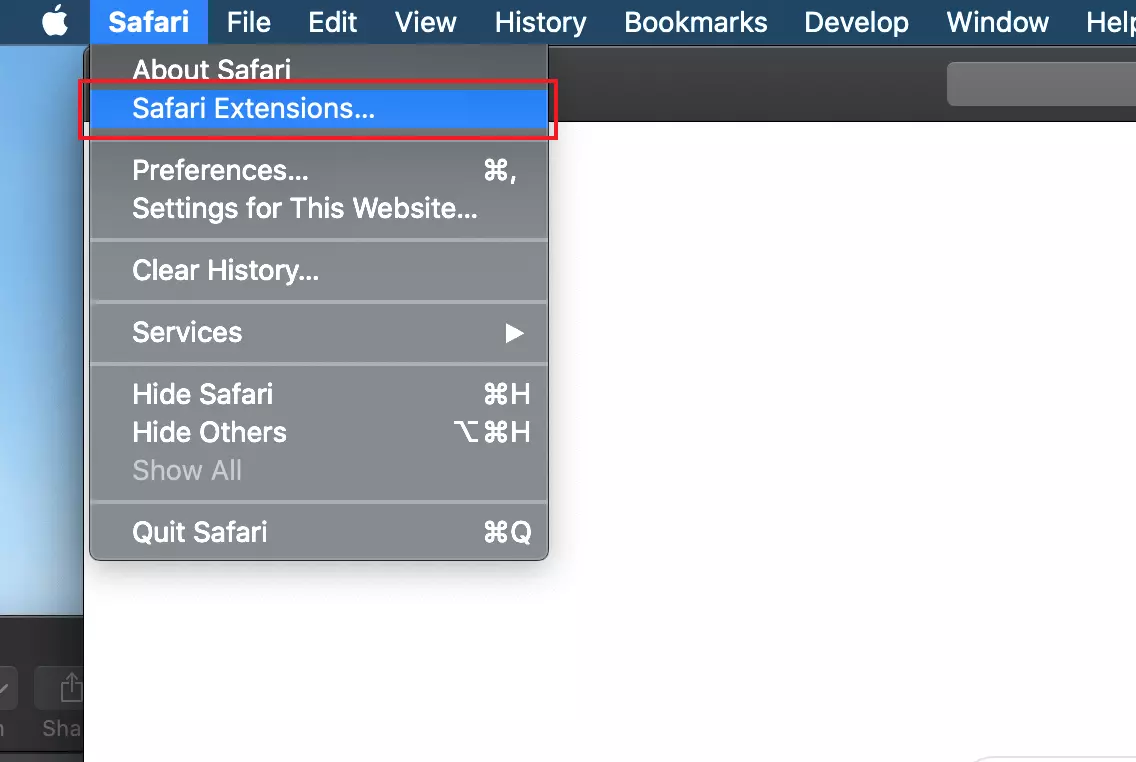
- Open the Safari browser. In the top left, click on ‘Safari’ and then select ‘Safari Extensions’ from the options.
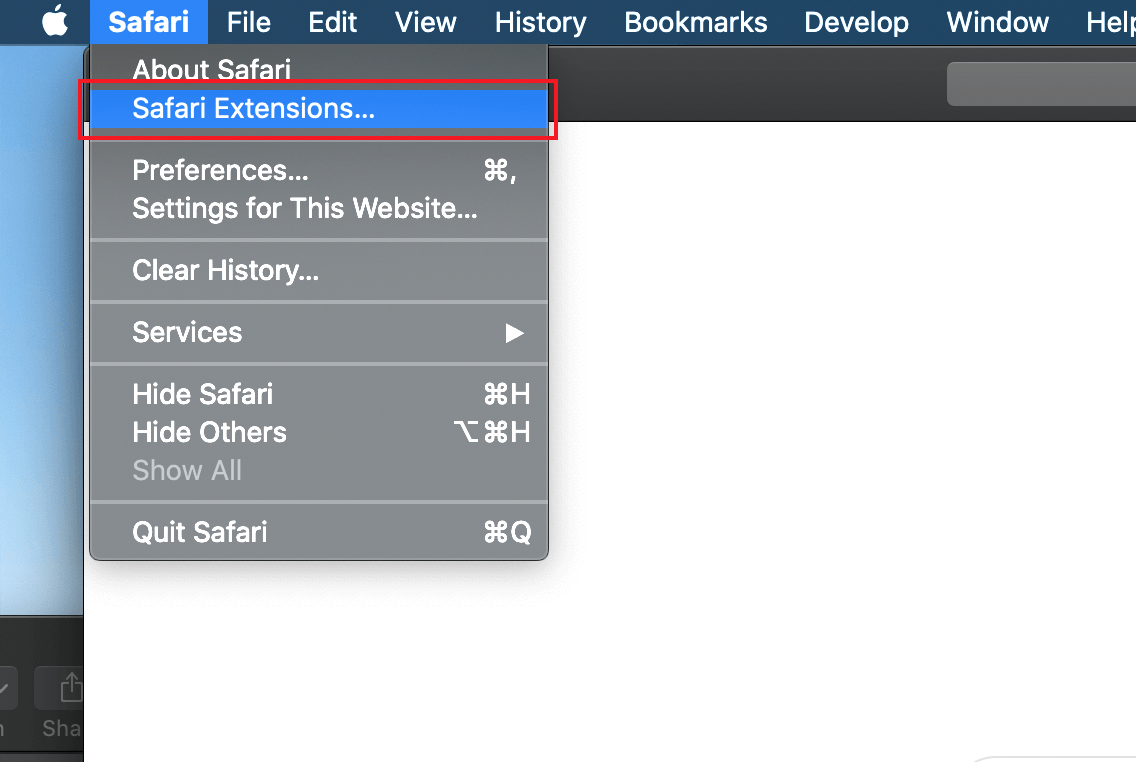
- Safari will now lead you to the App Store. Here, you’ll find all available add-ons. Click on ‘Get’ to install an add-on.
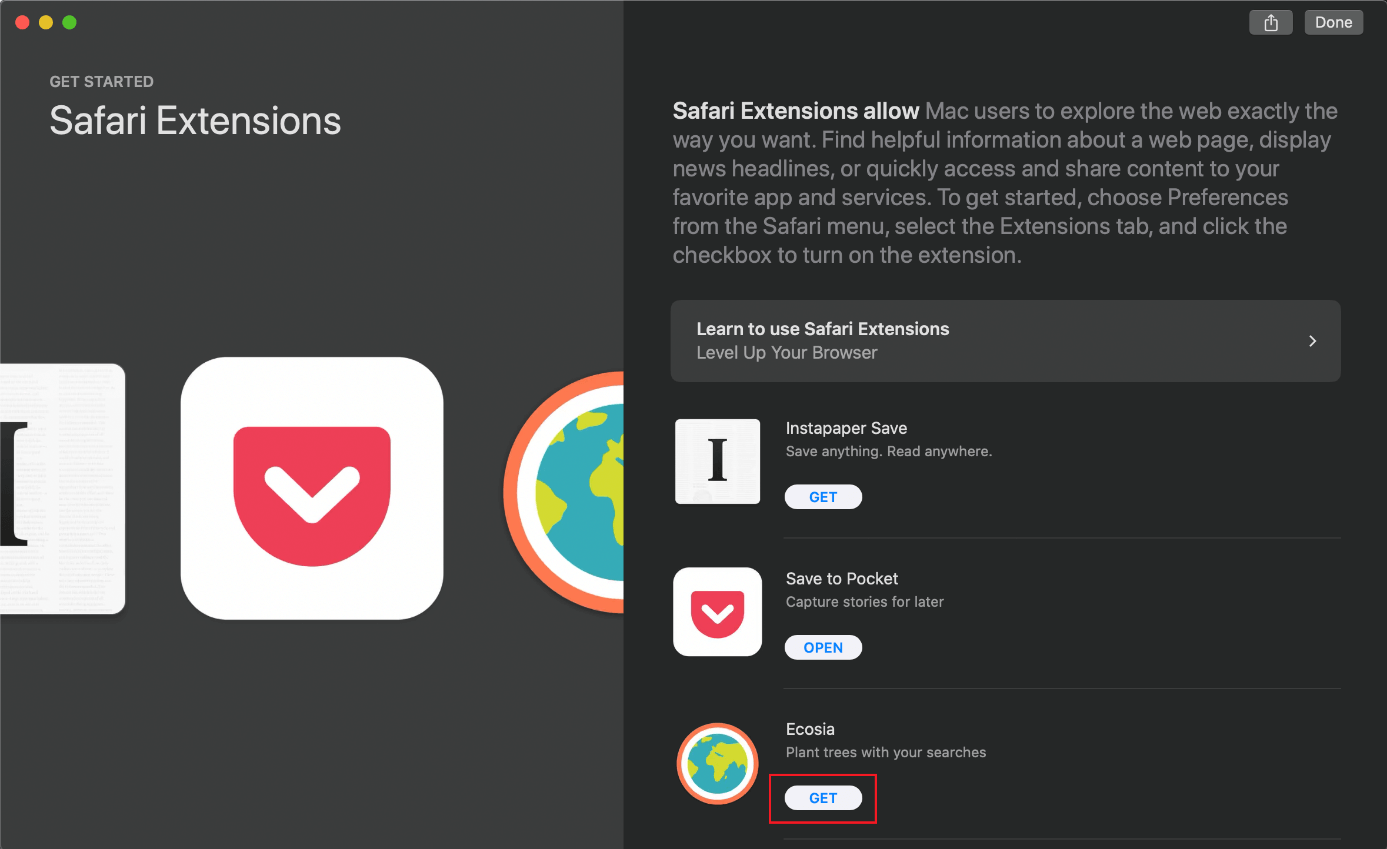
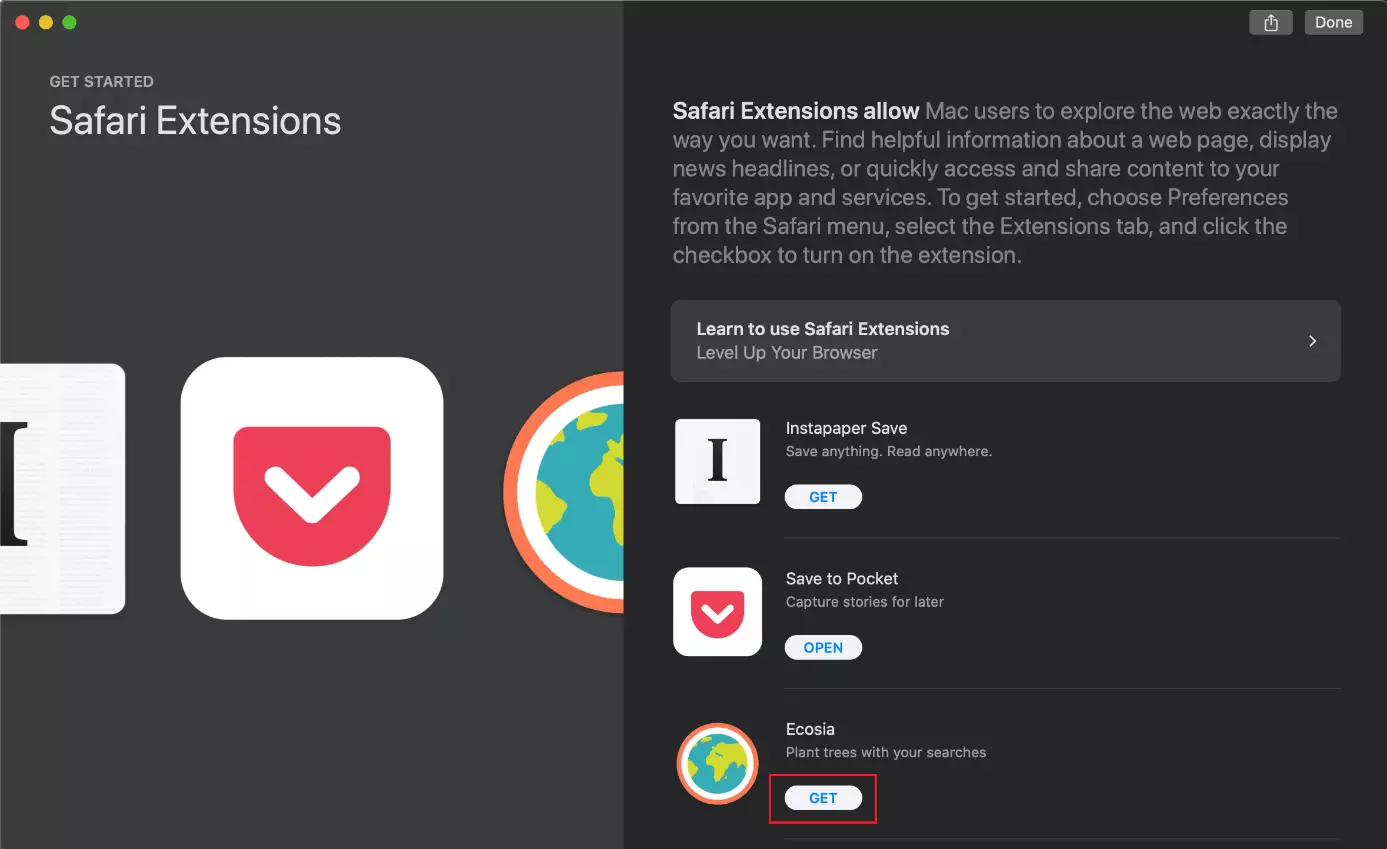
To find out more about an add-on, click on the add-on directly. That way, you’ll be able to see useful information. Click the ‘Get’ button to install the add-on.
In Safari, too, you can easily manage add-ons. To do so, click on ‘Safari’ in the menu bar, then ‘Safari Extensions’ and then select ‘Extensions’.
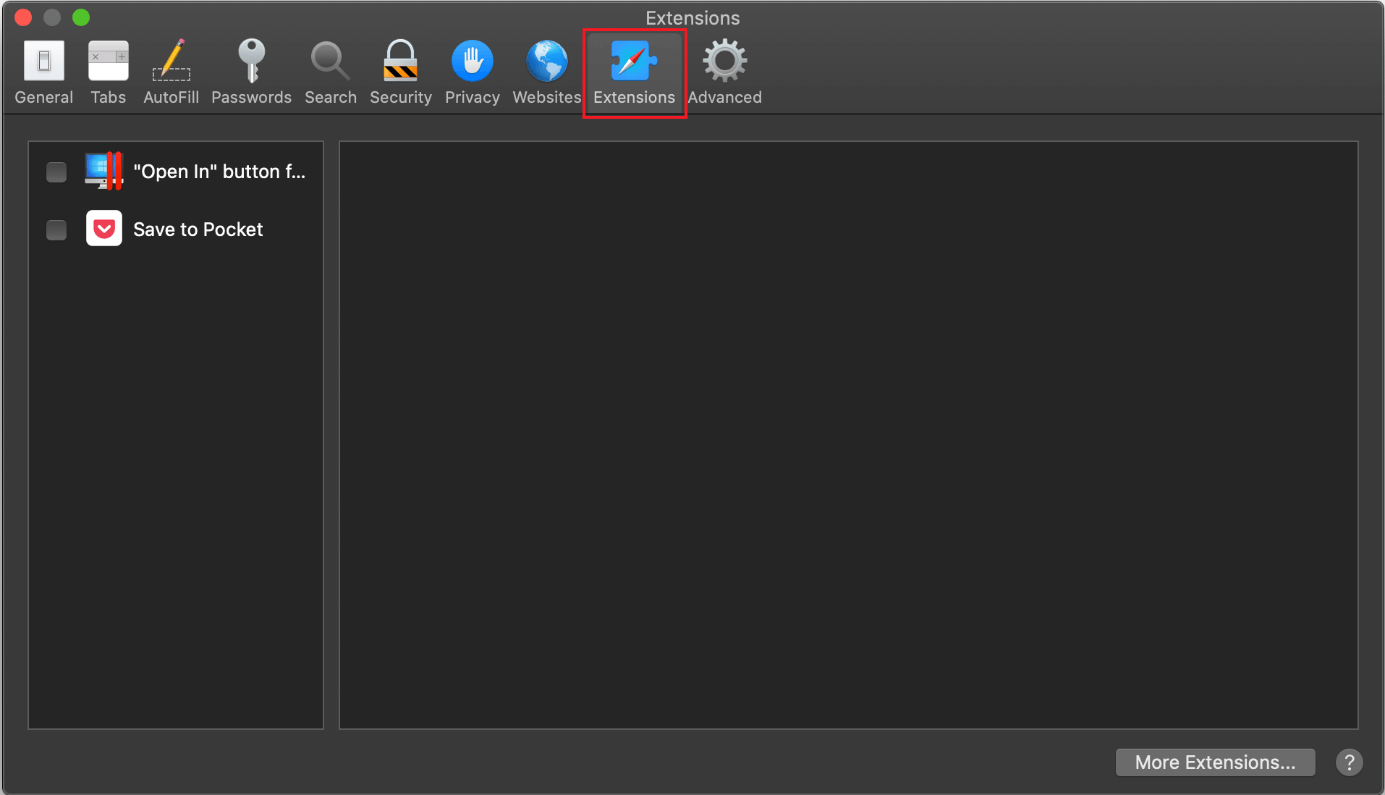
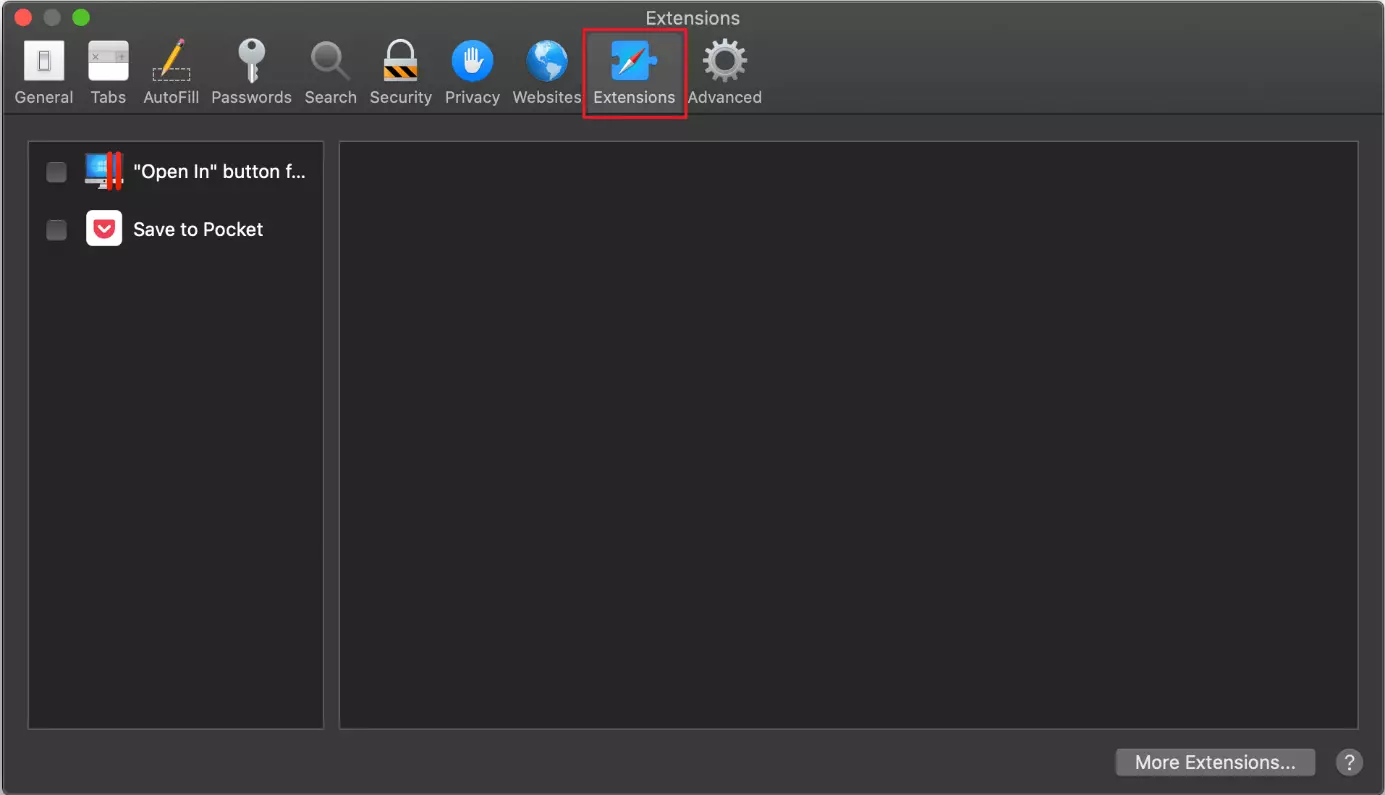
Use the checkboxes to activate or deactivate an add-on. Mark an extension and then select ‘Deinstall’ to delete it.
Reviewer

Julia Hertler
With over 18 years of experience in content marketing, Julia Hertler has deep expertise in digital communications. For the past 10 years, she has specialised in the areas of domains and hosting at the IONOS Digital Guide, making complex technical topics easy to understand.