

How to install PHP step by step

The open source scripting language PHP can be installed and used on all common operating systems. If you meet all the system requirements, you can just download your desired PHP version. On Unix and Windows, it takes just three steps to install PHP.
- Free website protection with SSL Wildcard included
- Free private registration for greater privacy
- Free Domain Connect for easy DNS setup
What you need to run PHP
Your system must meet specific requirements to run PHP. These may differ depending on your operating system. So before you get started installing PHP, check the system requirements. Some of them will apply to all operating systems. For example, to run PHP, you need a web server. You can set up the Apache web server for this purpose. In most cases, a database such as MySQL or MariaDB will also be needed.
With IONOS Web Hosting all PHP versions from version 4+ are supported for your web development goals. Register your domain and benefit from an integrated wildcard SSL certificate.
UNIX-based systems
Installing PHP on UNIX systems like Linux doesn’t require much additional work. Linux and the most common Linux distributions provide most of the components you need. Only an ANSI C compiler and module-specific components such as PDF libraries may need to be installed manually.
Windows
To install PHP on Windows, first ensure that your Windows version is compatible with PHP. All versions released after Windows 2008 or Windows Vista provide basic compatibility for PHP 7.2.0+.
On Windows you need the option to deal with C code. To set this up, download Visual C Runtime or C Runtime Files (CRT). You also need a suitable Visual Studio version. For most common PHP versions, Microsoft Visual C++ Redistributable for Visual Studio 2019 is a suitable choice.
macOS
Provided you own a Mac, you don’t need to do anything else to install PHP. The scripting language is included in modern macOS versions.
Download PHP
If your system meets the requirements, download the PHP version of your choice. There are several versions available for manual download from the official PHP website. Download is necessary on Windows. On Linux, installation and download can be performed via the command line. On macOS, PHP is pre-installed.
Be sure to select the right link to download PHP for Windows.
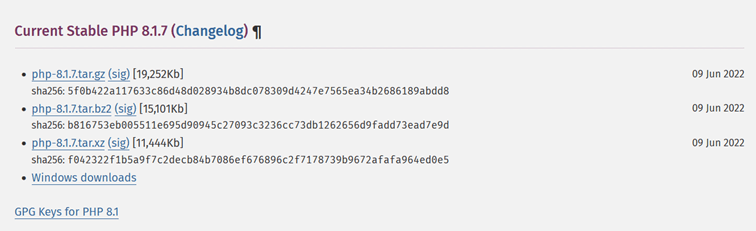
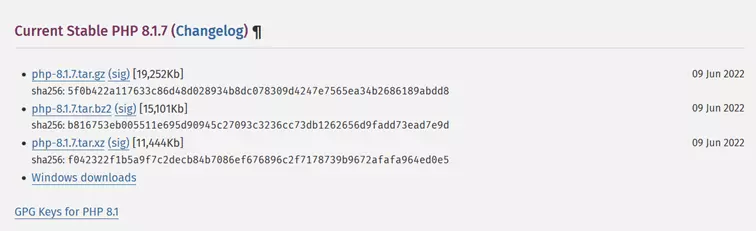
Which PHP version is the correct one?
Unless you’re learning PHP for the first time, it’s recommended to download the 'Current Stable' version. That’s the latest PHP version out of beta which runs error-free (as far as is known). Right now, the latest stable version is PHP 8. Although beta versions offer more features, they can be quite buggy. It’s best not to update your PHP version until the end of beta testing.
If you’re installing PHP for a specific purpose, for example, for existing projects or to use the best WordPress plugins 2022. Check which PHP version is recommended. Currently, the 'Old stable' version 7.4 is considered most compatible with WordPress.
Decided to use PHP 7? Then you can’t go wrong with system-independent PHP 7 Hosting from IONOS. Older PHP versions are also supported.
Install PHP on Linux step by step
You can install PHP on Linux using the terminal. The process is quick and simple. Knowing the most important Linux terminal commands will come in handy. The following step-by-step instructions refer to the installation of PHP under Linux distribution Ubuntu.
Step 1: Update system and package
First, ensure that your system and all packages are up to date. To do this, use the following terminal commands:
sudo apt-get update
sudo apt-get upgrade
The terminal will prompt you to enter your password, after which your system will be updated.
Sep 2: Install PHP
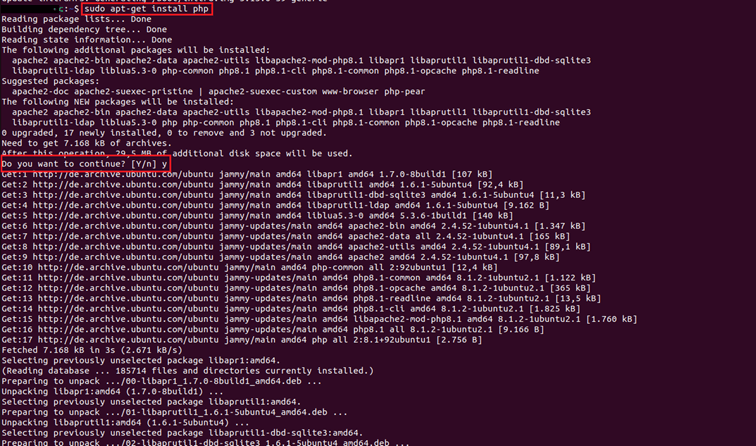
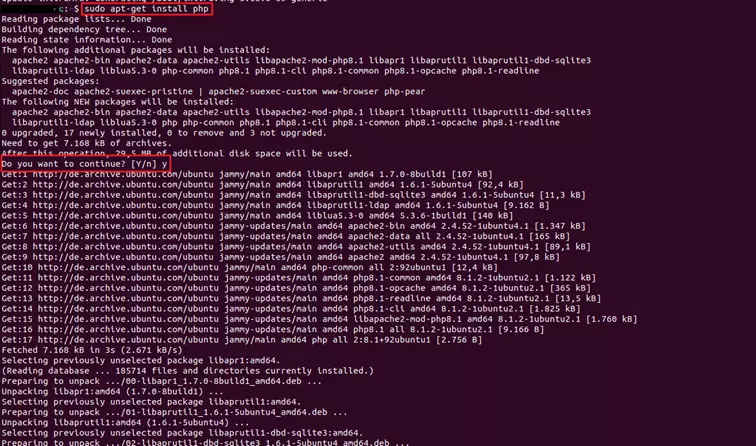
Now, PHP needs to be installed. Use the following command to do so:
sudo apt-get install phpInstallation must be confirmed manually in the terminal and is then executed automatically.
Step 3: Check PHP version
Once you’ve installed PHP, you can easily check which version you’re using:
php -vAn alternative under Ubuntu is to install LAMP stack
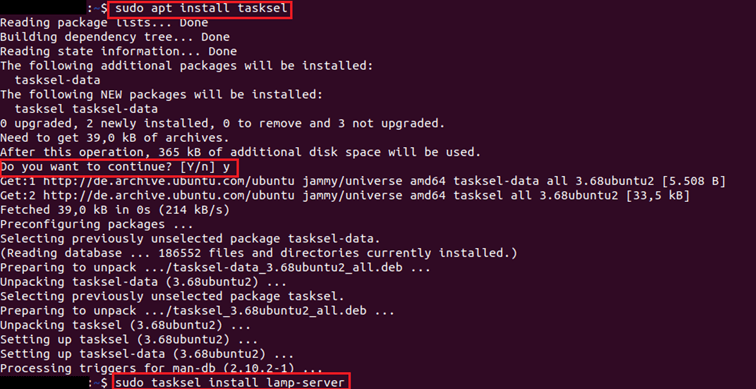
Depending on purpose, you may want to download and install a LAMP server. This way you get the PHP, Apache web server and MySQL all in one. Use the following commands:
sudo apt install tasksel
sudo tasksel install lamp-server
After you’ve installed the Tasksel setup tool, the second command installs the LAMP server including PHP in a single step.
Special features of other Linux distributions
Generally, installation of PHP isn’t all that different between the various Linux distributions. But there are some small differences.
Debian
The installation of PHP under Debian will work using the above commands. In addition to the apt-get command, there’s the aptitude command. This is a package manager that provides a menu interface, but doesn’t differ much from apt-get otherwise.
The command to install PHP using aptitude is:
sudo aptitude install phpCentOS
The Linux distribution CentOS uses a different package manager, yum, and thus requires slightly different commands to install PHP. But the steps you use to install PHP are otherwise identical.
First, update your system and packages:
sudo yum install epel-release
sudo yum updateInstalling PHP uses a similar command to Ubuntu:
sudo yum install phpHow to install PHP on Windows
You’ve got several options to install PHP on your Windows system. Besides manual configuration with the Internet Information Service (IIS), you can download the Microsoft Web Platform Installer and add PHP via the graphical user interface.
Step 1: Download Microsoft Web Platform Installer
Download Microsoft Web Platform Installer. Follow the steps as prompted in the installation program.
Step2: Adding PHP to Web Platform Installer
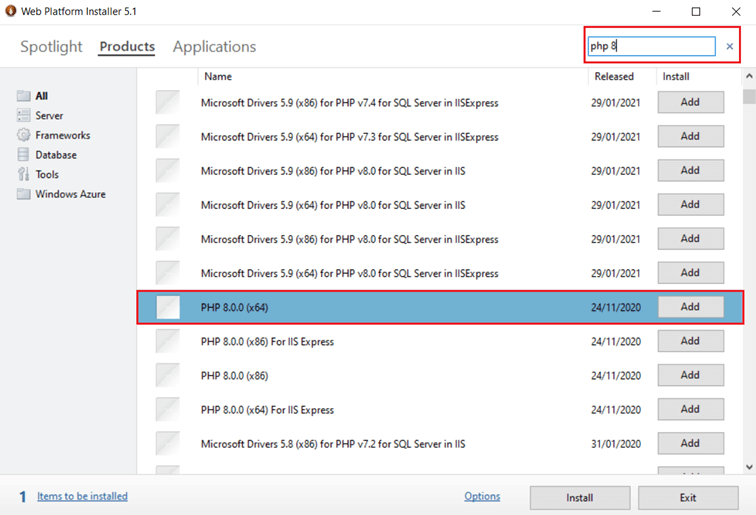
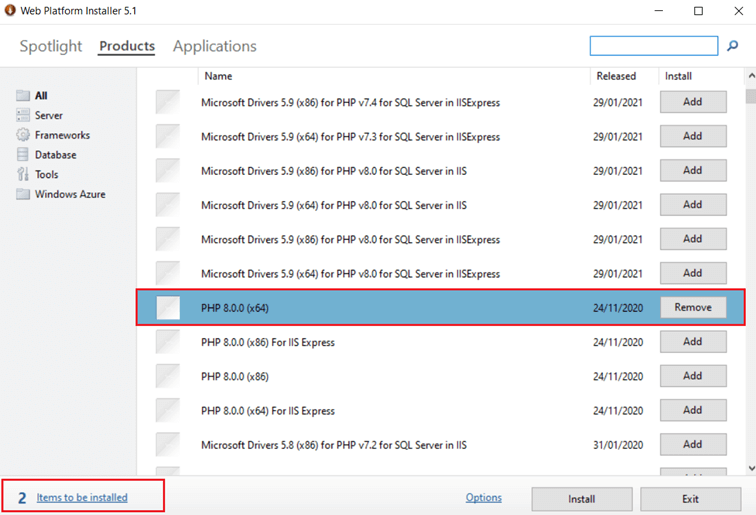
Open the application and click on the ‘Products’ tab. In the search box at the top left, you can search for your favourite PHP version. Select it from the list. To ensure PHP is listed under the ‘Documents to install’ button click ‘Add’.
Step 3: Install PHP
PHP is now shown in the list of your documents to be installed. Clicking 'Install' at the bottom right will begin automatic installation of the PHP version you’ve selected. Restart your computer to complete installation.
Alternative under Windows – XAMPP
Like on Linux, PHP can be used on Windows by installing everything you need for the LAMP stack. You can use the XAMPP program to do this.
Find out what you need for installation in our XAMPP tutorial.
Install PHP on macOS
Since PHP is pre-installed on macOS, you don’t need step-by-step instructions. To use PHP on macOS, just remove the comment symbol in two lines of the Apache configuration file that are significant for the setup of PHP.
You can usually find the configuration file via the /private/etc/apache/httpd.conf path. Once you’ve opened the file with an editor of your choice, look for the following two lines:
# LoadModule php7_module libexec/httpd/libphp7.so
# AddModule mod_php7.c
By removing the hashtag, you resolve the comment status of the two lines of code so that they can be read by the interpreter. Note that the PHP version number may differ depending on which macOS version you use.