

How to install Python on Windows, Linux and macOS

If you want to install Python, the easiest way is to use the official installation packages of the popular scripting language. You can choose between different older and newer versions for various platforms. We’ll show you how to find the right edition to install and set up Python on your system.
- Free website protection with SSL Wildcard included
- Free private registration for greater privacy
- Free Domain Connect for easy DNS setup
What do you need to set up Python?
If you want to work with Python, you need two things: a code editor, which ideally offers syntax highlighting, as well as the appropriate version of Python for the respective system and purpose. Your device doesn’t have to fulfil any special hardware or software requirements to install Python.
When deciding on a version, two questions in particular need to be answered:
- Which operating system do you want to use Python on?
- What’s the purpose of your programming efforts?
In principle, you have great freedom in the choice of platform. The open-source language is available for Windows, Linux and macOS. Depending on the system, however, a different installation package must be chosen.
The background for the use or installation of Python therefore plays a role because different versions are recommended depending on the intended use. For example, if you want to learn to program with Python, you can simply install the current version of Python. If you are programming a specific application and want to ensure compatibility with third-party modules, it’s often better to use older versions. Therefore, before even setting up Python, find out which version is best suited to your project.
Do you want to take your first steps with Python? Learn the best tips and tricks for beginners in our detailed Python tutorial.
Where can you download Python?
There are various options for downloading and setting up Python for different platforms. However, the best place to download all the different versions is, without doubt, the official Python website. Here you can find current and older versions, Docker images and development versions in the test phase for Windows, Linux/UNIX and macOS, or other platforms such as iOS, IBM i, AIX or Solaris.
Alternatively, you can download Python, which is one of the most popular internet programming languages, in other ways. Users of Linux or macOS, for example, can also obtain the installation files directly via the package manager. To install Python on newer Microsoft operating systems such as Windows 10 or 11, you can use the Microsoft Store. This is installed by default and has various Python versions available for direct download.
Are you using Python to set up your own web project or run a Python-based website? With web hosting plans from IONOS, you’ve already got the right hosting environment with domain and SSL / TLS certificate.
Installing and setting up Python on Windows: How it works
Installing Python on a Microsoft system can be done in just a few steps. The only thing to note is that newer versions, from Python 3.9.x onwards, only run on Windows 8 or higher.
Step 1: Download the appropriate installation package
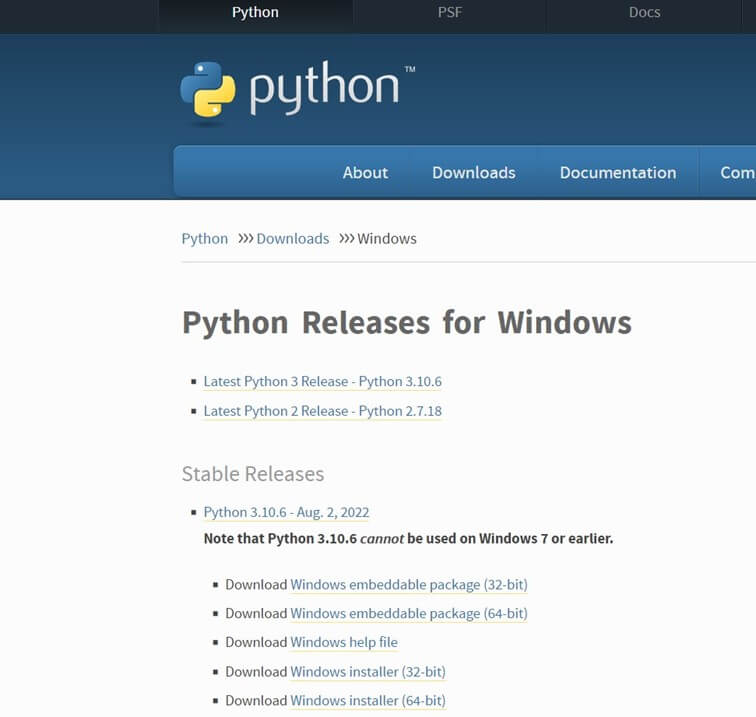
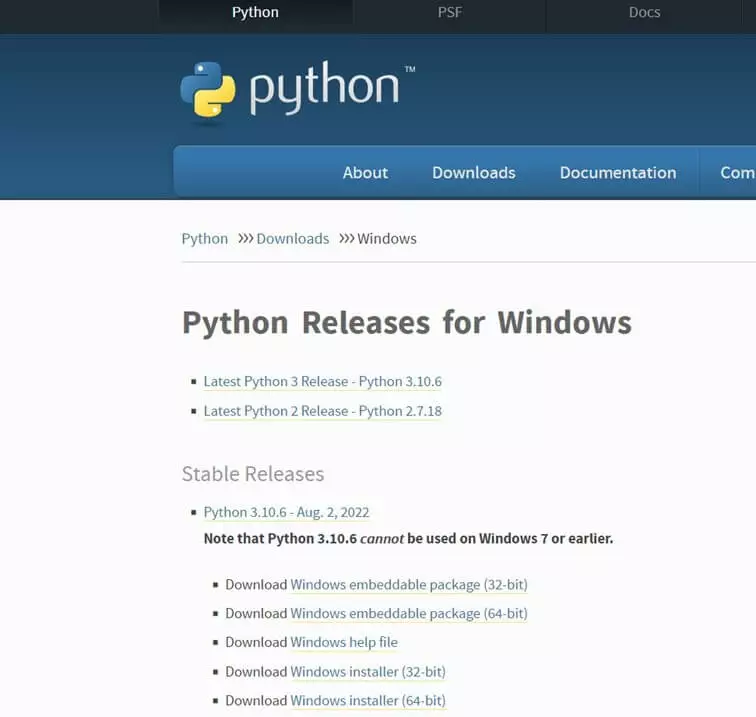
On the official Python website, you’ll find all relevant releases of Python 2 and Python 3 for Windows. For practice or work purposes, downloading a ‘stable’ version is recommended.
With all download packages, you have the choice between 32- and 64-bit. Choose the variant that suits your system architecture. Use the ‘Windows installer’ for an ordinary installation (recommended for beginners).
The alternative ‘Windows embeddable package’ allows you to unpack the Python program files without installation. The available ‘pre-releases’ are language versions that are still in the testing phase.
By clicking on the respective link, you’ll start the download.
Step 2: Install Python
Start the Python installation by double-clicking the downloaded file. In the opened installation assistant, keep the checkmark in the ‘Install launcher for all users’ checkbox. Also, check ‘Add Python x.x to PATH’ so that you can use the programming language directly from the command prompt. Then click ‘Install now’.
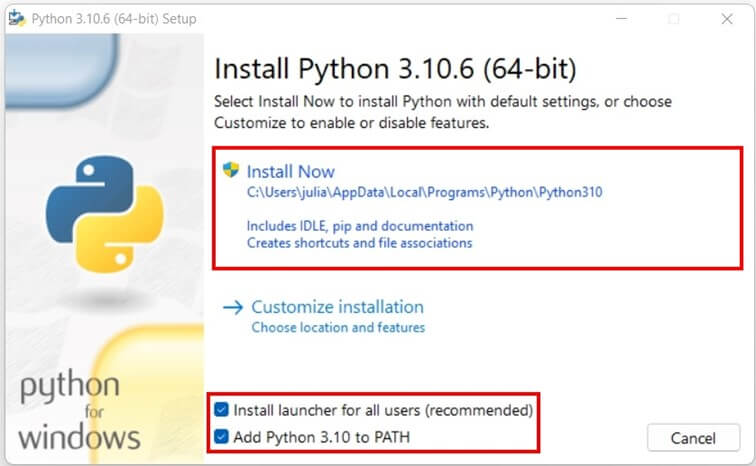
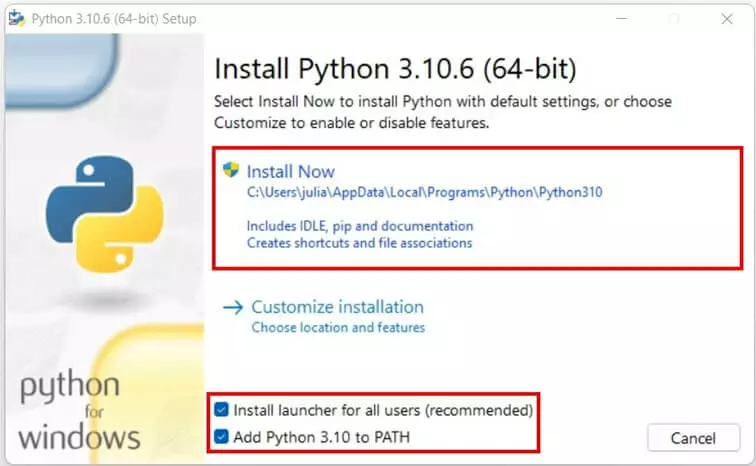
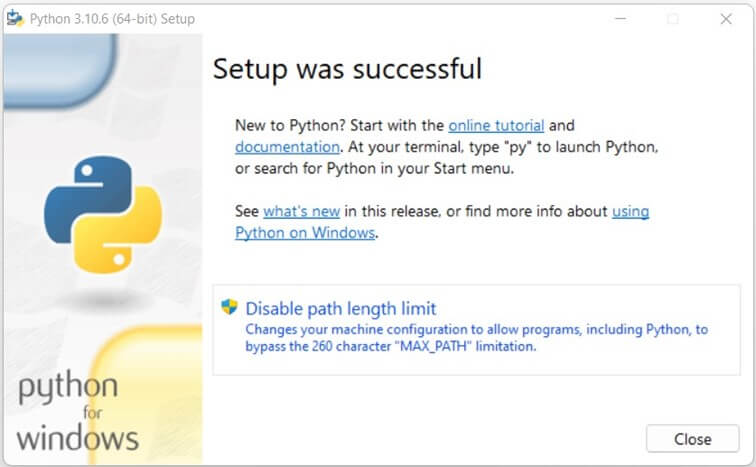
The installation starts immediately and only takes a few seconds. You’ll see a corresponding success message, including another configuration option. If you select the ‘Disable path length limit’ button, it’s then possible for Python and other programs to bypass the 260-character maximum path length limit if necessary.
However, you can complete the installation and setup of Python without enabling this option by clicking ‘Cancel’.
Step 3: Run Python
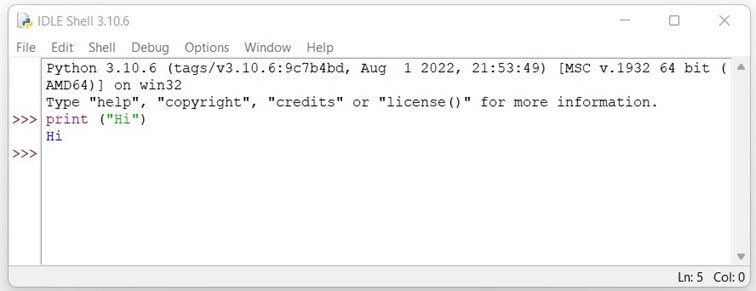
If you want to run Python now, you can use IDLE (Integrated Development and Learning Environment), the integrated development environment of Python. This is automatically installed when you set up the scripting language.
To do this, open the Windows search function and type ‘IDLE’. Via the matching search result, you start the IDLE shell and can start programming with Python.
Are you still looking for the right web address? Find the right domain for your web project with the help of IONOS and benefit from advantages like an SSL / TLS certificate and a mailbox.
How to install and set up Python for Linux step by step
With Linux distributions, you install Python conveniently via the terminal — if the scripting language is not already installed on the system. For example, Ubuntu 20.04 and later versions of the derivative come with Python 3.9 by default. Read the steps below to find out if Python is already installed and how to install it manually on Linux if not. As an example, we use Ubuntu 22.04 in this case.
Step 1: Check the current Python installation
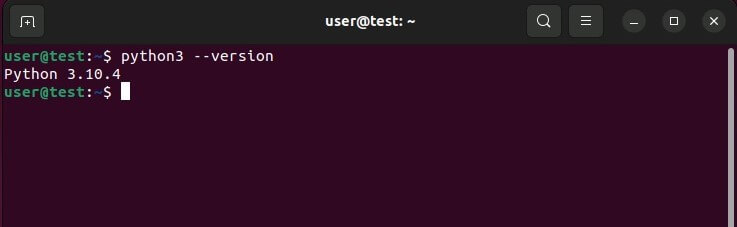
Open the terminal and enter this command:
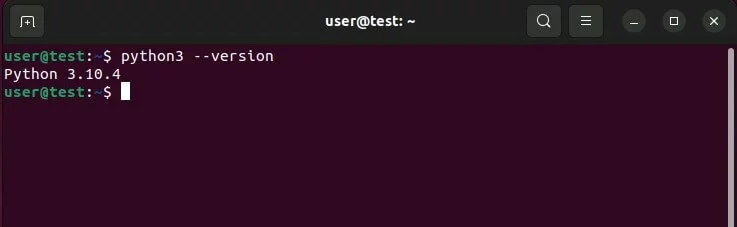
python3 --versionIn the following line, Ubuntu automatically presents the current Python 3 version if the programming language is already installed.
Step 2: Install Python
If no version of Python is installed yet, you can always initiate the installation using the package management system apt. First, update the package manager with the following command:
sudo apt updateThen, install Python using this command:
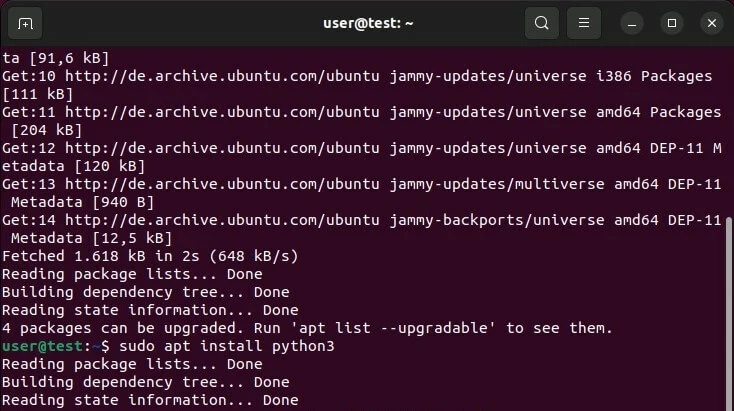
sudo apt install python3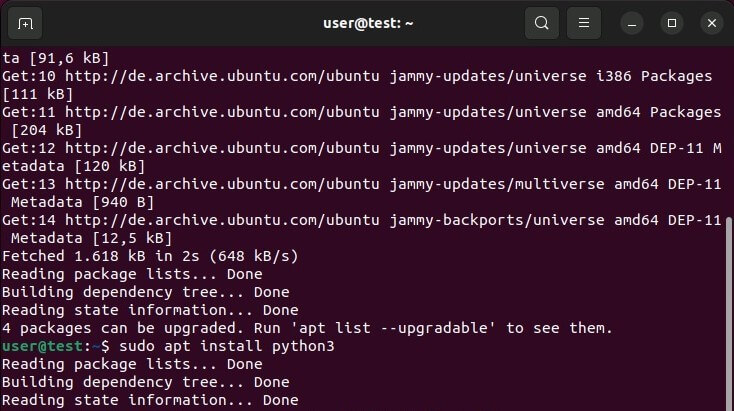
To install selected versions of the scripting language on Linux, you need to obtain and unpack the appropriate installation package from the official homepage.
Step 3: Run Python
Once Python is set up, you can use the programming language at any time from the terminal. To do so, simply enter the following command:
python3How to install Python on macOS devices
Apple operating systems have come with Python preinstalled for a long time, however, never with a version newer than Python 2.7. Installing a newer Python variant is therefore strongly recommended, even if your system already has a version. The best way is via the Homebrew package manager, which has to be installed first.
Step 1: Install Homebrew
Start the terminal (accessible via the search function, for example) and call up the Homebrew official website. Copy the command shown and paste it into the terminal. Run the command and enter your password and the Homebrew installation will begin.
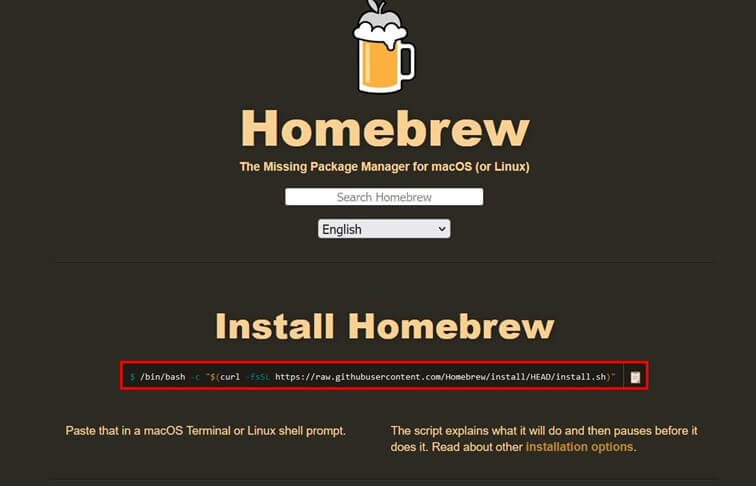
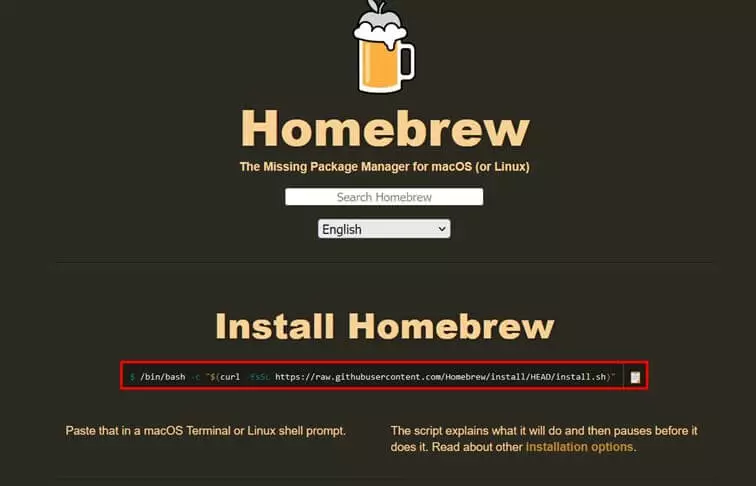
After successful installation, you’ll find two more commands under ‘Next steps’, both of which you should also run. In this way, you add Homebrew to the PATH environment variable to be able to use the package manager from the command line.
Step 2: Install Python
Once Homebrew is installed, you can set up Python. To do this, enter the following command in the terminal:
brew install python3Step 3: Run Python
As with Linux/UNIX, you can now run Python from the terminal at any time by typing the following command:
python3Do you want to delve deeper into programming with Python? In other articles in the Digital Guide, you can learn everything about the most important Python operators, the similarities and differences between Python and PHP or how to fix typical Python errors and more.