

Markdown Editors

Markdown is a simple markup language which enables you to write neatly formatted text for use online and offline even with no knowledge of HTML. You can use asterisks, hyphens and brackets to quickly create italic type, headings and lists. However, it is not easy to Markdown per se on the internet. You need a program with a parser to first generate a more complex HTML document from this simple markup language. This can then be easily read by any browser and converted into the desired display format.
Are you new to Markdown? You will find everything you need to know about this markup language in our comprehensive Markdown guide.
There are a variety of programs on the market as well as dedicated online Markdown editors which allow you to work with this markup language directly in your browser. Here you will learn about the best Markdown editors available.
Online Markdown editors: the three best Markdown editors for use in browsers
The following Markdown editors can be used directly in your browser without having to install anything beforehand. You can write in a text field on the website and then export the generated document.
Dillinger
The online Markdown editor Dillinger is open source and can be used without first needing to create an account. The website is divided into two parts. On the left, you write your Markdown text. You will then see the output on the right side as a formatted document where all the markup elements have been implemented. You also have the option of displaying the corresponding HTML source code.
You can export your work in HTML, PDF or Markdown format and save it on your computer. It is also possible to send your text via Dropbox, GitHub, Medium, Google Drive and One Drive. You can also import documents from these locations or choose to upload a Markdown or HTML document. Additional features include character and word counters as well as an autosave function which is made possible through the use of cookies.
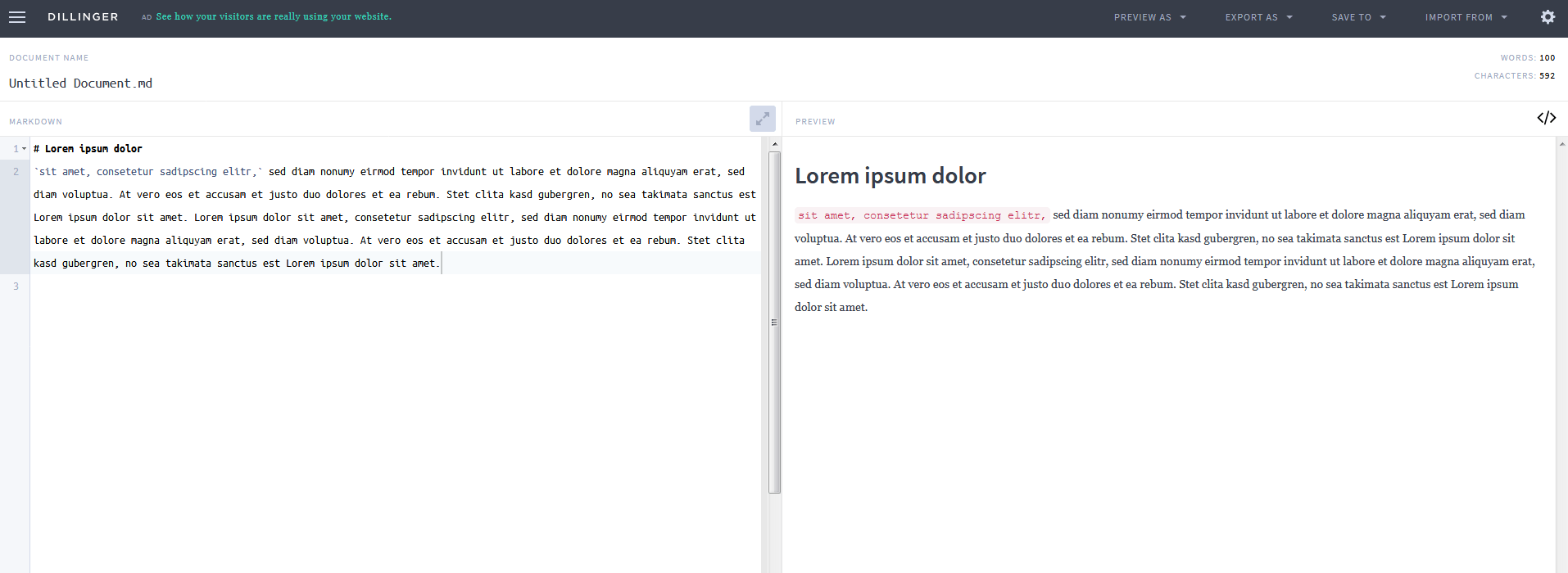
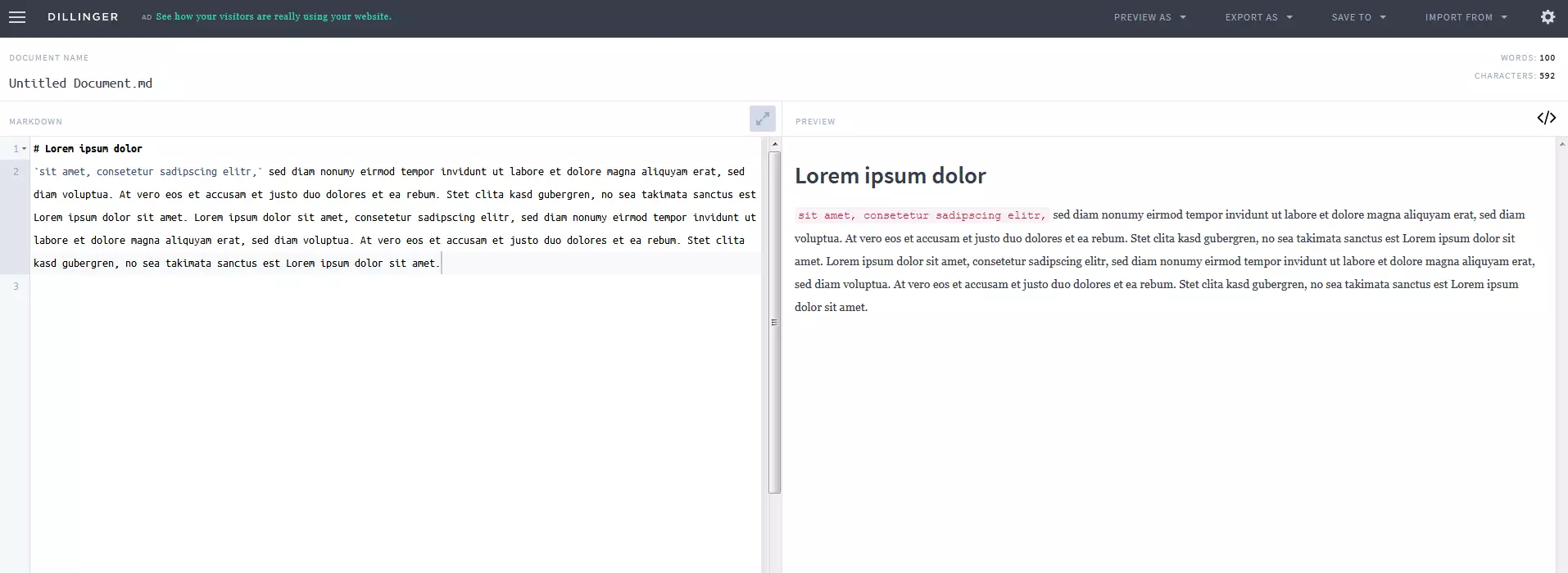
This sleek Markdown editor is particularly well suited to users who rarely work with this markup language or want to try Markdown first.
Draft
The online Markdown editor Draft is a bit more sophisticated. To use this application, users will need to register first. You will then be able to work on documents using version control and as a team. Draft is primarily designed for professional users who want to work on larger projects in collaboration with others. Any changes made by other collaborators do not overwrite your master copy but are instead tracked as changes. In addition, there is an option for comments and discussion threads.
You can also link your Draft account to other applications such as WordPress, Tumblr, LinkedIn, Evernote, Twitter and Basecamp to name a few. In addition, you can select certain formatting from the menu to make your work even easier if you are not sure which markup elements you need. Another feature which should appeal to professional users is Draft’s large arsenal of analytics options relating to productivity.
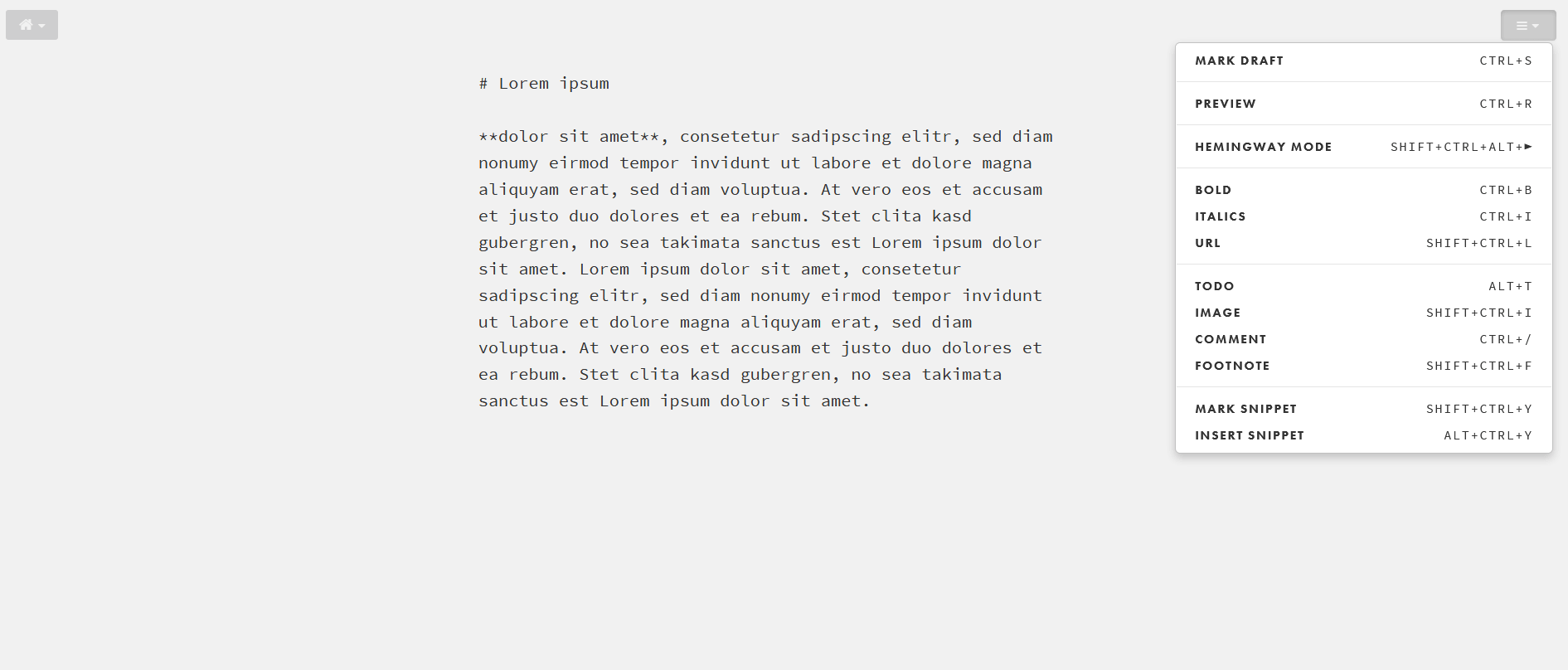
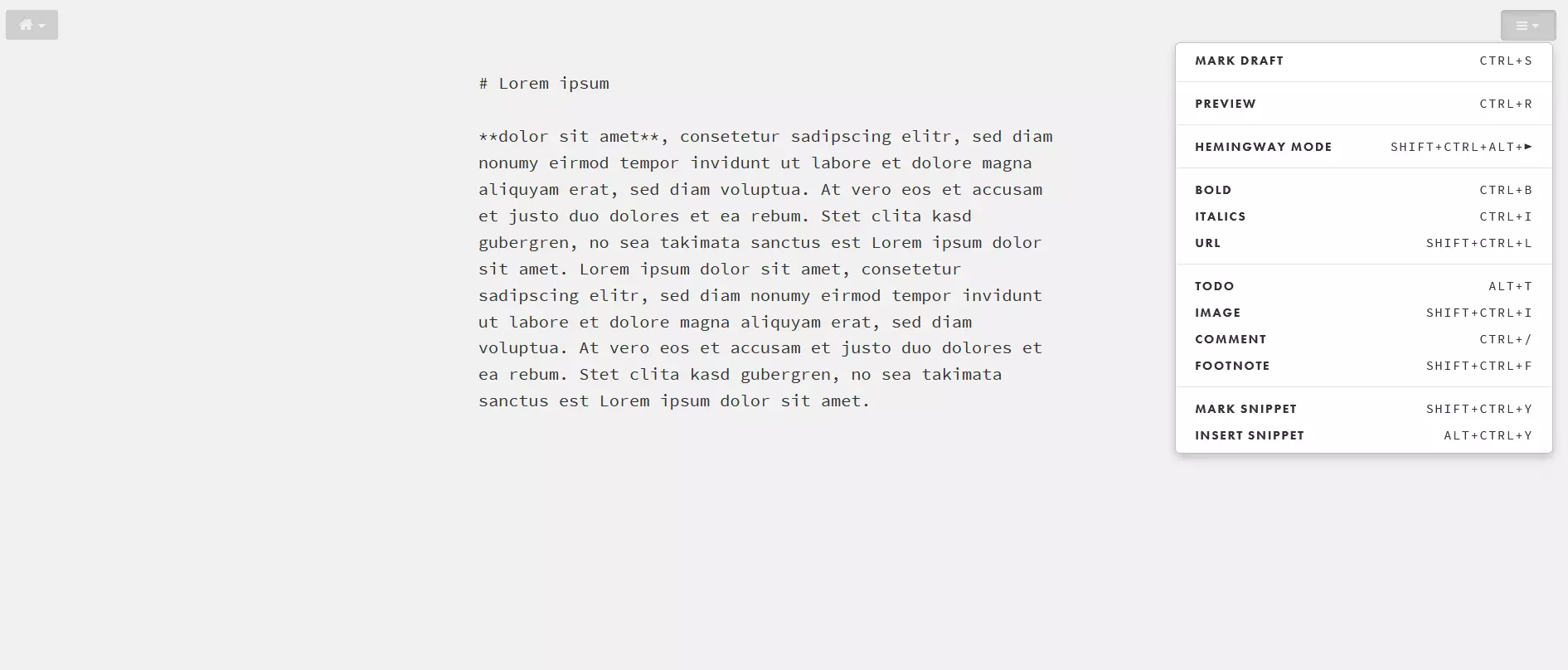
Draft is primarily designed for professionals. Its collaboration features and accurate analytics functions are ideal for writers who have to create a large number of documents.
StackEdit
Like Dillinger, StackEdit can be used without creating an account. Its layout is also similar to Dillinger’s. The screen is divided into two areas, one for the text and the other to show the display. The first noticeable difference is in the header. This is where you will find buttons for formatting, similar to a WYSIWYG-style editor. Of course, these buttons are optional. Experienced Markdown users can still continue to use markup elements.
In addition, StackEdit differentiates itself by allowing users to work with the file explorer, so you can work on multiple documents once. This editor is also compatible with a variety of platforms such as Google, WordPress and GitHub which enables you to transfer your files to various locations and import them from there. Some features are only available when you are signed in with your Google Account. In addition to Markdown, StackEdit can also handle mathematical expressions (via LaTeX), UML diagrams, emojis and musical scores.
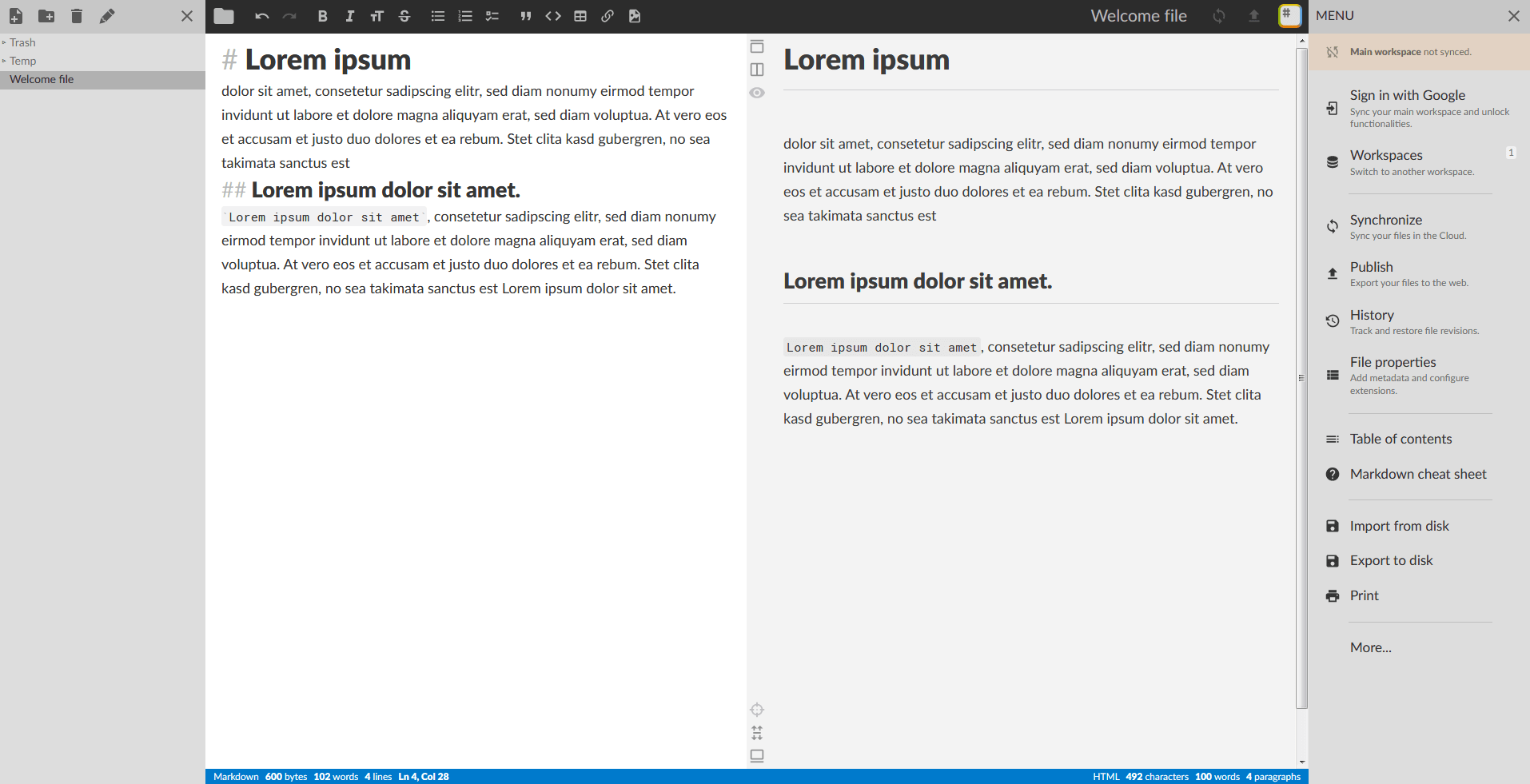
For an online Markdown editor, StackEdit features a surprisingly wide range of functions which can be used in the browser without creating an account.
Top five downloadable Markdown editors
Online solutions have their advantages. They are lightweight and are immediately ready for use. However, it may be more useful to have an installed program for regular work and large projects. The following three Markdown editors provide a wide range of functions and are usually available for different operating systems.
Typora
Typora is a Markdown editor for Windows, Linux and Mac. This software has a simple design and does not include a preview area. Instead, the Markdown formatting is immediately displayed in the text. In order to simplify writing text in Markdown, Typora offers an auto complete function similar to other code editors. For example, if you open a bracket, it will automatically add a closing bracket.
To ensure that each individual user’s experience with the program is as pleasant as possible, Typora offers a variety of themes to customise the editor’s appearance. Typora provides two modes which are designed to improve the user’s concentration: focus mode and typewriter mode. In focus mode, only the current line you are on is clearly visible while all the others are blurred. In typewriter mode, your current active line will always remain in the middle of the window. This prevents you from losing sight of what you are working on.
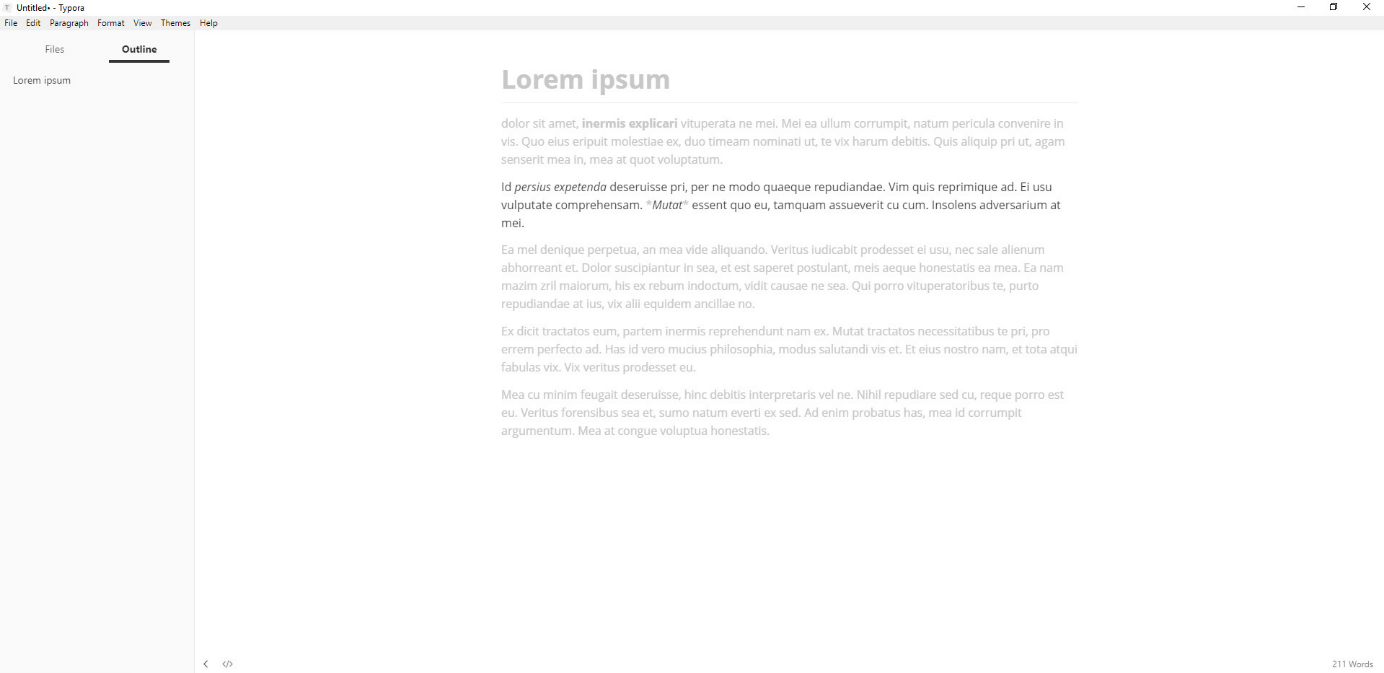
Typora differentiates itself through its clean design and concentration-enhancing functions. It is perfect for users who have to write a lot and want to be completely focused on their work.
WriteMonkey
WriteMonkey is a very popular Markdown editor for Windows. This program is all about using streamlined Markdown syntax and thus offers its users a less gimmicky experience. WriteMonkey has an extremely stripped-down graphical user interface and does not provide its users with guidance, but it does ensure that its users are not distracted from what is important (i.e. the actual text). This is why the program is in full-screen mode by default. It also does not have a preview function. WriteMonkey therefore primarily targets Markdown experts: everything is written using markup elements, there are no buttons to help with the design, and you can only see the result once you export the file.
One useful feature is its progress bar function. WriteMonkey does not just count words and characters. It also allows you to define goals. You can specify a certain number of words or set a time limit, and the software will tell you how much you have already done. You can extend the program with language packs and dictionaries to work better in your own local language or add typing sounds. The various sounds available should help you feel as comfortable as possible when writing. Additional extensions are available if you make a donation to the software’s developers. In the future, this software will also be available for Mac and Linux.
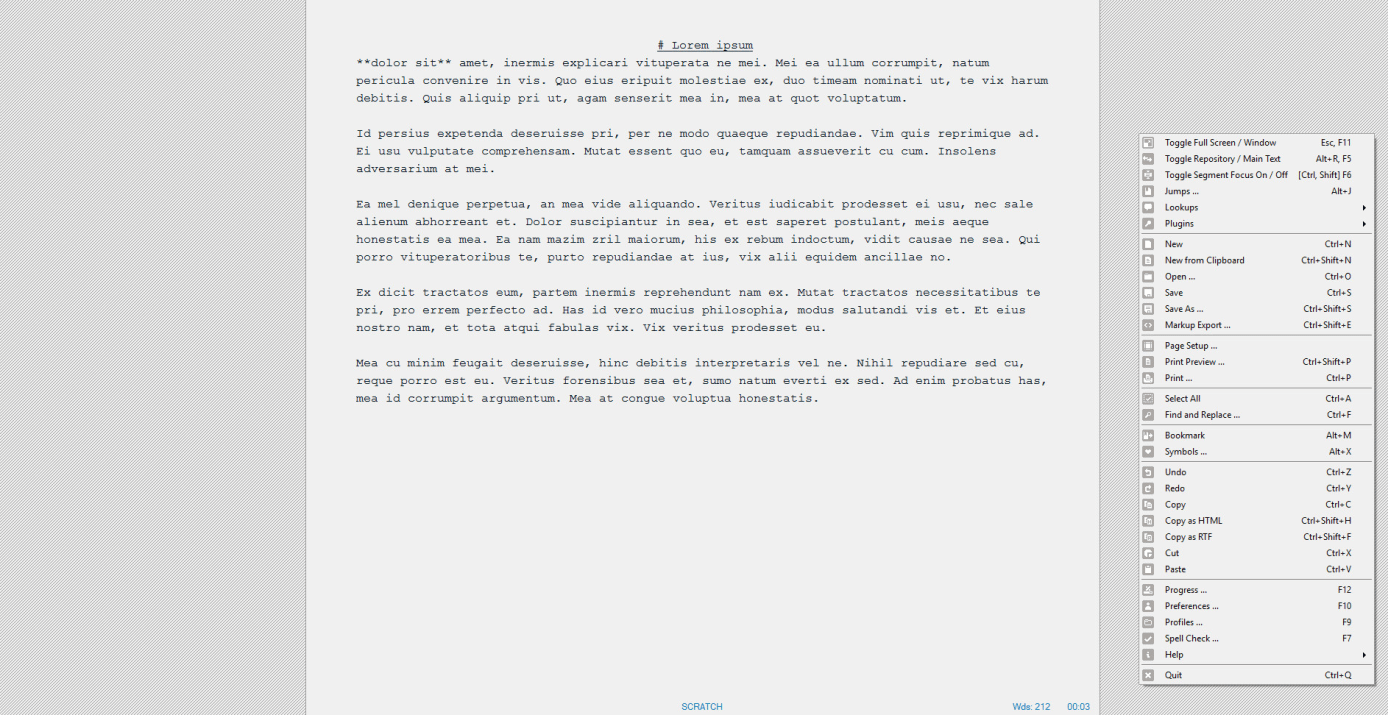
Absolute minimalism: WriteMonkey does not use any gimmicks and focuses completely on the text. This is why professional writers are also fans of this software.
Quiver
Quiver is a paid Markdown editor and is only for Mac. Quiver is designed for programmers who need to write documentation regularly. What makes this editor so exciting is that you can work directly with different markup languages. It lets you easily mix plain text, Markdown and LaTeX (in math mode) within one document. Quiver also includes a code editor with support for over 120 programming languages. A live preview window renders text formatted with Markdown as you type. In addition, the Markdown editor provides clear document navigation and a full-text search function so that you can even keep track of large projects. You can also assign tags to better organise your notes.
Quiver allows you to collaborate on a project with members of your team. It saves all your data in plain JSON files so you can access the information via other programs as well. If so desired, everything can be synced with Dropbox, iCloud and Google Drive. You can customise the program to meet your layout preferences using different themes. In addition, the developer has made an app for iOS. This app can only be used to view files. You cannot use it to edit them.
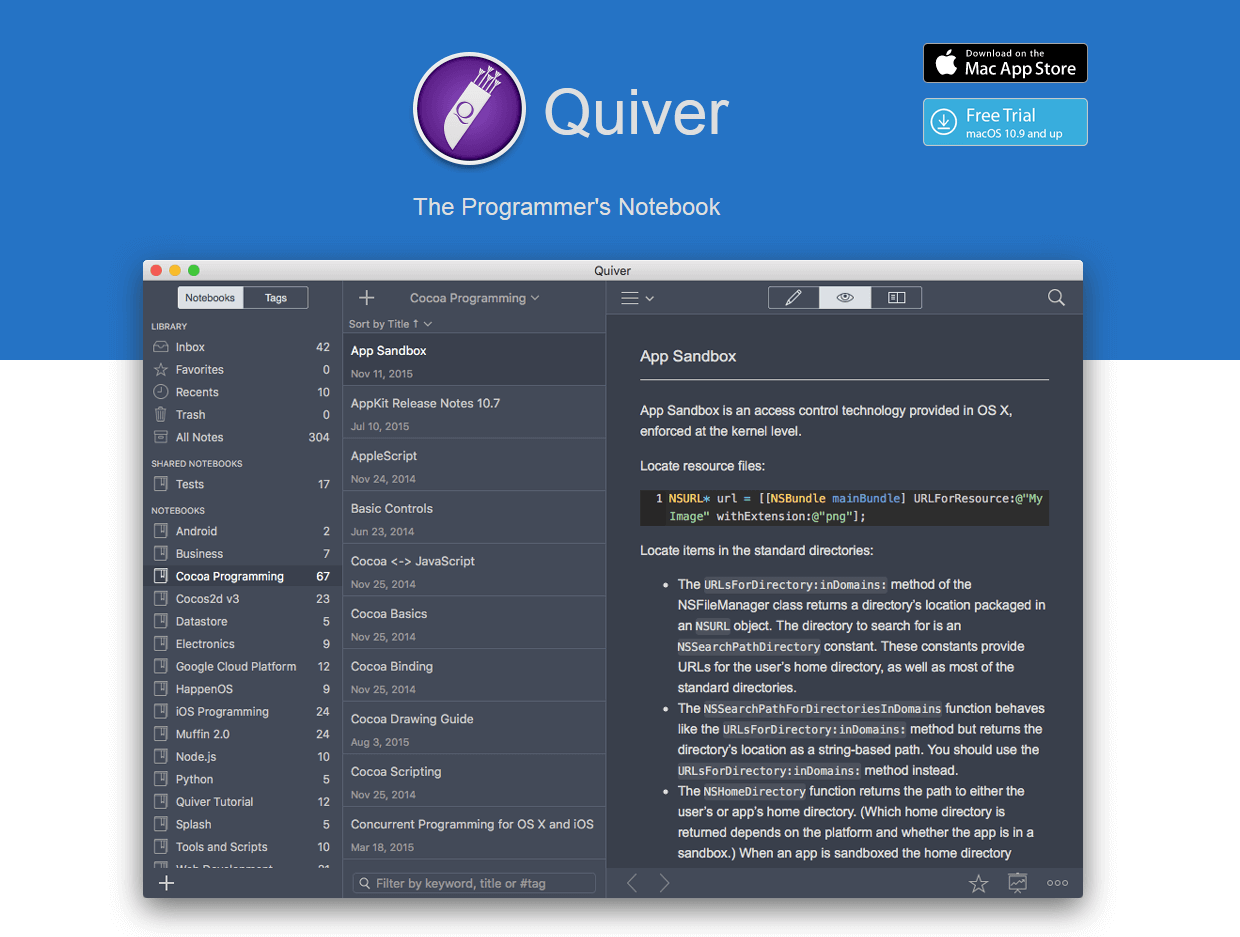
The Markdown editor Quiver will appeal mainly to Apple fans, especially due to its integration with the iOS app. Programmers will find everything they need to create documentation in this software notebook.
Write!
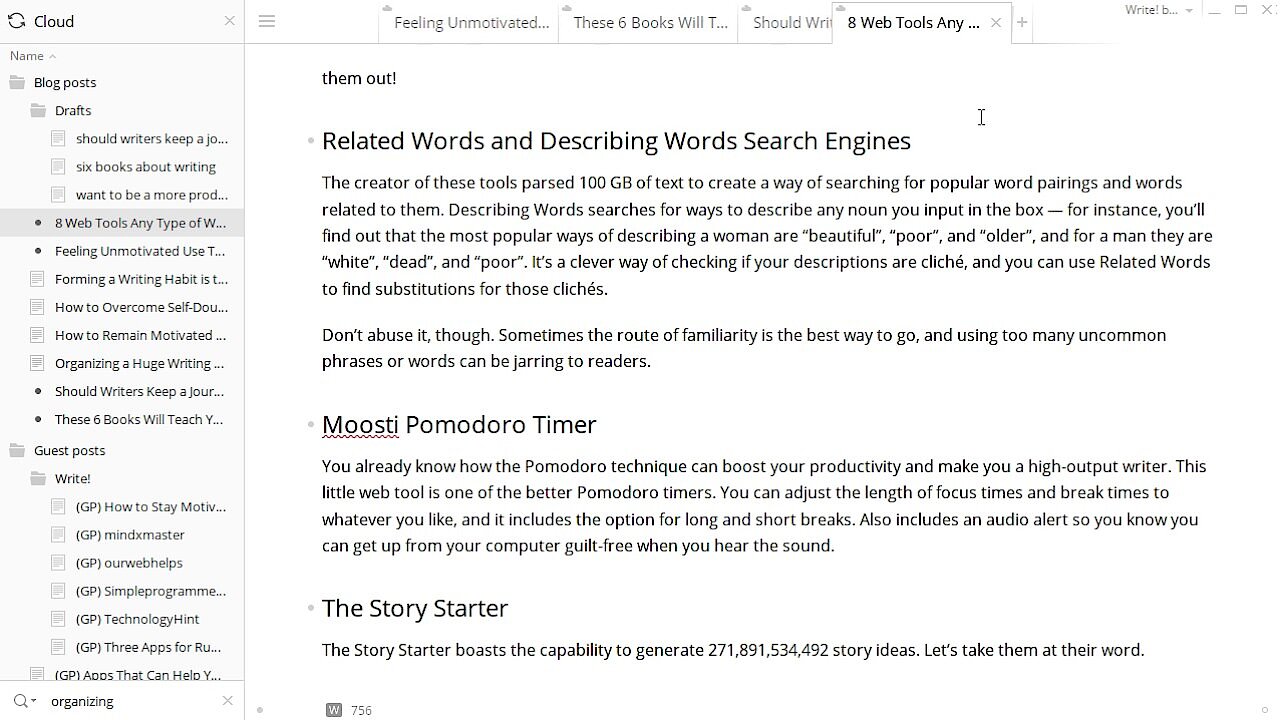
Write! is a Markdown editor for Linux, Mac and Windows. Unlike most of the other applications mentioned, Write! is not available free of charge. However, you also get a powerful, function-packed text editor. Write! directly converts Markdown, includes a spell checker which automatically recognises the language being used and provides an adaptive auto complete function. In addition, it lets you write from right to left which is important for certain languages such as Arabic. Similar to WriteMonkey, it also lets you define goals so you can constantly monitor your progress. In focus mode, the document area which is not currently being worked on is slightly darkened to help improve your concentration.
Markdown syntax does not have to be entered manually. As with a WYSIWYG-style editor, formatting can also be changed using buttons and menu items. However, the most striking aspect of Write! is that it has its own cloud. Instead of using other providers such as Google or Apple to secure their documents online, the developers of Write! provide their own independent cloud service. This online storage space allows documents to be published and the link to be shared with others in just a single click. So, it is no surprise that the Markdown editor comes with a collaboration function.
 To display this video, third-party cookies are required. You can access and change your cookie settings here.
 Write! is not just a Markdown editor with a wide range of functions. The fact that it has its own cloud service also enables users to remain independent of other providers.
Laverna
Laverna is a Markdown editor for Linux, Mac and Windows, but you can also use this open source project online in a browser. If you have your own server, you can even find a version on the application's website which allows you to host Laverna yourself. No matter what version you decide on, all versions of this Markdown editor are available free of charge and without creating an account. Laverna’s layout is similar to most other Markdown editors. You write in an area on the left side and this is rendered as a live preview on the right side (but you can also turn off the preview). There are also a few buttons to make formatting the note you are working on easier.
You can manage documents by assigning tags to them. Particularly important notes can be saved to your “favourites” for quick access. To increase your productivity, Laverna offers a distraction-free mode and key binding. Through key binding, you can assign tasks you perform regularly to keyboard shortcuts. One of the special features Laverna provides is encryption. You can secure all your data with a password. You can even change the level of encryption in the settings. You can use an interface to connect Laverna to your Dropbox account and sync your files to different devices. Unfortunately, documents cannot be converted directly into HTML. Instead everything is in JSON format.
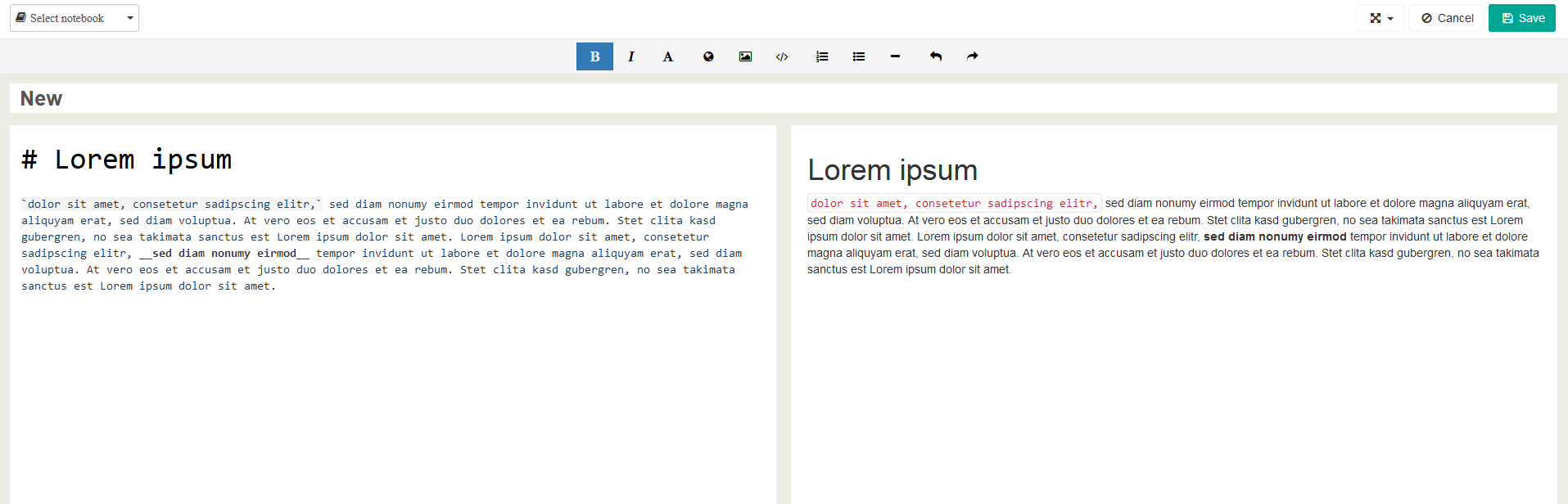
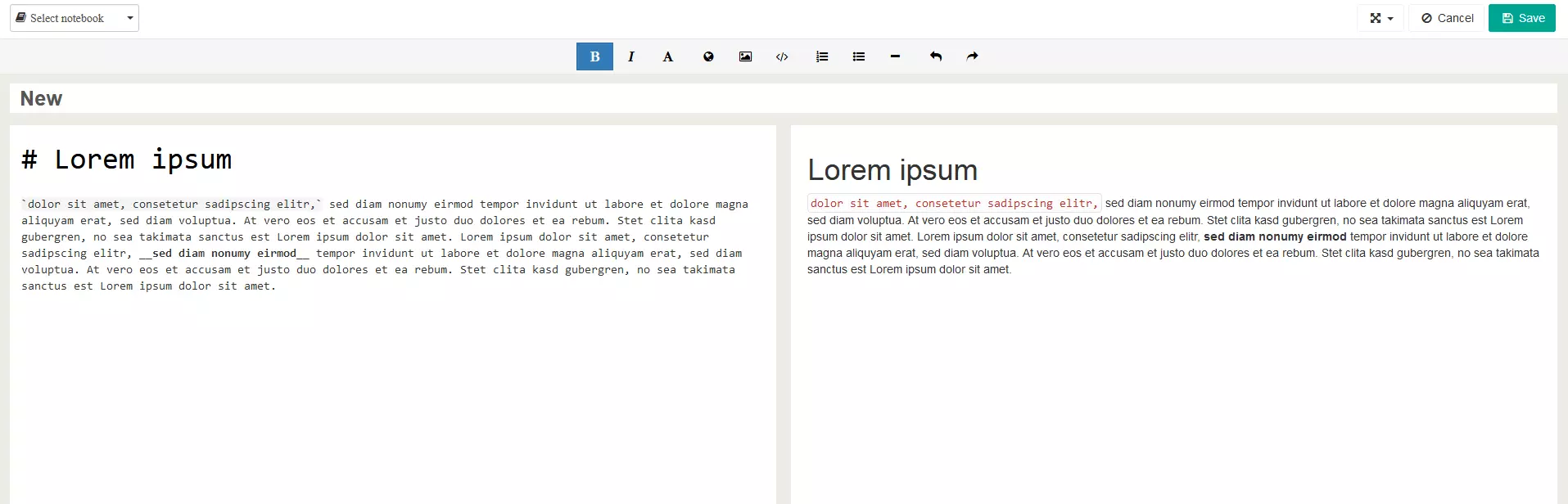
Laverna differentiates itself through its clear open source concept as well as its configurable encryption. The latter is particularly useful when sending important Markdown documents over the internet.
An overview of all eight Markdown editors
You can use this overview of the best Markdown editors to quickly see which application is right for you.
| Windows | Mac | Linux | Online | Free of charge | Open source | |
|---|---|---|---|---|---|---|
| Dillinger | ✗ | ✗ | ✗ | ✓ | ✓ | ✓ |
| Draft | ✗ | ✗ | ✗ | ✓ | ✓ | ✗ |
| StackEdit | ✗ | ✗ | ✗ | ✓ | ✓ | ✓ |
| Typora | ✓ | ✓ | ✓ | ✗ | ✓ | ✗ |
| WriteMonkey | ✓ | ✗ | ✗ | ✗ | ✓ | ✗ |
| Quiver | ✗ | ✓ | ✗ | ✗ | ✗ | ✗ |
| Write! | ✓ | ✓ | ✓ | ✗ | ✗ | ✗ |
| Laverna | ✓ | ✓ | ✓ | ✓ | ✓ | ✓ |
You do not need any special software to write Markdown. You can write these documents in any text editor. However, you will not be able to preview or convert the document directly into HTML.