

CSS Flexbox Tutorial for Beginners

With cascading style sheets (CSS), websites can be designed to look more appealing. While HTML contains only the most important base elements, one can implement complex web design via CSS by inserting images in a more appealing way, arranging texts, and integrating elements that stand out on a website. The helpful mark-up language continues to be developed to help simplify web design tasks and provide new design options. CSS Flexbox is one example of this ongoing development and has quickly become an important tool for sensible web designs in the mobile age.
What is CSS Flexbox used for?
One of the main tasks for CSS is bringing all the elements of a website into a layout. Text, images, and buttons can be neatly arranged. Designers can specify – down to every pixel – where each element should appear on the screen. However, this only works properly if the screen size and the aspect ratio are known. Mobile technology presents a challenge here because display sizes and aspect ratios vary depending on the smartphone or tablet device. CSS is too rigid to achieve a convincing result.
The Flexbox (or more exactly: the CSS Flexible Box layout) functions more intelligently and dynamically. The layout adjusts flexibly and dynamically to the display in use. Space is filled up or elements are pushed closer together so that every web page element remains in view. For this to work without the desired layout being disrupted, Flexbox uses two axes. The main axis typically runs horizontally; the cross-axis runs vertically. Using these axes, the elements can be arranged within the box. In this way, elements can be distributed in relation to one another. CSS Flexbox then also ensures that the space surrounding these elements is filled in a sensible way.
Flexbox tutorial: First steps with the new technology
Anyone who designs websites nowadays should look into CSS Flexbox because the technology makes it much easier to work with various screen sizes. The feature is structured in such a way that one can even produce appealing results with just a few lines of code.
Another innovation, which was introduced with CSS3, is called CSS Grid. This technology provides web designers with additional options for distributing objects on the screen.
The fundamentals of CSS Flexbox
Flexbox is based on a container (flex container) in which several elements (flex items) are housed. The container lends its properties to the elements – in other words, the elements are the actual Flexboxes, which retain their flexibility by being inside the container.
Both axes have a direction: normally, the main axis runs from left to right, the cross-axis from top to bottom. Flexbox is described as a one-dimensional system: elements can be arranged either in lines or in columns. A combination is not provided. If one chooses, for example, the line arrangement (which is also the standard), CSS Flexbox will try to arrange all elements in a series. One can also inhibit this, and in a sense force a line break.
In the following example we write the CSS code directly into the head of the HTML document. However, you can instead create a separate stylesheet file and insert this above the header.
Create and arrange elements
Before you begin to arrange elements, you need to create them first using HTML:
<!DOCTYPE html>
<html>
<head>
</head>
<body>
<div class="flex-container">
    <div class="flex-item">Box 1</div>
    <div class="flex-item">Box 2</div>
    <div class="flex-item">Box 3</div>
</div>
</body>
</html>
In this way, the three elements would be displayed beneath each other. Using CSS, we can now distribute the terms across the main axis:
<style>
.flex-container {
    display: flex;
    background-color: grey;
}
.flex-item {
    background-color: white;
    width: 200px;
    margin: 10px;
    text-align: center;
    line-height: 100px;
    font-size: 50px;
}
</style>

The container in this style sheet was defined at the beginning. The “display: flex;” command enables the Flexbox. The elements are distributed from left to right, as we have not defined them differently. However, to modify the distribution, five different options can be set with the “justify-content” command:
- flex-start: left-justified
- flex-end: right-justified
- center: centered
- space-around: equally distributes the space surrounding the boxes
- space-between: equally distributes the space between the boxes
The remaining code is only cosmetic and has nothing to do with the actual Flexboxes.
With Flexbox, CSS originates from a horizontal alignment. It is also possible, however, to arrange the elements in a column. In addition, one can reverse the direction – from left to right or from bottom to top. For this purpose, one uses the “flex-direction” command:
- row: left to right
- row-reverse: right to left
- column: top-down
- column reverse: bottom-up
At the same time, the “justify-content: flex-end;” command does not mean the same thing as “flex-direction: row-reverse;”. Using the first variant, one places the last element to the right, while the second variant changes the order. The first element in the code would thus appear to the right.
Grouping elements
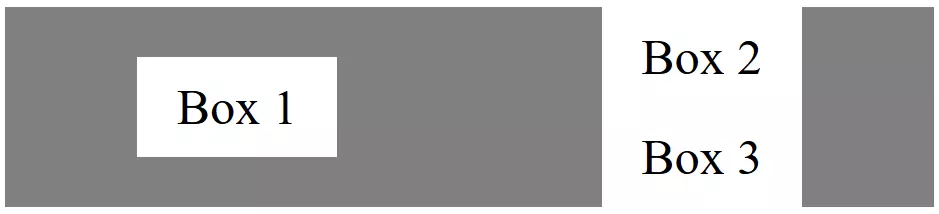
Up until now, we have distributed the Flexboxes equally. However, if you prefer not to have to handle all the objects at the same time, you can merge the elements in the HTML text. That’s useful if, for example, a text needs to be displayed differently than an image:
<div class="flex-container">
    <div class="flex-item">Box 1</div>
    <div class="flex-item">
        <div class="flex-item">Box 2</div>
        <div class="flex-item">Box 3</div>
    </div>
</div>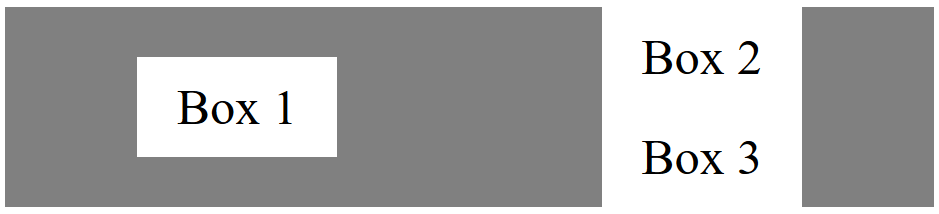
Vertical movement
Using “justify-content”, elements can be placed in a specific relationship with one another other than on the horizontal axis. If one would like to move their content from top to bottom (on the cross-axis), however, one needs the “align-items” command. There are five different options:
- center: objects are centred
- flex-start: objects are justified on the top margin
- flex-end: objects are justified on the bottom margin
- stretch: objects are pulled to the same size
- baseline: objects are arranged on the baseline (dependent on the content)
Both the “flex-start” and “baseline” options seem to yield the same result at first glance. The difference emerges when objects are nested. While “flex-start” only links the two Flexboxes together which lie on the same hierarchy level, “baseline” also takes into account the content of the boxes.
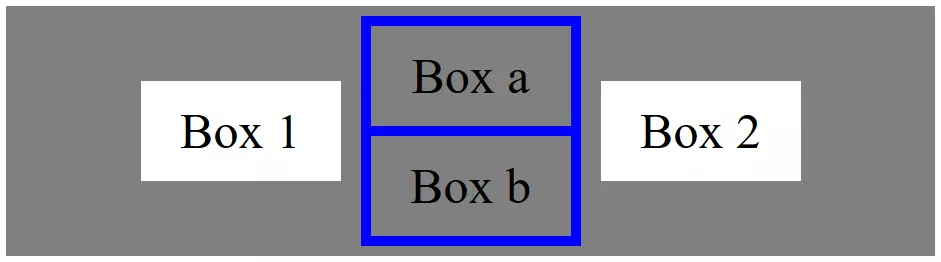
With the following code you can arrange three objects of different sizes so that they are centred next to each other:
<!DOCTYPE html>
<html>
<head>
<style>
.flex-container {
    display: flex;
    background-color: grey;
    justify-content: center;
    align-items: center;
}
.flex-item1 {
    background-color: white;
    width: 200px;
    margin: 10px;
    text-align: center;
    line-height: 100px;
    font-size: 50px;
}
.flex-item2 {
    background-color: blue;
    width: auto;
    margin: 10px;
    text-align: center;
    line-height: 100px;
    font-size: 50px;
}
.flex-item3 {
    background-color: grey;
    width: 200px;
    margin: 10px;
    text-align: center;
    line-height: 100px;
    font-size: 50px;
</style>
</head>
<body>
<div class="flex-container">
    <div class="flex-item1">Box 1</div>
    <div class="flex-item2">
        <div class="flex-item3">Box a</div>
        <div class="flex-item3">Box b</div>
    </div>
    <div class="flex-item1">Box 2</div>
</div>
</body>
</html>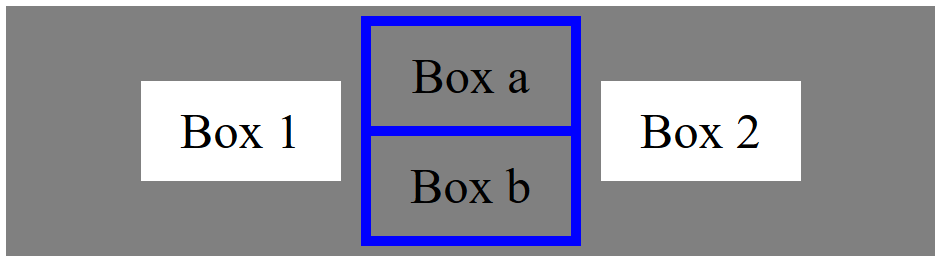
The vertical spread can also be influenced via a line break. If one packs many objects into a container, these would always continue to run horizontally so that the user must scroll and so that the actual screen that’s been provided is abandoned. With “flex-wrap”, you can ensure that elements are distributed properly across several lines.
- nowrap: no line break
- wrap: line break
- wrap-reverse: line break (with arrangement in reverse order)
.flex-container {
    display: flex;
    background-color: grey;
    justify-content: center;
    align-items: center;
    flex-wrap: wrap-reverse;
}
Move an individual Flexbox
Up to now, the arrangement has always been applied to the entire container. All boxes within the container adhere to the global command. This makes the work easier, but it’s also restricting. That’s why CSS Flexbox provides web designers with the option to define exceptions by using “order.” The standard value (if it isn’t specifically defined this way) is 0. The ordering value adds the object to an abstract group. All elements that we have created up to now belong to the same group, as all have the value 0. Proceeding from this value, one can only move individual objects forward (-1) or backward (1).
Therefore, if you choose to add a value of 1 to a single selected object, it will only be displayed after the other elements which were left at 0. But you can assign other (higher or lower) values. It’s a matter of visual representation: the logical result (according to the HTML document) remains unchanged.
<!DOCTYPE html>
<html>
<head>
<style>
.flex-container {
    display: flex;
    background-color: grey;
    justify-content: center;
    align-items: center;
    flex-direction: row;
}
.flex-item1 {
    background-color: white;
    width: 200px;
    margin: 10px;
    text-align: center;
    line-height: 100px;
    font-size: 50px;
}
.flex-item2 {
    background-color: white;
    width: 200px;
    margin: 10px;
    text-align: center;
    line-height: 100px;
    font-size: 50px;
    order: -1;
}
</style>
</head>
<body>
<div class="flex-container">
    <div class="flex-item1">Box 1</div>
    <div class="flex-item2">Box 2 </div>
    <div class="flex-item1">Box 3</div>
</div>
</body>
</html>

Flexible element sizes
So far, we have only addressed the flexible arrangement of objects. The size ratios in the code example were regulated using classic CSS. Flexboxes, however, are adjustable with regard to their size. For this purpose, the “flex” command is used. Similar to ordering, elements can be categorized into groups in this way. The larger the value, the more space the respective element demands.
.flex-container {
    display: flex;
    background-color: grey;
    justify-content: center;
    align-items: center;
    flex-direction: row;
}
.flex-item1 {
    background-color: white;
    width: 200px;
    margin: 10px;
    text-align: center;
    line-height: 100px;
    font-size: 50px;
}
.flex-item2 {
    background-color: white;
    width: 200px;
    margin: 10px;
    text-align: center;
    line-height: 100px;
    font-size: 50px;
    flex: 1;
}
With “flex” one actually uses a shorthand form. This command contains just three configurations: “flex-grow,” “flex-shrink” and “flex-basis.” One can thus also enter the individual values directly into the shorthand form (flex: <flex-grow> <flex-shrink> <flex-basis> / flex: 1 1 20em) or select an individual value and leave the configuration to CSS.


Using CSS Flexbox, you can save a lot of time and effort when designing the layout. The Flexboxes are automatically placed, but CSS still provides the web designer with enough leeway so that they can assert control and adjust the layout.