

How to use PGP encryption for email

PGP encryption is a method for the secure encryption and digital signing of emails and files, based on the principle of asymmetric cryptography. For businesses that primarily communicate via email, such a method is particularly important to ensure no unauthorised persons can read the emails. We show you how to encrypt your emails with PGP.
What is PGP encryption and how does it work?
PGP encryption offers an excellent means of protecting information and encrypting your emails. PGP (pretty good privacy) was originally developed in 1991 by Phil Zimmermann as a software program for encrypting emails. Over the years, PGP has established itself as the name for this encryption method.
PGP encryption is based on a public key protocol. This is a variant of asymmetric encryption. A key pair (a public and a private key) is used to encrypt and decrypt messages. The public key is available to potential email contacts and is directly transferred or uploaded on an external key server. This key enables your contacts to encrypt the emails that they send to you. The private key is exclusively in your possession and can decrypt received emails that were previously encoded with the public PGP key. For you to communicate securely in this way, your communication partner must also use PGP and share their public key with you.
In the past, setting up PGP encryption was quite complex. The necessary steps often deterred less tech-savvy users from using this type of email encryption. However, in recent years, plugins have been developed to make PGP encryption accessible to a broader audience. Two such plugins are FlowCrypt and Mailvelope. Many established email providers have now developed their own PGP plugins and setup wizards, integrating them into their own email services.
- Email protection on any device
- SSL/TLS email encryption
- Firewalls and spam filters offer first class virus protection
- Daily protection and backups
What can PGP encryption be used for?
Asymmetric encryption methods like PGP are nothing new in the world of IT and are therefore already used in many different areas. Below are the areas where PGP is most frequently used.
- Encrypting confidential messages: Encrypting emails and other types of messages is one of the main ways that PGP is used.
- Encrypting files and file systems: In addition to encrypting messages, PGP can also be used to encrypt files that are stored on local storage devices or on a server.
- Digital signatures: PGP is also often used to check the authenticity of a message or file. With a PGP signature, you can determine whether a message is really from the person who sent it. Additionally, you can also see if it has been intercepted and possibly changed while being sent. PGP signatures can also be used to verify the authenticity of files (for example, programs).
How to set up PGP encryption
Many email clients now come with a PGP encryption package that includes setup instructions that are easy to follow. If, however, your email service provider hasn’t included instructions for setting up PGP, you can follow the steps below. The following PGP tutorial is a general approach to setting up PGP encryption.
PGP encryption with software
Step 1: Install the software
First and foremost is the search for suitable PGP software that must be compatible with both the operating system and the email program being used. Advocates of Linux make a good choice with the Open Source solution GnuPG (GNU Privacy Guard), which was released in 1997. The service is already pre-installed on many systems by default; you can download the latest version from the official website.
Users of Windows or OS X operating systems will also find binaries there, which they can use to install the system-specific Gpg4win and GPGTools, based on GnuPG.
Step 2: Generate a key pair
Once the PGP program is installed, a key pair can be created. For Linux, open the command line and use the key generation command provided in the program’s manual. This example is for GnuPG:
sudo gpg --gen-keyThen choose the type of encryption, and only deviate from the default setting (‘RSA and RSA’) if you have the necessary background knowledge. Next, enter the key length in bits. The higher the value, the more secure the keys, but the slower they perform. For RSA keys, a length of at least 3,000 bits is generally recommended for strong protection. Following this, specify the validity period of the keys and then provide your name and email address for which the key pair should be valid. Finally, define a secure password for your private key. You will need this later to encrypt or decrypt your electronic messages.
Under Windows and Mac OS X, you start key generation through graphical programs. Regardless of PGP software and platform, you are often prompted to support key generation with random keyboard inputs or mouse movements.
Step 3: Share the public key with your contacts
You can manage the generated keys under Linux either via the terminal or with Seahorse (for Gnome/Unity) or the graphical interface KGpg (for KDE). The command-line command for the private key using GnuPG is:
sudo gpg --list-secret-keys
sudo -Kand for the public key :
sudo gpg --list-keys
sudo -KIn addition to being able to see a list of the keys, you can also directly export them. The .asc file that is created can be sent as an attachment to your contacts via email or uploaded to a certificate server. If a contact has received your public key and has a key management program, they can send you encrypted messages. To send encrypted emails to the same contact , you’ll need their public key.
Online PGP encryption
Instead of using programs that you install on your own system, you can also use online PGP tools to create key pairs, encrypt your emails or decrypt emails you receive. Below we’ll take a look at the web service PGP Key Generator.
PGP Key Generator is a JavaScript program that enables key pair generation and can be executed in most web browsers. You can use the open-source service free of charge and without needing to register.
First, enter the required specifications for the keys in the Options form. Then click on Generate keys to start the key generation process. When the process is complete, you will be able to view the public key and your private key.
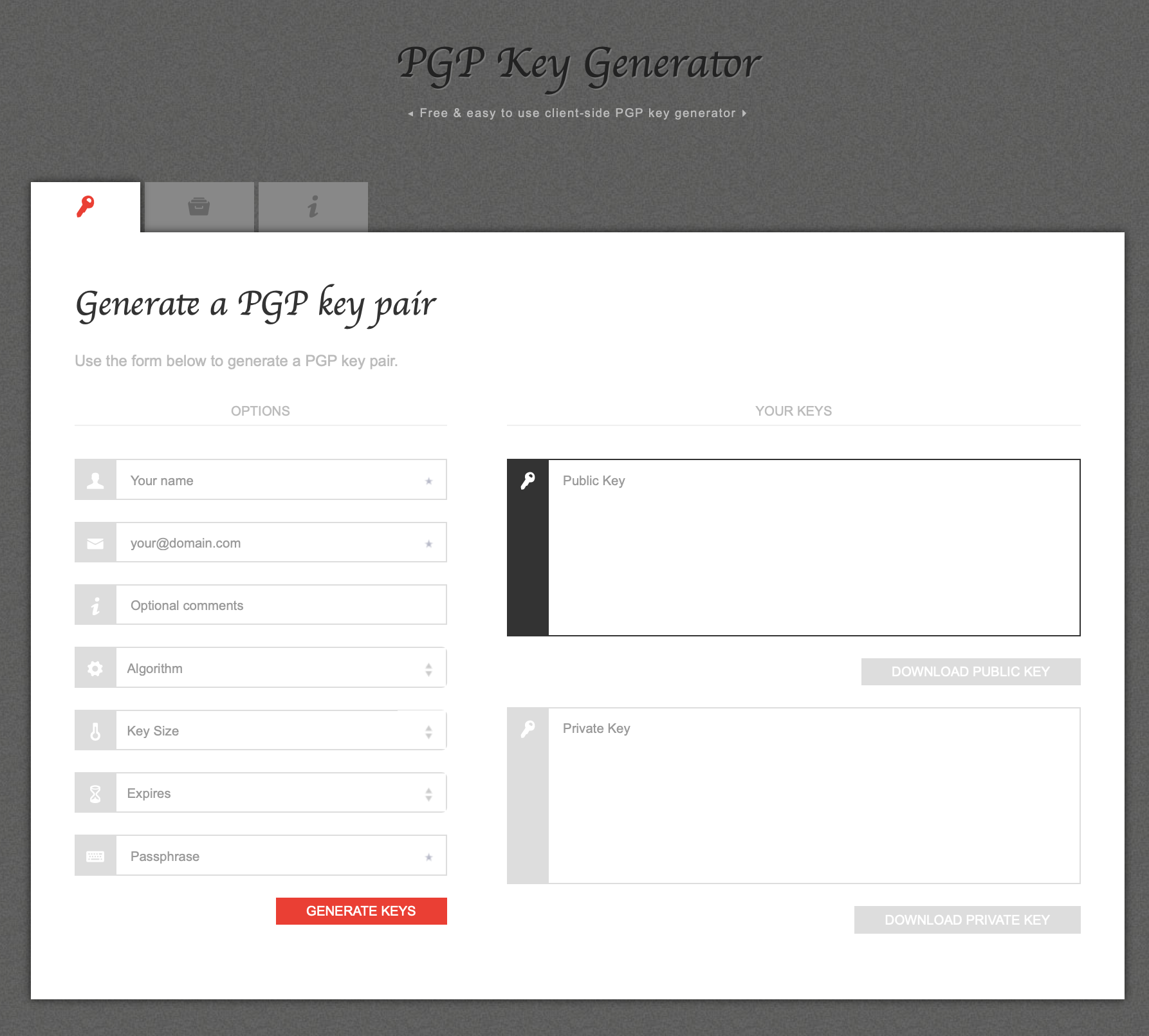
Since this web service is open source, experts can view the source code at any time. This means that they can continuously evaluate how secure and reliable the generator is. However, being a JavaScript application, there is also room for concern about cybercrime. If criminals are able to identify security gaps in the web service, these gaps can be exploited to attack your system and obtain sensitive information.
PGP encryption for email clients
If you prefer to communicate via webmail services like Gmail, Yahoo, or Outlook.com will find the Mailvelope browser extension to be just right. The add-on is based on OpenPGP.js and is available for Google Chrome, Microsoft Edge, and Mozilla Firefox. Once you have installed the extension, the Mailvelope icon appears in your browser’s toolbar, allowing you to access the user interface. Here you can create, import, and manage your keys, as well as the public keys of your contacts, or upload created public keys to a public key server.

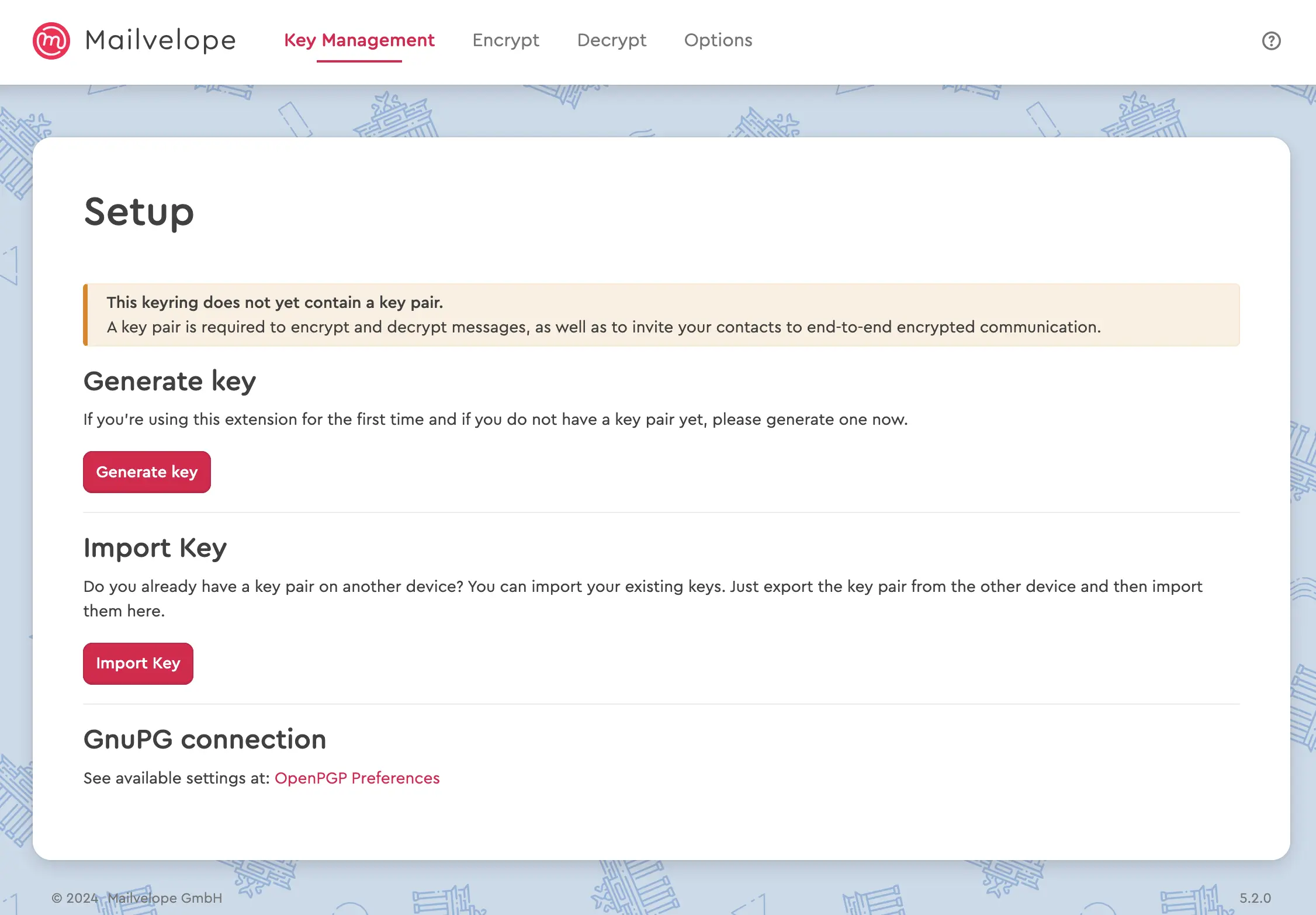
If you have Mailvelope installed and access your webmail inbox using the browser, the add-on scans it for PGP messages. This way, it can display specific elements for encrypting or decrypting an email. In the options, you can enable or disable PGP encryption for Gmail, Outlook, and others.
- Email protection on any device
- SSL/TLS email encryption
- Firewalls and spam filters offer first class virus protection
- Daily protection and backups
PGP encryption on mobile devices
To use PGP encryption on iOS and Android devices, you need an email client that supports key management software and PGP encryption. We have selected a key management app for both iOS and Android that allows you to store and manage the PGP keys of your contacts.
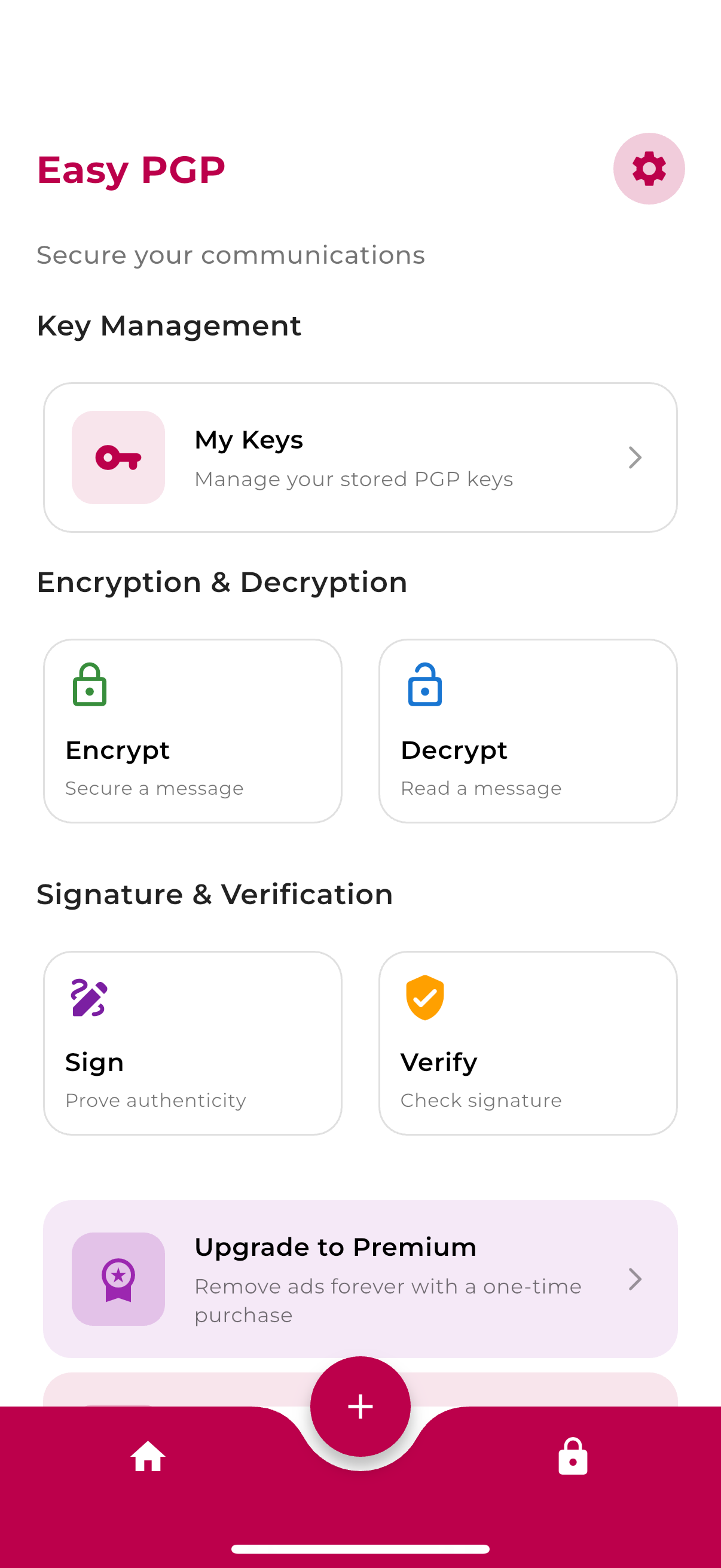
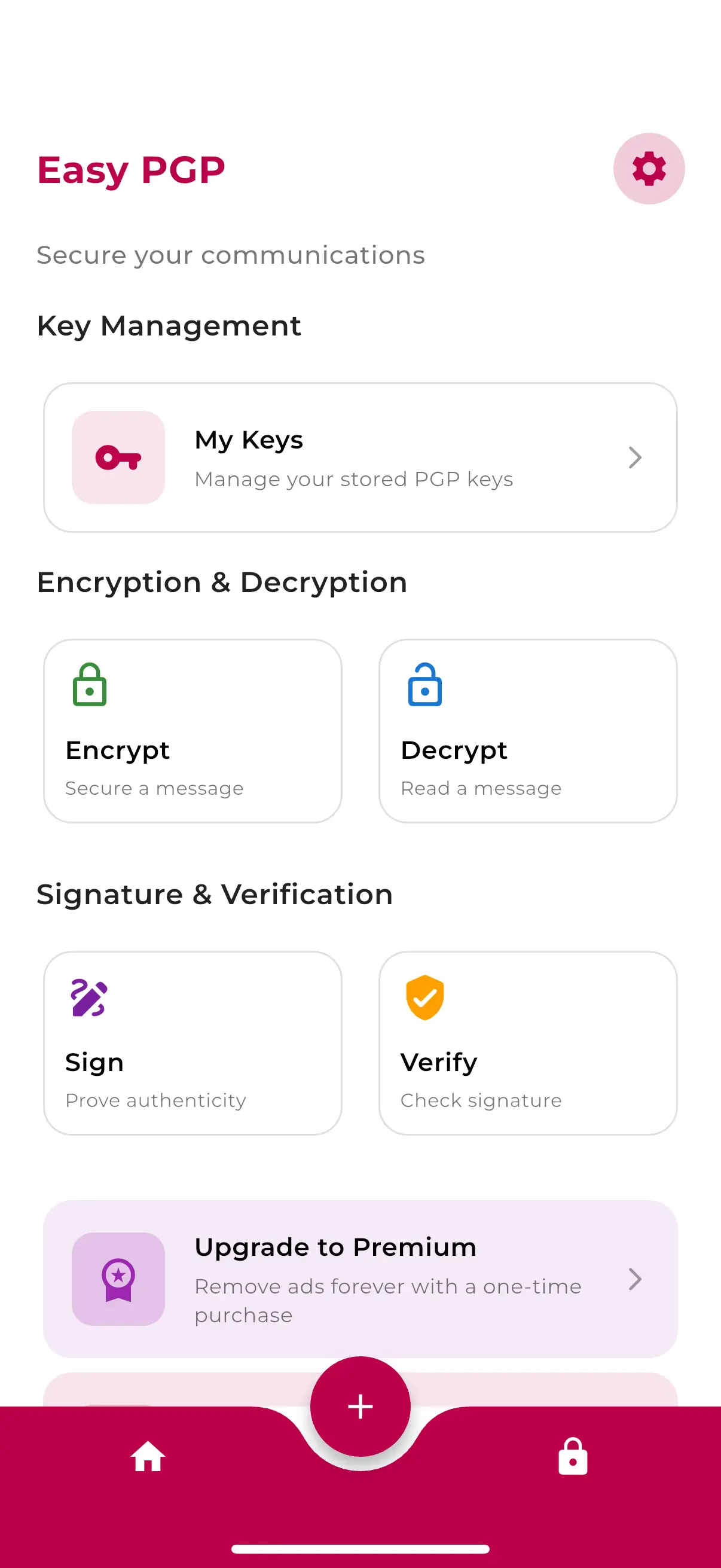
iOS – Easy PGP
Easy PGP is a user-friendly and secure iOS app that brings the power of PGP encryption to your mobile device. With EasyPGP, you can create, import, and export PGP key pairs to protect your communication. The app performs all operations locally on your device, ensuring your data never leaves your phone and guaranteeing maximum privacy. The modern, intuitive user interface makes PGP encryption accessible to everyone. Key features include the easy creation of new PGP key pairs with customisable encryption settings.
Android – OpenKeychain: Easy PGP
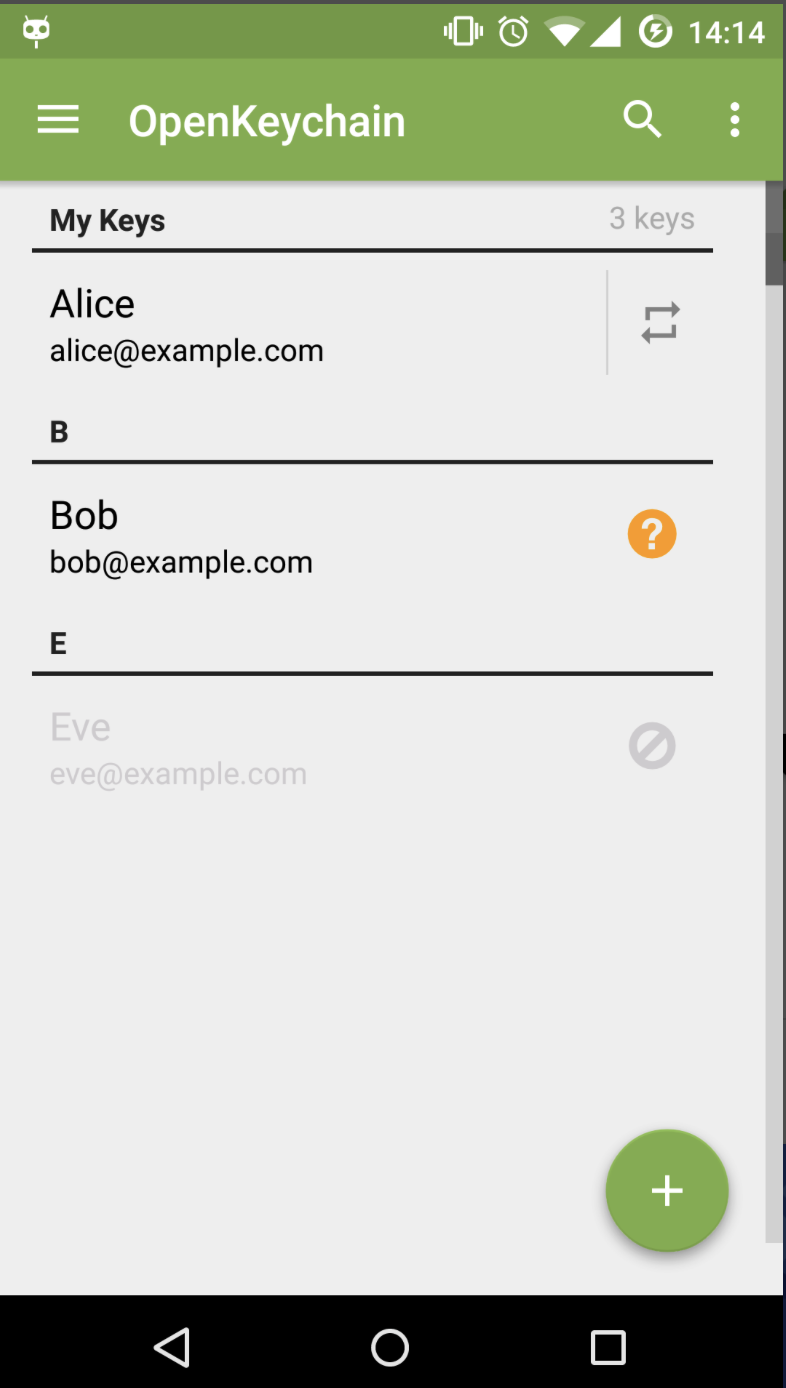
For Android users, the app ‘OpenKeychain: Easy PGP’ is available, which is also open-source and based on the OpenPGP standard.
After installing the app, you can view, import, and manage your private and public keys under ‘Keys’. Under ‘Encrypt/Decrypt’, you can encrypt or decrypt messages and files using these keys.
Encrypted content vs. encrypted connections
Many users believe they are already exchanging encrypted emails with their contacts via SSL or TLS certificates. However, that’s only half the truth. Because the use of SSL/TLS certificates only encrypts the transmission path of electronic messages between mail servers. The disadvantage is that messages can be intercepted and read in plain text during upload to the server by third parties.
Additionally, unlike PGP, SSL/TLS does not sign the email and therefore does not guarantee its authenticity. On the other hand, SSL/TLS certificates enable the encryption of email components that remain unencrypted with PGP, such as information about the sender, recipient, or subject.
A combination of PGP encryption and SSL/TLS encryption is therefore the optimal solution in practice to protect your email content. You can find more information about encrypted transmission in our article ‘Encrypting email with SSL/TLS’.
Reviewers

Melissa Senn
Melissa Senn has been with IONOS since 2016 and focuses on website, e-commerce, social media, and AI in the Digital Guide. As a digital strategist, she uses her extensive SEO and GEO experience to transform complex technological trends into practical content.

Jeanna Raffa
With over 18 years of experience in online marketing, Jeanna Raffa possesses extensive expertise in digital marketing. Since 2020, her focus has been on providing practical information regarding email, office, and cloud storage solutions.