

How to back up your Outlook emails to protect your data

Outlook provides an extensive array of features within an intuitive interface. Nevertheless, the synchronisation and connection of data can be vulnerable to loss due to software or hardware issues. For this reason, it’s crucial for users to protect vital business data and emails by backing up Outlook. In this guide, we will show you how to back up Outlook.
- Up to 50 GB Exchange email account
- Outlook Web App and collaboration tools
- Expert support & setup service
How does Outlook manage emails?
To understand how to protect your Outlook user data, you first need to know how Outlook manages it. There are two different types of Outlook account:
-
Outlook POP accounts (including POP3): The original Outlook data is downloaded from the server and stored on a local machine in PST format.
-
Exchange, IMAP, Outlook 365, or Outlook.com accounts: Data is only stored on the local device temporarily, in OST format. The original data remains on the server.
So what’s the difference between the two Outlook file types, PST and OST?
- PST files: PST stands for Personal Storage Table. This Outlook file format acts like a data container and can only be used and opened via an Outlook account. Personal, synchronised user data is sorted into folders, then downloaded from the server and stored locally in PST format. An initial PST file is created automatically when you set up an Outlook POP account. However, PST files can also be saved both automatically and manually, and you can also split them up, for example to separate personal emails from business emails. The advantage of PST format is that the files can be up to 50 GB in size, meaning that you can create large Outlook email archives.
- OST files: OST stands for Offline Storage Table. As the name indicates, these are offline files, and they are only stored on the local machine temporarily. The original files remain on the Exchange server, so they are automatically stored as an Outlook backup. If you make changes to the local OST files, Outlook will synchronise them automatically when you next log in. The advantage of OST format is that you can access your data even if you are offline. In Outlook 2010 and earlier, Outlook used the PST format for temporary files. OST became the standard temporary format in Outlook 2013.
How to back up Outlook emails quick guide
Step 1: In Outlook, go to File > Open & Export > Import/Export.
Step 2: In the Import and Export Wizard, click on Export to a file.
Step 3: Now select Outlook Data File (.pst) and go to Next.
Step 4: Specify the files or folders that you want to export. To also export subfolders, select Include subfolders.
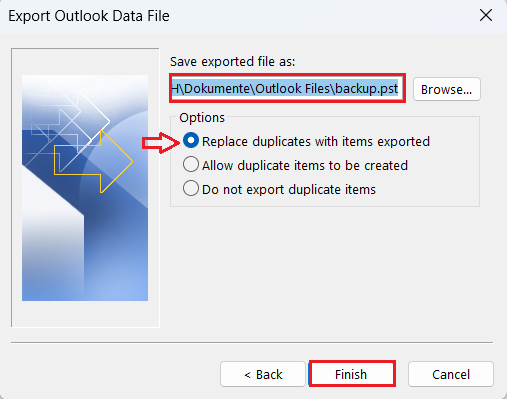
Step 5: Determine the storage location for your Outlook backup and avoid duplicate backup files by selecting Replace duplicates with exported items. Complete the process by clicking on Finish.
Hosted Microsoft Exchange is the most popular groupware and email solution among companies. With IONOS you can benefit from the advantages of Exchange and synchronise and store valuable business data and backups in high-security data centres, in accordance with current data protection regulations.
What kind of data can you save in an Outlook backup?
Outlook data backups are always created in PST format. This is a proprietary Microsoft format that Outlook uses to import and export data. When creating an Outlook backup, you can include emails, contacts and addresses, calendar data, journal entries, and also various settings such as categories and filters. Exporting a PST file serves two purposes. It gives you a local copy of your data, and you can also use it to import your Outlook data and contacts and transfer your settings if you change device or account.
In the corporate world, corruption or loss of data and emails can affect the entire organisation. If you’re looking for a safe and reliable way of protecting your emails, the IONOS email archiving service is what you need! Your data will be stored securely in one of our data centres.
How to back up Outlook emails step by step
The fastest way to back up your Outlook emails and data is to export a PST file and save it on your computer or an external storage device.
The following steps also work for Outlook versions 2021, 2019 and 2016.
Step 1: In the Outlook File tab, select Open & Export, then click on Import/Export.
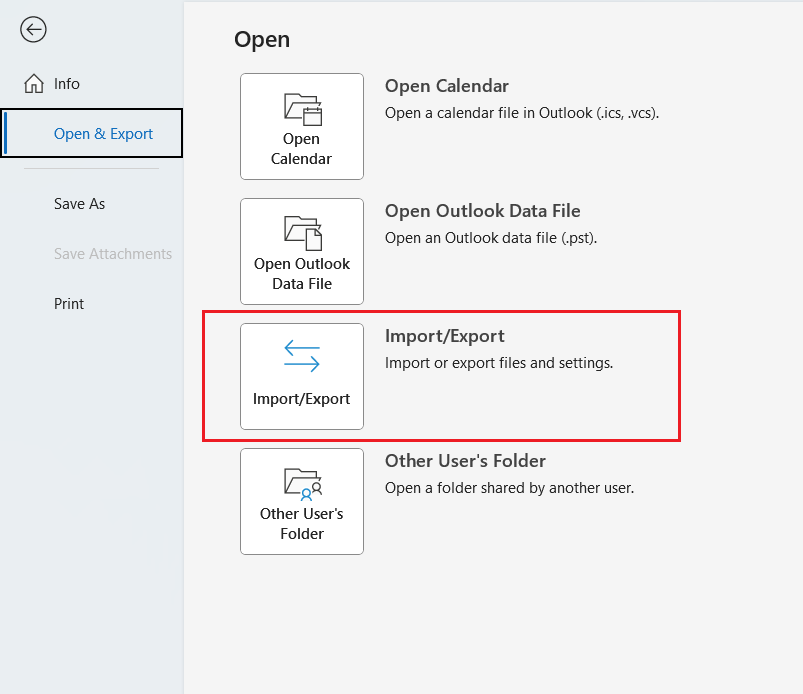
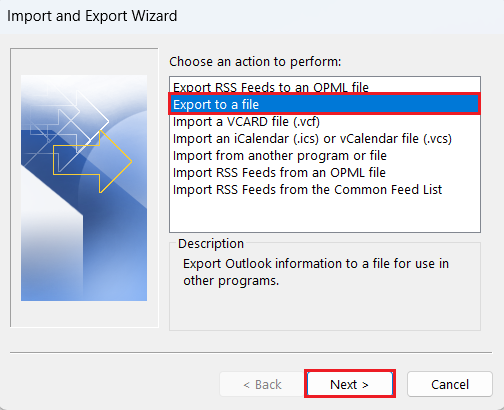
Step 2: In the Import and Export Wizard, select the Export to a file option and click on Next.
- Fast drag and drop editing
- AI-powered text generation
- Seamless syncing with IONOS eCommerce
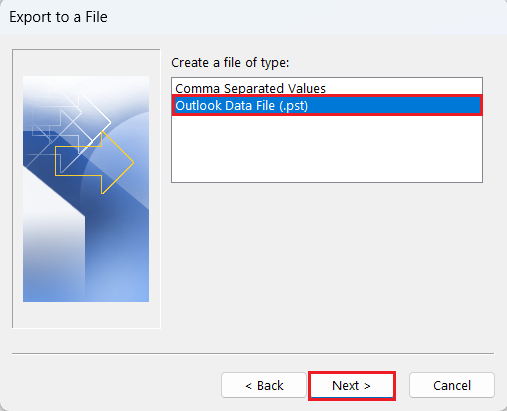
Step 3: In the next window you will be asked to choose the file type for your Outlook backup. Select Outlook Data File (.pst).
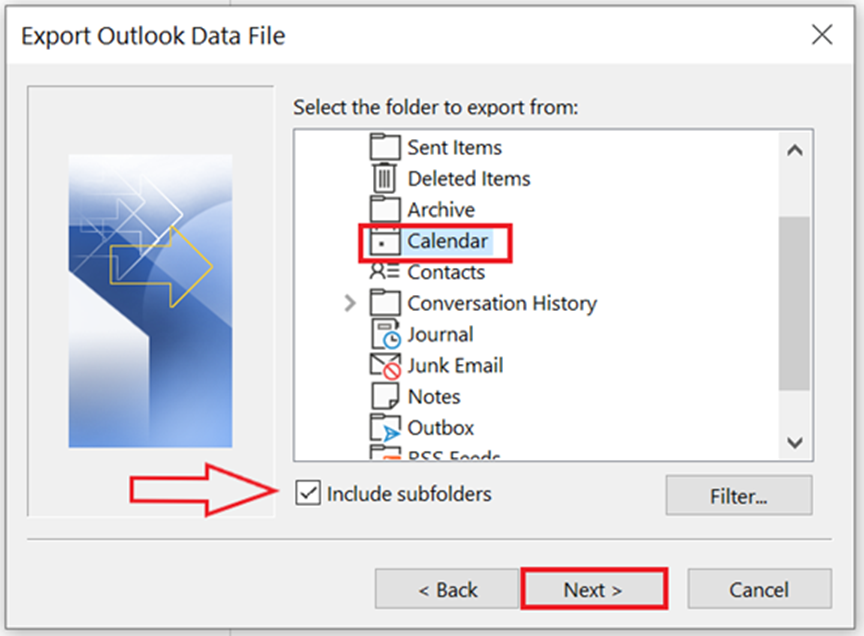
Step 4: Now choose the data you want to export. In this example, we’re going to back up the Calendar folder. Select Include subfolders so that your backup will include any subfolders, then click on Next.
Step 5: Finally, choose where you want to save the backup file. This can be either a local folder, an external hard drive, or a USB stick for example. For important data, it’s worth saving identical backups on multiple storage devices wherever possible. If you create Outlook data backups regularly, you can select the Replace duplicates with items exported option to avoid duplicate files. Click on Finish to exit the wizard.
A professional website requires a reputable email address. With IONOS, you can create your own email address for an affordable price.
How to back up Outlook emails and data on a cloud
Instead of – or as well as – creating a backup in PST format, you can save some of your user data using a cloud storage solution. That way you can access your data in a secure manner at any time, from any device. Backing up business data is a key part of digital archiving. It helps you organise tasks and contacts, reduces the amount of paper you use, and limits the risk of data loss.
The HiDrive cloud storage from IONOS stores your data centrally and highly securely and offers storage space of between 100 and 2,000 GB for backups.