

What is an ICS file and how can you open or import it?

The ICS format allows you to import, export, share, or publish appointments and events in digital calendars. Due to its global prevalence, it is supported by nearly all major calendar applications like Microsoft Outlook, Google Calendar, Apple Calendar, and mobile devices (iOS and Android).
What is an ICS file?
An ICS file contains the structured data of one or more appointments from a digital calendar. The standard file format of iCalendar is identifiable by the .ics extension. Typical information includes:
- Title/subject of the appointment
- Location of the event (address, conference room, online meeting link)
- Start and end time including date and time zone
- Description or agenda with additional details
- Participant list with invited individuals
- Reminders or notifications
- Recurrence rules (e.g., ‘every Monday at 10 AM’)
- Status information (confirmed, tentative, cancelled)
Example: You receive a business meeting invitation in your Gmail inbox. Attached is an ICS file containing all relevant details. By opening the file on your smartphone or PC, you can directly import and sync the appointment into your calendar, whether you use Outlook, Google Calendar, or Apple Calendar.
Which programs can open ICS files?
Thanks to the international standard, ICS files can be used on almost all platforms. They are particularly popular on:
- Microsoft Outlook (Windows, Mac, web version via Microsoft 365)
- Google Calendar (web & mobile app on Android/iOS)
- Apple Calendar (macOS & iOS/iPadOS)
- Special converters for converting to other formats
- Up to 50 GB Exchange email account
- Outlook Web App and collaboration tools
- Expert support & setup service
Open an ICS file with Outlook
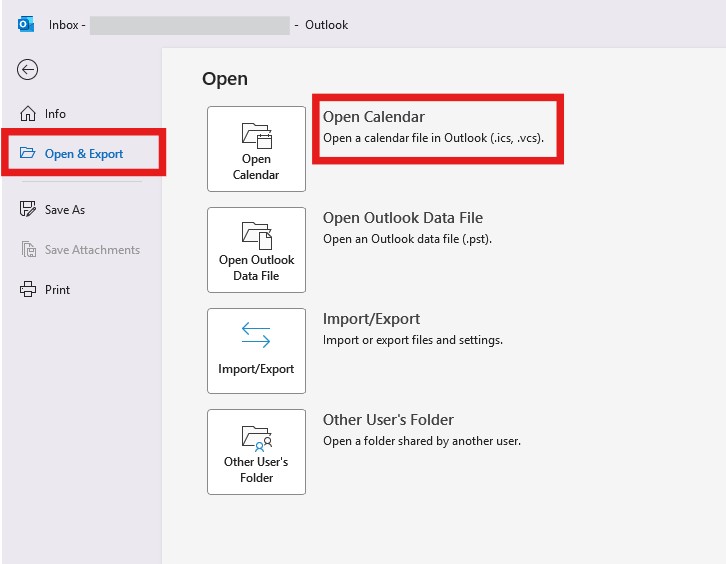
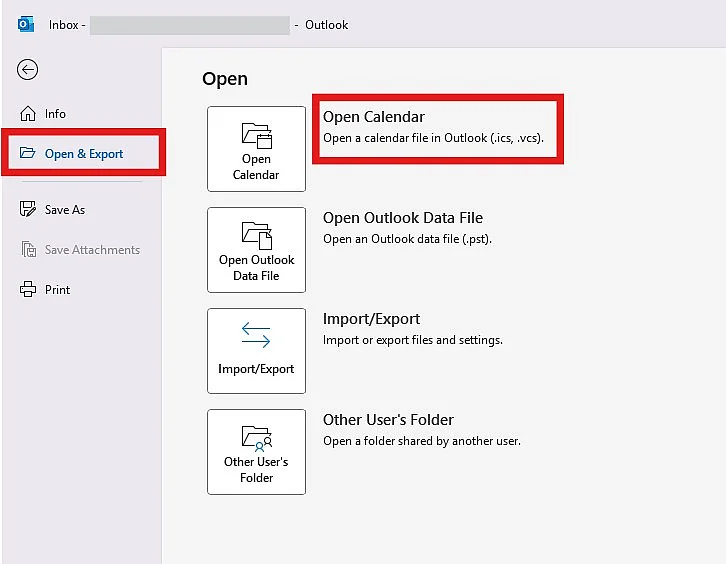
Here’s how to import an ICS file into Microsoft Outlook:
- Open Microsoft Outlook.
- Click on ‘File’ in the main menu.
- Select ‘Open & Export’ and then ‘Open Calendar’.
- Locate the desired ICS file on your PC and click ‘Open’.
- Choose whether to import the event into a new calendar or the existing calendar.
If Outlook is set as the default program for ICS files, a double-click on the file is sufficient to add the event directly to the calendar.
Import an ICS file with Google Calendar
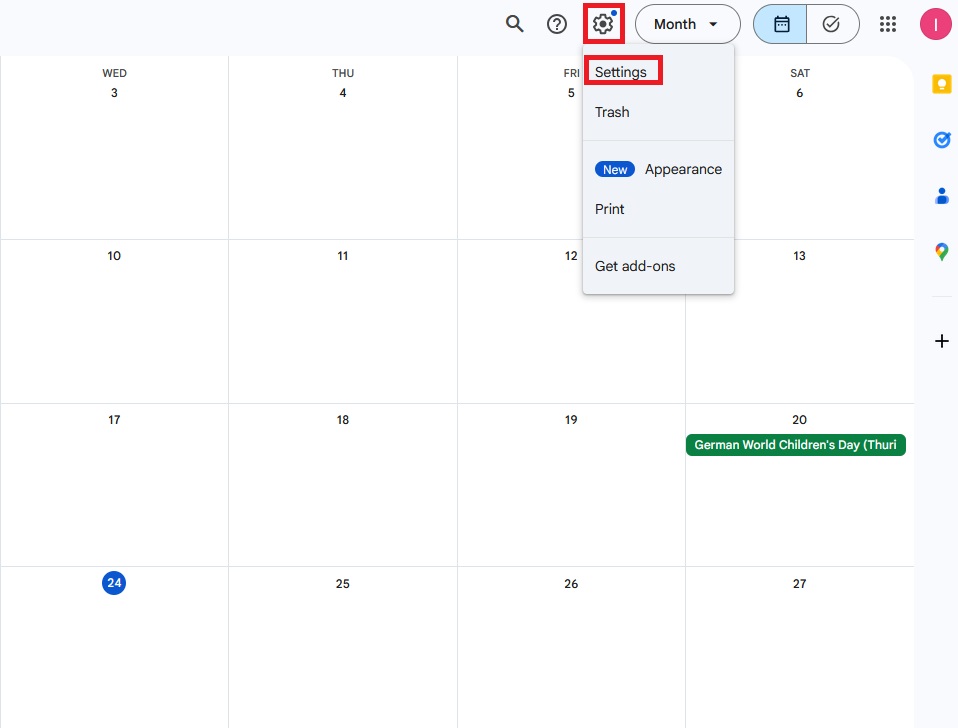
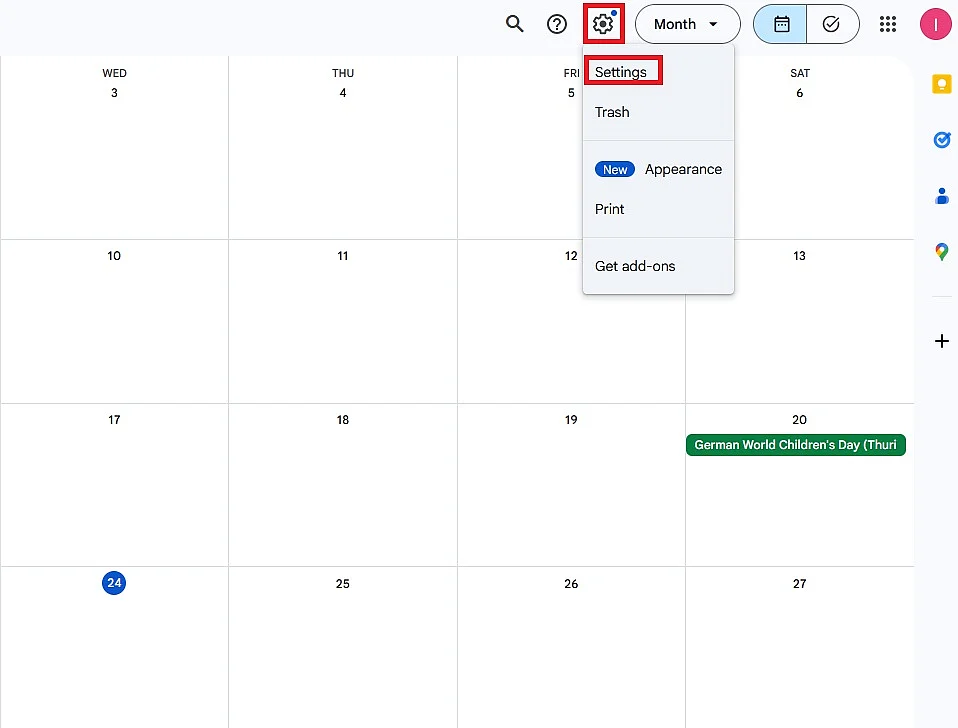
In the web browser:
- Open Google Calendar.
- Click on the gear icon and then select ‘Settings’.
- In the menu on the left, select ‘Import & Export’.
- Click on ‘Select file from my computer’, choose the ICS file, and click on ‘Add to calendar’.
In the mobile app (Android/iOS):
- Open the ICS file directly from the email attachment or from its storage location.
- Select ‘Open with Google Calendar’.
- The appointment will be automatically integrated.
- Familiar Google tools all in one place
- Configure business Gmail for your domain
- Gemini AI assistant to help you work smarter
Open an ICS file with Apple Calendar
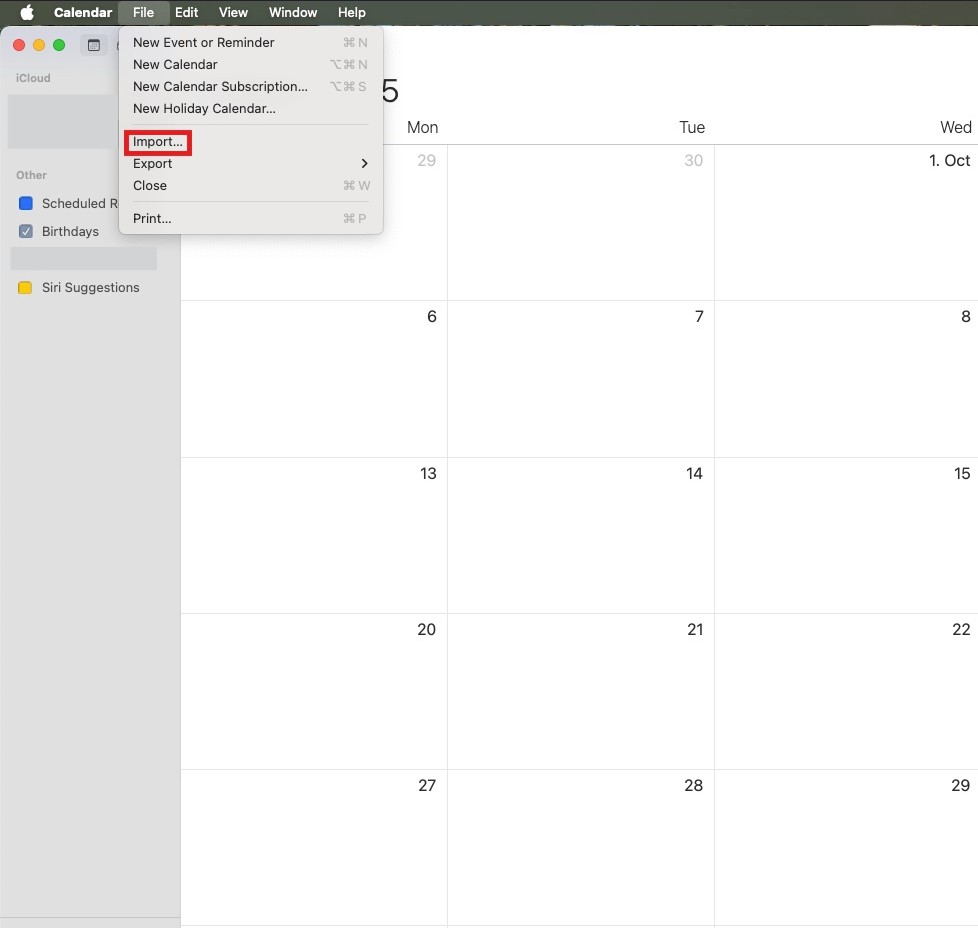
On macOS:
- Open the Calendar application.
- Go to ‘File’ -> ‘Import’.
- Select the ICS file and click ‘Import’.
- Specify which calendar the appointment should be added to.
On iPhone/iPad (iOS/iPadOS):
- Tap on the ICS file in an email or file manager.
- Select ‘Add to Calendar’.
- Confirm the entry. The appointment is automatically added to Apple Calendar.
What errors can occur during import?
When opening or importing ICS files, various issues may occur in practice. Common errors and their solutions include:
- File damaged or incomplete: Ask the sender to resend the ICS file or re-export the appointment from the original calendar.
- Incorrect file format (e.g. .vcs instead of .ics): Check the file extension. With standard online converters or export functions in Outlook, Google Calendar, or Apple Calendar, you can usually adjust the format without any problems.
- Duplicate appointments: When importing repeatedly, make sure to select the option ‘Add new events only’. Some calendars also offer automatic duplicate checks.
- Time zone issues (appointment displayed at the wrong time): Check the time zone settings in your calendar and on your device. ICS files often contain UTC times that need to be converted locally.
- Import not possible on mobile devices: Make sure the ICS file is opened using a compatible app (Google Calendar app, Apple Calendar app). Alternatively, you can import the file on your computer first and then sync it to your smartphone via your account.
- Fast drag and drop editing
- AI-powered text generation
- Seamless syncing with IONOS eCommerce
Reviewer

Jeanna Raffa
With over 18 years of experience in online marketing, Jeanna Raffa possesses extensive expertise in digital marketing. Since 2020, her focus has been on providing practical information regarding email, office, and cloud storage solutions.