

Recalling emails with Gmail: basics and instructions

Inadvertently sent emails have caused some good laughs across many offices. Anyone who accidentally clicks on “Reply to all” when sharing their comments about the boss’ latest motivational email meant for some eyes only, can quickly get into hot water when the email ends up in the boss’ inbox. In a busy office environment, it’s easy to send messages to the wrong recipients.
To keep sensitive information or ill-considered statements in mistakenly sent emails from causing you some serious trouble, emails can be unsent with Gmail. In this article, we’ll show you how to recall an email with Gmail and which prerequisites are necessary to stop the delivery of emails that have already been sent.
- Free website protection with SSL Wildcard included
- Free private registration for greater privacy
- Free Domain Connect for easy DNS setup
Recalling Gmail messages: What do you have to do?
With Gmail, you always have the possibility of recalling emails. It makes no difference whether the recipient of the message also uses Gmail or another email program. The only decisive factor for recalling Gmail messages that have been sent is time. Google allows a certain time window following the sending of an email during which the message can still be recalled. This is like a grace period: even though you’ve clicked on “Send,” Gmail still holds on to the message for a short while, during which you have the option of recalling a Gmail email or even stopping its pending delivery.
The default time window for Gmail email recalling is five seconds. Admittedly, that’s a very short window for recalling emails. Sometimes, it might take a little while before you even realise that you’ve forgotten an important attachment to an email or that you forgot to CC someone. Luckily, it’s easy to extend the cancellation period. Here’s how to configure the cancellation period in Gmail:
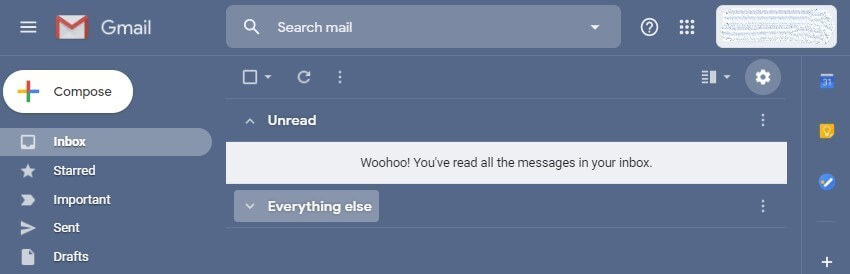
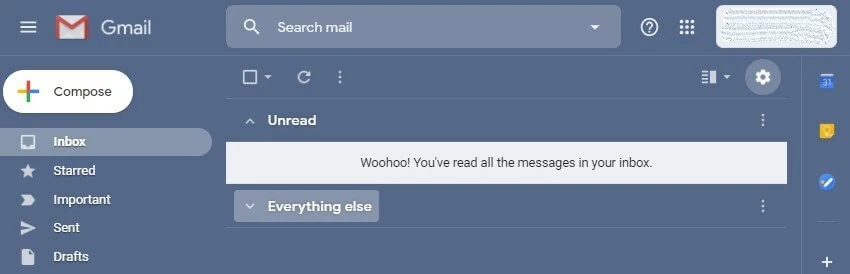
Step 1: Open the options menu in Gmail by clicking on the gear icon.
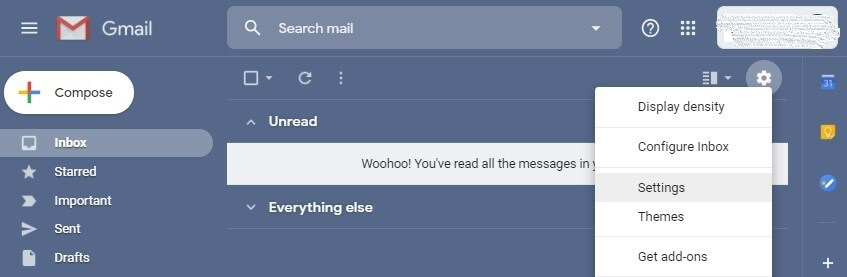
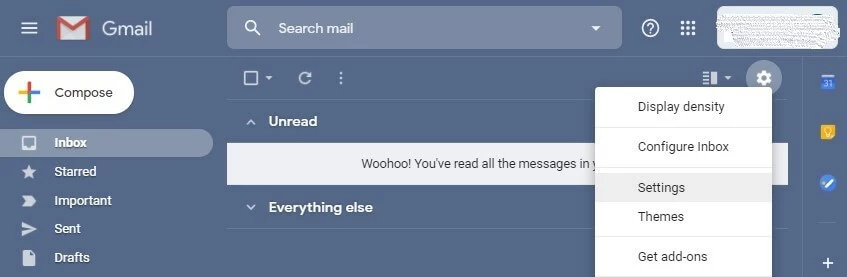
Step 2: Open the “Settings” page by clicking on the menu item of the same name.
Step 3: In the “Undo Send” section, choose your desired time window (“Send cancellation period”) for recalling Gmail messages.
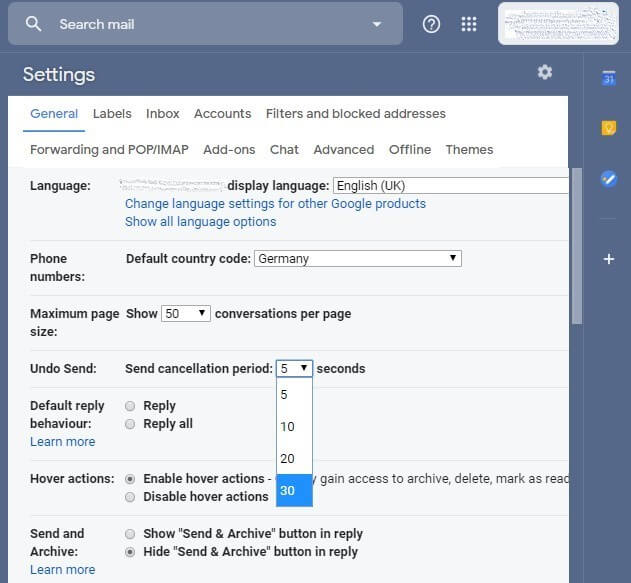
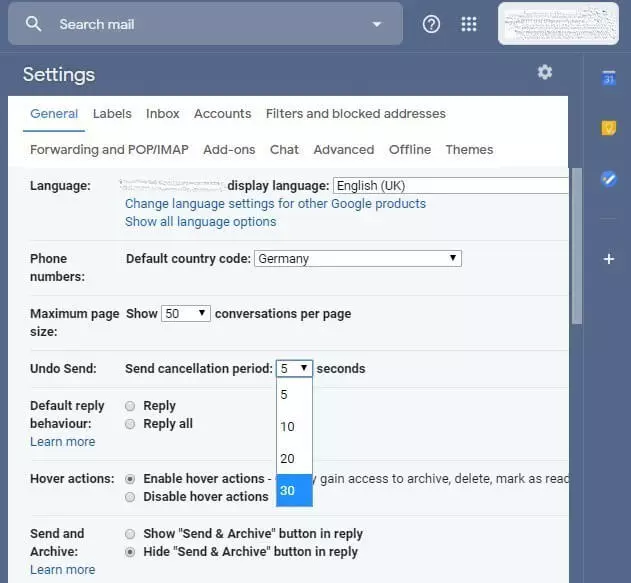
By extending the cancellation period, you widen the time window during which you can recall Gmail emails. It couldn’t be any easier.
How to recall an email with Gmail – web version
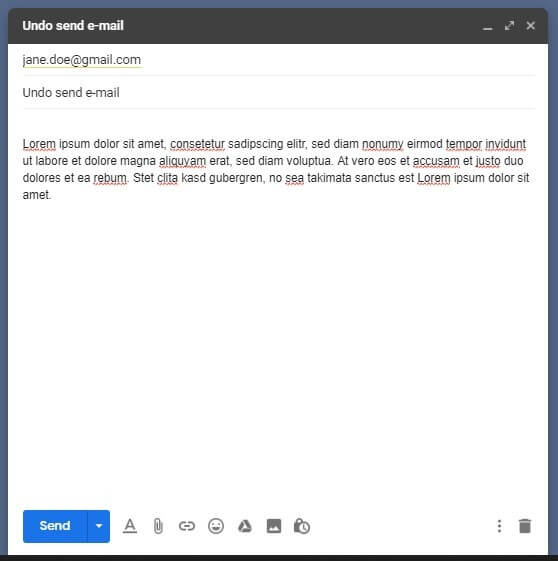
Let’s say that you’ve extended the undo send time window to 30 seconds. You’re now in the office, writing an email to a client using Gmail as usual. After you hit “Send,” you realise that you’ve forgotten to include the attachment that you mentioned in the message. Instead of resorting to a follow-up email to excuse yourself for the mishap, you can simply unsend the message with Gmail. Here’s how:
Step 1: The message has been sent after clicking “Send.”
Step 2: The message lingers for a short while in the cancellation period. Click on the option “Undo” which appears after sending:


Step 3: The email will be recalled. Gmail will notify you immediately and the message will be reopened for editing.


How to recall an email with Gmail: instructions for Android
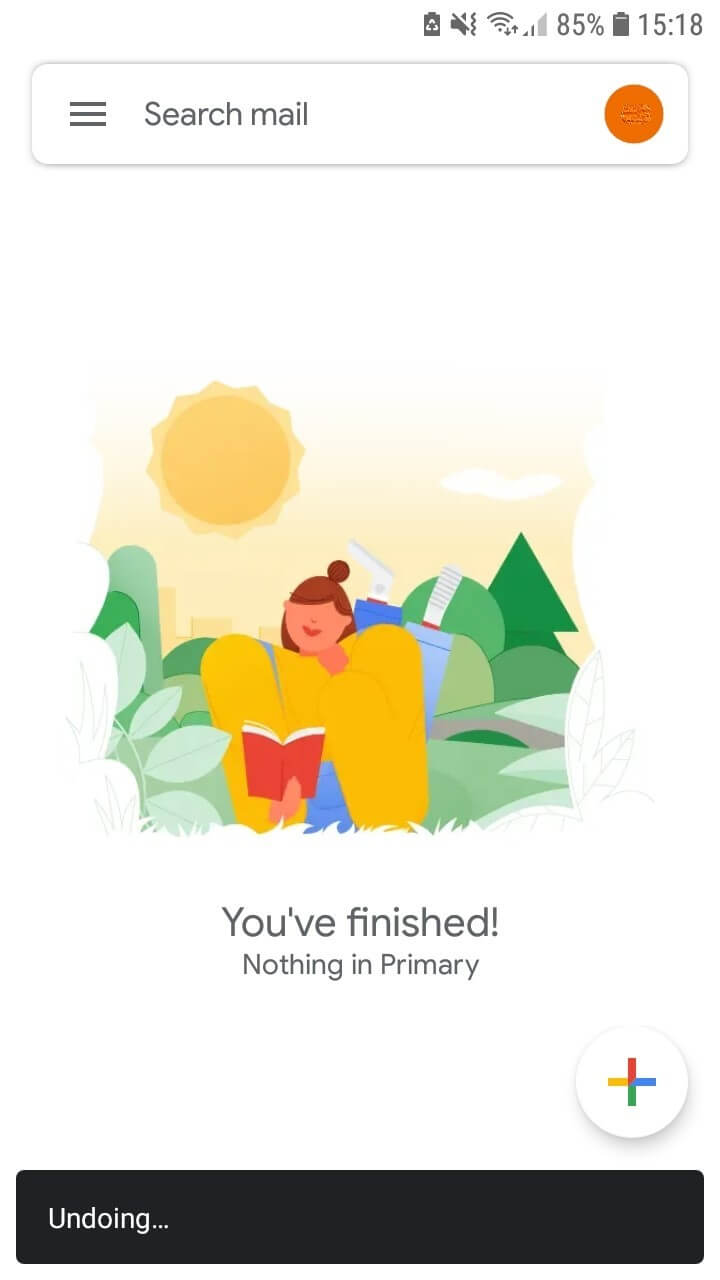
Of course, you can also unsend your Gmail emails when using the Android app. If you’ve written a message using the Gmail app and hit “Send,” you can recall it by taking the following steps:
Step 1: Tap the option “Undo” that appears after sending.
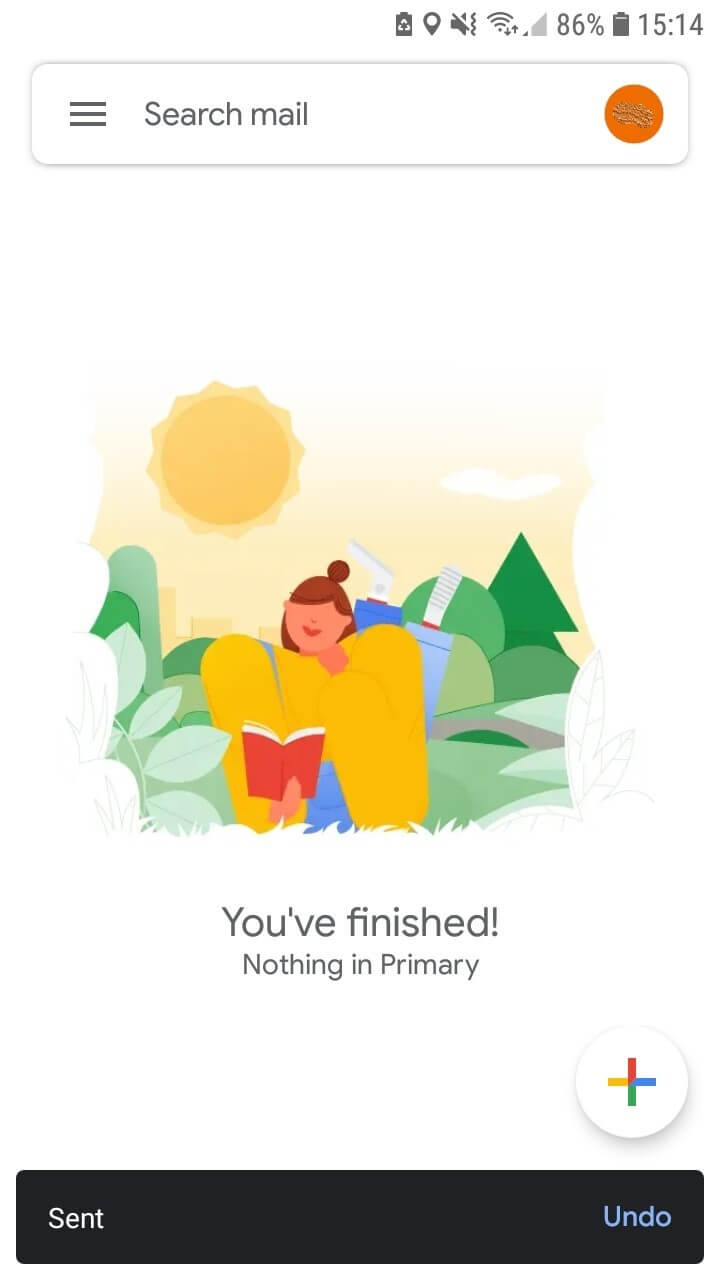
Step 2: Gmail will automatically recall the message.
How to unsend an email with Gmail: instructions for iPhone
Much like on Android devices, you can download the Gmail app from the Apple App Store and use it on an iPhone. The app will look exactly the same on your iPhone as it does on an Android device. There are no differences at all in the functionalities or the various features of the app. That means you can follow the exact same steps described above to recall a Gmail email. After clicking “Send,” a superimposed status display will appear automatically, and will also include the “Undo” option. The Gmail app on your iPhone will then recall the Gmail message that you sent, per your request.
If you want to use Gmail and other Google Workspace services like Google Drive, Google Docs, or Google Calendar for your business, IONOS offers highly-efficient office solutions.