

Setting up out-of-office in Thunderbird – here’s how

More than 300 billion emails are sent every day. That’s about 3.5 million emails per second. Even if more than half of these are spam, there is still an enormous amount of serious communication that occurs around the globe. Part of good email etiquette is to let others know if you are temporarily not available – whether due to a business trip, holiday, or illness. The out-of-office auto-reply function is available for this purpose.
In the email program Thunderbird, out-of-office emails can be set up using different templates. How this works is explained step by step in this guide. We’ll also show you how to set up an out-of-office message outside of Thunderbird with your email provider.
Offline for a bit? Thunderbird has got you covered
The email program Thunderbird by the Mozilla Foundation is available for lots of different operating systems. It is easy to use and follows familiar steps and interfaces. It is possible to set up out-of-office messages in Thunderbird. However, the procedure is slightly different from other email programs such as Microsoft Outlook or Gmail. We’ll help you set it up.
- Write perfect emails with optional AI features
- Includes domain, spam filter and email forwarding
- Best of all, it's ad-free
Thunderbird’s out-of-office feature at a glance
To activate your out-of-office message in Thunderbird, take the following steps:
- Compose the out-of-office note like a new email for Thunderbird and save it as a template
- Open ‘Filters’ via the settings
- Create a new filter with a recognisable name for the desired mailbox
- Edit this filter so that it will use your response template: ‘Reply with template’
- Activate or deactivate the filter with the checkbox in the filter menu.
Do you need more detailed instructions? Our step-by-step instructions will help you along – just take a look at the guide below.
For an out-of-office reply to work in Thunderbird, it must be active on the computer you’re using. If this is not possible or what you want, the only way is to set up out-of-office is with your email provider – scroll down to see how.
How to set out-of-office message in Thunderbird– step by step
Compose your message
Compose your note like a new email by clicking on the ‘Write’ tab (1).
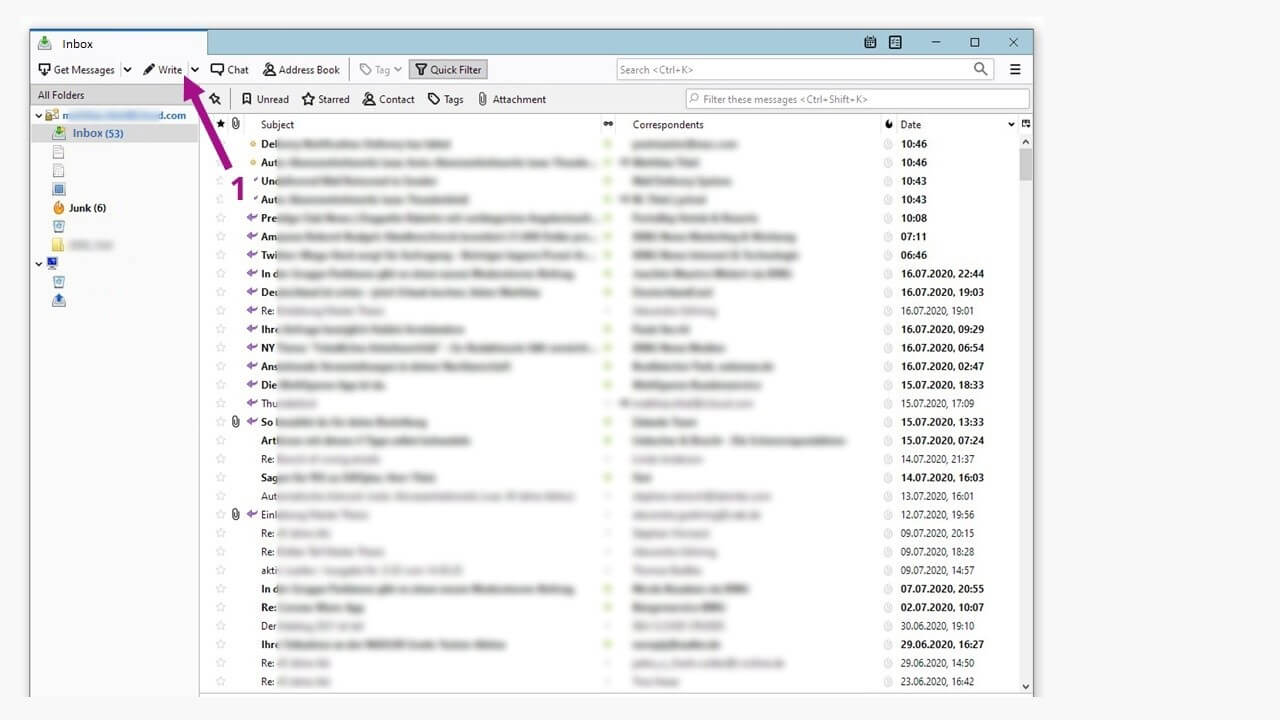
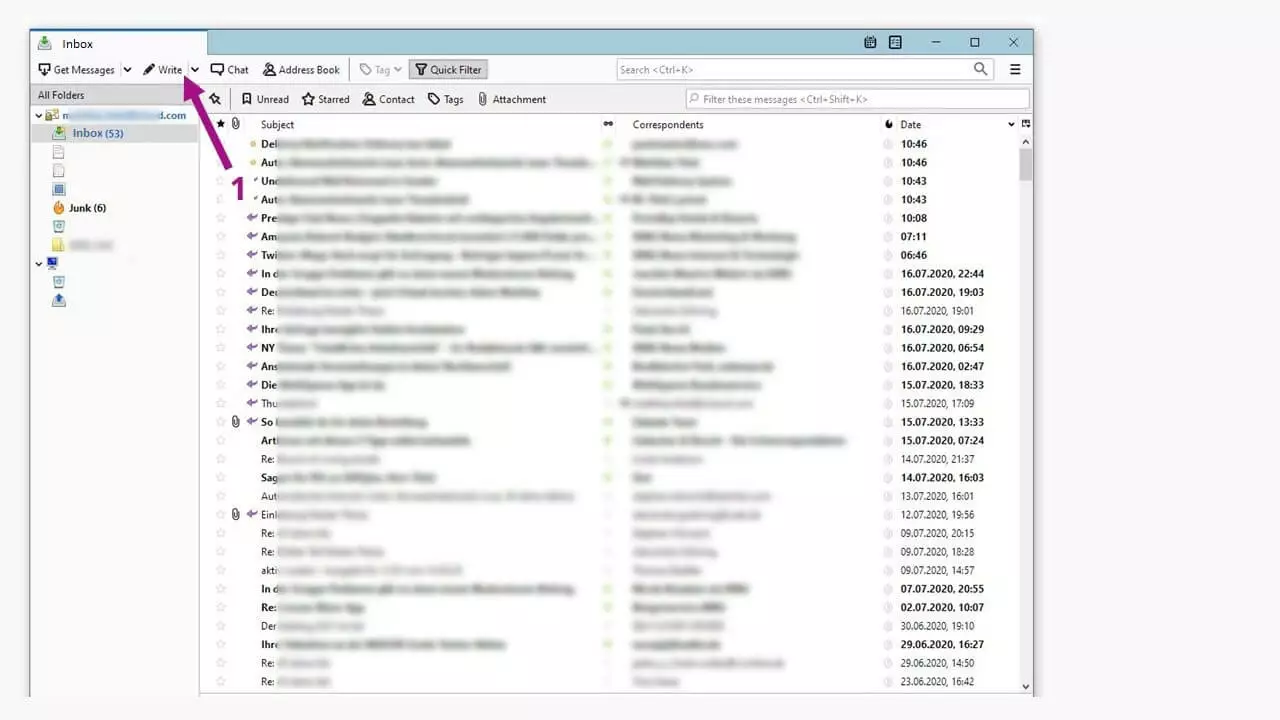
A good out-of-office message will include your name, an explanation, and if applicable, a statement that your emails won’t be forwarded.
You can find tips and examples for a good message in our guide “examples for the perfect out-of-office message.”
The next step is different from writing a new email as you usually would.
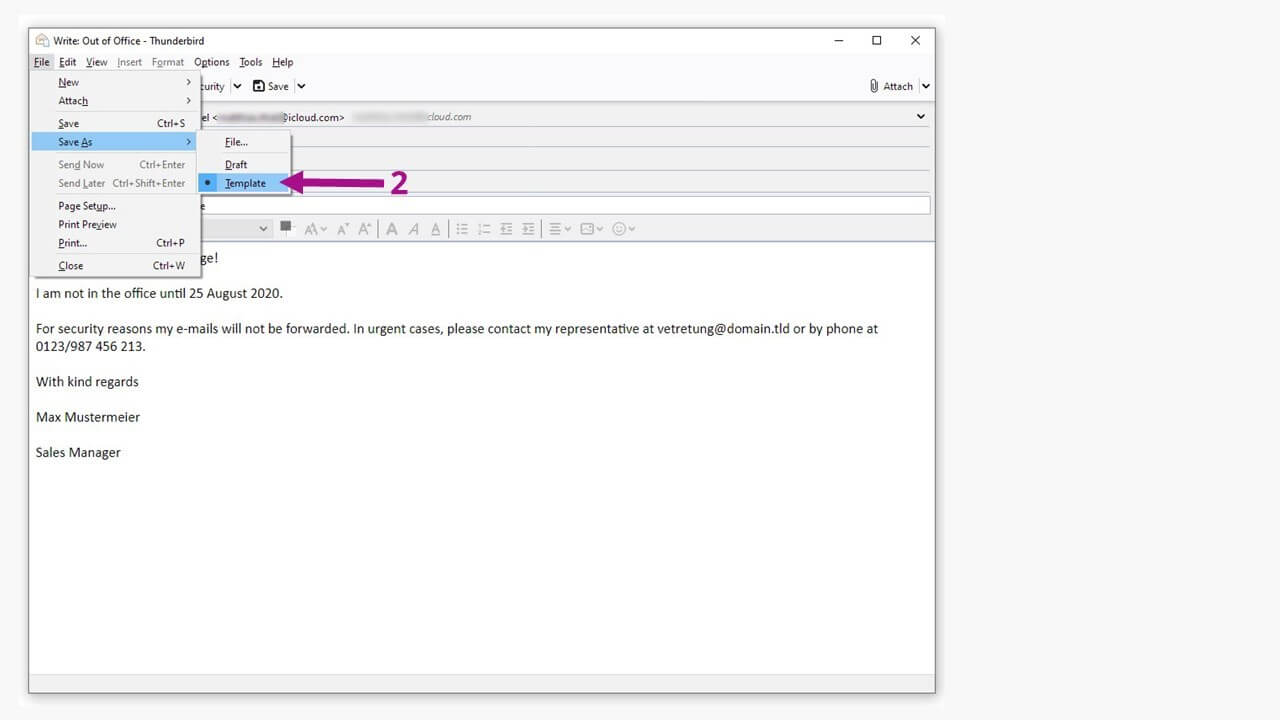
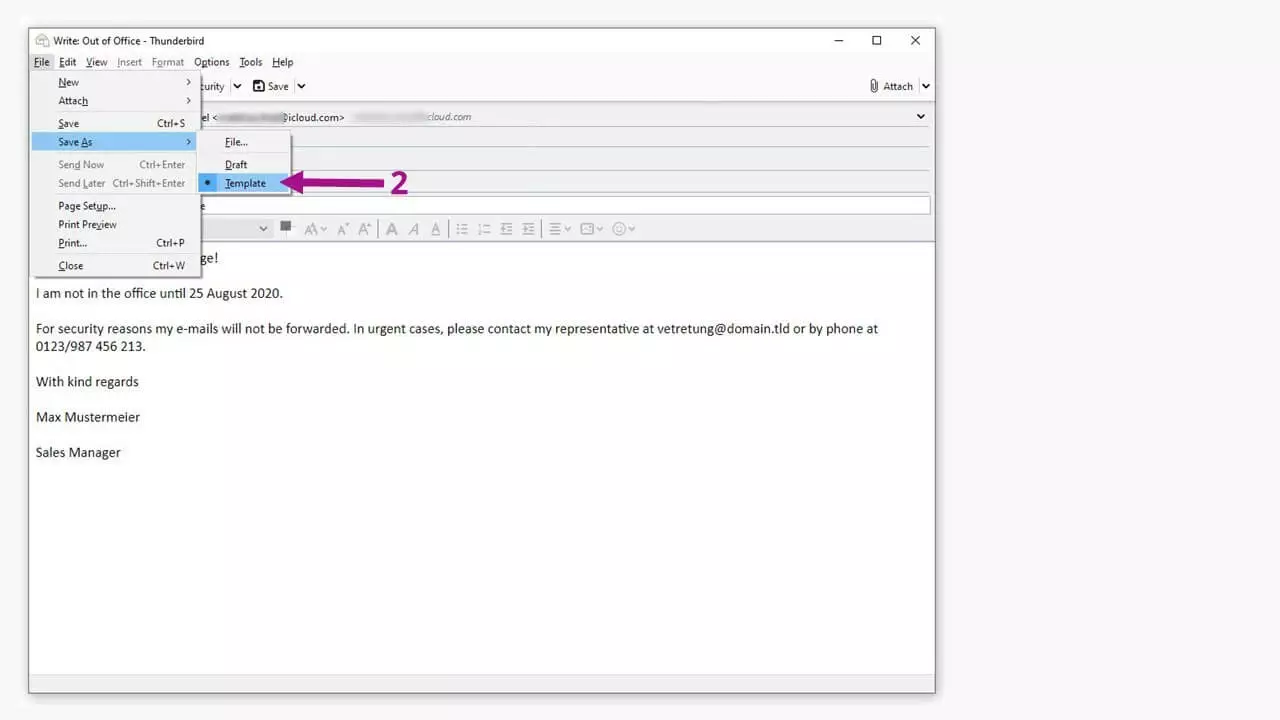
Saving the out-of-office mail as a “template” ensures that Thunderbird can access your composed message at a later date.
Create the right filter
To be able to use your saved template for when you’re out-of-office, you’ll have to activate it via the filter for the mailbox you want to use it on.
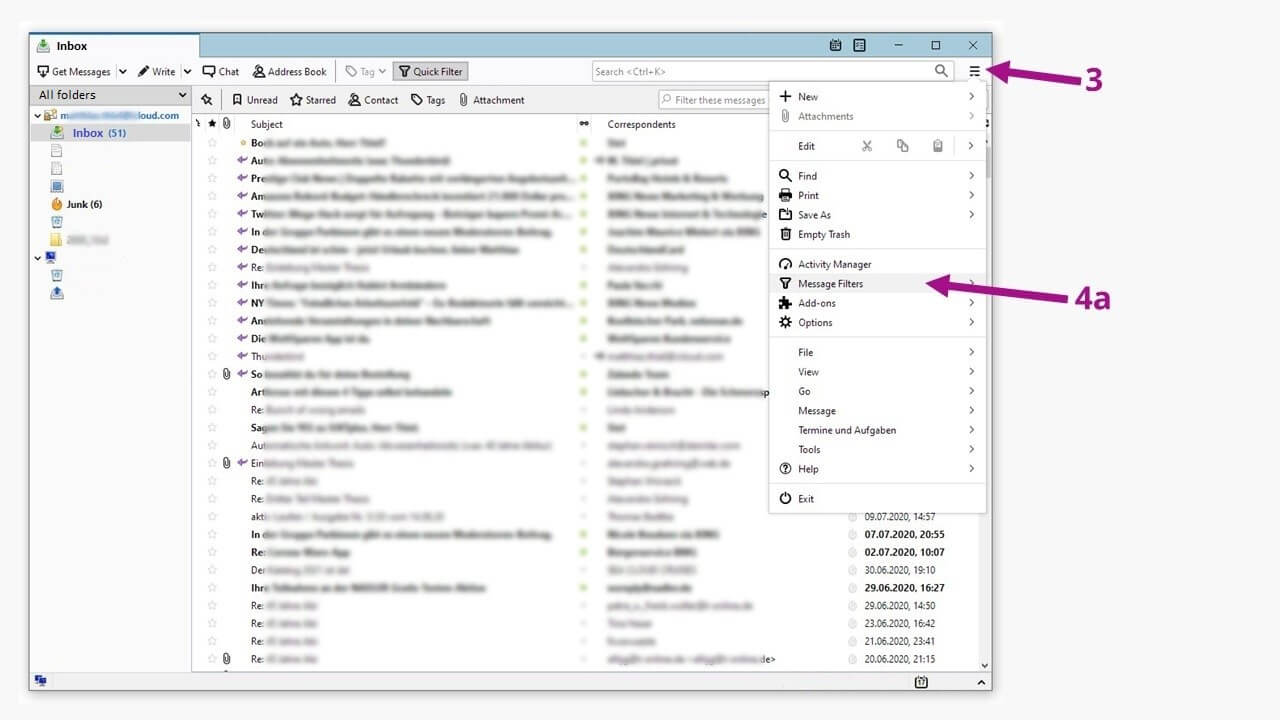
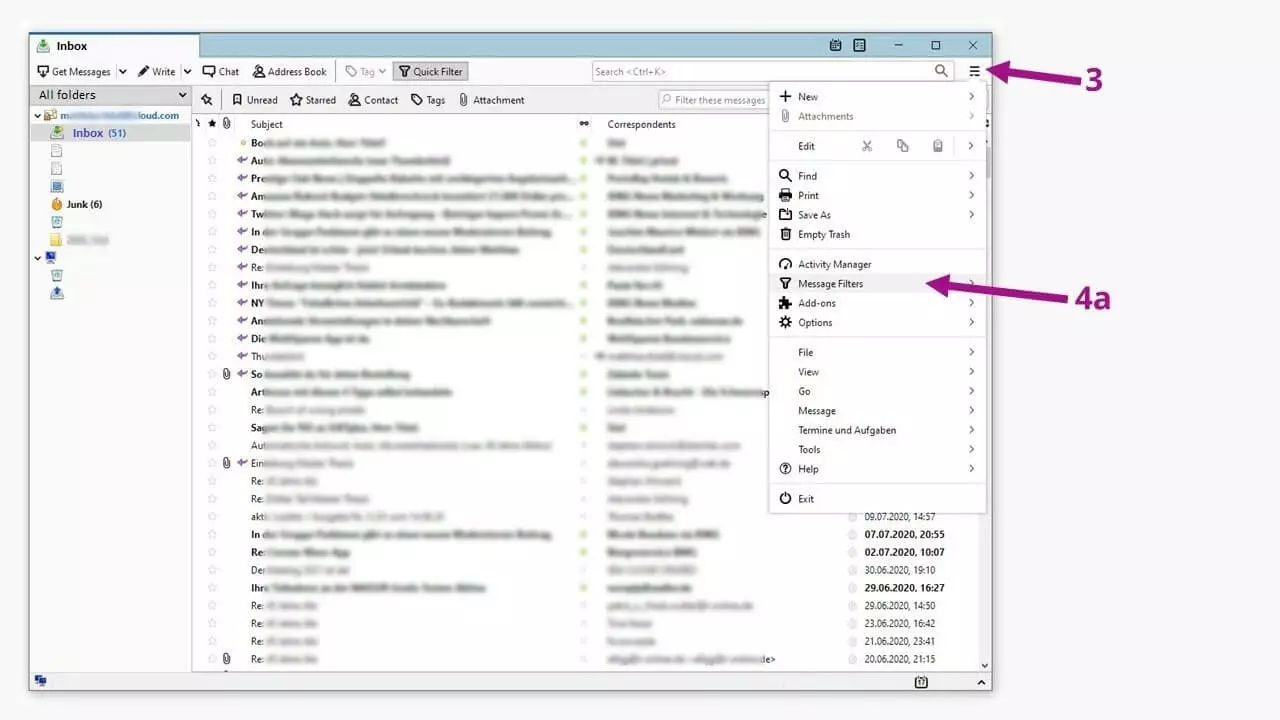
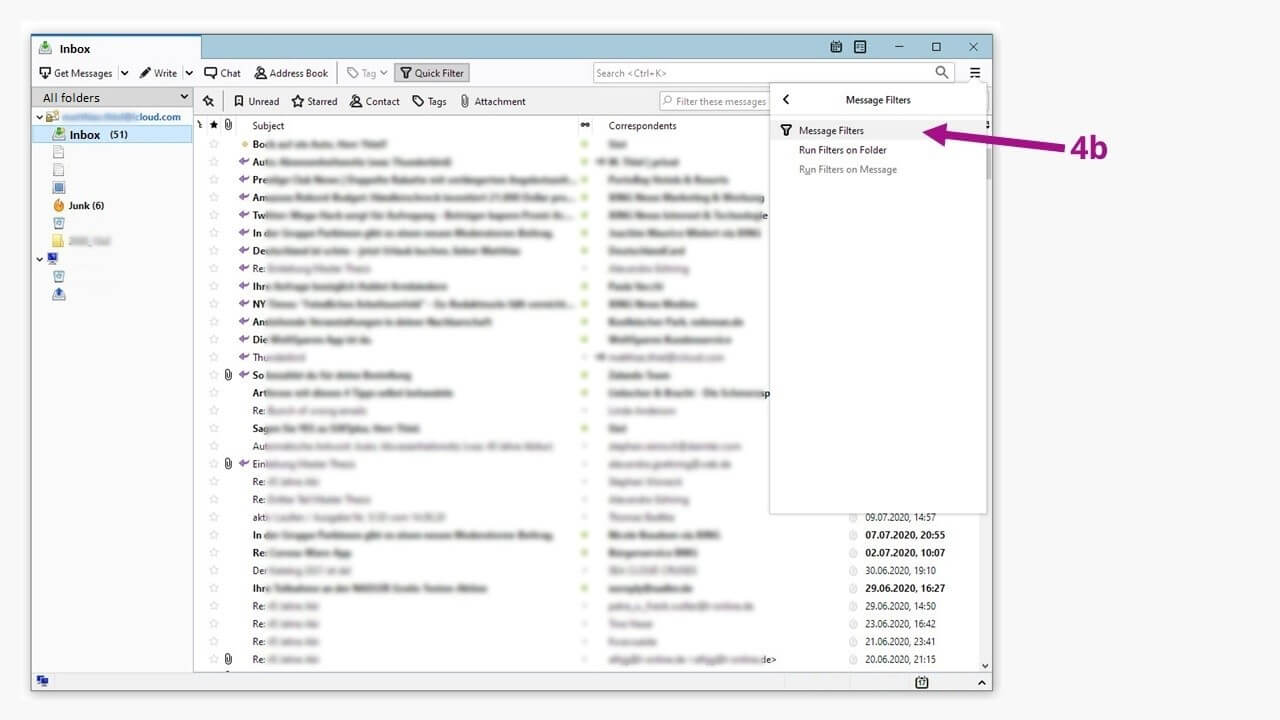
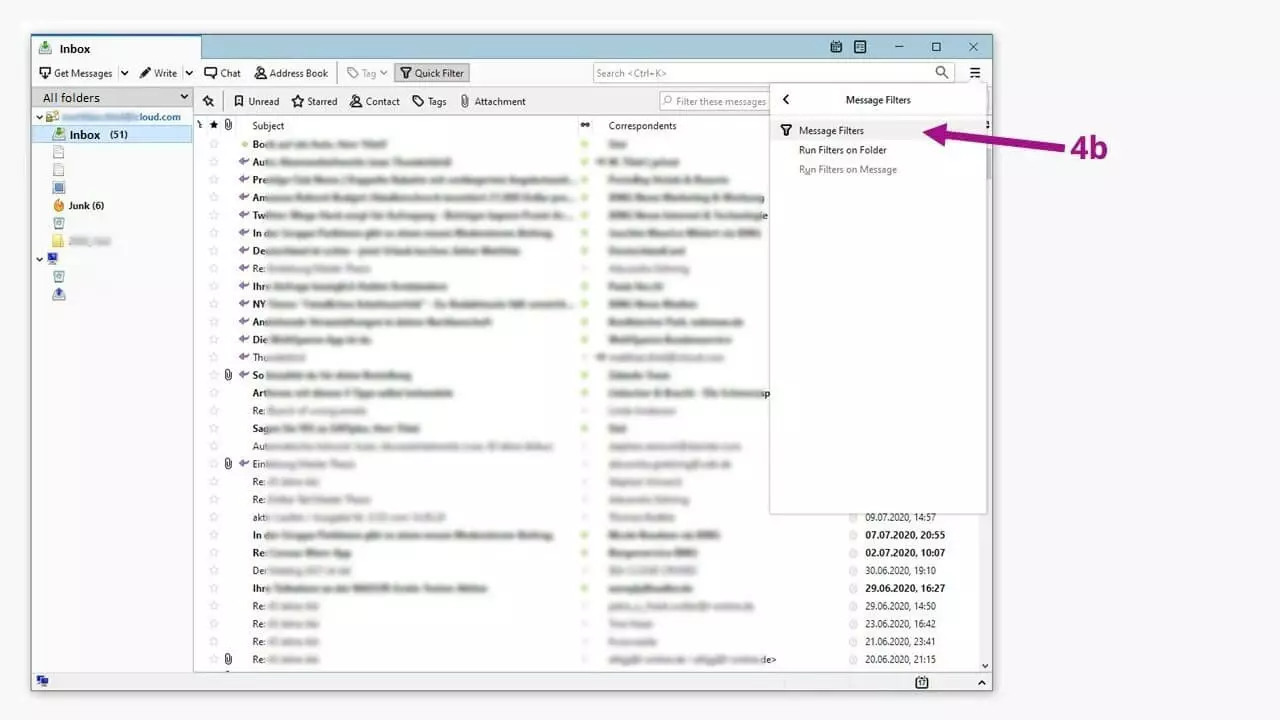
After clicking on ‘message filters’ (4a) another filter menu will appear.
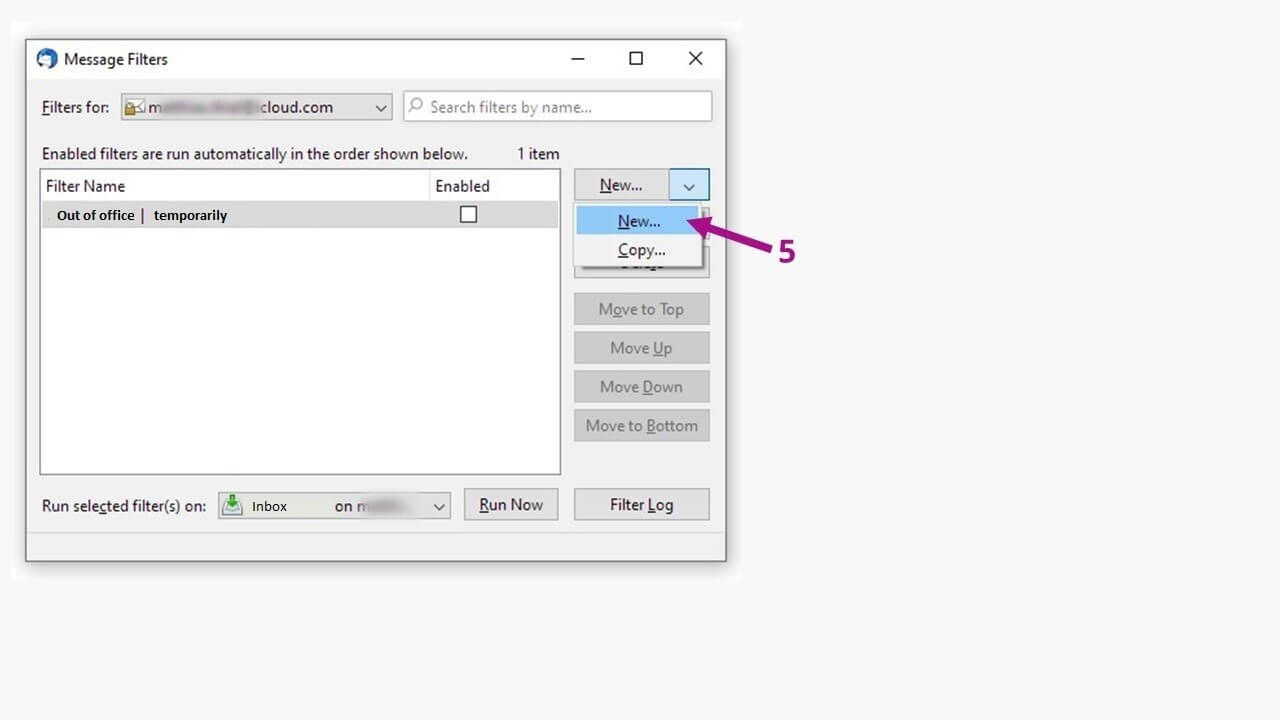
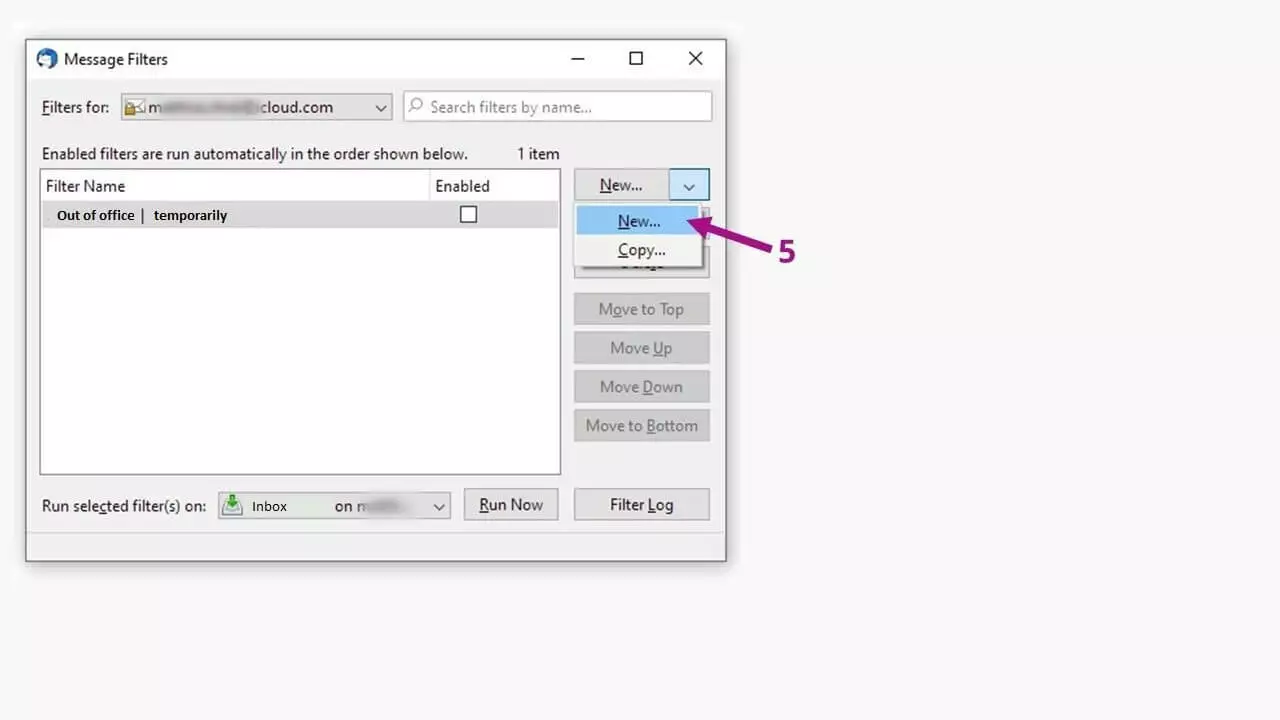
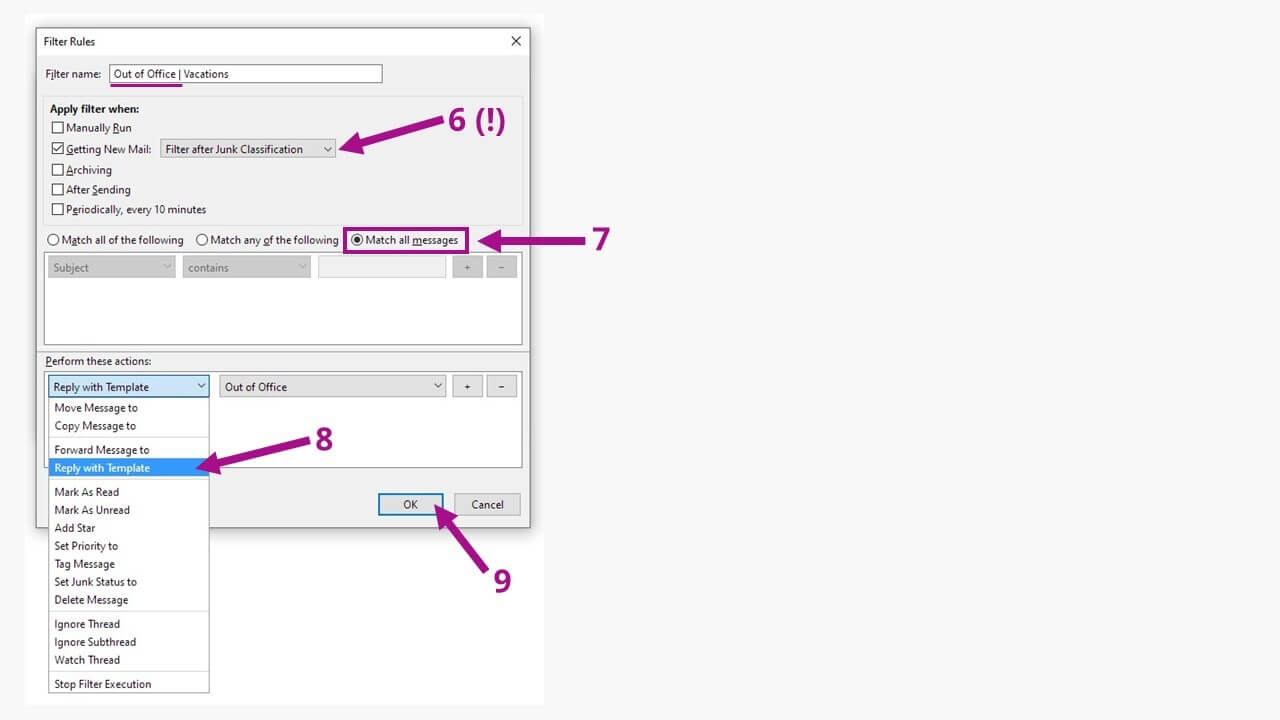
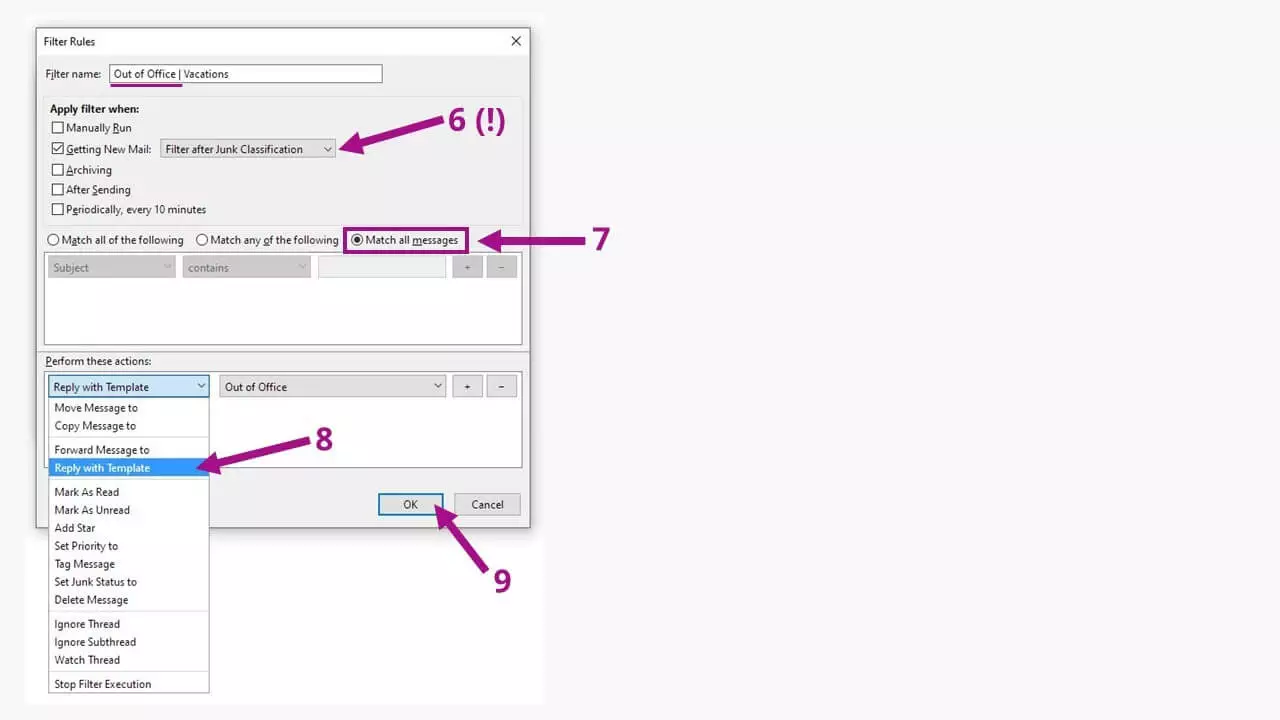
It is best to choose a name for each filter that describes its use for specific occasions, e.g. ‘Holidays’ or ‘Business Trip’. Activate the checkbox ‘Getting New Mail:’ and select: ‘Filter after Junk Classification’ to prevent your replies from being sent to spammers. Make sure ‘Match all messages’ (7) is selected. In the bottom window, select what happens next: Using the option ‘Reply with Template’ (8) means that Thunderbird will access your saved template and use it. Finish the process with ‘OK’ (9) and then you will see your previously created filters.
Activate your out-of-office filters
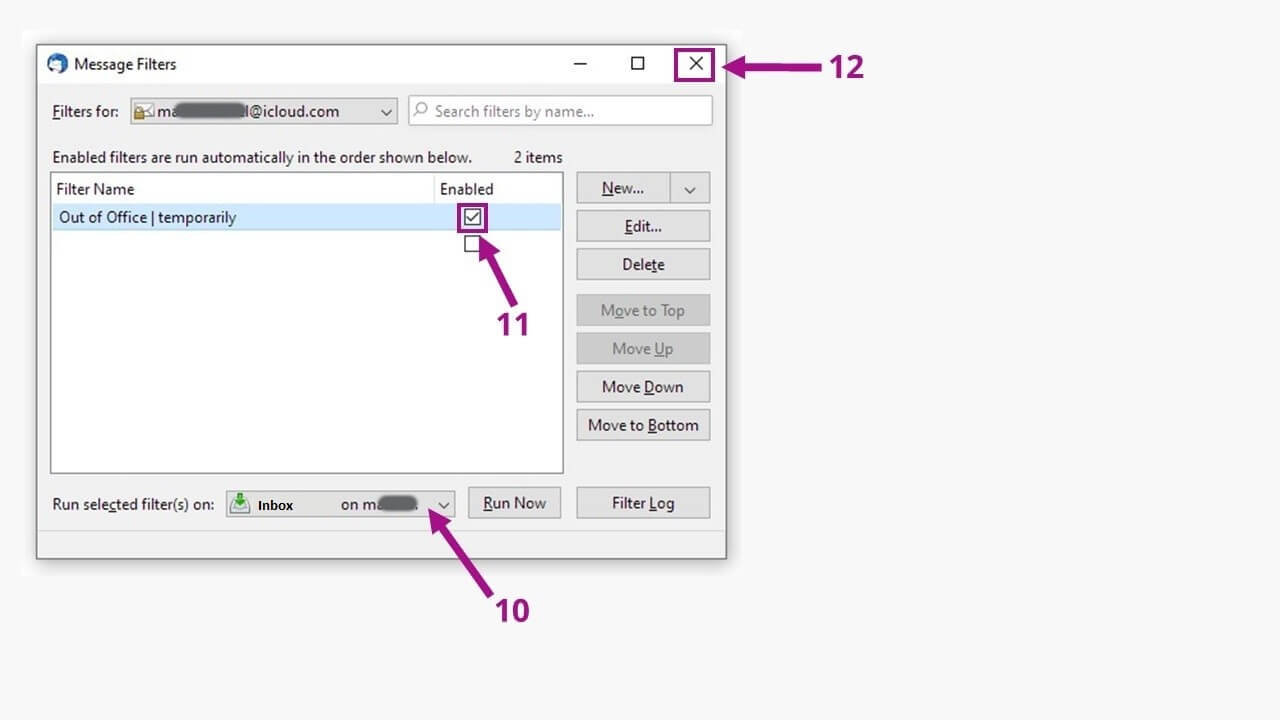
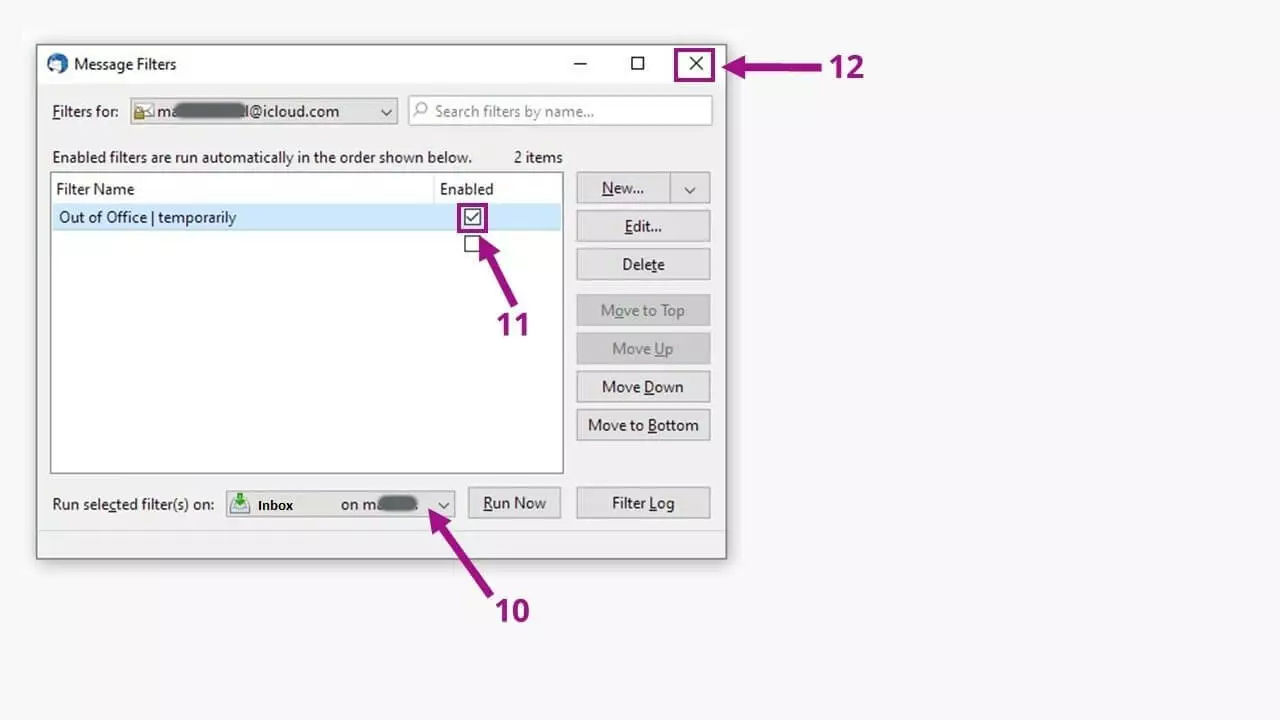
To activate the appropriate filter, you’ll also have to select the correct mailbox (10). Select which filter you want to activate by checking the checkbox (11). Then simply close the menu (12). As soon as you are available again, you should deactivate the filter in this menu to prevent Thunderbird from sending more out-of-office messages.
A good alternative: out-of-office messages with your email provider
If you do not want to leave your PC on while you’re gone or are not allowed to leave your PC running (after all, this would cost a lot of energy), there is a simple alternative, which still allows you to fulfil good email etiquette requirements. Email providers also offer out-of-office autoresponders. We’ll show you how this works with some of the top providers.
We’ve got a dedicated article just for Gmail. If you use Gmail, and want to learn how to set up an out-of-office message, see our guide “Setting up your out-of-office in Gmail.”
Opt for the crème de la crème in email communication: With Hosted Microsoft Exchange your entire office system will always be up to date, even after switching devices.
Setting up out-of-office messages for IONOS Webmail
If your professional email address is registered with IONOS, you can use the web function to set up an out-of-office note. Start by going to https://mail.ionos.co.uk/.
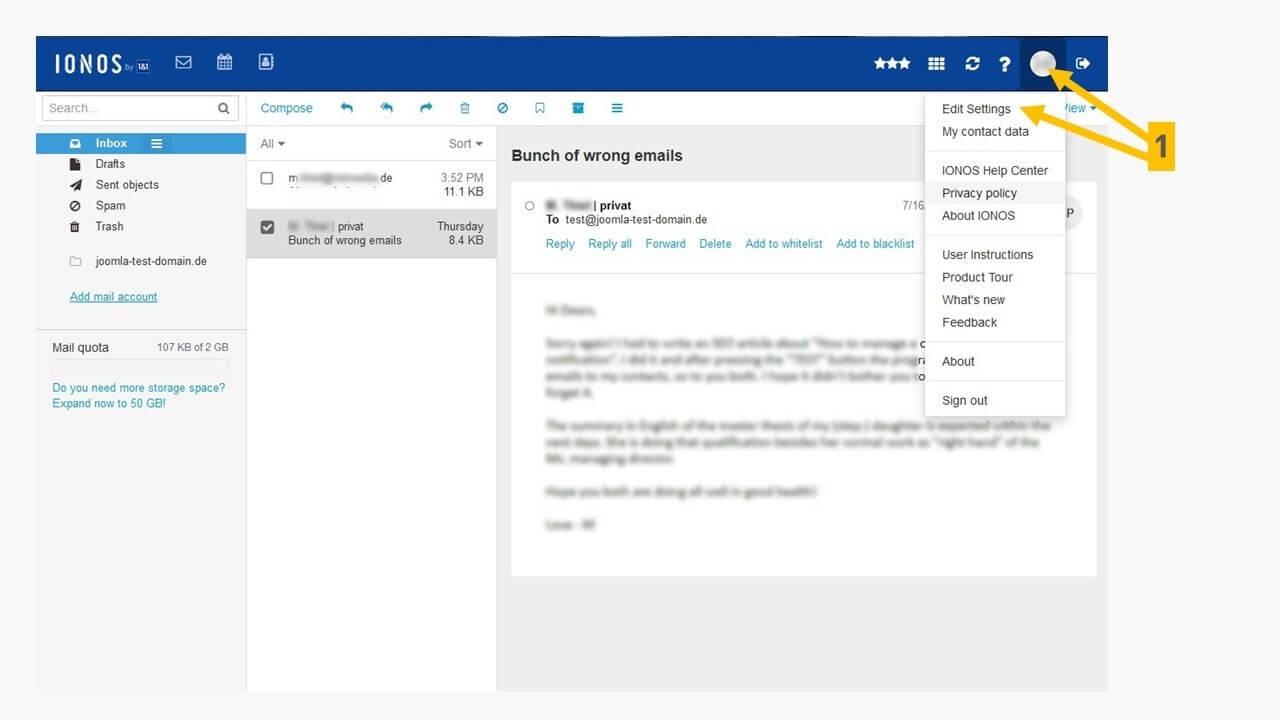
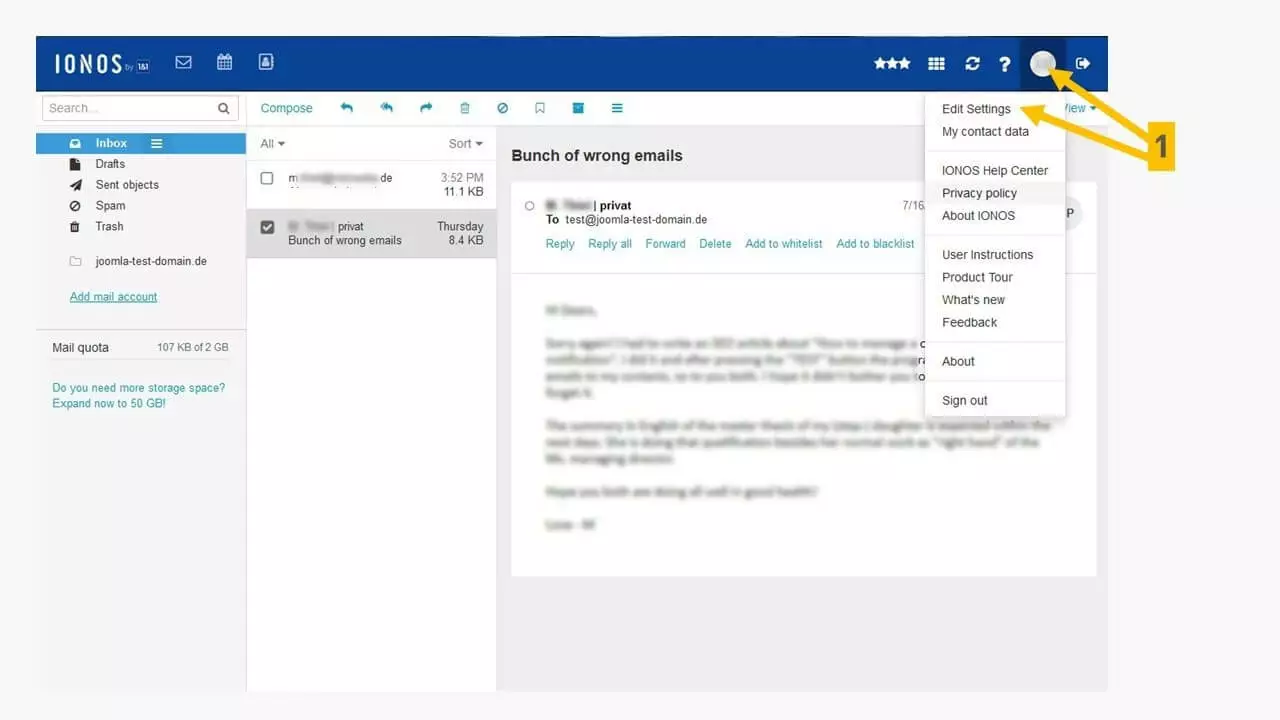
Click on your user ID in the IONOS Mail window to access settings (1).
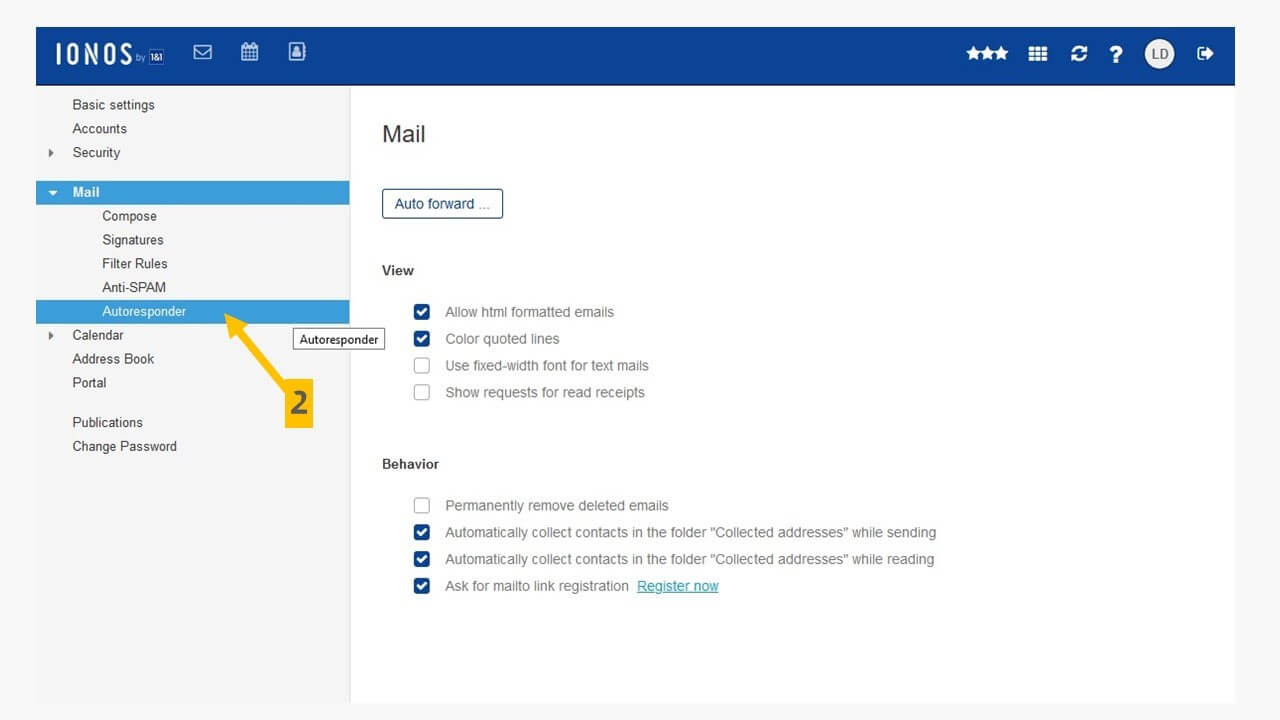
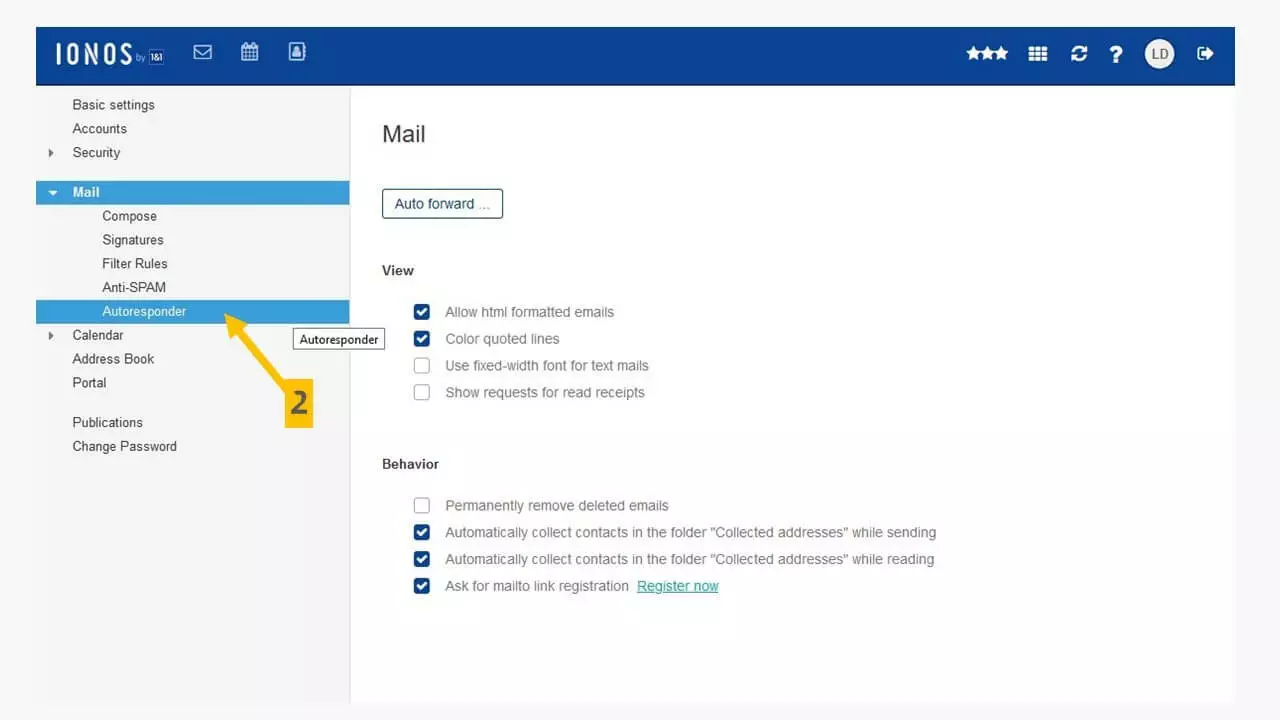
You will then see the setting for your ‘Autoresponder’ (2) under the menu ‘Mail’. Click on it to access these settings.
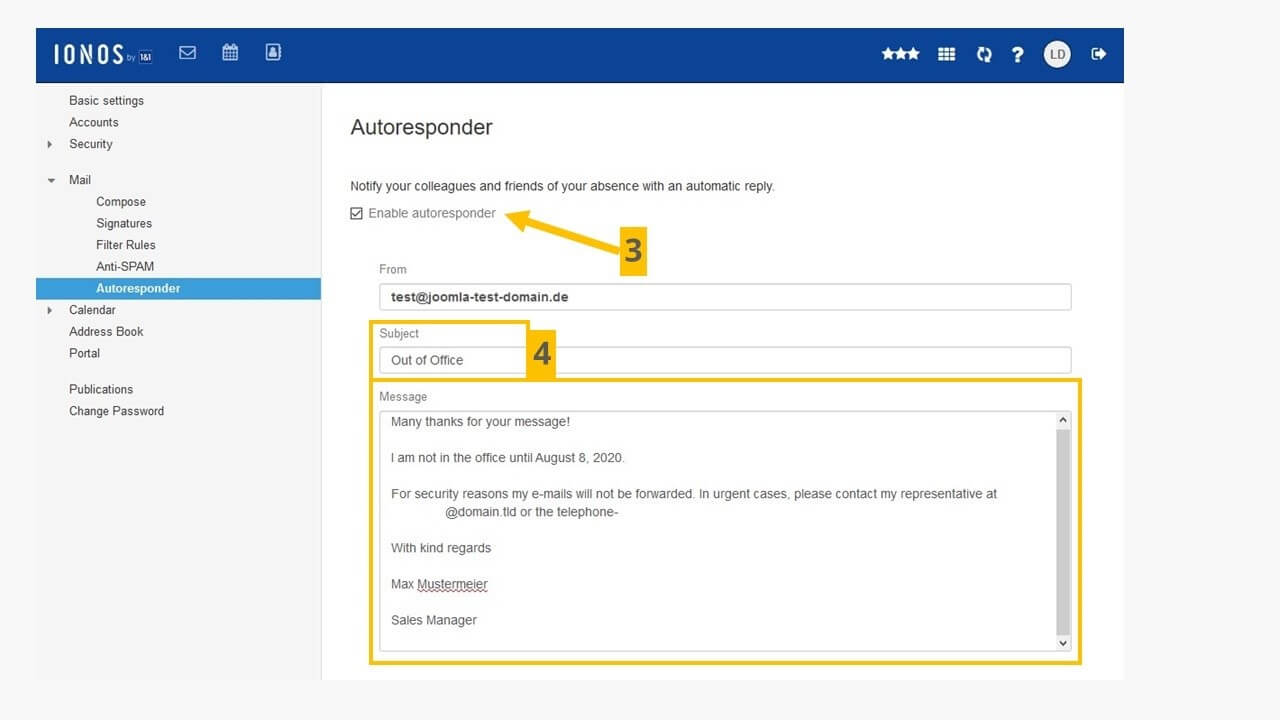
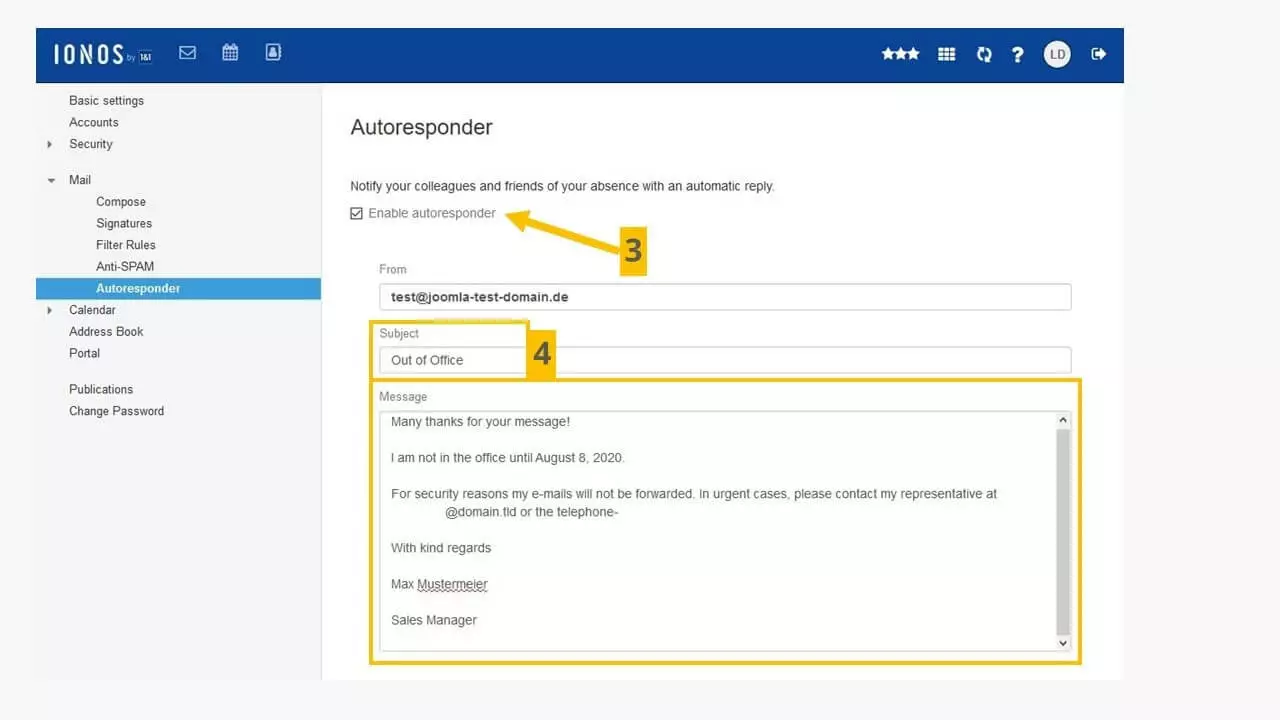
If the tick-box ‘enable autoresponder’ (3) is ticked, all senders of incoming emails will be informed about your temporary absence. To do this, formulate a suitable subject line and the body copy of the actual response in the ‘message’ text field.
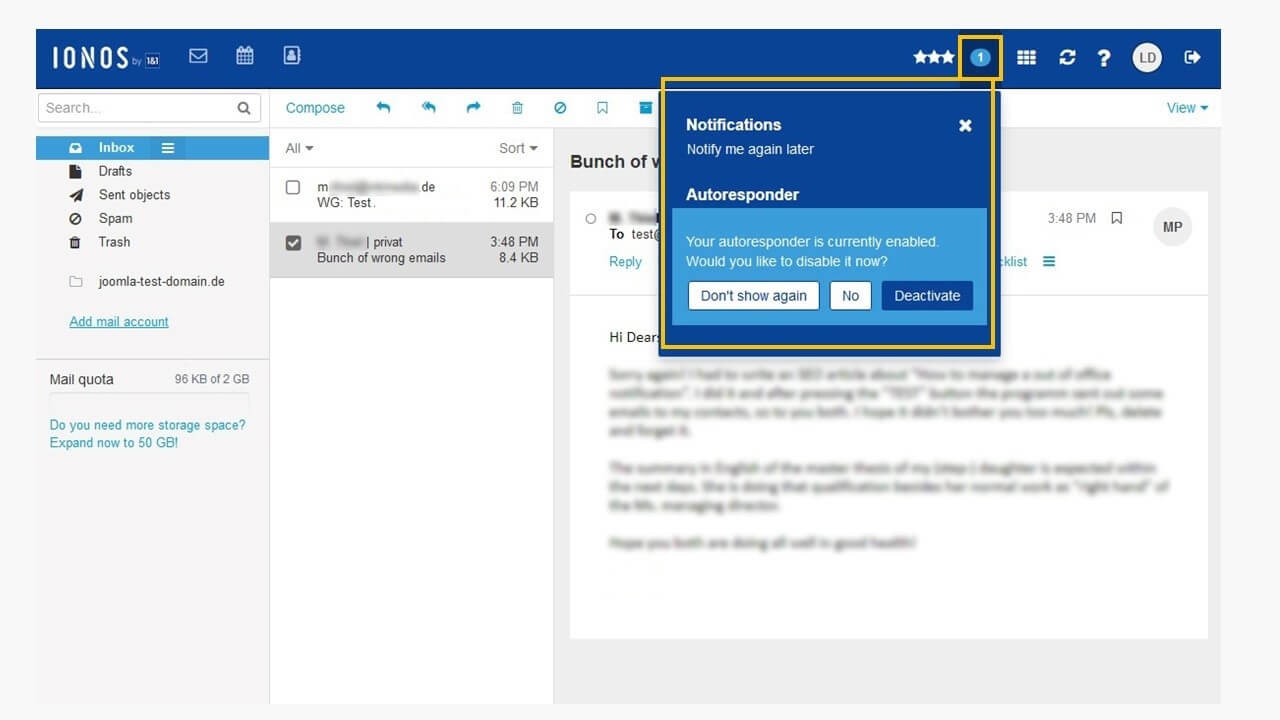
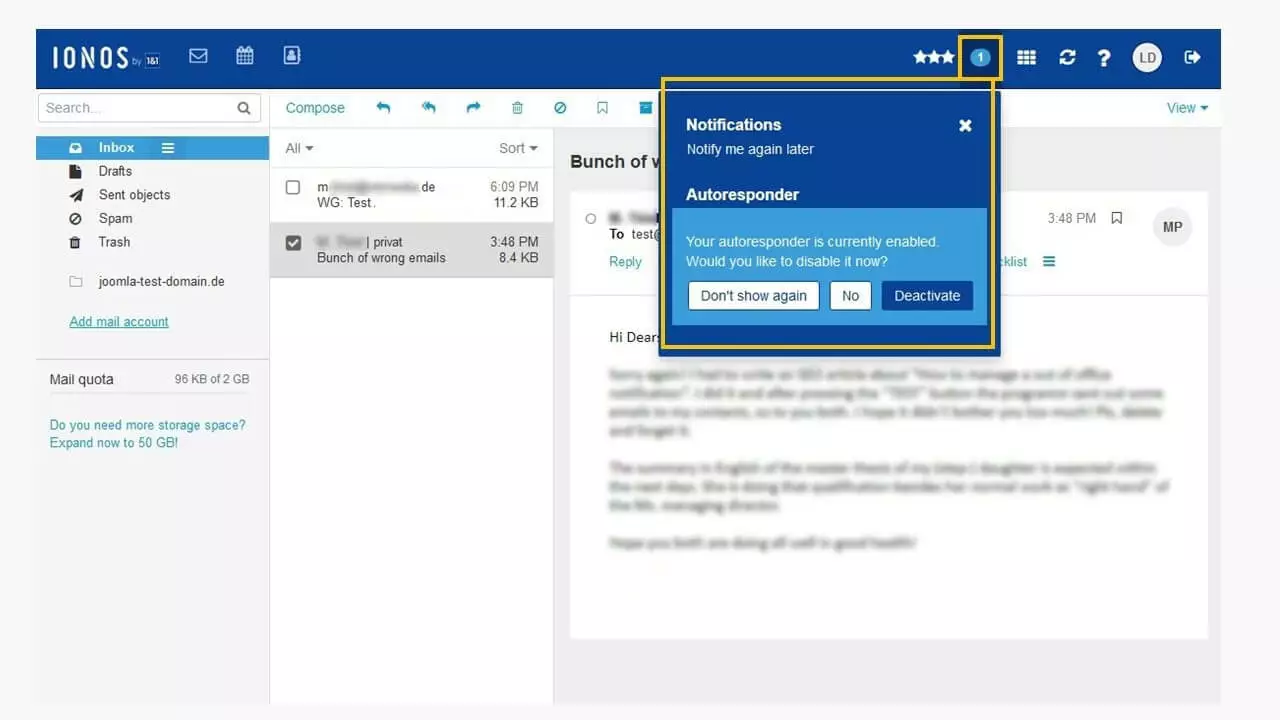
Just as with Thunderbird, IONOS’ settings don’t set the out-of-office message for a specific time. Remember to switch it off when you return!
- The world’s leading email and calendar solution
- Secure hosting from a single source
- Anytime mobile access via the Outlook app
Autoresponder out-of-office message: GMX Mail
The popular free email provider GMX allows you to set up an out-of-office message easily. GMX is also a very customer-friendly solution.
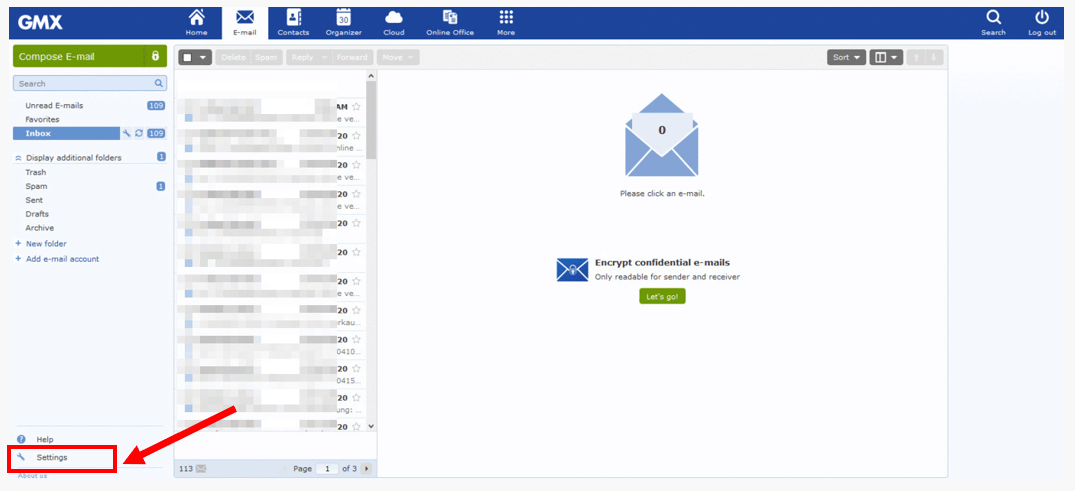
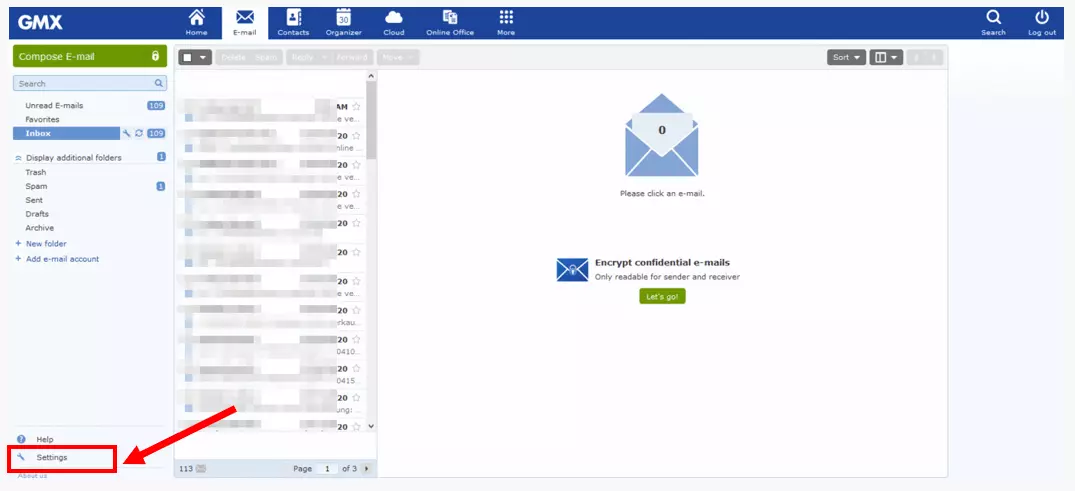
Click on the wrench at the bottom left to open the "Settings" menu in GMX. The autoresponder feature is there for when you’re away from your office.
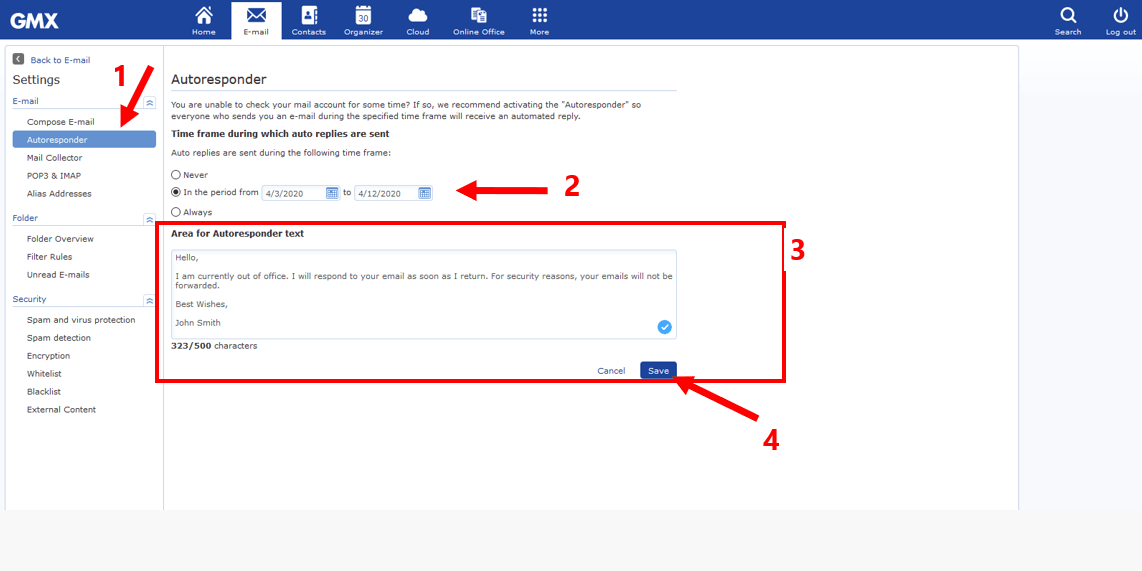
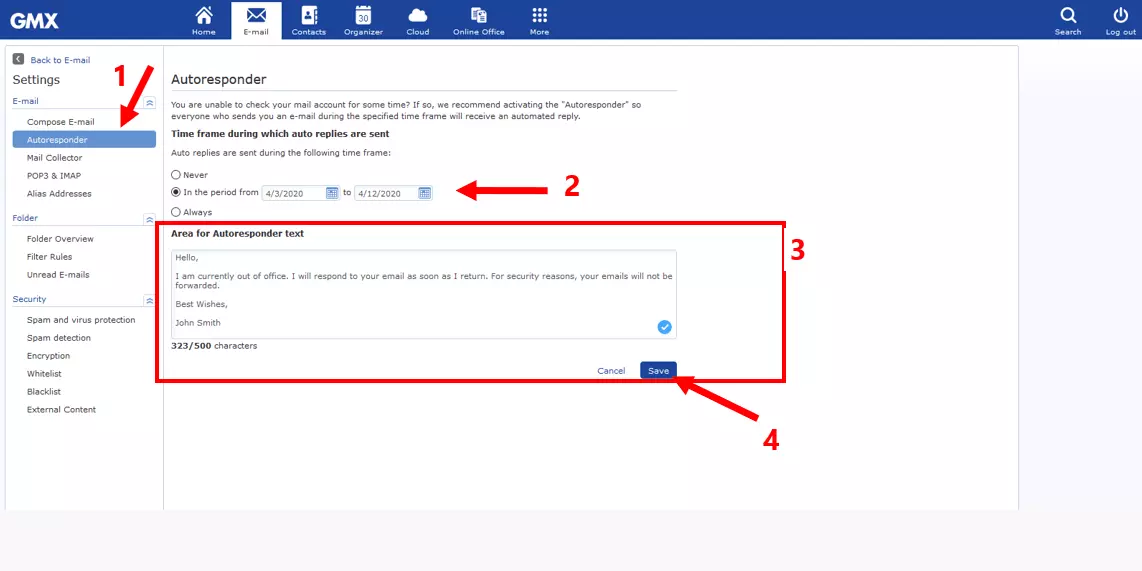
By clicking on ‘Autoresponder’ (1), the configuration window will pop up. Choose between a constant and a temporary (2) autoresponder while you’re out-of-office. However, there is no ‘subject’. This is stored in the GMX system as ‘Autoresponder’ and cannot be changed. What to do? Simply write a more personalised message at the beginning of the text. The message is limited to 500 characters – just a little bit longer than this paragraph.
Out-of-office autoresponder in Zoho Mail
Zoho Mail is a popular option for many looking for a free email service. It offers lots of features and has a highly customisable out-of-office responder, too.
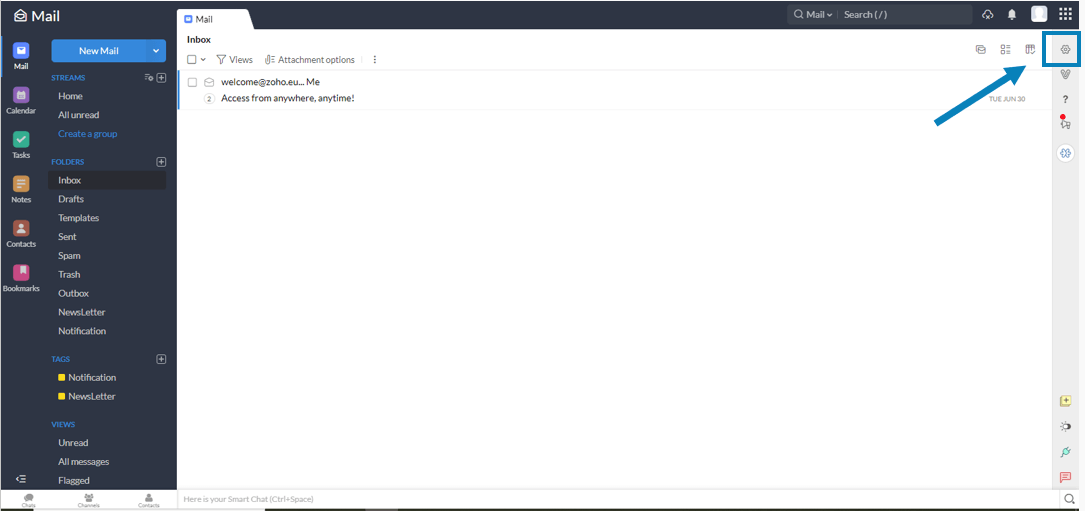
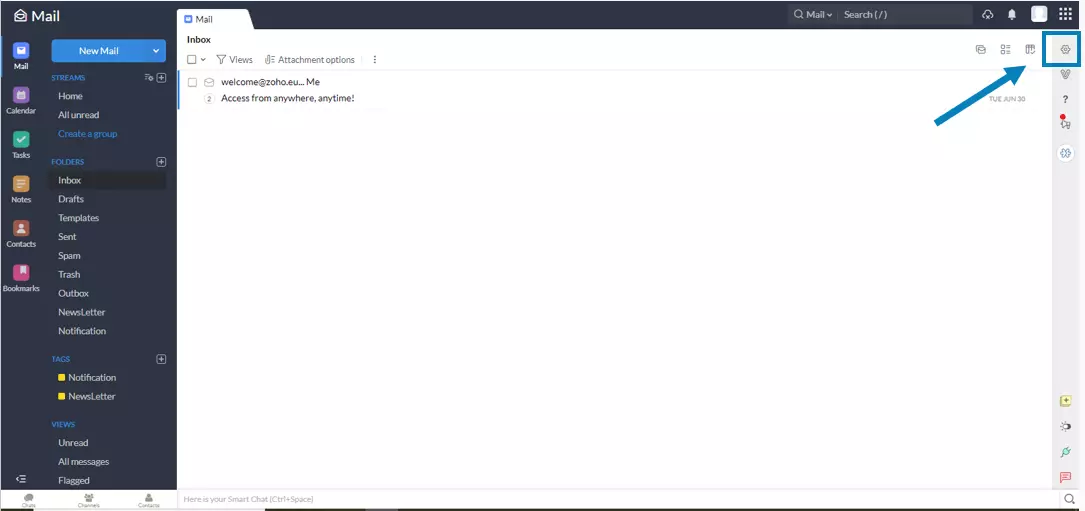
By clicking on the gear (shown in the blue box) you’ll access all your email settings.
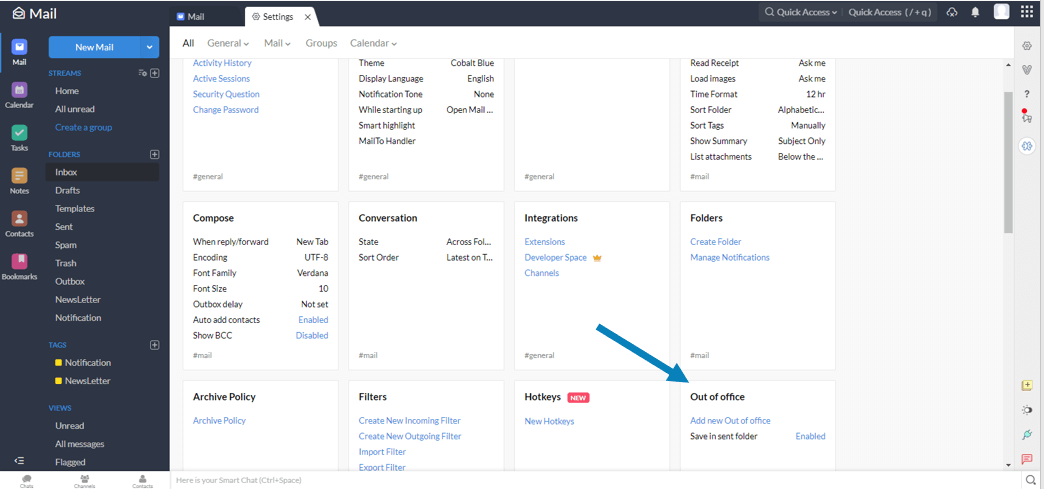
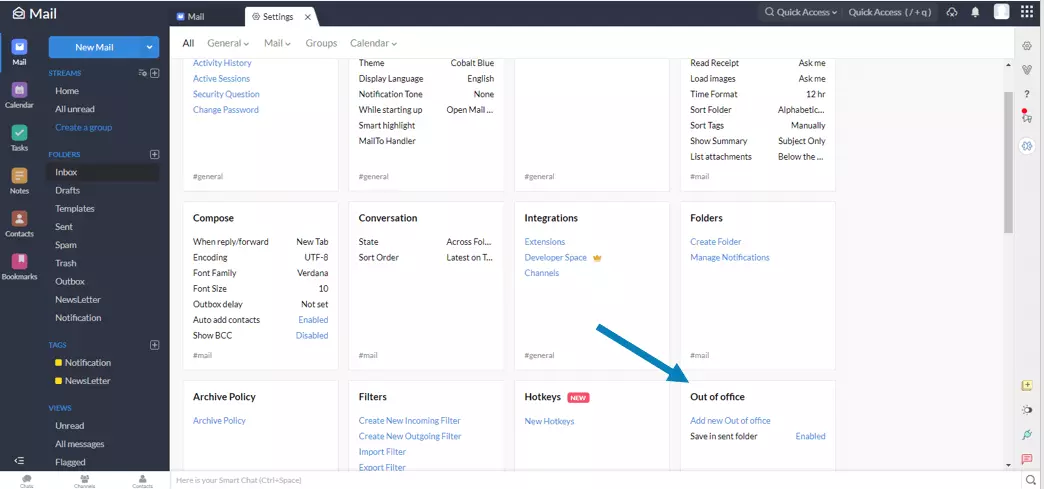
Scroll down until you find the option for “Out-of-office.” This is where you’ll be able to create lots of different out-of-office messages for any occasion – whether as a vacation responder, a business trip, or if you’re off sick.
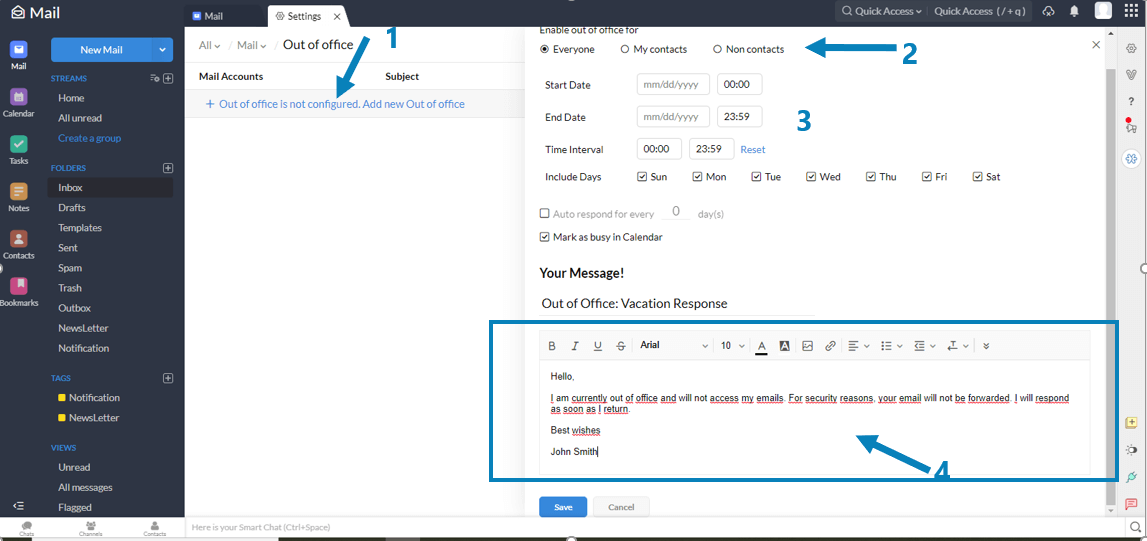
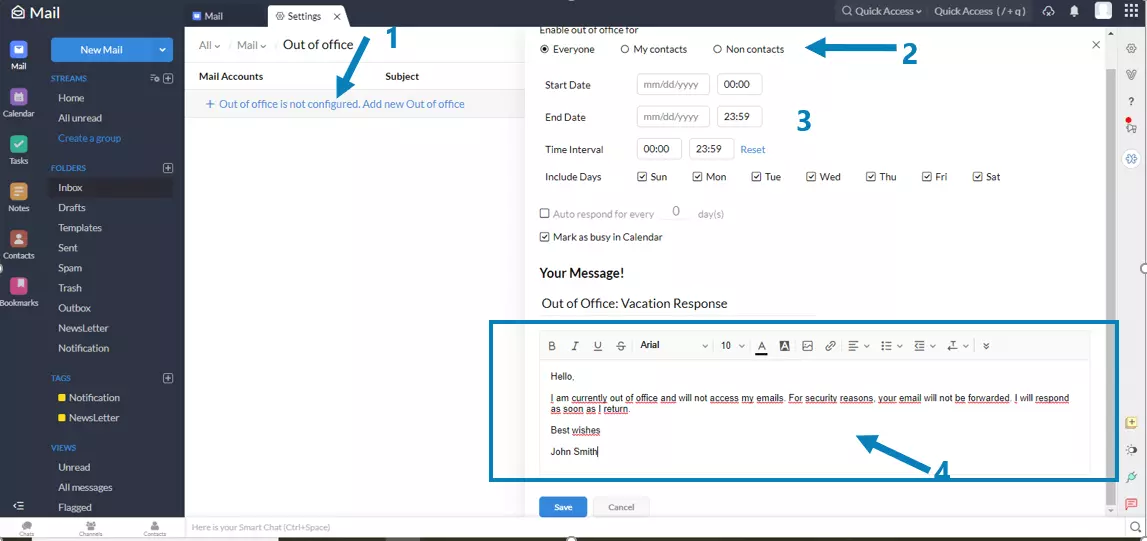
Create a new out-of-office message by clicking on ‘Add new Out-of-office’ at the top (1). The window on the right will appear, allowing you to customise your message. You can choose to send your message to everyone, contacts only, or only non-contacts (2). This is useful if you only want people outside your company to be informed of something, for example. You can also set when and for how long your message is sent (3). Zoho Mail also has the option to only send a message on certain days of the week – if you’re always away from your desk at certain times or on certain days, this could be a handy feature. Composing your message is straightforward. Just enter your text in the field, and the click save below when you’re done! Simple.