
How to edit WordPress CSS to customise your website design

There are several options to edit CSS in WordPress. You could change the theme, use the Customizer or one of the numerous recommended plugins.
- Free website protection with SSL Wildcard included
- Free private registration for greater privacy
- Free Domain Connect for easy DNS setup
What is CSS used for in WordPress?
Aside from WordPress themes and templates, CSS in WordPress is an important and useful tool to design a website according to your ideas. CSS (Cascading Style Sheets) is used to design websites and lets you customize its layout, colours and typography.
Why customising CSS in WordPress is important
There are various reasons why you may want to edit CSS in WordPress. While content is defined using HTML, CSS ensures that the content is presented in an appealing way. For this reason alone, it’s worth learning CSS.
CSS doesn’t just have optical advantages, but can be used to make a website more responsive and optimise it for different devices. Customizing CSS in WordPress is particularly easy when using WordPress themes.

What are the options to add CSS in WordPress?
You’ve got plenty of different options to customise WordPress CSS. The simplest one is to use the Customizer which predefines individual working steps and editing CSS follows fixed rules. If you’re familiar with WordPress and prefer a more personalised design, you can manually edit themes in WordPress. While this is a little more demanding, you’ll have more freedom. Alternatively, plugins are another good option to edit and customise WordPress CSS. Individual features will vary from one plugin to another.
Want to get started building a website using a content management system? Hosting for WordPress from IONOS is the perfect solution for CMS. Benefit from 100% SSD storage, unlimited traffic and daily backups!
Add WordPress CSS using a theme
To edit WordPress CSS via a theme, it’s a good idea to create a child theme first. This way you rest assured you’re not deleting the changes you made by updating the theme. The most important adjustments are made in the stylesheet, which is used to embed CSS in HTML. You can easily access this from your dashboard. You won’t need any additional programs or editors and can also make changes via FTP.
Via the dashboard
To customise WordPress CSS follow these steps:
- Back up your WordPress website. This prevents errors from disrupting your entire online presence. If you haven’t done so already, create a child theme.
- Log into the backend.
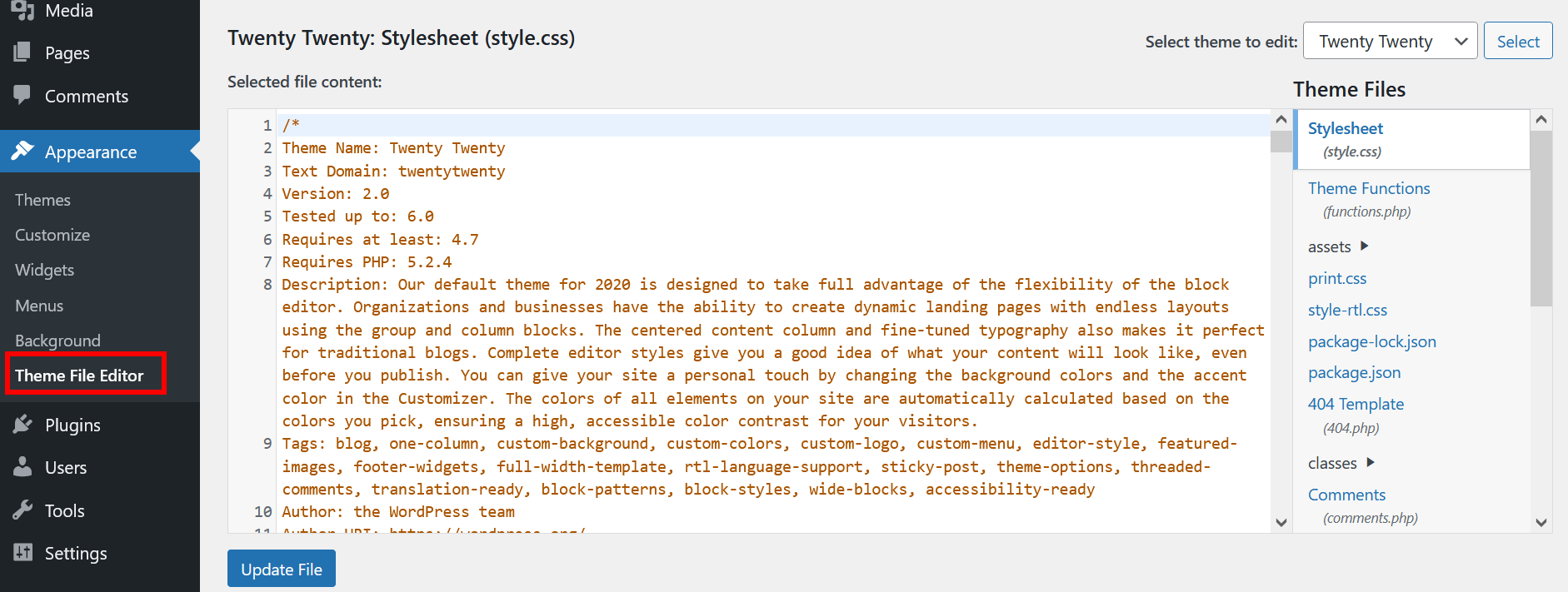
- Search for the style.css file. This is your stylesheet. You can locate the file in the menu in `Appearance´ > `Theme File Editor´.
- A pop-up window will launch with a warning to not make changes to files. If you’ve created a child theme and backup already, then you’re on the safe side. Agree and continue.
- Now you can edit the CSS. Be aware that most of the changes will be applied globally. So you’re not only editing a specific area, but every page and subpage that contains the area. To edit a specific subpage only, specify it first.
Via the FTP client
Even if you don’t have access to the Theme Editor or prefer not to use it, you can edit the CSS in WordPress. All you need is an FTP connection to your website.
- Install the FTP client.
- Log in using your FTP account data.
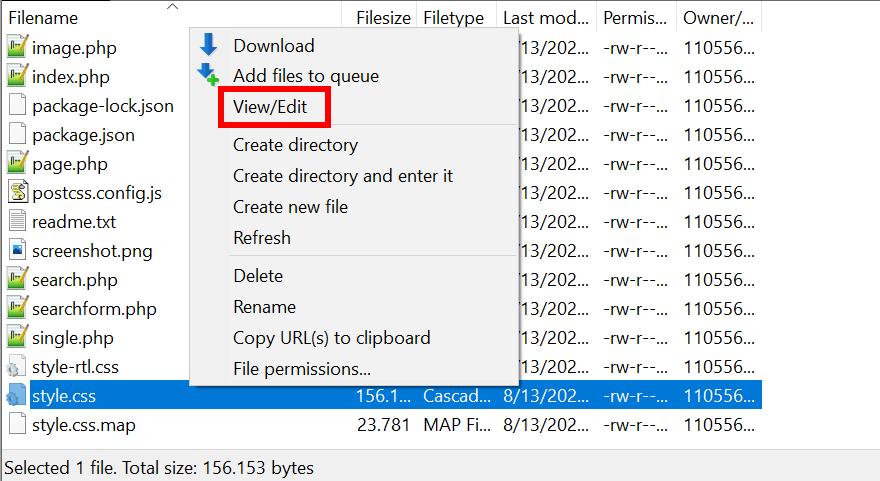
- Your stylesheet should be in `wp-content´. You’ll also find a subfolder with the name of your theme and the style.css file.
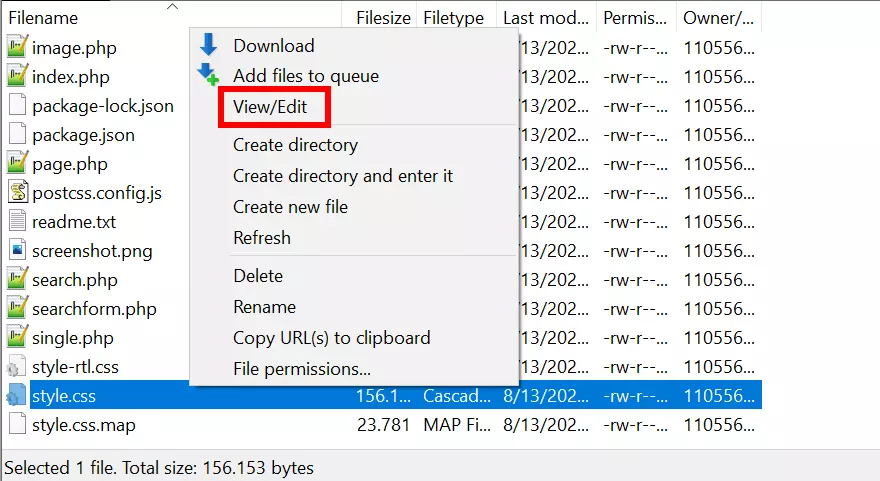
- Right-click the file and select `View/Edit´ to make changes.
- Once you’ve finished editing, save the file and upload it to the server.
The perfect web address for your website! Register your domain with IONOS and choose the name that’s right for your web project. Benefit from plenty of useful features such as domain lock, wildcard SSL and 2GB email storage.
Edit WordPress CSS using Customizer
For individual adjustments and to check changes immediately, the Customizer is a useful option. You won’t need a child theme and any update to the theme won’t delete your progress. However, if you choose to add a new theme, some or all of your changes may not be applied. The steps are as follows:
- Create a backup to prevent possible errors.
- Log in to the backend.
- Find the Customizer under `Design´ in the left-hand menu.
- Scroll down and click `Additional CSS´.
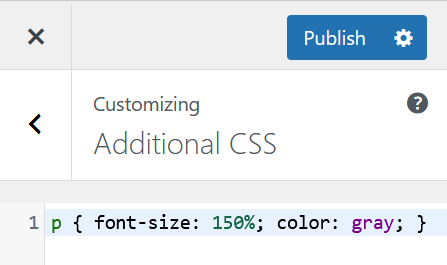
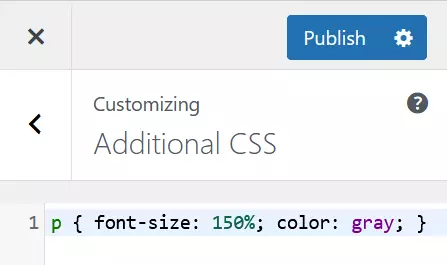
- This launches an interface to enter your code into. With live preview, you can monitor in real time how changes made to the WordPress CSS will appear. The Customizer points out errors in the code.
- If you’re satisfied with your edits, save the changes, publish them or schedule them for publication.
Note that when using the Customizer, changes are applied to all subpages unless specific pages are selected.
- Stress-free, no matter your skill level with easy AI tools
- Full customisation with themes and plugins
- Hassle-free updates and less admin
Plugins to add WordPress CSS
To minimise the risk of losing changes in the CSS when swapping a theme, you can use a plugin instead. Various tools are suitable for this, some of which are free of charge. Below is a selection of popular plugins for this purpose.
Simple Custom CSS
One of the top plugins to customise CSS in WordPress easily or add your CSS is Simple Custom CSS. It’s all in the name, especially when it comes to setup and usage. The plugin is easy to use and quick to learn and offers some great benefits. Simple Custom CSS doesn’t negatively affect the performance of websites and checks for errors. Syntax highlighting is another useful feature. What’s more, the plugin works with all popular themes.
CSS Hero
CSS Hero costs around £24 a year and is a very comprehensive yet user-friendly solution. It’s particularly suitable for designing and customising CSS in WordPress. Changes can be live-tracked and there are plenty of individual design options. While the tool may be too extensive for smaller changes, CSS Hero is a great option for changing multiple details at once. The plugin is compatible with various themes.
Plugins can greatly simplify working with WordPress and adding additional features. Find out more about the benefits of plugins in our Digital Guide:
SiteOrigin CSS
If you are looking for a more streamlined solution for sporadic customisation, SiteOrigin CSS is a good choice. The plugin offers the option to switch to a visual editor, allowing you to make changes without code. It’s a great feature for beginners and novices alike. SiteOrigin CSS is compatible with numerous themes.
WP Add Custom CSS
WP Add Custom CSS offers similar benefits to Simple Custom CSS, but takes things a notch further. You can use WP Add Custom CSS to edit the CSS, but also select individual pages and subpages. Changes aren’t applied globally, but only across select pages. This is achieved through a small metabox that you can use in addition to the actual editing screen.
For minor adjustments and major stylistic decisions alike, various tools are available for working with WordPress CSS. Plugins are a great option for applying more extensive changes, while themes or the Customizer are more suitable for changes to fonts or colours.