

How to edit the WordPress footer

Among the multitude of content management systems WordPress is perhaps the most frequently used CMS. A WordPress website consists of several components:
- WordPress Core: the WordPress installation
- Theme: a basic framework to display dynamic content
- Plugins: to extend the core functionality of WordPress
- Content: created by the owner and stored in the media library
To create a truly successful WordPress, usually small changes are indispensable. The integration of external scripts is one of the most common changes users make. Often, these scripts need to be integrated in the WordPress footer. We’ll show you how the process works and what to look out for.
- Free website protection with SSL Wildcard included
- Free private registration for greater privacy
- Free Domain Connect for easy DNS setup
What is the WordPress footer, and what are its elements?
Generally, a footer sits at the bottom of a page. The footer signals the visitor that they’ve scrolled to the end of the page. The WordPress footer contains two types of elements, which we’ll discuss in more detail below.
- Visible elements
- Invisible elements
Visible elements in WordPress footer
Unlike a WordPress header, the WordPress footer usually contains secondary and less prominent visible elements. This makes sense because the header acts as the first visual impression of a page. A well-constructed header can also act a bit like a magnet and keep visitors checking out a page for longer. The footer usually contains the following elements:
- Links to other pages such as privacy policy, contact details, etc.
- Copyright notice
- 'Scroll up' link
Get started building your own WordPress site with professional WordPress hosting from IONOS.
Invisible elements in WordPress footer
Unlike the WordPress footer, the header includes several meta tags. Most of these must be included in the HTML head element. However, modern metadata tends to be used outside of the HTML head. Above all, various script elements tend to be used. These are integrated in the WordPress footer.
A special feature of external script files is that when integrated into the HTML head, script files block the loading of the page. Therefore, the traditional recommendation was to place external script elements before the closing </body> tag whenever possible. In WordPress, this corresponds to integrating them in the footer.
The script element now understands modern attributes ‘async’ and ‘defer’, with which script files can be integrated without blocking page loading.
But we need to differentiate a little when speaking of scripts. Scripts can be loaded from an external file, but they can also be embedded on a page. Furthermore, script elements are now used for a much broader range of purposes. The ‘type’ attribute is used to describe the type of the embedded data. In this way, application data and metadata can be embedded on a single page. Here is an overview of frequently used script elements:
| Script element | Description | Attribute |
|---|---|---|
| Reference to script file | External, executable script | src attribute with URL |
| Embedded script | Embedded, executable script | no src attribute |
| JSON-LD script mark-up | Embedded, non-executable metadata | type="application/ld+json" |
| JSON data | Embedded, non-executable application data | type="application/json" |
How to edit a footer in WordPress?
There are two ways to place additional code in a WordPress footer:
- Use a plugin
- Modify the theme code
Both methods have advantages and disadvantages that are summarised below:
| Method | Advantage | Disadvantage |
|---|---|---|
| Use a plugin | Simple application and use | Code snippets are stored in the database; insufficient control; can cause performance problems |
| Modify the theme | Code snippets form part of the codebase; visual changes possible; control over even complex applications | Requires editing of the theme code and coding skills |
- Stress-free, no matter your skill level with easy AI tools
- Full customisation with themes and plugins
- Hassle-free updates and less admin
Using a plugin to change the WordPress footer
A range of plugins are available as part of the WordPress ecosystem to edit the footer. These are mainly suitable for inserting invisible elements into the WordPress footer. Most are unsuitable for changing visual elements. Here is an overview of known plugins for editing the footer in WordPress:
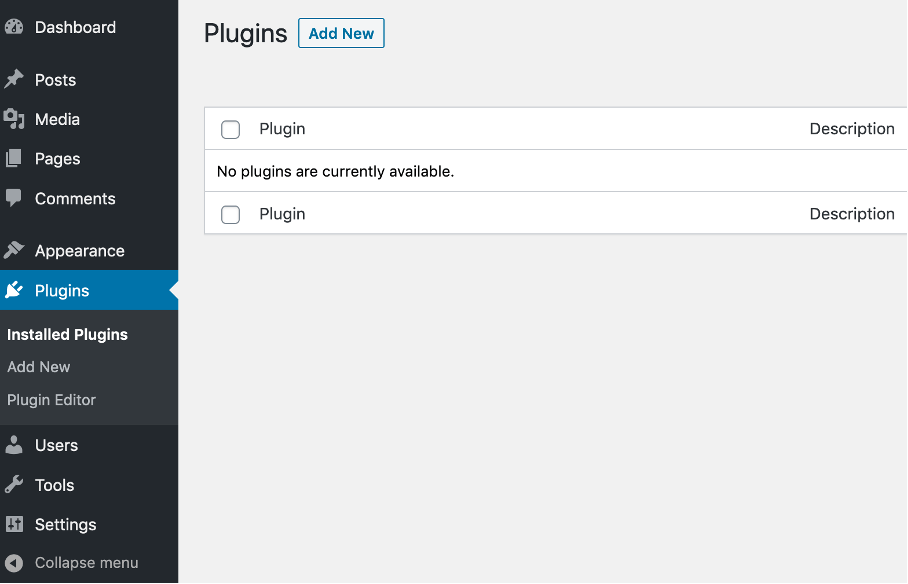
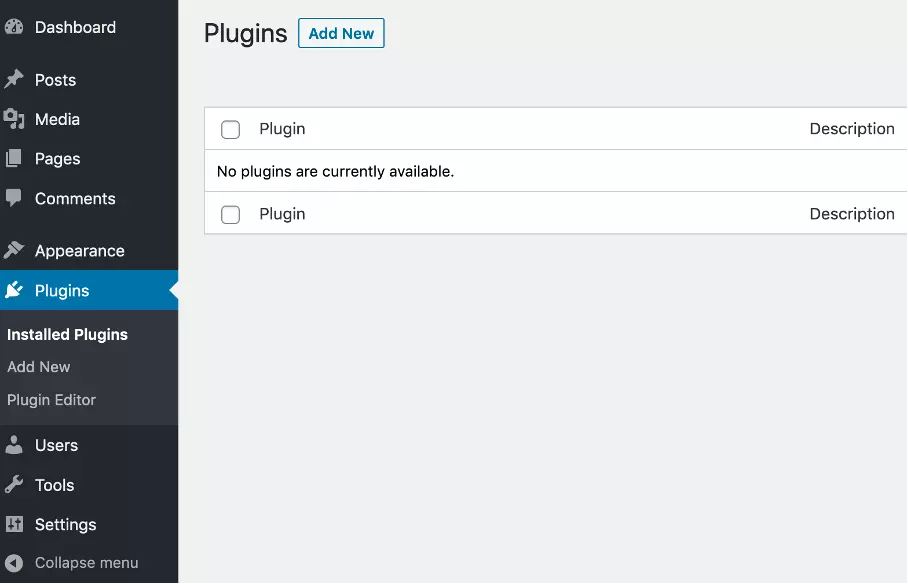
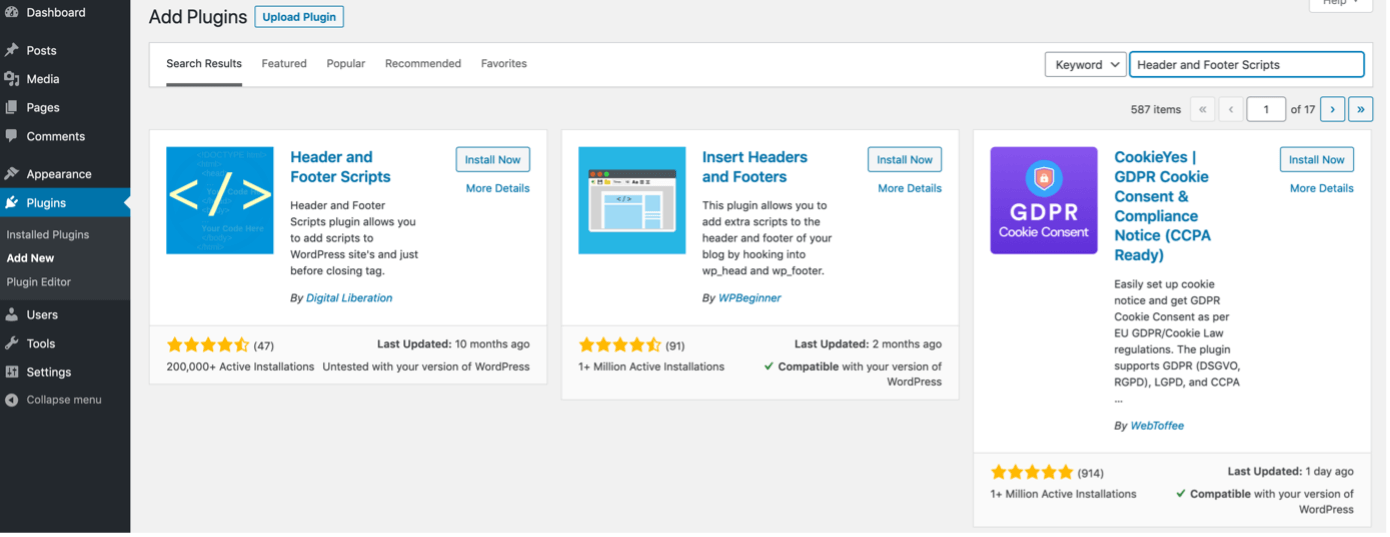
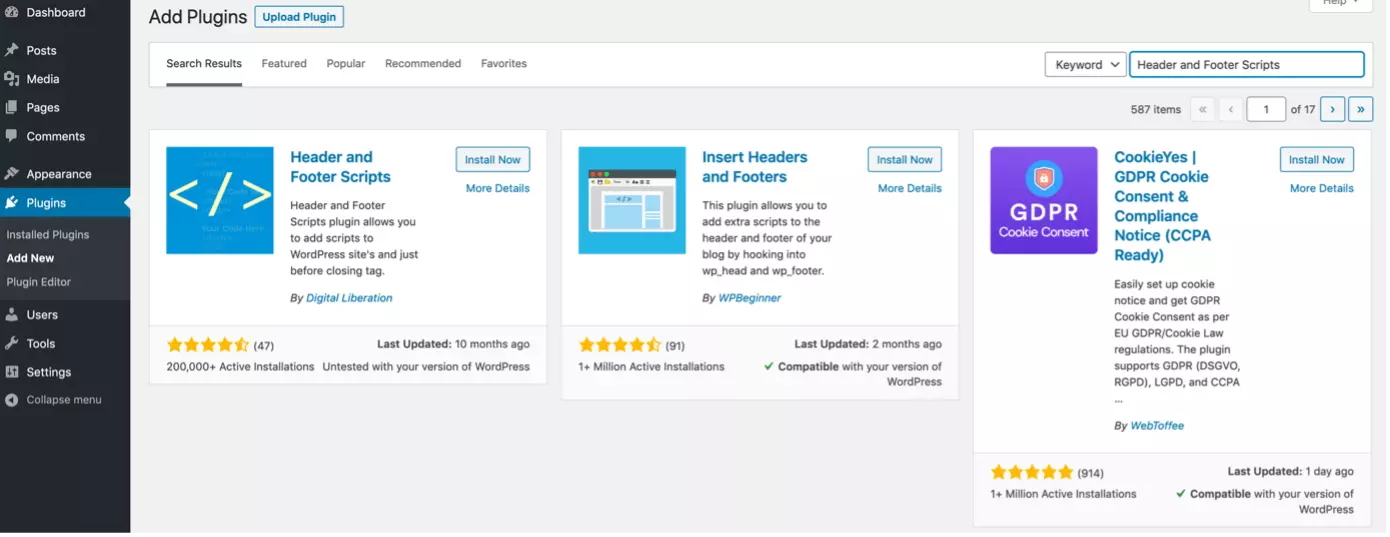
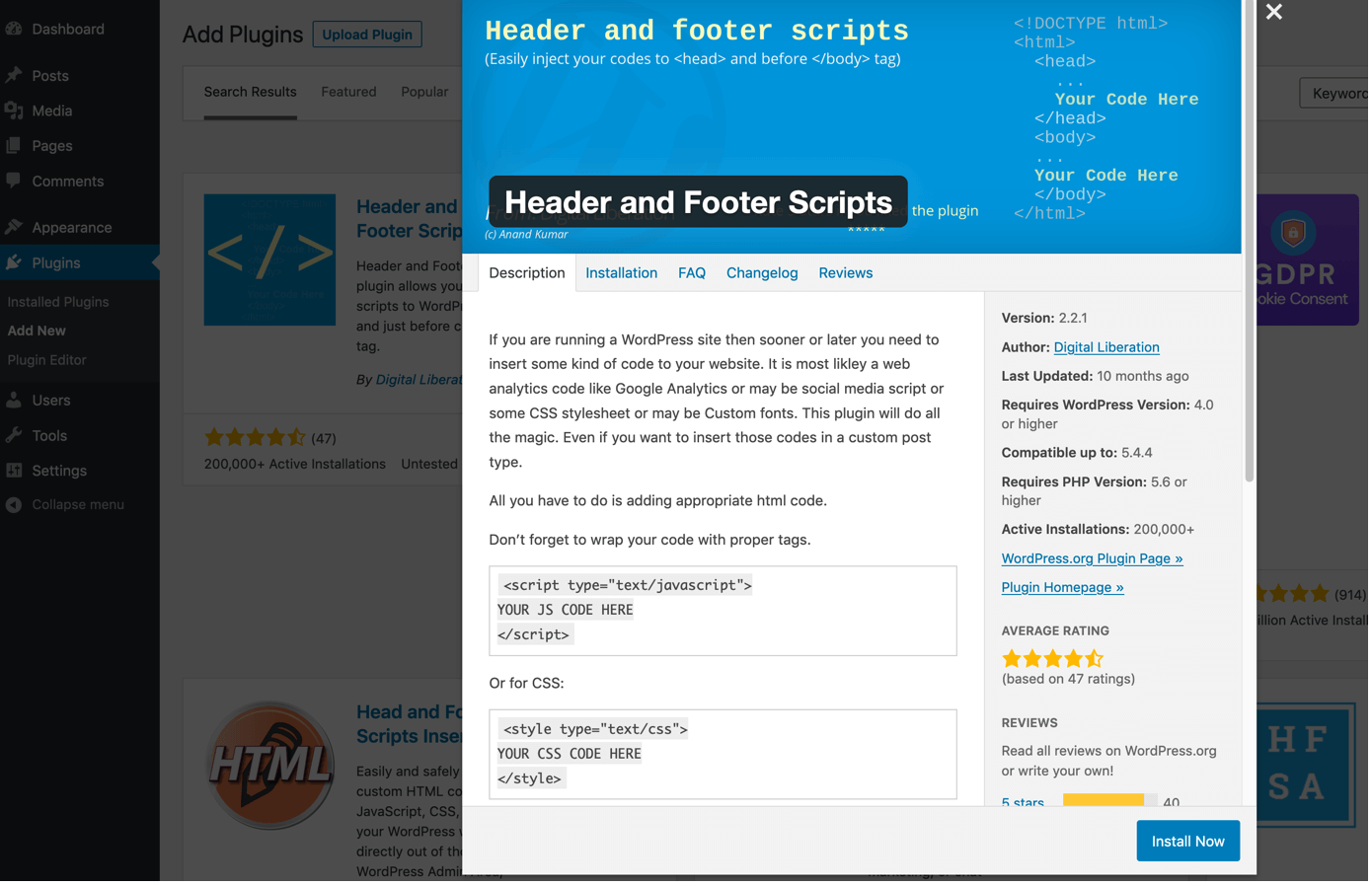
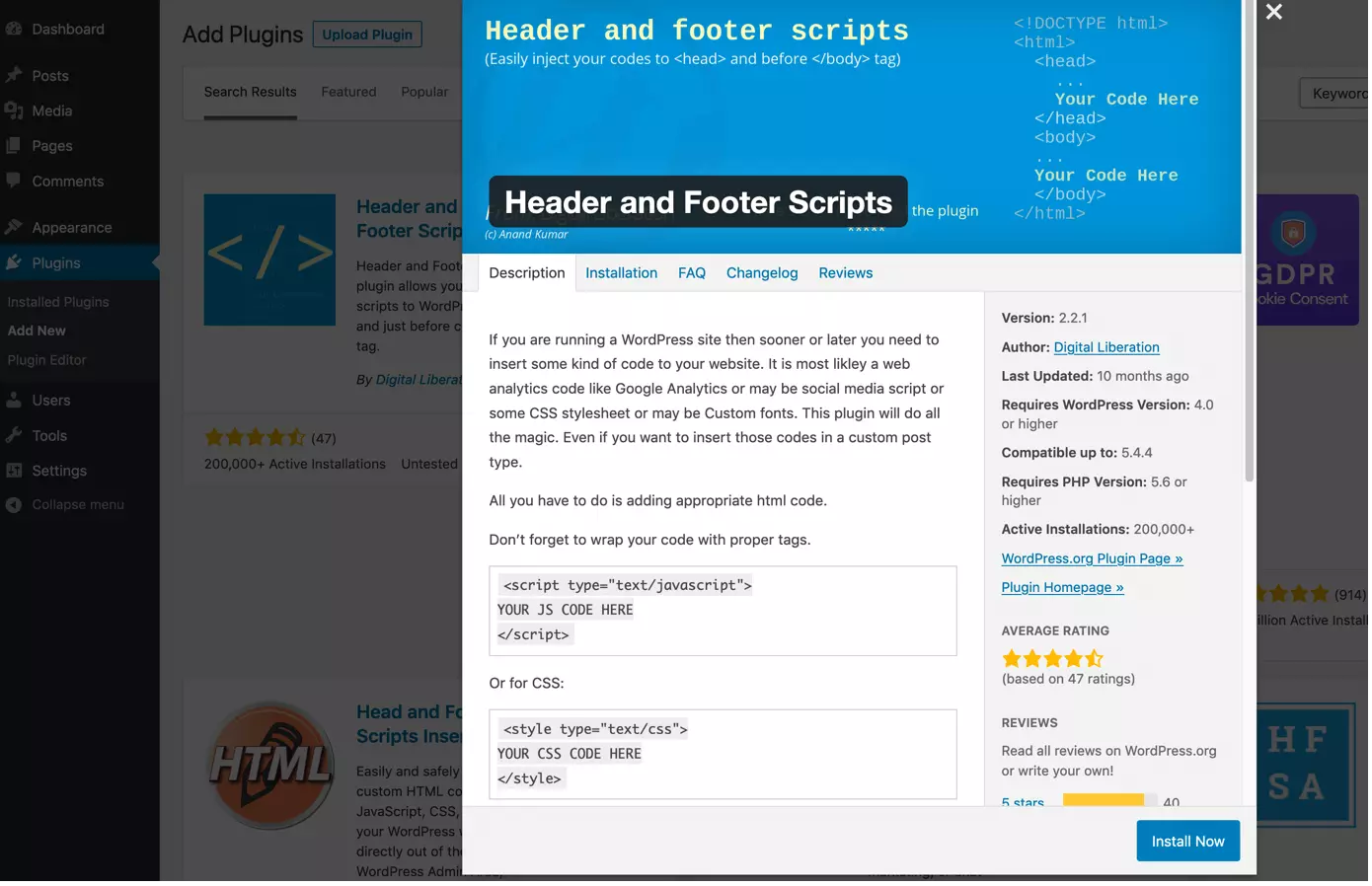
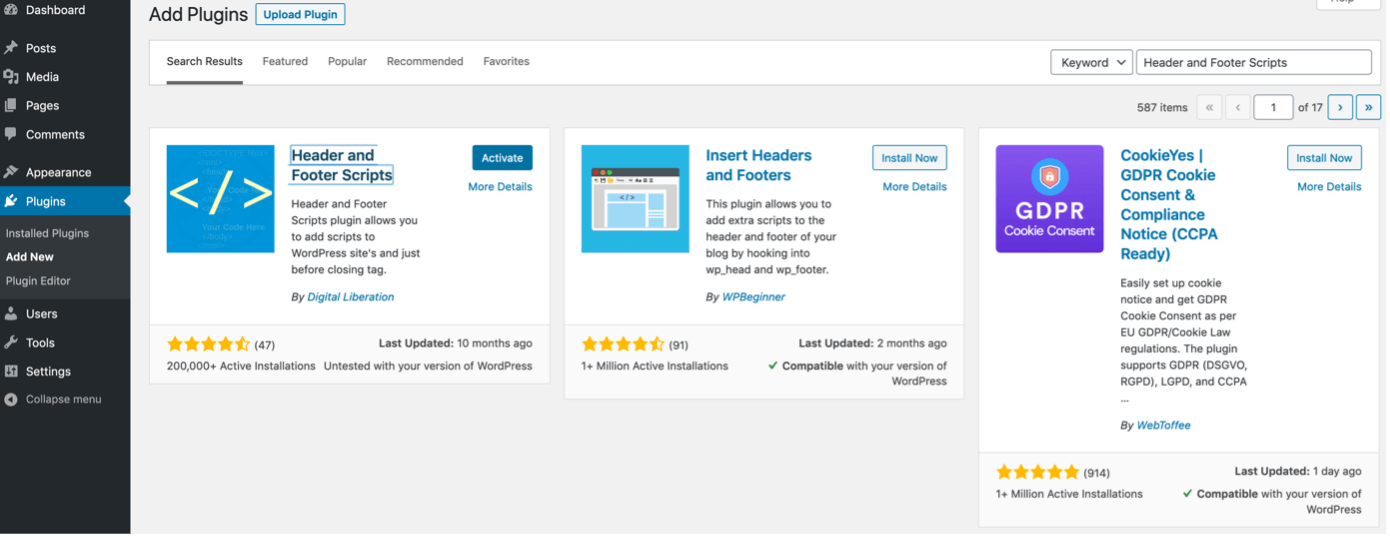
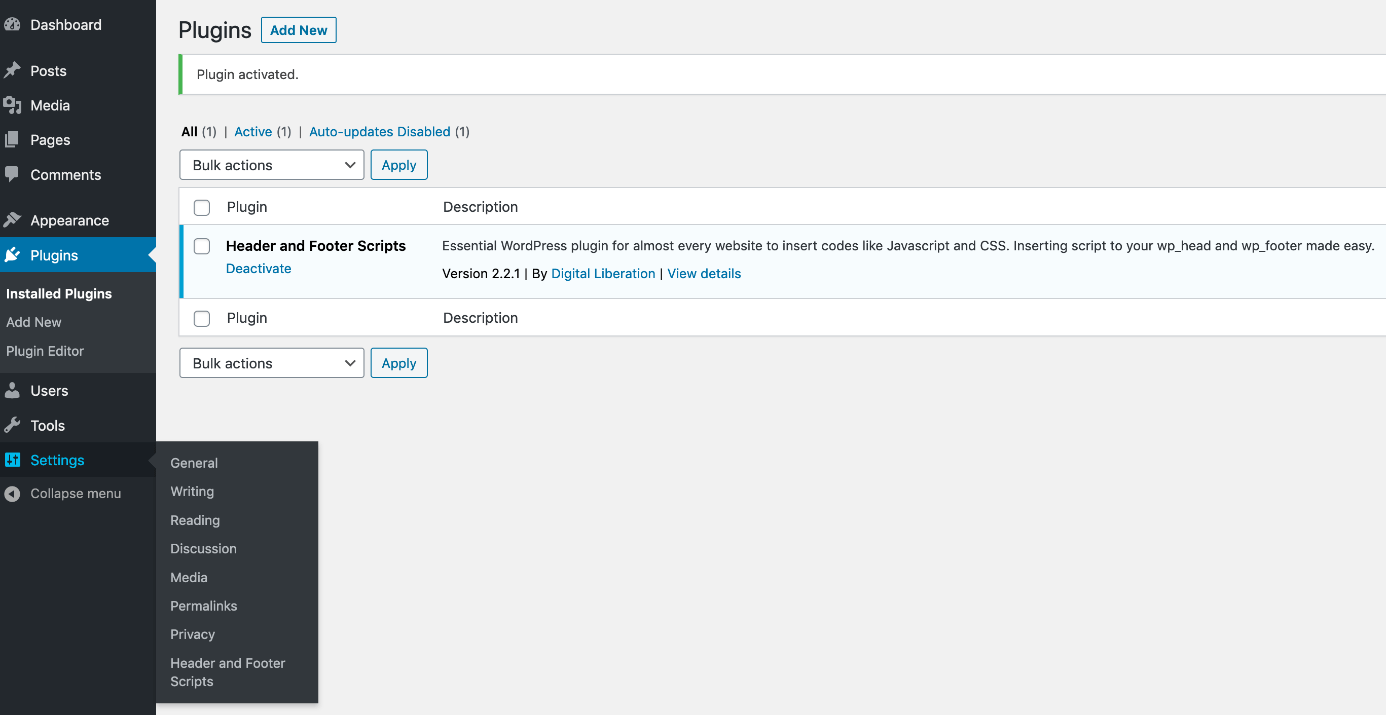
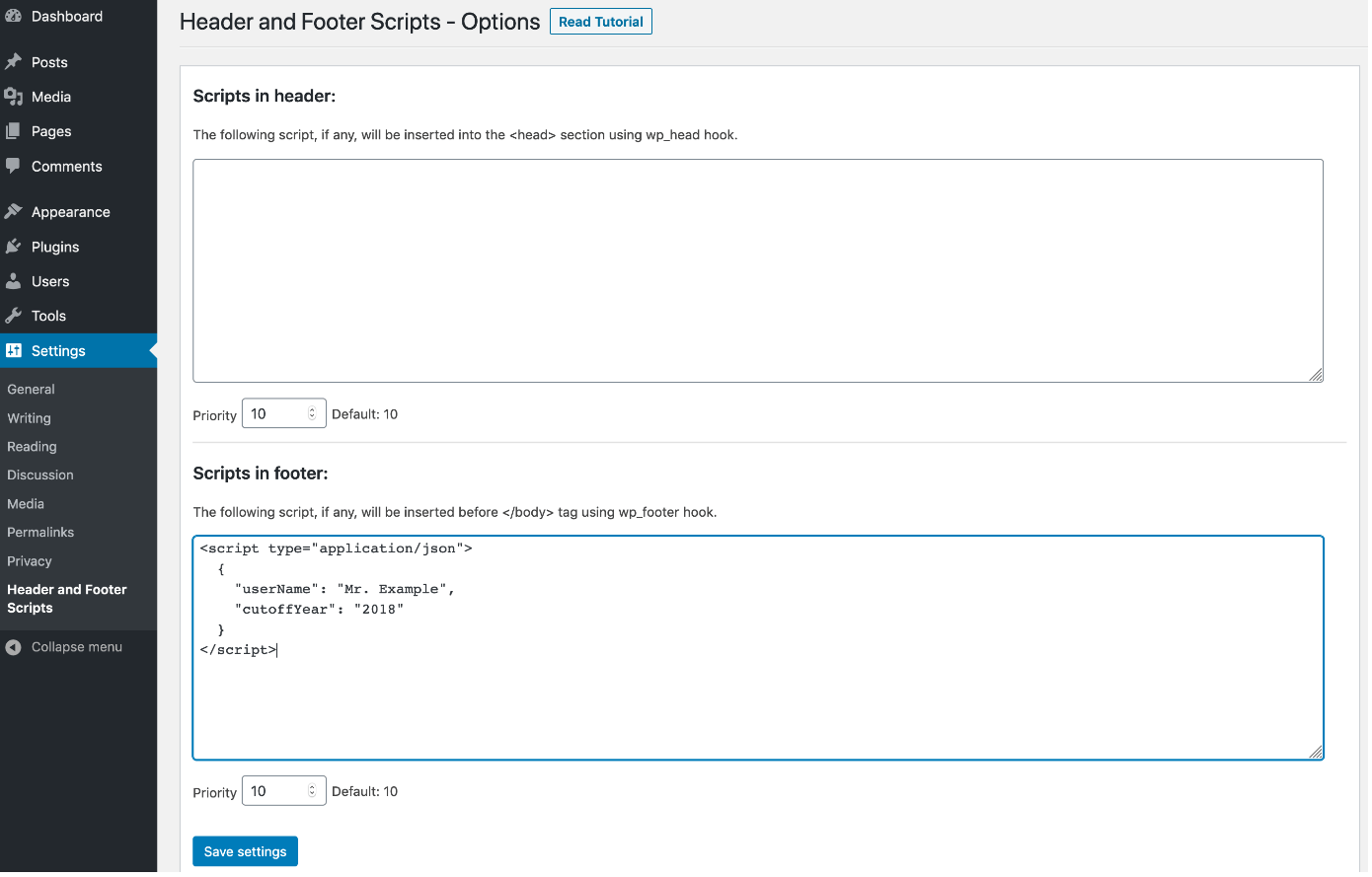
We’ll show you how to use the ‘Header and Footer Scripts’ plugin to place additional code in the WordPress footer step-by-step.

Modify the theme code to change the WordPress footer
A WordPress theme is the basic framework for displaying the content on a WordPress site. Editing the theme gives you full control over the footer; both visible and invisible elements can be added, removed, and modified.
Below, we’ll focus on invisible elements, because changes to visible elements usually depend on the theme you’ve used which would require the inclusion of style sheets for our explanations. There is one exception: if you are well-versed in HTML and PHP, you can easily remove a visual element.
When you want to make changes to a theme, it’s worth creating a a href="t3://page?uid=2815">child theme which guarantees that changes are safe from updates and can be reversed at any time. The benefits outweigh the slightly higher effort.
You can edit the WordPress footer in the following ways:
- Modify the code in the template file footer.php
- Create additional functions in functions.php
| Method | Advantage | Disadvantage |
|---|---|---|
| Add code to footer.php | The principle of action is easy to understand; Control over the sequence of the scripts; visual changes can also be implemented | Changes are hard-coded; Multiple changes made risk creation of confusing code |
| Create functions in functions.php | Clear separation of presentation and functionality; detailed control over integrated script tags | May be confusing for beginners; higher complexity |
First, let’s take a look at the general structure of a modern HTML page. Many WordPress themes follow this pattern, albeit with slight variations. We point out the WordPress-specific patterns in the comments:
<!-- `header.php` starts here -->

        <!--—Invisible elements in HTML head ---->


        <header></header>
            <!--—Visible elements in header ---->

        <!-- `header.php` ends here -->
        <main></main>
            <!--—Visible elements in main area ---->

        <!-- `footer.php` starts here -->
        <footer></footer>
            <!--—Visible elements in footer ---->

            <!--—Invisible elements at end of document ---->

<!-- `footer.php` ends here -->
A HTML document consists of the two elements: <head> and <body>. In our example, the <body> element contains the elements <header>, <main>, and <footer>. In a WordPress theme, this element structure is distributed across several template files. Almost all themes use the files header.php and footer.php to encode the header or footer.
Modify code in footer.php
Perhaps the fastest way to modify the WordPress footer is to edit the template file ‘footer.php’. Let’s take a look at the official WordPress theme ‘TwentyTwenty’ to exemplify how a typical footer.php file is structured. Note that the code below is shortened.
<footer id="site-footer" role="contentinfo" class="header-footer-group"></footer>
        <!--—Visible elements are displayed here ---->
        <!-- #site-footer -->
        <!--?php wp_footer(); ?-->
<!-- Invisible elements are displayed here -->- The footer.php starts with an opening
- This is followed by visible elements and the closing tag.
- Then the WordPress hook wp_footer is called.
Additional elements are dynamically inserted (we’ll get to this further down in our guide).
You’ll notice that the WordPress footer in the TwentyTwenty theme contains the text ‘Powered by WordPress’. Let’s remove this from the footer.php by editing the file using the following code:
<p class="powered-by-wordpress">
    <a href="<?php echo esc_url( __( 'https://wordpress.org/', 'twentytwenty' ) ); ?>">
        <?php _e( 'Powered by WordPress', 'twentytwenty' ); ?>
    </a>
</p><!-- .powered-by-wordpress -->
By deleting the relevant lines of code and saving the file, the text on the page is no longer displayed. But beware! The WordPress footer is integrated on every page. Errors made when you’re adapting the code can affect your entire site. Be sure to make a copy of your file before you get started.
Often, it’s easier and less risky to add a line of CSS instead of modifying the PHP code. However, this only works if the theme code is neat. For the TwentyTwenty theme, you can hide the text with the following CSS code:
#site-footer .powered-by-wordpress {
    display: none;}
Create functions in functions.php
The functions.php file is a special theme file that contains code for customising the theme and the WordPress site. Among other things, it serves as an entry point for the dynamic injection of code in the WordPress footer. The wp_footer hook is linked to specially defined functions: if the hook works, the functions are executed. Let’s look at a few examples.
The begin with, we embed a block with script mark-up metadata on the WordPress homepage. To do this, we add the following code in JSON-LD format to functions.php:
The begin with, we embed a block with script mark-up metadata on the WordPress homepage. To do this, we add the following code in JSON-LD format to functions.php:
function load_start_page_meta() {
    // Are we on the homepage?
    if ( is_front_page() ) {
        // Script element output
        echo <<<'EOT'
        <script type="application/ld+json"></codesnippet></script>
        {
            "@context": "http://www.schema.org",
            "@type": "Florist",
            "name": "Happy Flower",
            "address": {
                 "@type": "PostalAddress",
                 "streetAddress": "Floral Street 1",
                 "addressLocality": "Berlin",
                 "postalCode": "10243"
            }
        }

EOT; // this line must not be indented!
    }
}
// Link the function with the `wp_footer` hook
add_action( 'wp_footer', 'load_start_page_meta' );In this example, we’re using the ‘Nowdoc syntax’ to integrate JSON code within an HTML script element in PHP.
In the following example, we want to add a script element with JSON data only on pages where comments are activated. Let’s say we want to hide comments from specific users or within a specified time frame. We add the name of the user and the year on the pages as follows:
function load_comments_exclusion() {
    // are we on the page with comments?
    if ( is_single() && comments_open() ) {
        // Script element output
        echo <<<'EOT'
        <script type="application/json"></codesnippet></script>
            {
                "userName": "Mark Jones",
                "cutoffYear": "2018"
            }

EOT; // this line must not be indented!
    }
}
// Link the function with the `wp_footer` hook
Embedding additional script files in a WordPress footer – here’s how
The integration of external scripts is one of the most common changes made to a WordPress footer. It’s usually not a good idea to include external script files via a plug-in or by editing the footer.php. Instead, you should use the specific functionality provided by WordPress. The wp_enqueue_script () function and the wp_enqueue_scripts hook are used to make the changes in functions.php.
Using the WordPress-specific functions to integrate external scripts has several advantages:
- You can specify that Script A loads only once Script B has loaded. This step ensures that dependencies are being met.
- You can specify that a script must be output in the WordPress footer. Alternatively, the script ends up in the HTML head.
- You can add an explicit version number for a script. This is added to the script URL. If the version changes, the script is assigned a new URL. It forces the script to reload rather than use the old version from a cache.
- You can define which scripts and how you want to integrate them. WordPress takes care of the rest. This is an essential step to optimise performance. For example, a caching plug-in can take over the list of scripts to be integrated and process them. Frequently used optimisation techniques such as ‘minification’ and ‘concatenation’ are based on this mechanism.
Let’s take a closer look at the structure of the wp_enqueue_script () function. Here is the basic script to call up the function with all its parameters:
wp_enqueue_script( $handle, $src, $deps, $ver, $in_footer );Below is a summary of the wp_enqueue_script () function and explanations of its parameters and an example:
| wp_enqueue_script() | $handle | $src | $deps | $ver | $in_footer |
|---|---|---|---|---|---|
| Explanation | Internal abbreviation | Path to JavaScript file | Dependency array | Version | Output in footer? |
| Example | 'main-script' | '/js/main.js' in theme folder | array('jquery') | false | true |
Finally, let’s look at how the example in the table is translated into code. If we put the following code in the functions.php file, our script will be loaded as a dependency on jQuery. The version number of the WordPress installation is added as a version to the script URL. The script is integrated in the WordPress footer:
function add_theme_scripts() {
    # Load script based on jQuery in the footer
    wp_enqueue_script( 'main-script', get_template_directory_uri() . '/js/main.js', array('jquery'), false, true);
}
add_action( 'wp_enqueue_scripts', 'add_theme_scripts' );- Free WordPress with .co.uk
- Free website protection with one Wildcard SSL
- Free Domain Connect for easy DNS setup