

How to embed a Video in WordPress

Nowadays, multimedia content plays an important role online and videos have become indispensable social media tools and design elements for a modern, appealing web presence. As a website operator, you should know how to embed videos correctly – whether you want to upload your own videos or embed clips from an external video portal such as YouTube.
When working with the popular content management system WordPress, you’ll have plenty of options to add videos to your site. Alternatively, you can embed videos using a plugin from WordPress’s plugin library or embedding a code. In this article we’ll show you the options and step-by-step instructions to embed videos in WordPress correctly.
- Free website protection with SSL Wildcard included
- Free private registration for greater privacy
- Free Domain Connect for easy DNS setup
Embedding videos in WordPress: the options
There are several options to add videos to your WordPress web project. First, you need to decide if you want to host your video content on your web space or with an external service provider. Want to retain full control? In that case, it’s best to upload your video clips to the WordPress media library. WordPress will save the videos directly to your server. Alternatively, you can simply upload your video to an external platform such as YouTube or Vimeo and then add an embed link to your website, blog, or store.
When using the WordPress media library to upload and store video content, it’s important to watch out for changes in performance. Large video files or too many of them can quickly hamper the performance of your website. Find more tips to optimise your website in our article on how to ’ Speed up WordPress ’ .
WordPress video plugins are also useful when you want to link additional functions to your video embed. For beginners, the practical extensions greatly simplify video integration and creating video galleries or sliders and modifying background playback options couldn’t be easier.
Hosting for WordPress by IONOS is a comprehensive WordPress package that lets you focus on the design and content of your web project.
Three options to embed videos in WordPress
The steps to embed videos in WordPress depend on the option you choose – using a plugin is very different from accessing the integrated media library or adding an embed code. Below, we’ve summarised the individual steps for all three options.
WordPress: video integration via the WordPress Media Library
If you’re the creator or owner of a video, you can simply upload it to your WordPress Media Library.
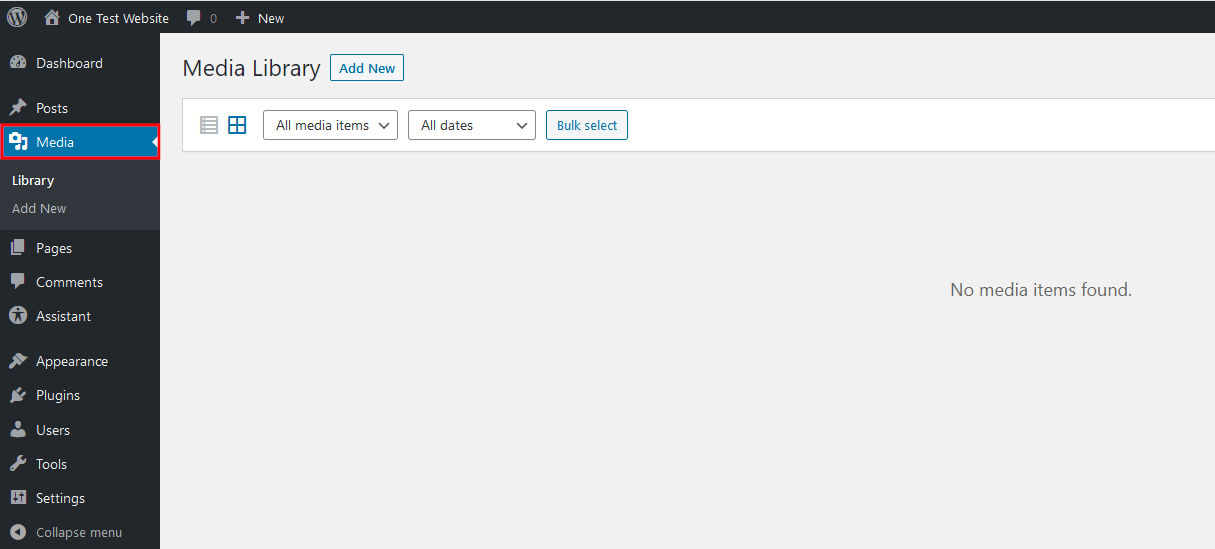
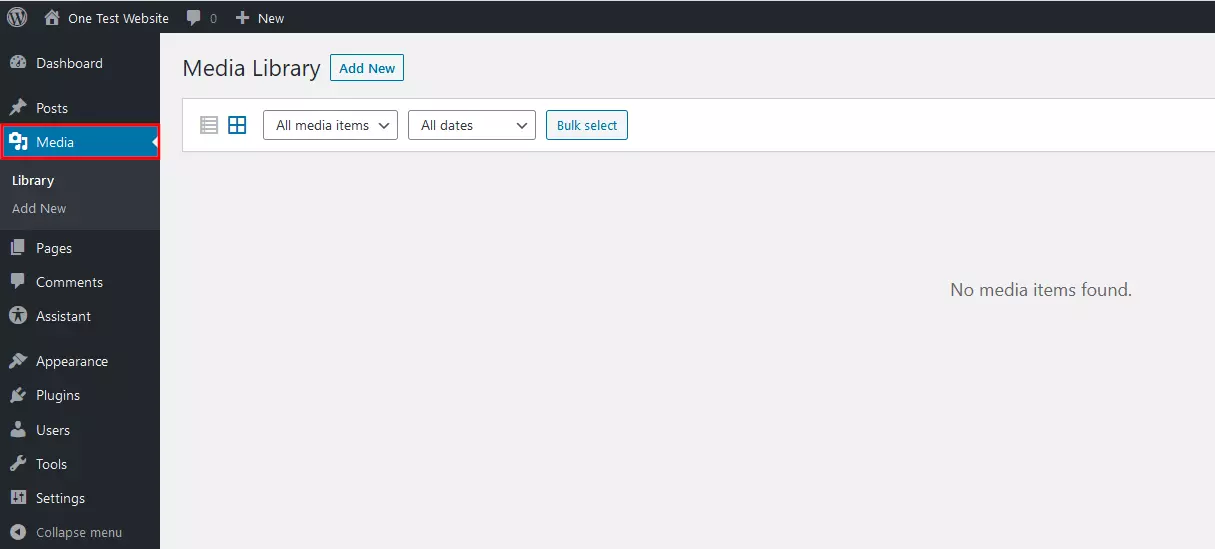
Step 1: Launch the Media Library and select ‘Media’ from the left-hand menu:
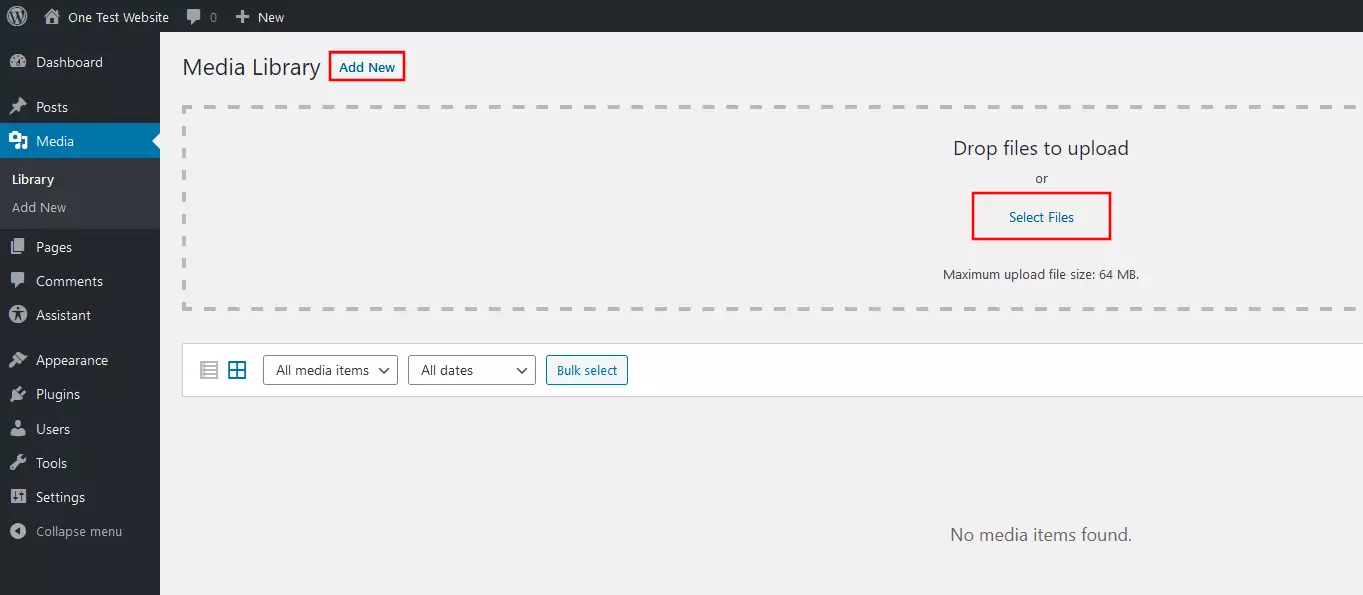
Step 2: Click on ‘Add New’ and ‘Select Files’ to specify and confirm the storage location of your video file and start uploading it to the Media Library. Alternatively, drag and drop the clip into the field (dashed lines):
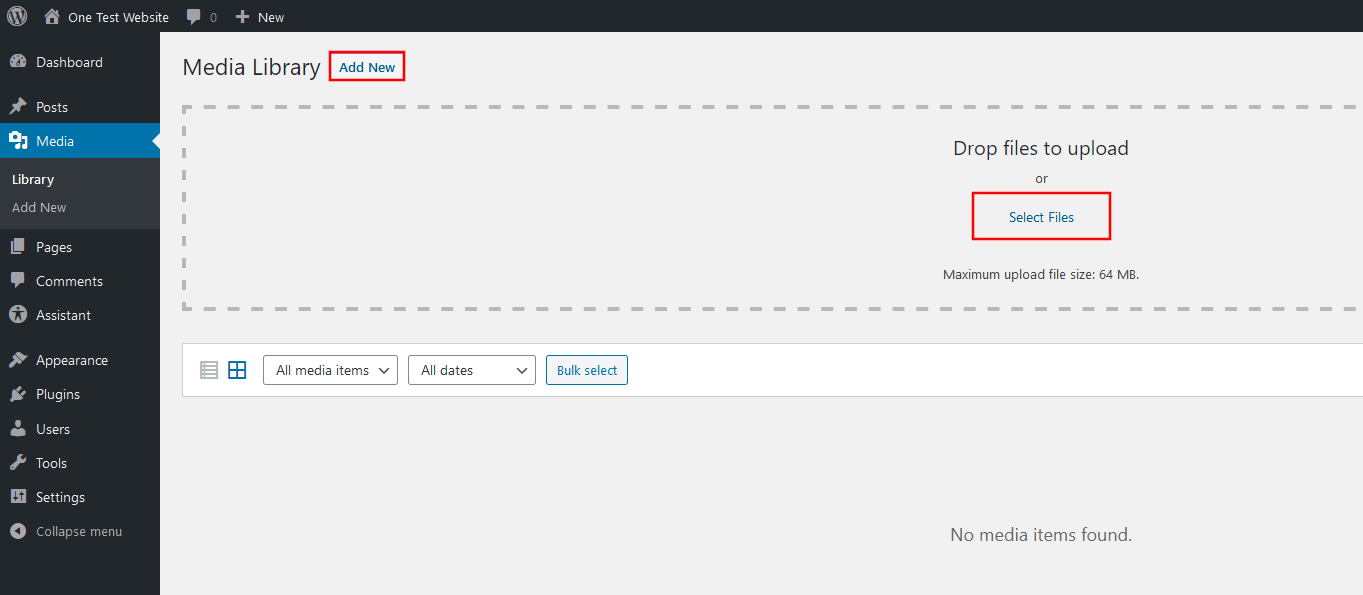
By default, the maximum file size you can upload to the WordPress Media Library is 64 megabytes. However, you can increase the file size limit by amending the entry in the configuration file ‘wp-config.php’ or via the .htaccess file. Alternatively, you can adjust the size limit using the All-in-One WP Migration plugin or contacting your provider.
Step 3: Launch the WordPress page where you want to add the video and click on the Plus sign to add a block of content.
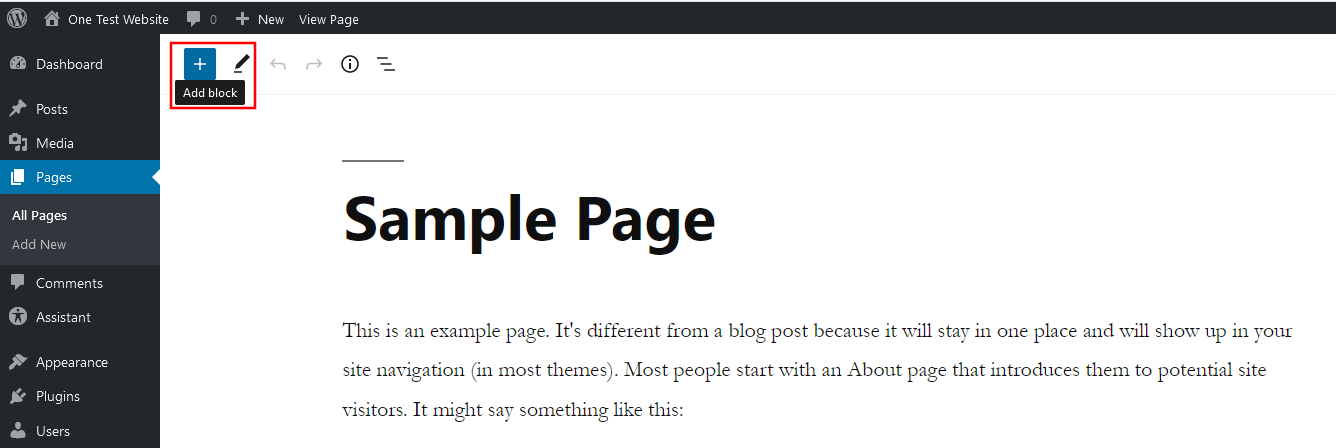
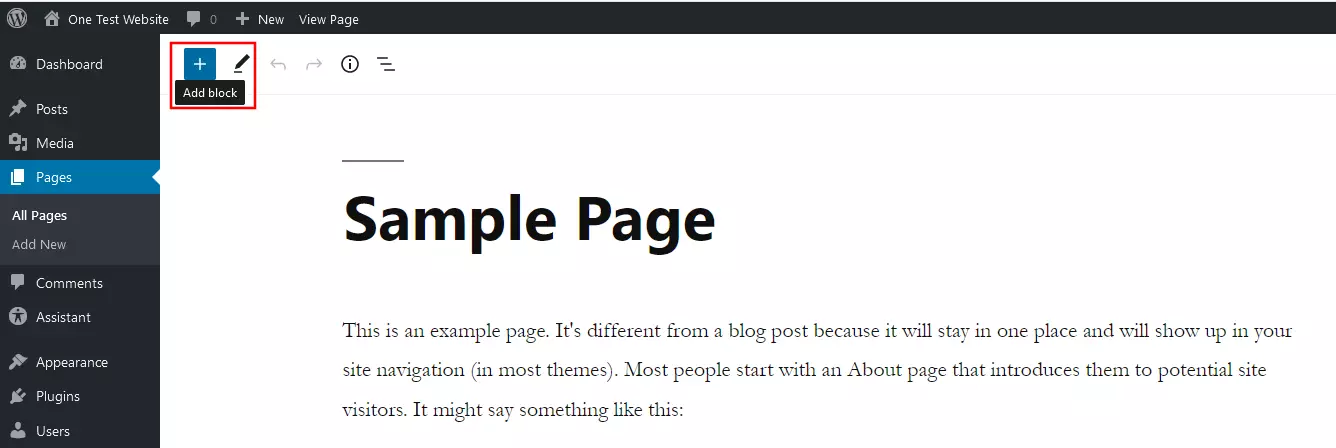
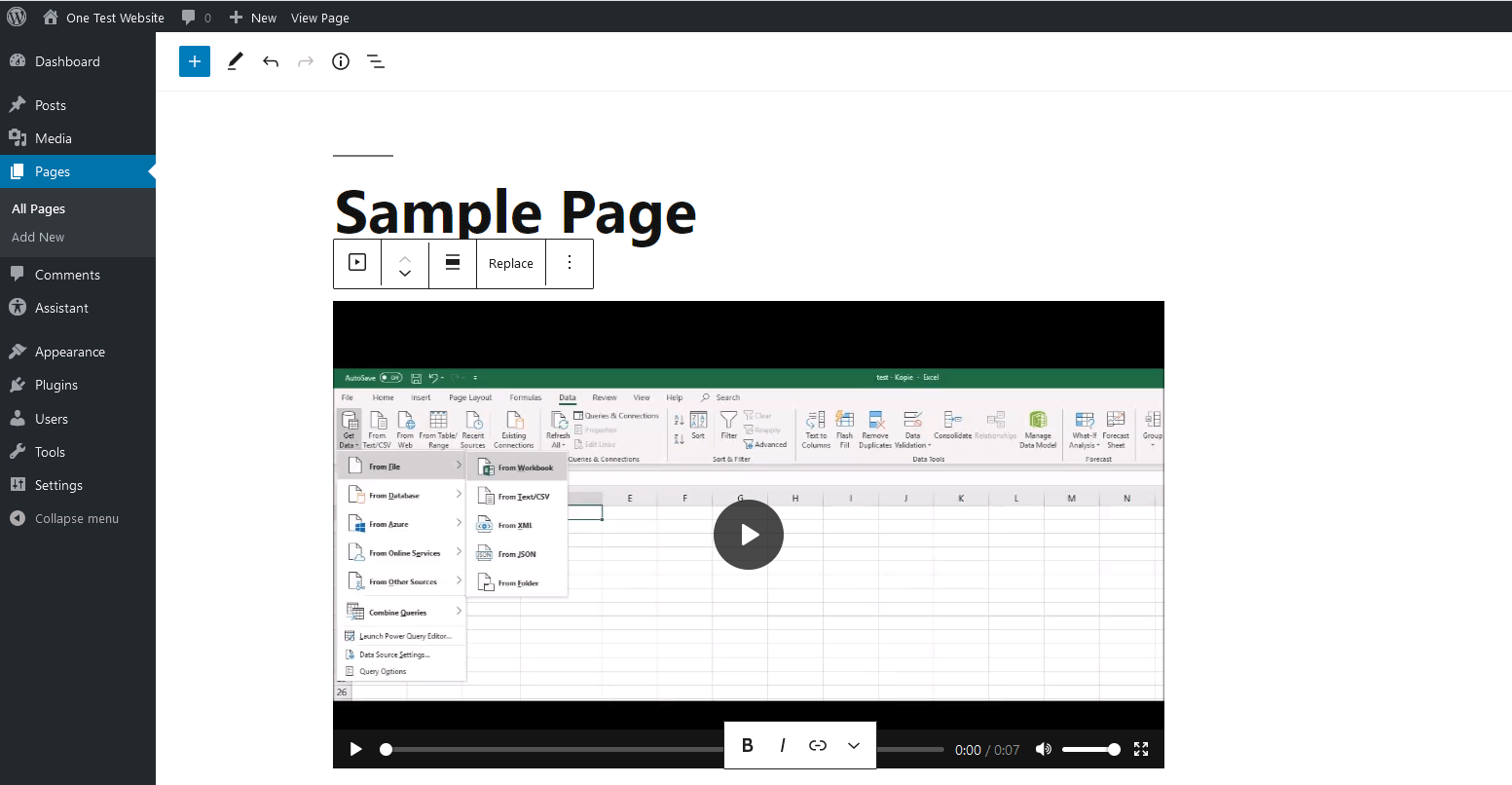
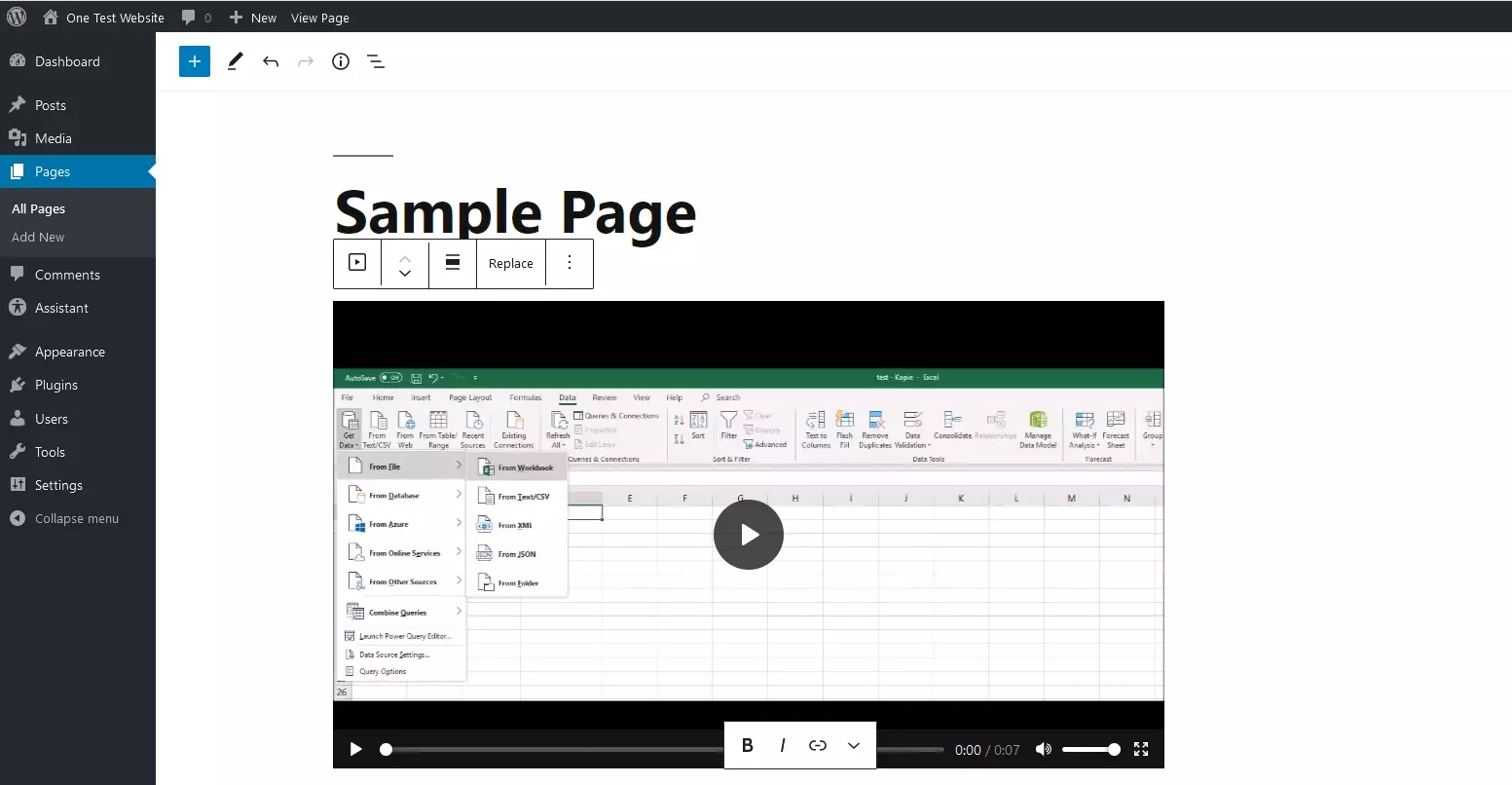
Step 4: Scroll to the ‘Media’ section and select the ‘Video’ entry to add a video content block. In the block, click on ‘Media Library’. WordPress will launch an overview of available videos, from which you can select the desired video. After you click on a video, a window launches that lets you adjust the metadata such as title, label, and description of your video. Hit the ‘Select’ button to embed the video to your WordPress page.
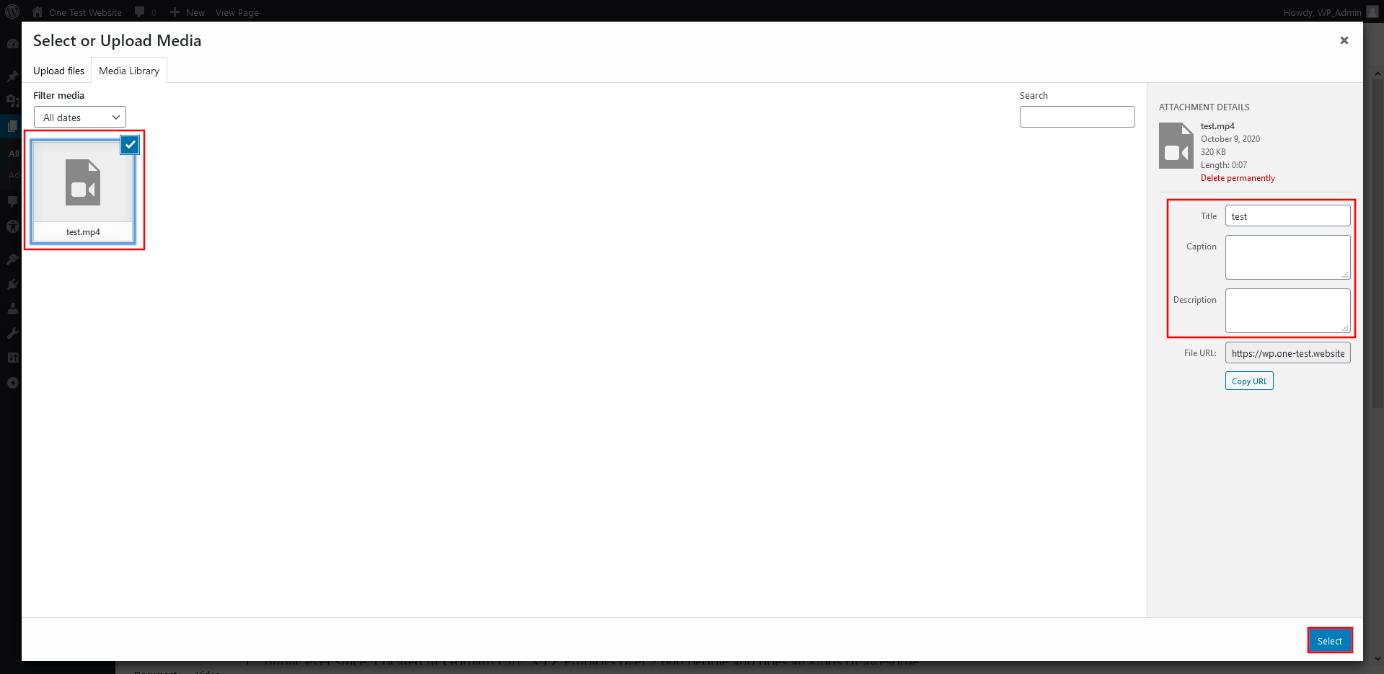
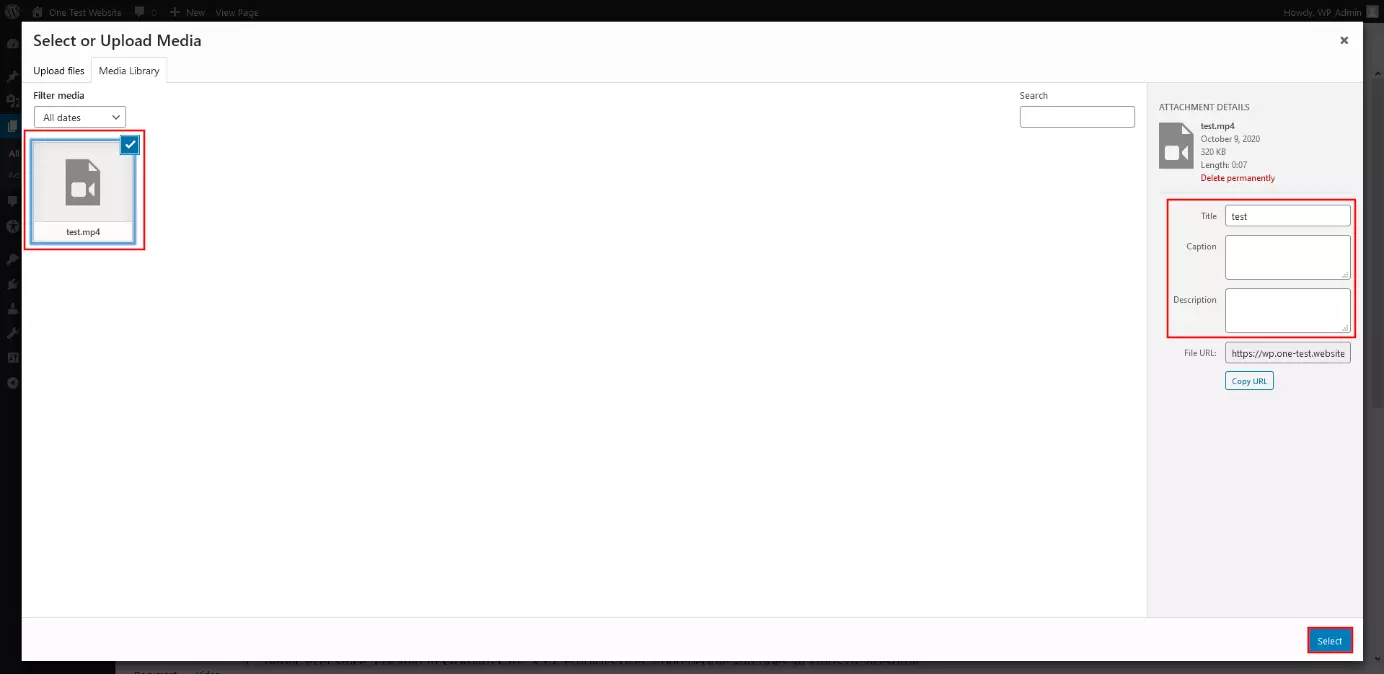
Now, your video is embedded in WordPress. Just as with any other content block on WordPress, you can move it around the page to match your page layout.
When uploading videos to your web space, it’s advisable to compress your videos. This ensures that available storage space is used more efficiently.
WordPress: Embed videos using an embed code
If you prefer to save storage space and computing power, you can upload your videos to an external video platform such as YouTube or Vimeo. These platforms make it easy to embed videos using embed codes that can be easily integrated to your WordPress page. Depending on the orientation and type of your website, you can also insert videos shared by other users – provided they own the rights to the content and the videos are publicly available.
To add a YouTube video via an embed code, follow these steps. Note that individual steps may vary for other video content platforms.
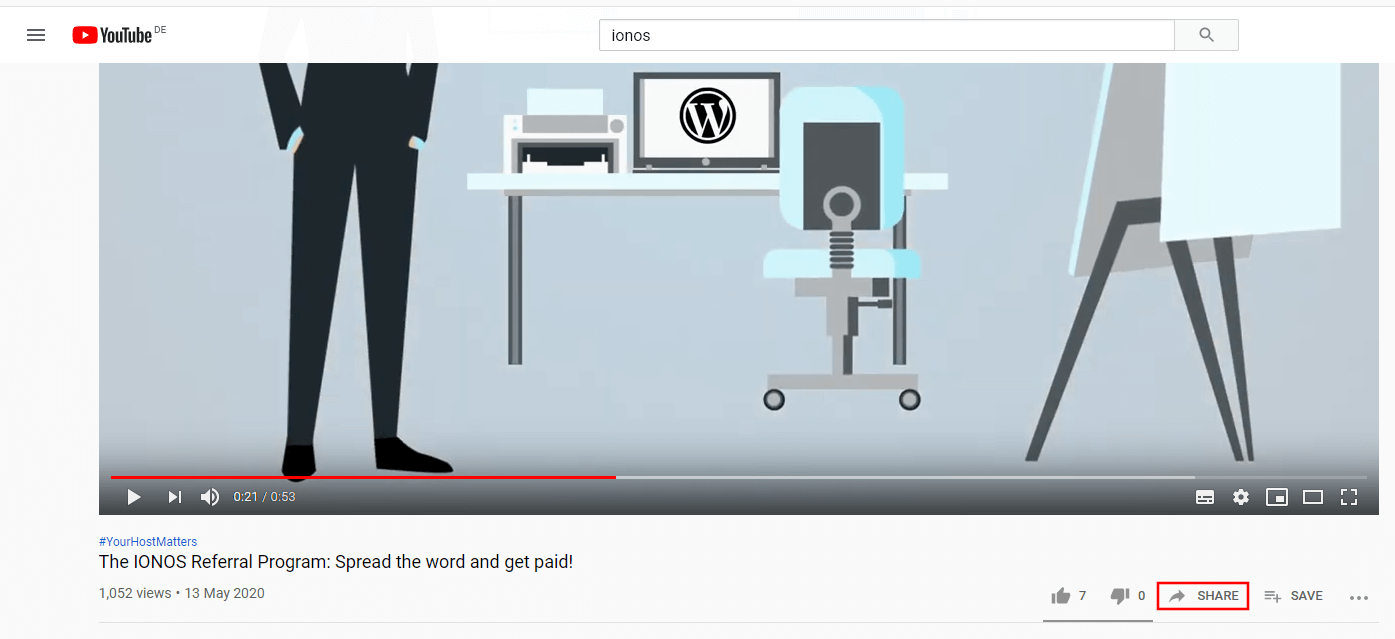
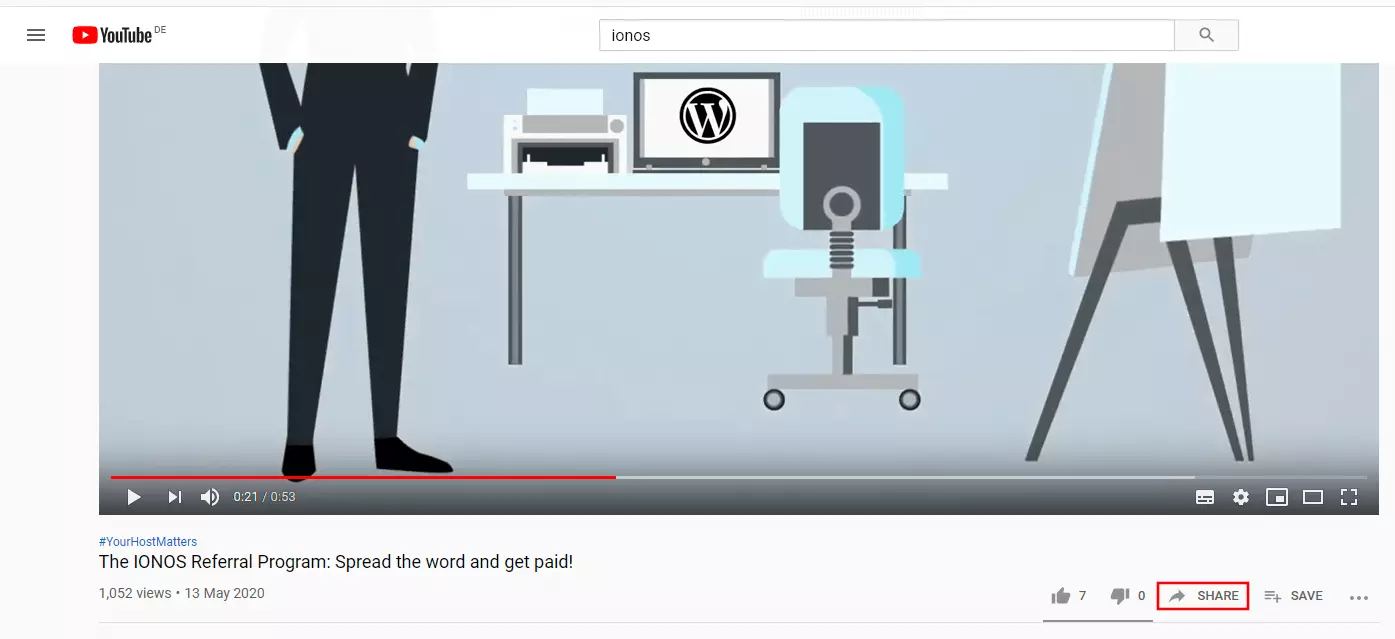
Step 1: Find the YouTube video you wish to embed and click on ‘Share’ located below the clip.
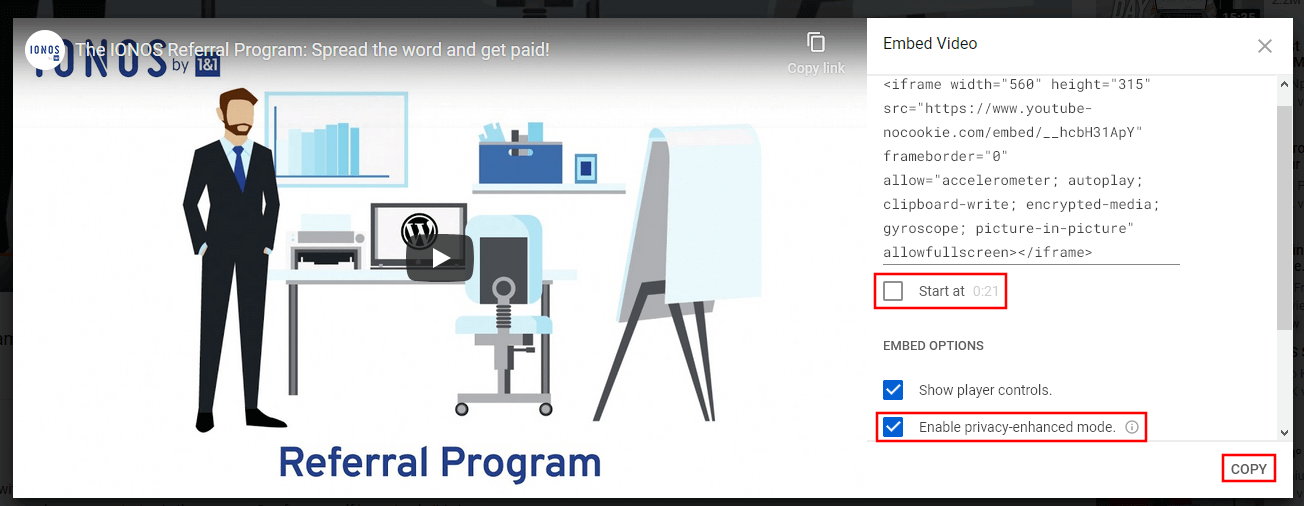
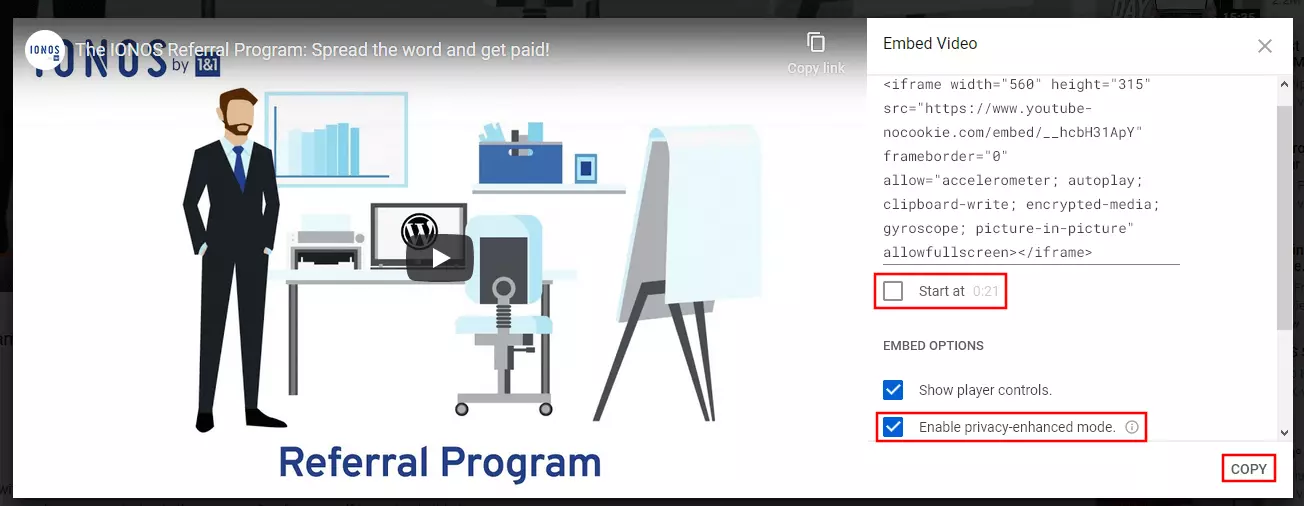
Step 2: Select ‘Embed’ to access the embedding options. You can choose the default settings or modify the embed code a little. For example, you could define the time at which you’d want the video to play once embedded on your page (‘Start at’). You can also enable a privacy-enhanced mode to protect the privacy of your visitors. Finally, click on ‘Copy’ to save the code to the clipboard for WordPress import.
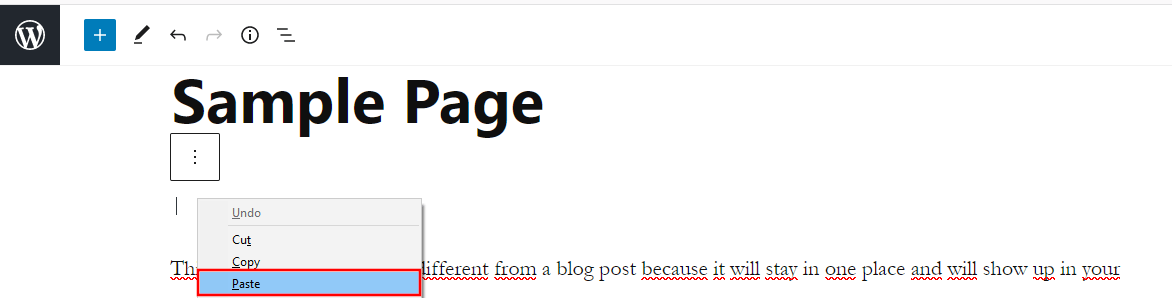
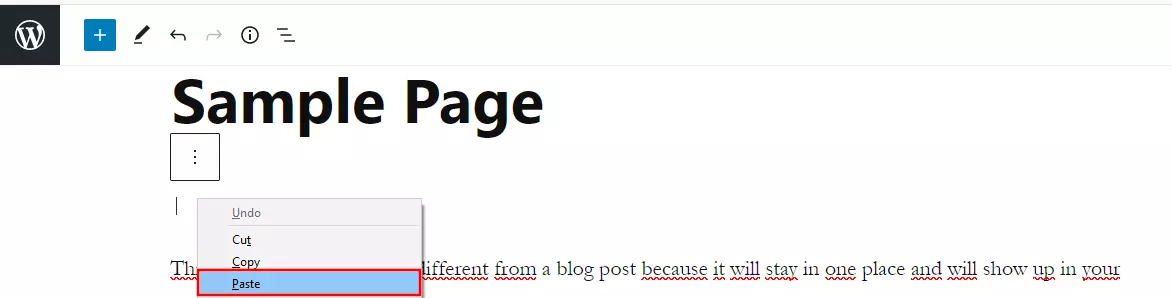
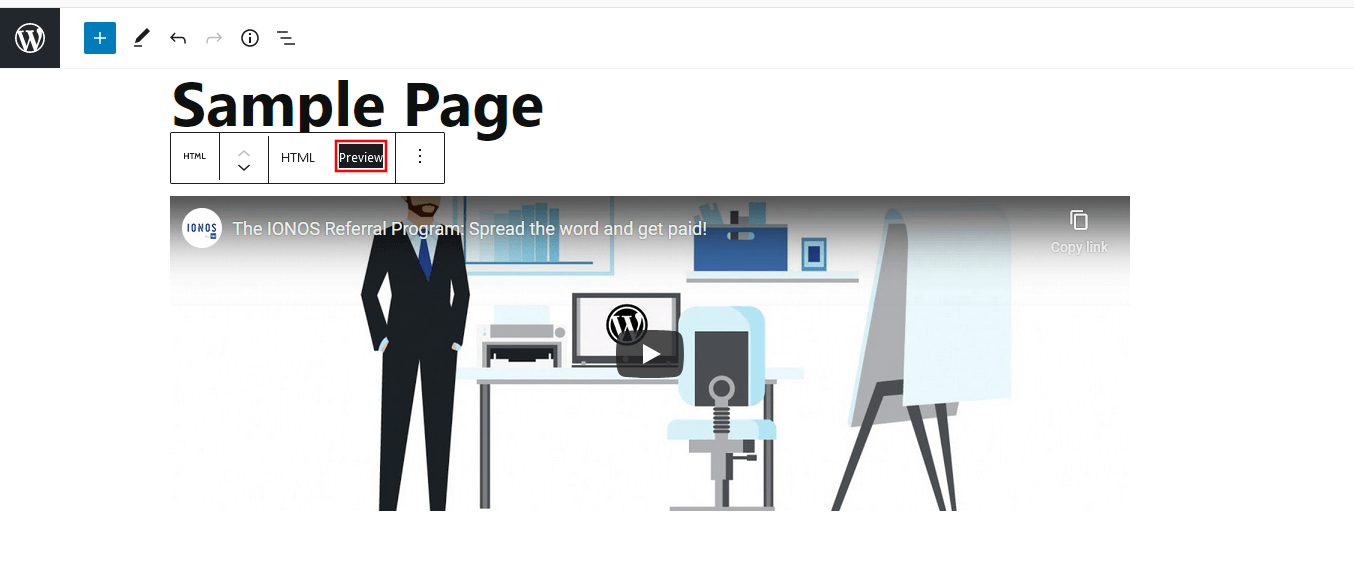
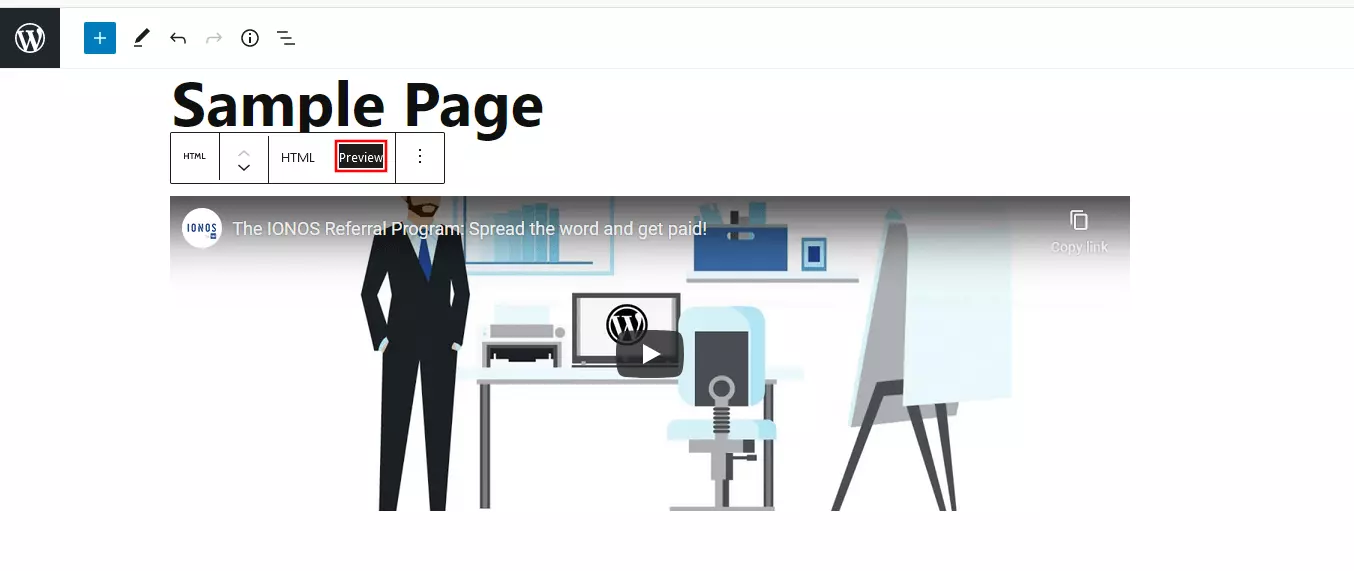
Step 3: Now open the page in WordPress where you want to embed the video. Insert the clip link from the clipboard directly to the desired position by creating an HTML block and using the key combination [Ctrl] + [v] or right-clicking and selecting ‘Paste’.
Step 4: WordPress now auto-inserts the video in the usual format. Once you select ‘Preview’, you can preview the results.
WordPress: Video plugin to embed content
Regardless of whether you upload videos internally or externally, the use of WordPress video plugins is recommended for simple and quick integration of videos and added features. All you need to do is install the plug-in of your choice. The WordPress backend offers access to easy-to-use menus or editor buttons that manage the respective extension.
Step 1: From the left-hand menu, launch the ‘Plugins’ section and click on ‘Install’.
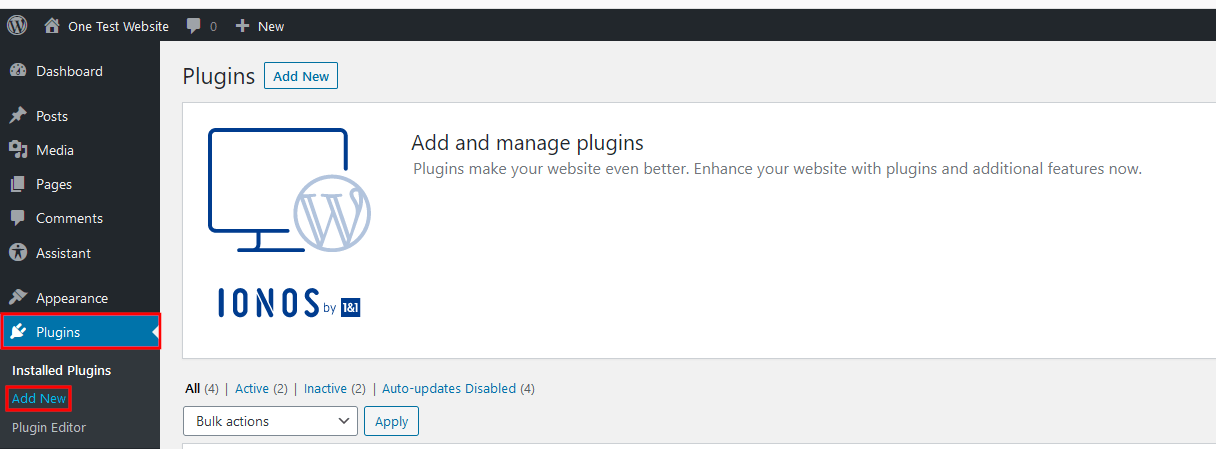
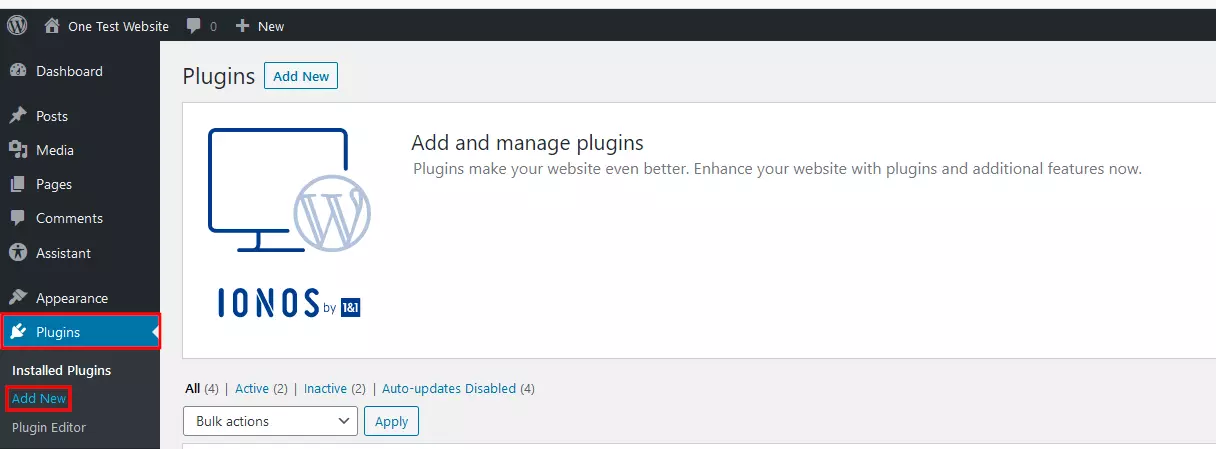
Step 2: Type any keyword into the search bar (top right) to search for a suitable WordPress video plugin. To see what plugins are available simply enter the search term ‘video’:
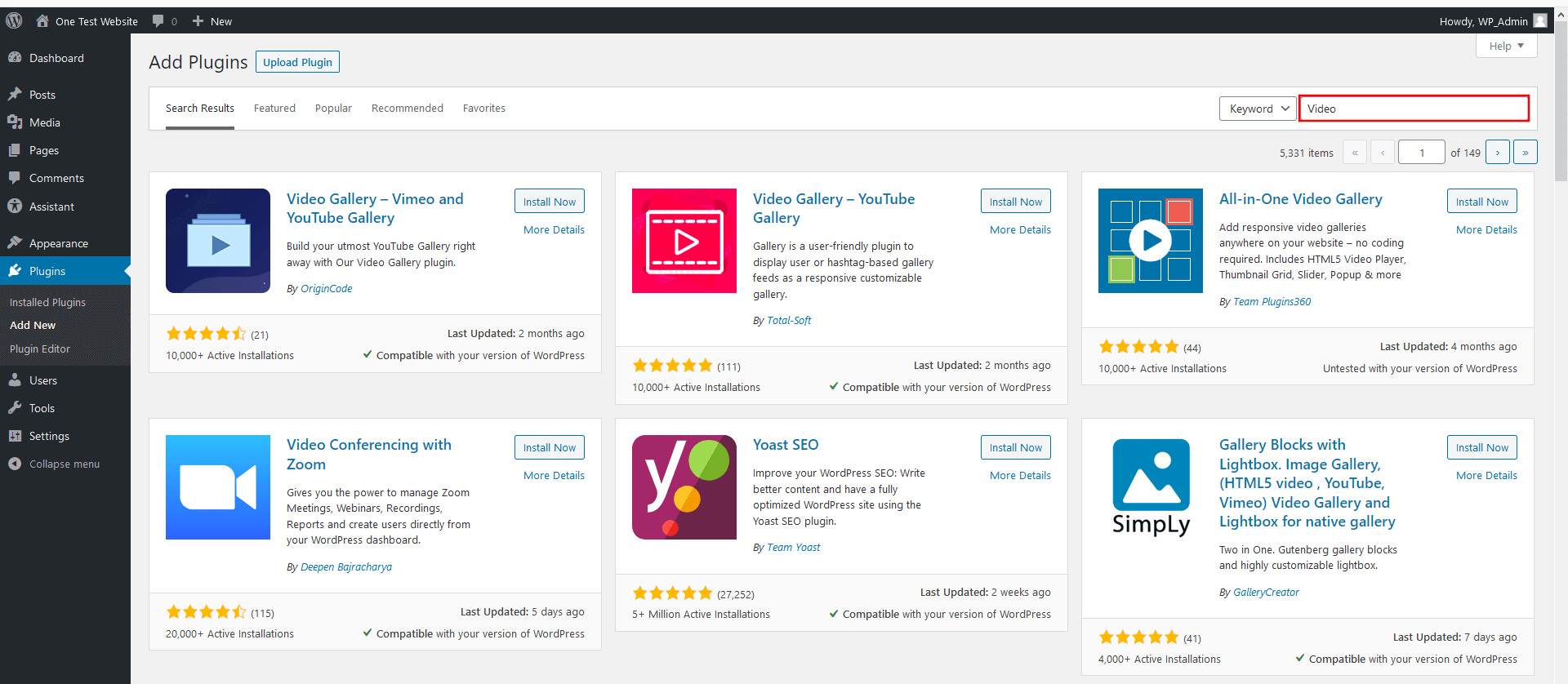
Step 3: When you’ve decided on a plugin, click on it and hit ‘Install now’. Once the plugin is installed, you can ‘Activate’ it.
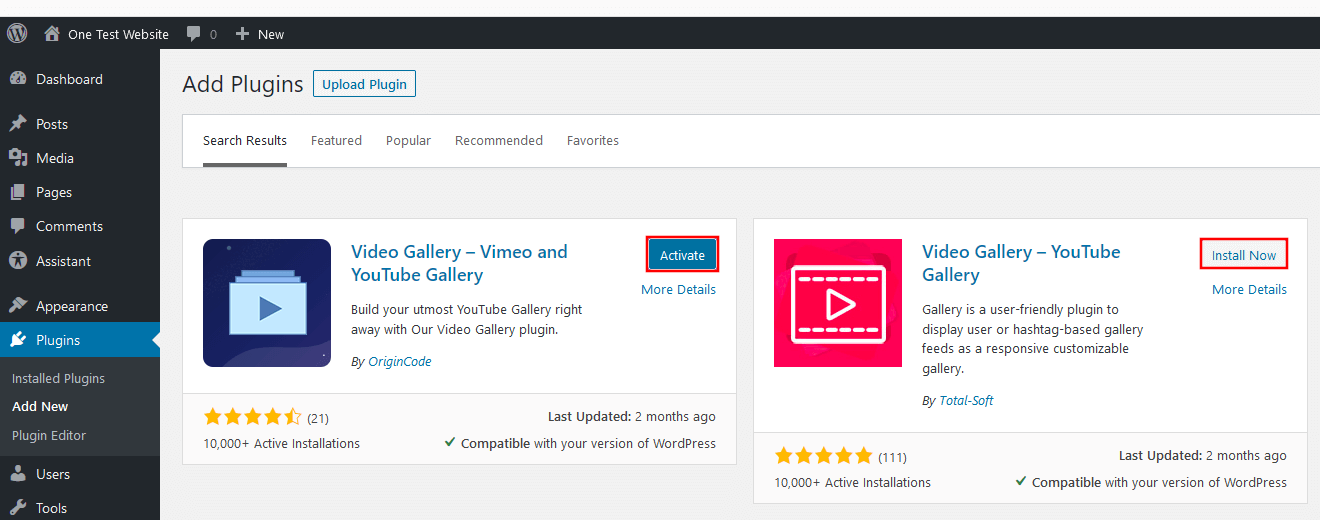
You can also download plugins from the official WordPress Plugin Centre. In this case, select ‘Upload plugin’ and select where you want to store the unzipped plugin file.
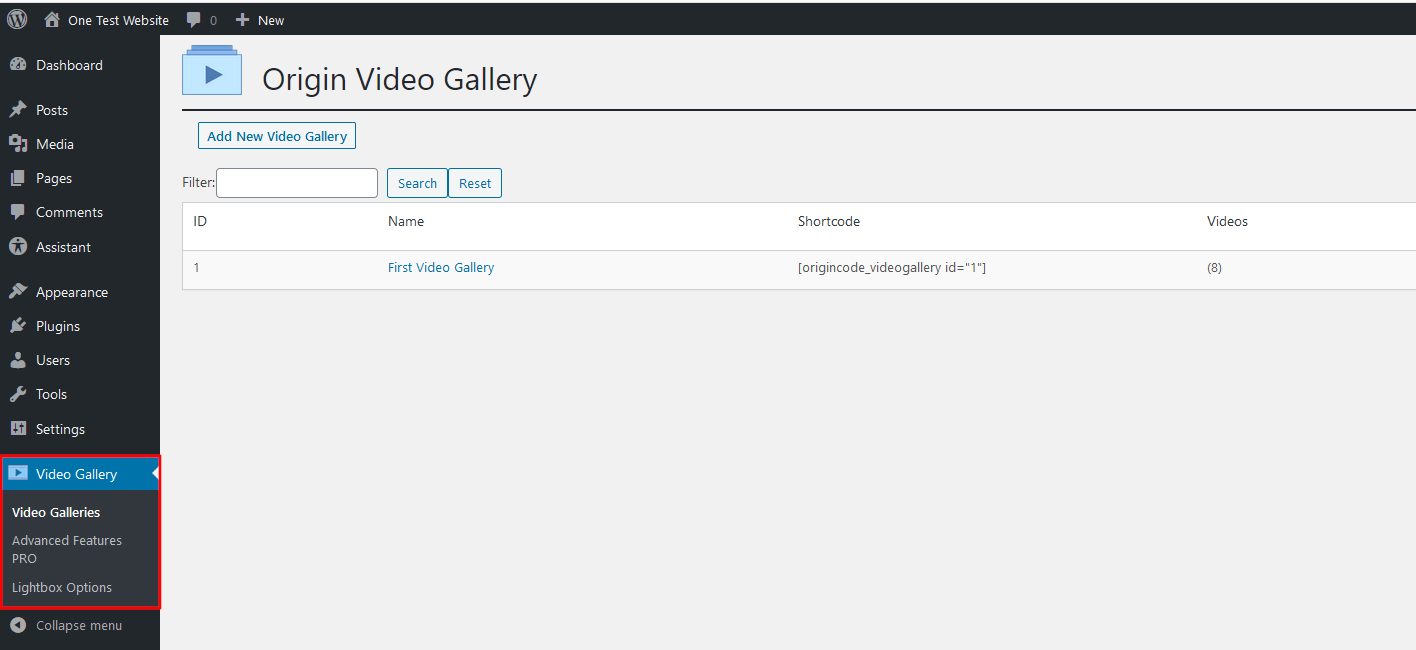
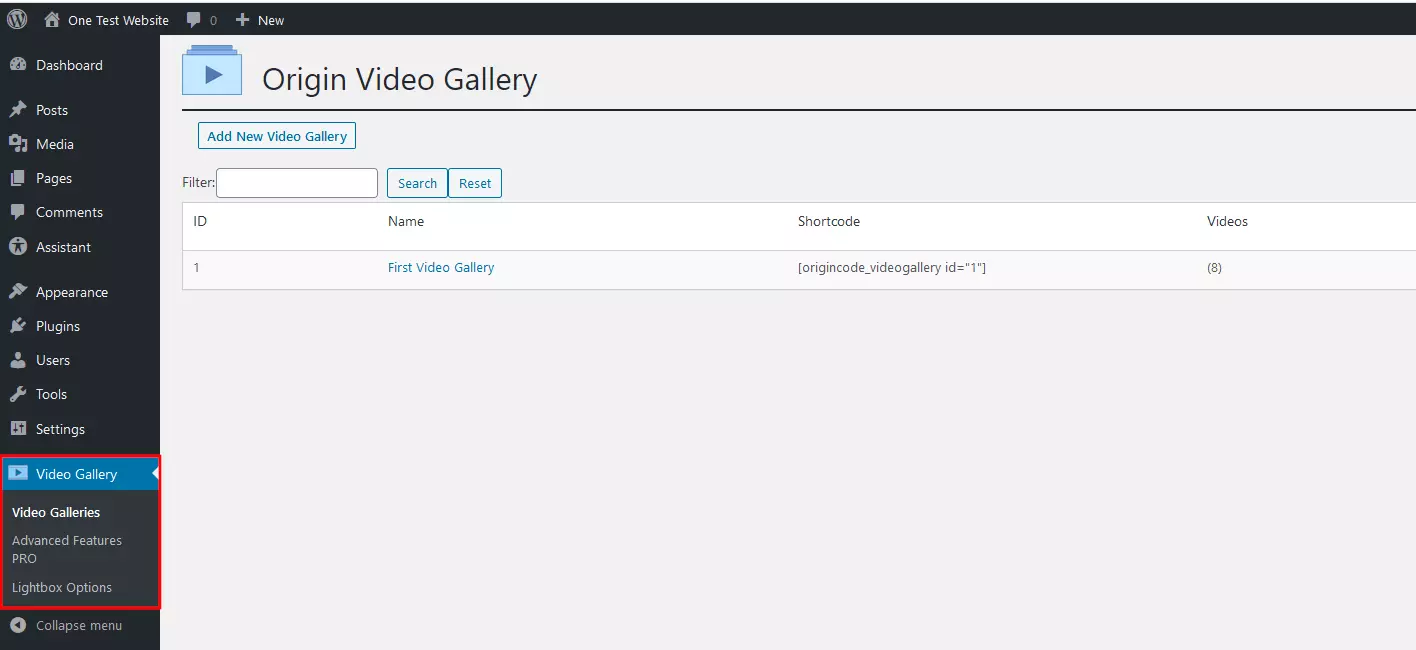
Step 4: Alternatively, you can manage your plugins via the sub-menu ‘Installed Plugins’ or a sub-menu button as shown in the example of the OriginCode ‘Video Gallery’ plugin below:

Overview of the best WordPress video plugins
Plugins to embed videos are a great option for seasoned WordPress users and complete beginners of the CMS. They are guaranteed to add value to your web project. Below we’ve rounded up some of the best extensions for adding and managing videos in WordPress.
Embed Plus for YouTube
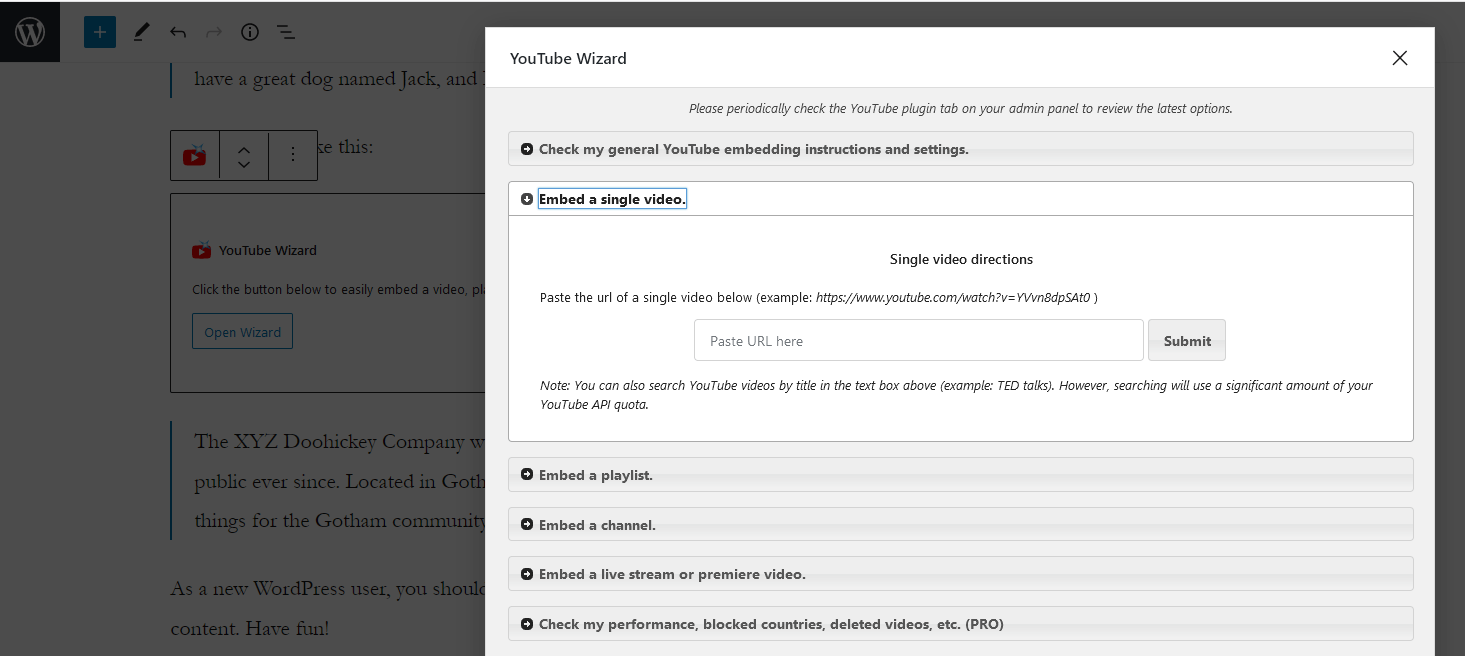
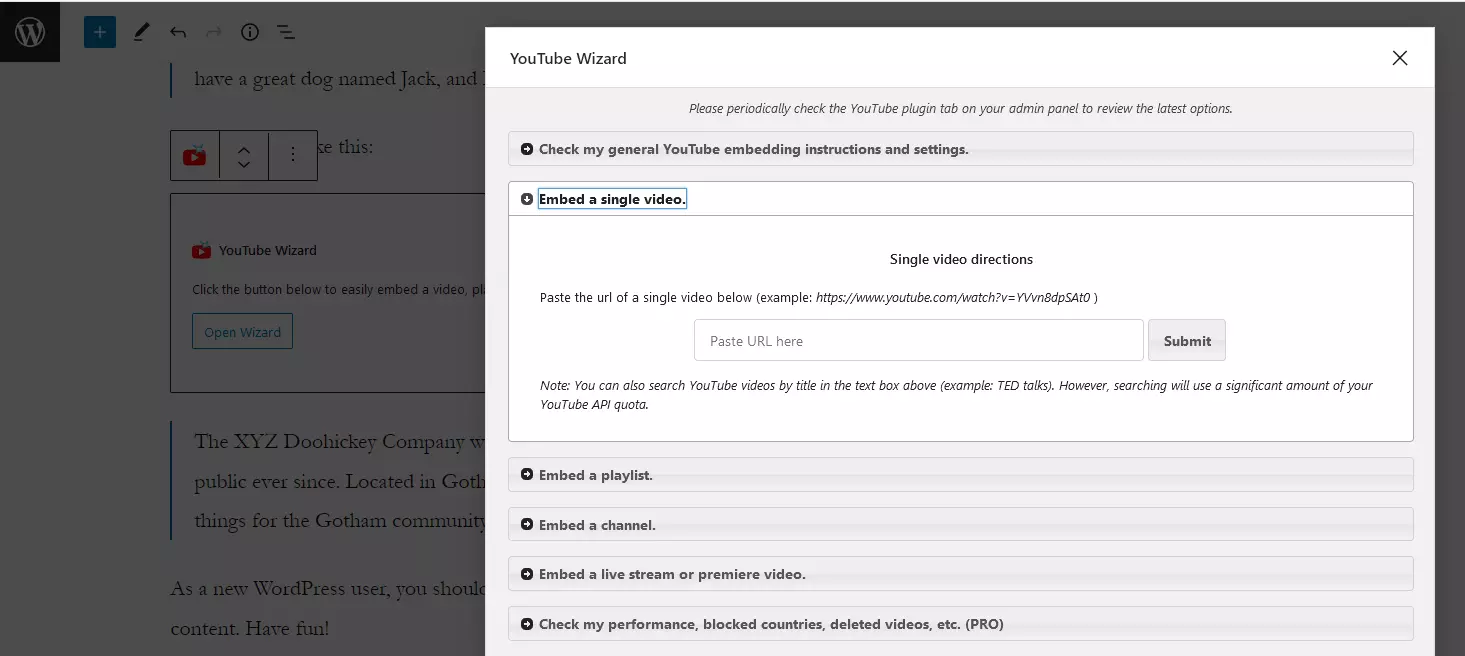
Want to embed YouTube video content? You won’t want to miss Embed Plus for YouTube. With over 200,000 active installations, the plugin doesn’t just support the embedding of single YouTube clips, but also that of entire playlists, channels, and even livestreams. The plugin is also compatible with the WordPress Gutenberg editor. The ‘YouTube Wizard’ is a user-friendly management tool. Additional features such as automatic video SEO mark-up or a caching function can be activated by upgrading to the paid Pro version.
| Advantages | Disadvantages |
|---|---|
| Various pre-sets to embed YouTube videos, channels, playlists, and live streams | |
| Options for opt-in and no-cookie menus |
Yoo Slider
When you subscribe to the paid edition of the Yoo Slider plugin (Beginner: approx. £15/year), you can add high-quality, responsive video slideshows to your page. The free version of the plugin is available for images only. Optionally, you can add slideshows using YouTube and Vimeo clips and videos from your Media Library using the pre-installed Yoo Slider to access over 20 pre-defined animations. Adding videos via HTML code is also possible. To embed your newly created slideshow, simply use the Gutenberg editor or WordPress short code.
 To display this video, third-party cookies are required. You can access and change your cookie settings here.
 | Advantages | Disadvantages |
|---|---|
| More than 20 different slide animations available | No free edition for videos |
| Slideshows can be embedded with Gutenberg block or short code |
WP YouTube Lyte
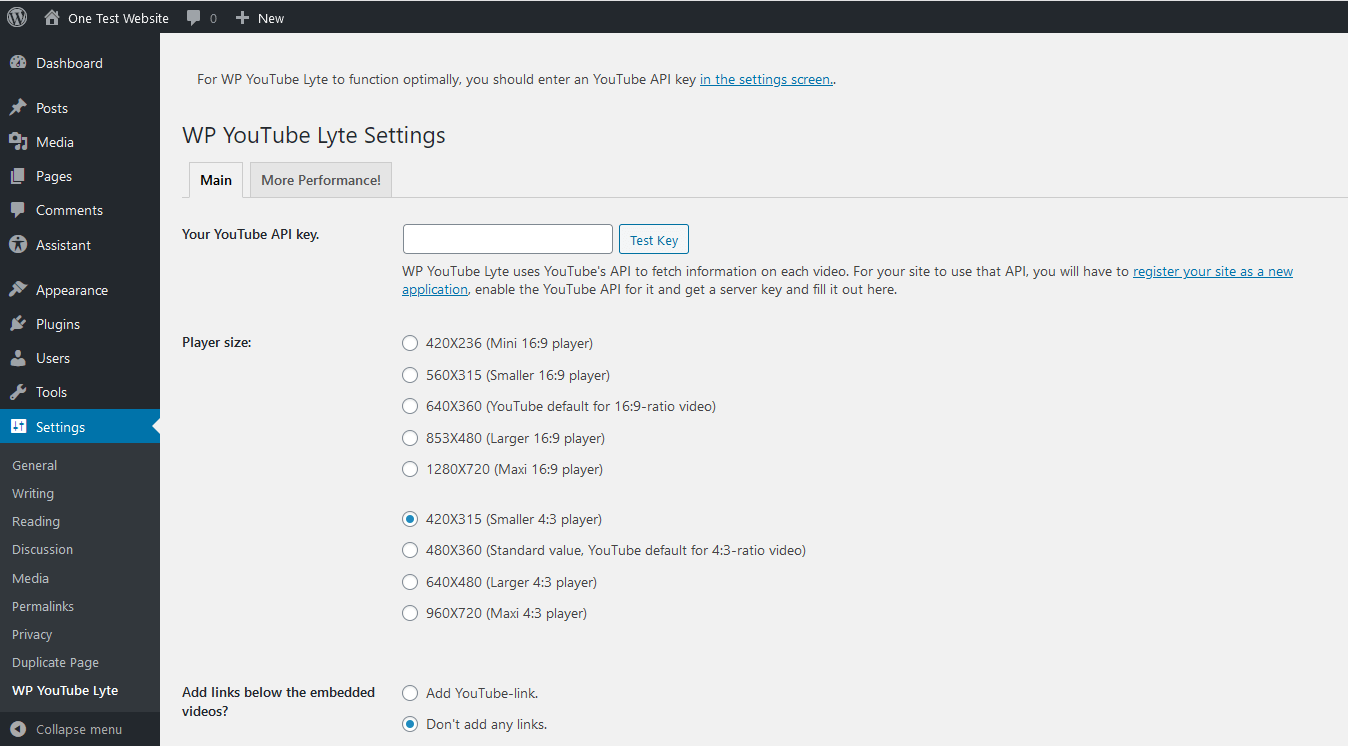
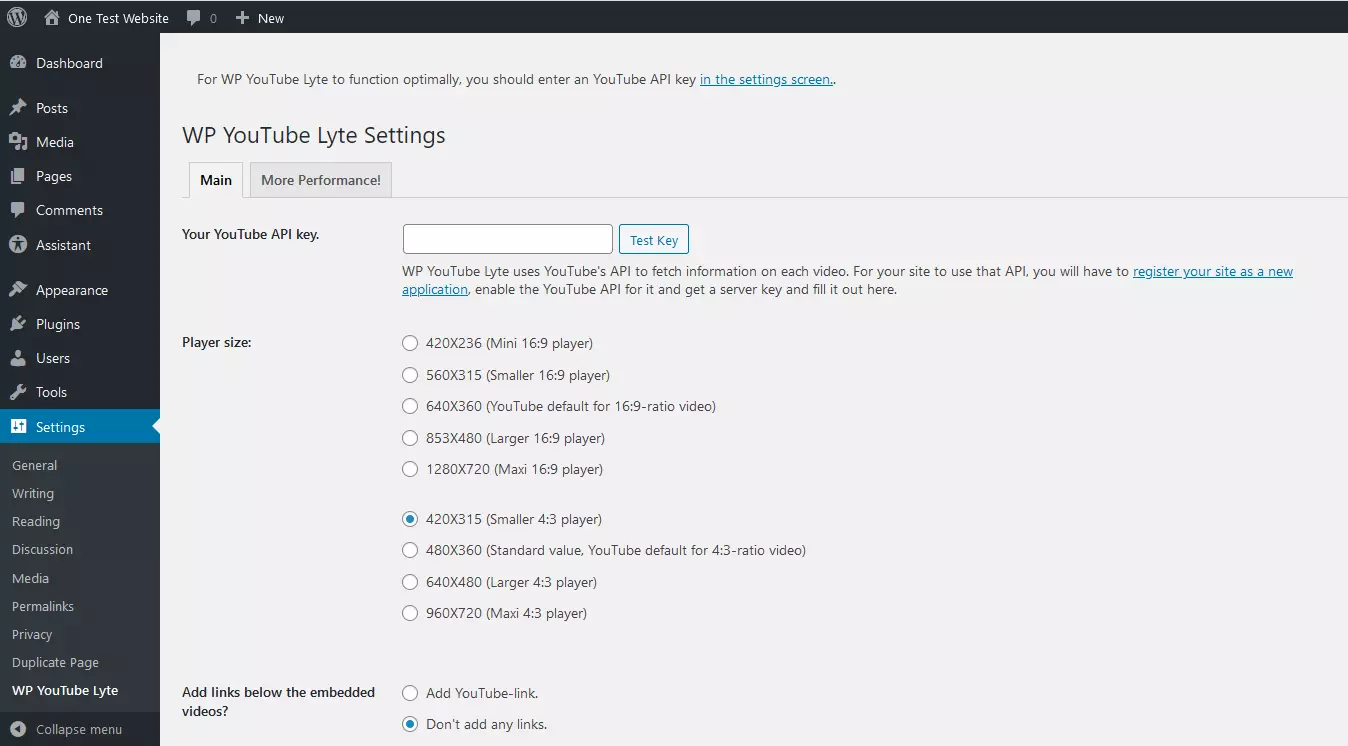
Manage a blog? Then you’re already well-aware of how important a smooth performance across multiple end devices is. Loading times are particularly important. If YouTube videos are an integral part of your WordPress blog, the WP YouTube Lyte plugin is particularly useful.
The plugin enables lazy loading for all embedded WordPress videos. Responsive ‘Lite YouTube Embeds’ look just like normal YouTube embeds, but only launch the memory-intensive player when a visitor actually clicks on a video. YouTube videos can also be cached locally, which means that the video platform servers aren’t unnecessarily accessed.
| Advantages | Disadvantages |
|---|---|
| Options to adjust the size of the video player | No separate button in the editor (integration via a link in Lyte) |
| YouTube clips are cached locally |
Advanced WordPress Backgrounds (AWB)
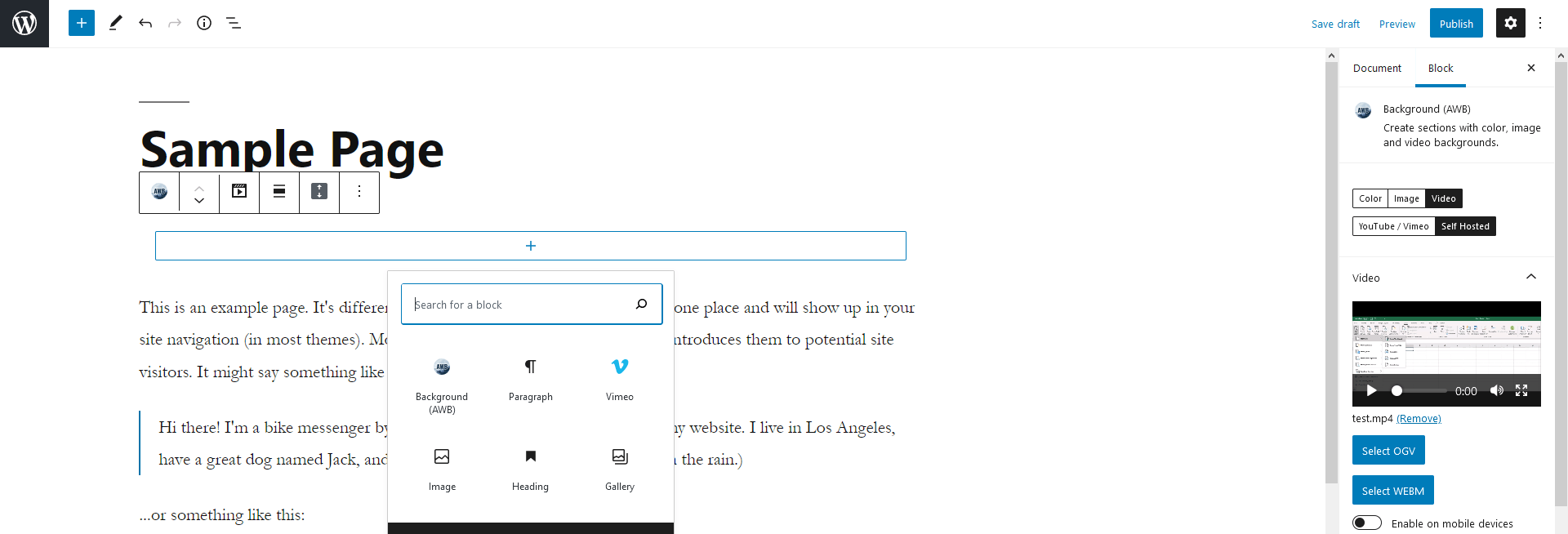
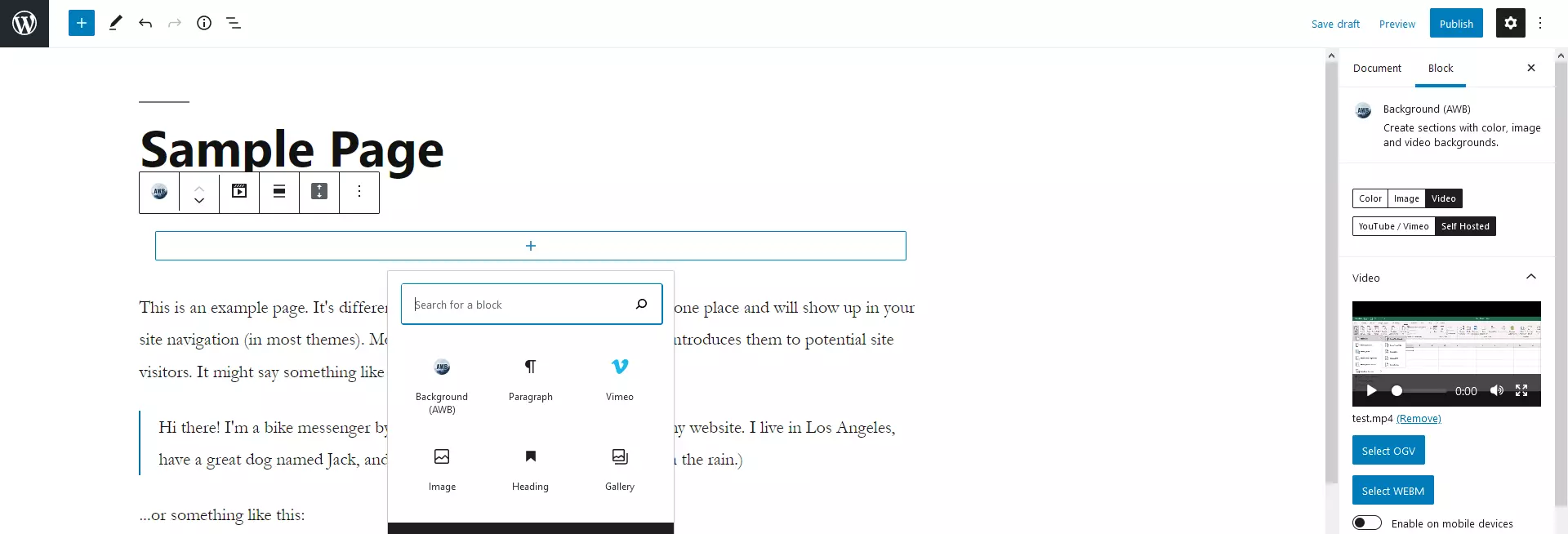
Parallax scrolling is now an important feature of design tools for modern web projects. Advanced WordPress Backgrounds (AWB) is a free plugin that supports parallax scrolling in WordPress. You can use the extension to create individual parallax backgrounds for selected pages based on images or videos (self-hosted, YouTube, or Vimeo). The technical basis for this is the powerful JavaScript plug-in Jarallax.
| Advantages | Disadvantages |
|---|---|
| Based on powerful JavaScript plugin Jarallax | |
| Parallax effect can be switched off for mobile versions |
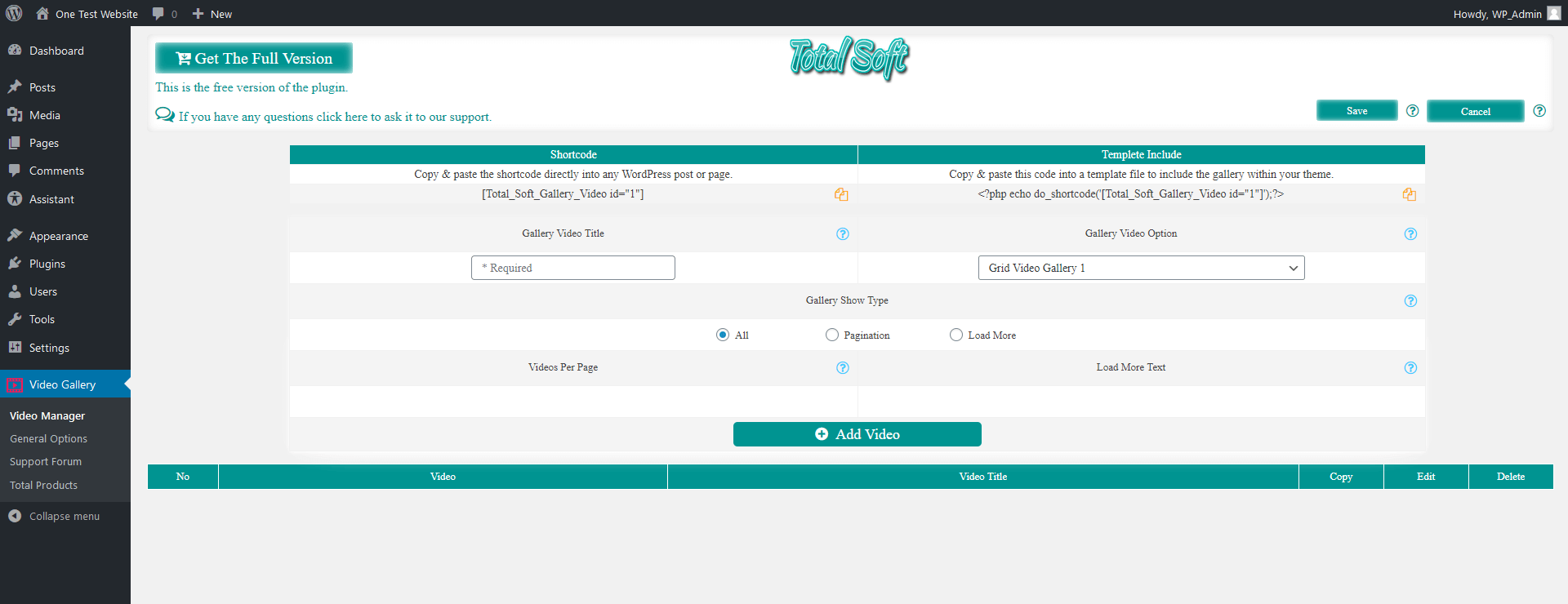
Video Gallery
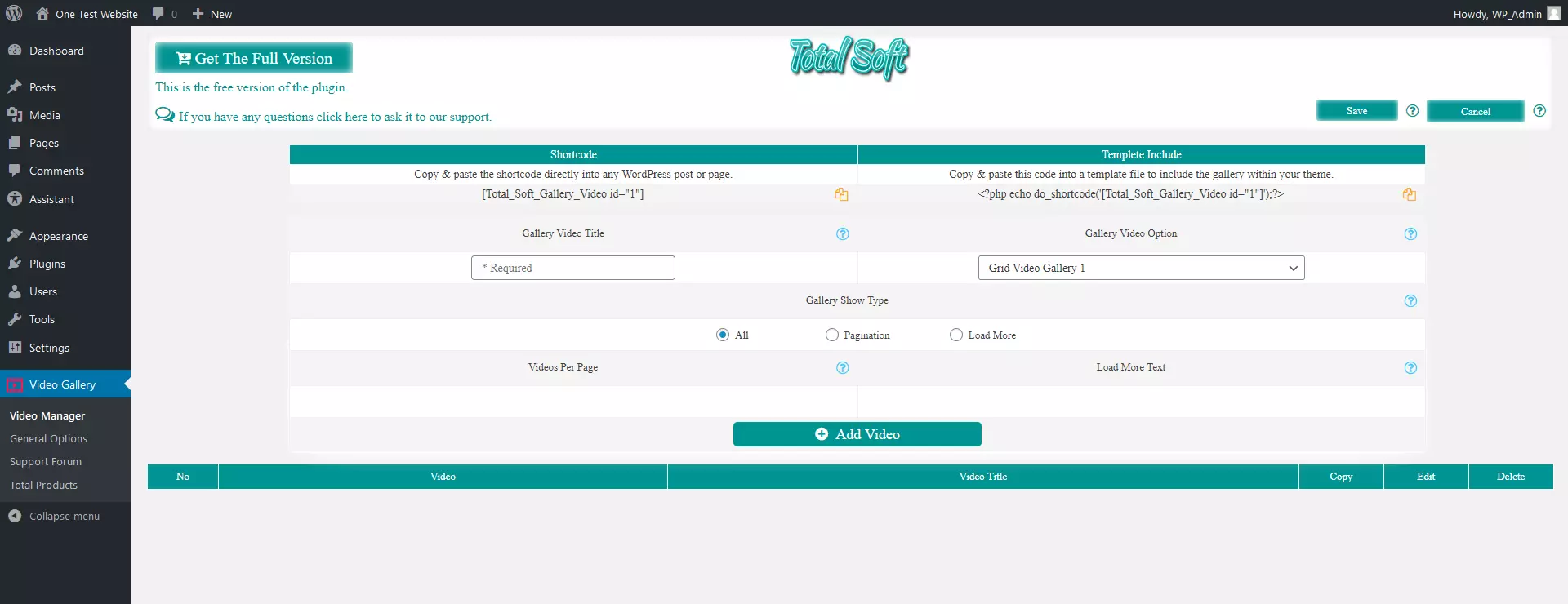
Galleries are a popular tool to present several videos on a page at once and the Video Gallery by Total Soft is an excellent solution to this end. The free basic version lets you compile and publish video galleries with any number of clips from YouTube, Vimeo, and Wistia or your own source. All galleries can be arranged automatically in a responsive web design and via drag-and-drop. To adapt the design of your galleries, we recommend upgrading to one of the paid versions (from approx. £10). The upgrade lets you access additional gallery themes, fonts, hover effects, and various other style options.
| Advantages | Disadvantages |
|---|---|
| All galleries are auto-responsive | Integration only with short code |
| Easy sorting of videos using drag-and-drop |
Summary of the best WordPress video plugins
| WordPress version | Active installations | Costs | Features | |
|---|---|---|---|---|
| Advanced WordPress Backgrounds (AWB) | 5.4+ | 20,000+ | Basis: freePro: in planning | Backgrounds with parallax effect |
| Embed Plus for YouTube | 4.1+ | 200,000+ | Basis: freePro: from approx. £15 | Embedding of YouTube content |
| Video Gallery | 4.9+ | 10,000+ | Basis: freePro: from approx. £10 | Video galleries |
| WP YouTube Lyte | 4.0+ | 30,000+ | Free | Lazy loading for gallery clips |
| Yoo Slider | 4.6+ | 2,000+ | From approx. £15 | Slideshows |
- Free WordPress with .co.uk
- Free website protection with one Wildcard SSL
- Free Domain Connect for easy DNS setup