

How to fix "Error establishing a database connection" in WordPress

The content management system, WordPress, offers simple options for how you can get your website online. In just a few clicks you can build a blog, an online shop, or a comprehensive company website. Most of the time everything goes well, but when a problem occurs, WordPress users are often left without any assistance. It’s especially frustrating when the site is down all of a sudden. We explain what the WordPress database error, "Error establishing a database connection", means, when it occurs, and how to fix it.
In order to understand terms that WordPress often uses, we have compiled a list of the 10 most important WordPress terms.
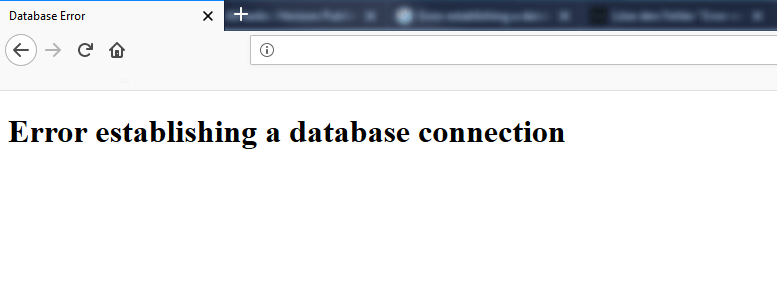
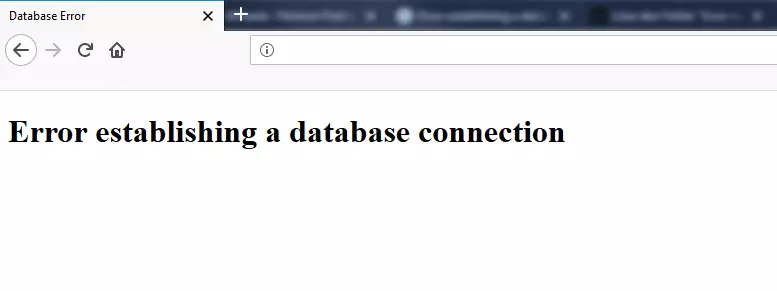
What does the error message mean?
WordPress websites are largely based on databases, which in turn use the MySQL database management system. When internet users surf your WordPress site, PHP commands request the required database entries. However, if the user can only see the "Error establishing a database connection" message, this request for database information hasn’t worked. Unfortunately, the error message doesn’t reveal why WordPress couldn’t connect to the database.
When does "Error establishing a database connection" occur on WordPress?
The error message doesn’t necessarily have to have been triggered by something you’ve done. In most cases, it is due to the login data for the database not being correctly stored or the database itself being corrupted. This could be due to a plugin that makes changes without your intervention or knowledge. Another reason for the error can be the database server itself. Therefore, the first step in correcting the error is to locate the exact source of the error.
How can you fix the WordPress database error?
A good starting point for troubleshooting is to try to attempt to log into the backend. Trying to access wp-admin probably also won’t work but the browser may display another message: "One or more database tables are unavailable. The database may need to be repaired". If this error is displayed, the problem is clear: there is an error in the database that has paralysed the whole system. Fortunately, WordPress has a built-in repair function for this that you have to manually start via wp-config.php – you can’t access the backend at this time.
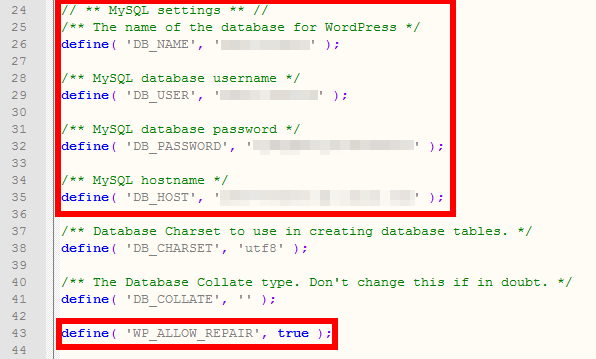
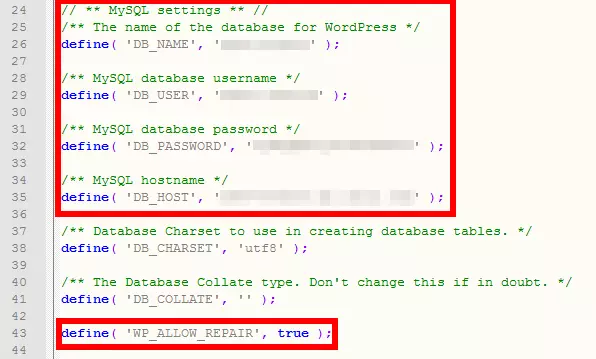
To access wp-config.php, you need to establish an FTP connection with your server. The easiest way to do this is by using software such as FileZilla or another FTP program. If you have established a connection to your server (access data is usually provided by your hosting provider), you should find the required file in your website’s root directory. Download it and open it with a text editor. The configuration file contains settings for the database. To activate the repair tool, insert a line of code behind the MySQL settings:
define( 'WP_ALLOW_REPAIR', true );Make sure that you use the correct syntax: it’s crucial for the correct quotation marks and spaces to be in the right place. Save the file and upload it back to your server. By doing this, you overwrite the original file.
Before you make any changes to WordPress files, it is recommended to make a backup. Incorrect entries could cause other problems in addition to the WordPress database error.
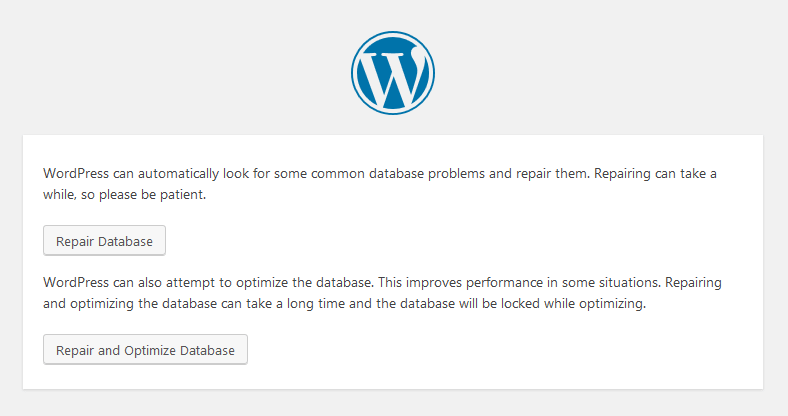
When the upload is complete, you will need to visit the following page: 'http://example.com/wp-admin/maint/repair.php' (instead of example.com, enter your own domain). In the now-activated tool, you can have the database repaired or even optimise it. Once the repairs have been carried out, you should deactivate the tool again so that third parties can’t access it since the repair URL is accessible to everyone. Therefore, open wp-config.php again and change the value in the command from true to false or simply delete the whole line. Don’t forget to save the modified file and upload it back to your server.
But what if the backend also displays the error message "Error establishing a database connection"? This is probably due to the login data for the database being incorrect. You can check these in the same file (wp-config.php). Right at the beginning of the source code, you will find the corresponding lines that contain the database name, username, password, and hostname.
// ** MySQL settings ** //
/** The name of the WordPress database */
define( 'DB_NAME', 'The name of your database' );
/** MySQL database username */
define( 'DB_USER', 'Your username' );
/** MySQL database password */
define( 'DB_PASSWORD', 'Your password' );
/** MySQL hostname */
define( 'DB_HOST', 'The name of your database host' );
Check whether this data is correct. You can obtain the login information from your hosting provider (you can often see the login data online in your computer profile of your provider). Make sure that the syntax is correct at this point as well. The hostname depends on your provider. WordPress offers a list of DB_HOST values in its codex. Once you have found the place where the error occurred, simply correct the corresponding values and upload the correct version to your server.
Incidentally, the same solution also works if the problem occurs immediately after a new installation. You have probably entered the wrong user data in the installation window. Instead of starting all over again, you can edit the wp-config.php directly.
If this doesn’t solve the problem either, it is possible that there’s nothing wrong with your database or the login data. Instead, the server that hosts your database has probably encountered a problem and has triggered the WordPress’ "Error establishing a database connection" error. There can be two reasons for this: either the entire server is currently down or at least temporary overloaded by too much traffic. In the latter case, the problem solves itself within a few minutes. If overloads like these occur frequently, you should consider finding a better solution with your hosting provider.
It is relatively likely that the files of your WordPress website – including PHP and CSS -and the database are not on the same server. This means that although your website can be accessed with the "Error establishing a database connection", it is no longer connected to the database and cannot display anything.
You must also contact your hosting provider if the server is completely down. If you are not hosting the database yourself, you cannot fix this problem by yourself – in this case, your provider’s IT experts will have to take care of the problem. Before you get in touch with your provider, you can check for yourself whether the server may no longer be reachable. To do this, try to see if you can access phpMyAdmin (a web interface for managing the database) via your hosting provider’s user area. If the connection cannot be established, the error is not your responsibility.
Our guide has more information about the practical CMS: WordPress.