How to install WordPress in Plesk

For any Cloud Server with Plesk, applications like WordPress should always be installed through the Plesk interface. Follow the instructions in this tutorial to learn how to install and run WordPress on a Plesk server.
Requirements
- A Cloud Server with Plesk (any operating system)
- NEW: Flexible scaling with VM-cloning, load balancing, new storage options and more
- Unlimited traffic and >99.99% availability
- 24/7 expert support and your own personal consultant
Install WordPress
Log in to the Plesk admin page and select Applications on the left-hand menu.
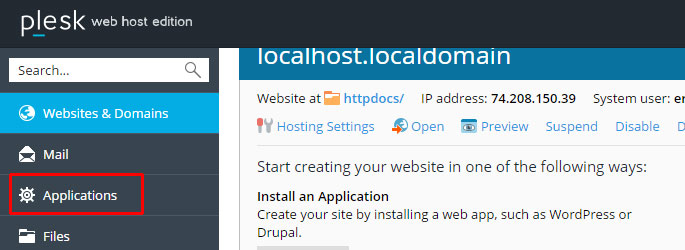
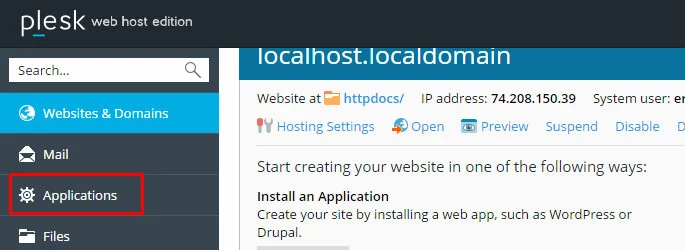
Click Install for WordPress on the Applications page.
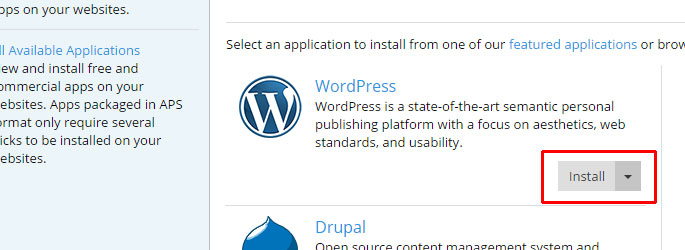
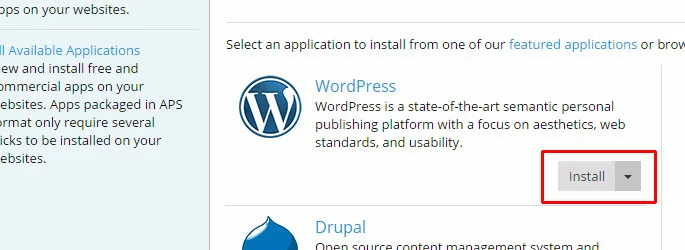
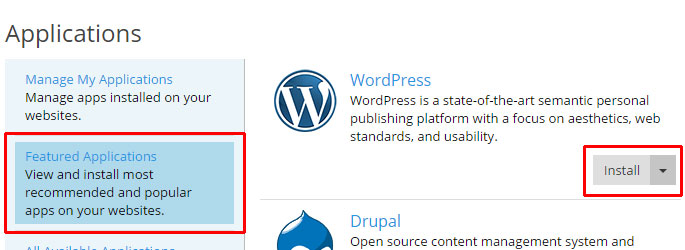
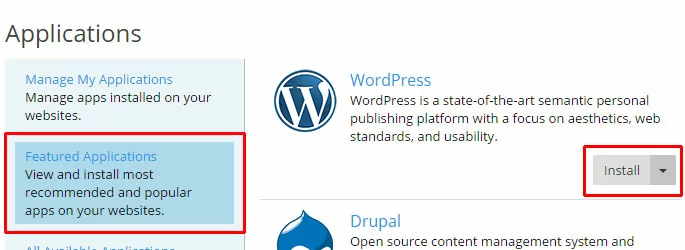
WordPress can also be found in the Featured Applications section.
It will take a few moments for the WordPress application to download and install. After the process completes, you will be able to view and manage your WordPress installation.
Manage WordPress
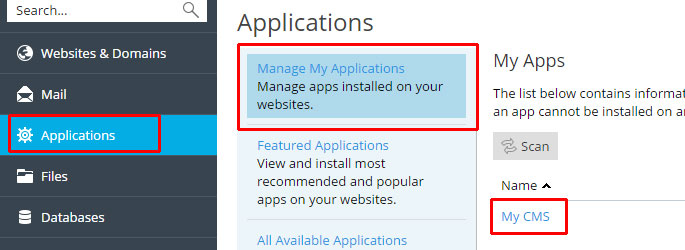
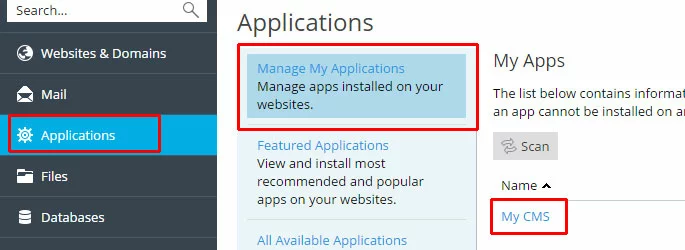
To manage the WordPress installation, go to Applications > Manage My Applications and click on My CMS.
Update the site name
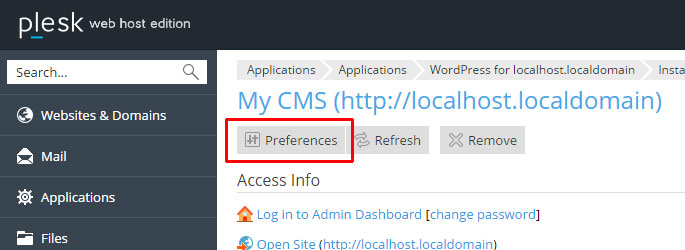
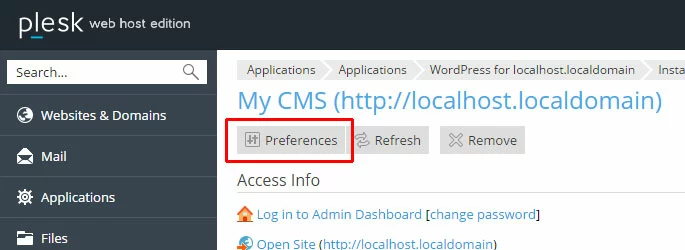
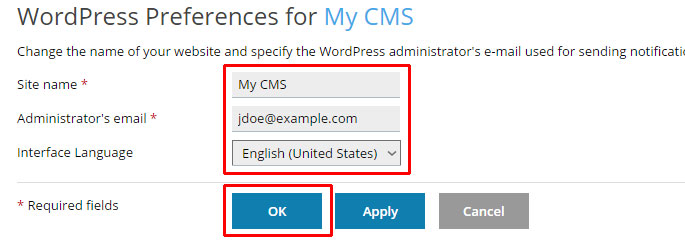
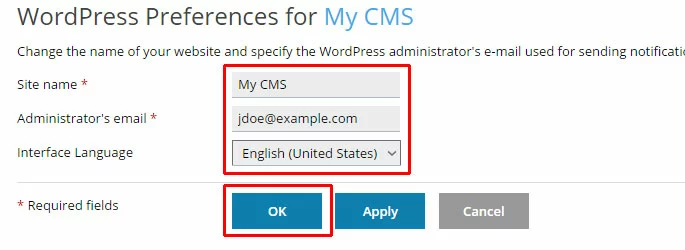
Click the Preferences button to update the WordPress site name and/or administrator email address.
Fill out the desired new site name, administrator email address, and/or interface language. Click OK to apply the changes and return to the main WordPress admin page.
Change the admin password
To change the admin password (which will default to the original admin password set for your Plesk installation), click change password.
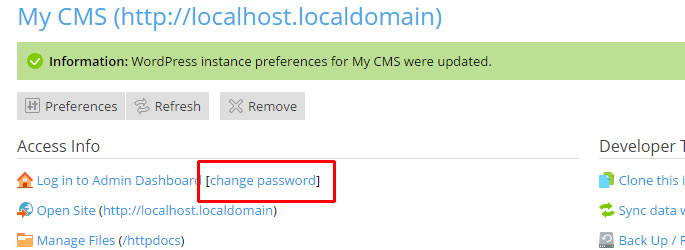
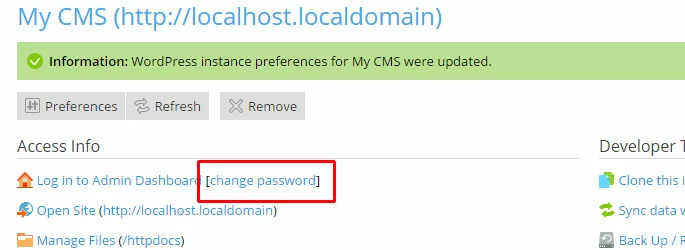
Click Change to change the password.
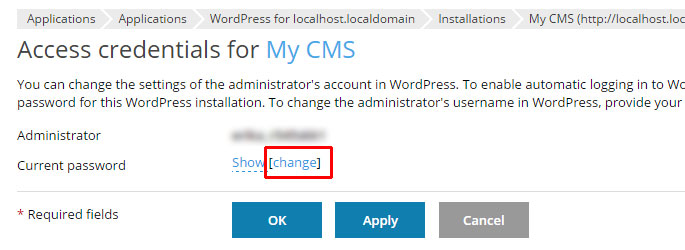
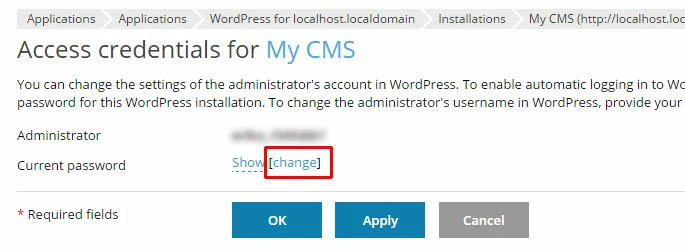
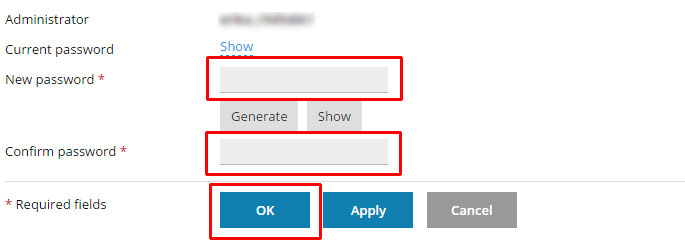
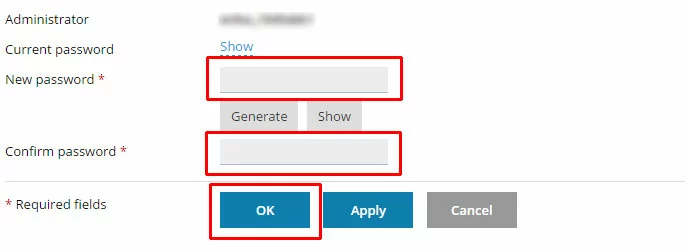
Enter the new password twice, then click OK to save the change and return to the WordPress management page.
Access the WordPress admin panel
Click Log in to Admin Dashboard to log in to the WordPress admin panel.
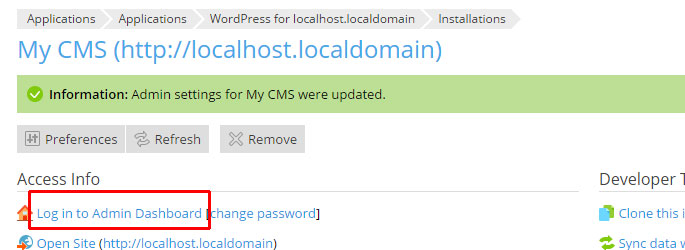
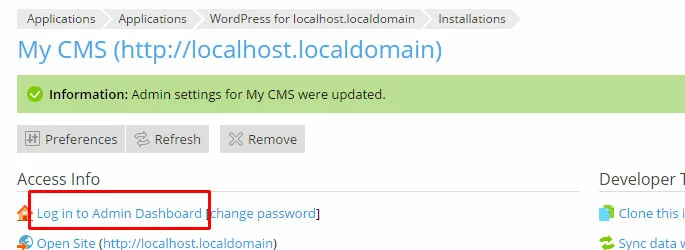
This will log you in without having to enter a password.
- Loading 3x faster for happier customers
- Rock-solid 99.99% uptime and advanced protection
- Only at IONOS: up to 500 GB included
Reviewers

Melissa Senn
Melissa Senn has been with IONOS since 2016 and focuses on website, e-commerce, social media, and AI in the Digital Guide. As a digital strategist, she uses her extensive SEO and GEO experience to transform complex technological trends into practical content.

Julia Hertler
With over 18 years of experience in content marketing, Julia Hertler has deep expertise in digital communications. For the past 10 years, she has specialised in the areas of domains and hosting at the IONOS Digital Guide, making complex technical topics easy to understand.