The best WordPress menu plugins

Good websites make it easy for users to find what they’re looking for. After all, there’s no point in creating great content if no-one can find it! It’s therefore crucial that your site has a clear, intuitive navigation system that’s adapted to your audience and objectives.
WordPress menu plugins provide features and options that you don’t get in the basic Content Management System, allowing you to create attractive, user-friendly menus for your site.
This article was last updated in August 2021.
- Free website protection with SSL Wildcard included
- Free private registration for greater privacy
- Free Domain Connect for easy DNS setup
Four WordPress menu plugins and their features
Let’s take a closer look at some popular WordPress menu plugins. The comparison table below lists four plugins and their key features:
| Feature | Max Mega Menu | WP Mega Menu | UberMenu | Mega Main Menu |
| Built-in drag-and-drop builder | ✗ | ✓ | ✓ | ✗ |
| Theme compatibility | ✓ | ✓ | ✓ | ✓ |
| Responsive menus | ✓ | ✓ | ✓ | ✓ |
| Horizontal mega menus | ✓ | ✓ | ✓ | ✓ |
| Vertical mega menus | ✓ (pro version) | ✓ (pro version) | ✓ | ✓ |
| Multiple menus at the same time | ✓ | ✓ | ✓ | ✓ |
| Animation effects for sub-menus | ✓ | ✓ | ✓ | ✓ |
| Flyouts | ✓ | ✓ | ✓ | ✗ |
| Tabbed sub-menus | ✓ (pro version) | ✓ (pro version) | ✓ | ✗ |
| Sticky menus | ✓ (pro version) | ✓ (pro version) | ✓ (via an extension) | ✓ |
| Accordion menus | ✓ (pro version) | ✓ (pro version) | ✓ | ✗ |
| Integration of WordPress widgets | ✓ | ✓ | ✓ | ✓ |
| Integration of the WooCommerce shopping cart symbol | ✓ (pro version) | ✓ | ✓ | ✗ |
| Conditional logic (selective display of menu items for specific user groups/logged-in users) | ✓ (pro version) | ✓ (pro version) | ✗ | ✗ |
| Expanding search bar | ✓ (pro version) | ✓ (pro version) | ✓ | ✓ |
| Easy logo integration | ✓ (pro version) | ✓ (pro version) | ✗ | ✓ |
| Compatibility with shortcodes | ✓ (pro version) | ✓ | ✓ | ✓ |
| Customiszer | ✓ | ✓ | ✓ | ✓ |
| Customiszer for specific menu items | ✓ | ✓ (pro version) | ✓ | ✗ |
| Templates | ✓ | ✓ | ✗ | ✗ |
| Font Awesome icons | ✓ (pro version) | ✓ | ✓ | ✓ |
| Custom icons | ✓ (pro version) | ✓ (pro version) | ✗ | ✓ |
| Google Fonts | ✓ (pro version) | ✓ (pro version) | ✓ | ✓ |
| Automatic creation of sub-menus | ✗ | ✗ | ✗ | ✓ |
| Price (pro version) | From 29 USD | From 29 USD | 25 USD | 16 USD |
Why do I need a WordPress menu plugin?
The WordPress Content Management System comes with everything you need to build a WordPress menu. However, the editing options are rather limited, so you can’t change the structure or appearance of your menus much. This is where WordPress menu plugins come in useful. It’s definitely worth installing one if you need any of the following:
- Responsive design: In some themes, navigation elements don’t adapt very well to different screen widths and devices. With WordPress menu plugins, the menus are designed to display correctly on any screen.
- Mega menus: The advantage of mega menus is that they display all the menu and sub-menu options at once. Users don’t need to pan or scroll, so they can see at a glance what’s available. Mega menus are particularly effective on sites that have lots of sub-pages. If your theme doesn’t support mega menus, you’ll need a plugin to get access to this feature.
- Custom design: Most themes only have limited options for menu design. The best WordPress menu plugins come with several templates.
- Images and other media in menus: Putting images, graphics or even short videos in your menus is a great way of grabbing visitors’ attention. E-commerce websites often use pictures to highlight certain products or product categories, for example.
- Animations and other effects: With a WordPress menu plugin it’s easy to add special effects like menu animations and page transitions.
- A user-friendly solution: WordPress menu plugins are generally more intuitive and user-friendly than the built-in WordPress features.
- Support: If you want access to technical support, it’s a good idea to pay for a high-quality menu plugin. The support team should be able to answer any questions you have along the way.
What to look for in a WordPress menu plugin
There are lots of WordPress menu plugins out there, so you need to know what features you want. As a minimum, a good plugin should provide the following:
- Responsive design: The plugin should optimise menus for all devices and screen sizes.
- Mega menus: Even if you don’t need a mega menu to start with, you may find you want to add one later on, so it’s a good idea to look for a plugin that offers this feature.
- Templates: The simplest way to build your website menus and navigation elements is to use a template, so look for a plugin with a large selection. Choose the one you like best and tweak it to suit your content.
- Drag-and-drop functionality and a visual builder: The built-in WordPress menu tool does support drag-and-drop, but most plugins take this a step further. Visual builders are especially useful because they show exactly what your menu will look like as you build it.
- Built-in customiser: Feeling creative? For maximum control over the appearance of your menus, look for a WordPress menu plugin that lets you customise colours, fonts and sizes, add animations and other effects, and create sticky menus or flyouts in a few clicks.
- Media support: If you want to use images or other media to highlight certain items in your menus, look for a plugin with media support.
- Compatibility: Make sure you choose a WordPress menu plugin that’s compatible with any WordPress theme and with WooCommerce. You should also check that the developer updates the plugin regularly, so that it will run flawlessly with newer versions of WordPress and WooCommerce.

Our pick: the best WordPress menu plugins
There are lots of WordPress menu plugins, both free and paid. We’ve picked four that are worth a closer look:
Max Mega Menu
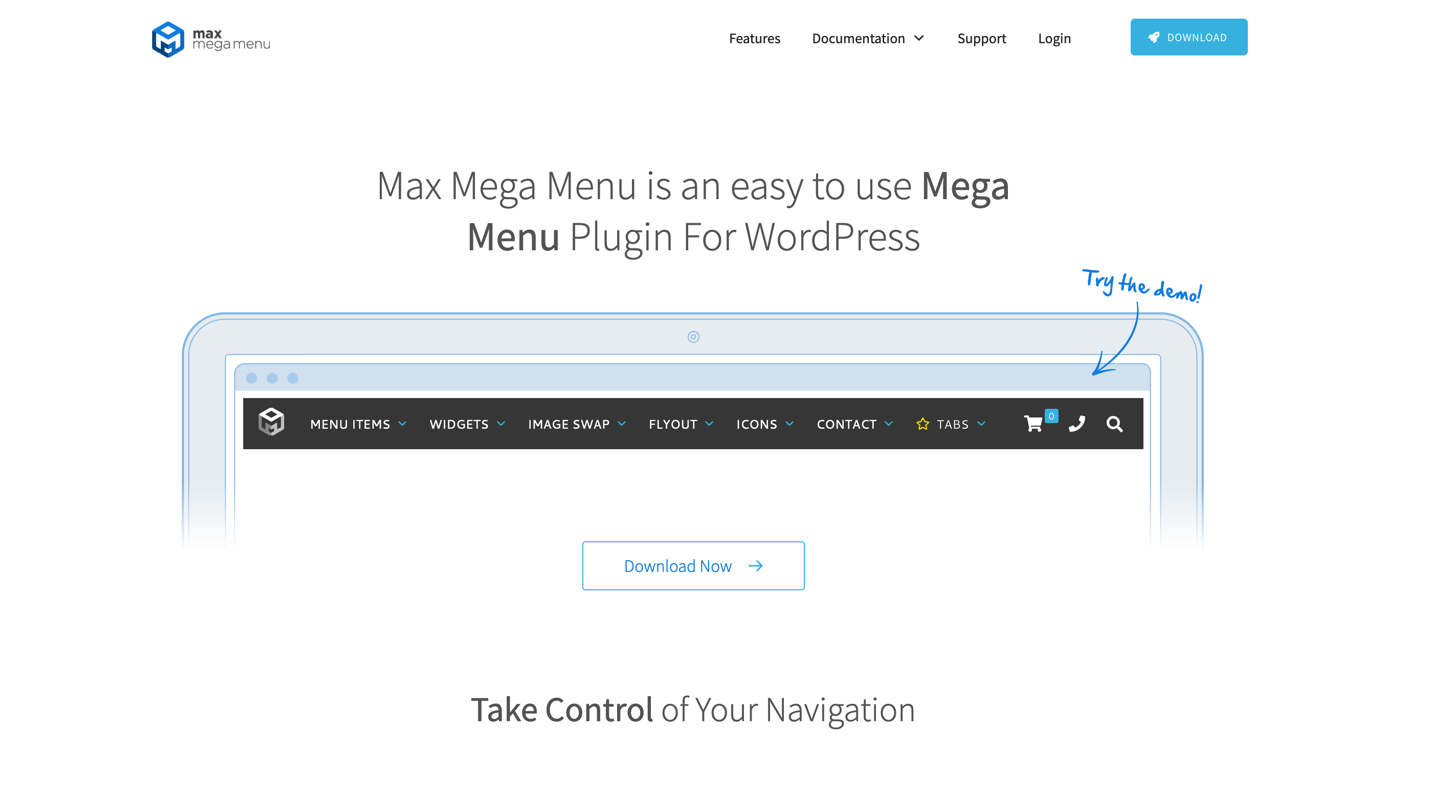
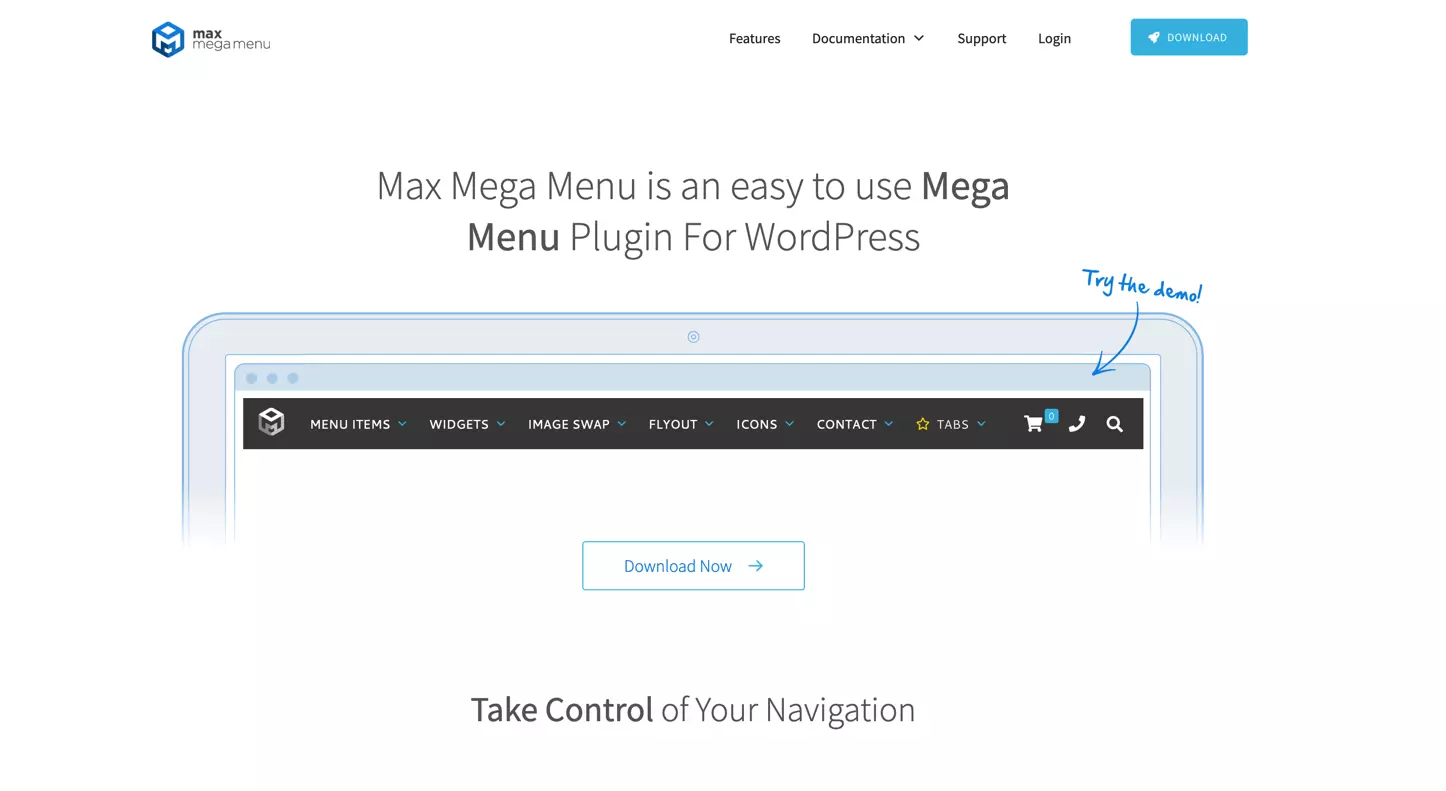
Max Mega Menu is one of the most widely used WordPress menu plugins. The free version has plenty of great features, but there’s also a paid version with added functionality.
You can quickly transform your menu into a mega menu and integrate all kinds of WordPress widgets. The plugin features are simply added to the standard WordPress interface, so you don’t need to worry about getting to grips with a new tool. There’s a handy drag-and-drop editor with options to add animations, transitions and icons, and a range of menu formats including flyouts, tabbed menus and vertical menus.
An important point to note is that Max Mega Menu is built with accessibility in mind. People with a visual impairment will therefore be able to use the keyboard or voice commands to navigate around your site.
Key features of the Max Mega Menu plugin for WordPress
- Drag-and-drop builder for ease of use
- Compatible with lots of themes
- Responsive menus for optimum display on different devices
- Horizontal mega menus
- Supports multiple menus, each with their own configuration
- Animation effects for sub-menus
- Built-in CSS3 transitions
- Flyouts
- Integrated WordPress widgets
- Customiser for styling menu items
- Templates for simple set-up
- Dashicon support
The pro version of this WordPress menu plugin lets you add a WooCommerce shopping trolley icon to your menu and create tabbed sub-menus and sticky menus.
| Advantages | Disadvantages |
| ✓ Accessible menus | ✗ Some features are only available in the pro version (e.g. sticky menus, WooCommerce shopping cart icon) |
| ✓ Easy to use thanks to the drag-and-drop builder and customiszer | ✗ No menu backgrounds |
| ✓ Menu positions are easy to configure | ✗ FontAwesome icons are only available in the paid version |
| ✓ Interesting animations | |
| ✓ Paid version is reasonably priced |
WP Mega Menu
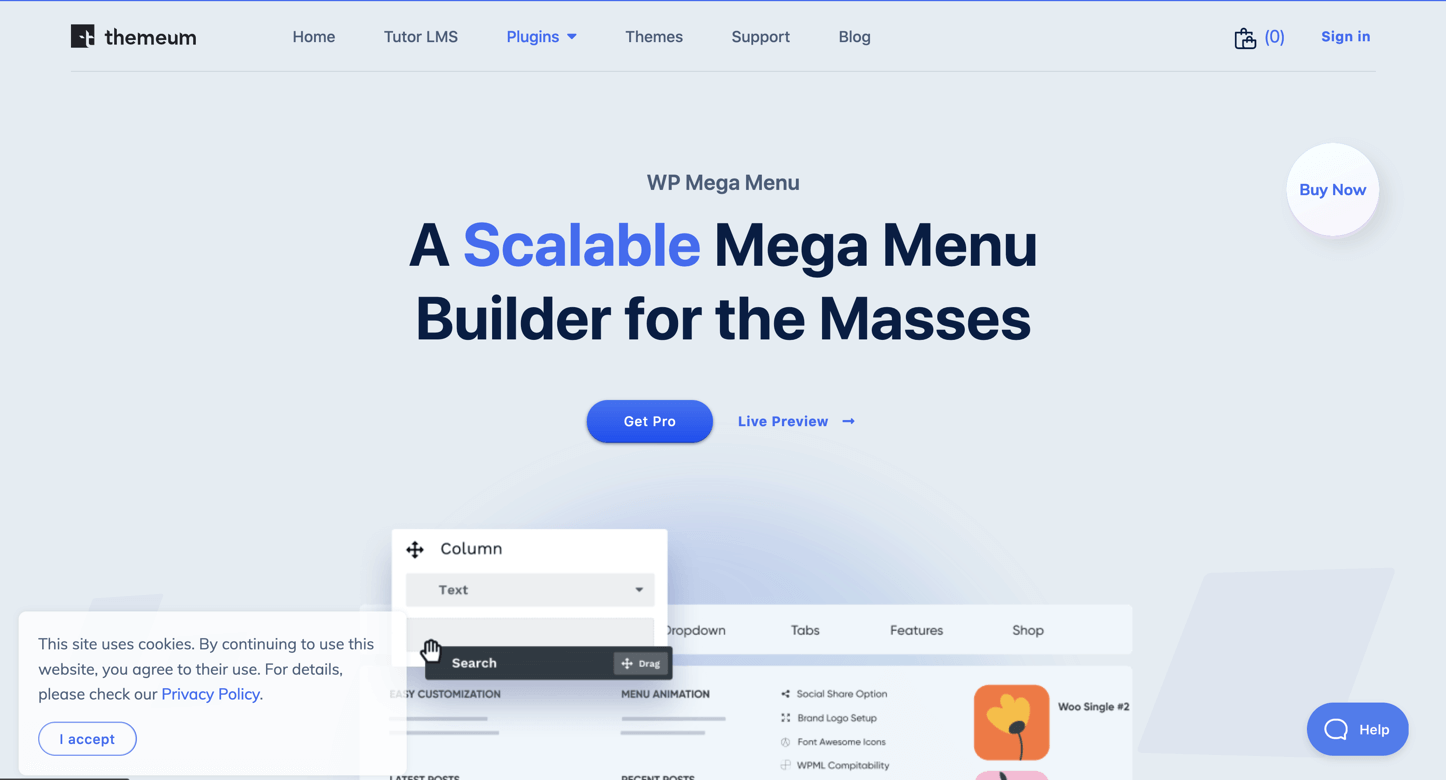
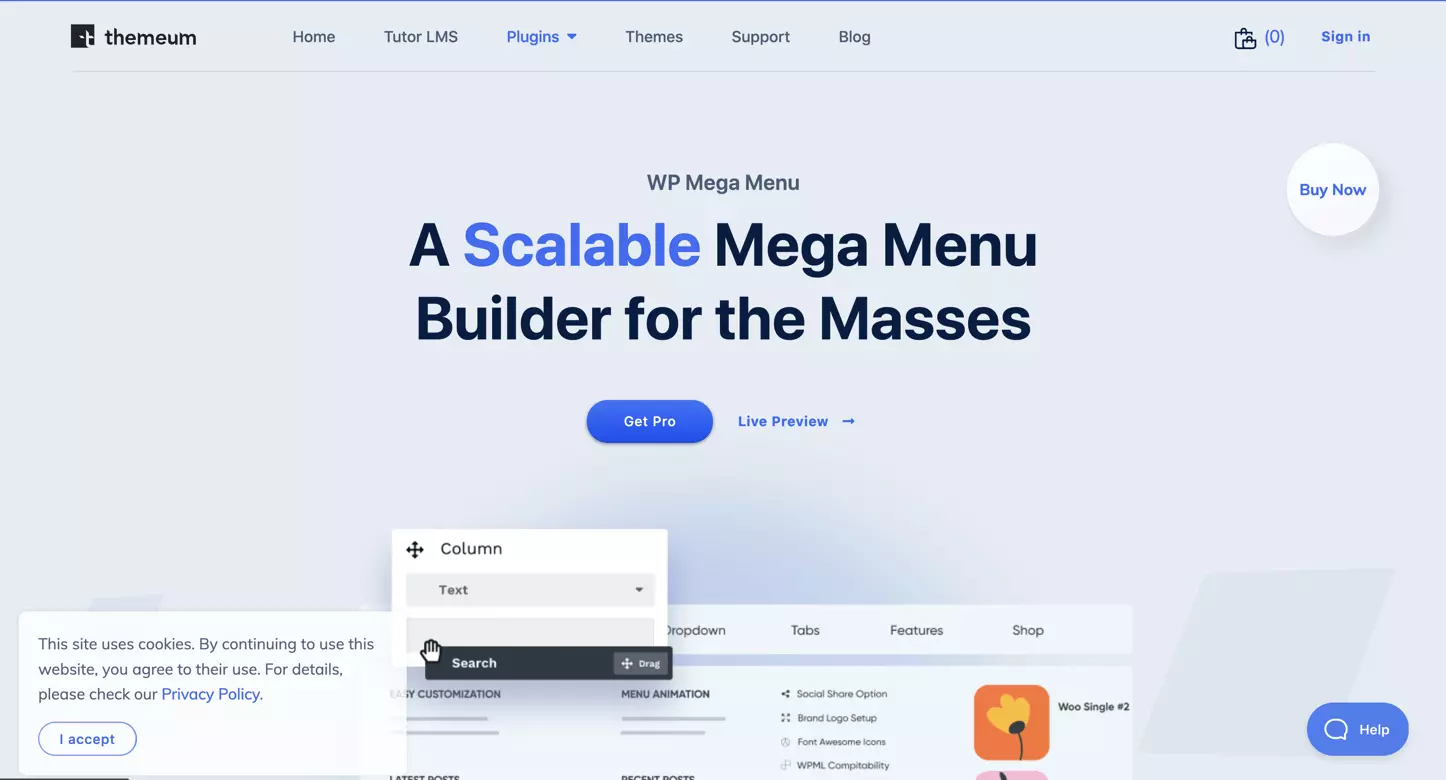
Like Max Mega Menu, WP Mega Menu has both a free and a paid version. In the free version of WP Mega Menu you can create mega menus with product images, social media icons, and customised backgrounds. For even more options, go for the pro version, which includes features such as tabbed mega menus, custom icons, and menu logos.
Thanks to the intuitive drag-and-drop editor, creating and customising a new menu is a breeze. The visual builder is also ideal for setting out your menu in rows and columns – there really are no limits!
Key features of the WP Mega Menu plugin for WordPress:
- Intuitive drag-and-drop builder
- Compatible with lots of themes
- Responsive menus
- Built-in customiser for fine-tuning
- Compatible with widgets
- Flyout menus are easy to create
- Social media icons
- Dashicons and Font Awesome icons
- Individual menu backgrounds
| Advantages | Disadvantages |
| ✓ User-friendly drag-and-drop builder | ✗ Some features are only available in the pro version (e.g. sticky menus, accordion menus) |
| ✓ Each menu can have its own background image | ✗ Menus are not easily accessible |
| ✓ Font Awesome icons included in the free version | |
| ✓ Ideal for multi-level mega menus | |
| ✓ Customiszer for styling menus | |
| ✓ Paid version is reasonably priced |
- Stress-free, no matter your skill level with easy AI tools
- Full customisation with themes and plugins
- Hassle-free updates and less admin
The UberMenu WordPress menu plugin
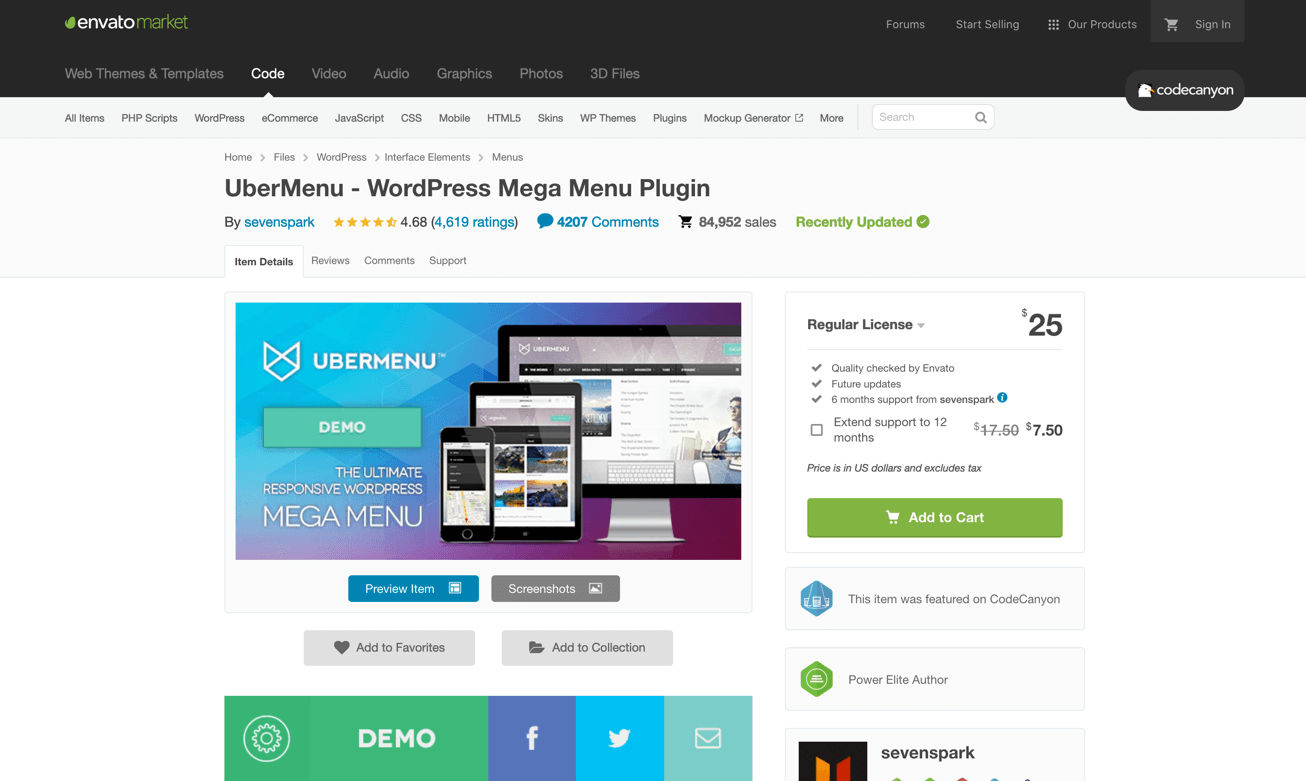
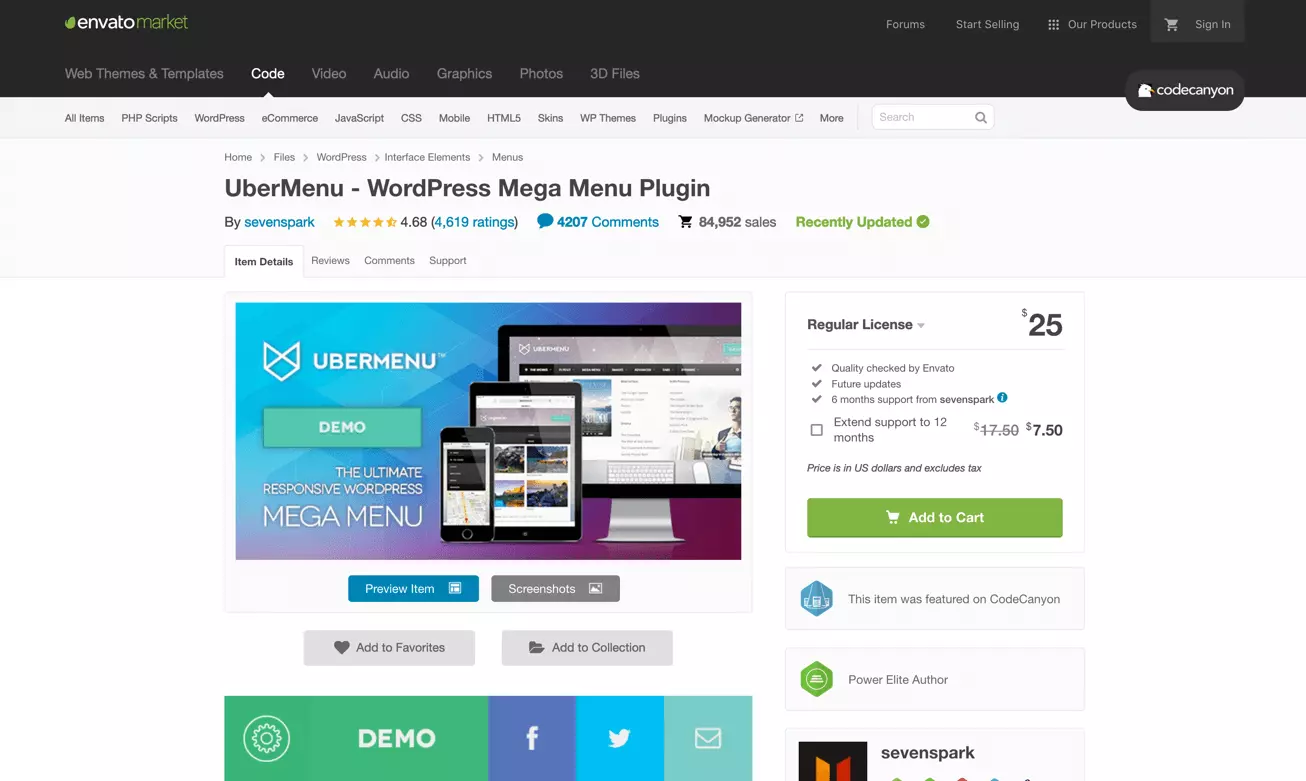
UberMenu is only available as a paid plugin, for 25 USD (around 20 GBP), but you certainly get a lot for your money. There’s a reason it’s one of the best-selling WordPress menu plugins on CodeCanyon! Thanks to the clear grid system and live preview mode in the customiser, even users without any programming experience can create highly customised, attractive navigation features. UberMenu also has a particularly helpful function that automatically creates sub-menus based on criteria such as category, parent item, or page type.
This WordPress menu plugin also supports HTML, shortcodes, widgets and much more. This means you can insert product images, Google maps, forms, and search boxes in any of your menus.
Key features of UberMenu:
- Customised layouts (grid system)
- Responsive, mobile-optimised menus (touch-enabled)
- User-defined responsive breakpoints
- Integrated animations for special effects
- Vertical and horizontal menus
- Media support for images in mega menus
- Advanced content: options for integrating HTML code, widgets and shortcodes to create a fully customised mega menu
- Customiser with Live Preview mode for changing background colours, font style and colour and more, including for individual menu items
- Google Fonts
- Automatic generation of sub-menus based on category, parent item, post type and other criteria
- Tabbed sub-menus for a clearer overview
- Auto-save functionality using AJAX
| Advantages | Disadvantages |
| ✓ Automatically saves changes, so you won’t lose anything | ✗ No free version |
| ✓ Ideal for automatic menu generation (e.g. for blog posts) | ✗ No drag-and-drop builder |
| ✓ Customiszer for individual menu items | ✗ Menus are not easily accessible |
Mega Main Menu
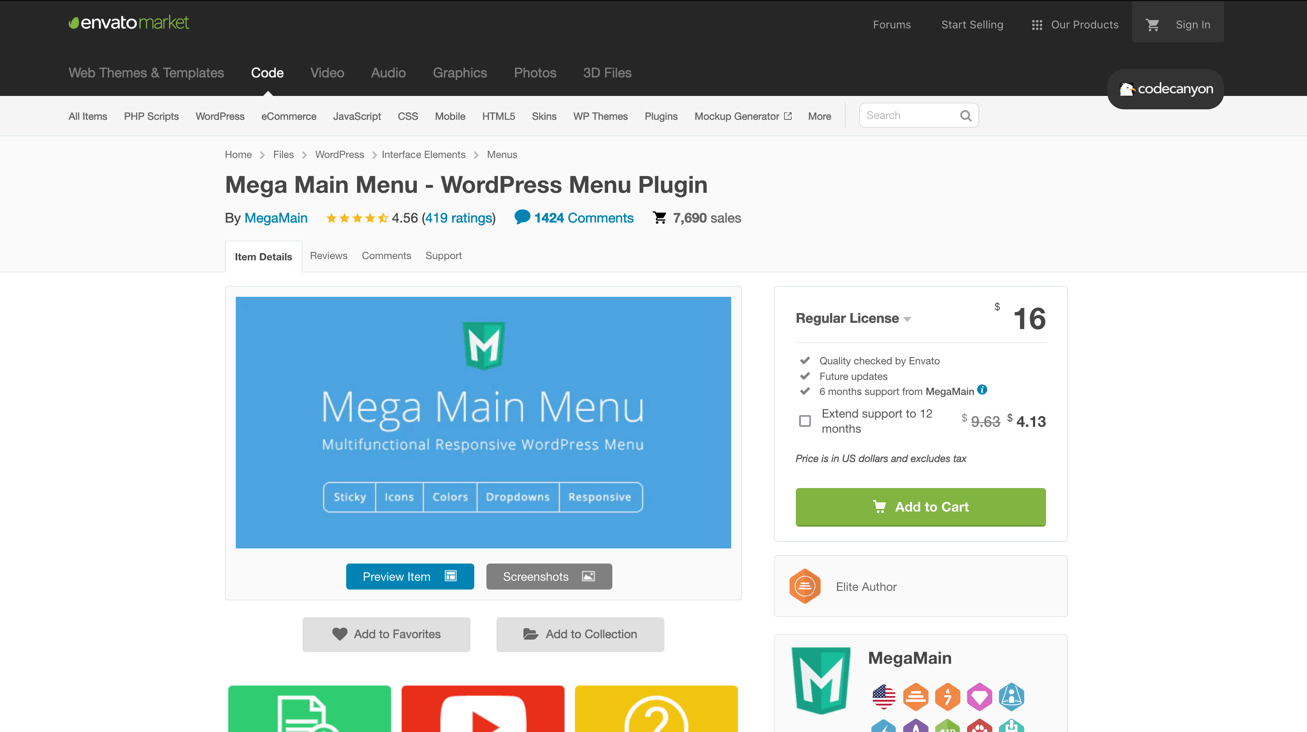
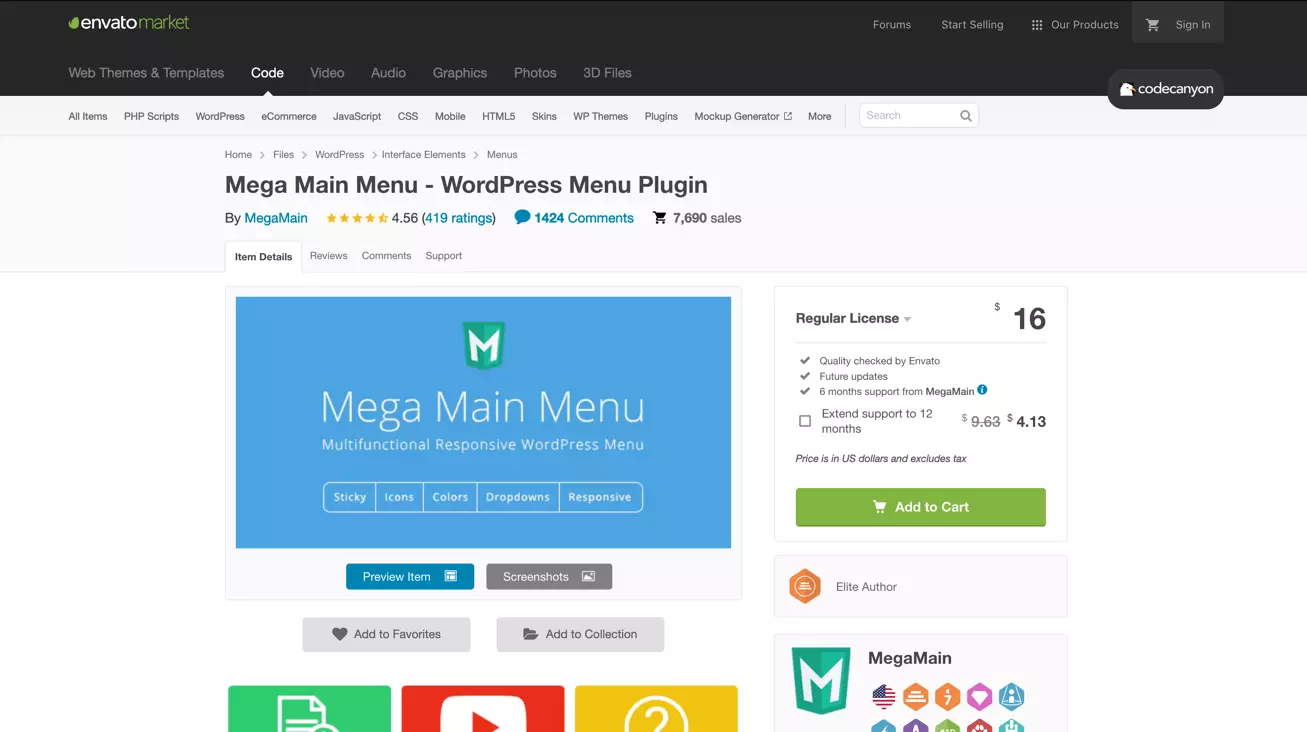
Mega Main Menu is another premium WordPress menu plugin, also available from CodeCanyon. It costs 16 USD (around 12 GBP), and offers features such as sticky menus, a range of dropdown formats, and unlimited colour customisation. Mega Main Menu adds sections to the default WordPress menu builder, so it’s very straightforward to create your menus.
This WordPress menu plugin is compatible with multilingual websites that use WPML or WEGLOT. In terms of look and feel, it is simpler than UberMenu, but an excellent choice if you want to save some money.
Key features of the Mega Main Menu plugin for WordPress:
- Supports different content types, including shortcodes, links, text, images, and widgets
- Includes sticky menus and dropdown menus
- Includes horizontal and vertical menus
- Logo and search box can be integrated in the menu
- Unlimited colour selection, so you can fully customise menus to match your website
- Google Fonts
- More than 1600 vector icons
- Compatible with WPML and WEGLOT
- Friendly support
| Advantages | Disadvantages |
| ✓ Reasonably priced premium version | ✗ No free version |
| ✓ Ideal for menus on multilingual websites | ✗ No drag-and-drop builder |
| ✓ Fast and friendly customer support | ✗ Menus are not easily accessible |
| ✓ Builds on the standard WordPress menu builder, so no steep learning curve |
If you’re planning to make extensive changes to your menus, remember to turn on WordPress maintenance mode. This will prevent error messages from popping up when people visit your site.