

What is the WordPress Maintenance Mode?

To keep your website technically updated, you should edit it once in a while. This usually involves updates, such as ones from plugins or WordPress itself. Since the site is not available online during the updating process, WordPress offers the Maintenance Mode, which avoids irritating visitors with an error message. If you activate it while making technical edits, for example to the theme or template, visitors are shown a special maintenance mode page.
- Free website protection with SSL Wildcard included
- Free private registration for greater privacy
- Free Domain Connect for easy DNS setup
With the maintenance mode, you avoid displaying an error message or, worse, the “White Screen of Death,” on your site, otherwise known as the blank page on WordPress. An example of a standard error page is one that displays HTTP-Error 503 “Service Unavailable”:
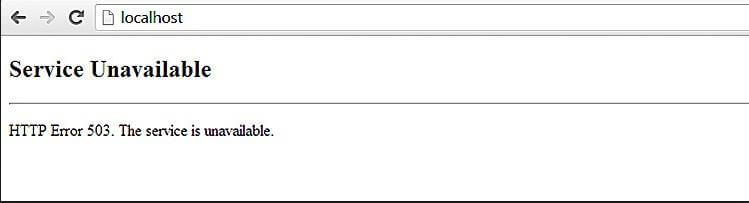
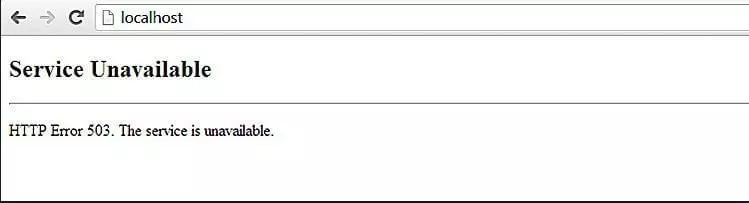
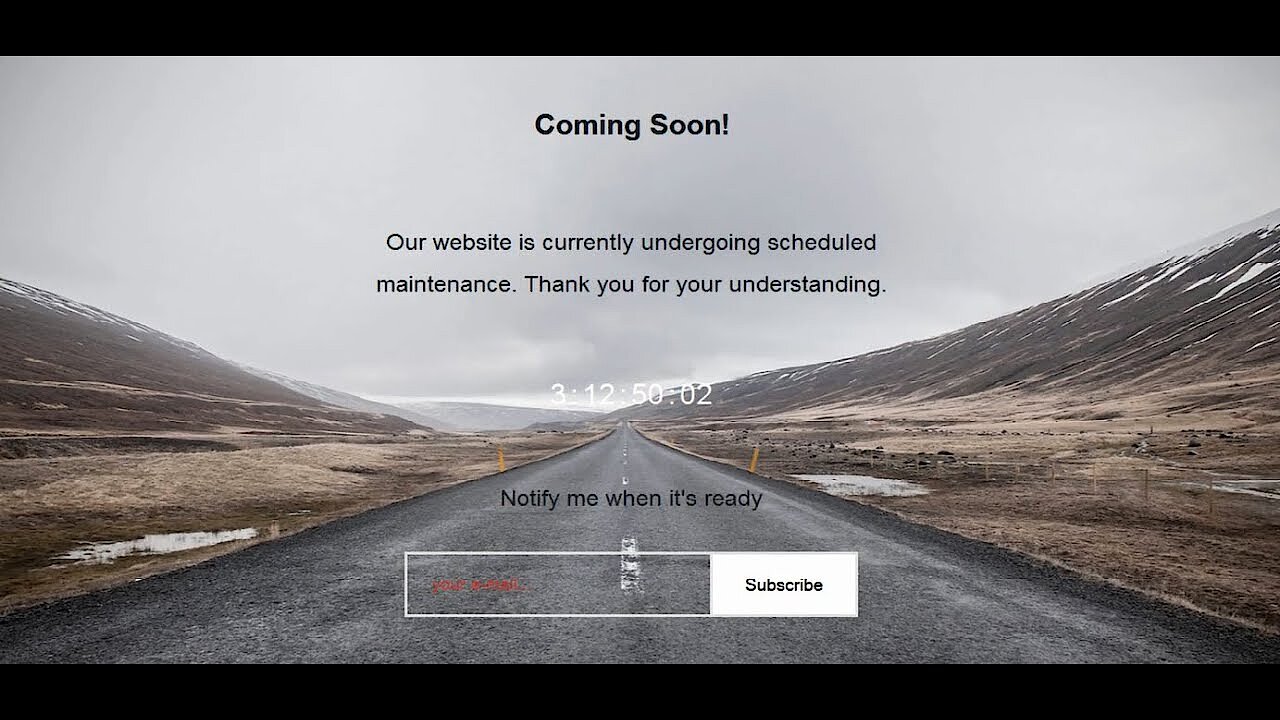
This leaves visitors in the dark about why your site is unavailable. If worst comes to worst, people will think your website was permanently shut down. But keeping your readers updated with the maintenance mode will prevent you from losing them. The displayed site could look something like this:
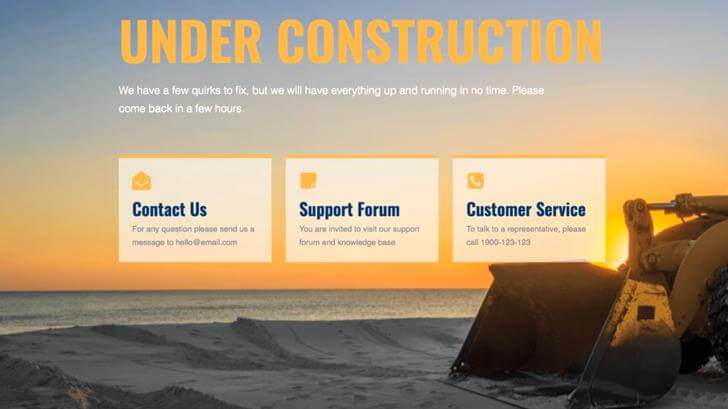
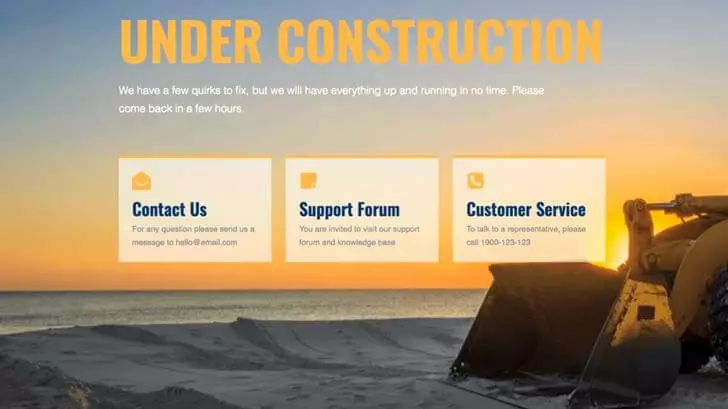
This allows visitors to immediately see that your website is temporarily offline. Furthermore, you can house contact information and other useful features on the briefly displayed site. That way, you won’t be abandoning your readers.
How do I activate maintenance mode?
WordPress Maintenance Mode can be activated manually or with a plugin. Which one is more appropriate depends on which updates you are planning to make and what your level of knowledge is. If it is just a case of small edits, it is generally not necessary to use a plugin. However, if the update is costly and your web project is extensive, an additional plugin can be advantageous. For instance, this can allow you to automatically inform your readers on how long the maintenance will last and when the site will be available again.
Since its version 3.0, WordPress has had its own maintenance mode, which it automatically switches to as soon as a theme or plugin is updated. You can activate or deactivate it yourself, without needing to install supplementary add-ons.
Activating maintenance mode without a plugin
If you want to manually switch to WordPress Maintenance Mode, you can add a file named .maintenance (note the full stop) to the root directory. In this file, insert the following PHP code:
<?php $upgrading = time(); ?>This file is automatically added, and generally also removed, when you use a plugin for maintenance mode. WordPress will also load it if it was manually generated. The received timestamp should be released, but you shouldn’t forget to delete the file after the maintenance is completed.
Another option for manually starting the maintenance mode is conducted with the functions.php file. functions.php is a template file that is used to add functions and features to the WordPress project. In this case, you enter a PHP code into the file, which serves to activate the maintenance mode. There are different types of such PHP codes. A possible entry into functions.php looks like this, for example:
<?php
function maintenance_mode() {
    if ( !current_user_can( 'administrator' ) ) {
        wp_die('Maintenance.');
    }
}
add_action('get_header', 'maintenance_mode');
?>
You can also enter a text, which is then displayed on the site during the maintenance. It is possible to include images, as well. This requires the necessary PHP knowledge, however. A simple entry into functions.php can look something like the following:
function kb_maintenance mode() {
    if ( !current_user_can( 'edit_themes' ) || !is_user_logged_in() ) {
    wp_die('
        <h1>We are updating our website</h1>
        <p>We are currently working on this website. Please check back soon.</p> ', 'Website in Maintenance Mode');
}}
add_action('get_header', 'kb_maintenance mode');
These codes pull up WordPress’ standard maintenance mode page. It is relatively easily set up.
How to activate the maintenance mode with a plugin
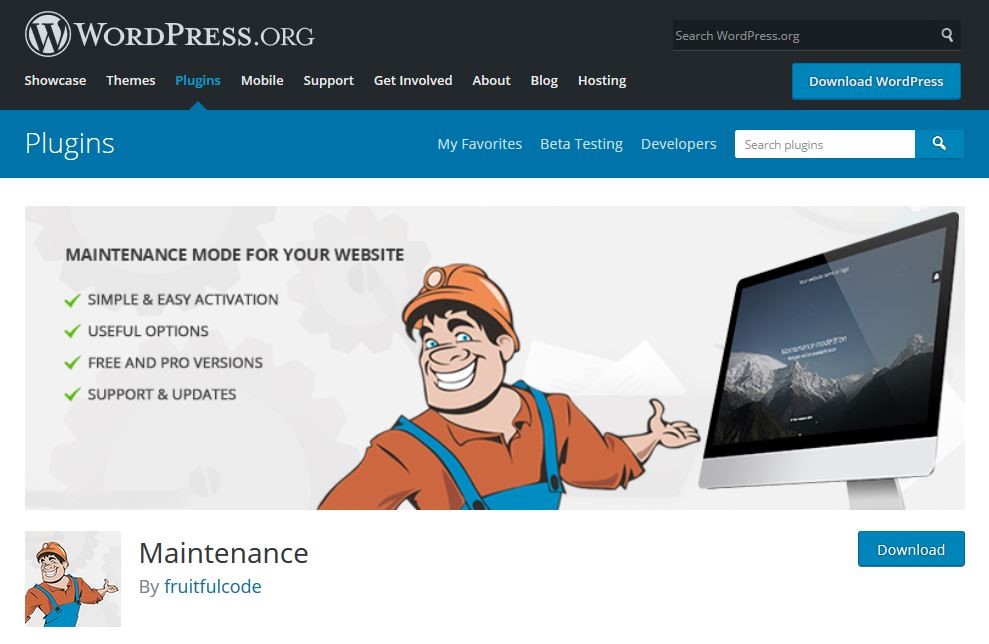
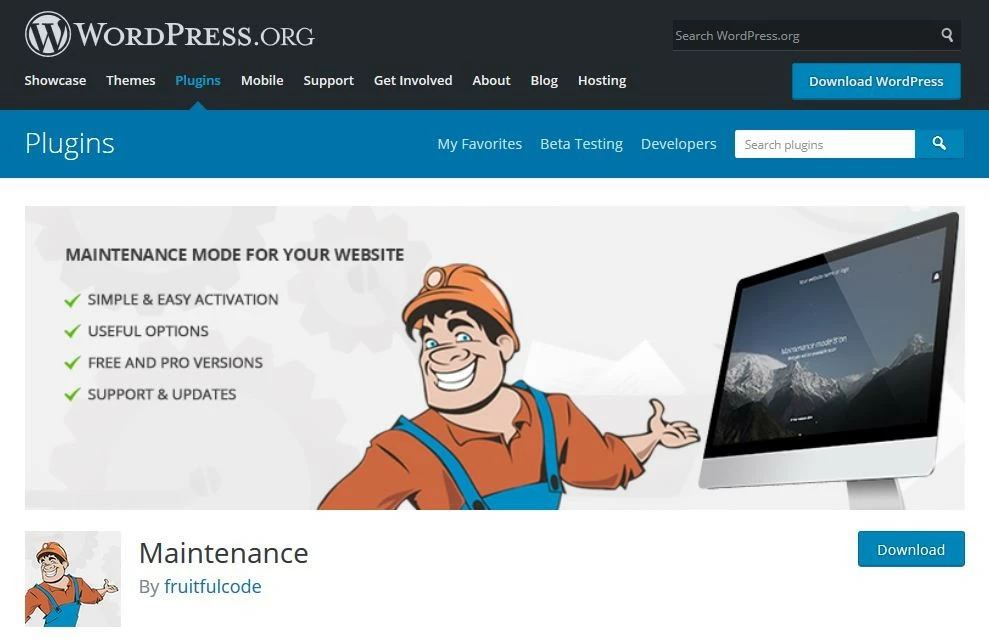
If you are not sure if you can handle the root directory and PHP, you can activate WordPress Maintenance Mode easily and quickly with a plugin. The appropriate plugin differs depending on your demands. Two of these will now be introduced. A WordPress plugin that provides many options for creating a maintenance mode page is simply named Maintenance. This plugin supplies different layout options for the site, which users are shown during maintenance. These layout options can be completely individualised: from text and color scheme all the way to the background, you can adjust and change everything as you see fit. For example, you can insert a countdown that indicates when the website will become available again. This also works with multi-site installations (each blog has its own maintenance mode settings in the network). Furthermore, you can give users the option to sign up for a newsletter while the maintenance is occurring. This function informs readers about the goings-on of the site and when it will be live again.
 To display this video, third-party cookies are required. You can access and change your cookie settings here.
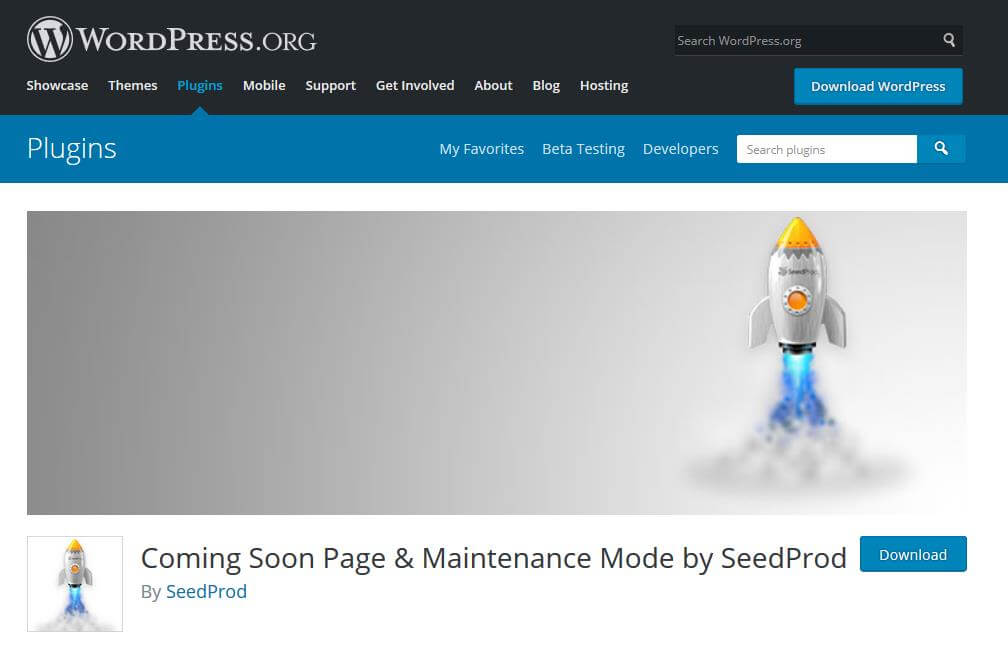
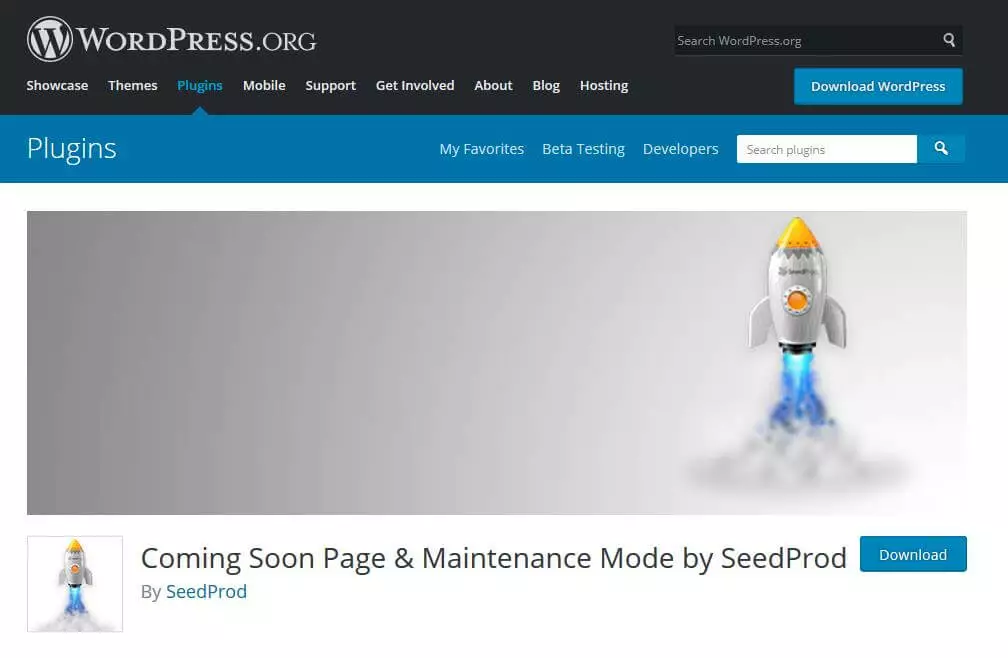
 Coming Soon Page & Maintenance Mode by SeedProd is also a good plugin for informing readers about the maintenance work being done on the website. This plugin allows you to add a heading, an SEO title, and a meta description. Additionally, it is possible to upload a logo or a teaser image, as well as to adjust the site in terms of visuals and content.
The advantage of this WordPress maintenance page plugin is that one can exclude subpages from the maintenance process, so that search engine bots can continue crawling the website while you make updates. A website that is completely in maintenance mode is classified as unavailable by web crawlers.
- Free WordPress with .co.uk
- Free website protection with one Wildcard SSL
- Free Domain Connect for easy DNS setup
What do you have to watch out for in maintenance mode?
If you operate a noncommercial site, you can choose which information to provide in the maintenance notification. However, those who operate a commercial site must note: maintenance mode doesn’t release you of your obligation to continue providing all mandatory parts of your legal terms. In other words, the webpage that is displayed during your maintenance process should include the legal terms. The legal terms section also includes details such as the e-mail address or mailing address of the website operator. Whatever your reason is for going into maintenance mode, it’s advisable to give your customers the opportunity to contact you – not only because it’s good service, but also because it allows you to answer questions such as the website downtime or specific maintenance procedures.
Which problems arise during the maintenance mode?
With the activation of WordPress Maintenance Mode, the temporary .maintenance file (which you can also manually create; see earlier section) is created in the main folder. After a successful conclusion to the maintenance process and the end of the maintenance mode, this file is usually deleted. Occasionally, however, an update is not correctly concluded. For example, this can happen if WordPress is accidentally closed during the maintenance process, or if the update is aborted because the plugin takes unusually long to load. In this case, the file is not closed, leaving you stuck in WordPress Maintenance Mode.
This problem can be easily fixed by manually deleting the .maintenance file. The only prerequisite for this is that you have the ability to access your web project via FTP (file transfer protocol).
FTP is a standard network protocol that transfers files between two hosts.
In order to delete the .maintenance file manually, follow these steps:
- Access the webserver with an FTP program (such as FileZilla)
- Switch into the root directory of WordPress
- Delete the .maintenance file
- Update again, if needed
If this doesn’t work, contact your website’s hosting provider, who can assist with further troubleshooting.