

How to change a Zoom background: Step by Step

Video conferencing tools like Zoom have become an indispensable part of everyday life. They facilitate socializing with friends and family, but also facilitate communication with customers and colleagues. Every new technology also raises new questions. One question that many Zoom users are probably familiar with is: How do I change my Zoom background? Virtual backgrounds on Zoom are quick to set up - learn how here!
Image requirements for Zoom backgrounds
To ensure that your Zoom background looks the way you want it to, you should follow a few rules. The following applies to static image backgrounds:
- File format: JPG, JPEG, PNG, GIF
- Size: minimum 1280x720 pixels
If you decide to use a video background, you should consider the following requirements:
- File format: MP4, MOV
- Size: minimum 480x360 pixels (360p), maximum 1920x1020 pixels (1080p)
Enable virtual Zoom backgrounds
Before you create your own Zoom meeting or join a Zoom meeting, check if you have enabled virtual Zoom backgrounds.
- Step 1: Log in to your profile menu in the browser via the 'zoom.us' web portal.
- Step 2: Go to 'Settings' in the left sidebar.
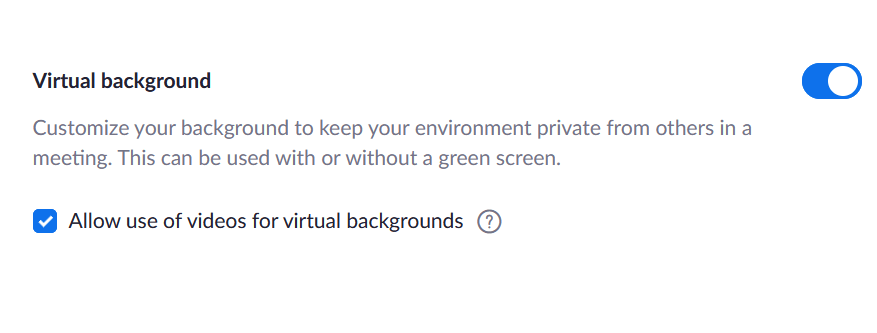
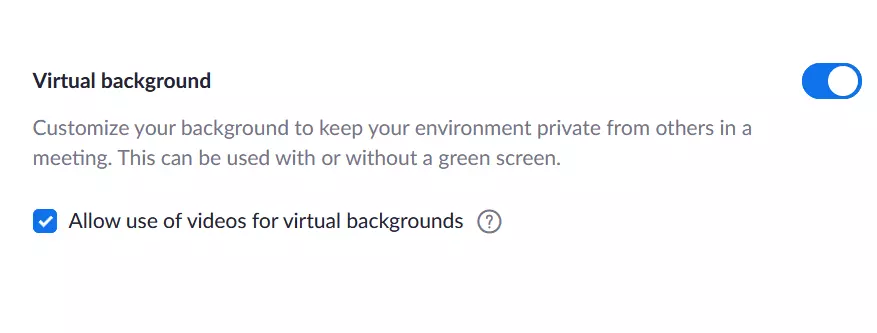
- Step 3: Under the 'Meeting' tab, scroll down until you get to 'Virtual Background'.
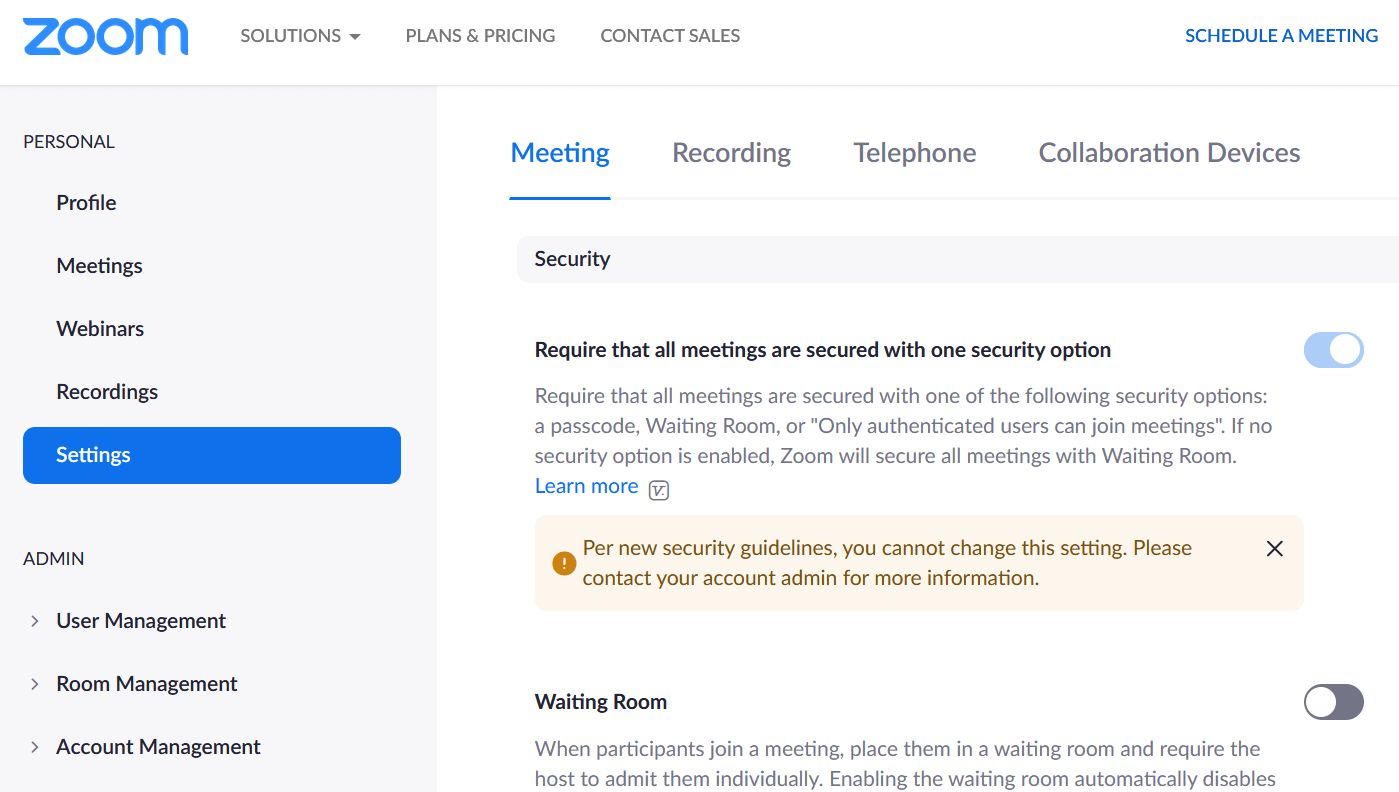
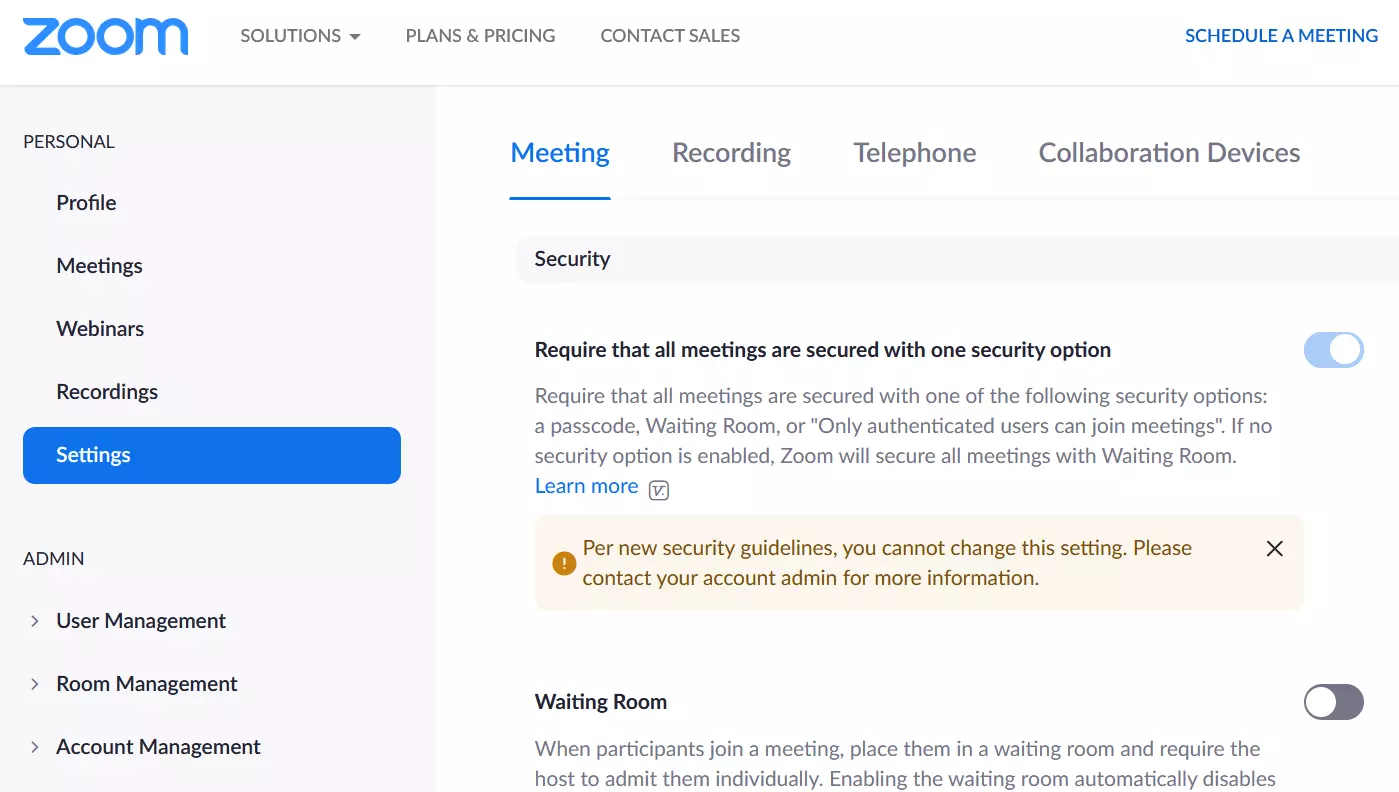
- Step 4: Allow the use of virtual backgrounds by activating the slider. If you want to allow the use of videos for virtual backgrounds, additionally activate the blue checkmark below it.
Users without a Zoom account only have the option to change Zoom backgrounds during a meeting. To do this, click the ‘^’ icon at the bottom next to ‘End Video’ during the Zoom call and go to ‘Virtual Background’. Use the ‘+’ icon to create your own backgrounds from your personal gallery.
How to change Zoom backgrounds
Getting your personalized Zoom background isn’t out of reach. First, create a gallery of images or videos that you save as possible Zoom wallpapers on your device for access at any time. Usually, Zoom also offers pre-set background templates in the app. Once your personal gallery is created, it’s time to set a custom Zoom background.
In a Desktop Client (Windows/Mac)
- Step 1: Launch the desktop client and log in to your Zoom profile.
- Step 2: In your profile menu, click on the profile picture and then on the gear icon ‘Settings’.
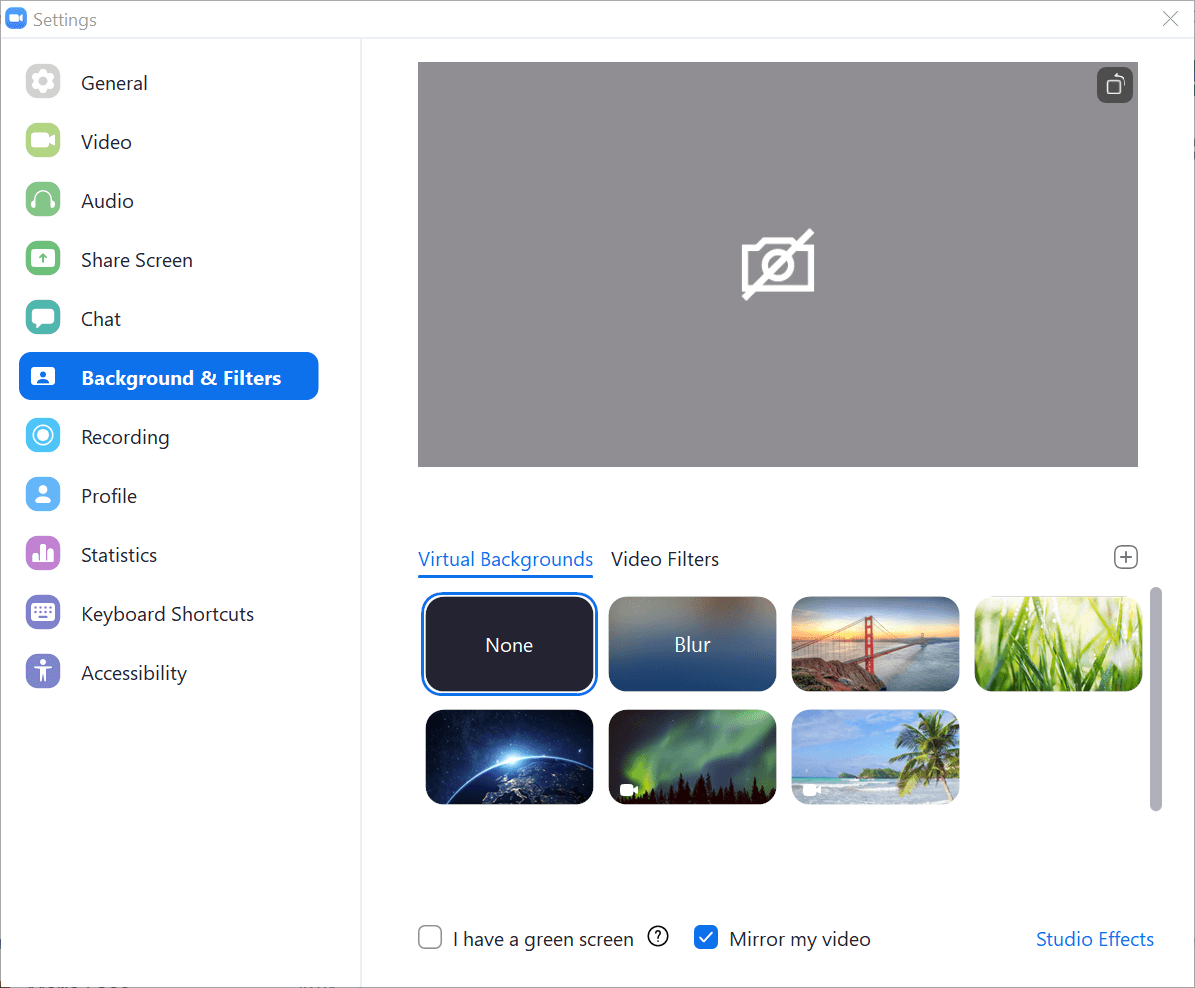
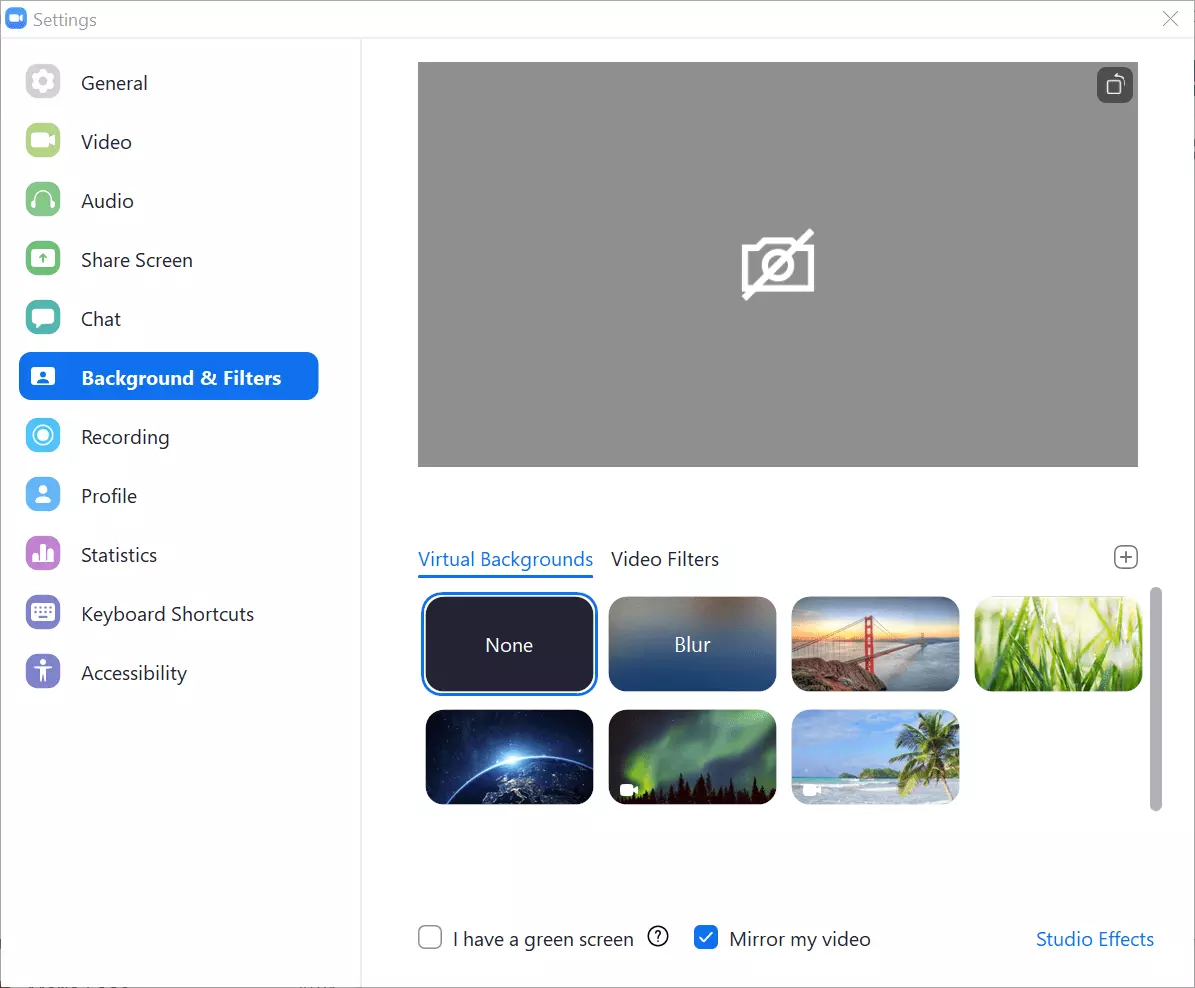
- Step 3: In the left sidebar, go to ‘Background & Filters’.
- Step 4: Create your own Zoom background in the ‘Background & Filter’ menu under ‘Virtual Background’. To do this, click on the ‘+’ symbol, upload your files and insert the desired image into the video. In the preview image you can see how the background looks. For easier selection, Zoom will add the uploaded image or video as a tile to the background templates.
- Step 5: If you are using a physical green screen, also check the bottom green screen checkbox under Virtual Background.
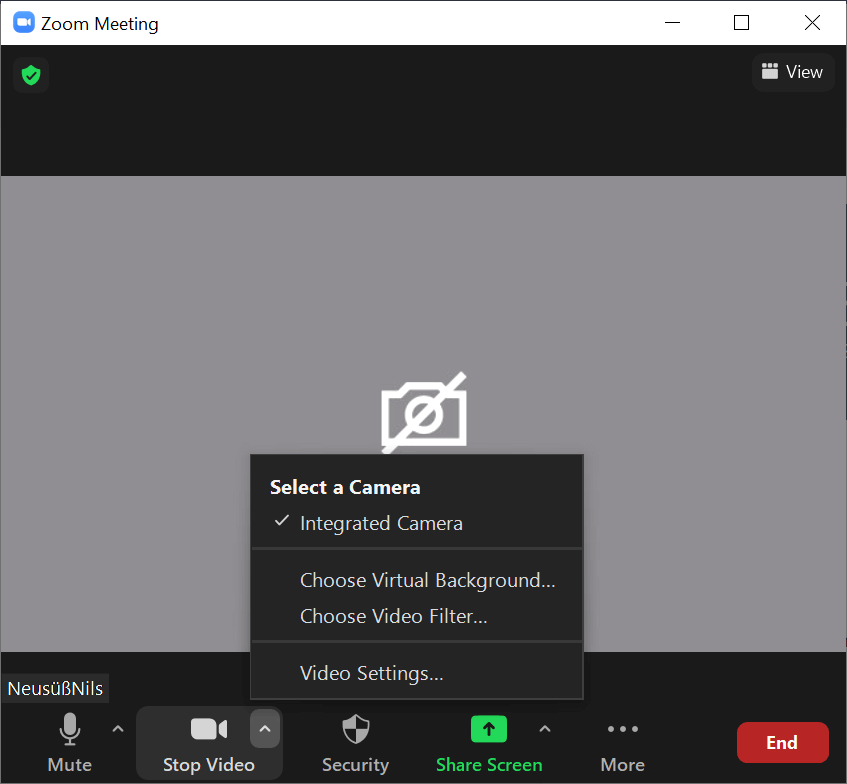
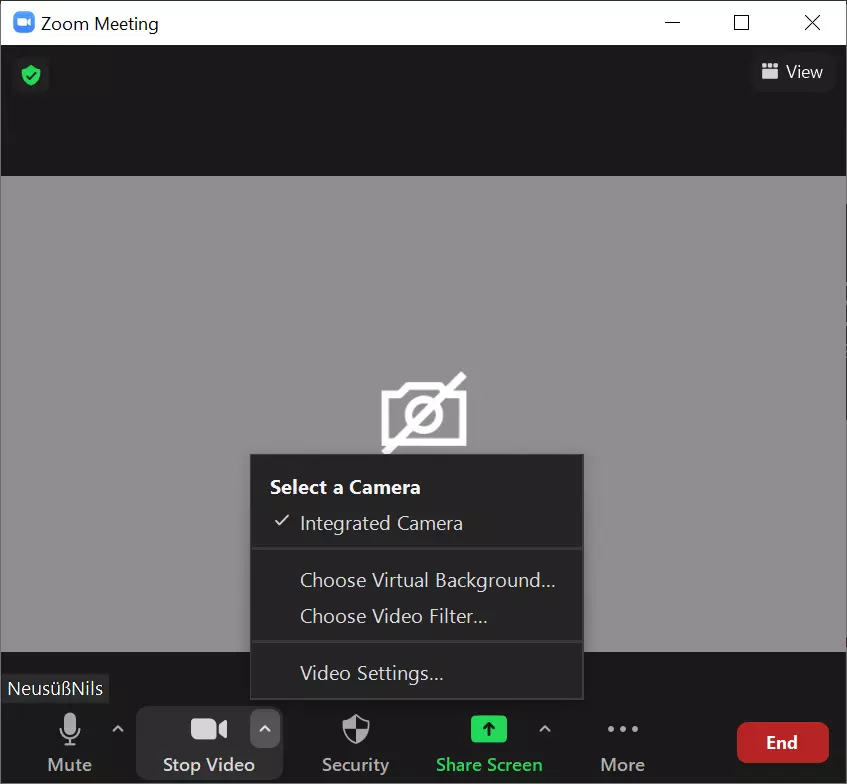
- Step 6: To change your Zoom background during a meeting, go to the ‘^’ icon at the bottom next to ‘End Video’. Select ‘Virtual Background’ and upload a background with the ‘+’ icon.
In App (iOS/Android)
- Step 1: Launch the Zoom app.
- Step 2: Go to ‘New Meeting’ and ‘Start Meeting’.
- Step 3: Click the ‘...’ icon at the top right corner.
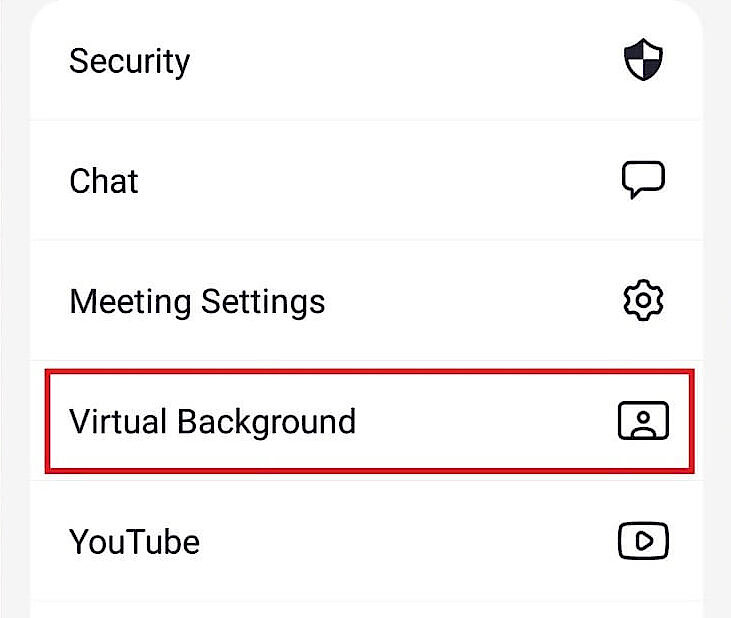
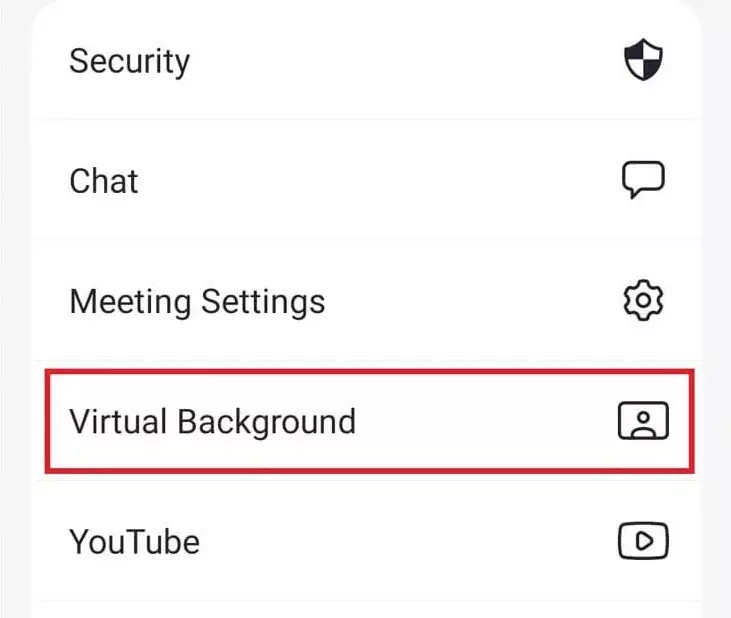
- Step 4: Now go to ‘Background & Filters’.
- Step 5: Under ‘Background & Filter’, click ‘+’ to upload a Zoom background or use pre-set templates. Select the file you want.
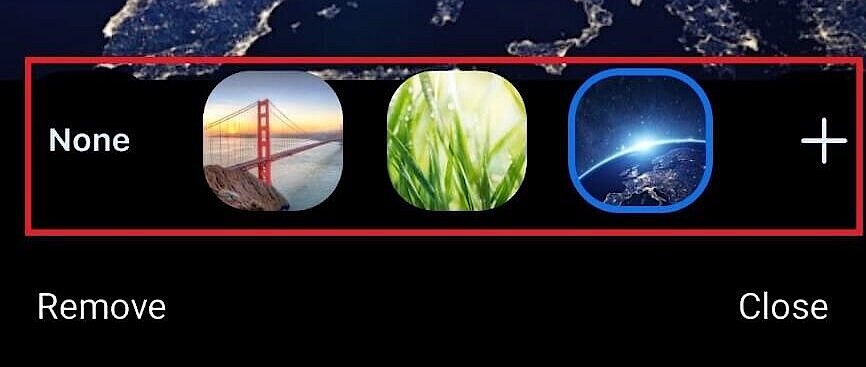
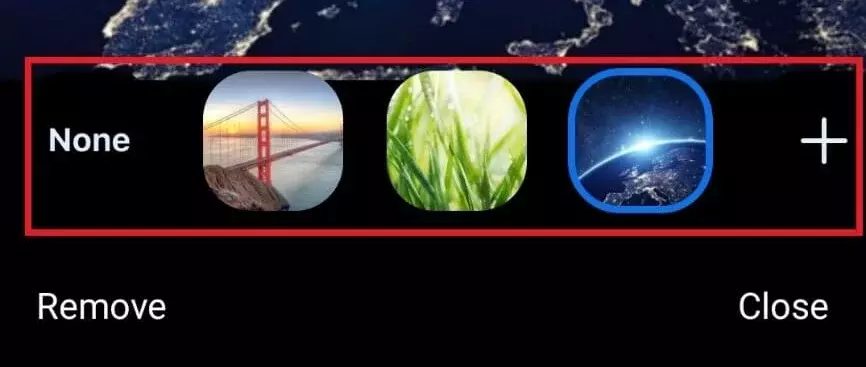
- Step 6: To change your Zoom background during or before a meeting, also click the ‘...’ icon and click ‘Background & Filters’.
Tips and tricks for the best Zoom backgrounds
To get your Zoom background just right, follow these simple tips:
- Make sure the background and camera area are evenly lit - not too bright, not too dark. An LED ring light is ideal for ensuring even lighting.
- If possible, use a physical background that is high-contrast and a solid colour (such as a uniform wall colour).
- If you are using a physical green screen, place it close behind you.
- If you want to display text in the background, uncheck the ‘Flip my video’ option.
- Avoid clothing the same colour as your virtual or physical background.
- Crop background images to fit your camera’s size ratio - for a 16:9 camera ratio, 1280x720 or 1920x1080 pixel images are optimal.
- Use a camera with high image quality.
As a rule, virtual backgrounds can be used with Zoom without problems with newer devices - whether PCs, notebooks, smartphones, or tablets. In rare cases, though, a physical, monochrome green screen may be required as a background on significantly older devices so that the actual background can also be replaced by the image.
Where to find templates for Zoom backgrounds
Zoom offers very few pre-set background templates in the app. Since your own background images are more creative anyway, you can easily compose backgrounds from your own images or videos or download free Zoom backgrounds. You can find a good selection for example in various image databases. But make sure to use only royalty-free images.
All the advantages of a Zoom background
Virtual zoom backgrounds offer you the following advantages:
- You get to be creative.
- You protect your privacy by hiding your home from view.
- You adapt backgrounds depending on who you’re talking to, the topic of conversation, seasons, or projects (e.g., through company logos, headlines, photos).
- You’ll lighten the mood with lively, cheerful images.
- You seem professional by using backgrounds like business cards or marketing tools (e.g., by referencing the corporate brand or providing details about profession, name, and contact information).
Zoom is far from being the only video conferencing software out there. Meanwhile there are numerous Zoom alternatives.