

Convert Excel files to PDFs

There are plenty of good reasons for converting an Excel file to a PDF. For example, if you’re emailing an Excel file, you may want to convert it to a format that cannot easily be modified. A PDF document is subject to an editing restriction and is displayed in the same formatting on all computer types. For added security, PDF files can be effectively encrypted. To convert an Excel file to a PDF, you could use online tools, but it’s even easier to export from .xls to .pdf directly in Excel.
To use Microsoft Office applications such as Excel anywhere, we recommend Office 365 with IONOS. The subscription allows you to install Microsoft Office on up to five devices and use it in the cloud.
Create a PDF in Excel: A step-by-step guide
Excel provides two options for converting a .xls to a .pdf. For one, you can save the Excel file in PDF format, or you can export the PDF file. Both options require similar steps:
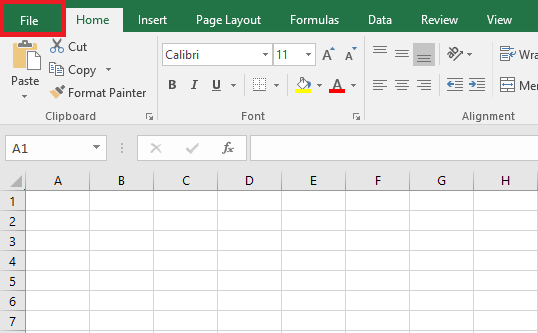
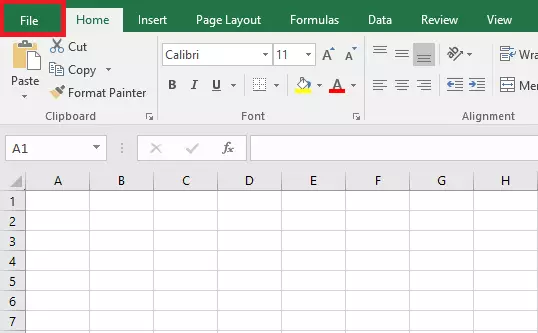
Step 1: In Excel, select the “File” menu item at the top left. This opens up the different options to save a document.
Step 2: Now, select either “Export”(see Step 3) or “Save As” (see Step 4).
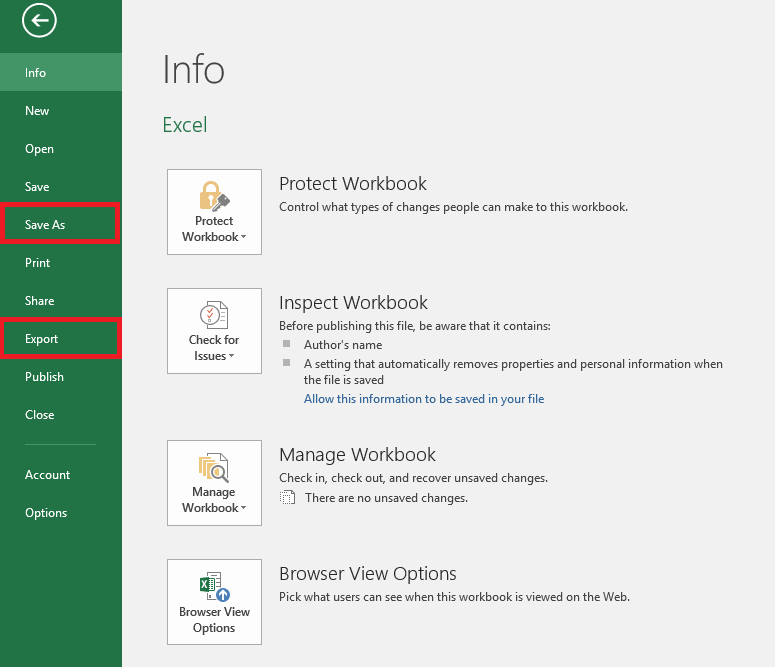
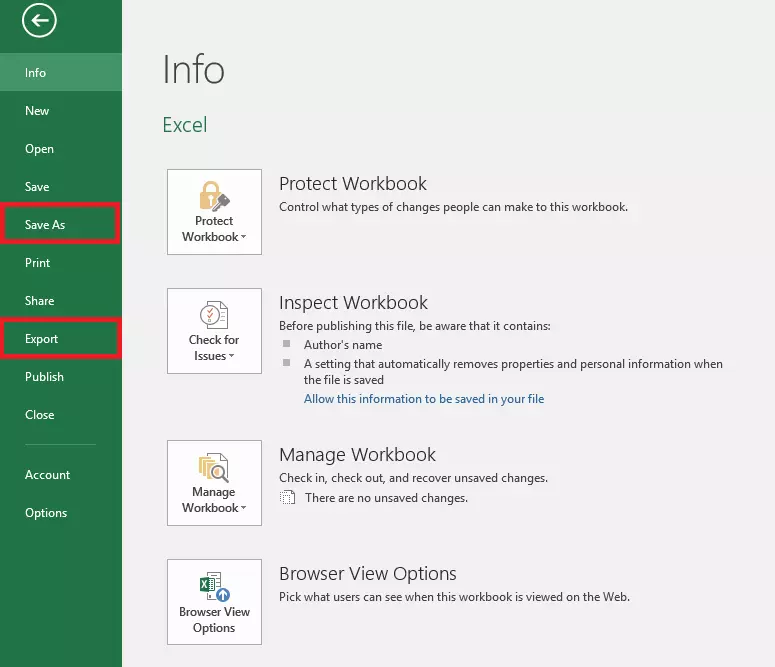
Step 3: If you have selected “Export,” choose “Create PDF document” to save the document in the .pdf format. Specify the desired file name and file location, then click on “Publish”. The PDF has now been created.
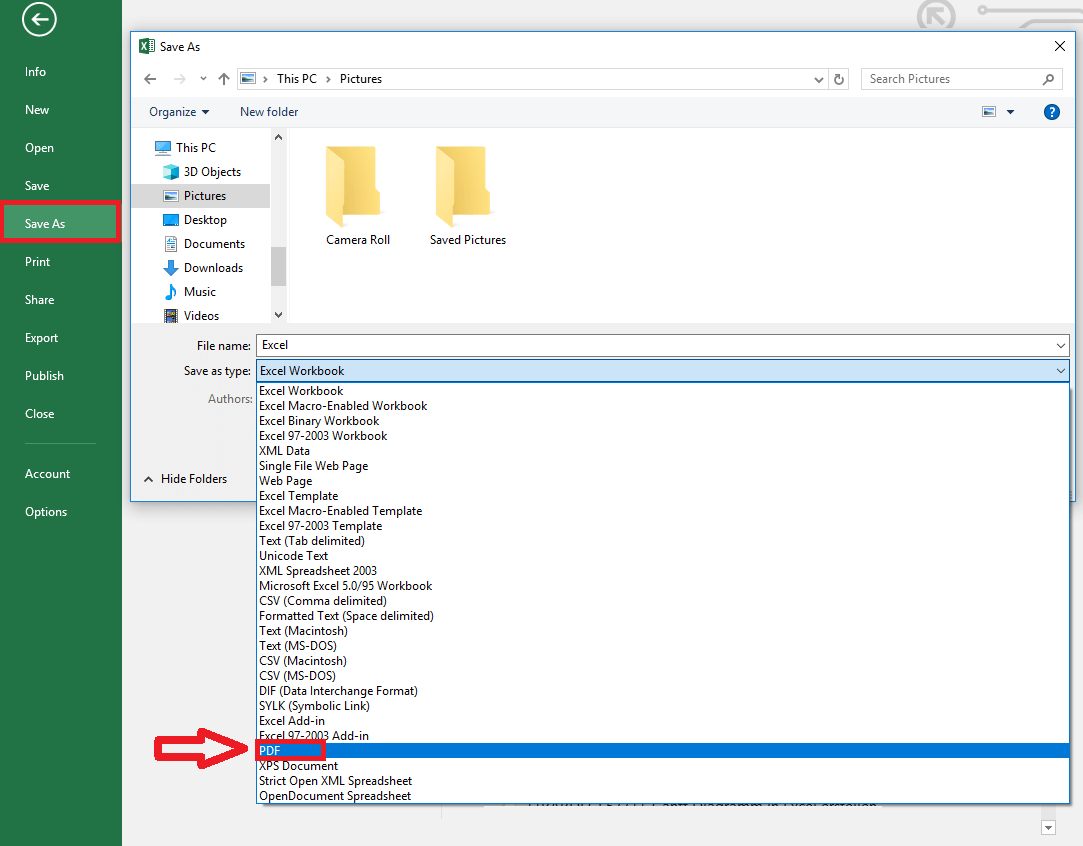
Step 4: If you chose “Save As” in Step 2, you need to select a file name and a specific location where you wish to save a file. “Save as type” allows you to select “PDF”. Hit “Save” and the PDF will be saved on your desktop.
Word files can be converted into PDFs in a very similar way.