

Excel is not responding: What to do when Excel is not working

Microsoft Excel is by far the most widely used spreadsheet software for Windows, but unfortunately the application doesn’t always run smoothly. Excel often freezes upon opening or it suddenly stops responding when you open a file. This issue is frequently caused by previously installed add-ins or macros and not by Excel itself. Antivirus software and Windows updates are other common causes of this error. An Excel spreadsheet that has not been saved correctly may also cause Excel to freeze.
The following solutions will usually help fix the issue if Excel isn’t working properly.
Start Excel in Safe Mode
You can start Excel in Safe Mode. This is the same mode you use to fix Windows startup problems. Safe Mode bypasses add-ins, macros, customised toolbars, shortcuts or any templates that are loaded automatically.
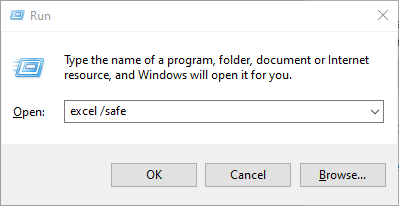
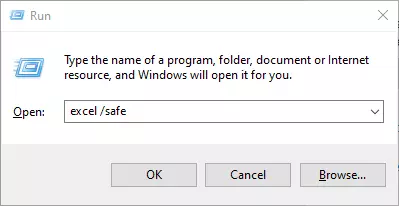
To start Excel in Safe Mode, simply hold down the Ctrl key on the keyboard while double-clicking the Excel icon. Alternatively, you can enter the command-line switch ‘/safe’. To do this, press the Windows logo key + R to open the Run dialog and then type ‘excel /safe’.
Disable Excel add-ins
If Excel works properly in Safe Mode, then the source of the problem is usually a previously installed add-in. These practical extensions offer useful optional features and commands for spreadsheets, but they can also cause Excel to stop working. To find out whether an add-in is causing the problem, proceed as follows:
- Click on ‘Options’ in the File tab on the ribbon.
- In the dialogue box that appears, select the ‘Add-Ins’ category. All installed add-ins are listed here.
- In the Manage list at the bottom of the dialogue box, select ‘COM Add-ins’ and select ‘Go’.
- Disable all listed COM add-ins to start Excel without these potentially problematic add-ins.
- Click on ‘OK’ and then restart Excel.
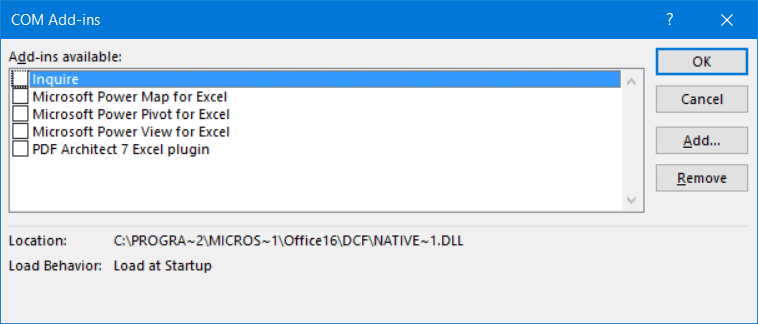
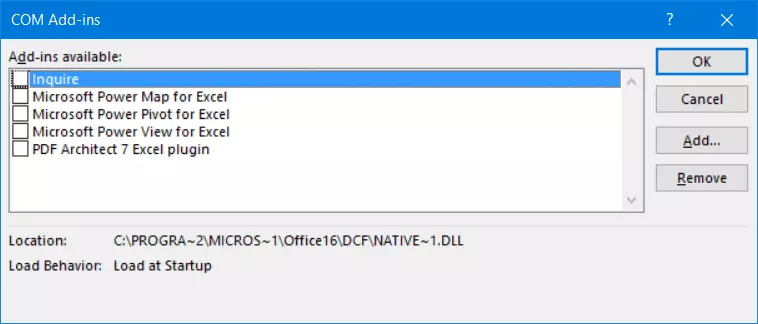
If the problem was caused by an add-in, Excel should now run smoothly. You can also use this method to re-enable add-ins one by one to identify the specific add-in that’s causing the issue. If you really need the add-in, try to install a new version of it. Otherwise, remove it or just leave it inactive until the vendor releases an update.
Problems with antivirus software
Third-party antivirus software can conflict with Office applications, causing Excel to freeze, fail to start, or stop responding after startup. Some antivirus software does not recognise macros or add-ins correctly and blocks them. In many cases, a warning message is not even displayed. Check the scan log of your antivirus software to see whether it blocked Excel or an add-in. Even if you can’t find anything in the log, you should try to start Excel with the antivirus software deactivated. If that solves the problem, it usually means that your antivirus software was the culprit.
Some antivirus software includes add-ins that are installed in Excel to provide additional security features. However, these add-ins often conflict with add-ins from other vendors. In this case, consider which add-in is more important.
Go to the settings of your antivirus software and try to exclude Excel along with all the add-ins you want to use. You are unlikely to have any problems starting Excel and other Microsoft applications if you use the built-in Microsoft Defender Antivirus software in Windows 10 instead of third-party anti-malware programs.
Problems with other applications that use Excel
Some third-party applications use Excel in the background to perform calculations or display tables. If these applications are not programmed correctly according to the Microsoft guidelines for OLE (Object Linking and Embedding), Excel may fail to start as long as the other application is running. If Excel is not responding but the application window is still open, the status bar at the bottom of the window will show that another process is using Excel. Wait until this process has finished calculating or end it (from the Task Manager, for example) for Excel to work properly again.
Changing the Windows default printer
Like all Microsoft Office applications, Excel accesses information from the installed default printer to match the layout of documents on the screen as closely as possible to the print layout. If the default printer’s driver does not work or the default printer is not connected, Excel may stop responding. To resolve this problem, follow these steps:
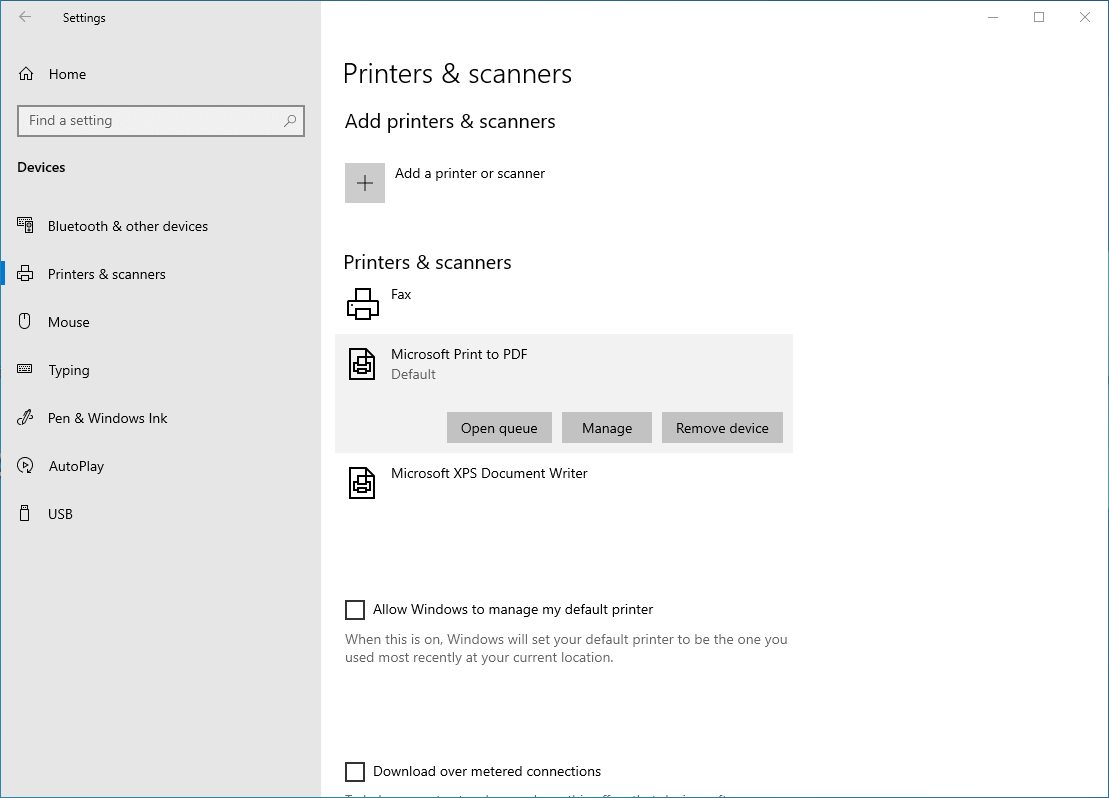
- Press the Windows logo key and click on ‘Settings’.
- Choose ‘Devices’.
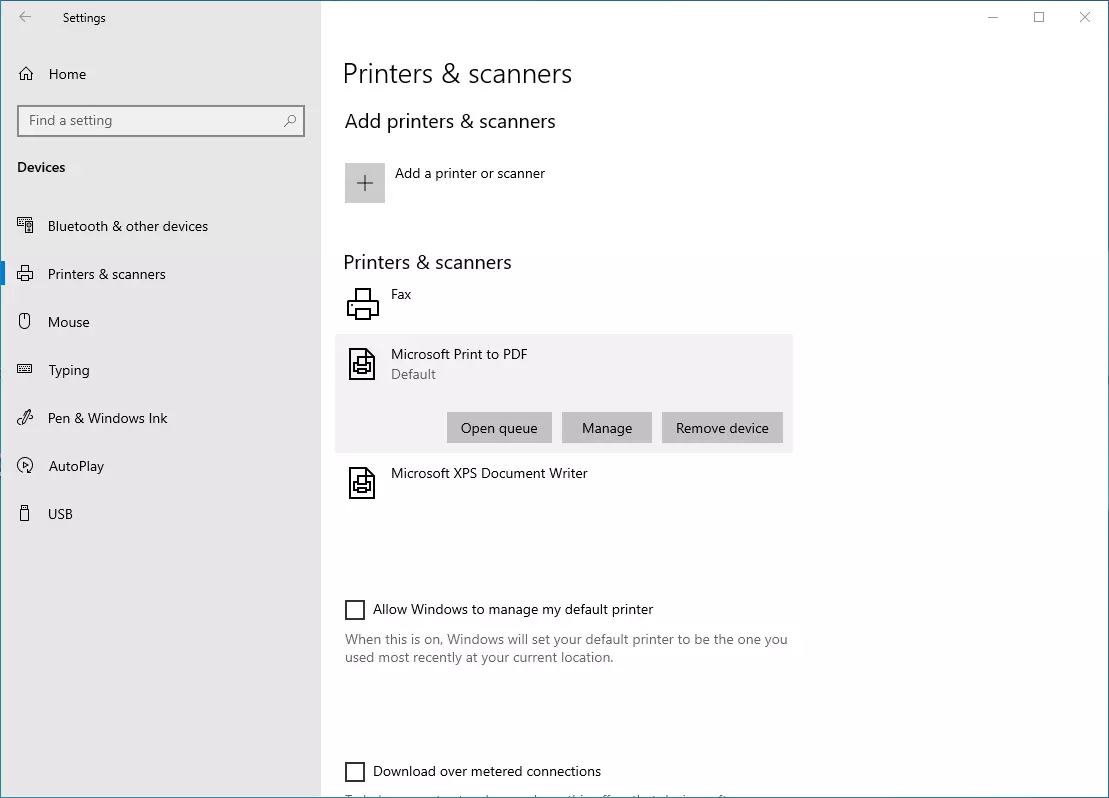
- In the sidebar on the left, click on ‘Printers & Scanners’. If ‘Let Windows manage my default printer’ is selected at the bottom of the screen, disable it so that you can select a different default printer.
- Next, choose a working printer as the default printer and click to select it.
- Click on ‘Manage’. In the window that appears, select ‘Set as default’.
- Now restart Excel. The problem should be solved if it was caused by the printer settings.
Repair Microsoft Office
Microsoft has a built-in Office Repair utility. This tool fixes many problems that may stop Excel or another Office program from responding. This feature is hidden in the Windows 10 settings under ‘Apps’. To use the Repair utility, proceed as follows:
- Go to ‘Settings’ (via the Start menu, for example).
- Choose ‘Apps’.
- Search for Microsoft Office in the list of apps and features, and click on ‘Modify’.
- Choose ‘Yes’ when prompted by User Account Control to confirm. In the next dialogue box, you can add or remove further features and repair the program.
If the repair is successful, you will usually be able to start Excel without any issues.
Recompile macros
Corrupted visual basic macros could cause Excel to freeze when using a macro. To get Excel running smoothly again, proceed as follows:
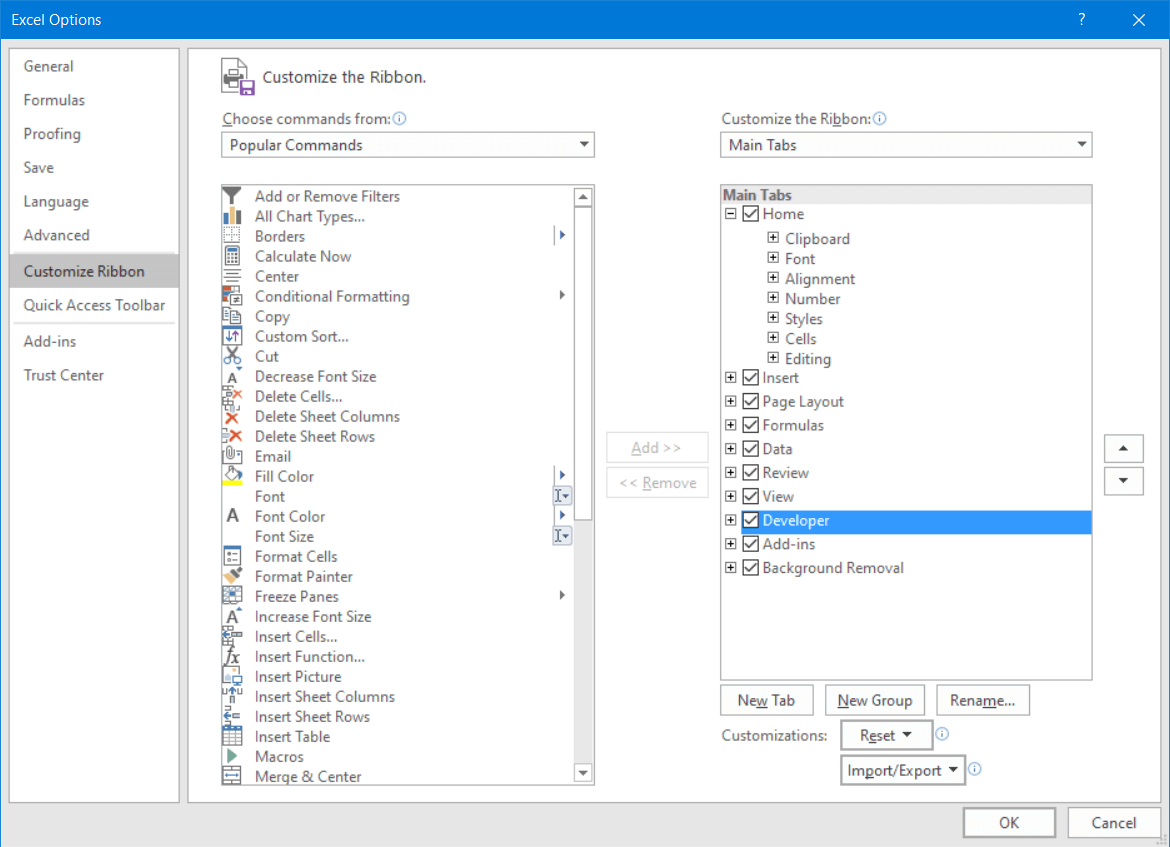
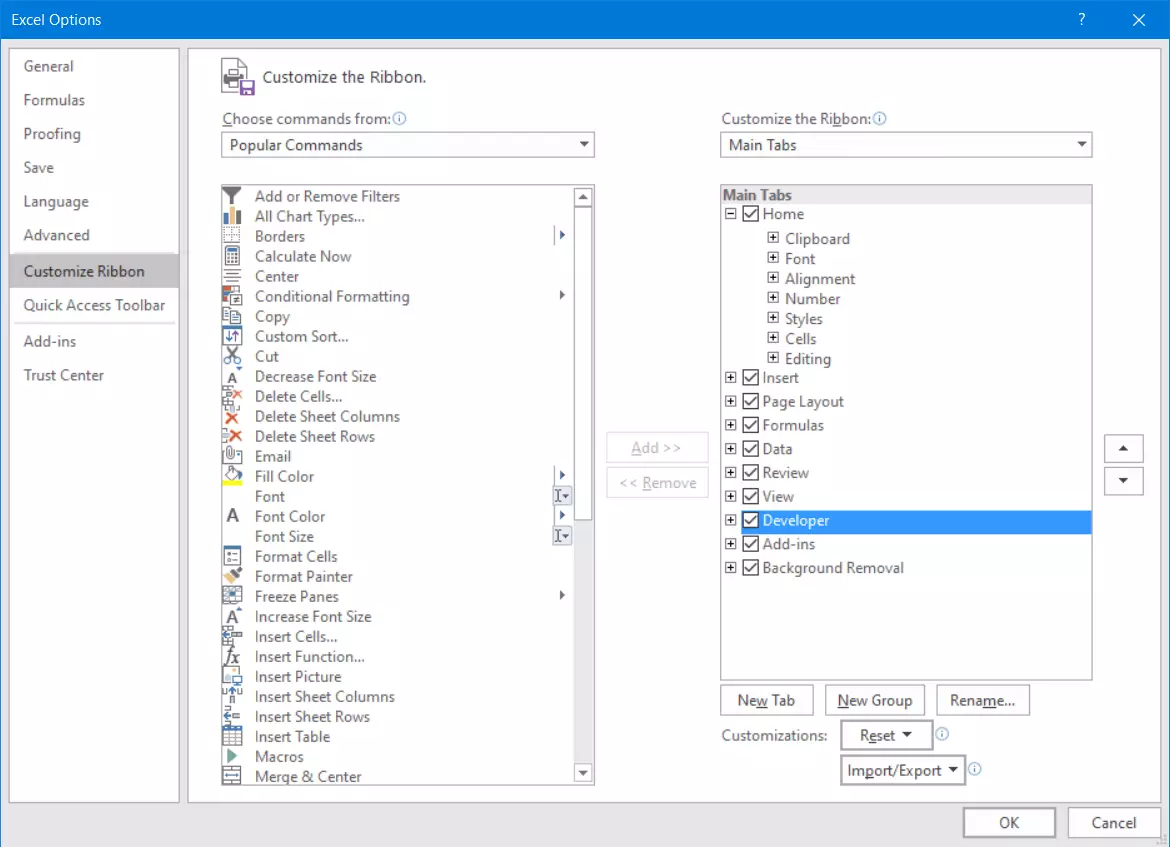
- In Excel, go to the ‘Developer’ tab on the ribbon. If this tab is not displayed, go to the ‘File’ tab, select ‘Options’, and then choose ‘Customize Ribbon’. Select the ‘Developer’ checkbox in the menu on the right. Now this ribbon will be shown by default in Excel.
- On the ‘Developer’ tab, click on ‘Visual Basic’. The Microsoft Visual Basic for Applications editor will appear.
- In the Tools menu, select ‘Options’.
- In the dialogue box that appears, go to the ‘General’ tab and select ‘Compile on Demand’ under ‘Compile’.
- Then add an empty module. To do this, mouse over the ‘Project’ window at the top left, right-click, and select ‘Insert’ and then ‘Module’ from the context menu.
- Close the empty window that opens and exit the Visual Basic Editor.
- Save your current file in Excel and restart the program.
The ‘Excel not responding’ message should no longer appear the next time you run a macro.
Update Excel
You may encounter problems with Excel hanging or not responding if Excel has not been updated recently and you’re using newer macros or Windows system components. Follow these steps to ensure that Excel and Windows are regularly updated.
- Press the Windows logo key and select ‘Settings’.
- Click on ‘Update & Security’.
- Click on ‘Advanced options’ at the very bottom of the screen. On the next screen, activate ‘Receive updates for other Microsoft products when you update Windows’. This means that when you update Windows, it will automatically search for updates for Excel and other Office components and install them in the background, just like Windows security updates.
Excel and all other well-known Microsoft Office programs are available directly from IONOS: Microsoft 365, formerly known as Microsoft Office 365, is a server-based office solution for personal users and small businesses. With Microsoft 365, you never have to worry about updates. You automatically have the latest version.