

What are the most useful spreadsheet formulas in Google Sheets?
With spreadsheet formulas, Google Sheets lets you perform simple arithmetic tasks and display the results. Formulas always begin with an equal sign and can also contain functions.
What are spreadsheet formulas in Google Sheets?
Formulas in Google Sheets make it possible to go beyond just displaying and storing data in spreadsheets. With spreadsheet formulas, you can get more out of your data and even carry out extensive arithmetic operations. This means that individual values do not remain static, but can, for example, be compared, added or subtracted within the spreadsheet itself.
You may already be familiar with some Excel formulas. In our comparison of Google Sheets with Microsoft Excel, we go over the similarities and differences between the two spreadsheet applications.
What is the difference between formulas and functions?
The terms functions and formulas are often used interchangeably in Google Sheets, but they aren’t actually the same. While both serve similar purposes and share many similarities, they differ in certain aspects. Although both are used to connect cells and the values they contain with other cells and values, a function is a pre-defined operation that contains one or more formulas. While functions are often the more user-friendly method, formulas may be the better choice for simple and targeted calculations. While formulas can also contain functions, functions often go far beyond simple arithmetic tasks.
- Up to 50 GB Exchange email account
- Outlook Web App and collaboration tools
- Expert support & setup service
How are Google spreadsheet formulas structured?
Formulas in Google Sheets spreadsheets are not always structured in the same way. However, there are three things that all formulas need to have:
- Each formula must begin with an equal sign.
- Each formula has to include cell references. These are used to specify which cells the program should include in its calculation. Each cell is unique, and the cell reference is created by combining the column (represented by a letter) and row (represented by a number). You can reference multiple cells in a formula.
- Every formula needs operators to indicate which calculation the formula should perform.
Formulas in Google Sheets can also contain functions and fixed values.
How to use spreadsheet formulas in Google Sheets
If you want to use formulas in a Google spreadsheet, follow the steps below:
- Open your spreadsheet.
- Click an empty cell.
- Enter the equal sign (=).
- Enter the first cell reference.
- Enter the operator.
- Enter the second cell reference.
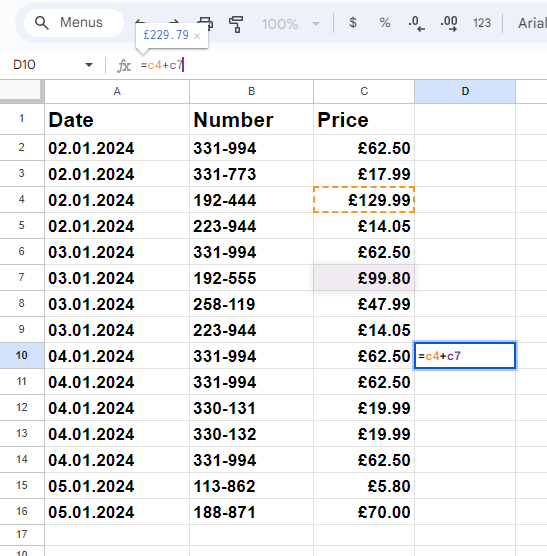
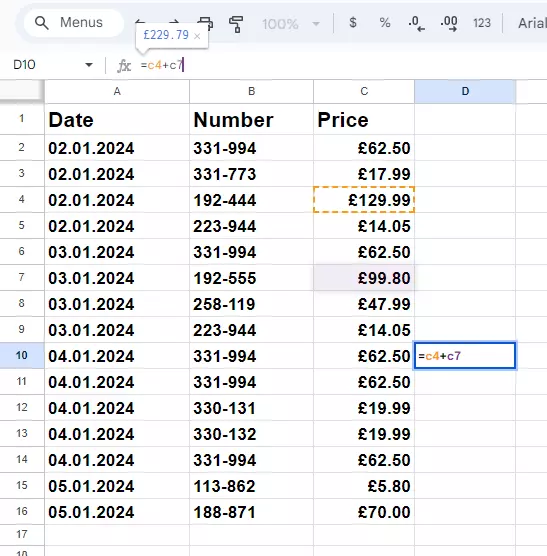
- You can add additional operators and cell references as necessary. The outcome of the calculation will appear directly above the cell. Press [Enter] to insert the calculated result into the cell.
Alternatively, you can use the formula bar located above the columns to write your formula. The cells in the formula will be highlighted regardless of the method you choose.
- Keep your data safe with industry-leading security
- Save time on updates and maintenance
- Easily add apps and online office tools
How formulas work in Google Sheets
The best way to illustrate how formulas in Google Sheets work is to show a few simple examples. In the examples below, we have a spreadsheet containing sales data, product numbers and the price of the products.
Example using addition and subtraction
In the first example, we’re going to add the values in cells C4, C9 and C11 together. To do this, follow the steps here:
- Click any empty cell. In our example, we’ve selected C19.
- Start with the equal sign, followed by
C4, a plus sign,C9, another plus sign and finallyC11. - Confirm your entry with [Enter].
- The total sum of the three values should now be displayed in cell C19. The result is £206.54.
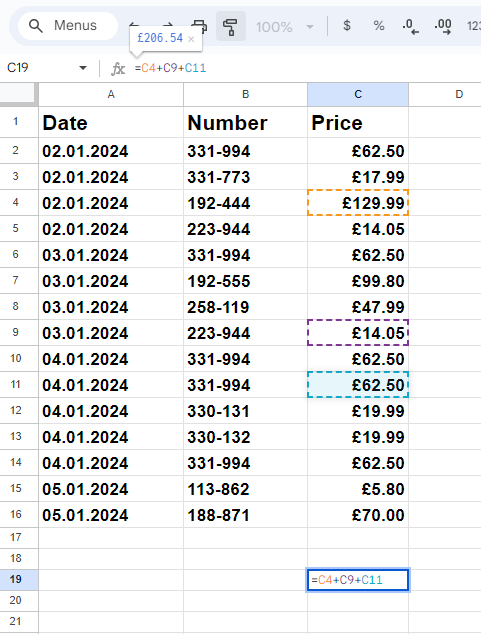
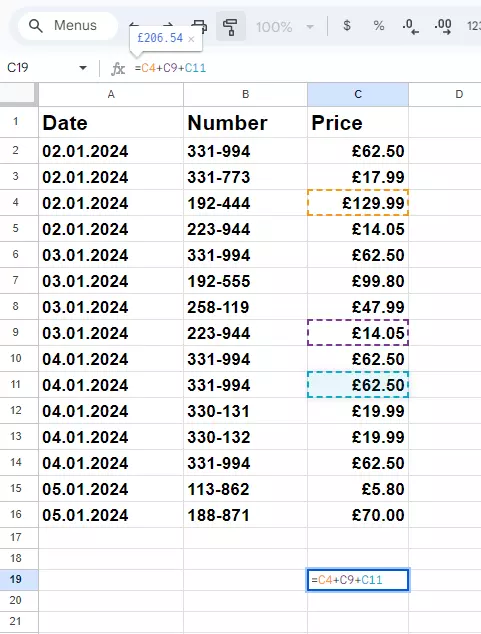
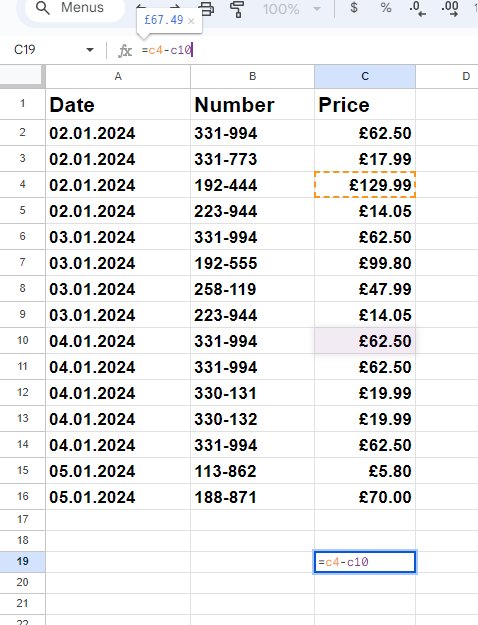
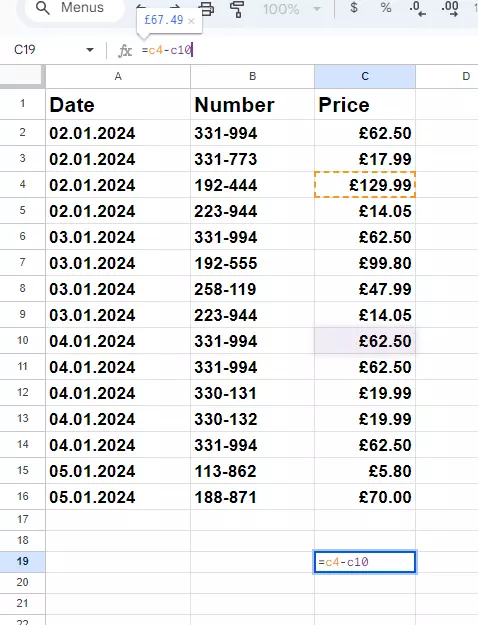
If you want to subtract values from each other, you can use a similar structure and simply exchange the operator. In this example, we want to calculate the difference between C4 and C10. When we press [Enter], we get £67.49.
Example using multiplication
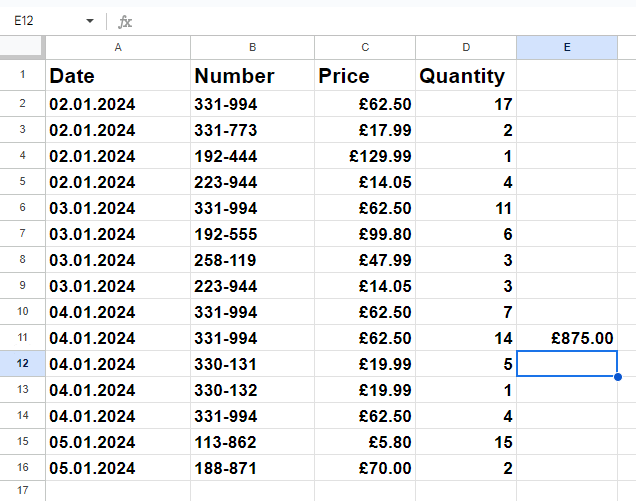
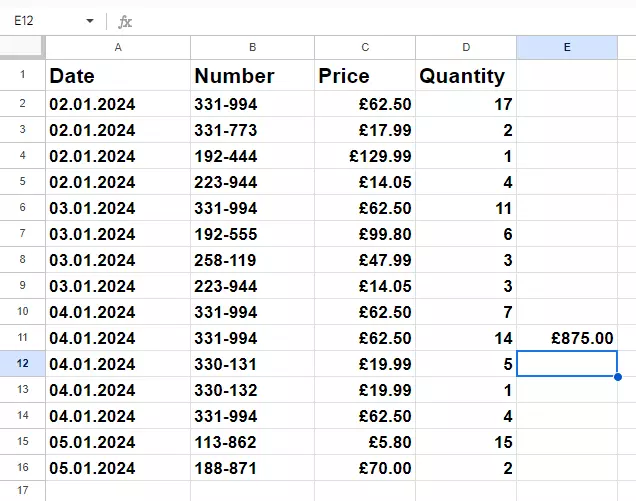
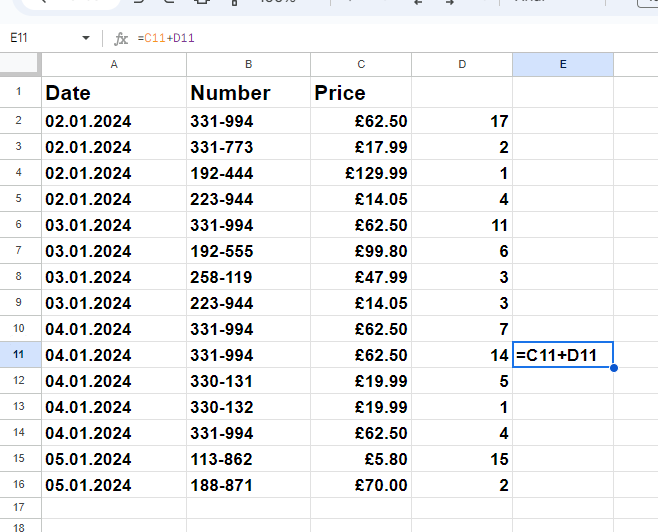
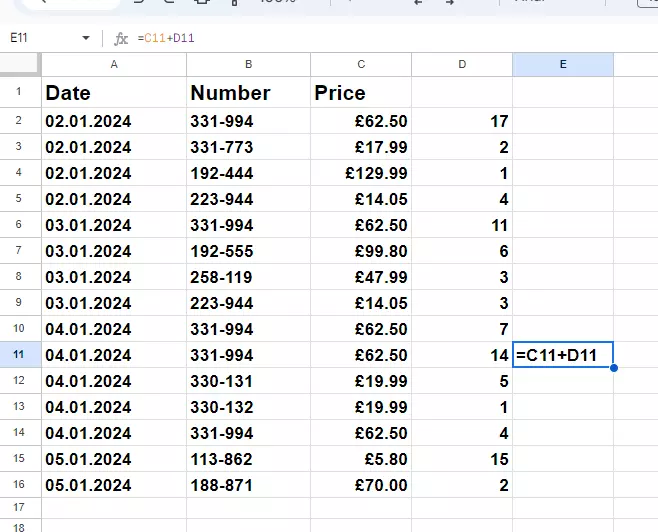
If you want to perform multiplication or division, the process is similar. To illustrate this, we’ve expanded our example table to include the number of units sold. To calculate the amount of sales made with product 331-994 on January 4, 2024, follow the steps below:
- Click cell E11.
- Enter the equal sign.
- Type the following formula after the equal sign:
C11*D11. Press [Enter]. - You’ll now see the result (£875.00) directly in the cell.
How to use functions in a Google Sheets spreadsheet
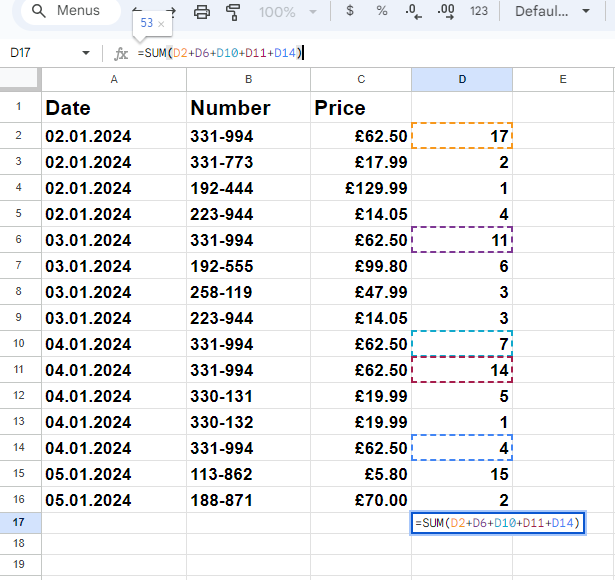
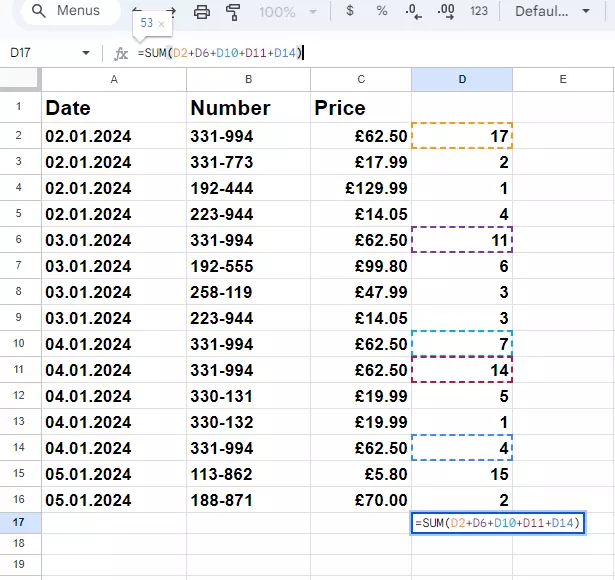
Since functions often offer significantly more options, it can be useful to integrate them into formulas you create. In the next example, we want to determine how many products with the serial number 331-773 were sold during a specific period of time. To do this, we can use the SUM function. Here’s how:
- Click in cell D17.
- Enter an equal sign to start.
- Insert the SUM function and add an open bracket behind it.
- Enter the cell references
D2,D6,D10,D11andD14and separate them with a plus sign. You can also use a comma to separate the cell references. - Close the bracket.
- Press [Enter]. The result should be 53.
How to display formulas after determining results
Normally, after you use a formula, only the result is displayed. However, if you want to understand how a certain value was obtained, you can have the formula displayed afterwards instead. Here’s how:
- Click on View at the top of the screen.
- Now select Show next to the eye icon. It’s the first item in the drop-down menu that appears.
- Place a check in front of Formulas. You can, of course, change this back at any time.
Overview of the most important formulas for Google Sheets
Here’s a list of the most useful spreadsheet formulas for Google Sheets:
| Operation | Formula |
|---|---|
| Addition | =A1+A2
|
| Subtraction | =A1-A2
|
| Multiplication | =A1*A2
|
| Division | =A1/A2
|
| Powers | =A1^2
|
IONOS’ Google Workspace solution provides the perfect link between the company’s apps and provides additional prioritised support as well.