

How do you join a Zoom meeting?

Video conferences are becoming more and more popular and a growing number of people are talking to others online whether for the purposes of working from home or to maintain contact with relatives and friends. There are many different software solutions for video calling, but Zoom, like no other application, now firmly stands for the digitisation of the meeting culture. Nowadays, conferences no longer need to take place on-site. Instead, people who may have never used Zoom before, are receiving invites to meetings with colleagues or friends.
There are various options for you to join a Zoom meeting. If you do not plan on using the software regularly or to schedule your own video calls, you will not need to install the application.
Install the Zoom desktop software
If you’ve received an invitation by email, the message usually includes a link to the meeting. Once you click on the link, the software opens automatically – provided you have already installed Zoom. Otherwise, you will be asked to download a setup file which lets you install the software. Since the file size is small, both download and installation are very fast. Once installed, you will be connected to the meeting.
You can also launch the software following the installation and enter the meeting ID on the start-up screen. The email with your invitation should contain the relevant sequence of digits. A passcode may need to be entered. This should also be included in the invitation.
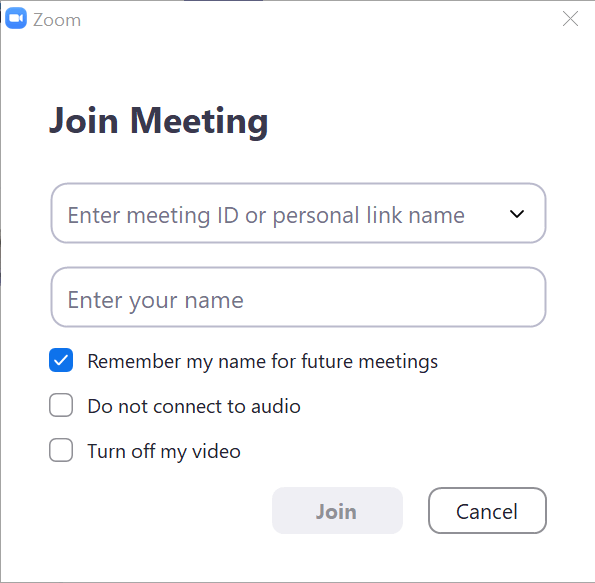
You do not need to register to join a Zoom meeting. However, if you plan on hosting your own video conferences via Zoom, you will need to register for a (free) user account.
Use the mobile Zoom app
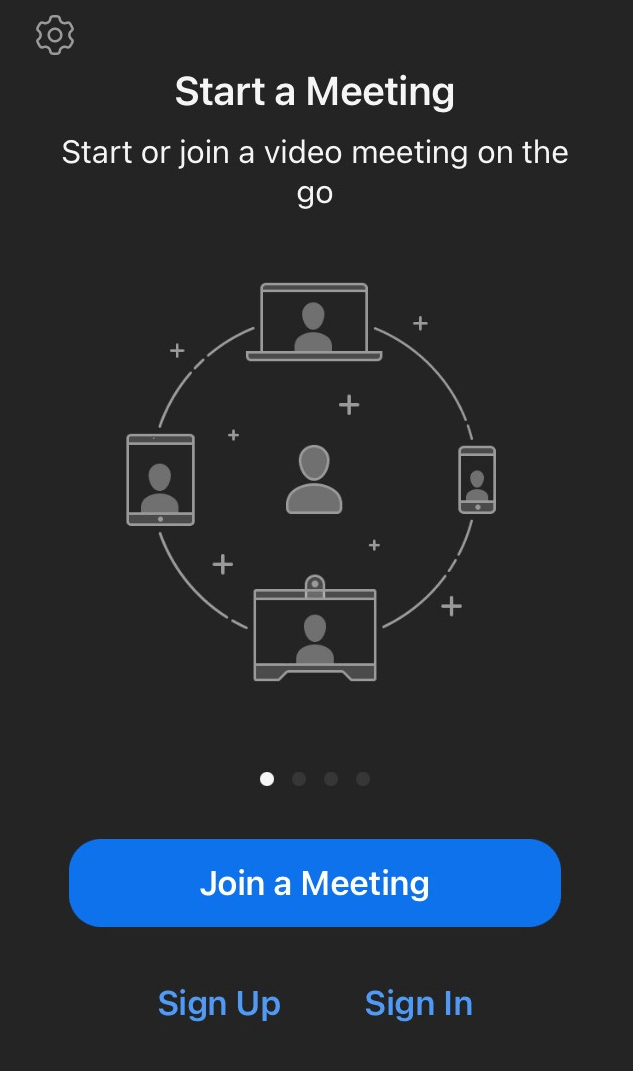
Zoom lets you connect to other users via your smartphone or tablet. The process is similar to the desktop version: First you have to install the application. The Zoom app is available free of charge from the Apple App Store and Google Play. Once you have installed the app on your device, you can click on the invitation link in the email. Alternatively, launch the app and then enter the meeting ID. You could also copy the sequence of digits using your mobile device and paste it into the app. Don’t worry, you do not need to register for an account with the provider to use the mobile Zoom app either.
For many people, the term ‘Zoom’ is synonymous with video conferencing. This has gone so far that even the verb ‘to zoom’ has now been established. And when people feel fatigued from too many online meetings, they speak of Zoom fatigue.
Join Zoom meeting via a browser
If you do not want to install the Zoom software or are using a PC that will not allow you to install the software, you can still join a meeting. The ‘Join a Meeting’ section can be found on the Zoom website. Simply enter your meeting ID here. Refuse the browser’s attempt to download or launch the software. Then click on the ‘Launch Meeting’ button and reject the download/launch attempt once again. The service now understands that you are unwilling to use the desktop software and will display a new option: ‘Join from Your Browser’.
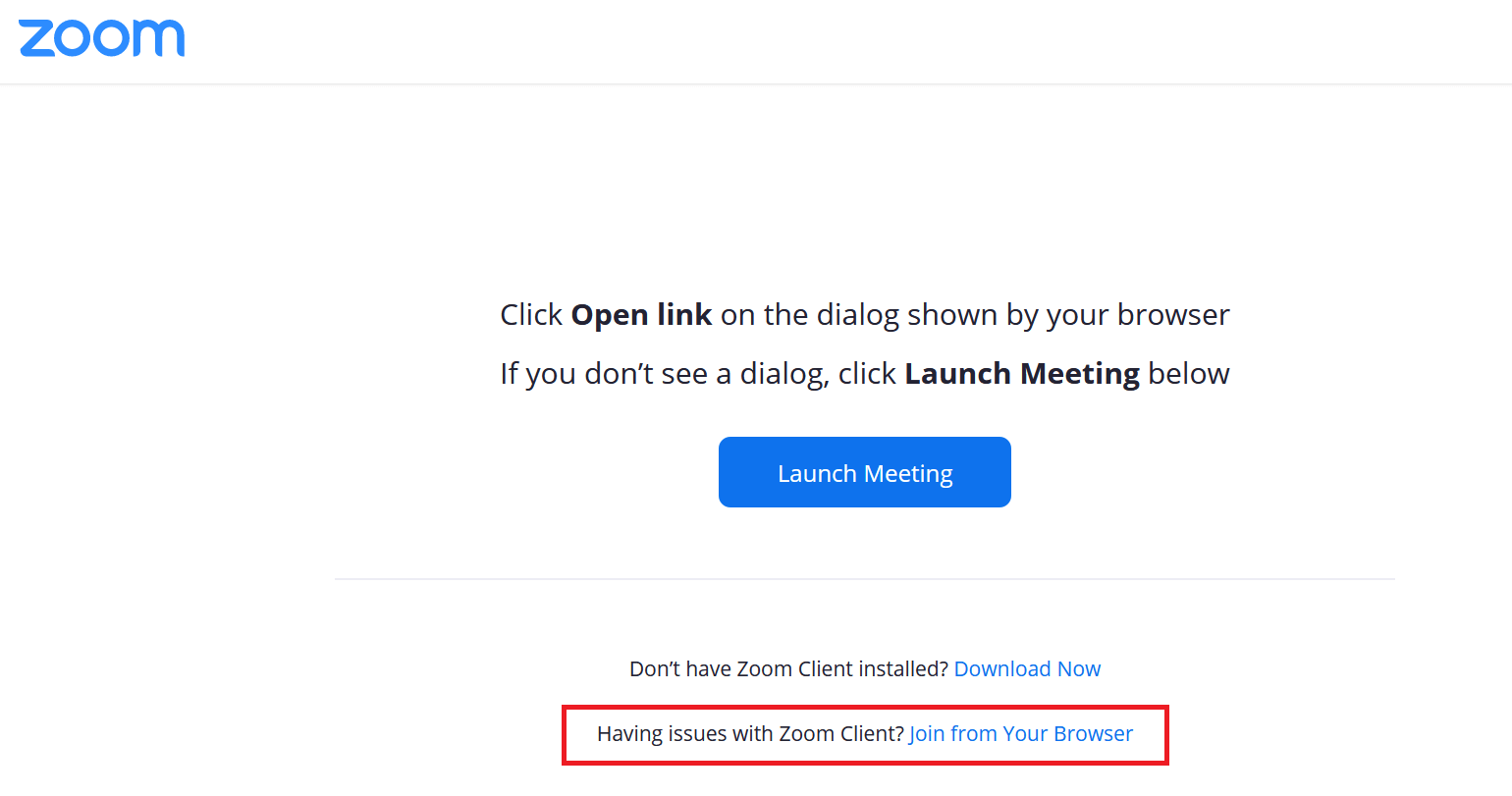
To participate in the Zoom meeting properly, you must allow the browser to access your camera and microphone. The web client offers a similar interface to the desktop version but has fewer functions.
Join a Zoom meeting using your telephone
Don’t have a smartphone, PC or laptop at hand, but need to join a Zoom meeting? Or maybe your internet connection is not suitable for video conferencing? Zoom lets you join a meeting using your normal mobile phone. You will not be able to see other people’s videos, but you can listen in on a meeting. If the call organiser has activated the phone call option, the corresponding phone number is included in the invitation. Please note that the telephone call may incur costs (depending on your provider).
When you dial in, enter the meeting ID. Use the number pad on your phone to do this. Complete the entry by hitting the hash key (#). The meeting host may need to accept your call manually.
The telephone meeting provides you with two functions. To activate them, you can press the corresponding key on your phone:
- 6: Mute or unmute yourself.
- 9: Signal that you want to speak.
Without much effort – and above all without registering an account – you can participate in a Zoom meeting using a range of different devices. But there are many other video conferencing tools. If you want to host one yourself, look at the different Zoom alternatives.