

Word documents: how to save as a PDF file

Saving a Word document as a PDF file has many advantages. Crucially, PDFs are compact and, unlike Word documents, can be opened on most computing systems without format compatibility issues. The layout and design of a PDF is retained even after sending. This is not the case with Word documents (.doc): if the receiver has a different version of Word, or uses another program such as OpenOffice, there are often formatting and layout discrepancies. There may also be complications with the display of images and fonts. Conversely, the original formatting of a PDF file is always preserved, so it will be displayed exactly as intended.
For this reason, PDFs are especially useful when you wish to print a document; the document will then be printed precisely as it appears in the PDF file. Additionally, you can choose to protect the file with a password so that others may only make limited edits, or none at all. In this way, it’s easy to control the access permissions of your files. In short, a PDF file offers much more control over the presentation and access rights of your work compared to a Word document.
Here, we demonstrate the various methods of how to save a Word document as a PDF.
How to save a file as a PDF – with the ‘save as’ function in Word
Microsoft Word’s ‘save as’ function is one of the simplest ways to save a word doc as a PDF. First, open the document you wish to convert, click ‘File’ and then ‘Save As’.
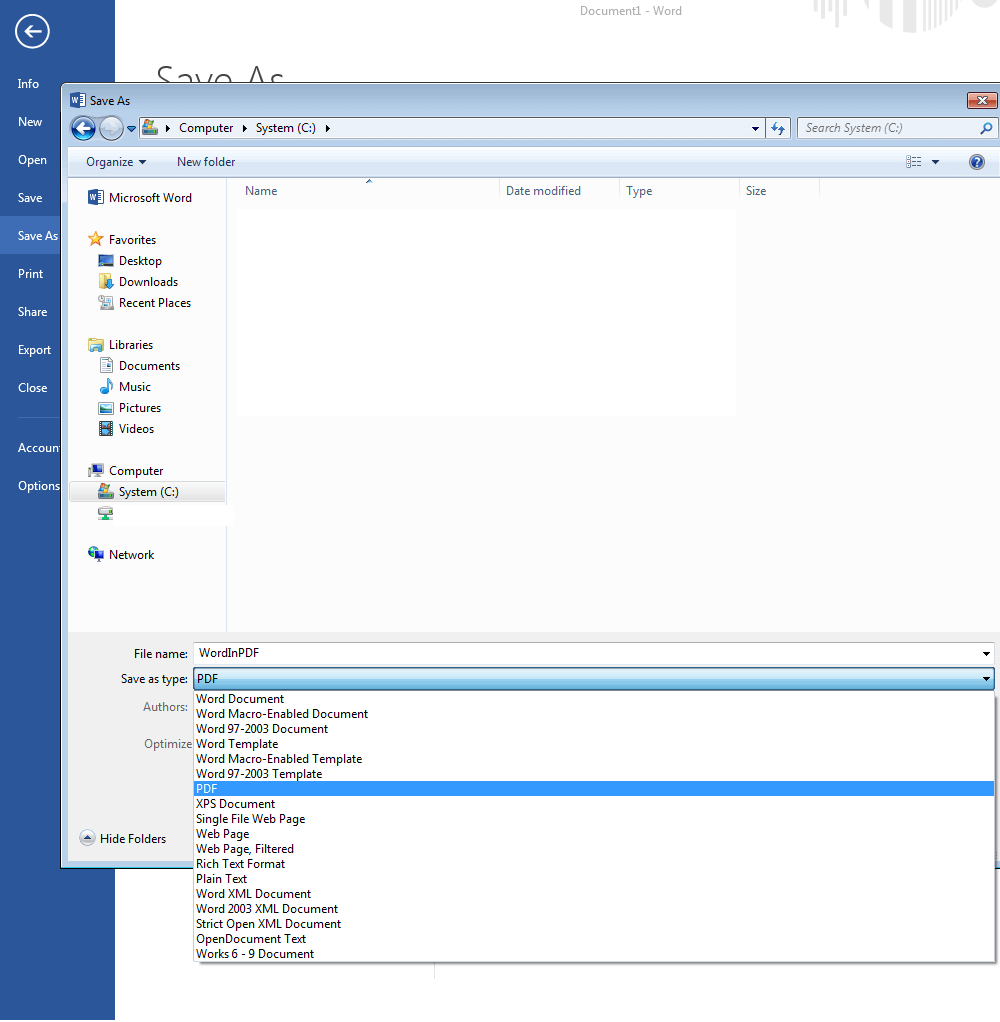
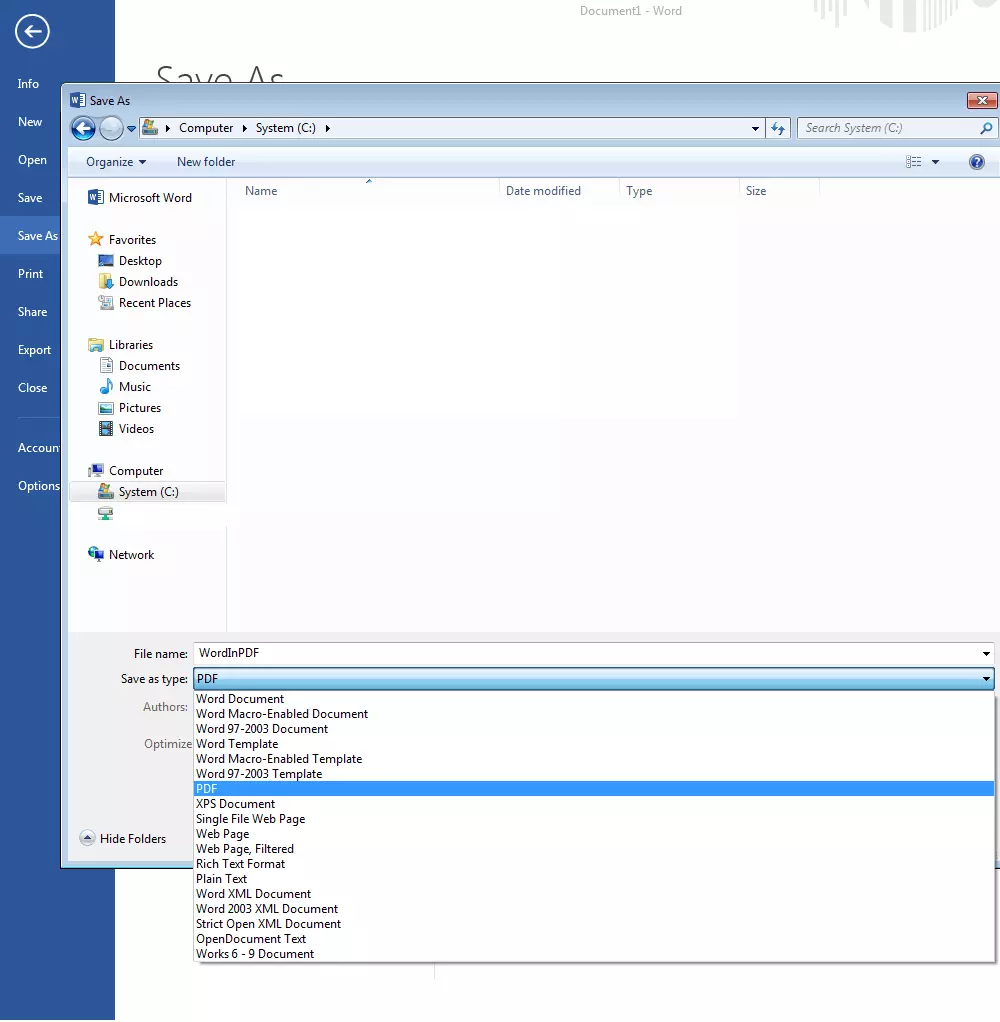
At this point, you can adjust some further settings, such as optimizing the PDF to keep the file size as small as possible. This is especially practical when your e-mail provider or favourite file sharing site imposes an upload limit. You can also encrypt your PDF document under the ‘Options’ tab.
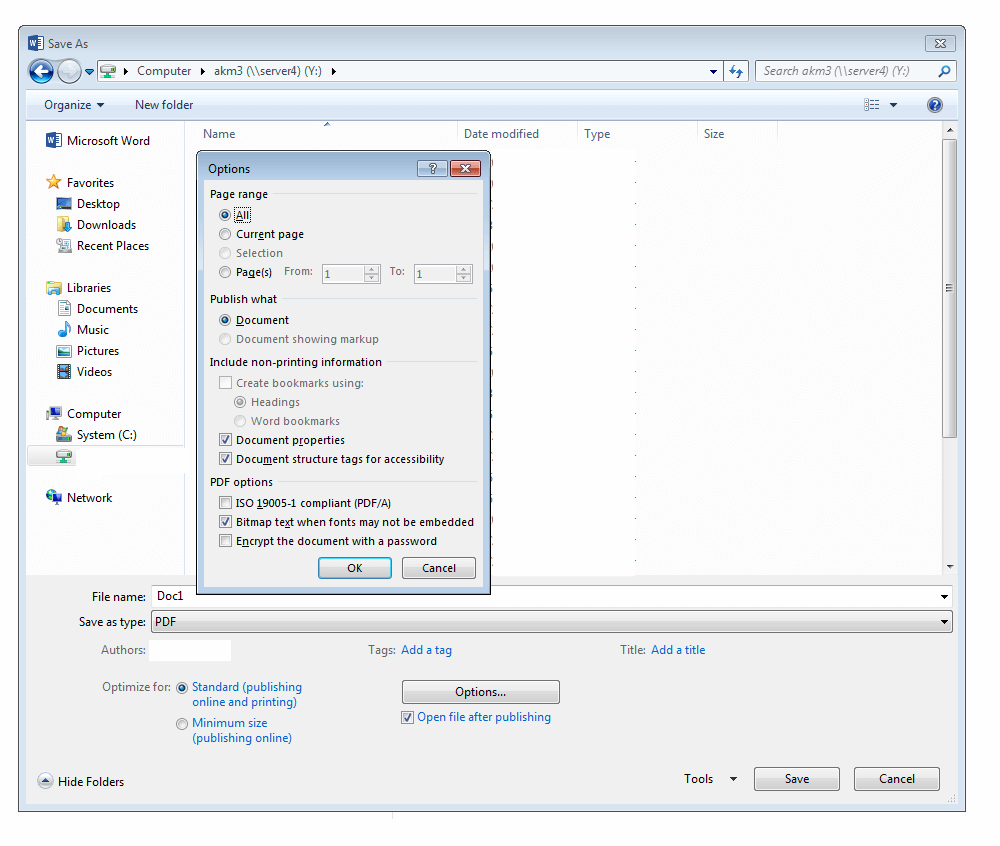
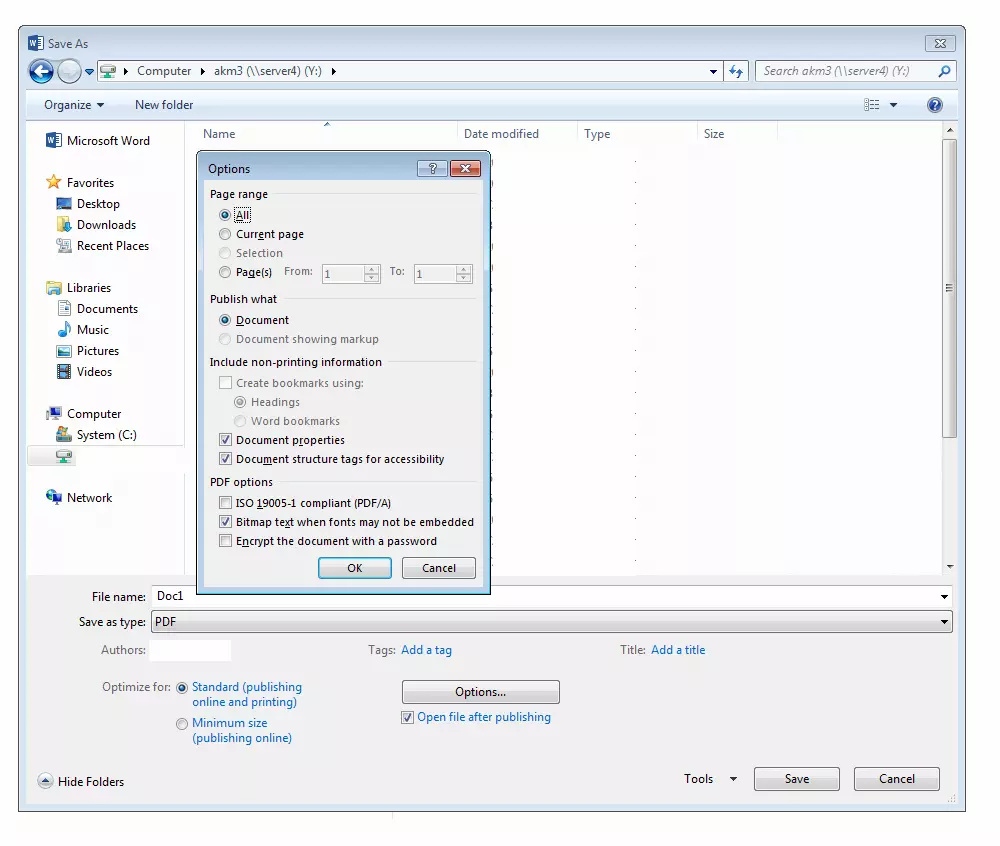
If you select this option, you can then set the password in the dialog box and save the file. This process is both swift and is more than sufficient for most users. Nevertheless, the options in Word do have some limitations. For example, you can only password protect an entire PDF file, rather than individual functions. Furthermore, creating a PDF in this way usually takes up more storage space than is strictly necessary.
If you want more precise control over the final PDF document, it’s best to use a dedicated tool. As an uncomplicated way to save a Word document as a PDF, however, the method described above is sufficient.
The ‘Export’ button under the ‘File’ tab takes you directly to the dialog box shown in the first screenshot. ‘PDF’ will be preselected.
How to save as a PDF using special software
Dedicated software for converting files to PDF offer more extensive functionality than the integrated function in Microsoft Word. Although tools for editing PDFs directly can be expensive, tools for converting to PDF tend to be free. Such tools often also install a special printer drive automatically to simplify the process. With this, you can easily convert your document to PDF via the print command in Word. The print preview will show the document exactly as it will be printed. You can then save the document as a PDF file directly in the print window and receive your desired document with its formatting intact.
PDFCreator (Windows)
PDFCreator, a free tool from pdfforge, offers a useful solution for saving a file as a PDF via the print function in Word. Additionally, it provides a comprehensive selection of encryption functions, digital signatures, and the ability to merge multiple PDFs.
After installing PDFCreator, it appears as a printer in Word so you can simply use the print function.
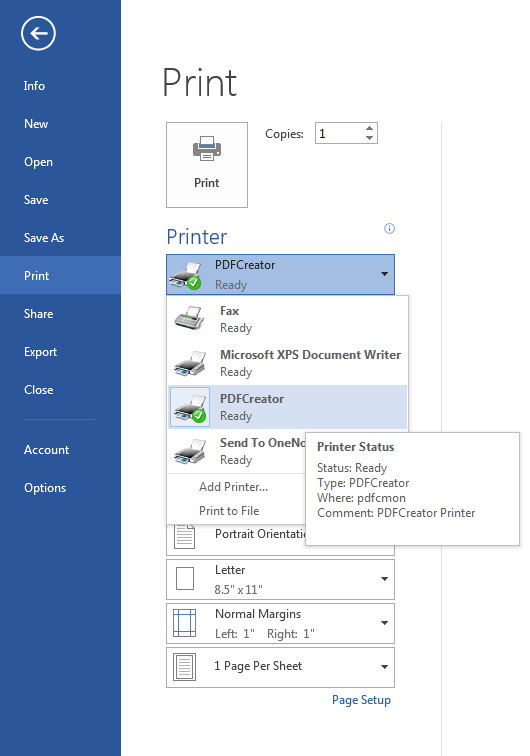
The PDFCreator tool opens when you click ‘Print’. In this window, you can adjust various settings before saving your Word document as a PDF.
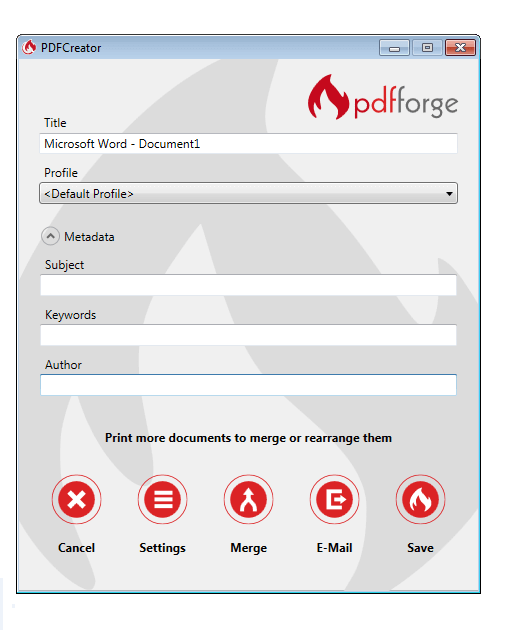
There are multiple options under ‘Settings’, ranging from encryption to automatic saving. You can also use the ‘Merge’ function to add the current file to an existing PDF file. This makes it easy to consolidate multiple Word documents into a single PDF. Finally, the ‘E-Mail’ function attaches the file to an e-mail automatically, while ‘Save’ converts your file to PDF and saves to your documents.
Want to know how to save as a PDF even faster? When you assign PDFCreator as your main printer, you can simply right-click the file, select ‘Print’, and it will be converted into PDF.
When using the free version of PDFCreator, you’ll have to tolerate some adverts from time to time. The paid version, however, is advert-free.
A tool called PDFArchitect is included with PDFCreator, which you can use for simple editing tasks such as rotate, split, merge, encrypt, and adding text.
PDF24 (Windows)
PDF24 works in much the same way as PDFCreator. Following installation, the program functions as a pseudo-printer: simply select ‘pdf24’ as your printer to convert to PDF. However, PDF24 is more streamlined than PDFCreator, and dispenses with adware. In addition to simple editing, encryption, splitting, and merging, PDF24 also allows users to convert a PDF into an image file. The integrated fax function is also highly convenient.
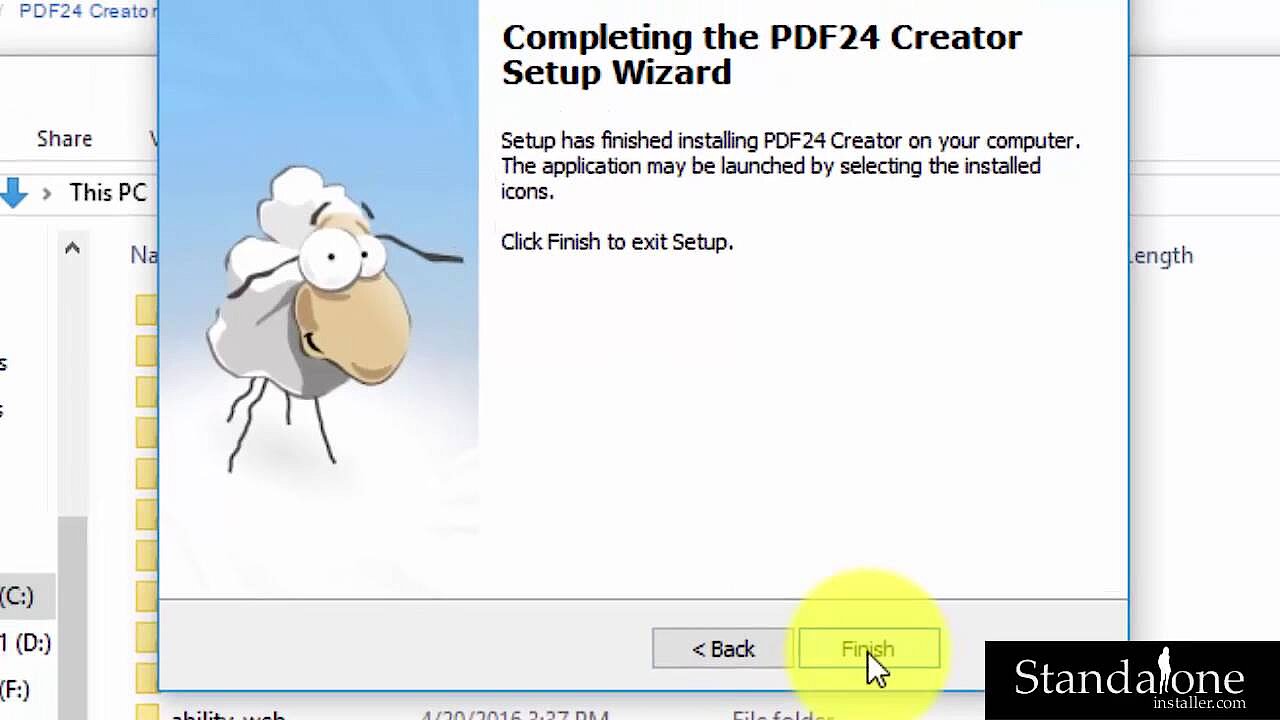 To display this video, third-party cookies are required. You can access and change your cookie settings here.
 TextEdit (macOS)
If you’re wondering how to save a file as a PDF on a Mac, then the preinstalled TextEdit application could be the solution. Simply open your document via TextEdit and select ‘Print’ from the ‘File’ tab. In the resulting dialog box, you will find a drop-down menu under ‘PDF’ – use this to save, fax, and send the document as a PDF. If you wish to encrypt the file, you will find various options when you select ‘Export’ from the ‘File’ tab.
Since Macs are shipped with this tool preinstalled, there is far fewer PDF conversion software available for macOS compared to Windows. Of course, Adobe Acrobat’s PDF programs include this feature, but the functionality goes far beyond just conversion, making these tools expensive. For simple file conversion, the built-in TextEdit is more than enough.
How to save a word document as a PDF with online tools
You can also convert Word documents to PDFs online via certain websites – upload your original file and the site converts it and offers you the PDF to download. If all you need is a simple conversion of a single document, this method can save you a lot of time and effort, since no software installation is necessary.
However, the security of your data is not necessarily guaranteed. While the following website examples both promise that your files will be deleted shortly after processing, when you don’t have control over the process you can never be 100% sure your data will be safe. Therefore, we advise caution when using these services to convert sensitive documents.
Smallpdf
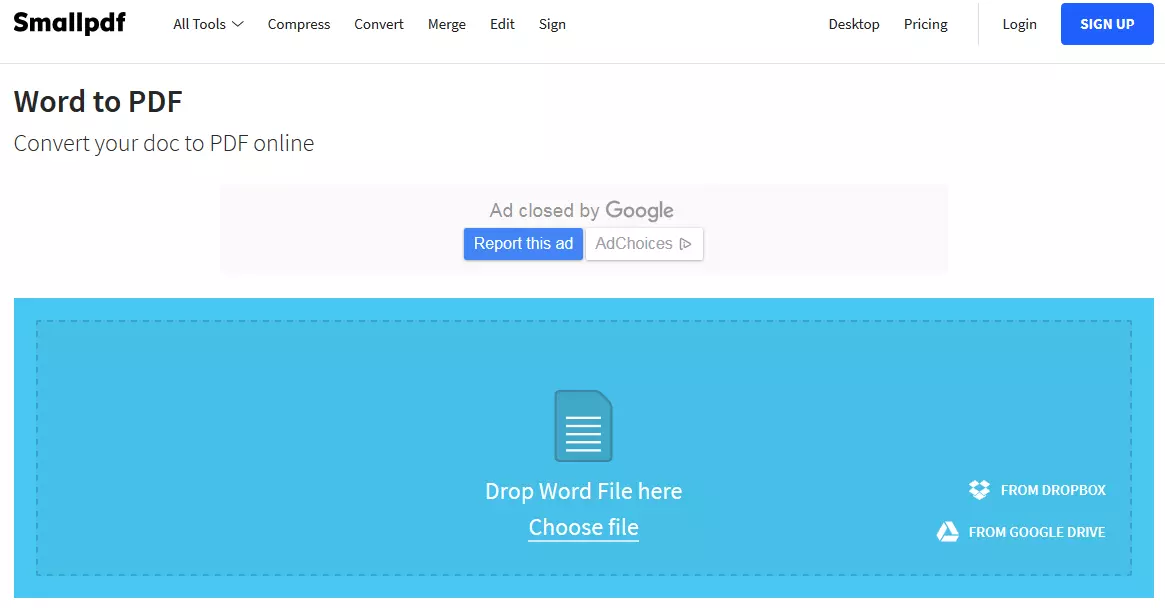
Smallpdf works via drag and drop: simply drag your Word document – from Windows explorer for example – into the online tool. You can also upload the document from your Dropbox or Google Drive account if you wish.
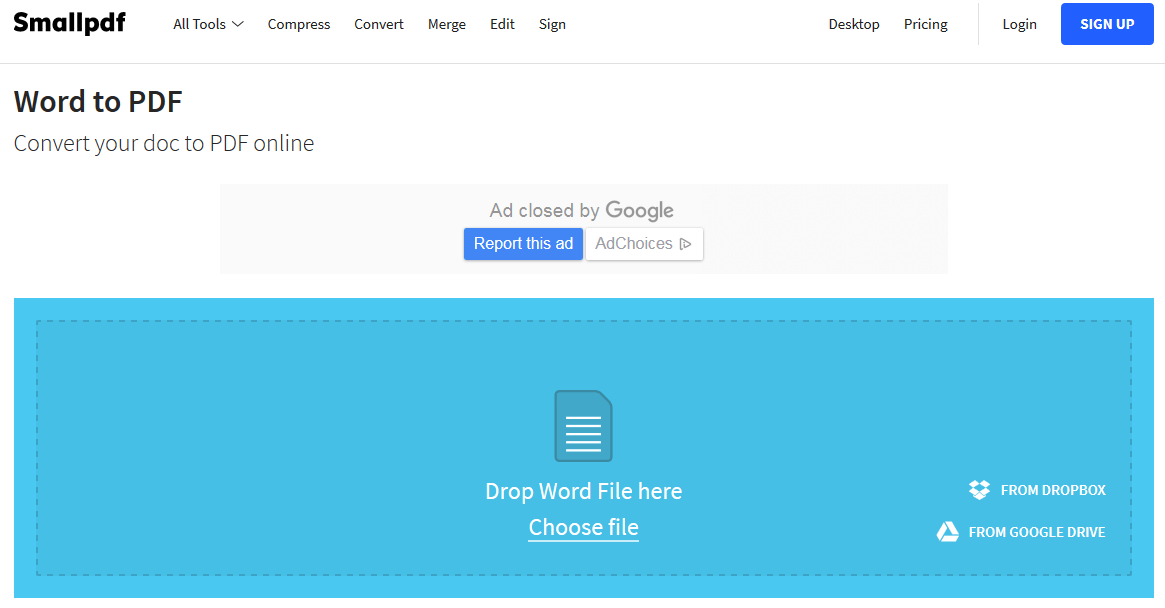
After just a few seconds, Smallpdf will provide a PDF download.
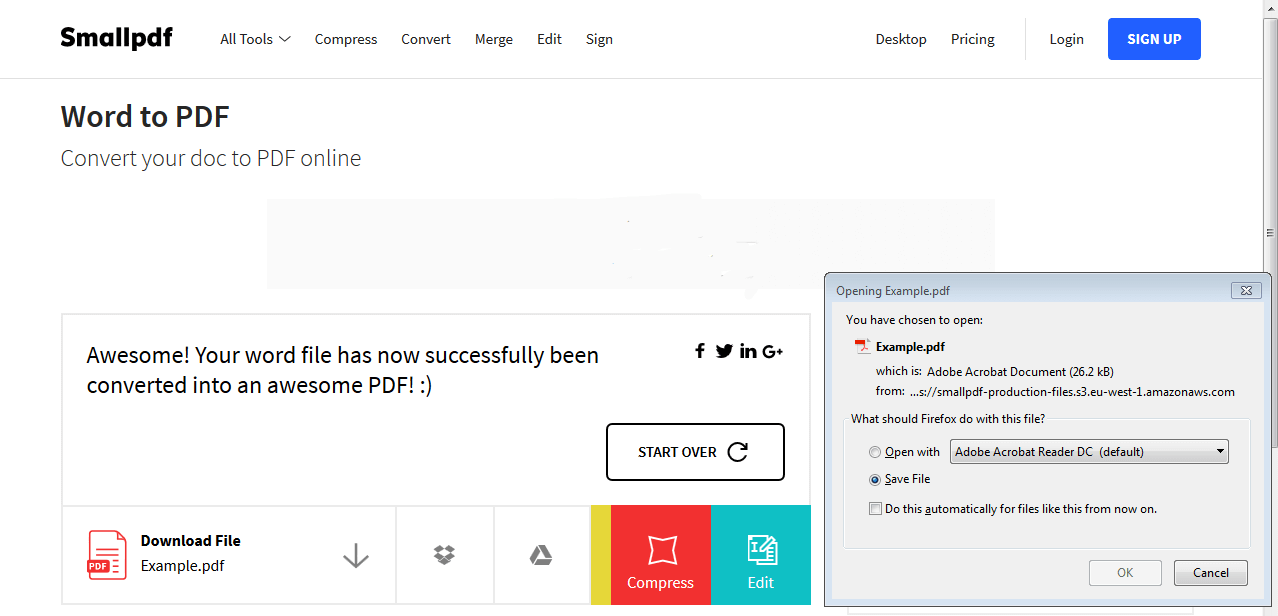
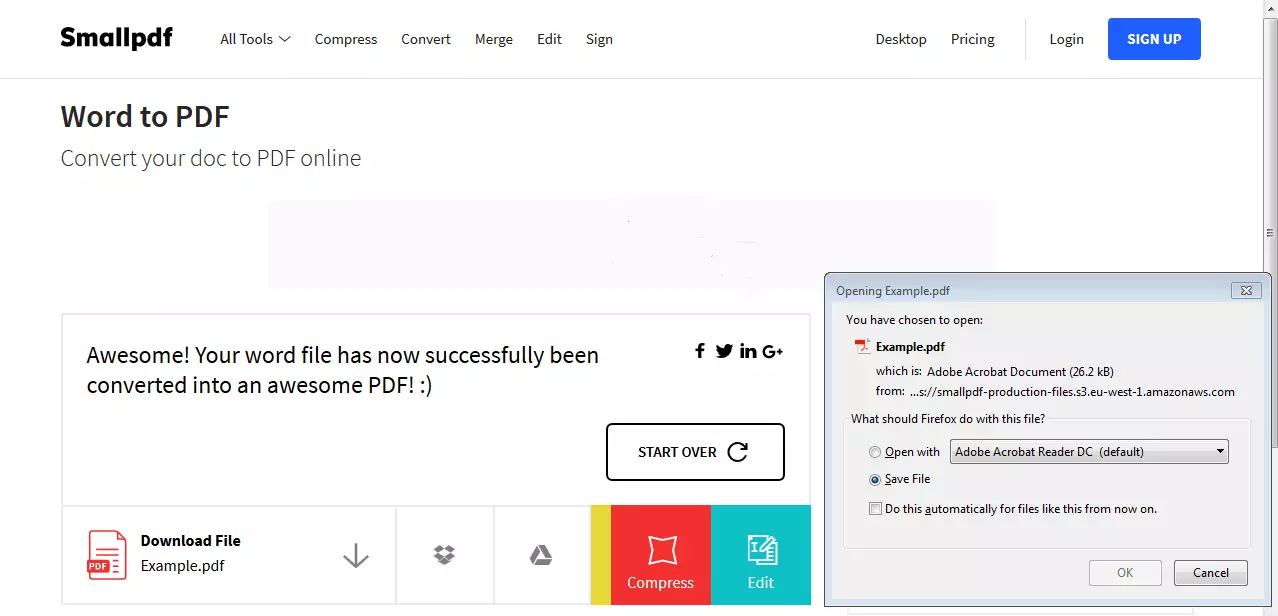
Bear in mind that the free version of the tool only allows two conversions per hour. In order to receive unlimited access to all of the tool’s functions, you can upgrade to the paid version – Smallpdf Pro. You can subscribe to the Pro version directly from the website. The speed of the free version is convincing, but if you need to convert multiple Word files it’s worth upgrading to Pro, or using another tool.
The website itself contains some advertising – be aware that some advertisers design their ads to look like download buttons to trick people into clicking.
Online2PDF
Online2PDF is a similar online tool, which supports the conversion of up to 20 files simultaneously. Like SmallPDF, it works via drag and drop, but also allows you to drag several files into the same window at once. You then have several options: convert the Word files into a single PDF, merge them, convert them one at a time, or export individual pages of the document in separate PDF files. Despite the relatively low conversion speed, the results are convincing.
Overview
| Tool | System | Price | Functions | Adverts |
|---|---|---|---|---|
| Microsoft Word | Windows, macOS | Im Microsoft Office-Paket enthalten | Save Word file as PDF, Simple password protection, Supports PDF/A format | No |
| PDFCreator | Windows XP, Vista, 7, 8, 10 | Free, Plus version for ca. $8 per year | Save PDF via print function, Extensive encryption options, Receive PDF and send as an e-mail | Display advertising in the free version, Installation contains adware |
| PDF24 | Windows XP, Vista, 7, 8, 10 | Free | Save PDF via print function, Extensive encryption options, Convert PDFs to image files | No |
| TextEdit | macOS | Pre-installed | Save Word file as PDF, Extensive encryption options | No |
| Smallpdf | Web based | Free for up to 2 files/hours, Unlimited access to multiple tools for $6 a month | Online conversion via drag and drop, Connects with cloud services | Display ads on the website |
| Online2PDF | Web based | Free | Online conversion via drag and drop, Convert, merge, and share up to 20 documents | Display ads on the website |