

How to see everyone on Zoom – the gallery view

Video conferences with many participants can become confusing. With Zoom and Zoom alternatives such as Skype and Microsoft Teams, the current speaker is usually highlighted or the main display. Depending on the settings on Zoom, however, you’ll only see a few of the other participants. There is a solution to this, though! With the Zoom gallery view you can see more meeting participants on your screen simultaneously. How to see everyone on Zoom will be the topic of this article.
- Free website protection with SSL Wildcard included
- Free private registration for greater privacy
- Free Domain Connect for easy DNS setup
Seeing everyone on Zoom - is that possible?
Does this sound familiar? You create a Zoom meeting or join a Zoom meeting and all you see is a list of names. Depending on which speaker is currently active, the video image might jump back and forth between speakers. Wouldn’t it be nice to see all participants at a glance or decide for yourself how Zoom displays the participants of the video conference? Easily done!
There are various layout settings for this. For example, you can pin a video to avoid jumping between active speakers, or you can hide videos without video transmission. It’s possible to minimise or maximise the video chat. To see all participants, you need to use the Zoom gallery view. It allows you to see up to 49 participants at the same time and to scroll to all other Zoom participants by arrow or swipe. Depending on the Zoom version, up to 1,000 participants can attend a meeting!
Long video conferences with lots of people can be exhausting. There is even a term for this kind of exhaustion: Zoom fatigue.
How to see everyone on Zoom – or at least 49 participants at once!
The prerequisite for the gallery view on Zoom is that no-one can be sharing their screen on Zoom. If this prerequisite is met, you can see all participants with the following steps in the desktop client or on the app.
Adjust settings in the gallery view
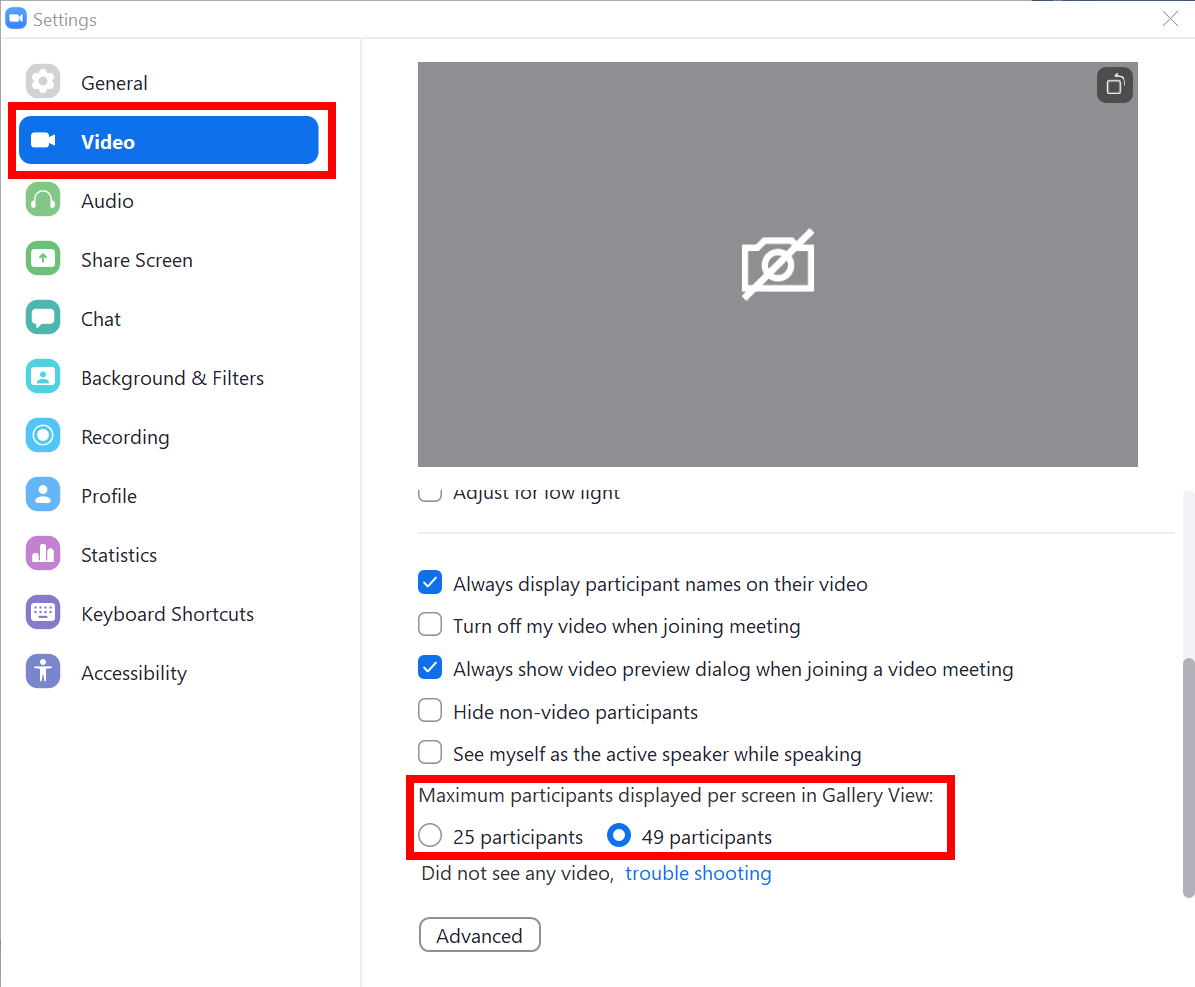
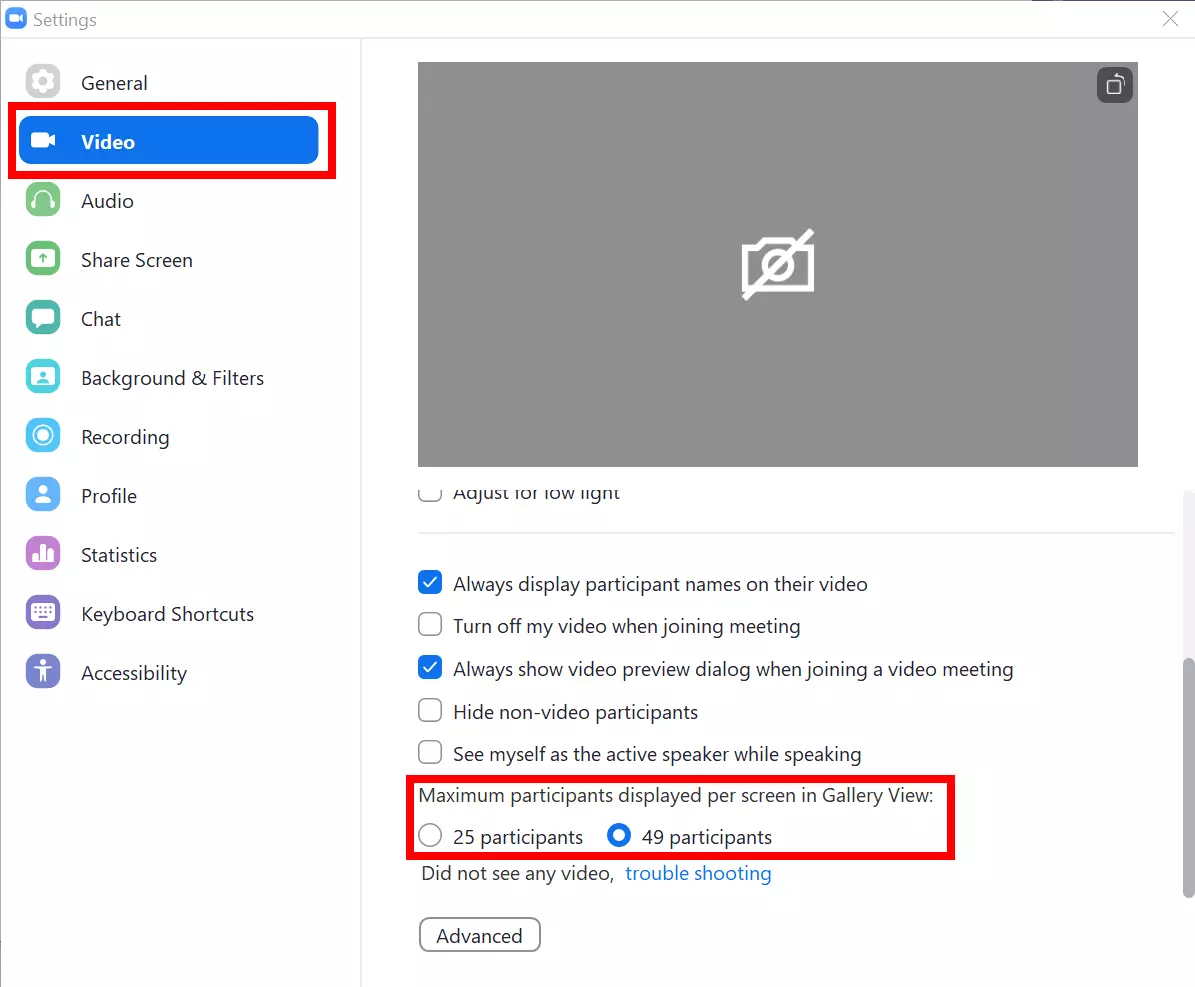
In the ‘normal settings’, the gallery view only shows up to 25 participants. With the following steps you can extend the display up to 49 participants.
- Step 1: Log in to your Zoom client, click the ‘Settings’ gear below your profile picture.
- Step 2: In the settings panel on the left sidebar, go to ‘Video’.
- Step 3: In the ‘Video’ menu, scroll down and enable the ‘49 participants’ option under ‘Maximum participants displayed per screen in Gallery View’.
If you record a Zoom meeting and have enabled the Zoom gallery view in the process, it will also appear in the recording, but limited to a maximum of 25 participants, and only in the desktop application. Whether participants can be recorded in the gallery view also depends on their recording settings. In the Zoom mobile app, which only supports cloud recording, the gallery view does not appear in the recording.
Enabling Zoom’s gallery view in desktop client (Windows/Mac)
- Step 1: First, open your desktop client and log in to your Zoom profile.
- Step 2: Join a Zoom meeting or create or schedule your own meeting. If you are joining without an account, skip the first two steps and join the Zoom meeting.
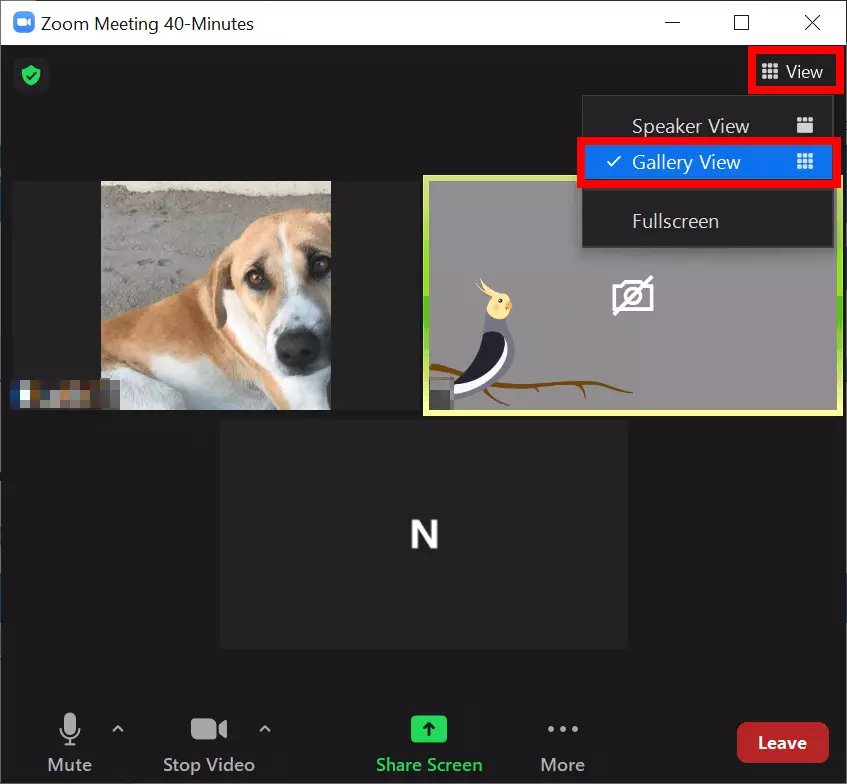
- Step 3: Once you are in the meeting, you will find the ‘View’ option in the upper right corner of the screen. Click on it. You now have a choice between ‘Speaker View’ and ‘Gallery View’. Click on ‘Gallery View’.
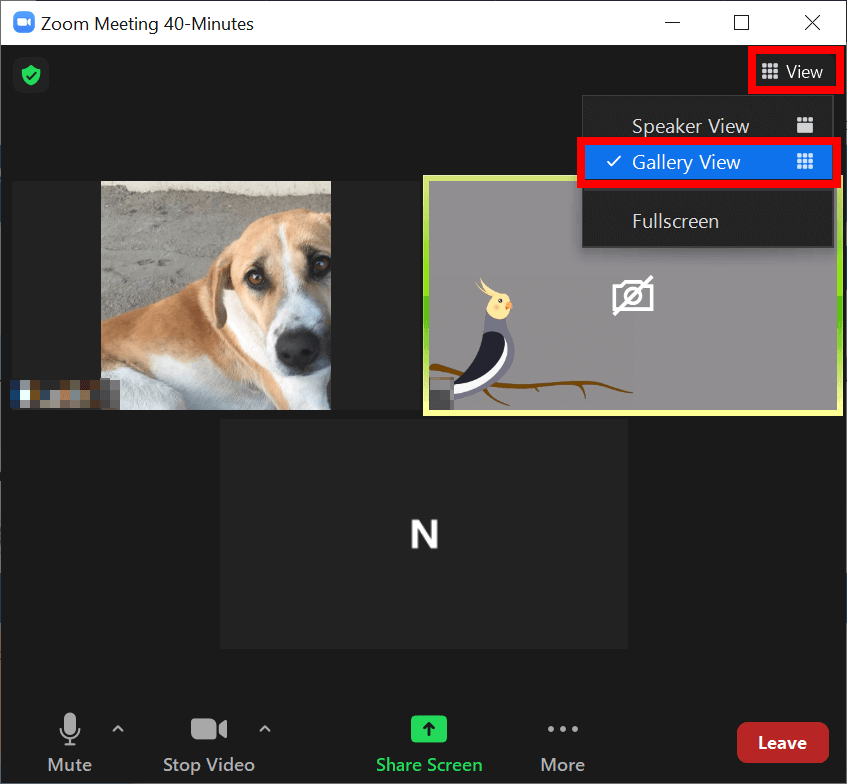
- Step 4: You will be shown a maximum of 25 or 49 participants at a time in the tile layout as soon as there are more than two participants in the meeting. For smaller meetings, the gallery view adjusts automatically. For larger meetings, you can click on the arrow or swipe to show more participants that do not fit on the first page.
- Step 5: In gallery mode, you can also arrange participant windows as you wish with a single click. Other participants will not notice this. You can also minimise the Zoom window by clicking the minimise icon (top right on Windows and top left on Mac) or double-click the window to switch to full-screen mode.
To return to the ‘Speaker View’, click the ‘View’ icon again in the upper right corner.
Set-up Zoom’s gallery view in mobile app (iOS/Android)
- Step 1: Launch the Zoom app on your Android smartphone or Android tablet or iPhone. On the Home screen, click New Meeting, and then click Start Meeting or join a meeting.
- Step 2: The mobile app automatically uses the speaker view. To switch to the gallery view, swipe the speaker window to the left. However, the gallery view is only available for three or more participants.
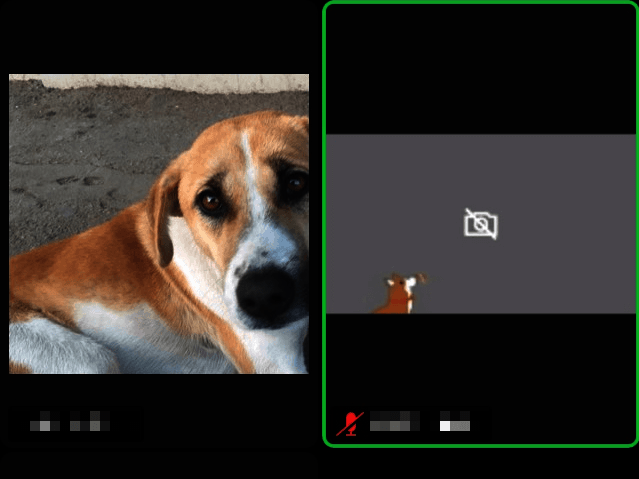

- Step 3: The Zoom mobile app displays up to four participants at once in the gallery view. This is also the case on Android tablets with larger screens – and this is the best way for how to see everyone on Zoom on a mobile device. If you want to see more participants, swipe further to the left. Swipe to the right to return to the previously displayed participants or to the Active Speaker.
How to see everyone on Zoom on an iPad
On the iPad, you can see up to 9 or 16 participants at the same time in the gallery view. With the iPad Pro 2020 ‘11’ and iPad Pro 2020 ‘12.9’ you can even see up to 25 participants at the same time.
- Step 1: Launch the Zoom app and enter or create the Zoom meeting.
- Step 2: In the meeting, you will see the tile icon for ‘Gallery View’ at the top left when you touch the screen. Tap the icon to switch to the gallery view. Up to 9 or 16 participants are now displayed simultaneously.
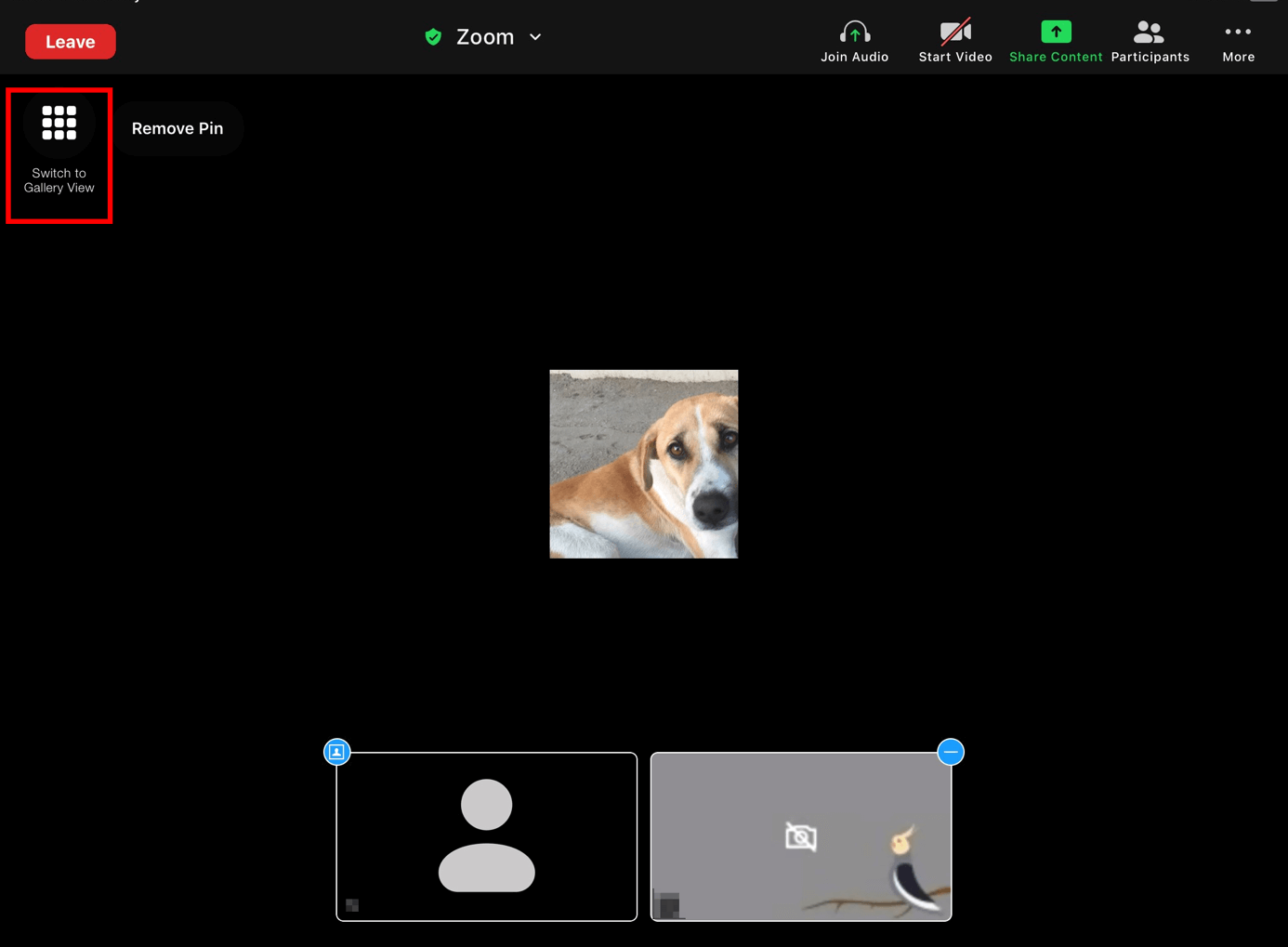
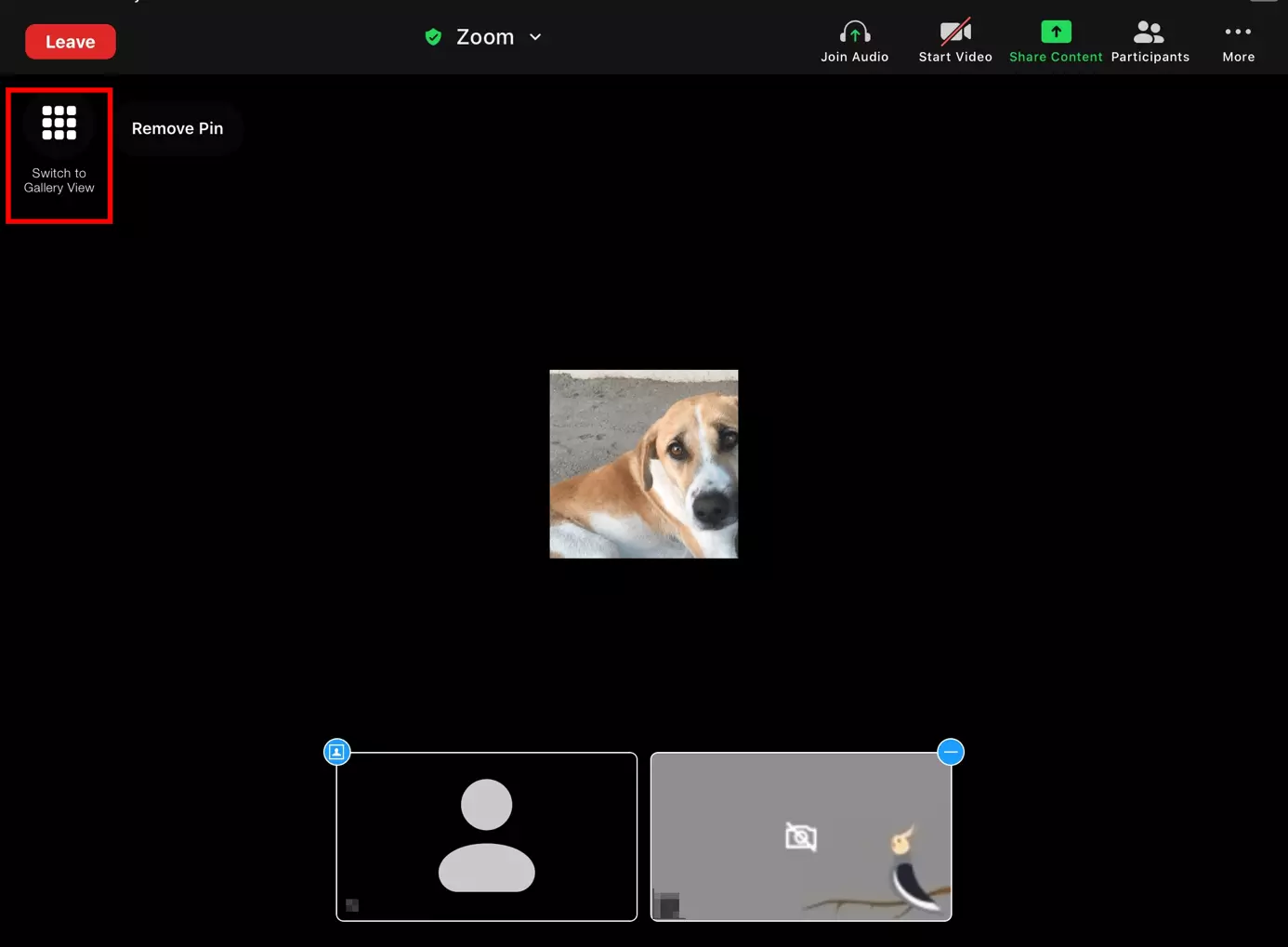
Touch the screen again and tap the silhouette icon on the left if you want to return to the Speaker View.