

Import Excel document into Google Sheets: a tutorial

When it comes to complex formulas, lists, or automated dependencies, Excel is often the first choice. However, if you want to open or edit an Excel file, you don’t necessarily have to use the Microsoft spreadsheet. The files can also be opened with various Microsoft Excel alternatives – including Google Sheets, the search engine’s very own spreadsheet program on the Google Workspace.
In this tutorial, we’ll show you how to upload Excel spreadsheets into Google Sheets and transfer your Excel project to Google Sheets step by step.
Open Excel spreadsheets in Google – a quick guide
The Google Workspace programs, such as the Google Docs text editor and Google Sheets, are free to use. One of the greatest advantages of the online suite is its compatibility with files from the Microsoft Office suite, which makes it easy to open and edit Excel spreadsheets, among other things.
Just follow these five steps to import your Excel projects into Sheets or other Google Workspace apps like Google Docs:
- Go to Google Drive in the browser of your choice or launch the Google Drive app.
- Upload your Excel file.
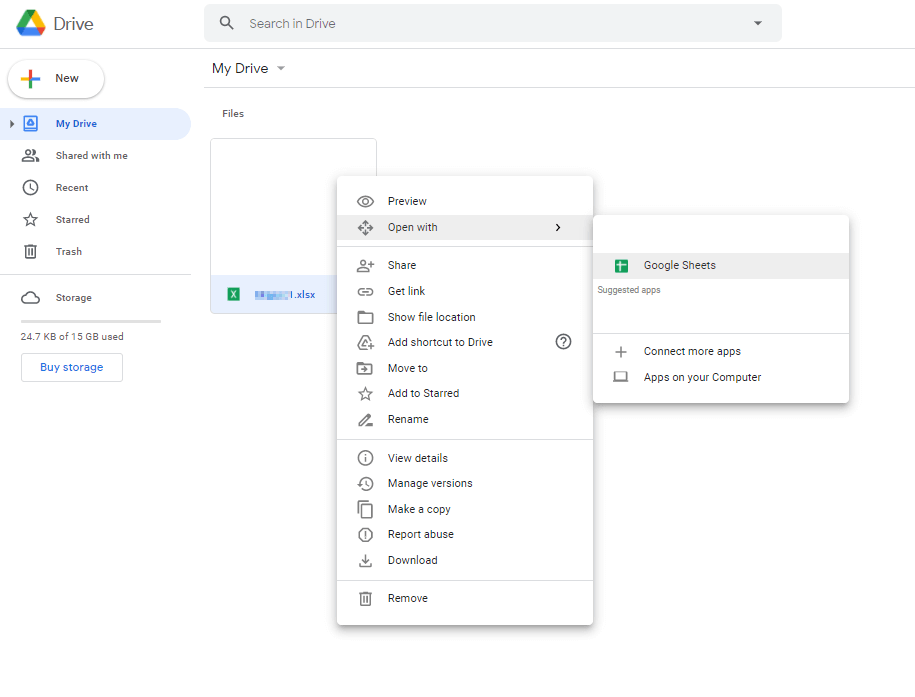
- Right-click on the Excel file and select ‘Open with’.
- Select the Google app (recommended: Google Sheets) that you want to use to open the Excel file.
- Now you can review, edit, save, and send the Excel file in the usual way.
With Google Workspace from IONOS, you can enjoy the benefits of the Google suite and benefit from additional services such as prioritised support and your own IONOS domain.
Upload and edit Excel data in Google Sheets: step-by-step guide
The following sections are a step-by-step guide to importing Excel files into Google Docs or opening and editing them in Google Sheets.
Step 1: Open Google Drive
To upload Excel or CSV files to Google Sheets or other apps from the Google Workspace, you need an active Google account. In case you don’t have one yet, head over to Google to register.
If you have a Google account, first log in with your credentials. Then open the app menu (top right). Click on the Google Drive icon to launch the online storage in your browser.
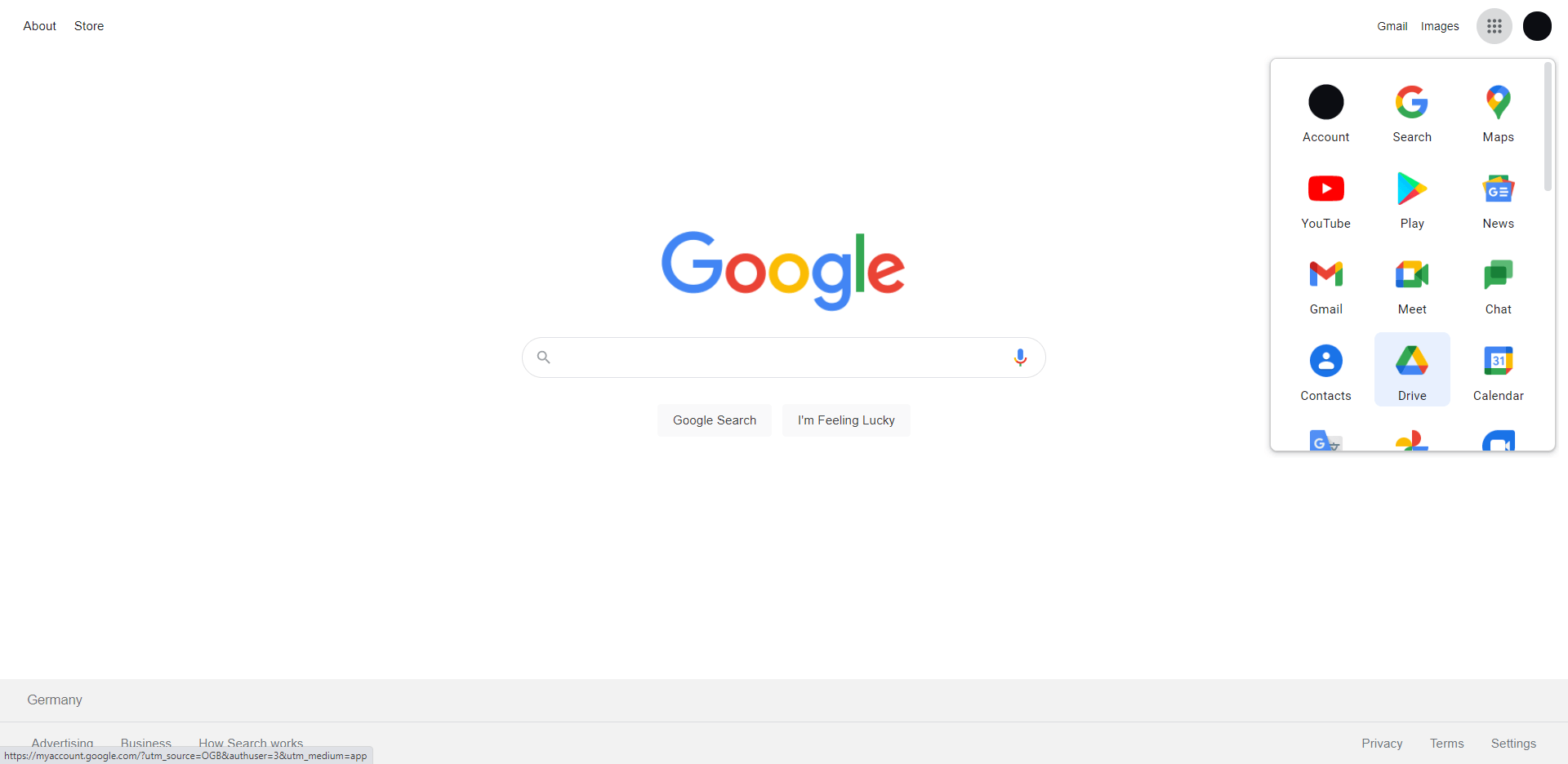
Smartphone and tablet users can launch Google Drive just as easily by using the corresponding app for Android or iOS.
Step 2: Upload Excel file to Google Drive
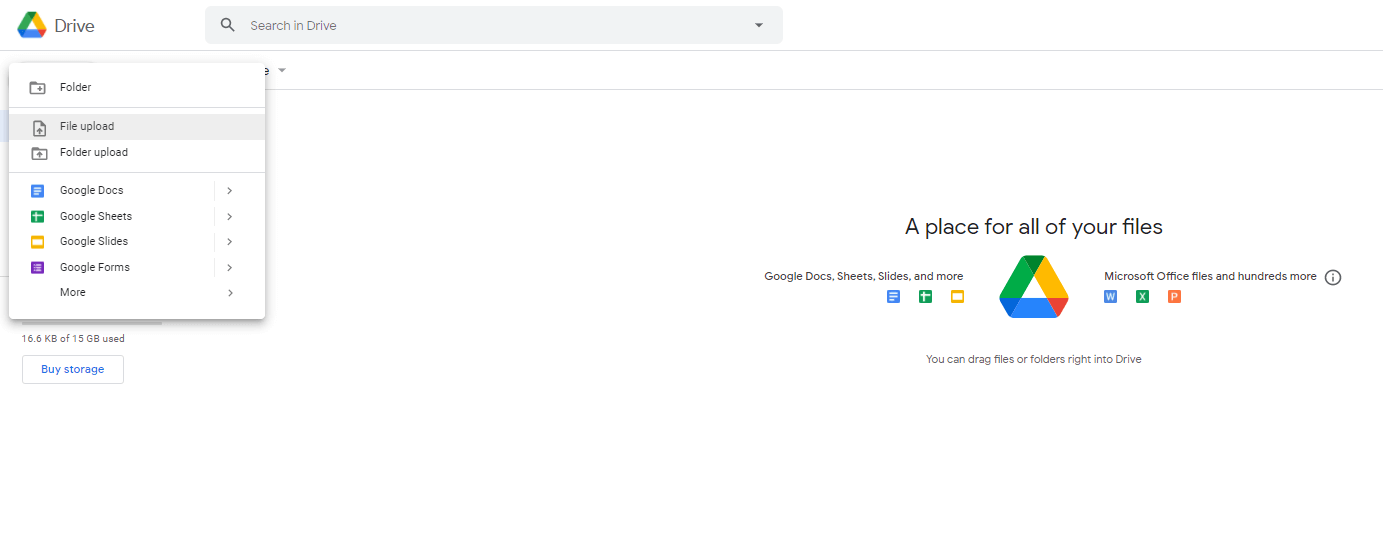
Once you’ve opened Google Drive, you’ll see a plus sign in the upper left corner, labelled ‘New’. Click on the button and select ‘File upload’.
An Explorer window opens that lets you browse the location where the Excel spreadsheet is stored. Select the Excel file and click ‘Open’ to finish. Once the Excel file is uploaded to Google Drive, you’ll receive a message to confirm.
Prefer to access Google Drive without an Internet connection? Activate the Offline function in Google Drive.
Step 3: Open Excel spreadsheet in Google Docs and Google Sheets
Once you’ve uploaded the Excel file to Google Drive, you decide how you want to open the spreadsheet document. Select the file by right-clicking on it. A dialogue window will pop up prompting you to ‘Open with’.
Depending on the file type, Google will automatically suggest apps that are best suited to opening your file. For example, Google Docs is always recommended for Word documents. To open and edit Excel spreadsheets, Google Sheets will be the suggested choice by default.
Step 4: Edit and save Excel file
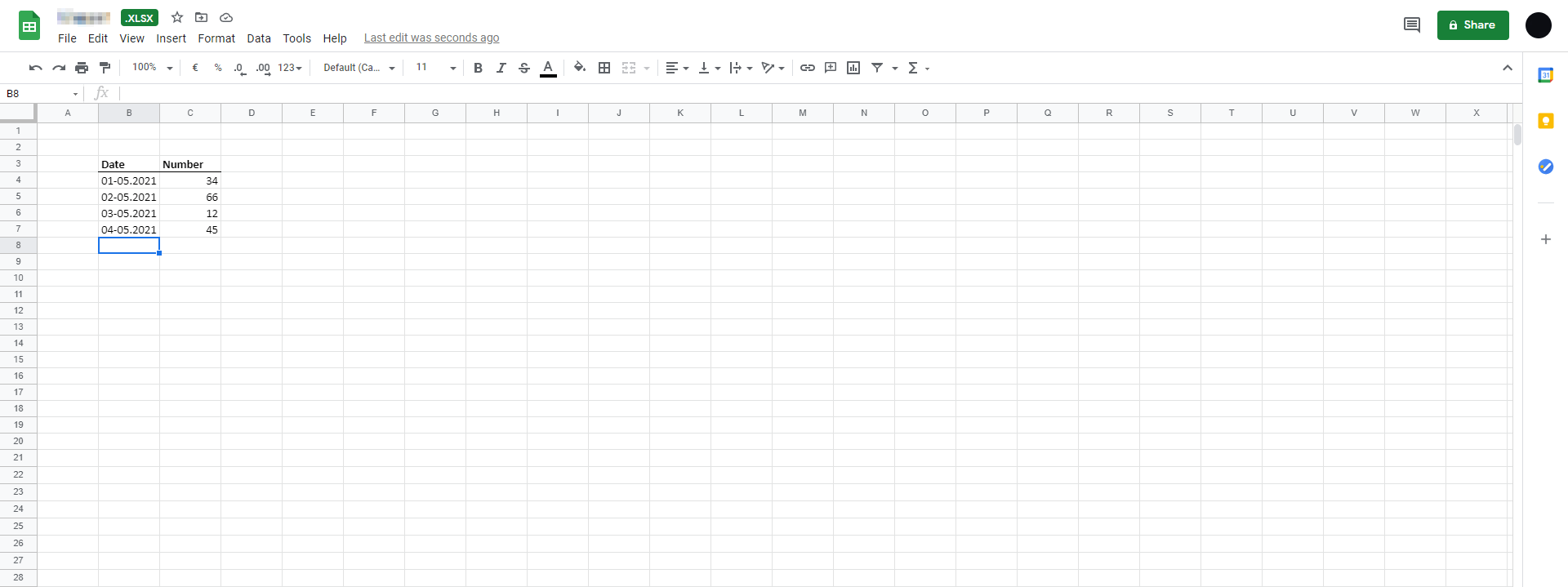
Now that you’ve opened your Excel spreadsheet or imported a CSV to Google Sheets, you can edit it as usual. For example, you can add and adjust data or optimise the display format of your Excel spreadsheet.
When working with Excel spreadsheets in Google Workspace, keep in mind that for all its similarities, there are also crucial differences between Google Sheets and Excel.
Step 5: Save and share Sheets
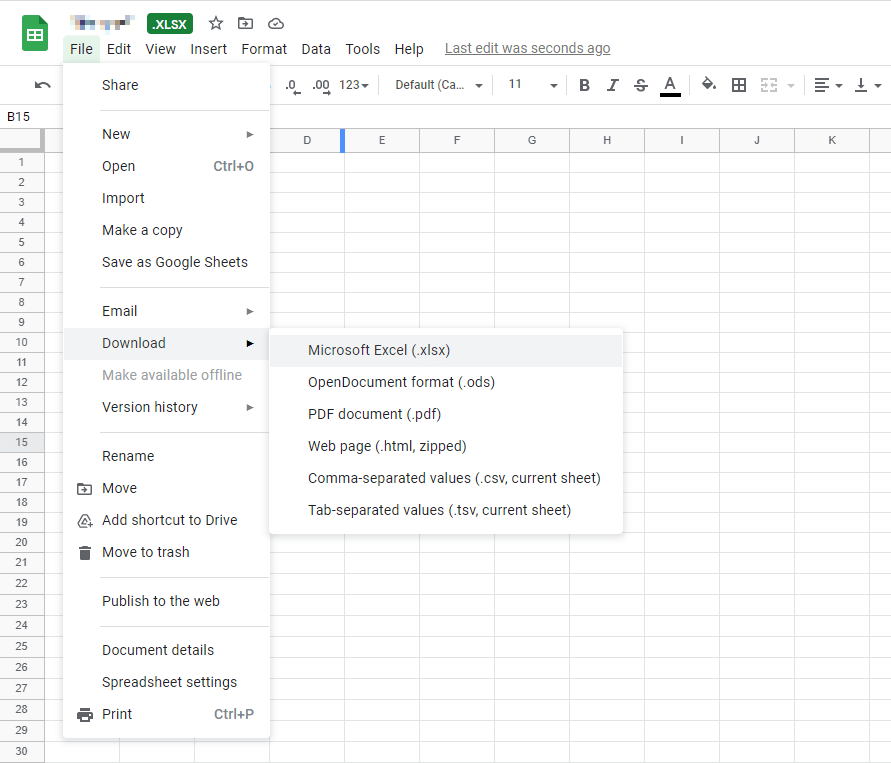
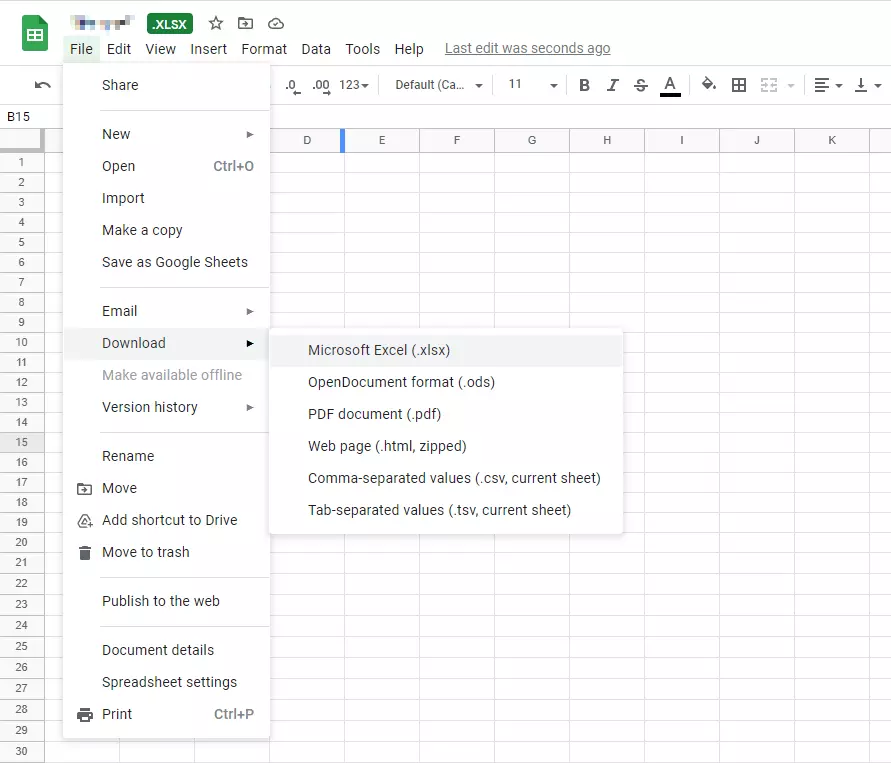
Once you’ve successfully edited your spreadsheet, you can save the document as a Google Sheet. Click ‘File’ and then ‘Save as Google Sheet’. This is especially useful if you plan on sharing the spreadsheet via Gmail.
To do this, launch the Google Mail app, select ‘Write’ and input the sender from your Google Contacts. To share your saved Google Drive spreadsheet, simple click the ‘Paste file from Google Drive’ icon.
If you want to save the file as an Excel document, select the ‘Download’ via the ‘File’ menu item and choose the XLSX format. This way you can save the Excel table on your PC in a folder of your choice.
The best format for storing your spreadsheet depends, among other things, on which collaboration tool you tend to use at work. Do you know the pros and cons of comparing the ‘Google Workspace vs Microsoft 365’?
Optimal teamworking is guaranteed with HiDrive cloud storage from IONOS! Together with your personalised email address, it makes for the perfect solution to manage data. If you’re switching over from a Gmail account, just set up Gmail forwarding. It’s as easy as 1-2-3!