

How to Remove Hyperlinks – in Word, Excel or Outlook

You can enhance your texts, presentations, and emails using hyperlinks. Thanks to them, readers only need to click on the typically blue underlined words or phrases to visit the appropriate website.
Would you like to learn how to insert hyperlinks in Office products? Read through the steps in our article on “Creating Hyperlinks”.
But sometimes after creating a hyperlink (either yourself or automatically using the program), you might prefer to have the URL as plain text: without the blue colour, underlining, or the clickable text. There can be many reasons for this. In some instances, you may want to simply keep the appearance of the text consistent. Or you might wish to print out the document; the links would then not be clickable. Or the website address may only be intended as an example. If the website’s content is irrelevant to the context, there’s no need to link to it. In these situations, it’s best not to use a hyperlink. But how can you remove a hyperlink?
How to Remove Links in Microsoft Office Documents
No matter whether you wish to delete a hyperlink in Excel or in Word, Outlook or any other Microsoft Office application, the method is always the same. For this reason, we will show you how this works using a Microsoft Word document as an example.
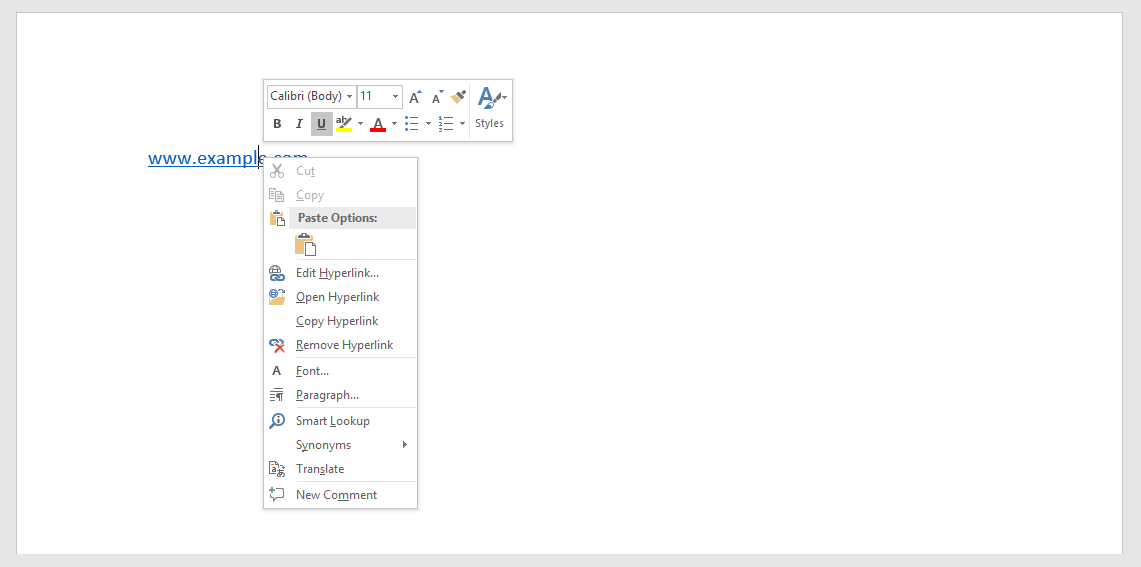
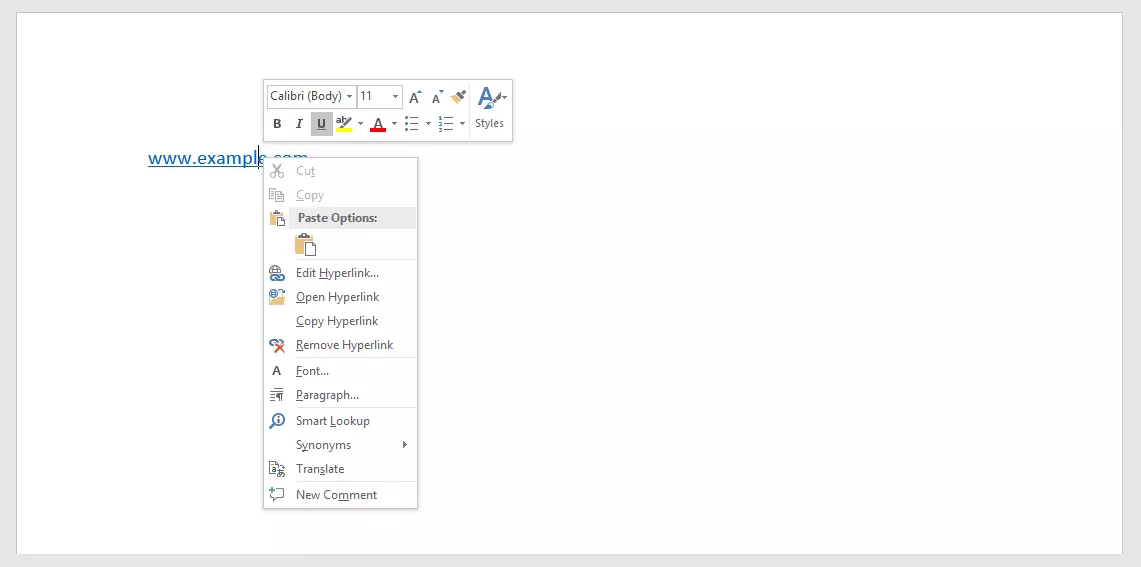
- Step 1: Click on the link using the right mouse button.
- Step 2: Select Remove Hyperlink in the context menu.
Removing All Links in a Word Document or Outlook Message
Imagine you have a document that contains lots of hyperlinks that you’d rather not remove one by one. Microsoft also offers a feature here – in the form of shortcuts.
- Step 1: First, select the entire text – either by highlighting the area with your mouse or using the key combination CTRL + ALT.
- Step 2: Now use the key combination CTRL + SHIFT + F9 to remove all the hyperlinks from the document or email.
The shift key can usually be recognised by an arrow pointing upwards. It is located above the control key.
However, from version 2010 you can also remove multiple hyperlinks in Excel using the right mouse button. This works both if you select multiple rows and if you want to remove multiple links from an individual cell.
Disabling the Automatic Creation of Hyperlinks
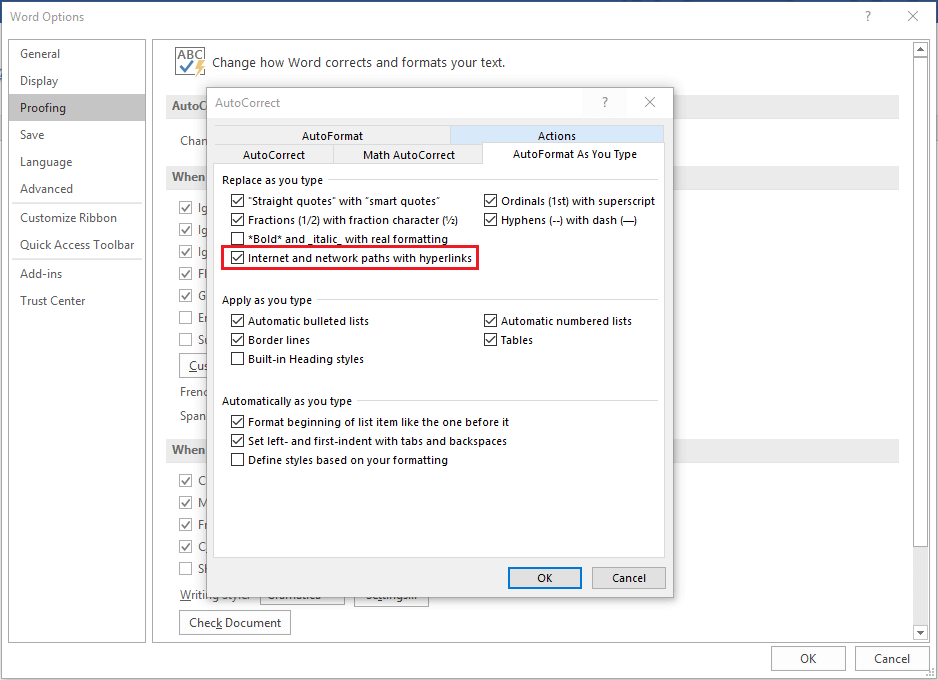
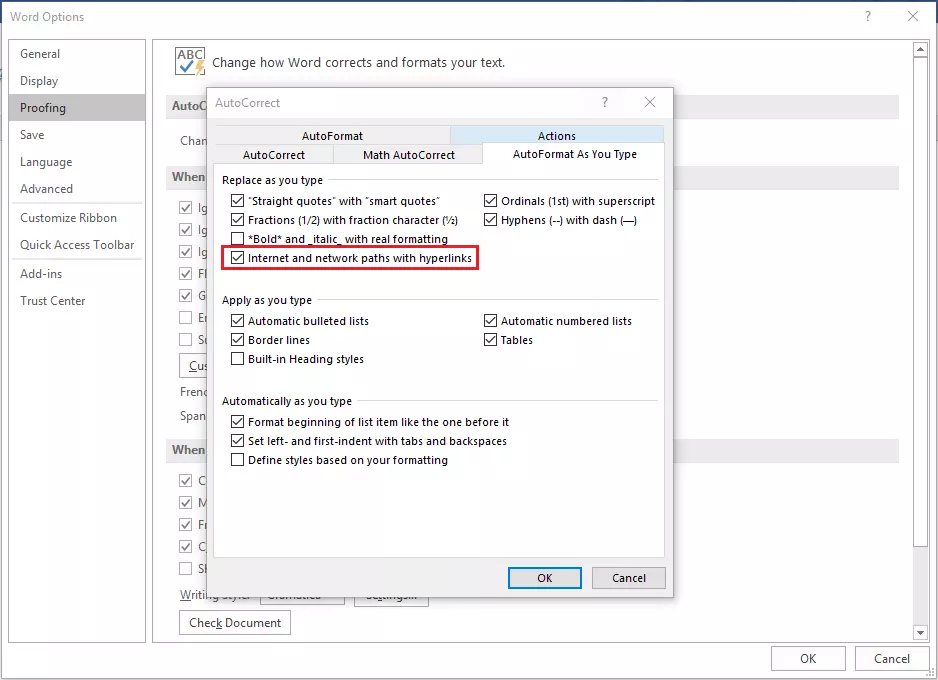
Microsoft Office products tend to automatically create hyperlinks whenever you enter a URL. If you often include web addresses in your texts but rarely want them displayed as hyperlinks, this constant switching around can cost time and energy. Fortunately, you have the option to disable this automatic feature. You can do so in the AutoCorrect Options under Proofing. Here, you can also configure whether you want obvious typos to be removed automatically.
- Step 1: Go to Proofing via File and Options.
- Step 2: Open the AutoCorrect Options.
- Step 3: Remove the checkmark for Internet and network paths with links.
Now, any URLs you enter will be displayed as simple text and the program will not automatically create a clickable hyperlink.
The automatic conversion of a web address into a hyperlink actually takes two steps that the user doesn’t notice. If you reverse the last step after the conversion (via the corresponding button or shortcut CTRL + Z), the hyperlink will be removed but the text will be kept in the document.